OptimCE — Guides utilisateur OptimCE — User guides

Contextual help — the (i) icon

Guide utilisateur User guide

1 Open my communities

Navigation
In the sidebar's profile menu, click "My communities" to see the list of communities you belong to.
Step 1

2 Activate the community

Activating the community
Click "Activate" on the Test Community row to join it in your workspace. The management menu only becomes available once this step is done.
Step 2

3 Management menu unlocked

Activating the community
A new "Management" menu appears in the sidebar, granting access to the community's keys, meters and sharing operations.
Step 3

4 Open the keys

Navigation
In the sidebar's "Management" section, click "Keys" to display the active community's allocation keys.
Step 4

5 Open a key

Allocation keys list
Click the first row of the table to open the detail view for that allocation key.
Step 5

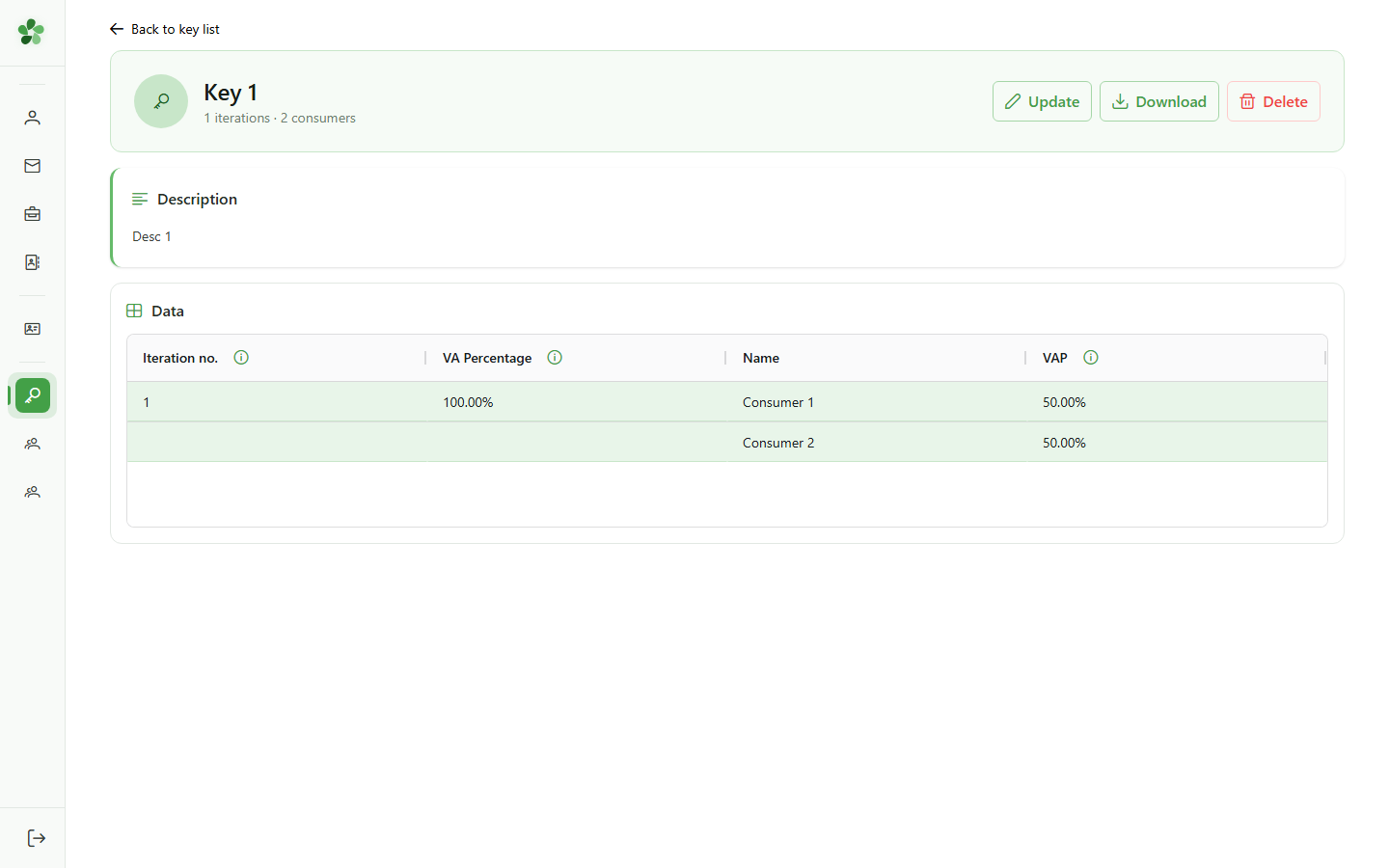
6 Spot the ⓘ icon

Contextual help
Throughout the app, some fields or columns display an ⓘ icon. This signals that extra information is available — just click it to read the explanation.
Step 6

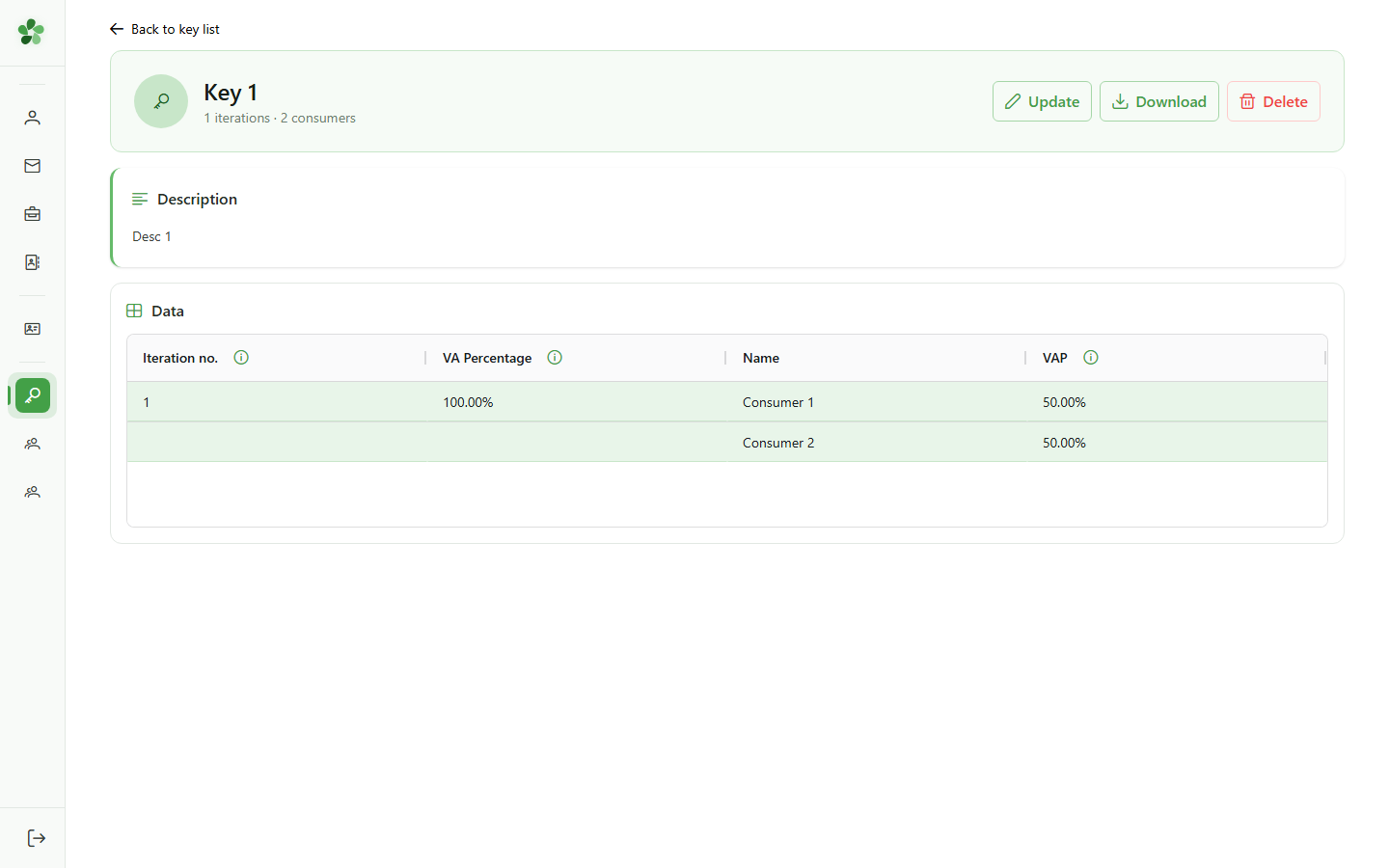
7 Click ⓘ for details

Contextual help
Click the ⓘ icon to get more information about that field. A popover appears with the title and full description.
Step 7

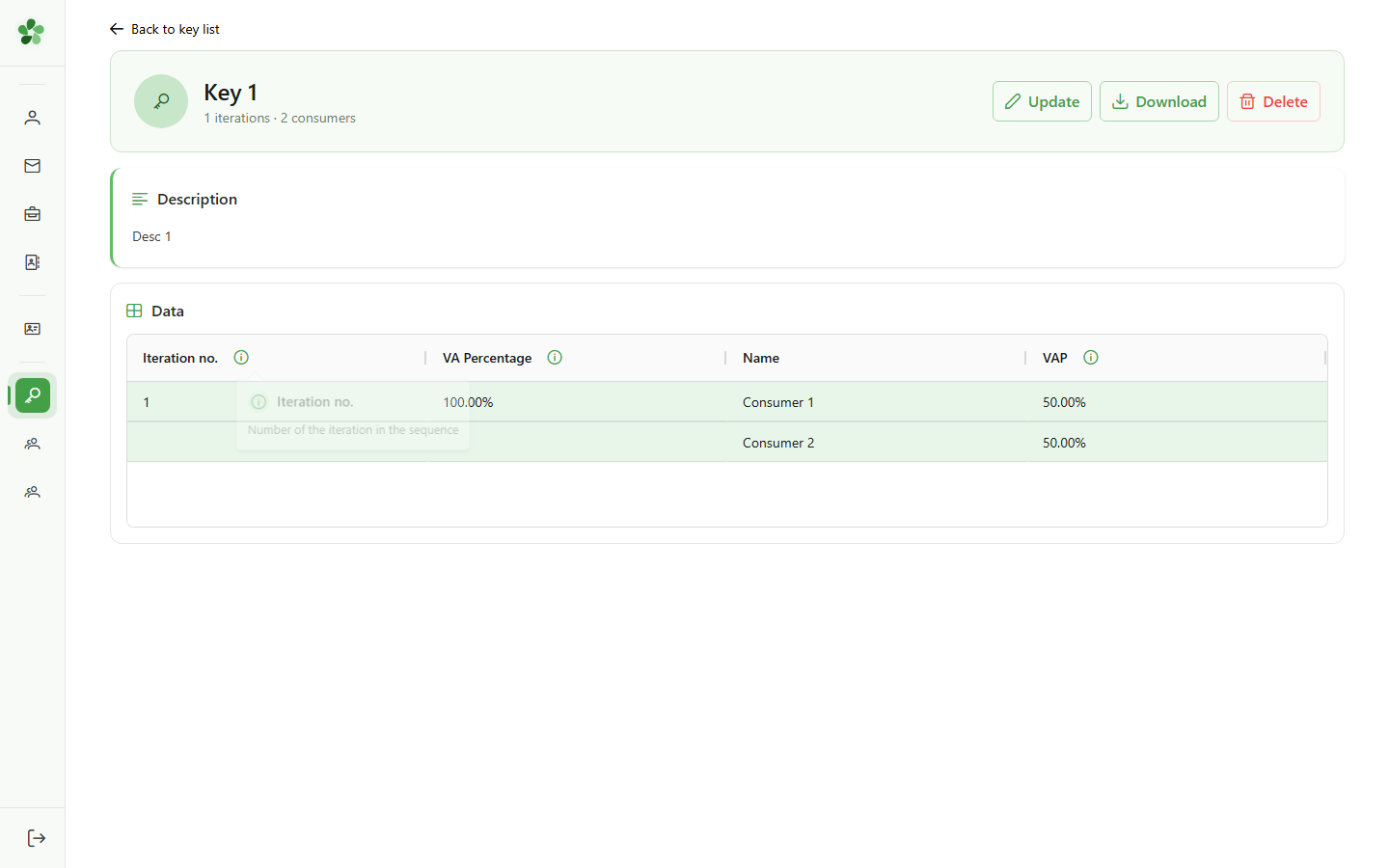
8 Popover appears

Contextual help
The popover shows the field name and its full explanation, letting you understand what each value means without leaving the page. The ⓘ icon works the same way wherever you see it in the app.
Step 8

Contextual help — the (i) icon

Guide utilisateur User guide

1 Open my communities

Navigation
Tap the menu icon to open the navigation drawer, then "My communities" to see the list of communities you belong to.
Step 1

2 Activate the community

Activating the community
On the Test Community card, tap "Activate" to join it in your workspace. The management menu only becomes available once this step is done.
Step 2

3 Management menu unlocked

Activating the community
A new "Management" menu appears in the sidebar, granting access to the community's keys, meters and sharing operations.
Step 3

4 Open the keys

Navigation
Tap the menu icon to open the drawer, then in the "Management" section tap "Keys" to display the active community's allocation keys.
Step 4

5 Open a key

Allocation keys list
Tap the first card to open the detail view for that allocation key.
Step 5

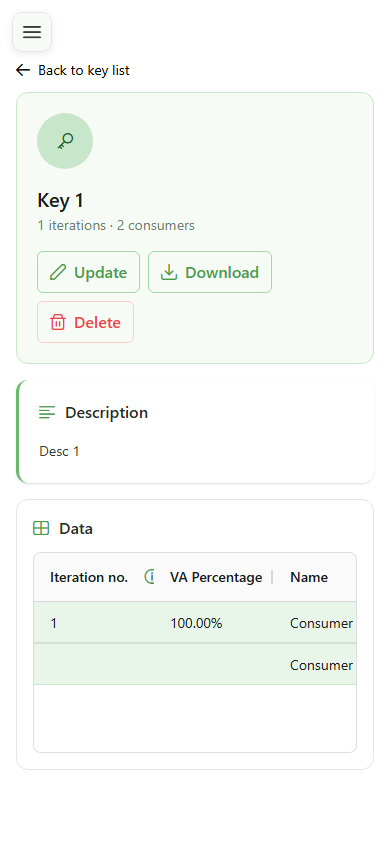
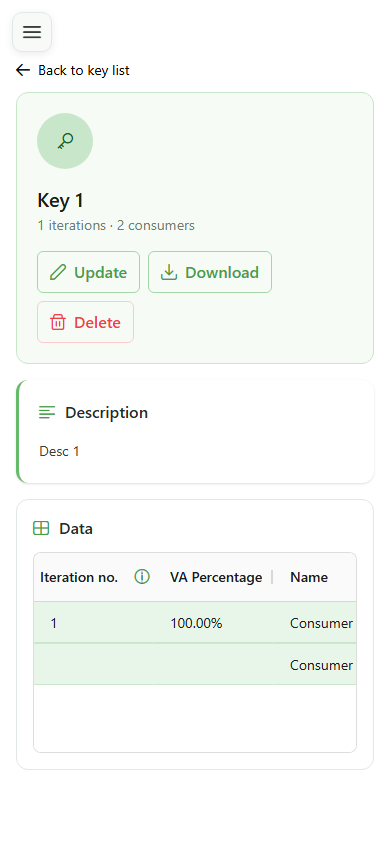
6 Spot the ⓘ icon

Contextual help
Throughout the app, some fields or columns display an ⓘ icon. This signals that extra information is available — just click it to read the explanation.
Step 6

7 Click ⓘ for details

Contextual help
Click the ⓘ icon to get more information about that field. A popover appears with the title and full description.
Step 7

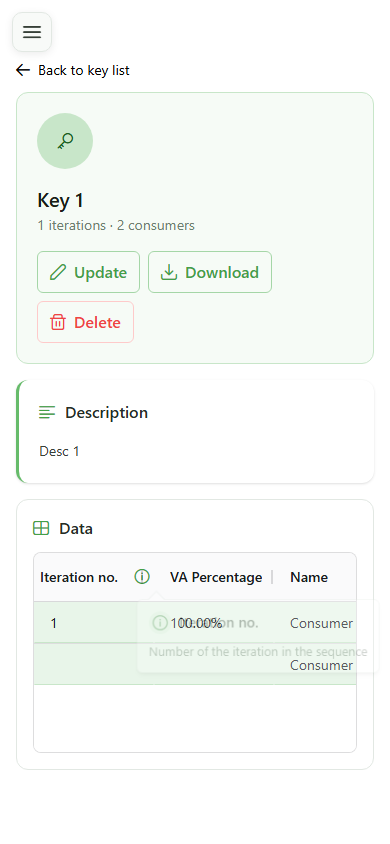
8 Popover appears

Contextual help
The popover shows the field name and its full explanation, letting you understand what each value means without leaving the page. The ⓘ icon works the same way wherever you see it in the app.
Step 8