Activate a community
Guide utilisateur
User guide
Gebruikershandleiding
Benutzerhandbuch
1 Your communities
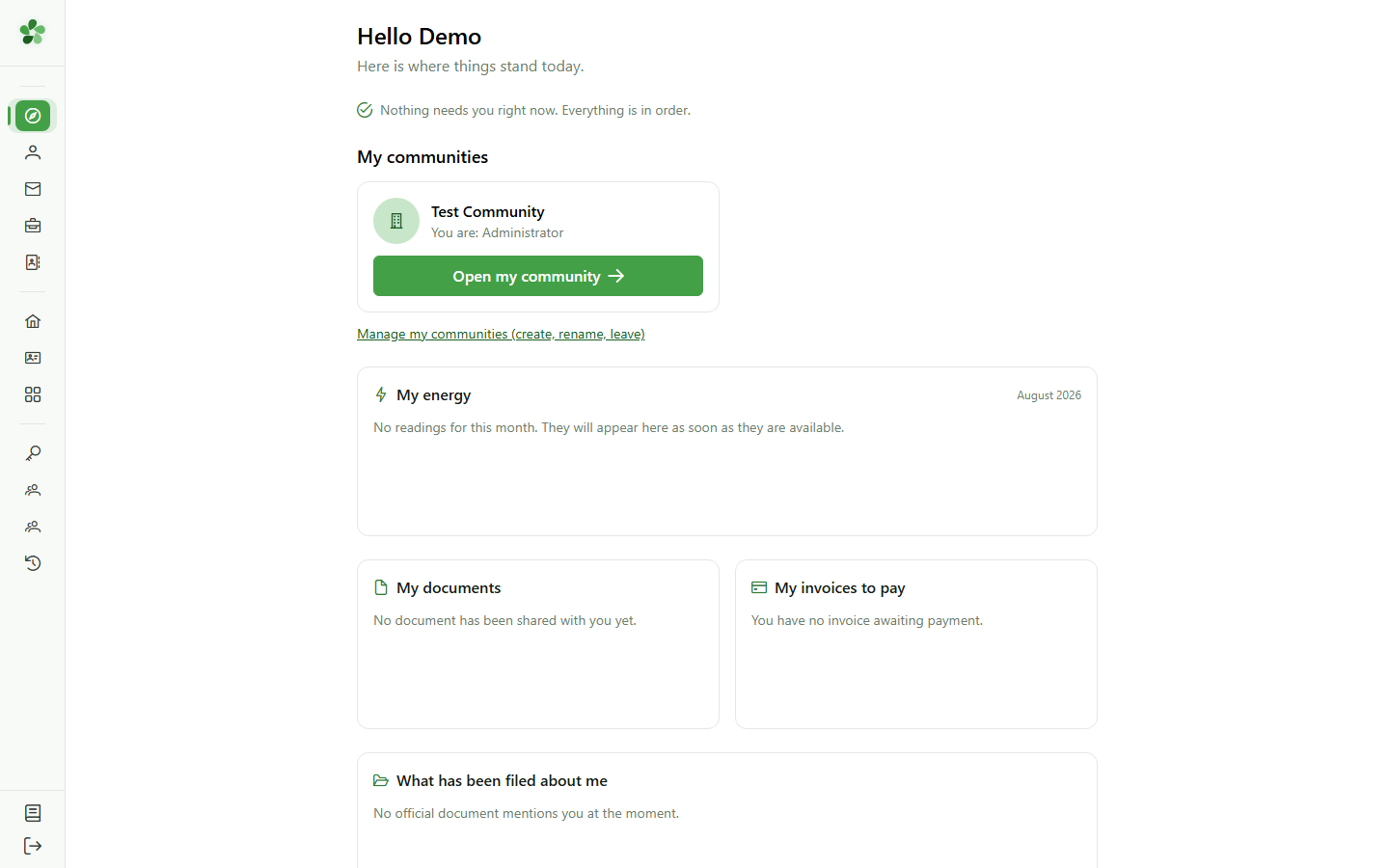
Home page
After signing in you land on your home page. It lists the communities you belong to, along with your role in each one.
2 Enter the community
Choosing the active community
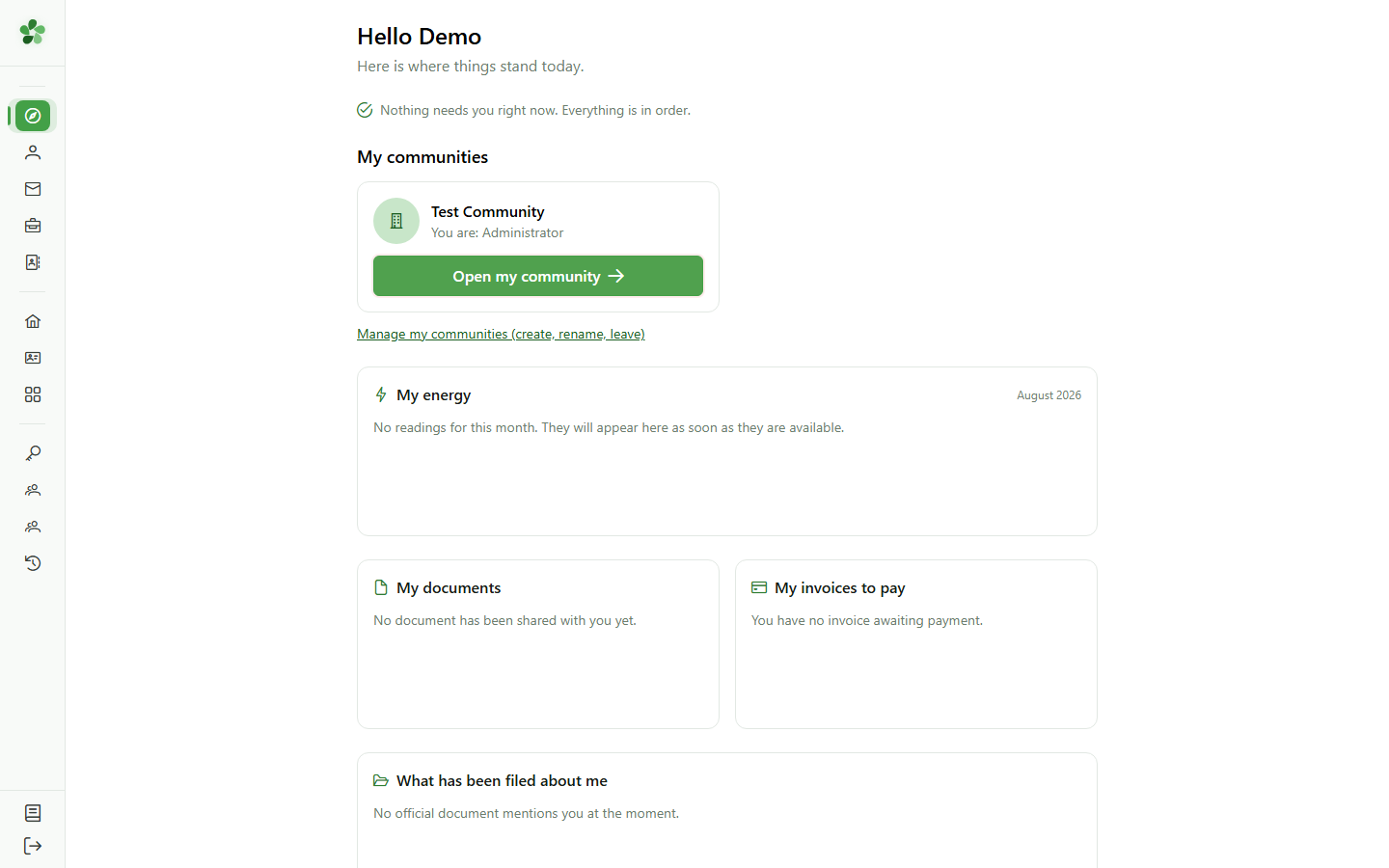
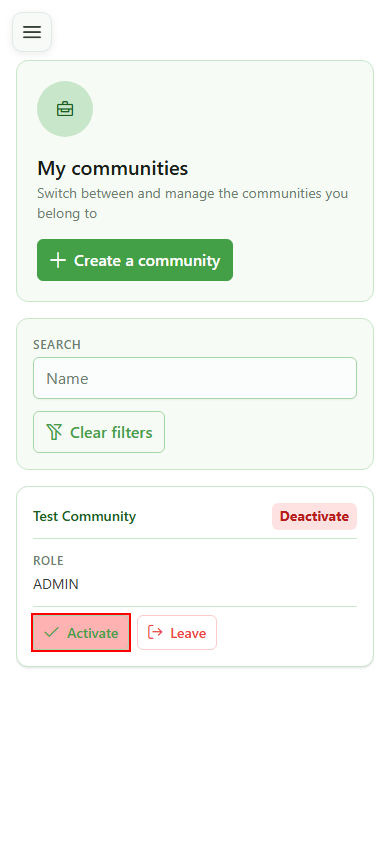
Click the button on the Test Community card to open it. That community becomes your active one: the management menu and every page that follows relate to it.
3 Management menu unlocked
Activating the community
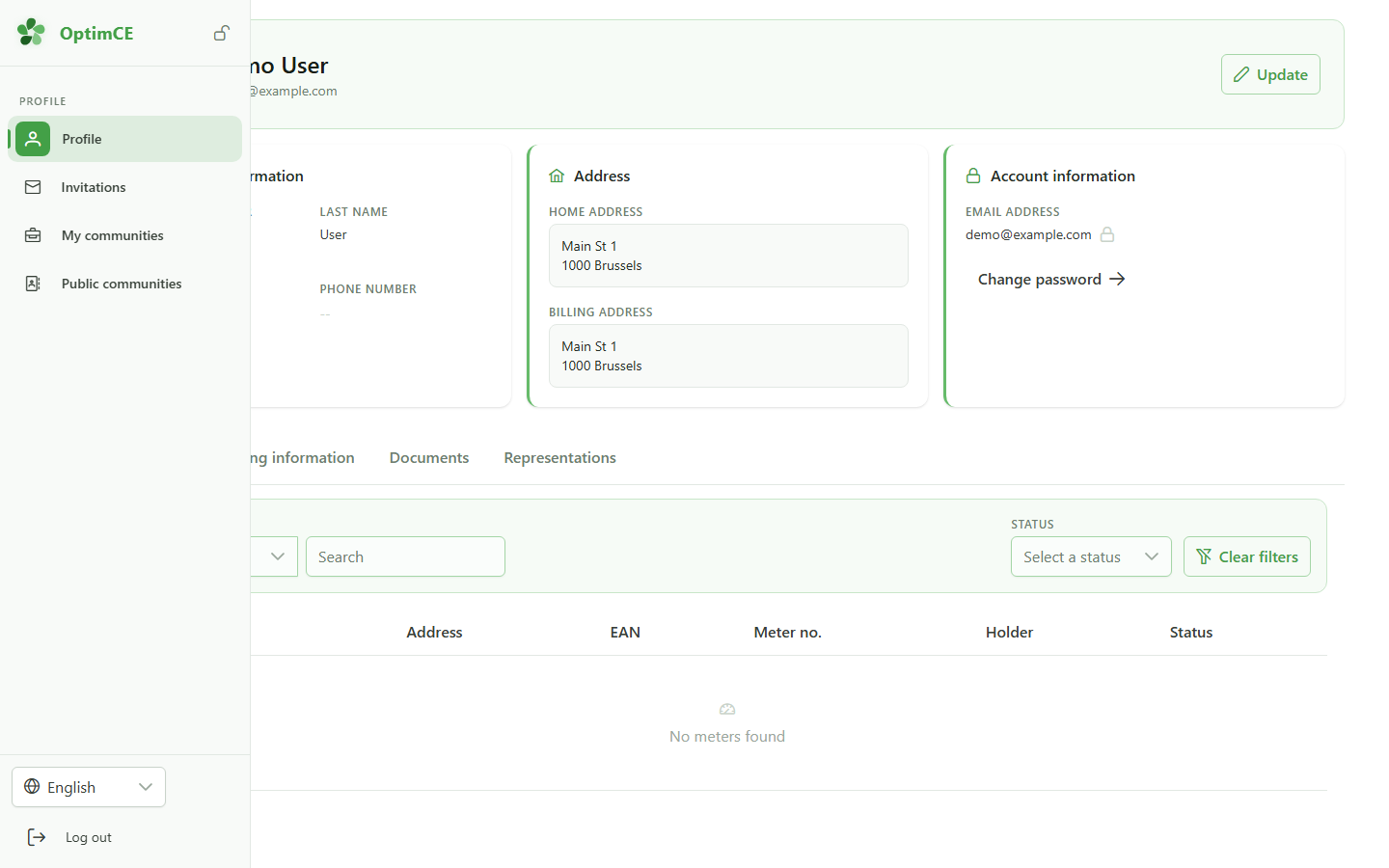
A new "Management" menu appears in the sidebar, granting access to the community's keys, meters and sharing operations.
4 Open the keys
Navigation
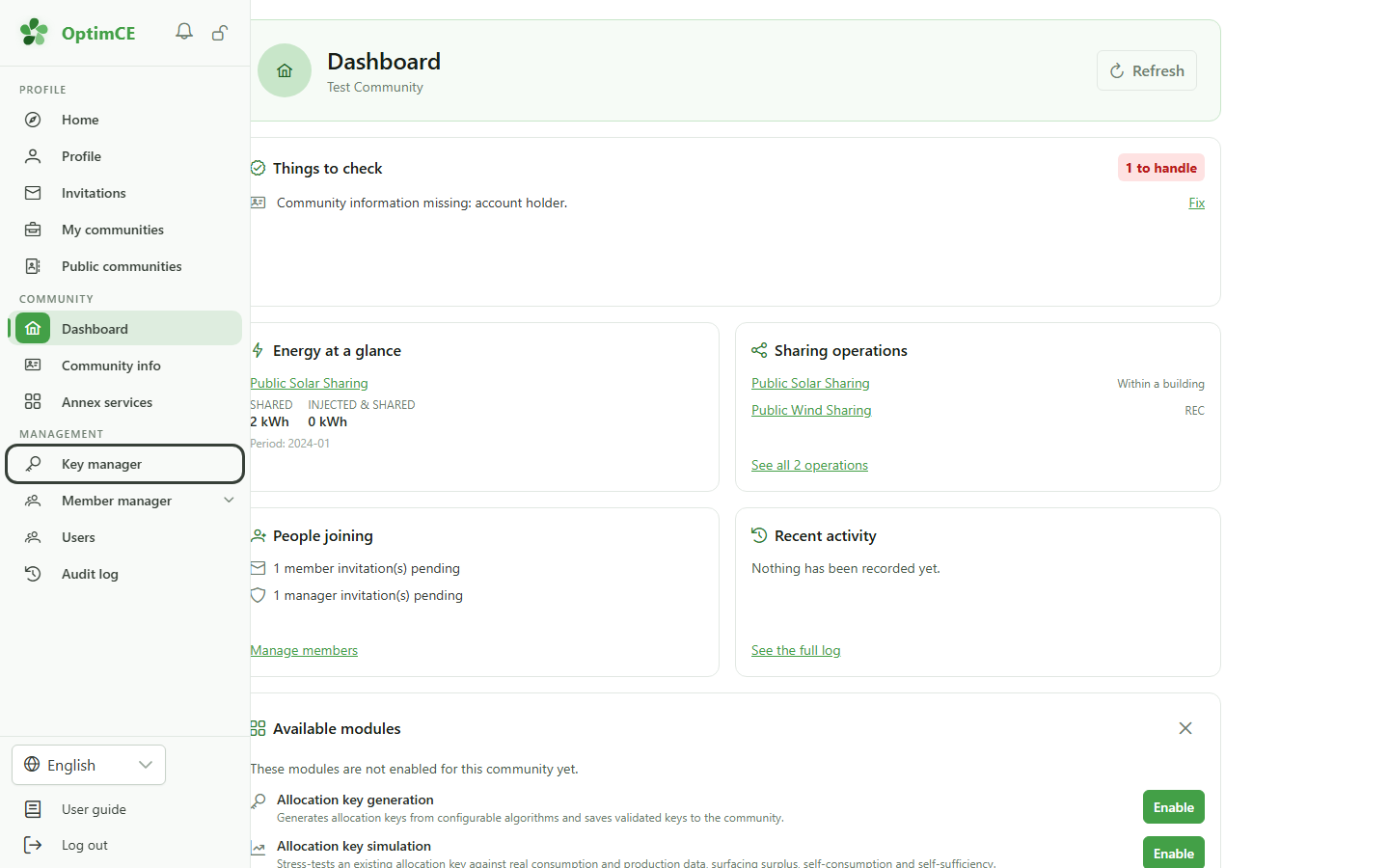
In the sidebar's "Management" section, click "Keys" to display the active community's allocation keys.
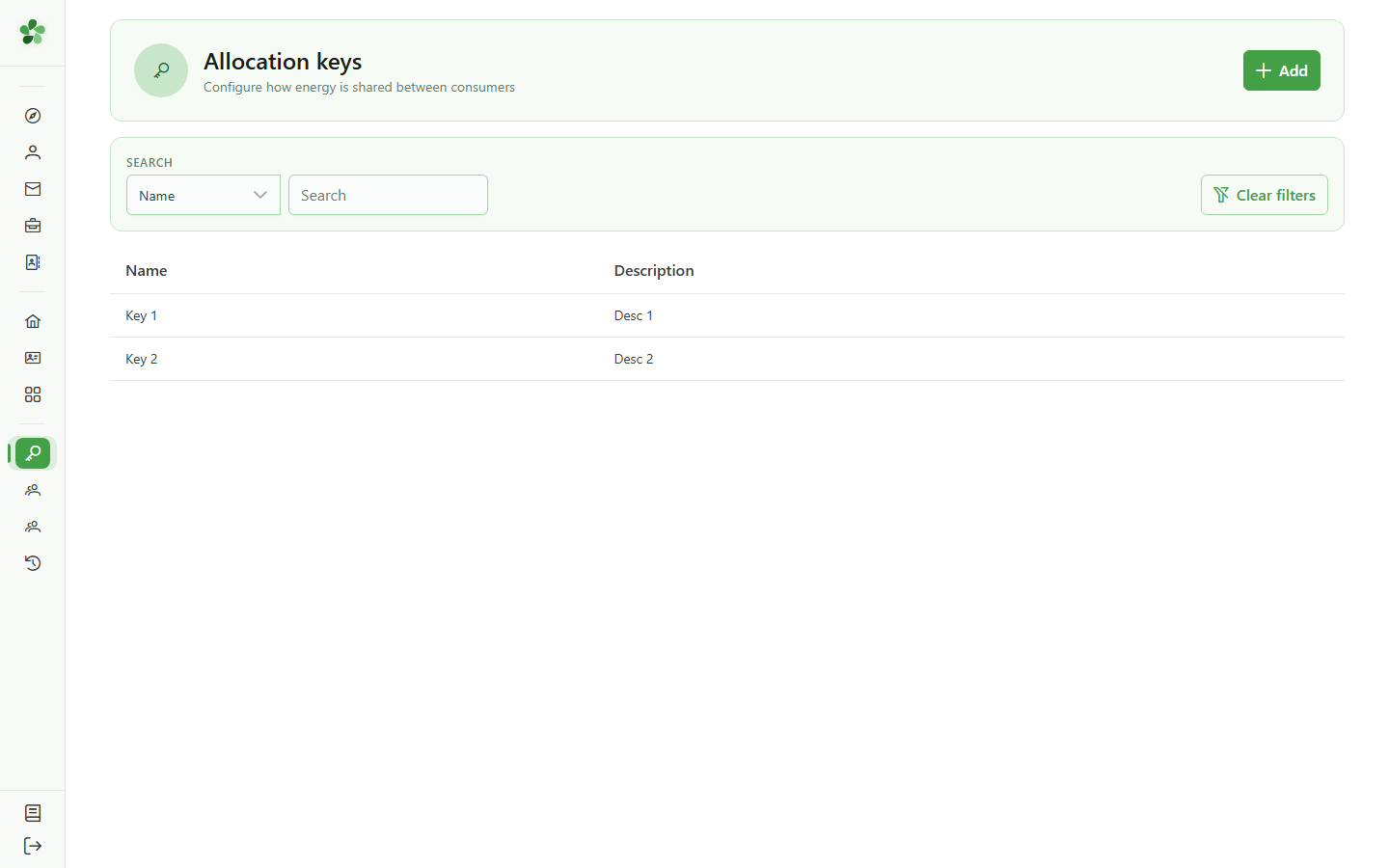
5 Allocation keys list
Exploring management
The "Keys" table shows the allocation keys already configured in the community, with their name and description.
6 Open the Members group
Navigation
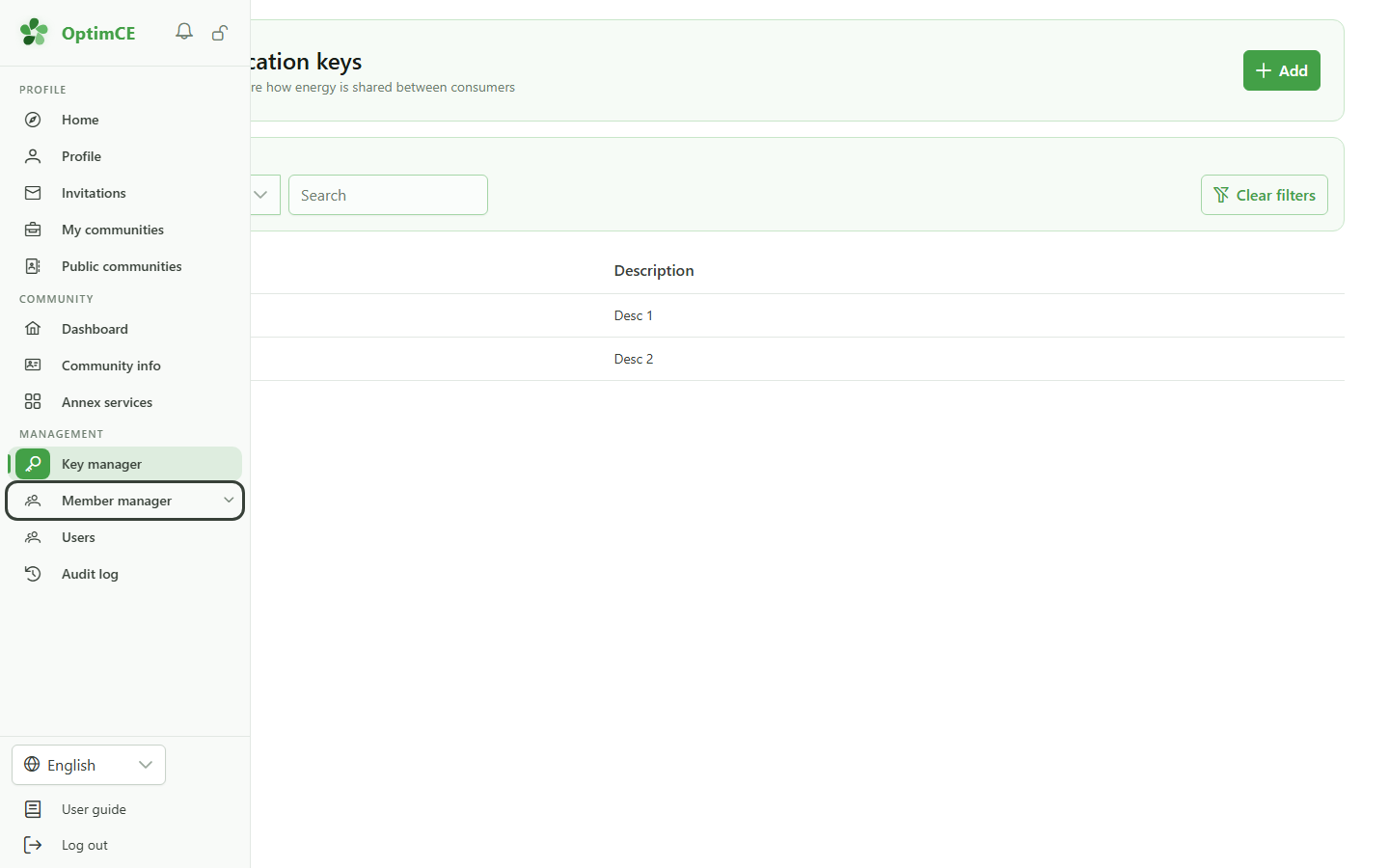
In the "Management" section, click "Members" to reveal the submenu (members, meters, sharing operations).
7 Open the meters list
Navigation
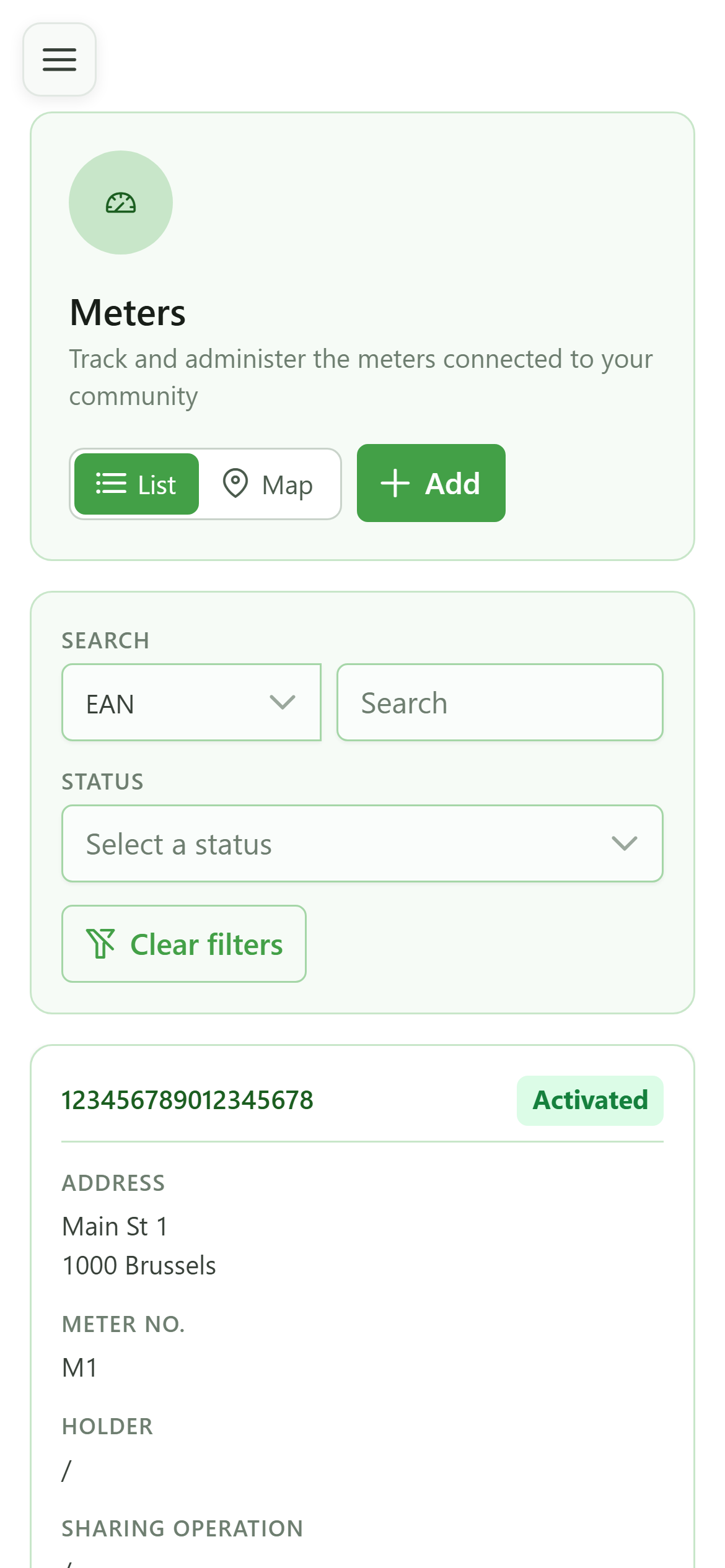
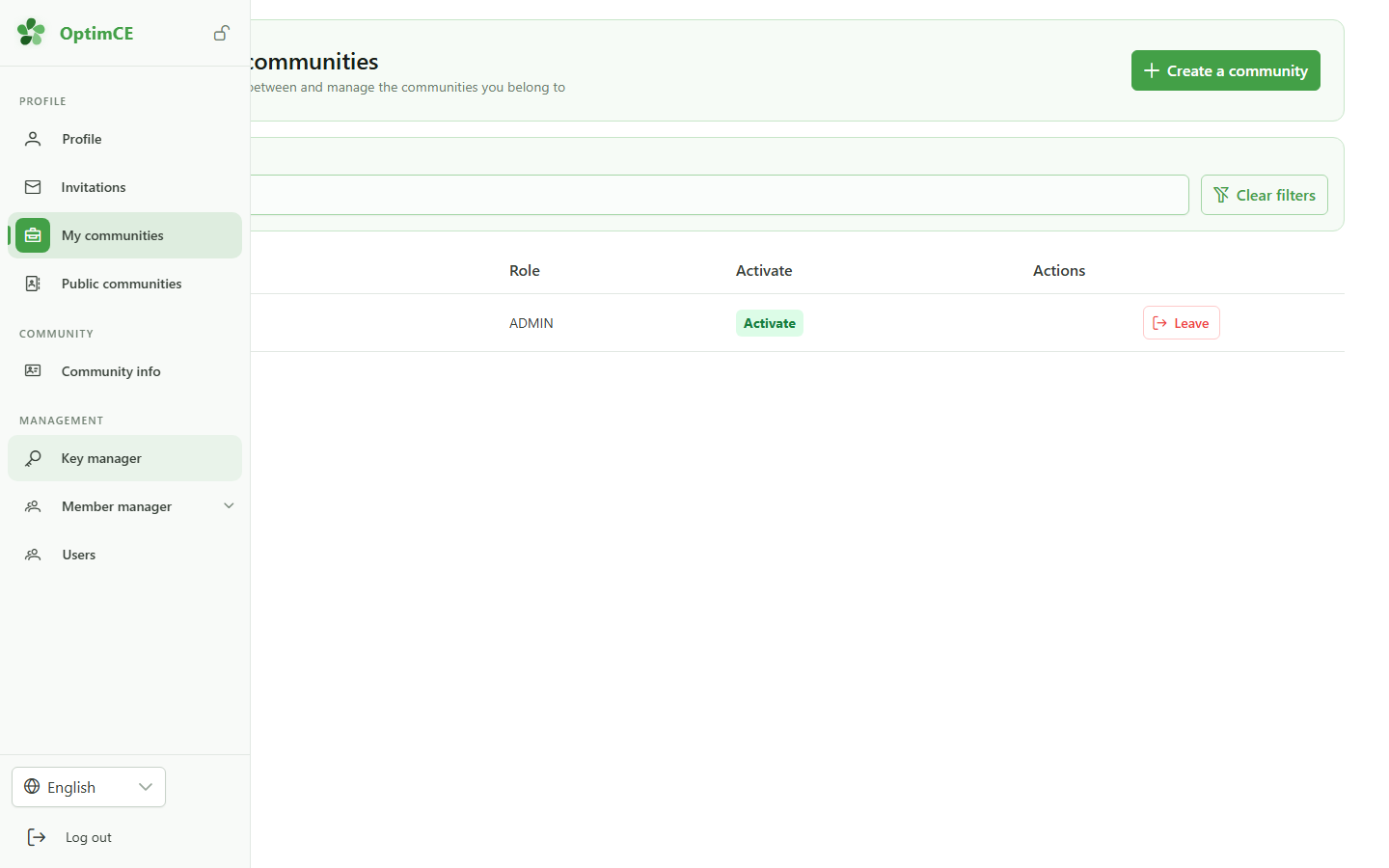
In the submenu, click "Meters" to display the community's meters.
8 Meters list
Exploring management
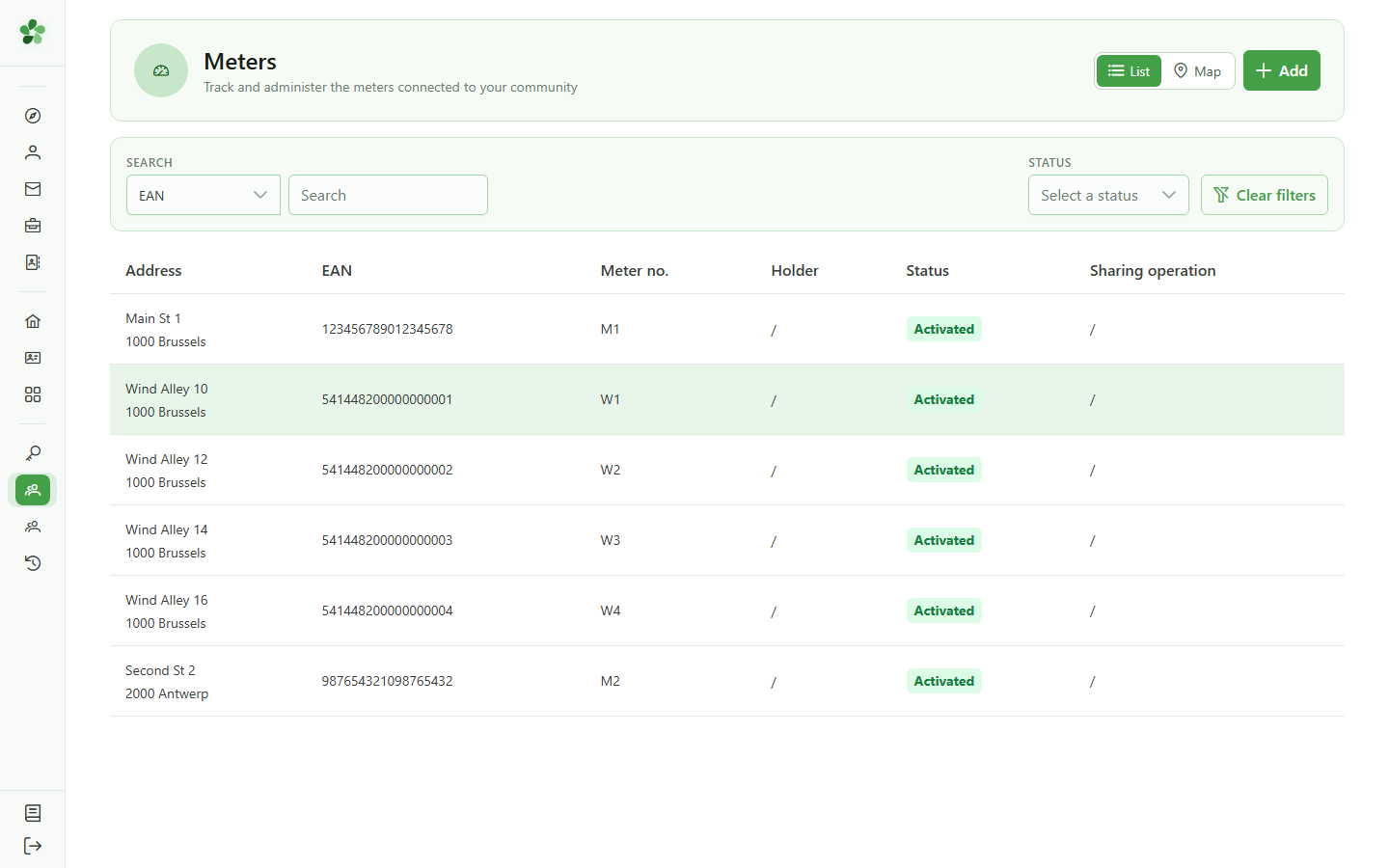
The "Meters" table lists the meters linked to the community, identified by their EAN and meter number.
Activate a community
Guide utilisateur
User guide
Gebruikershandleiding
Benutzerhandbuch
1 Your communities
Home page
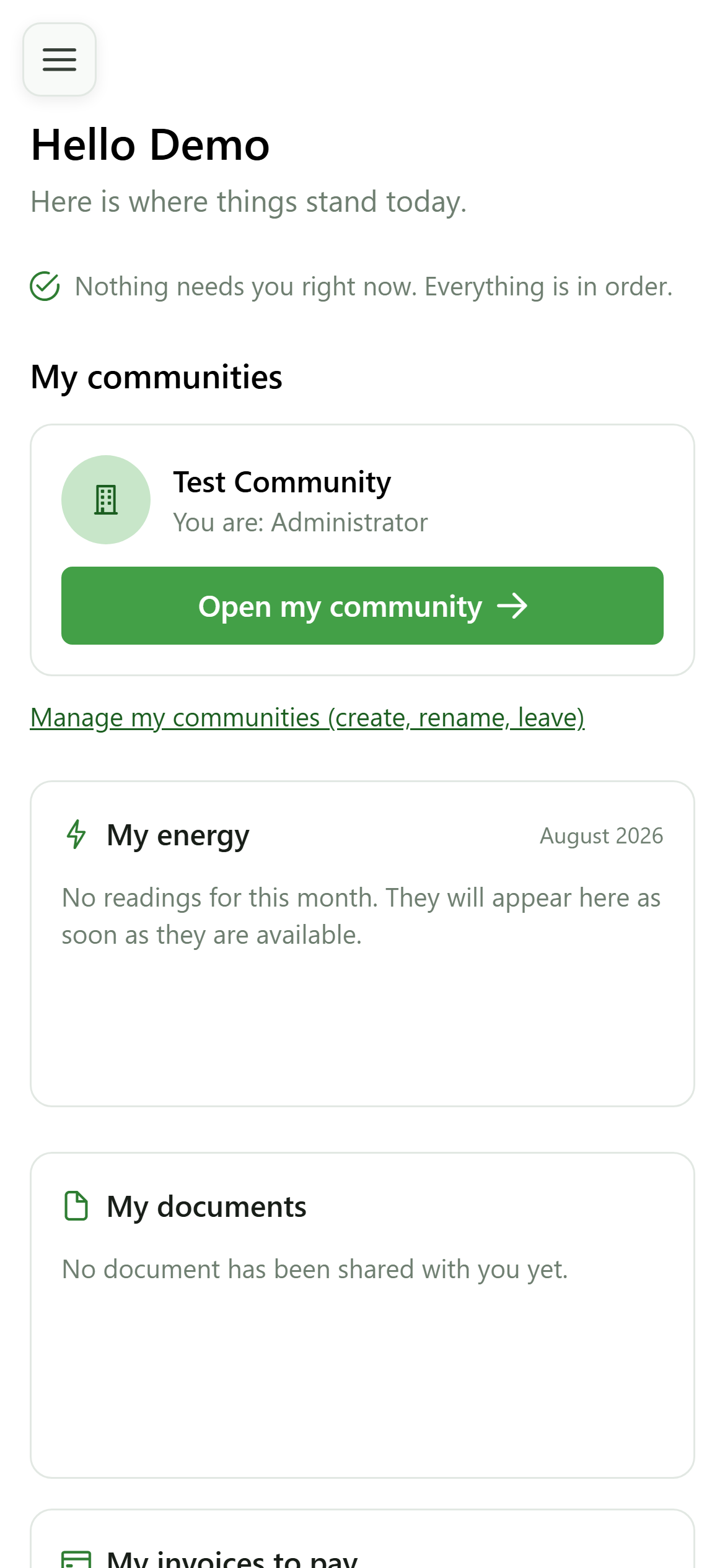
After signing in you land on your home page. It lists the communities you belong to, along with your role in each one.
2 Enter the community
Choosing the active community
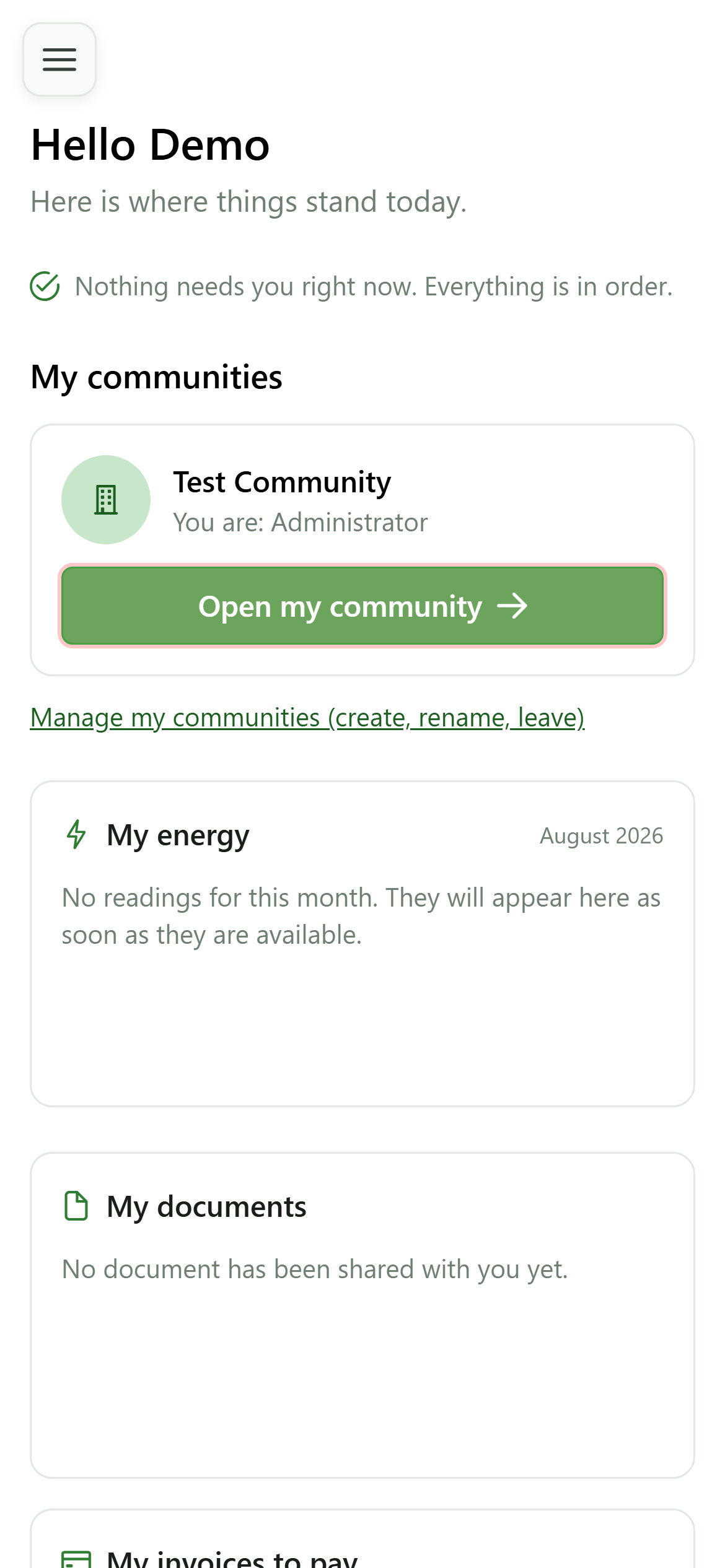
Click the button on the Test Community card to open it. That community becomes your active one: the management menu and every page that follows relate to it.
3 Management menu unlocked
Activating the community
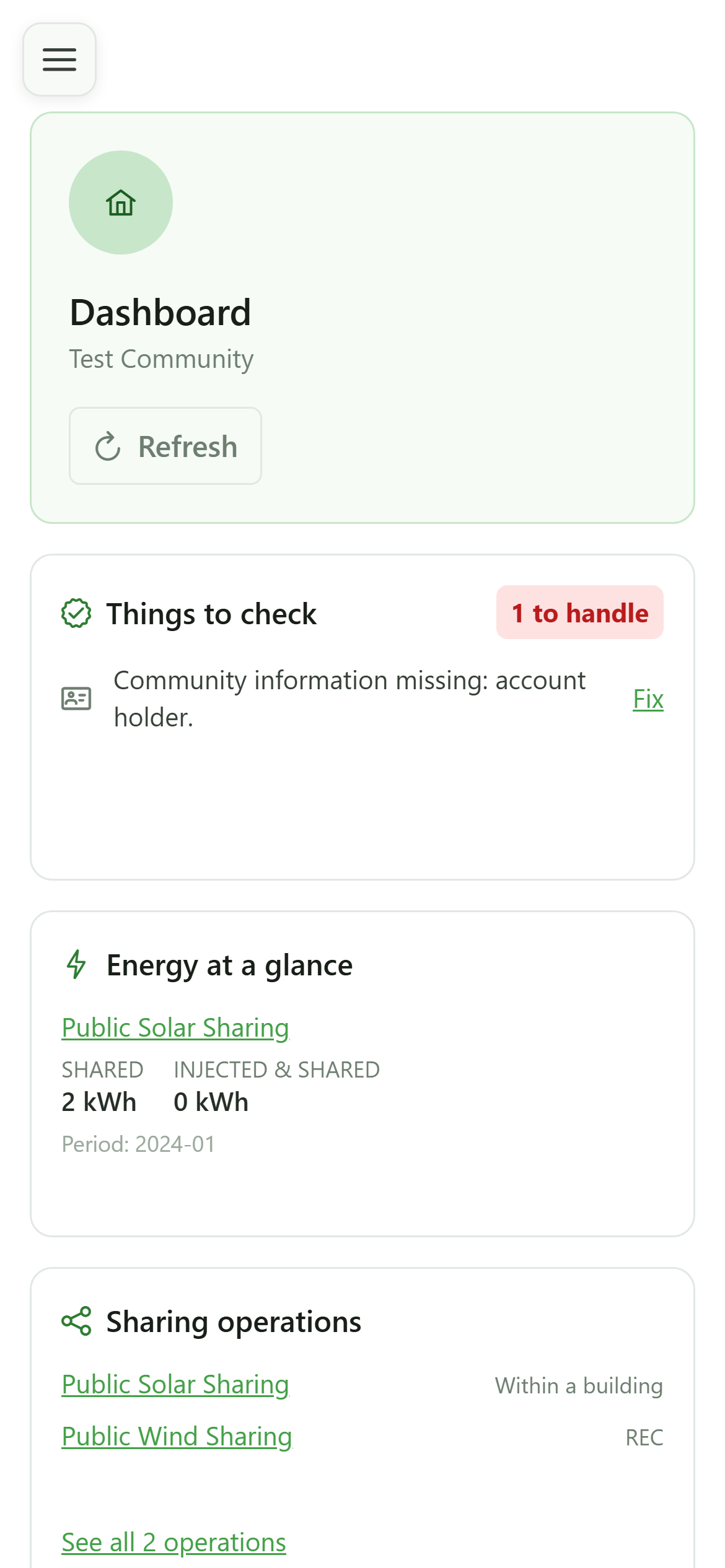
A new "Management" menu appears in the sidebar, granting access to the community's keys, meters and sharing operations.
4 Open the keys
Navigation
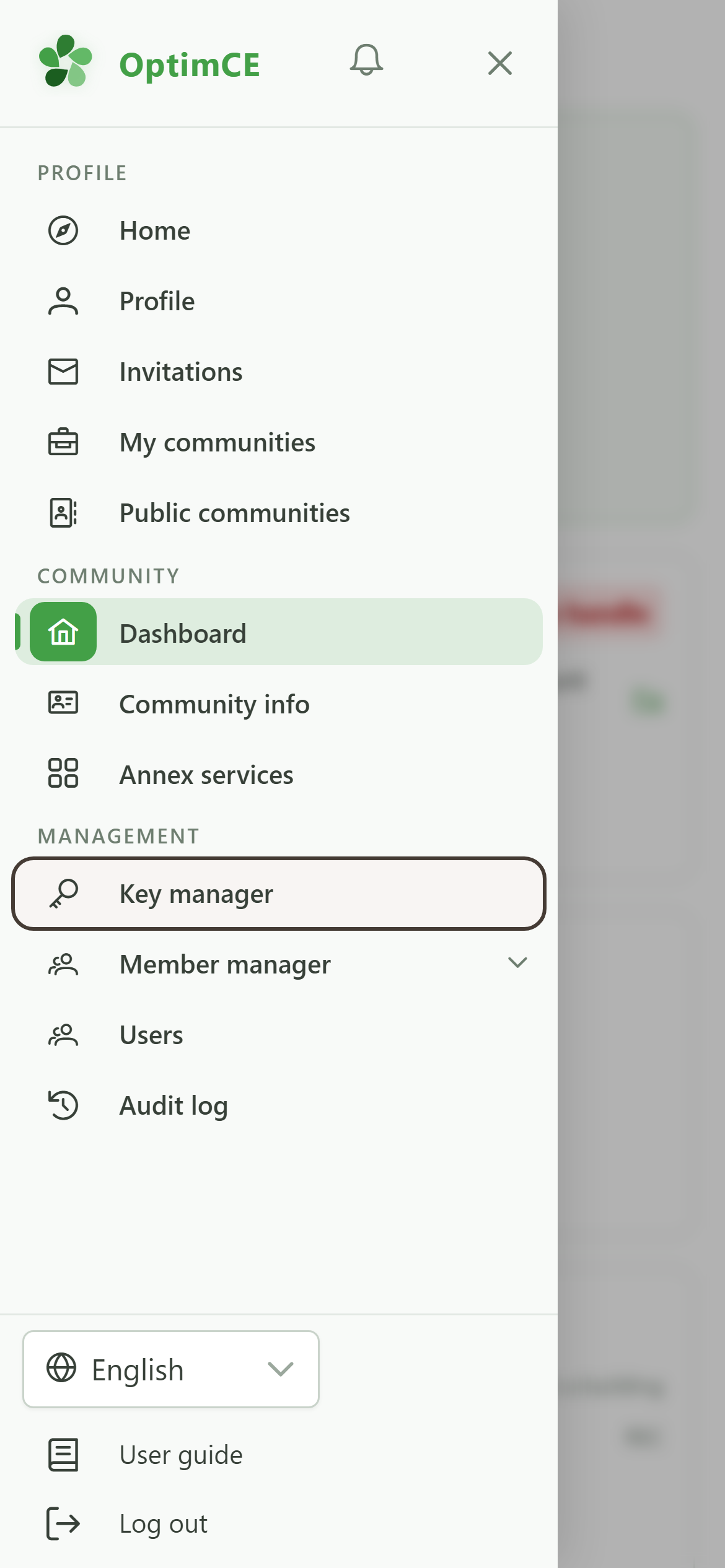
Tap the menu icon to open the drawer, then in the "Management" section tap "Keys" to display the active community's allocation keys.
5 Allocation keys list
Exploring management
The "Keys" table shows the allocation keys already configured in the community, with their name and description.
6 Open the Members group
Navigation
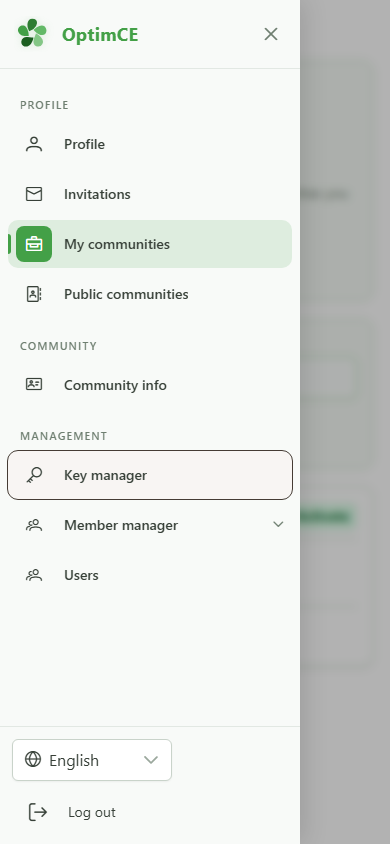
In the drawer, under "Management", tap "Members" to reveal the submenu (members, meters, sharing operations).
7 Open the meters list
Navigation
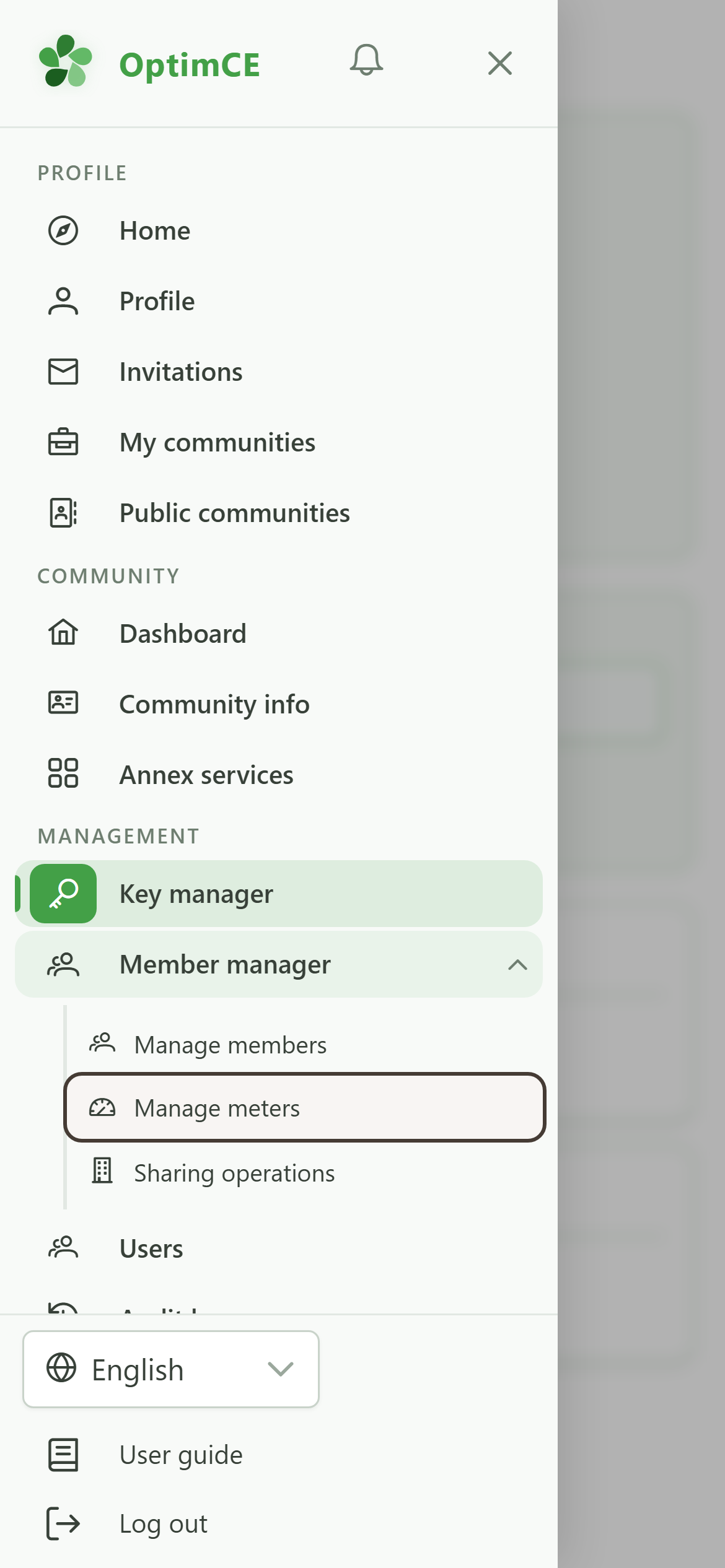
In the submenu, tap "Meters" to display the community's meters.
8 Meters list
Exploring management
The "Meters" table lists the meters linked to the community, identified by their EAN and meter number.