Simulate an allocation key
Guide utilisateur
User guide
1 Open the simulation module
Navigation
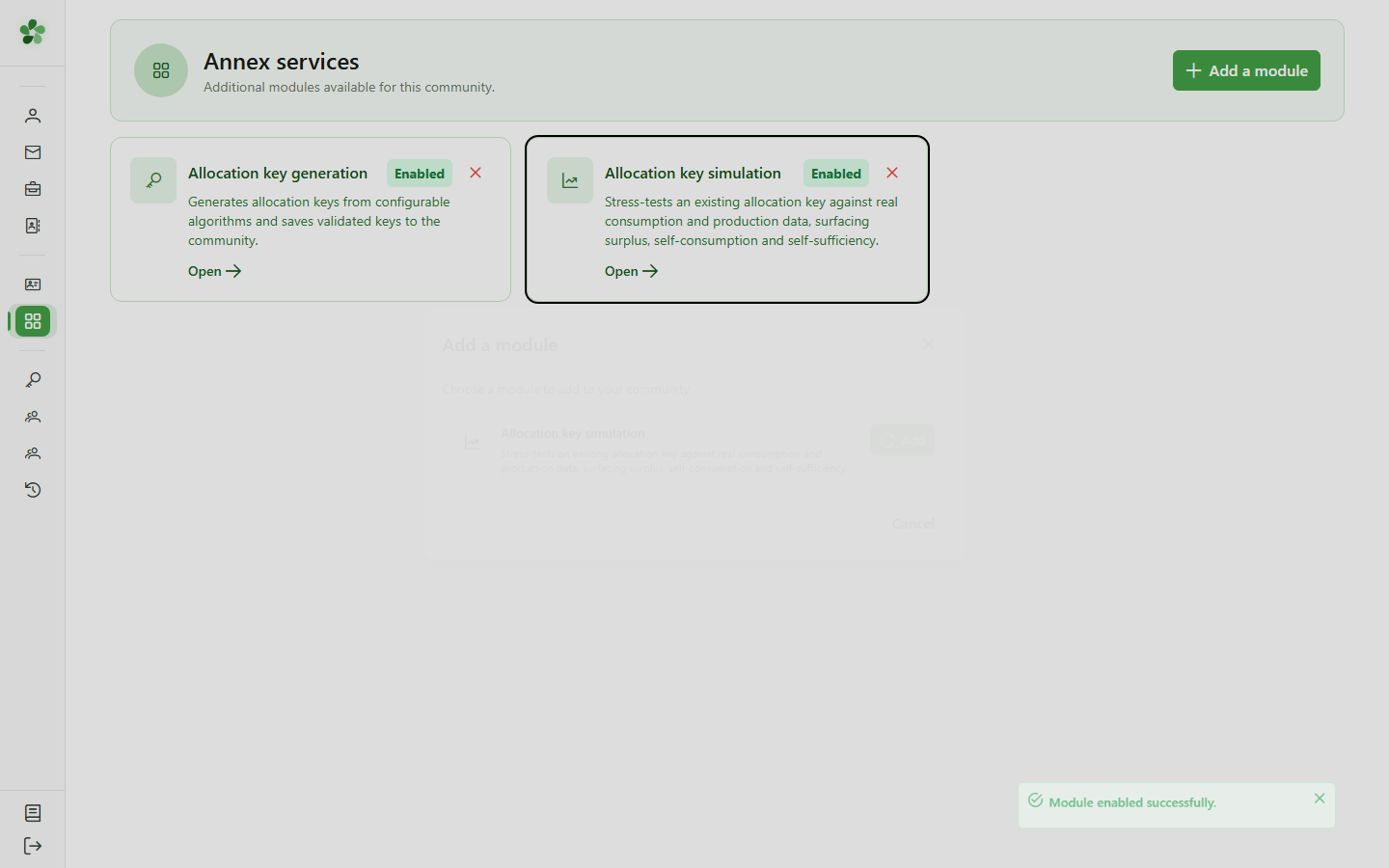
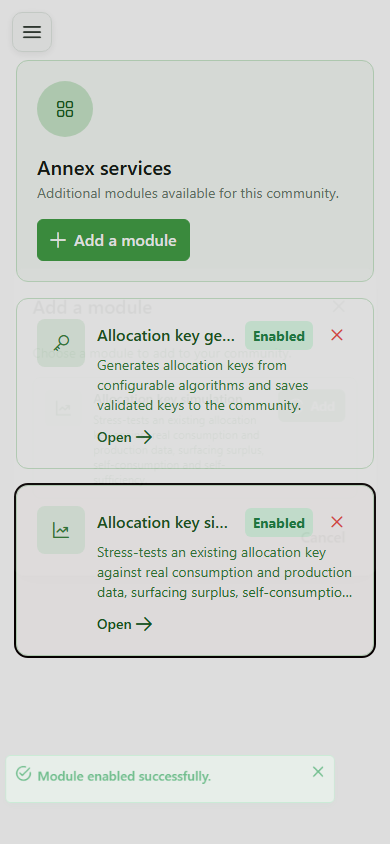
Click the "Simulation" card to open the module and reach the configuration form for a new simulation.
2 Simulation page
Simulation module
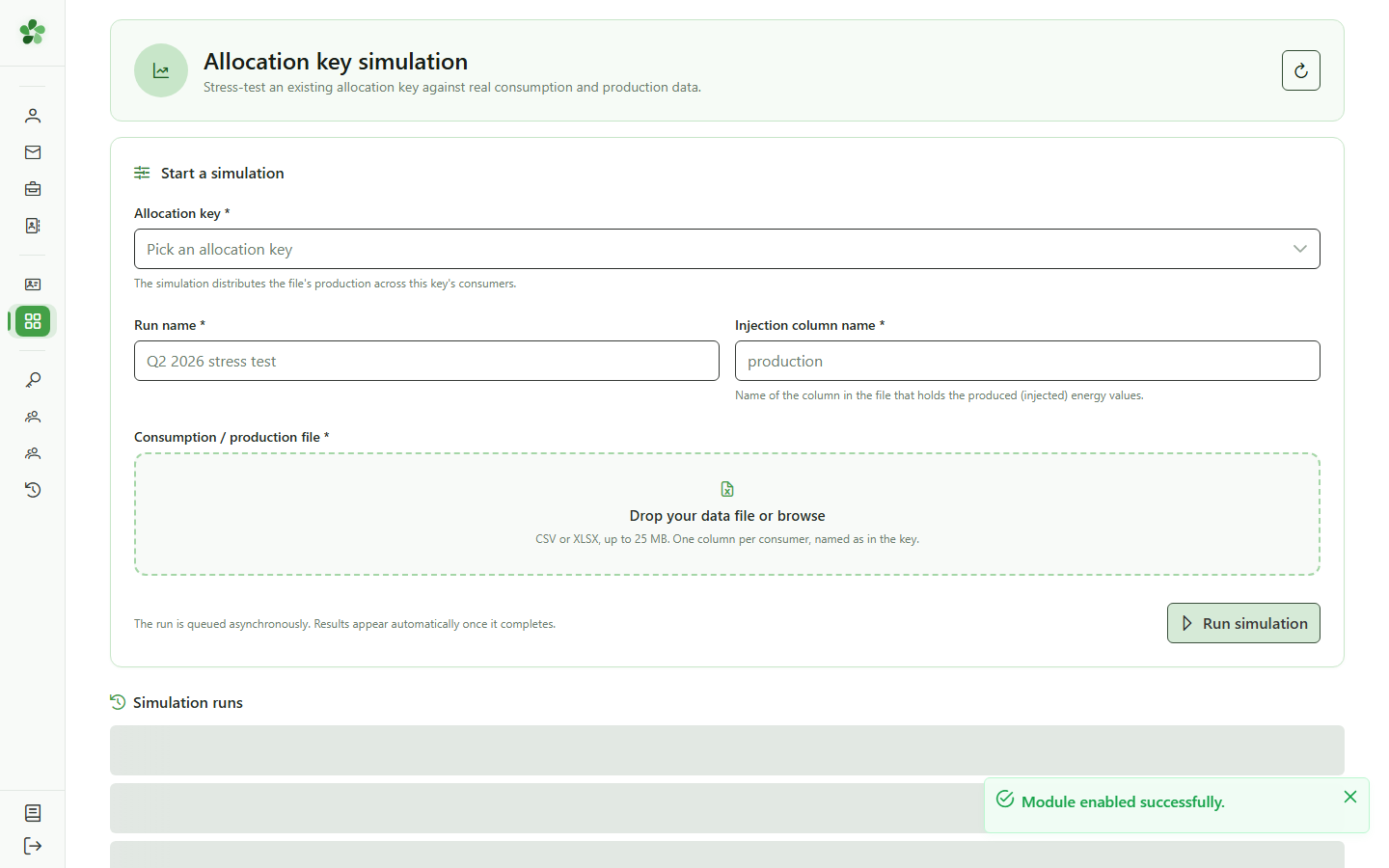
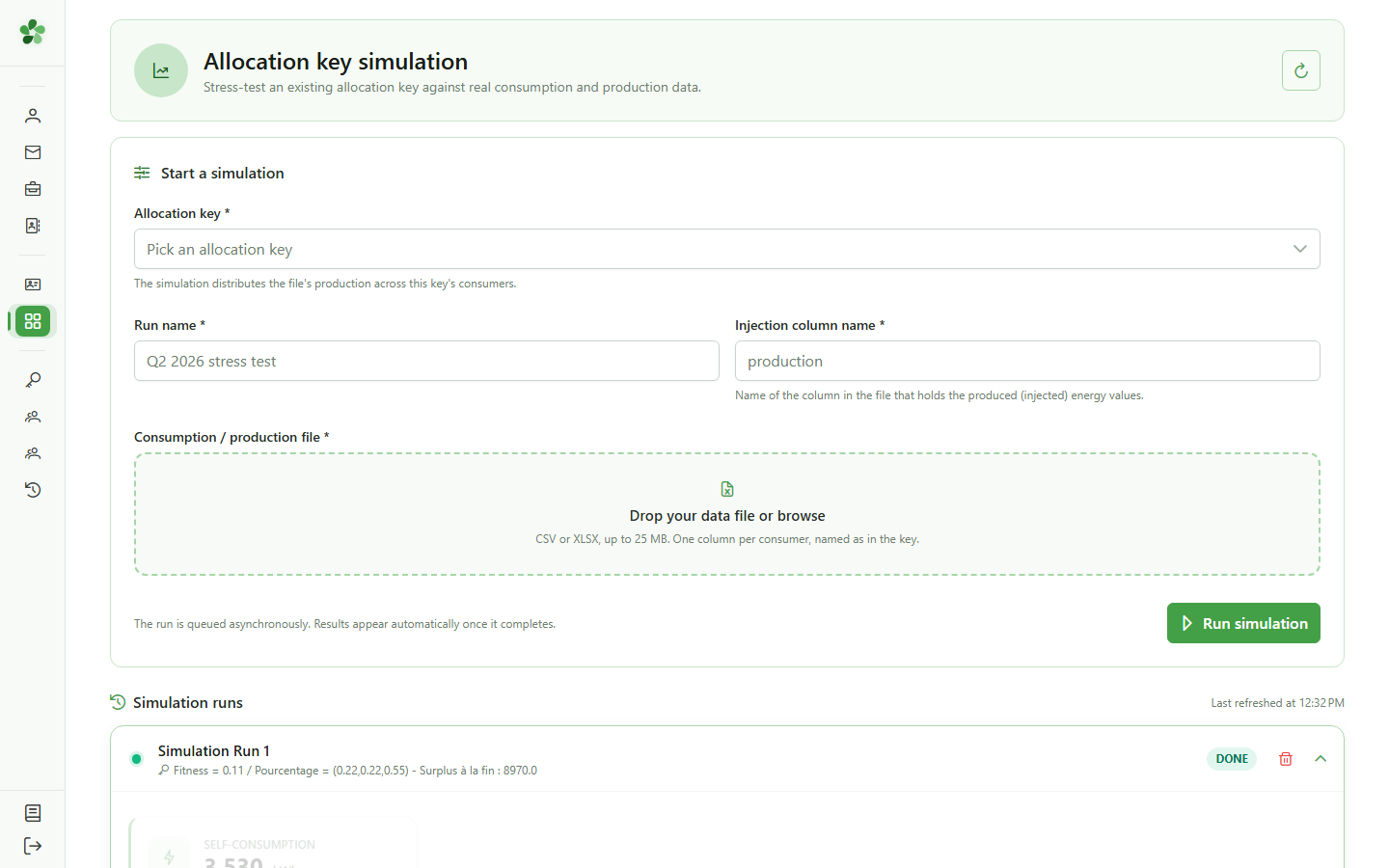
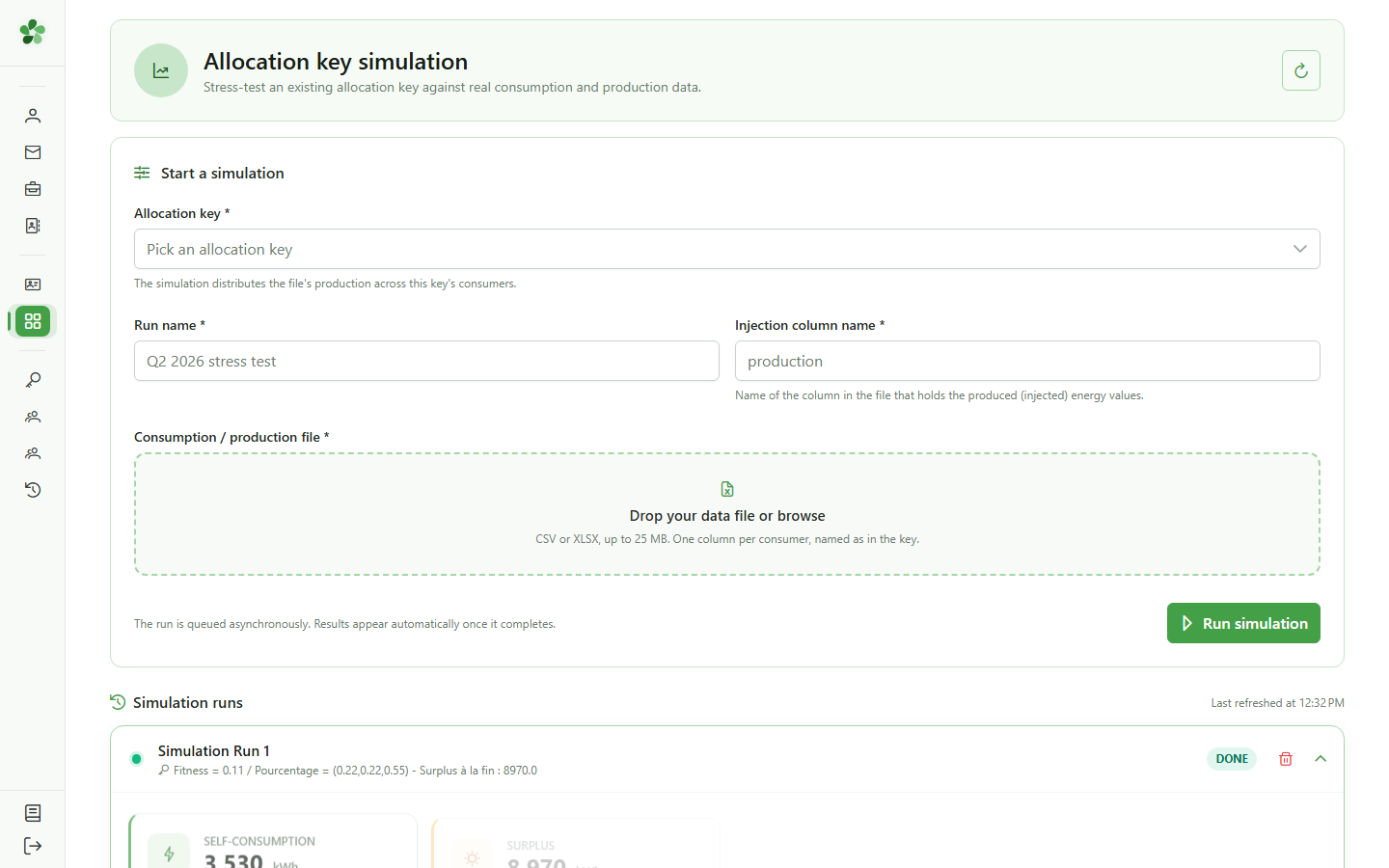
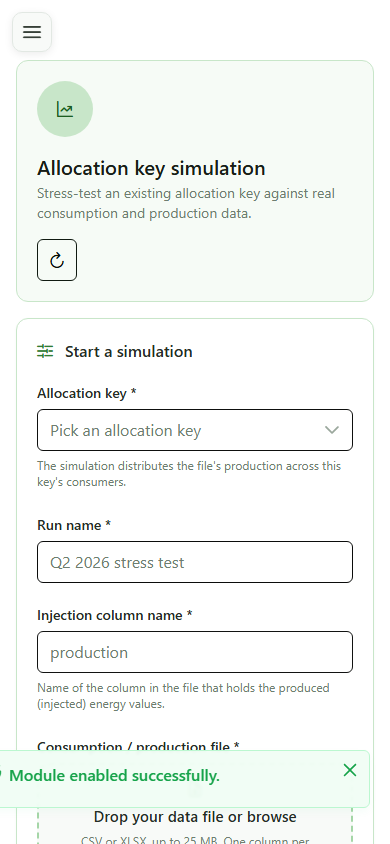
The simulation page displays its configuration form: pick a saved allocation key, name the simulation, set the injection, and upload the consumption file to simulate.
3 Choose the allocation key
Configuration
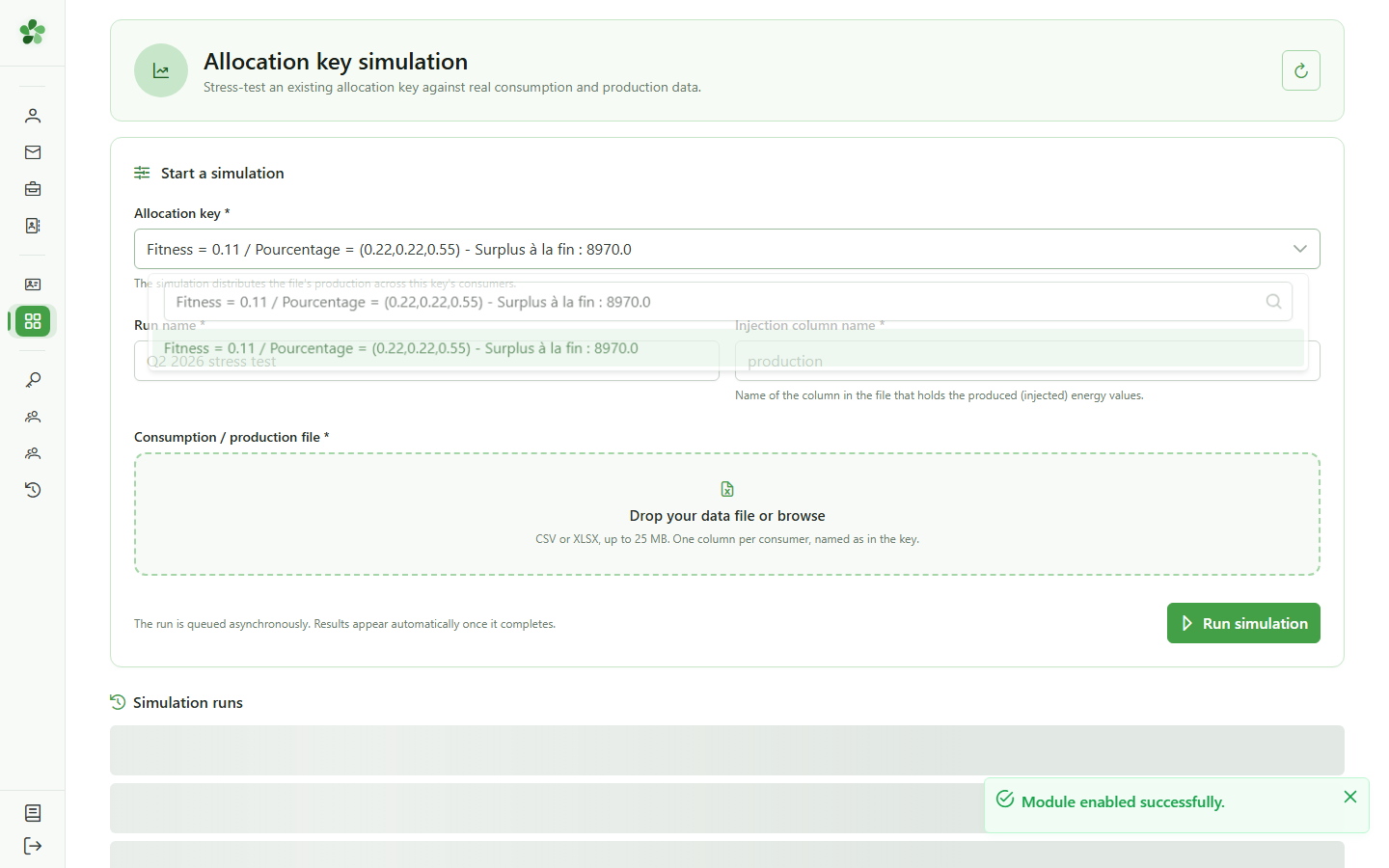
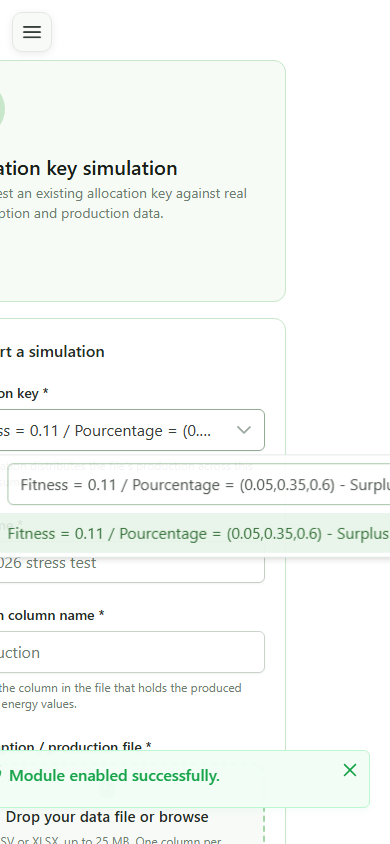
Open the "Allocation key" dropdown and select the key you just saved. The simulation will apply this allocation to the imported consumption data.
4 Name the simulation and injection
Configuration
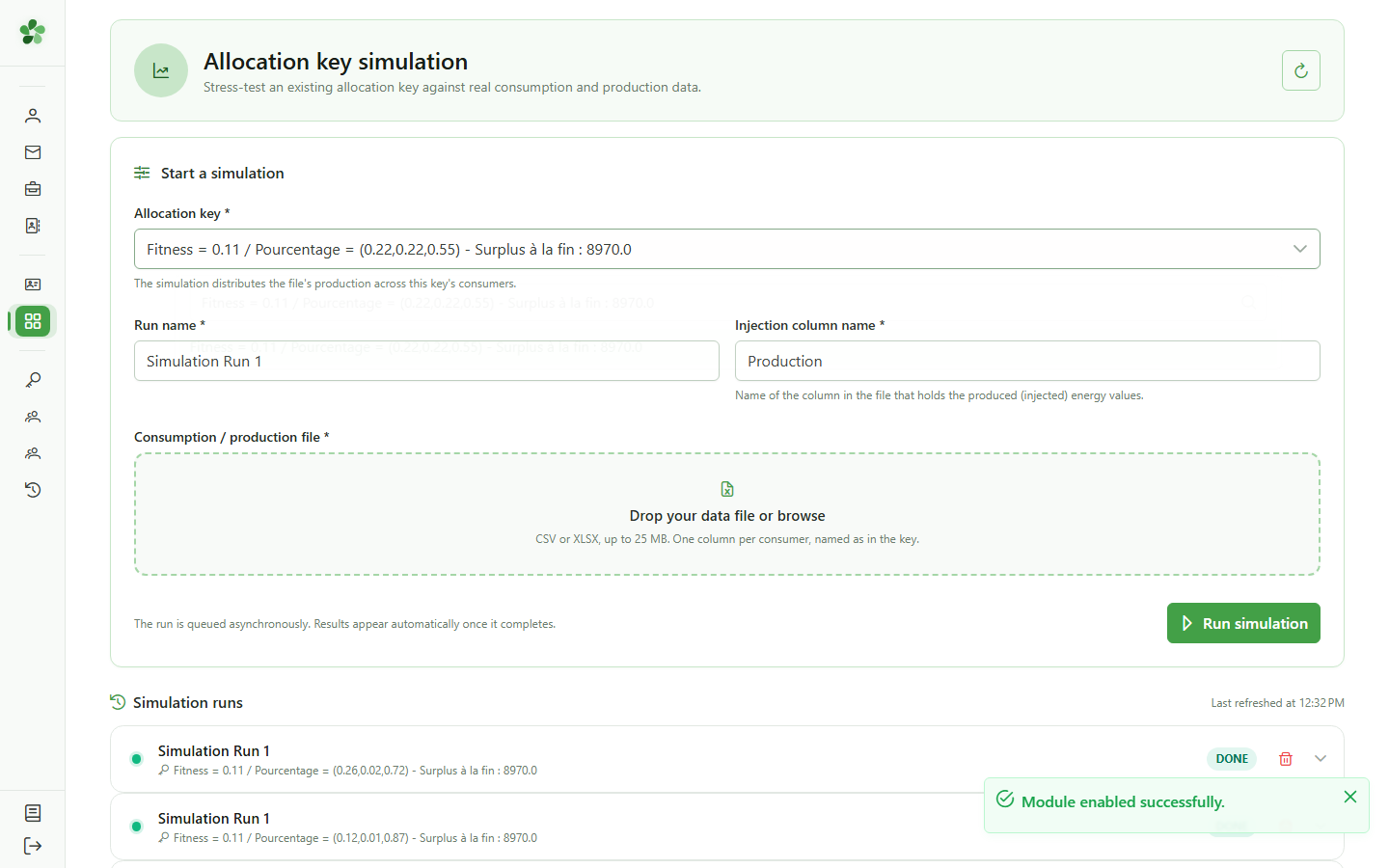
Enter a name for the simulation ("Simulation Run 1") and the injection name ("Production"), which matches the production column of the data file.
5 Import the file to simulate
Input data
Upload the same "test_4.csv" file into the drop zone. The simulation will compute self-consumption and energy sharing from this data and the selected key.
6 Launch the simulation
Execution
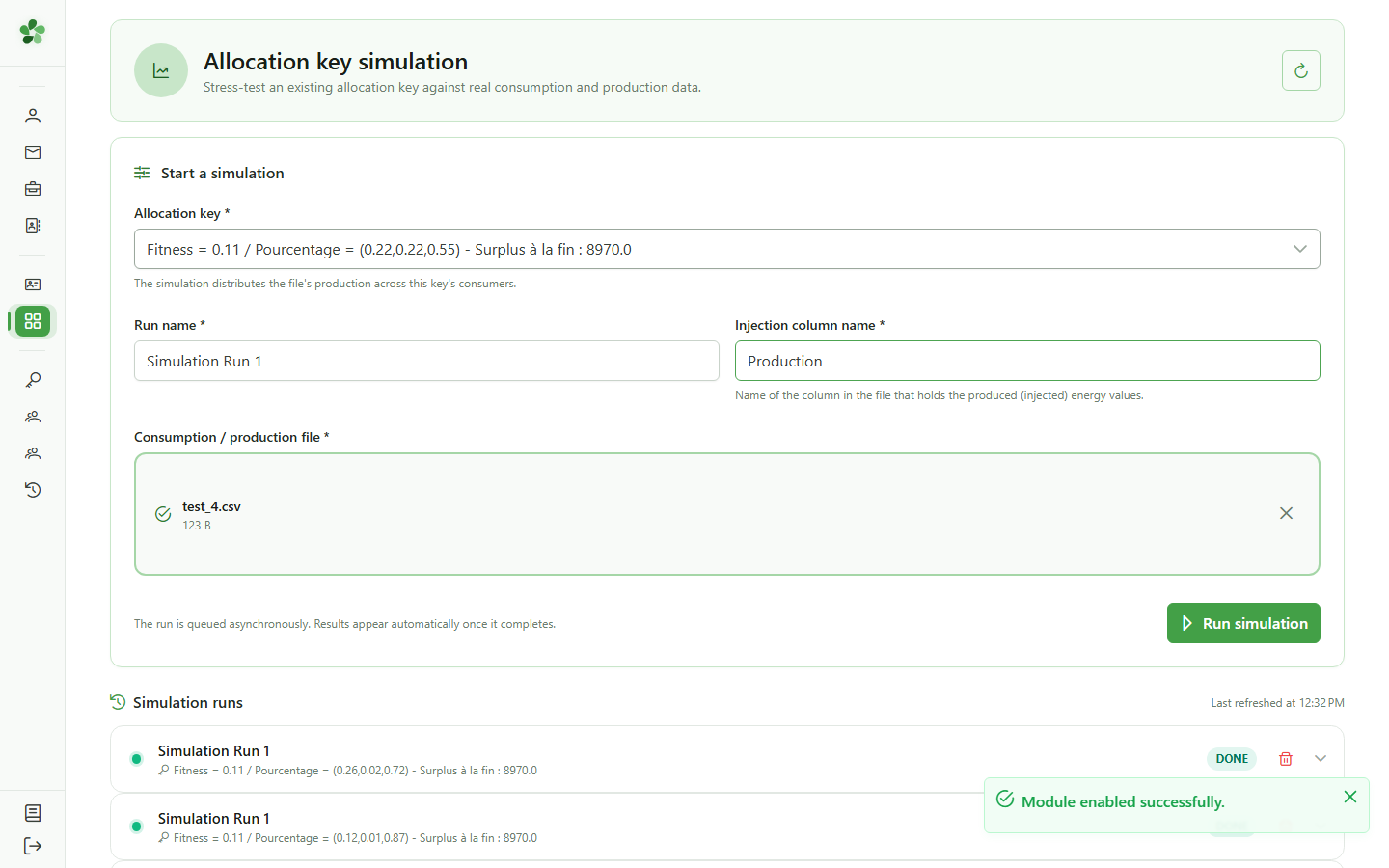
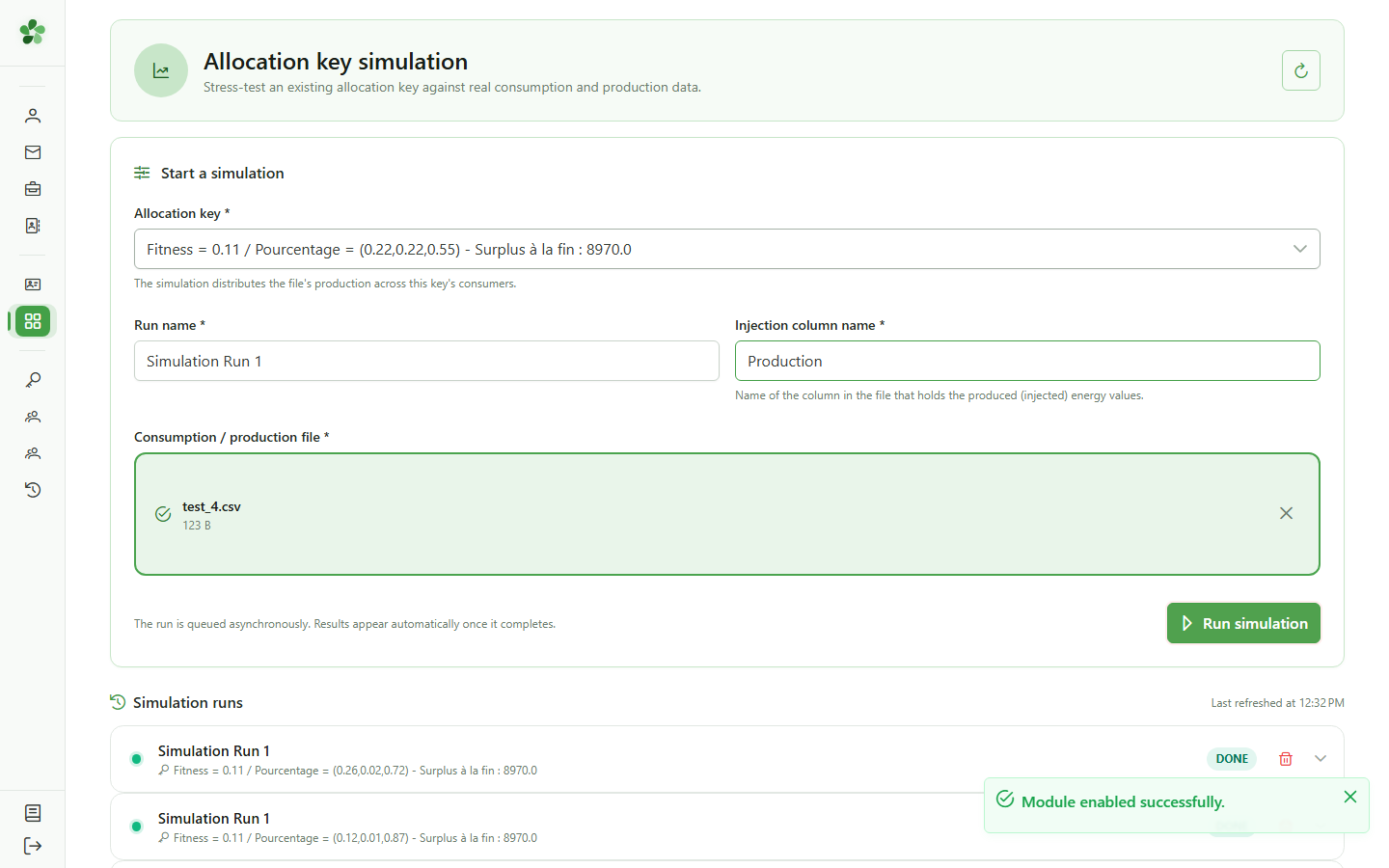
Click "Run simulation". The simulation is queued and appears in the runs list with a "Pending" status until the computation completes.
7 Simulation results
Headline metrics
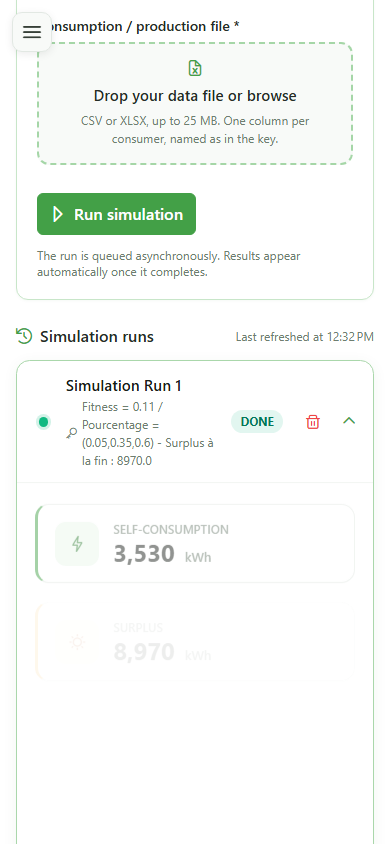
The simulation is complete. The headline metrics are shown: self-consumed energy, surplus, self-sufficiency rate, and sharing rate — computed from the saved key and the imported file.
8 Per-iteration, per-consumer detail
Detailed analysis
Each key iteration can be expanded to reveal the per-consumer detail: allocation, consumption, self-consumed energy, surplus, and residual volume. This is where allocation solutions are compared.
Simulate an allocation key
Guide utilisateur
User guide
1 Open the simulation module
Navigation
Click the "Simulation" card to open the module and reach the configuration form for a new simulation.
2 Simulation page
Simulation module
The simulation page displays its configuration form: pick a saved allocation key, name the simulation, set the injection, and upload the consumption file to simulate.
3 Choose the allocation key
Configuration
Open the "Allocation key" dropdown and select the key you just saved. The simulation will apply this allocation to the imported consumption data.
4 Name the simulation and injection
Configuration
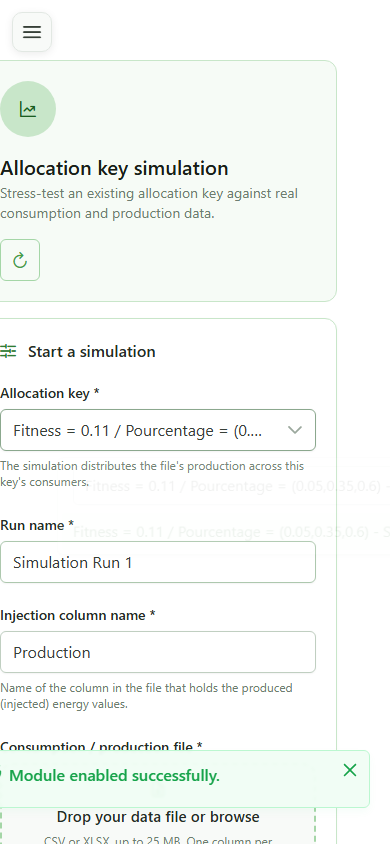
Enter a name for the simulation ("Simulation Run 1") and the injection name ("Production"), which matches the production column of the data file.
5 Import the file to simulate
Input data
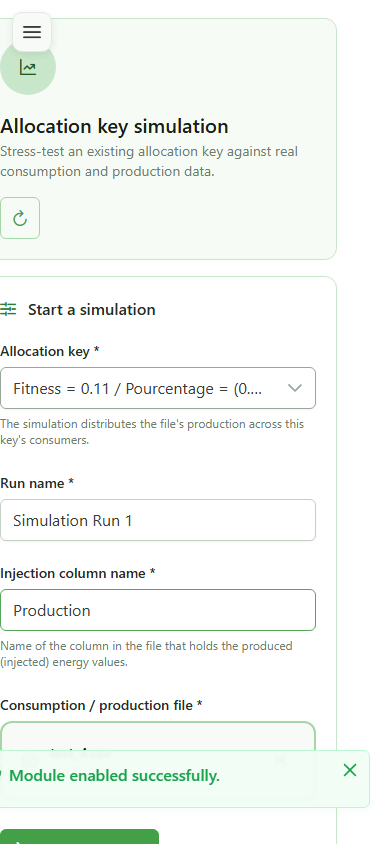
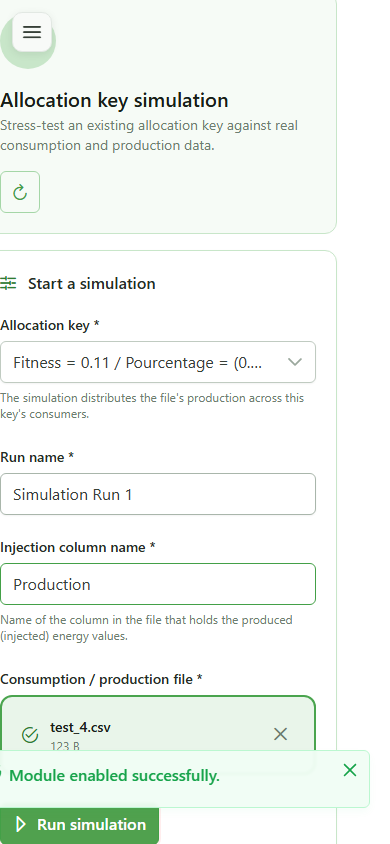
Upload the same "test_4.csv" file into the drop zone. The simulation will compute self-consumption and energy sharing from this data and the selected key.
6 Launch the simulation
Execution
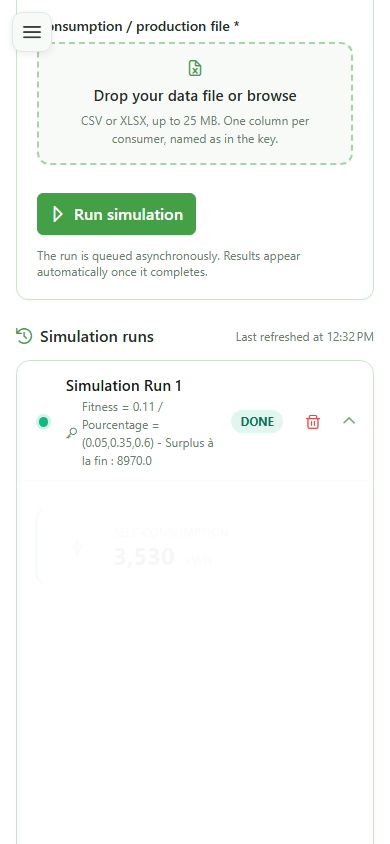
Click "Run simulation". The simulation is queued and appears in the runs list with a "Pending" status until the computation completes.
7 Simulation results
Headline metrics
The simulation is complete. The headline metrics are shown: self-consumed energy, surplus, self-sufficiency rate, and sharing rate — computed from the saved key and the imported file.
8 Per-iteration, per-consumer detail
Detailed analysis
Each key iteration can be expanded to reveal the per-consumer detail: allocation, consumption, self-consumed energy, surplus, and residual volume. This is where allocation solutions are compared.