Add a meter to a sharing operation
Guide utilisateur
User guide
1 Open my communities
Navigation
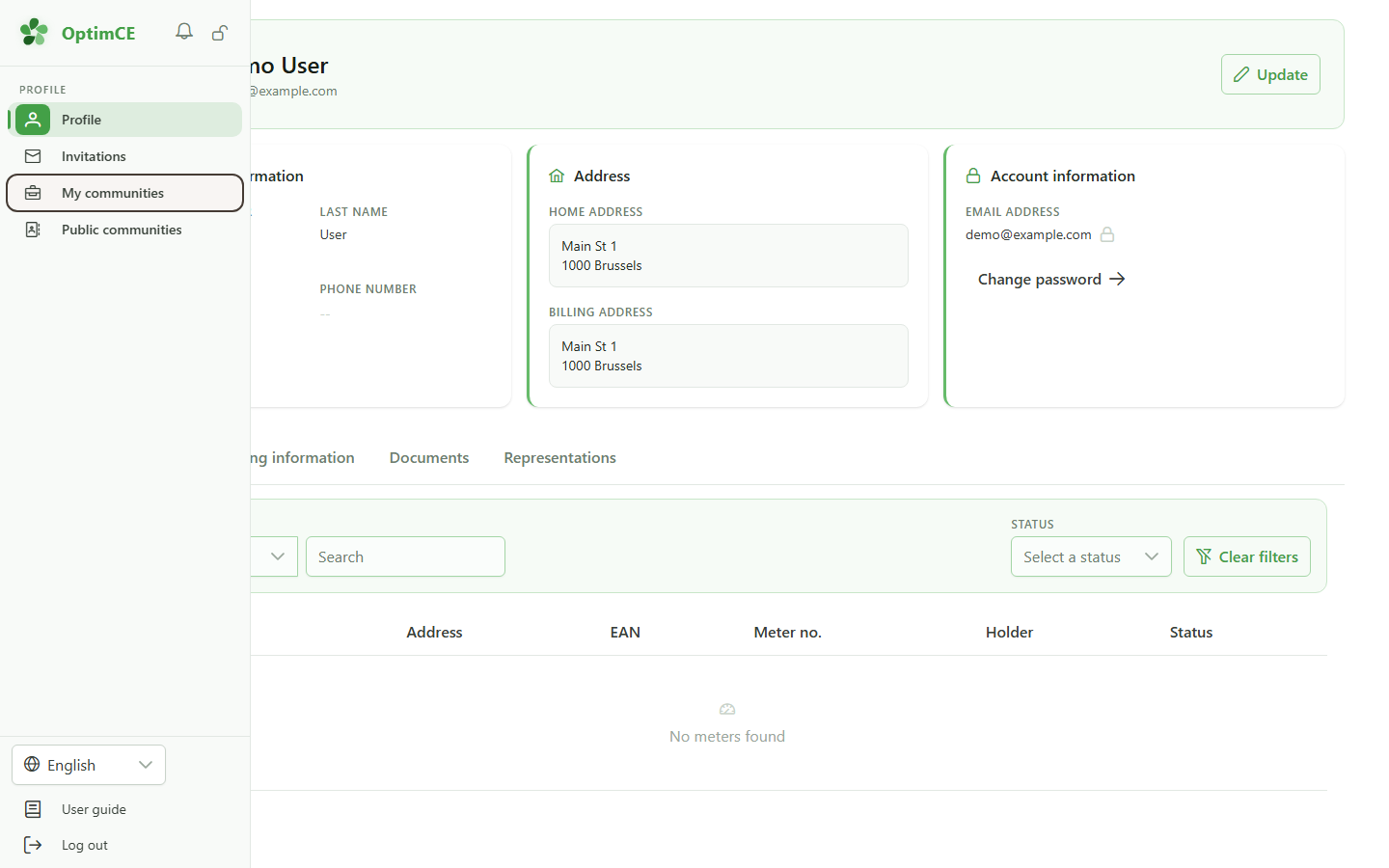
In the sidebar's profile menu, click "My communities" to see the list of communities you belong to.
2 Check the active community
Active community
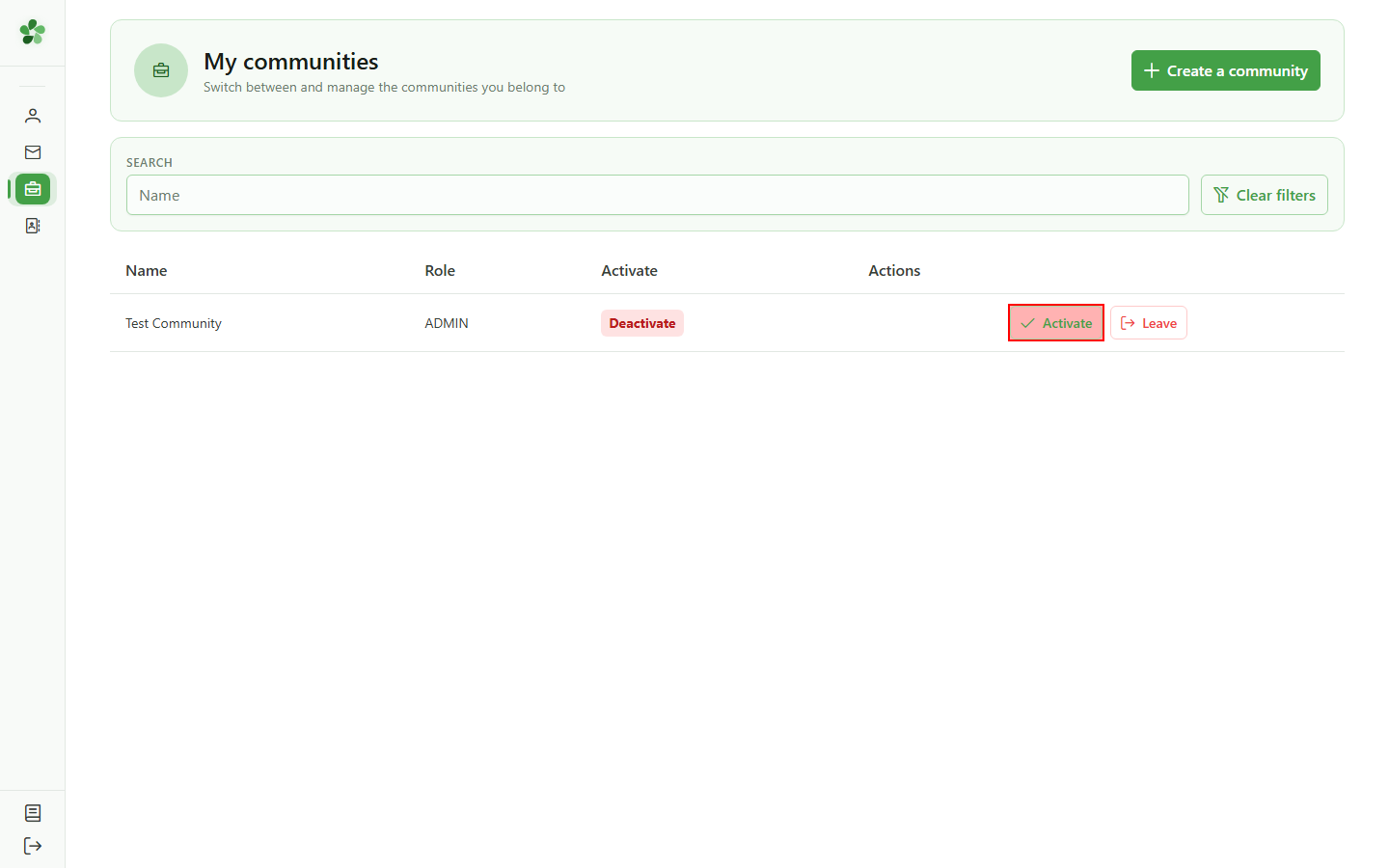
Test Community is already your active one — its row offers "Information" and "Dashboard". If you belong to several communities, click "Activate" on the one you want to work in.
3 Open sharing operations
Navigation
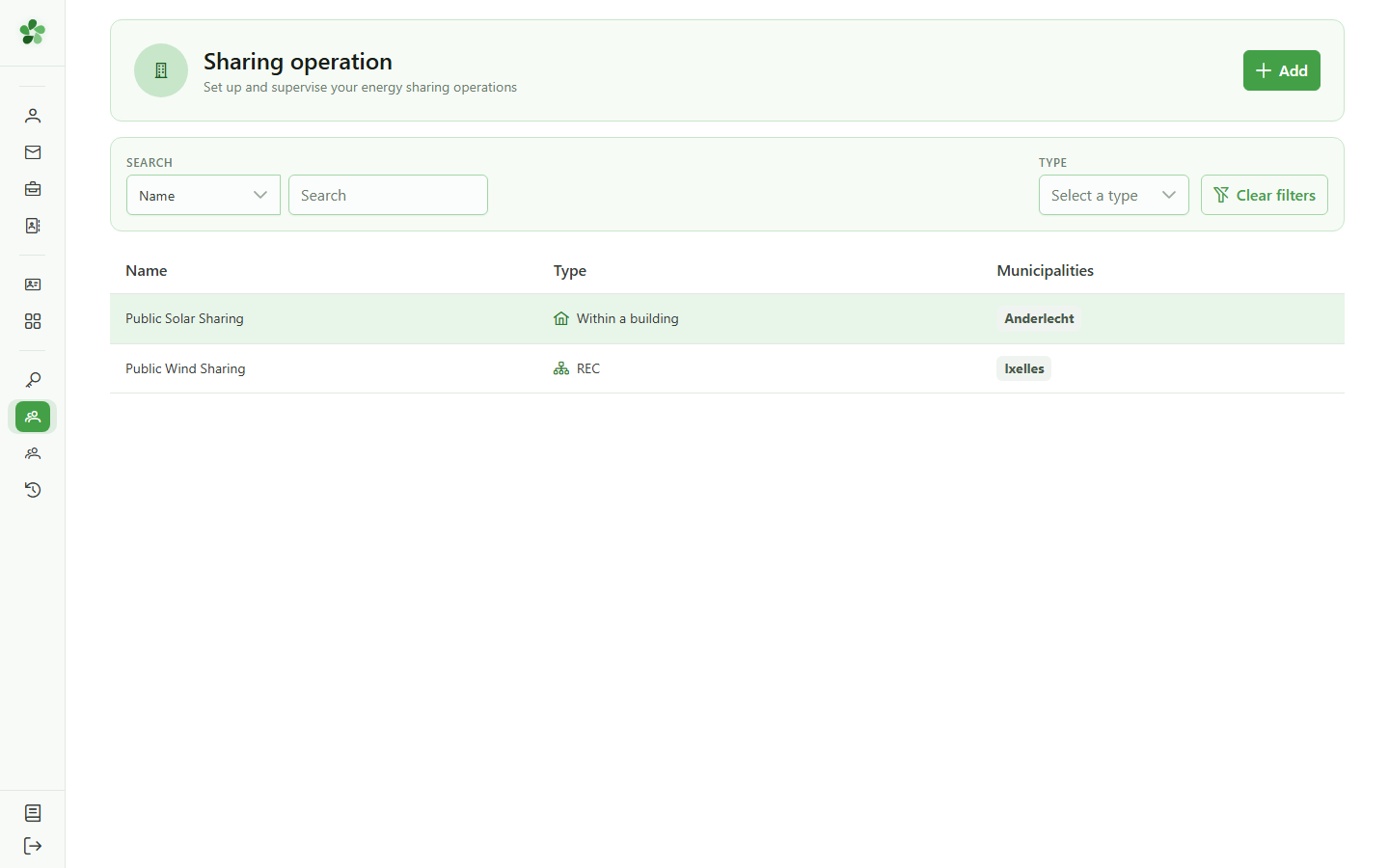
Open the list of sharing operations for your community to find the one you want to attach a meter to.
4 Select an operation
Selection
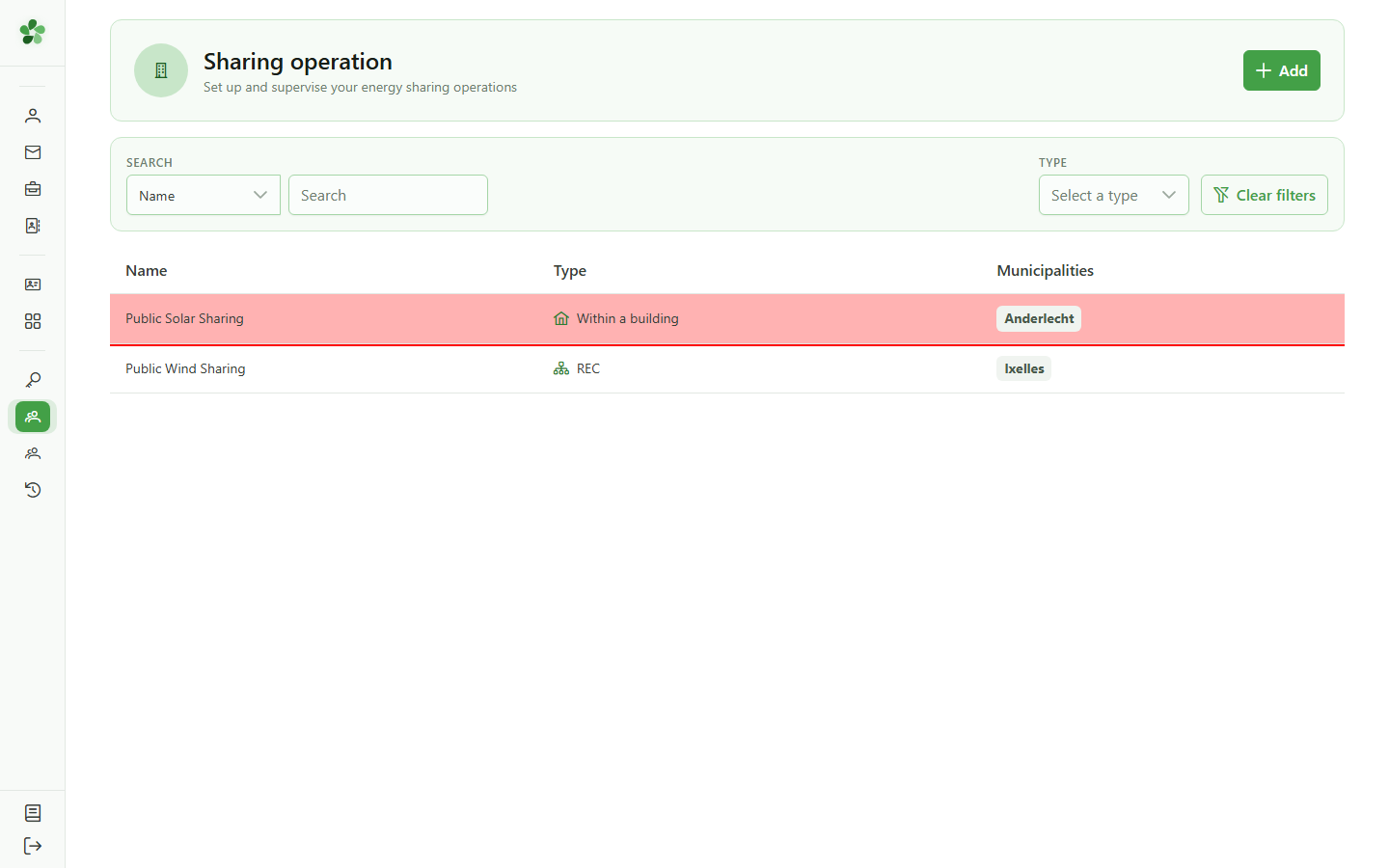
Click the row of the sharing operation you want to edit to open its detail view.
5 Start adding a meter
Action
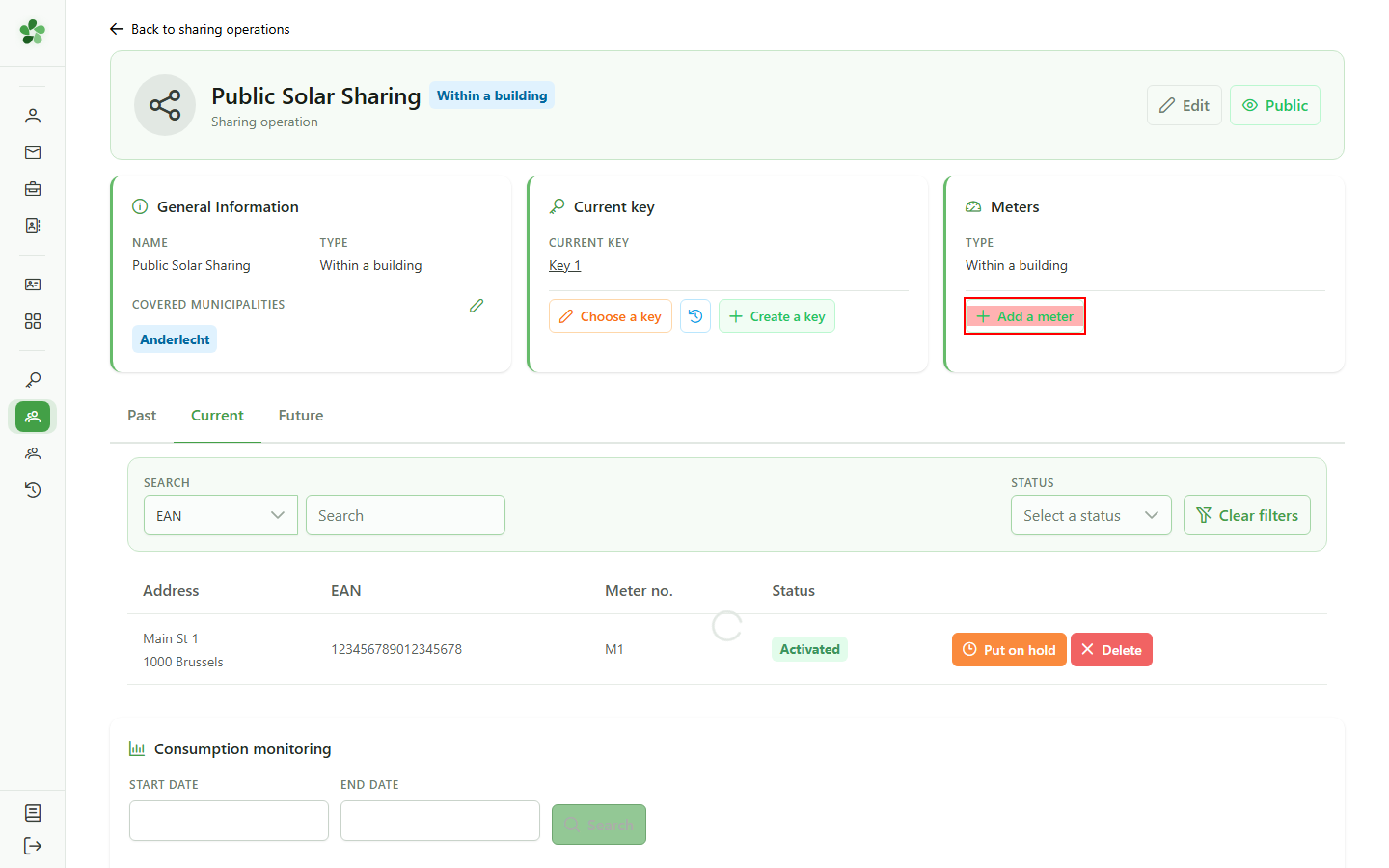
From the detail view, click "Add meter" to open the meter selection dialog.
6 Available meters
Selection
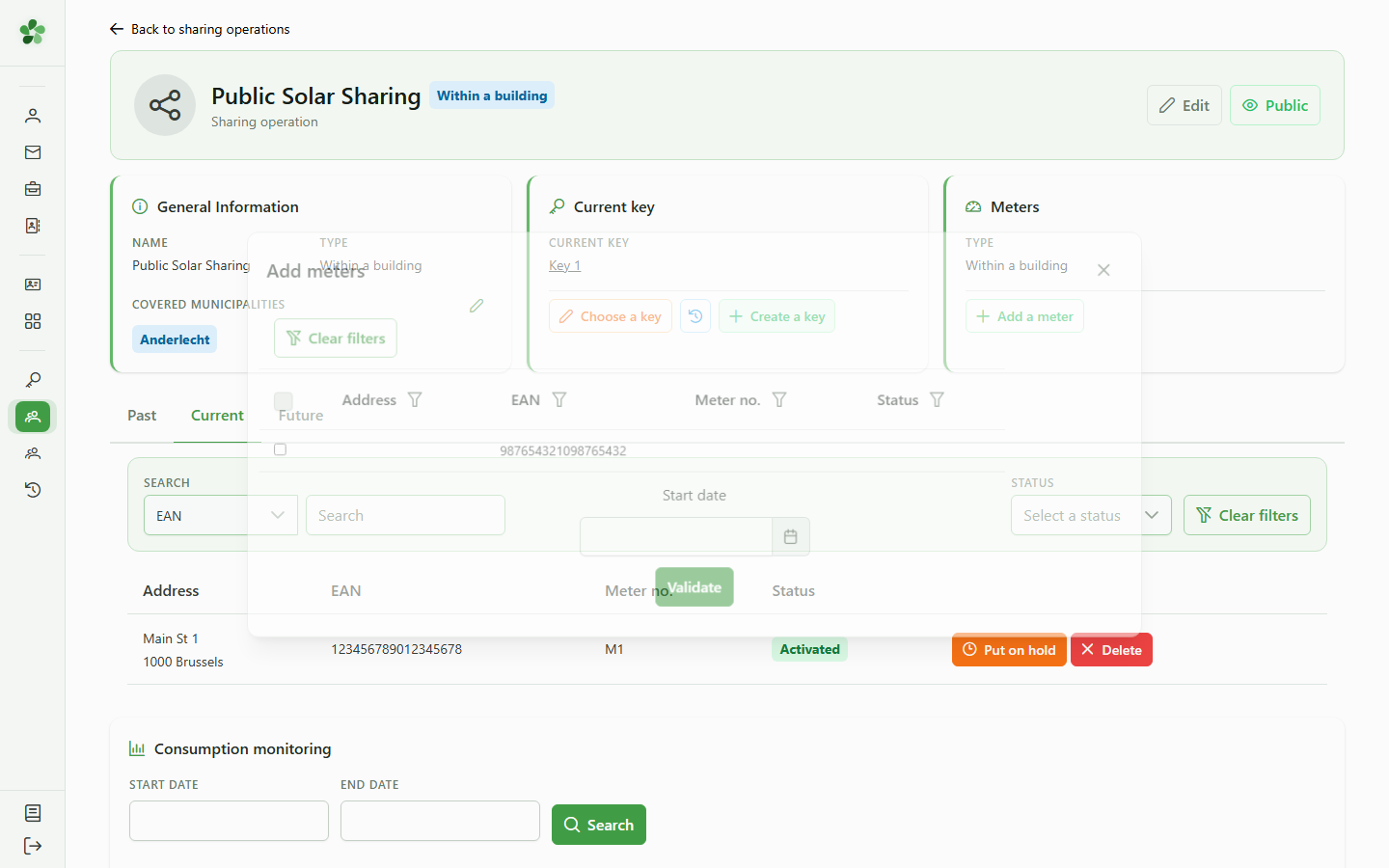
The dialog lists every meter in the community that is not yet attached to this sharing operation.
7 Tick the meter
Selection
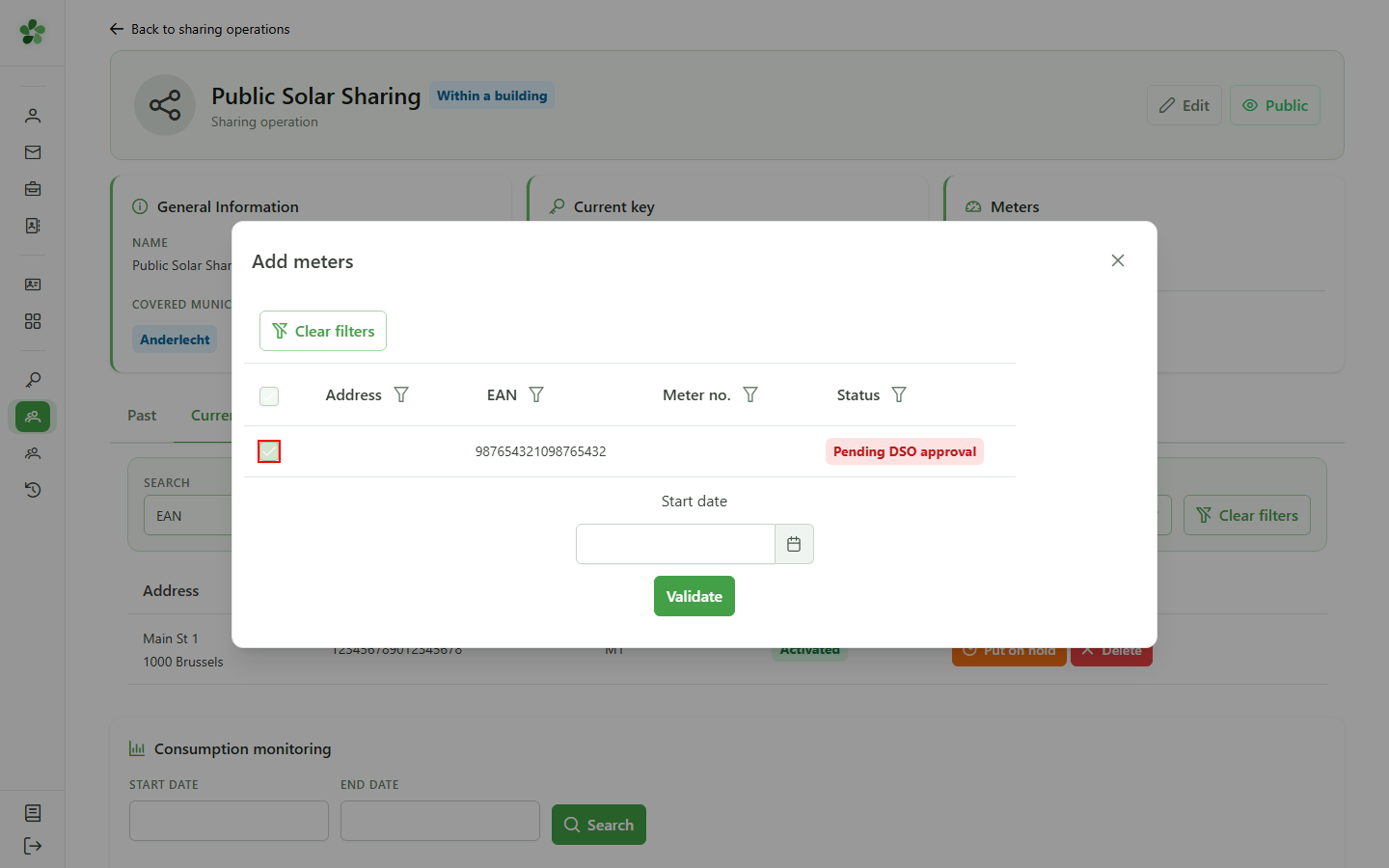
Tick the checkbox of the meter you want to attach. Multiple meters can be selected before submitting.
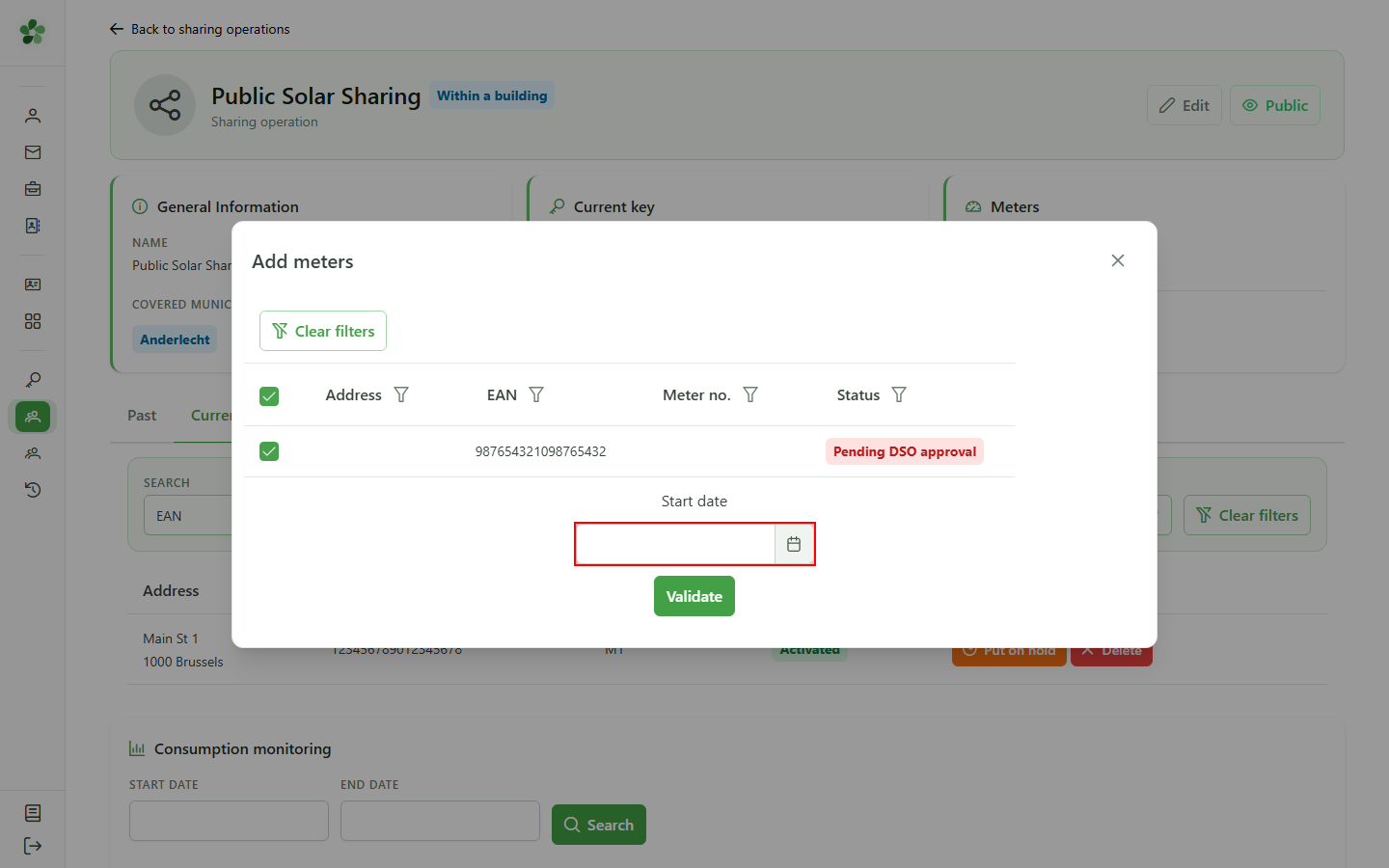
8 Start date today
Activation window
Open the calendar and pick today's date so the meter attachment takes effect immediately.
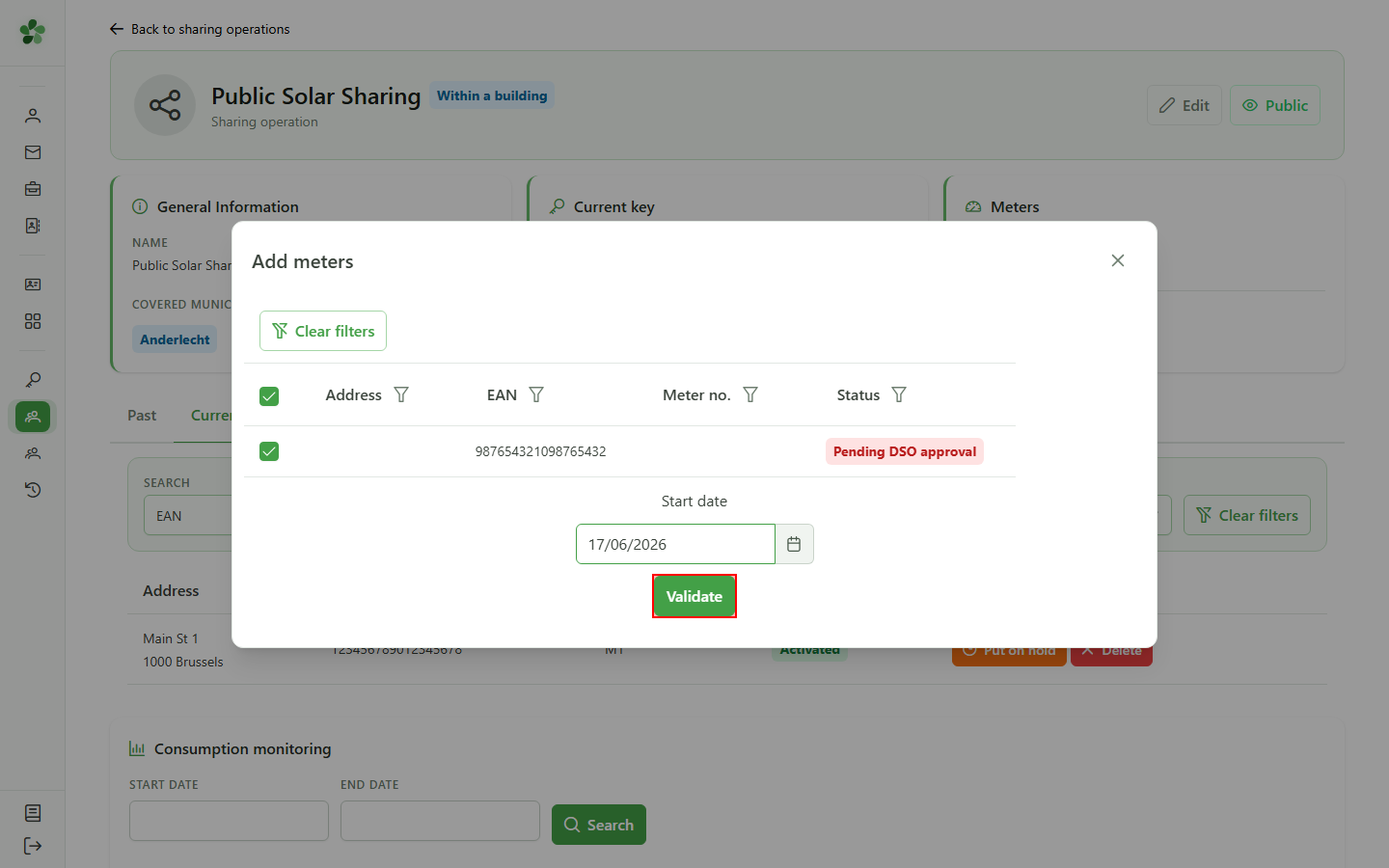
9 Confirm the addition
Confirmation
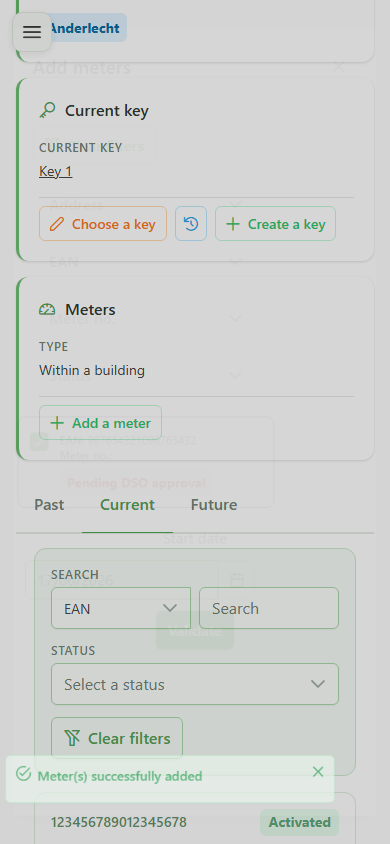
Click "Validate" to attach the meter. A toast notification confirms the server-side update.
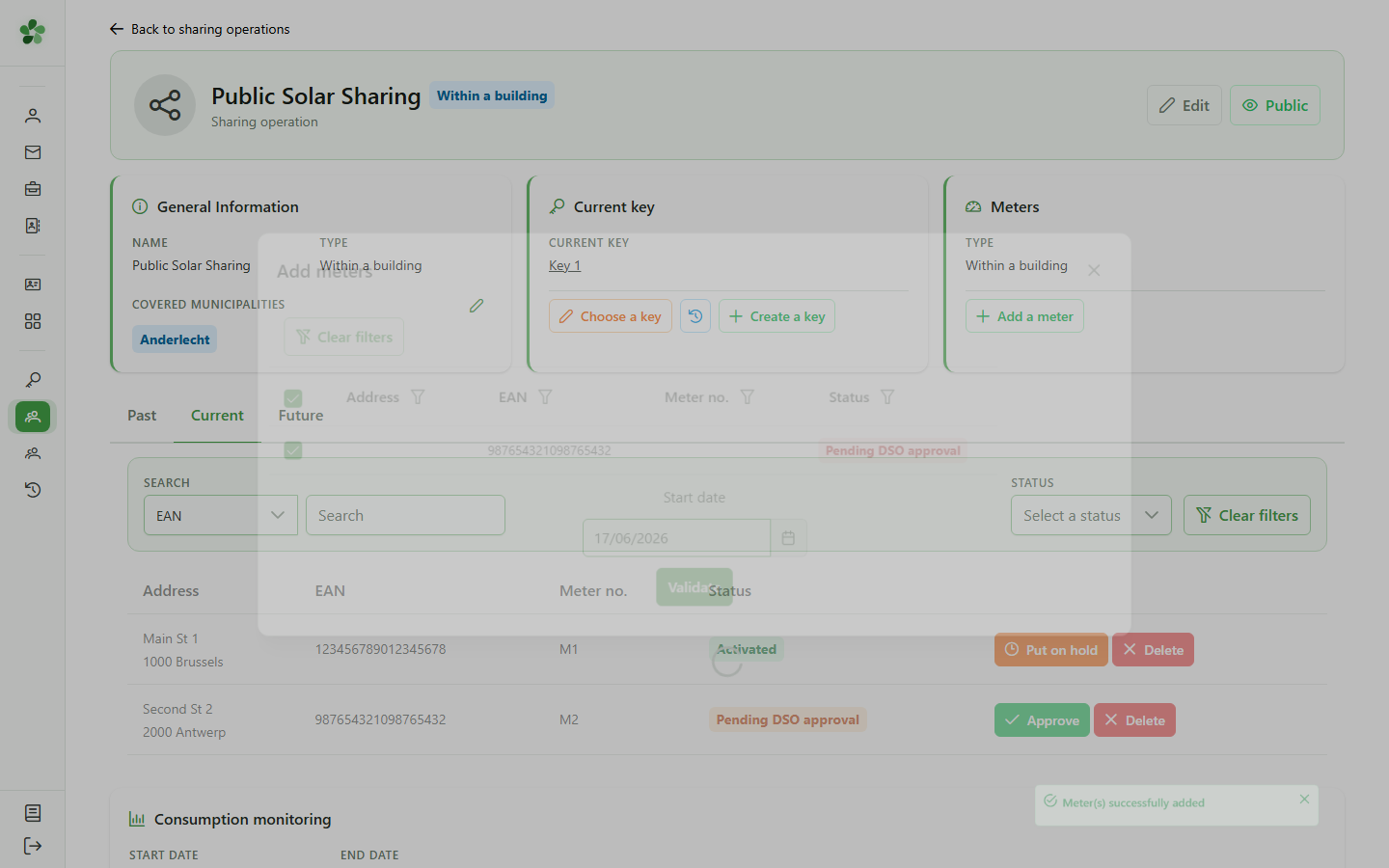
10 Meter attached
Verification
Back on the detail view, the newly attached meter appears immediately in the "Now" tab of meters tied to the operation.
Add a meter to a sharing operation
Guide utilisateur
User guide
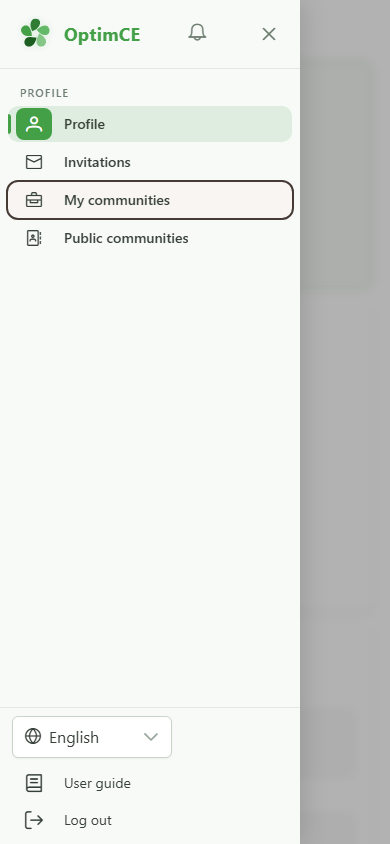
1 Open my communities
Navigation
Tap the menu icon to open the navigation drawer, then "My communities" to see the list of communities you belong to.
2 Check the active community
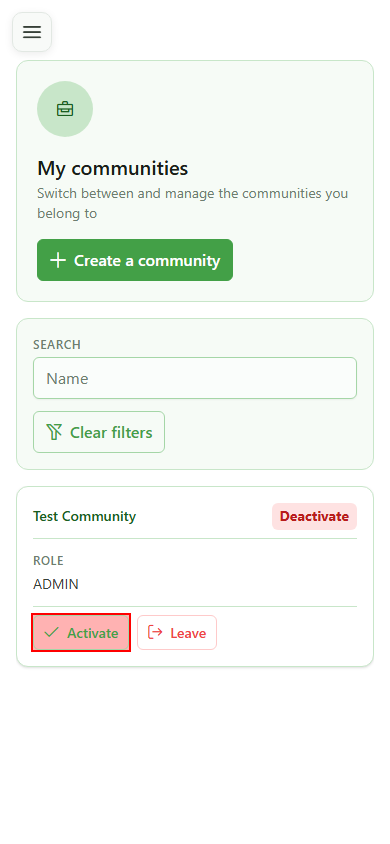
Active community
The Test Community card shows it is already your active community. If you belong to several, tap "Activate" on the one you want to work in.
3 Open sharing operations
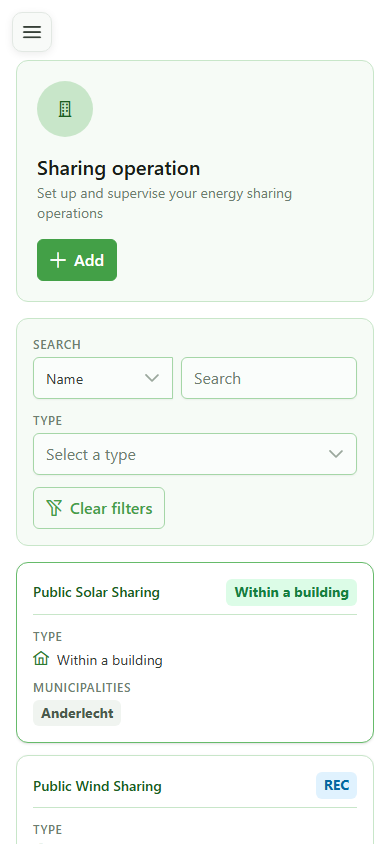
Navigation
Open the list of sharing operations for your community to find the one you want to attach a meter to.
4 Select an operation
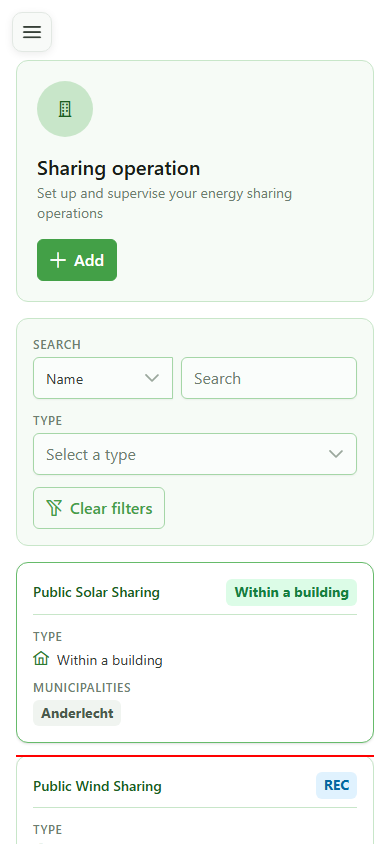
Selection
Tap the card of the sharing operation you want to edit to open its detail view.
5 Start adding a meter
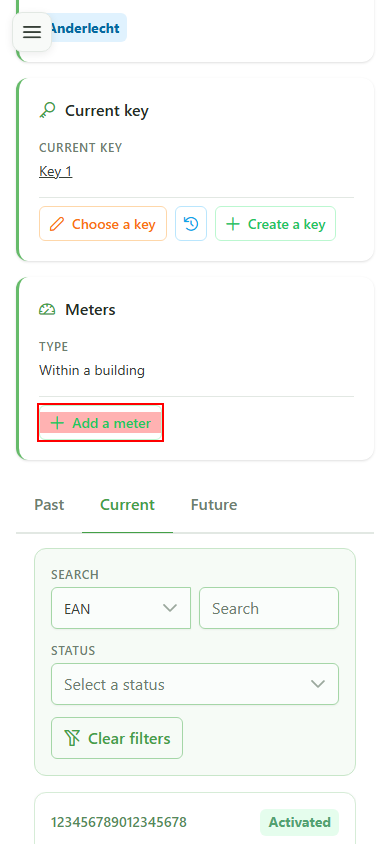
Action
From the detail view, click "Add meter" to open the meter selection dialog.
6 Available meters
Selection
The dialog lists every meter in the community that is not yet attached to this sharing operation.
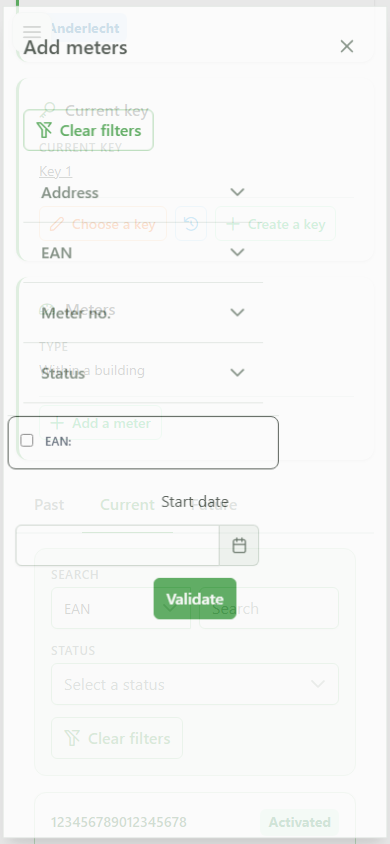
7 Tick the meter
Selection
Tick the checkbox of the meter you want to attach. Multiple meters can be selected before submitting.
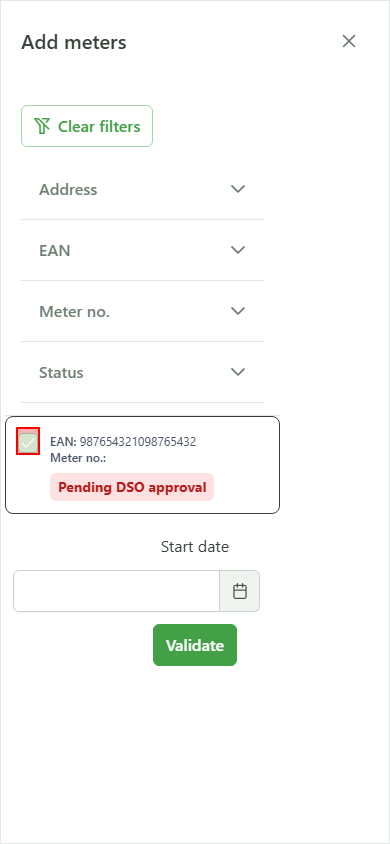
8 Start date today
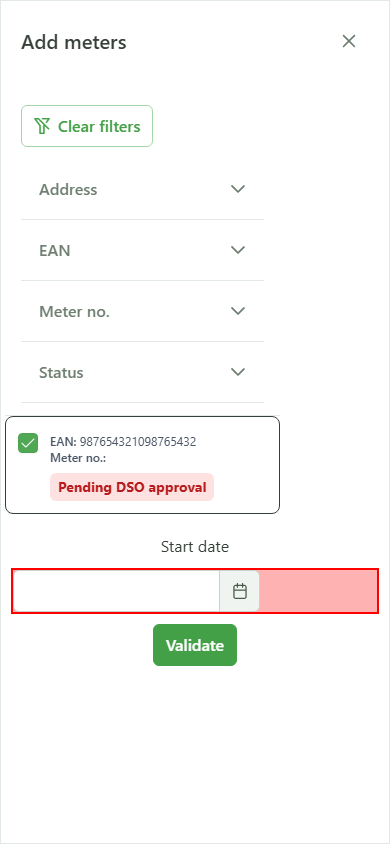
Activation window
Open the calendar and pick today's date so the meter attachment takes effect immediately.
9 Confirm the addition
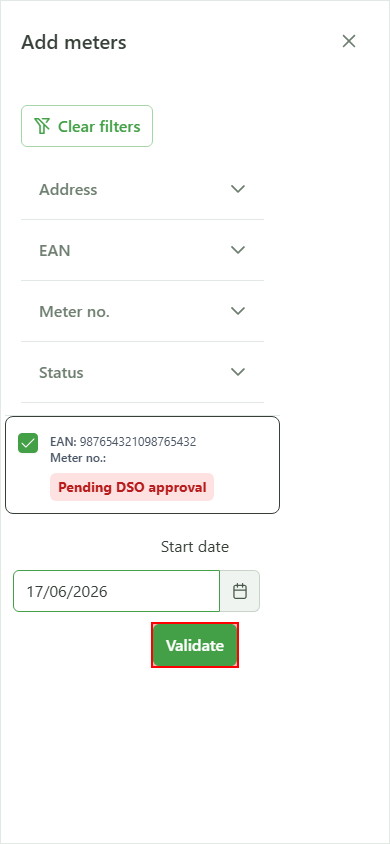
Confirmation
Click "Validate" to attach the meter. A toast notification confirms the server-side update.
10 Meter attached
Verification
Back on the detail view, the card of the newly attached meter appears immediately in the "Now" tab of meters tied to the operation.