Update your profile
Guide utilisateur
User guide
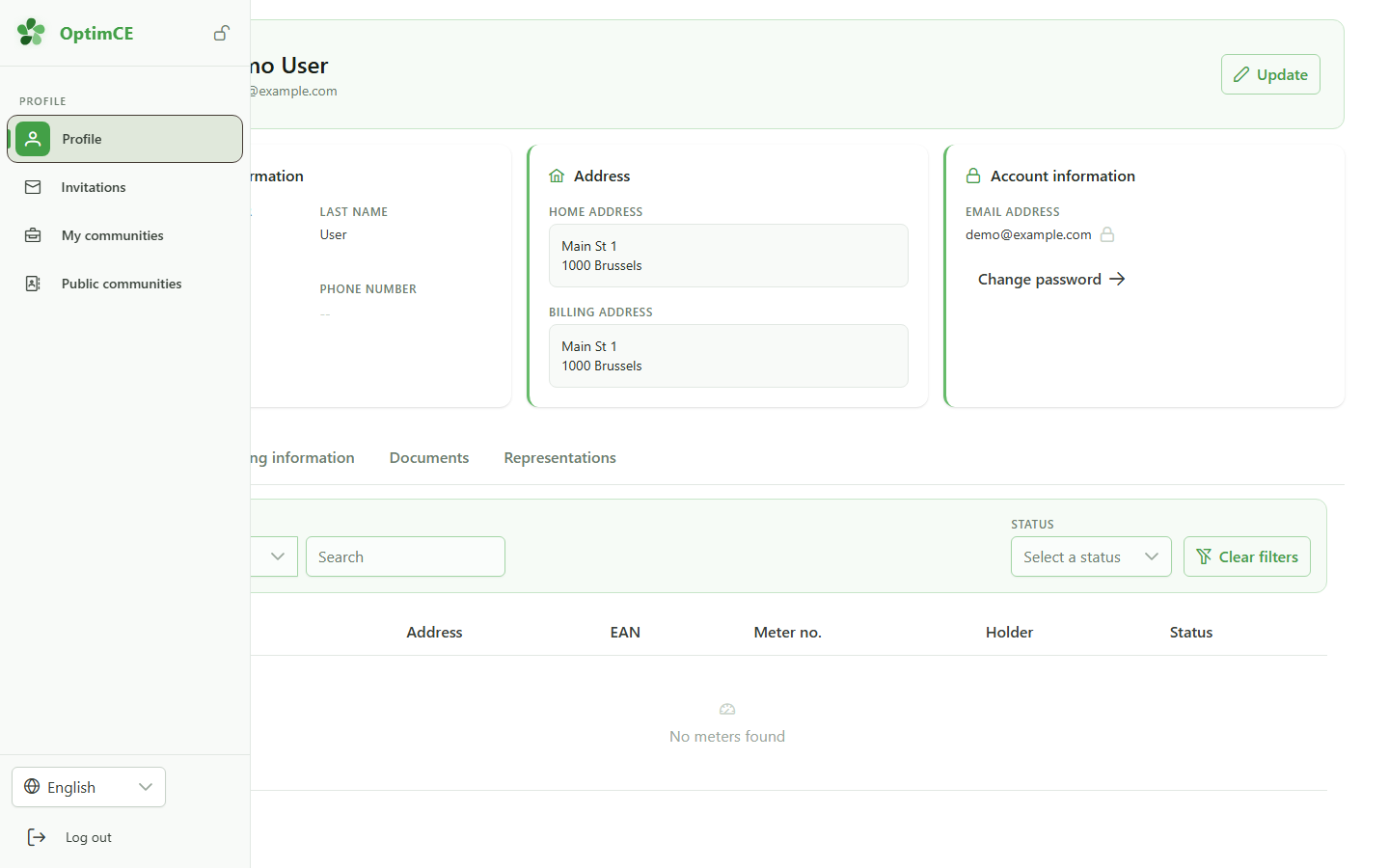
1 Open the profile
Navigation
In the sidebar, click "Profile" to open your personal account page.
2 Default profile
Profile overview
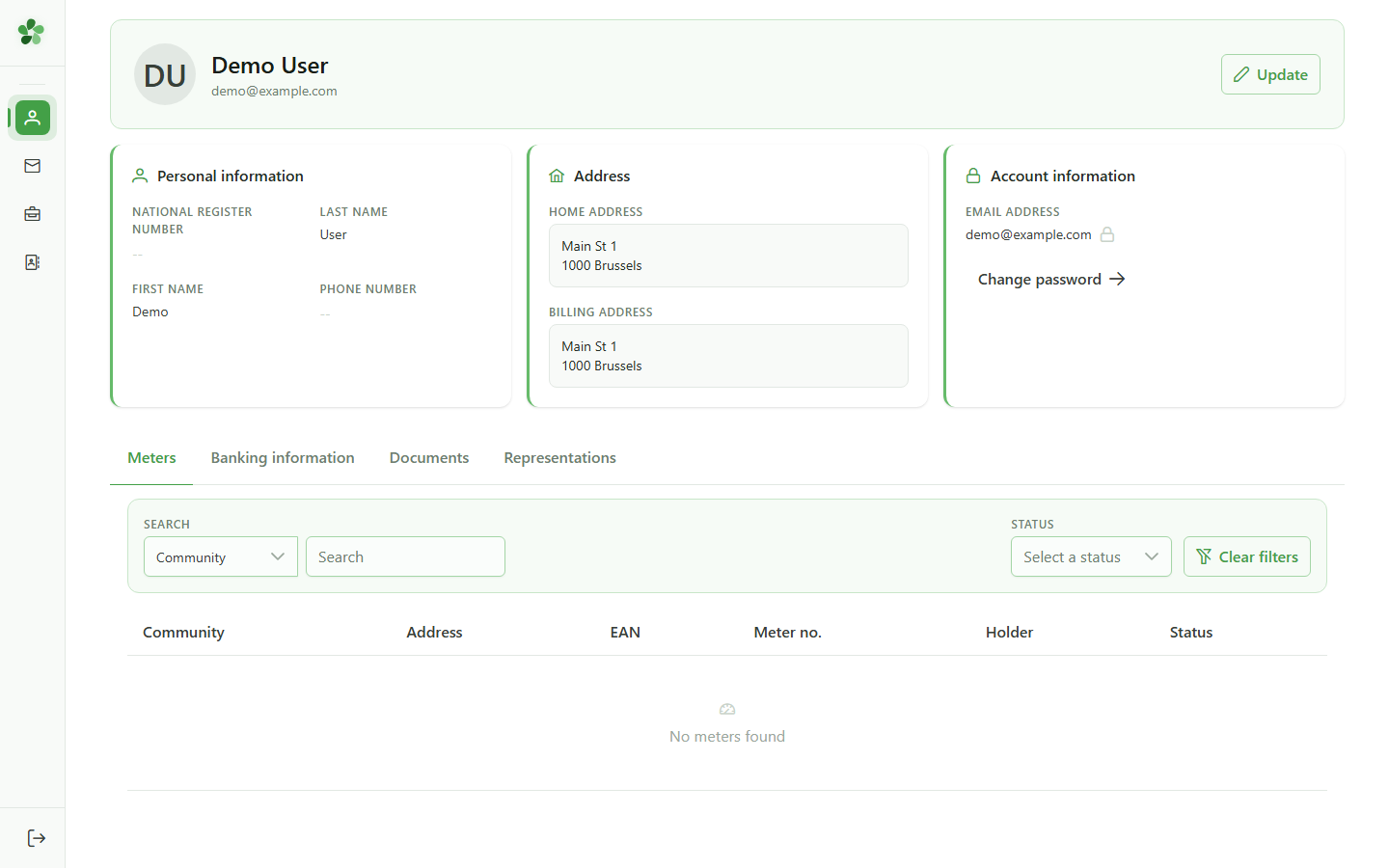
The profile shows the seeded defaults: Demo User, demo@example.com and the Brussels address as injected by the database fixtures.
3 Open the form
Updating the profile
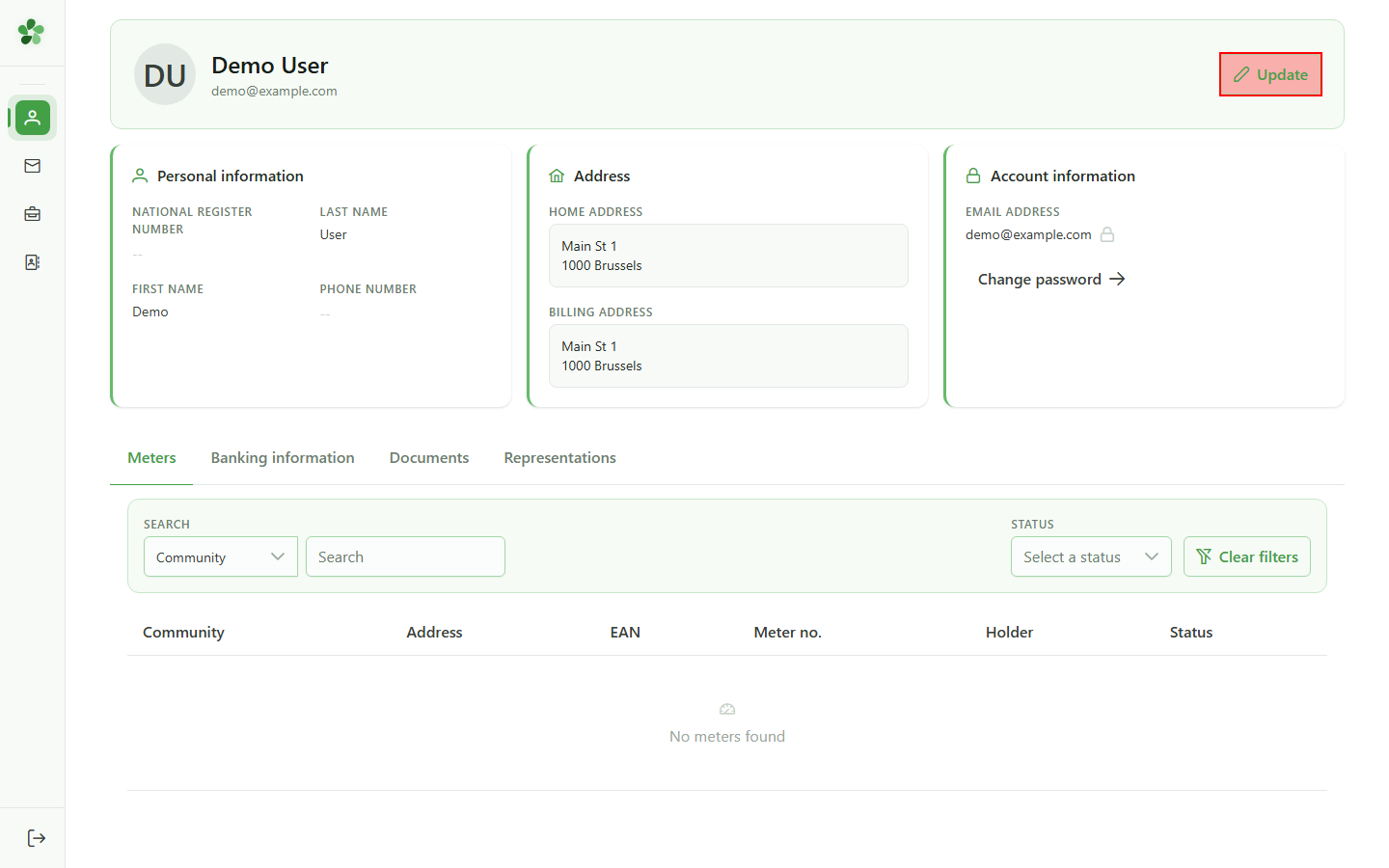
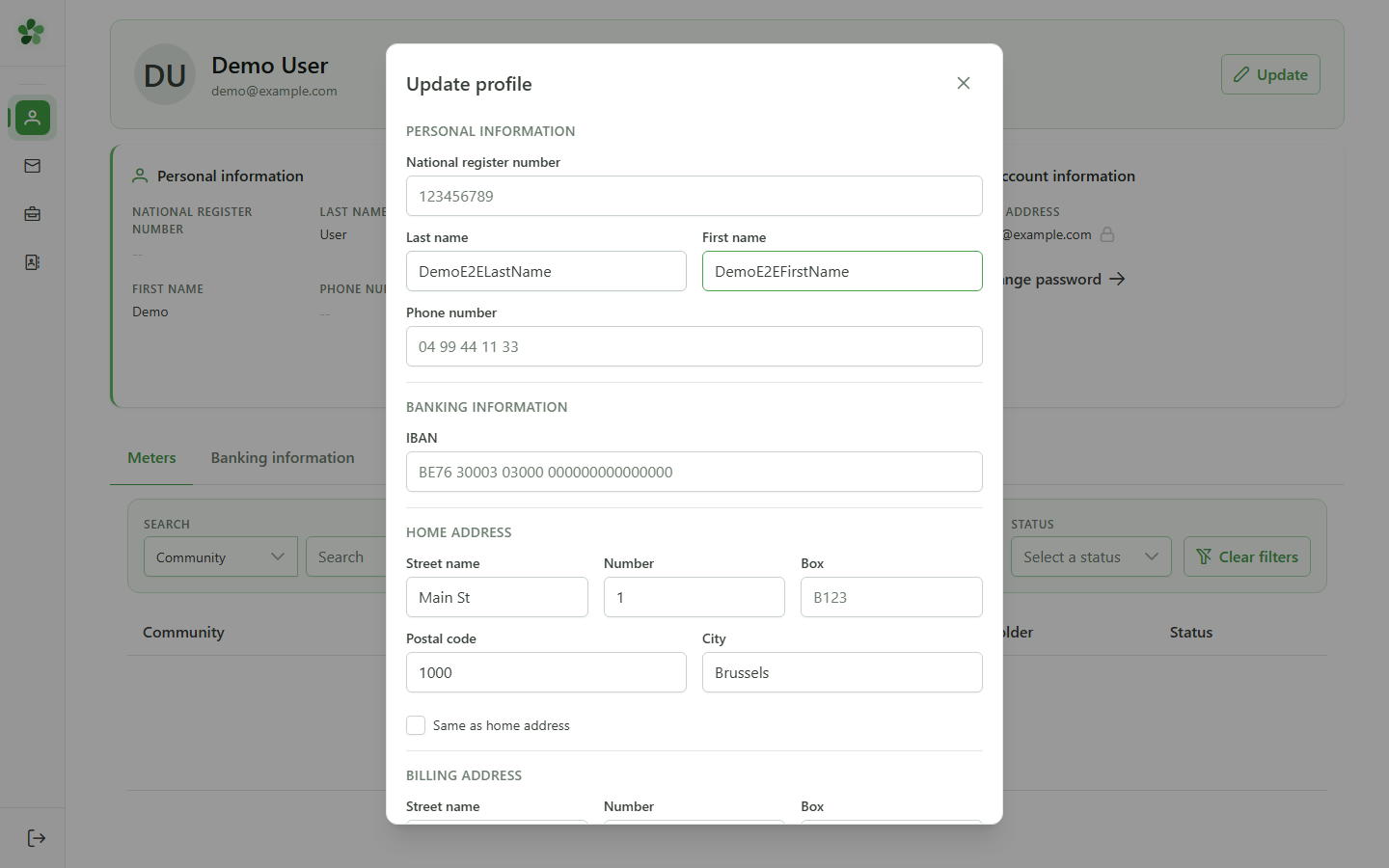
Click "Update profile" to open the dialog containing the editable first name, last name and related fields.
4 Enter the new name
Updating the profile
Type the new first name and last name in their respective fields. The save button enables once both fields are populated.
5 Save the changes
Saving
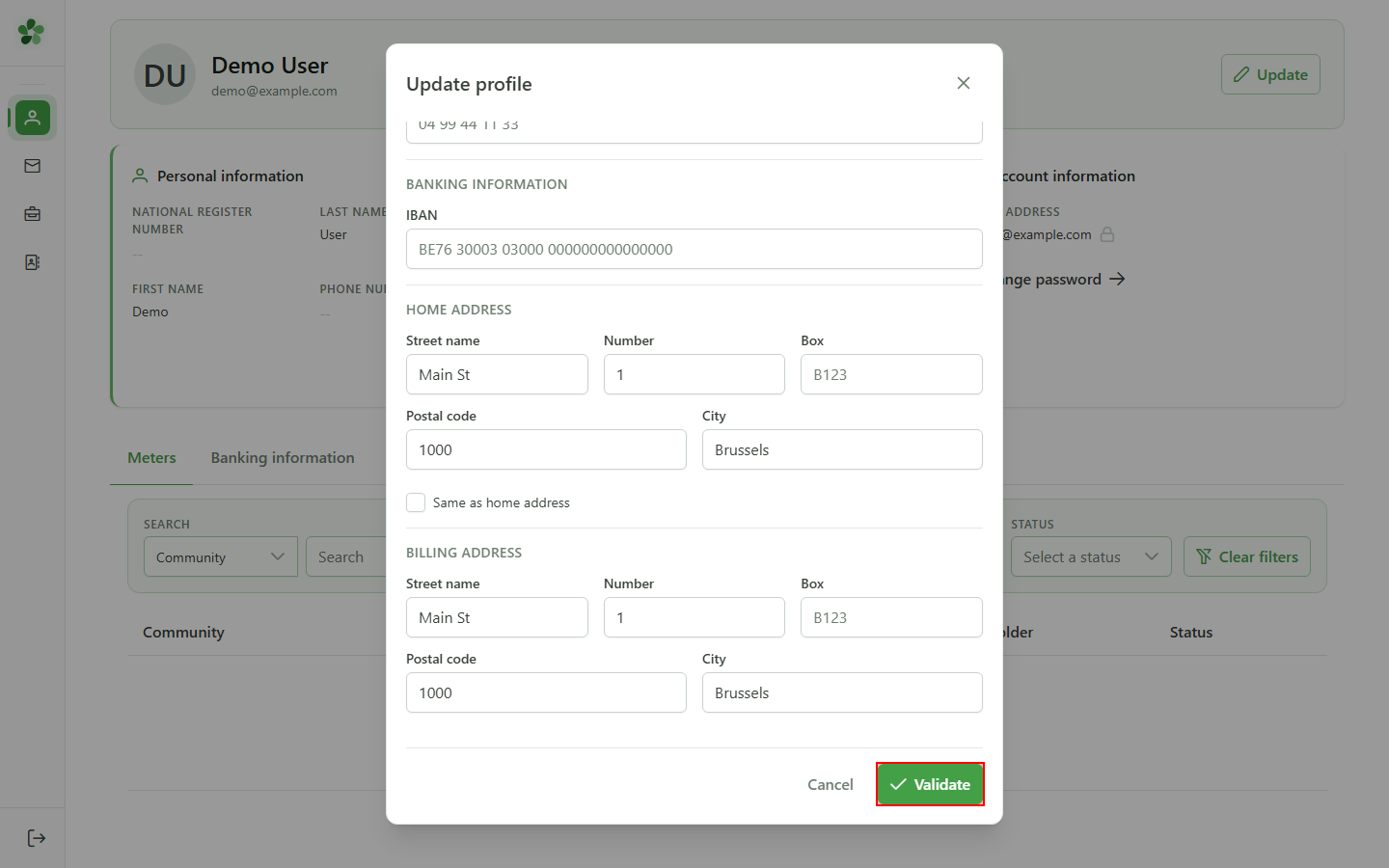
Click "Save" to send the updated information to the CRM. The dialog closes once the update is acknowledged.
6 Profile updated
Confirmation
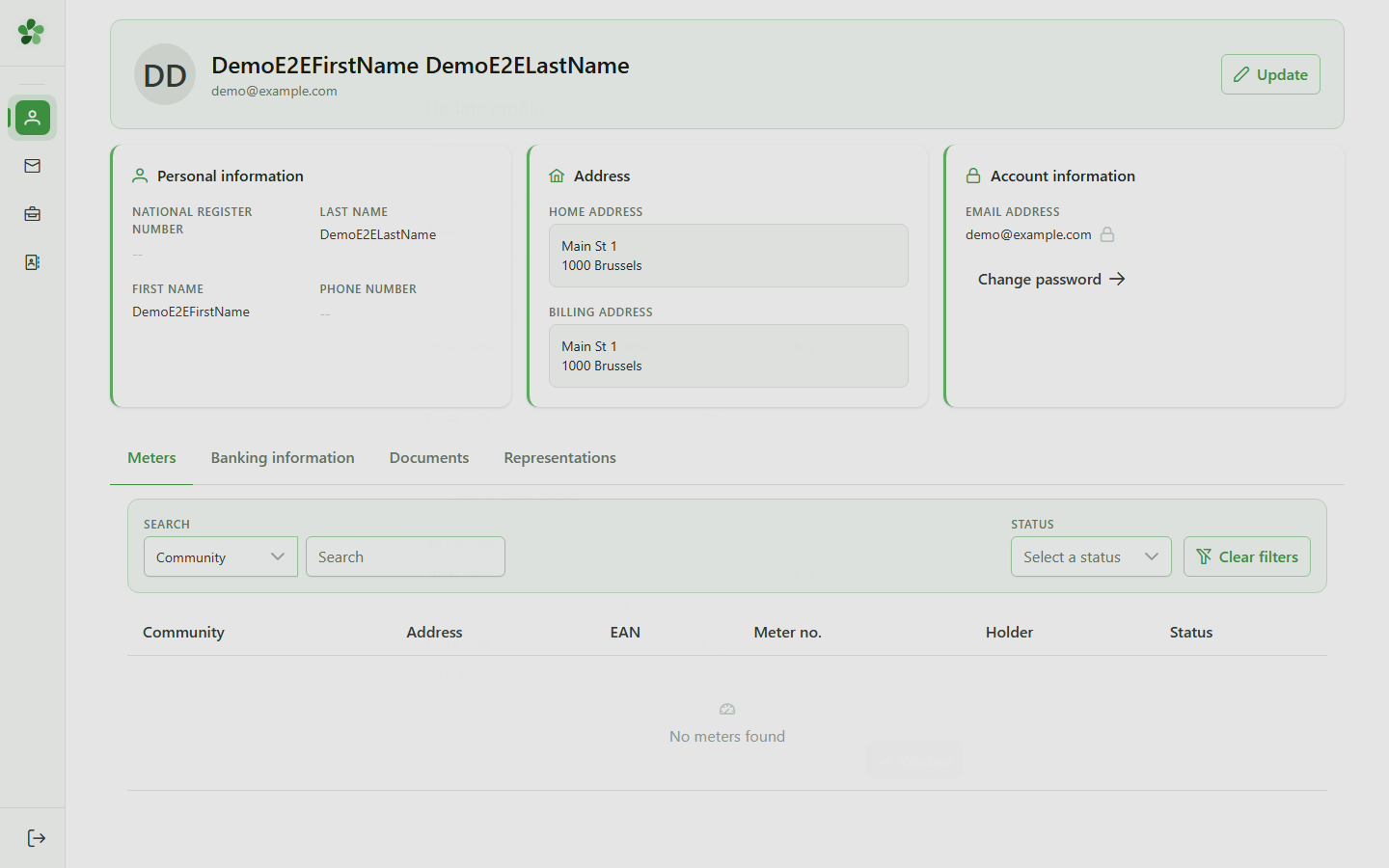
Back on the profile page, the new first and last name appear immediately — the change has been persisted server-side.
Update your profile
Guide utilisateur
User guide
1 Open the profile
Navigation
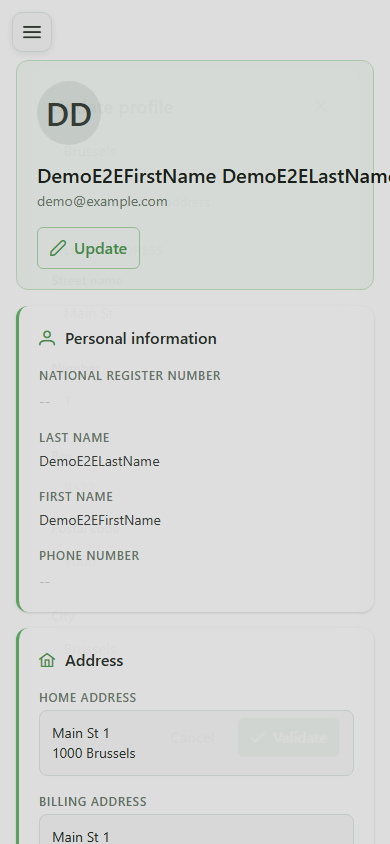
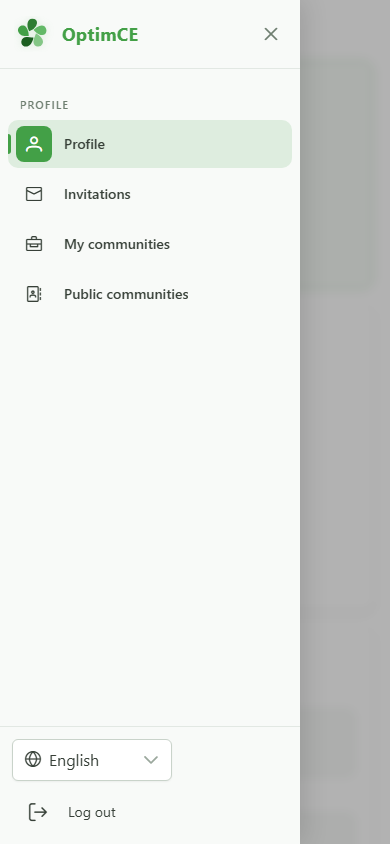
Tap the menu icon in the top-left to slide the drawer in, then "Profile" to open your personal account page.
2 Default profile
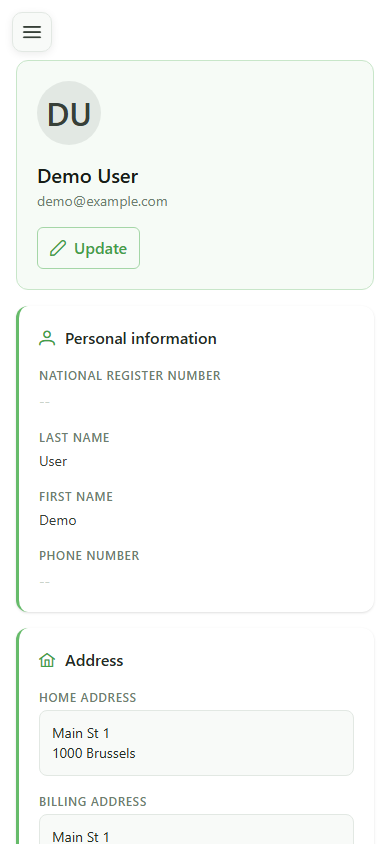
Profile overview
The profile shows the seeded defaults: Demo User, demo@example.com and the Brussels address as injected by the database fixtures.
3 Open the form
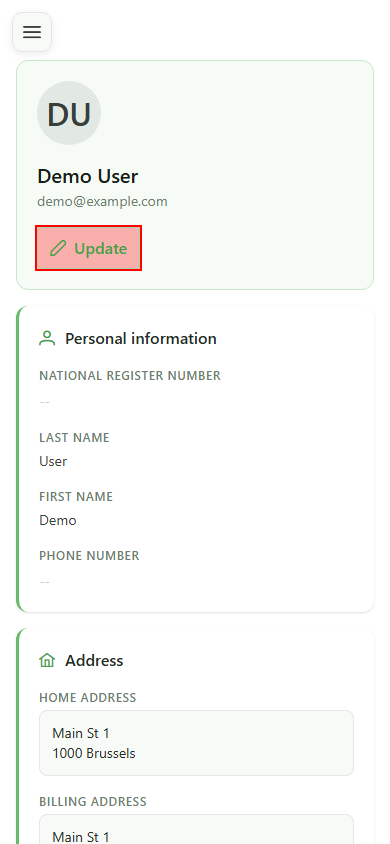
Updating the profile
Click "Update profile" to open the dialog containing the editable first name, last name and related fields.
4 Enter the new name
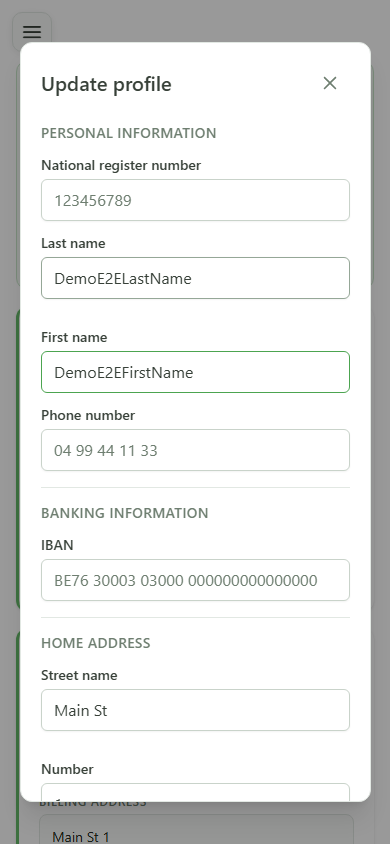
Updating the profile
Type the new first name and last name in their respective fields. The save button enables once both fields are populated.
5 Save the changes
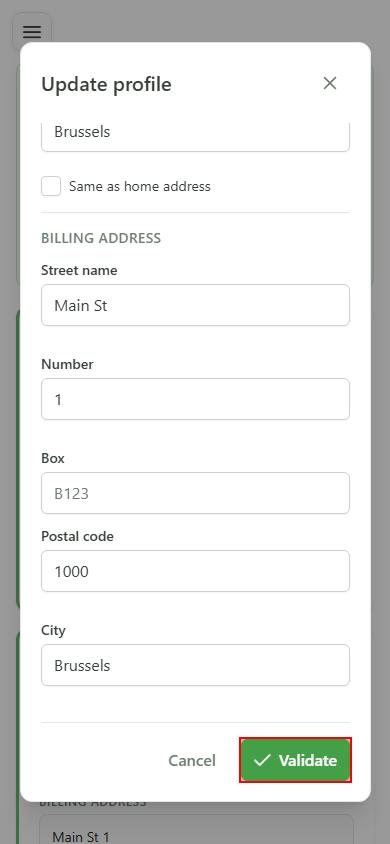
Saving
Click "Save" to send the updated information to the CRM. The dialog closes once the update is acknowledged.
6 Profile updated
Confirmation
Back on the profile page, the new first and last name appear immediately — the change has been persisted server-side.