Welcome to OptimCE
Guide utilisateur
User guide
Gebruikershandleiding
Benutzerhandbuch
1 Welcome to OptimCE
Home page
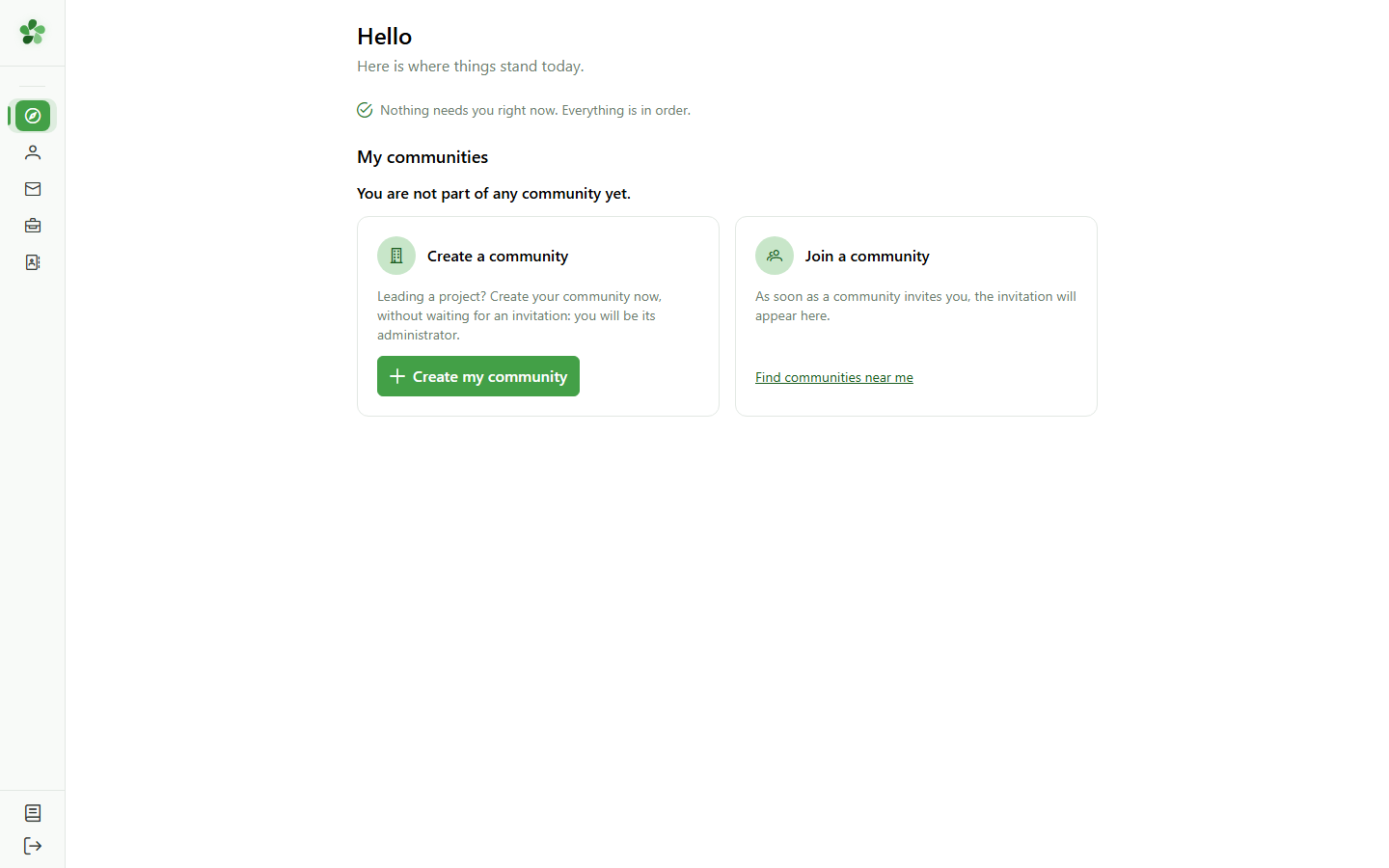
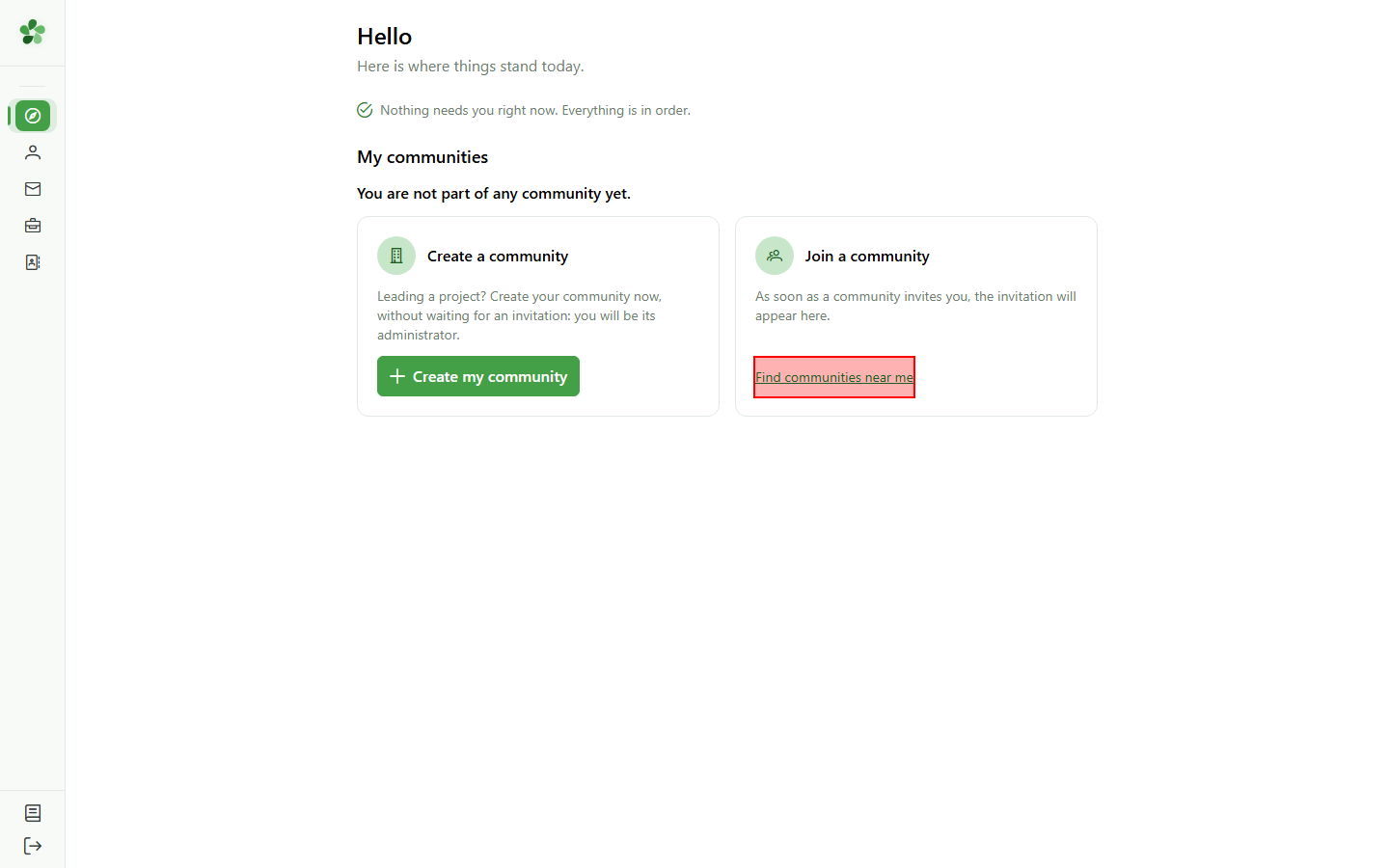
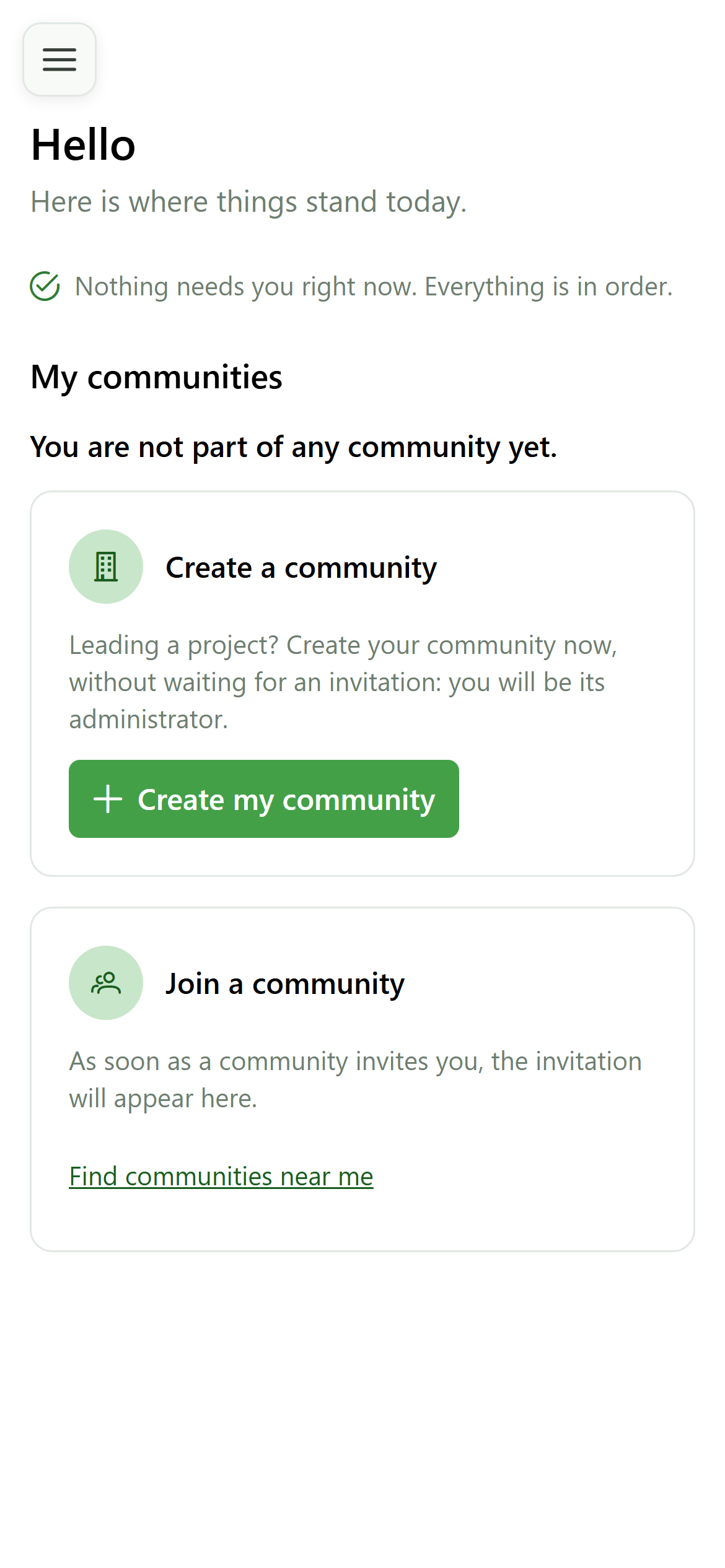
OptimCE helps you share energy within an energy community. Your home page gathers everything that concerns you; for now, you do not belong to any community yet.
2 What needs you
Home page
The top band lists what needs an action from you, such as an invitation to accept. When it reads "Nothing needs you right now. Everything is in order.", there is nothing to do.
3 Create your community
Home page
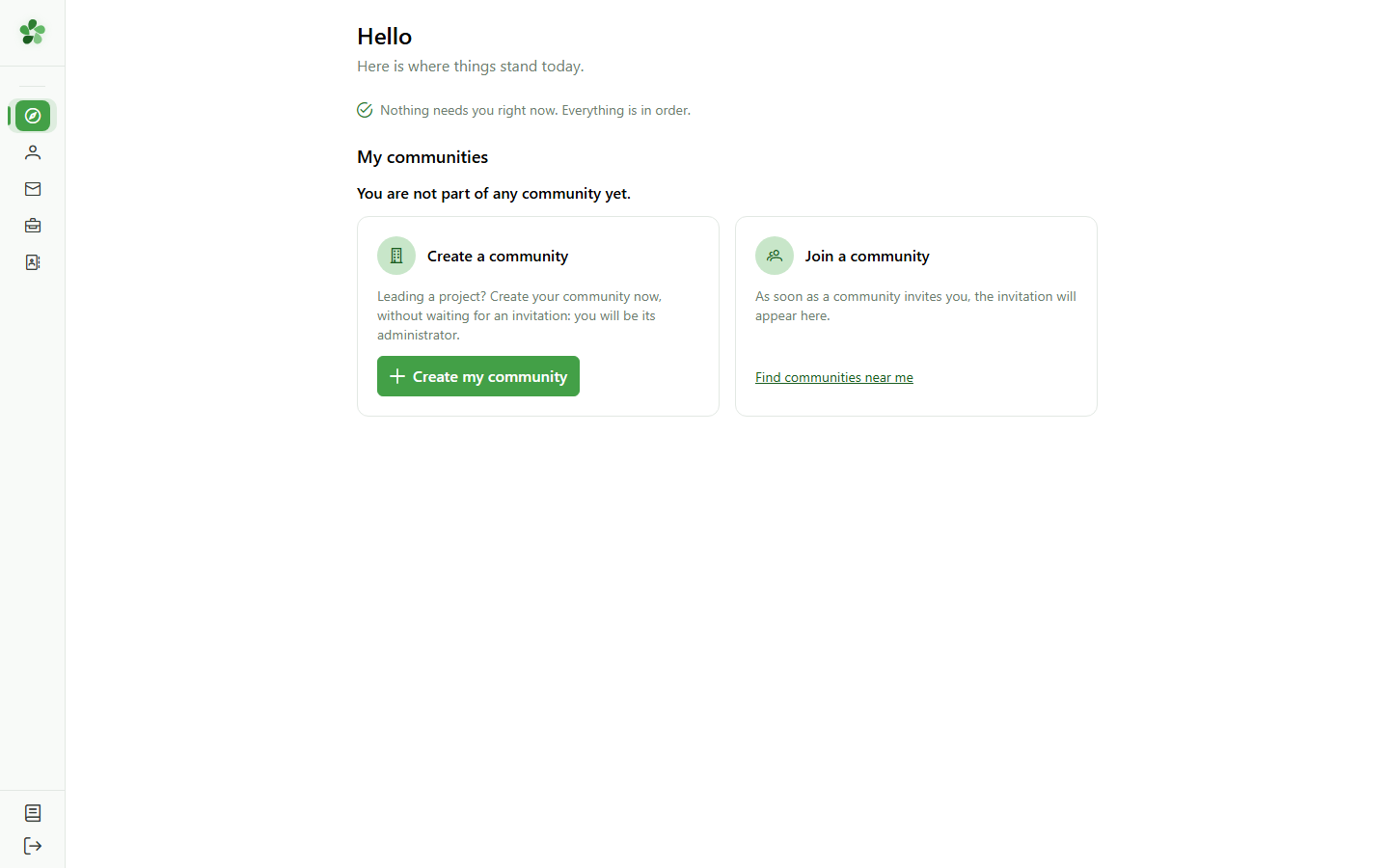
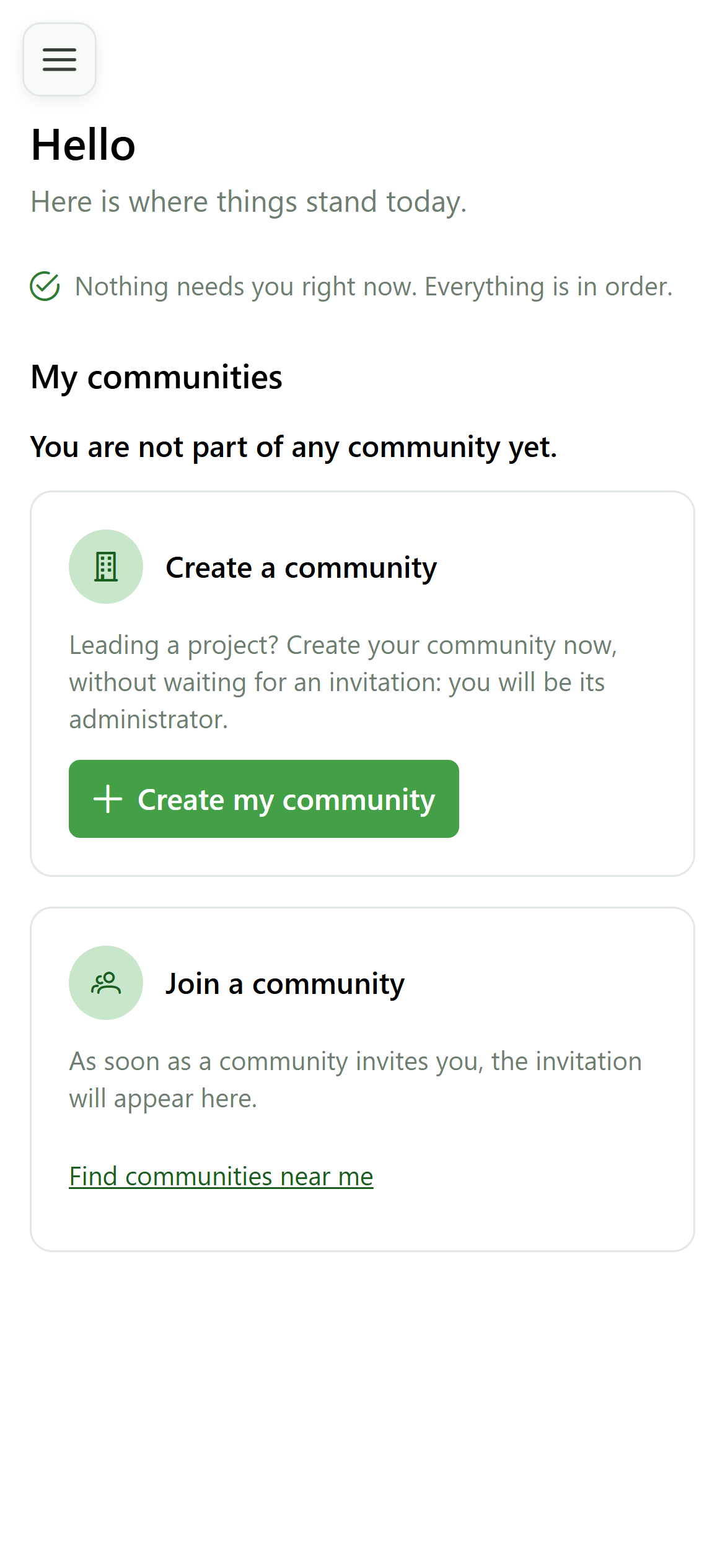
Starting an energy community? "Create my community" creates it and makes you its administrator. You can then invite its members and managers.
4 Find a community
Home page
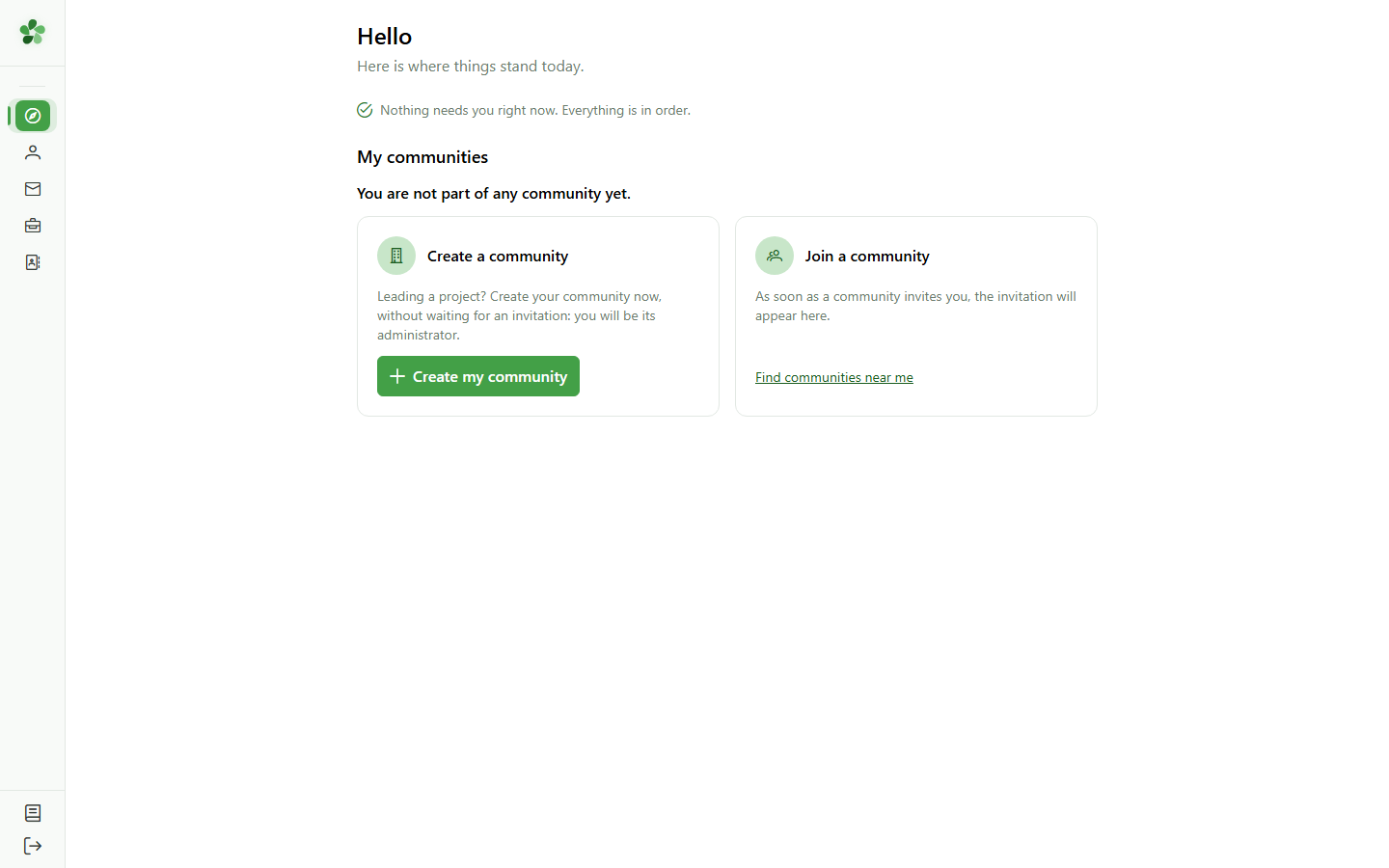
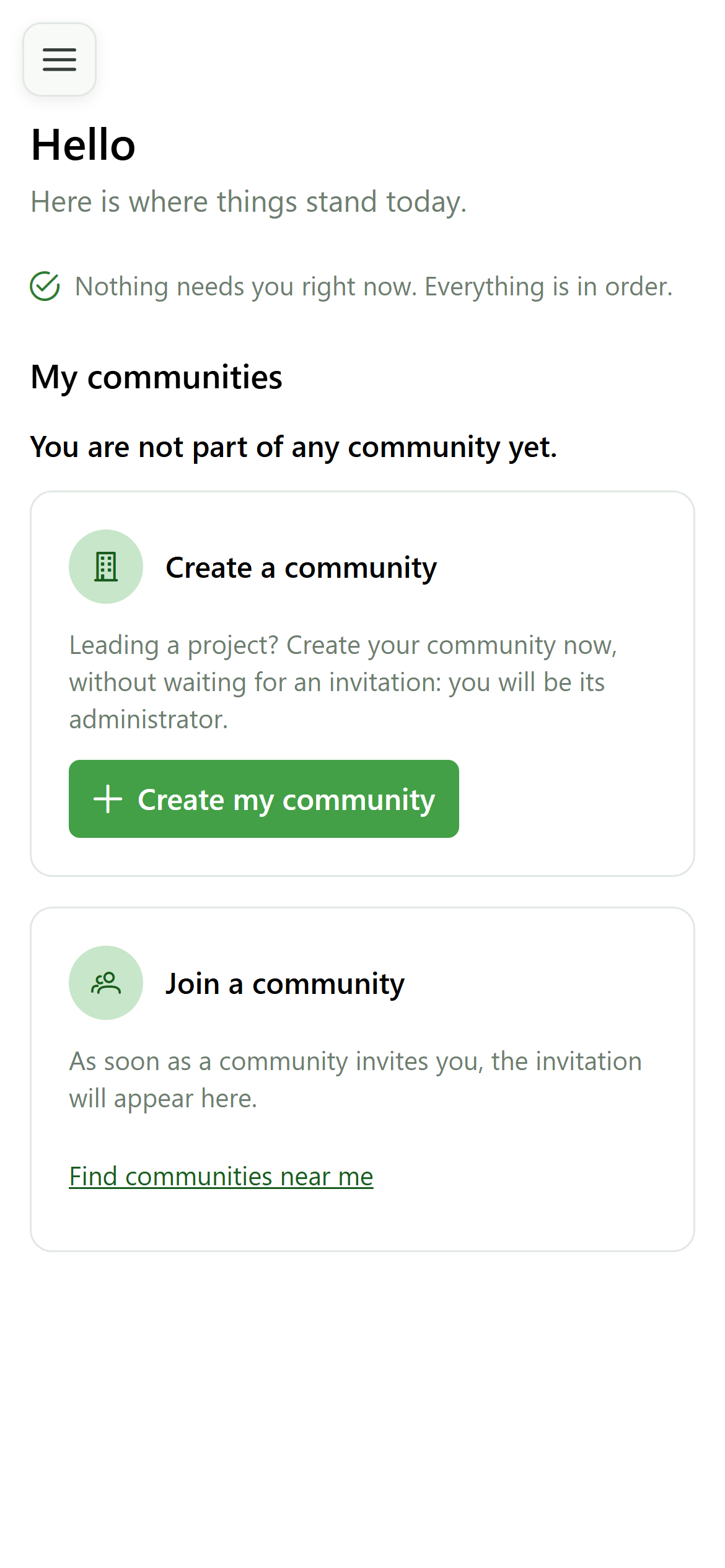
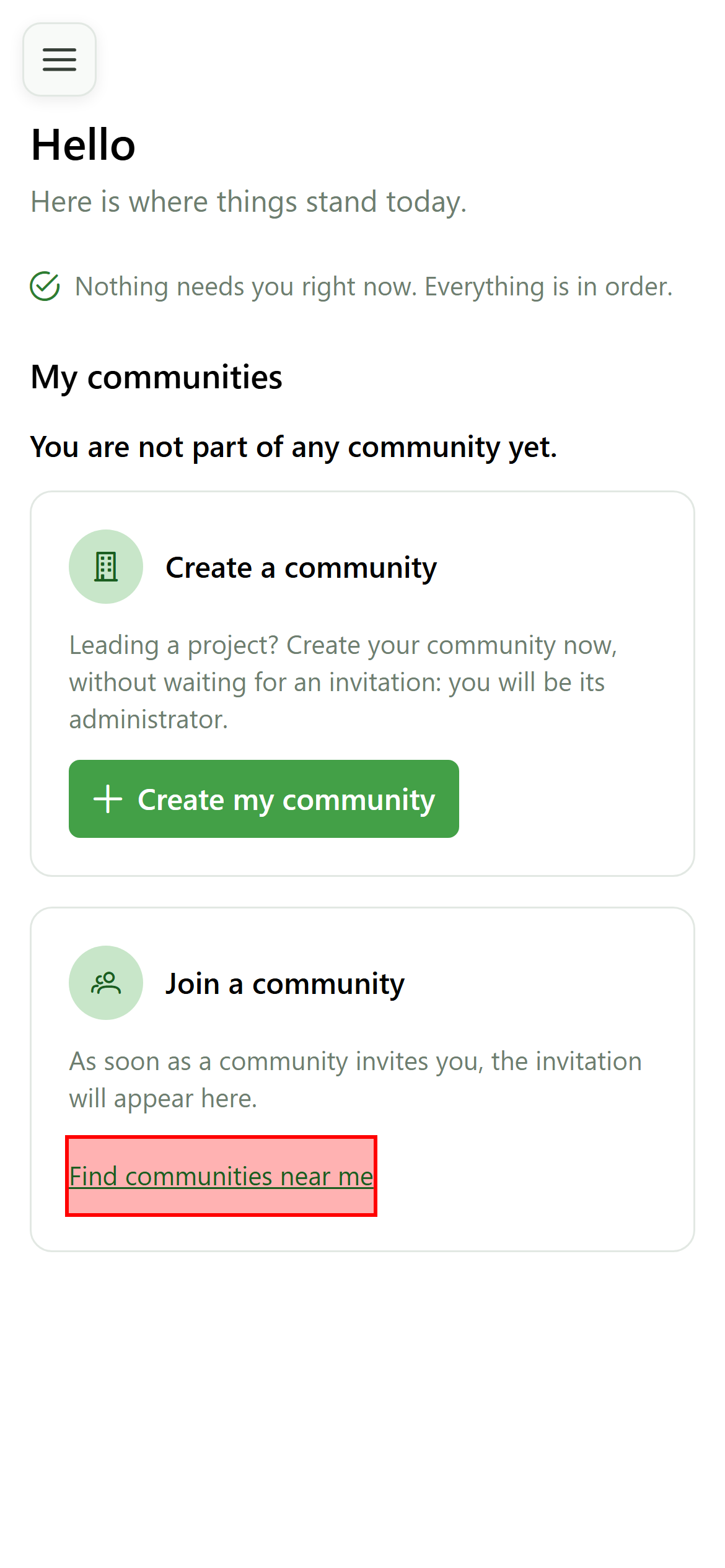
Would you rather join an existing community? Click "Find communities near me".
5 Public communities
Public communities
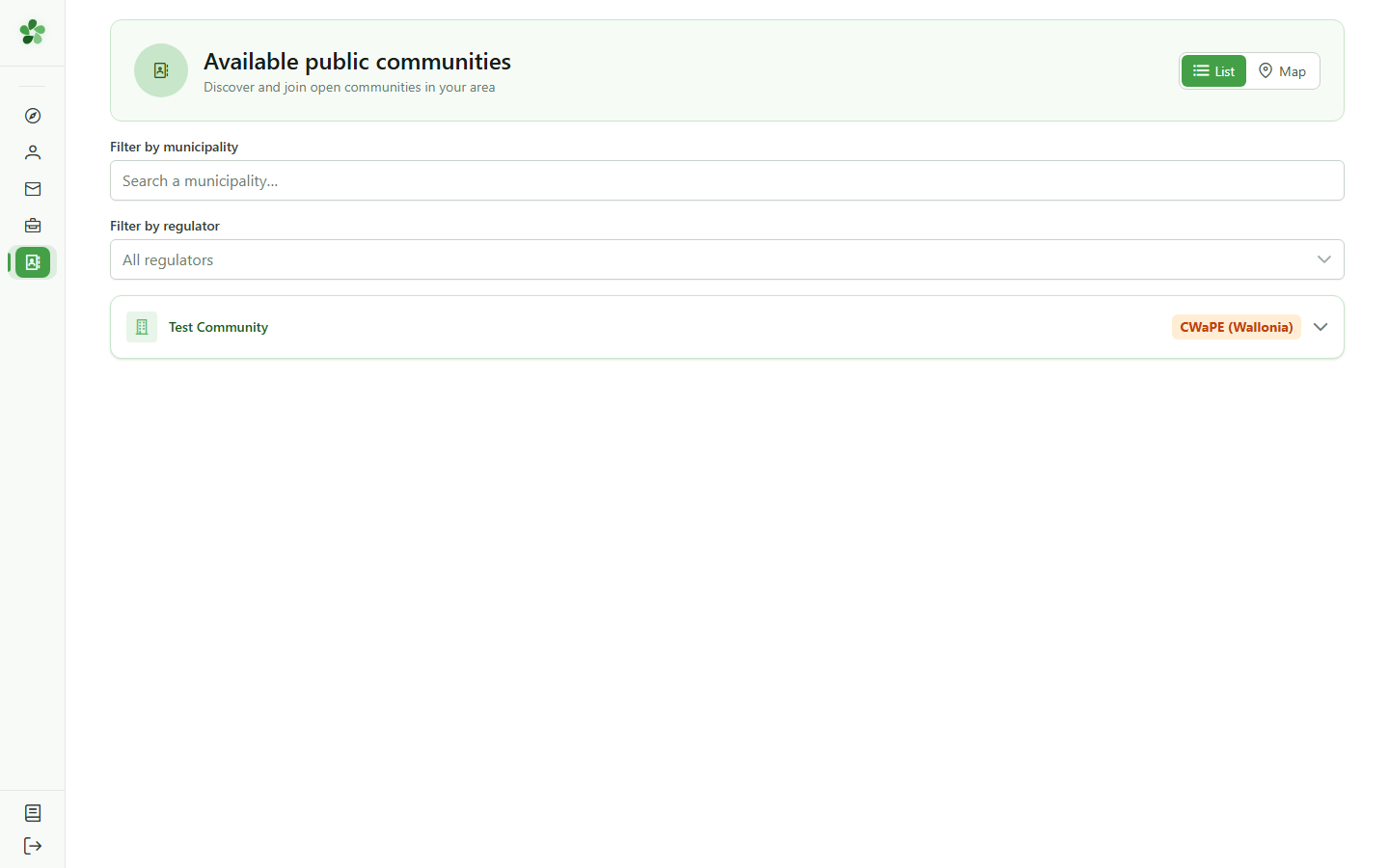
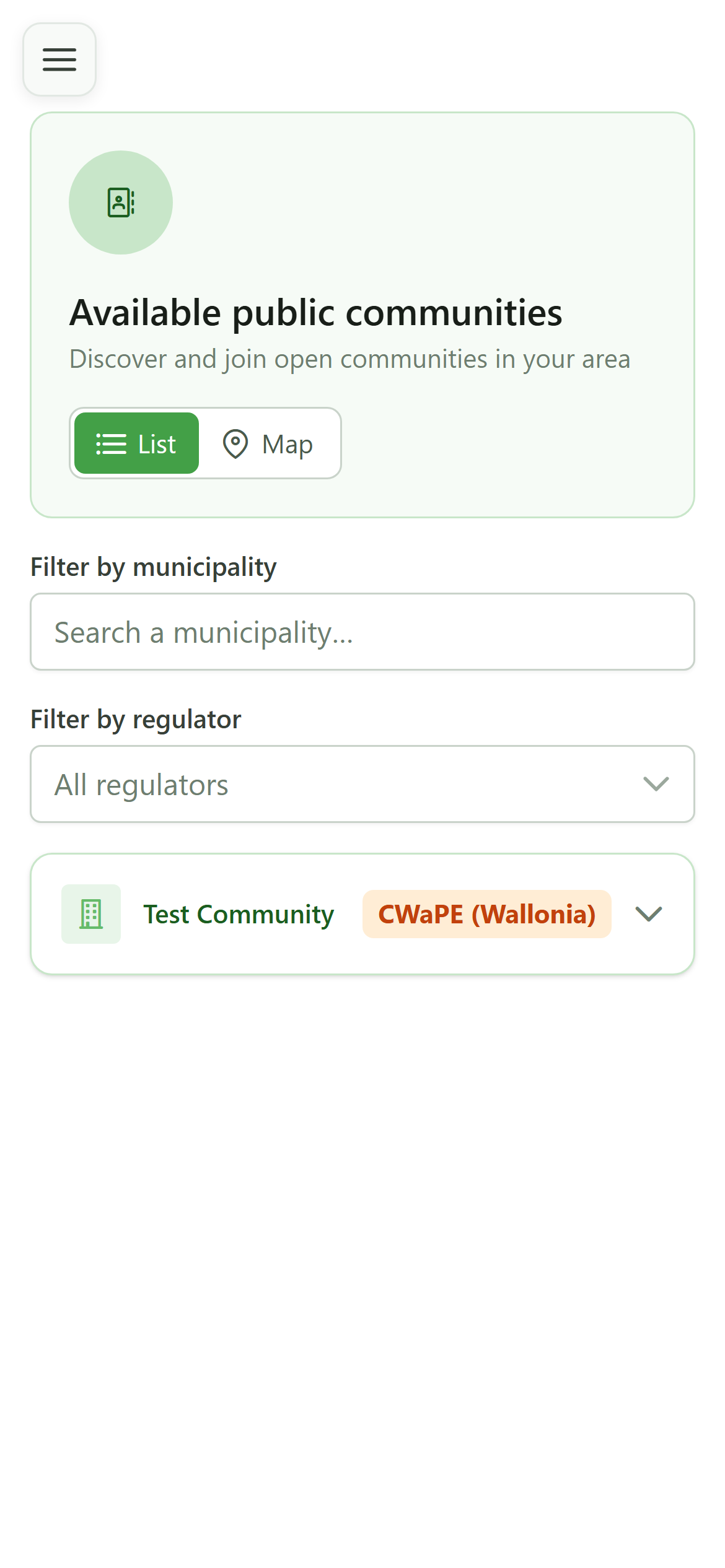
Here are the communities open to the public. Filter them by municipality or by regulator, then open one to read its description, its website and its sharing operations.
6 List or map
Public communities
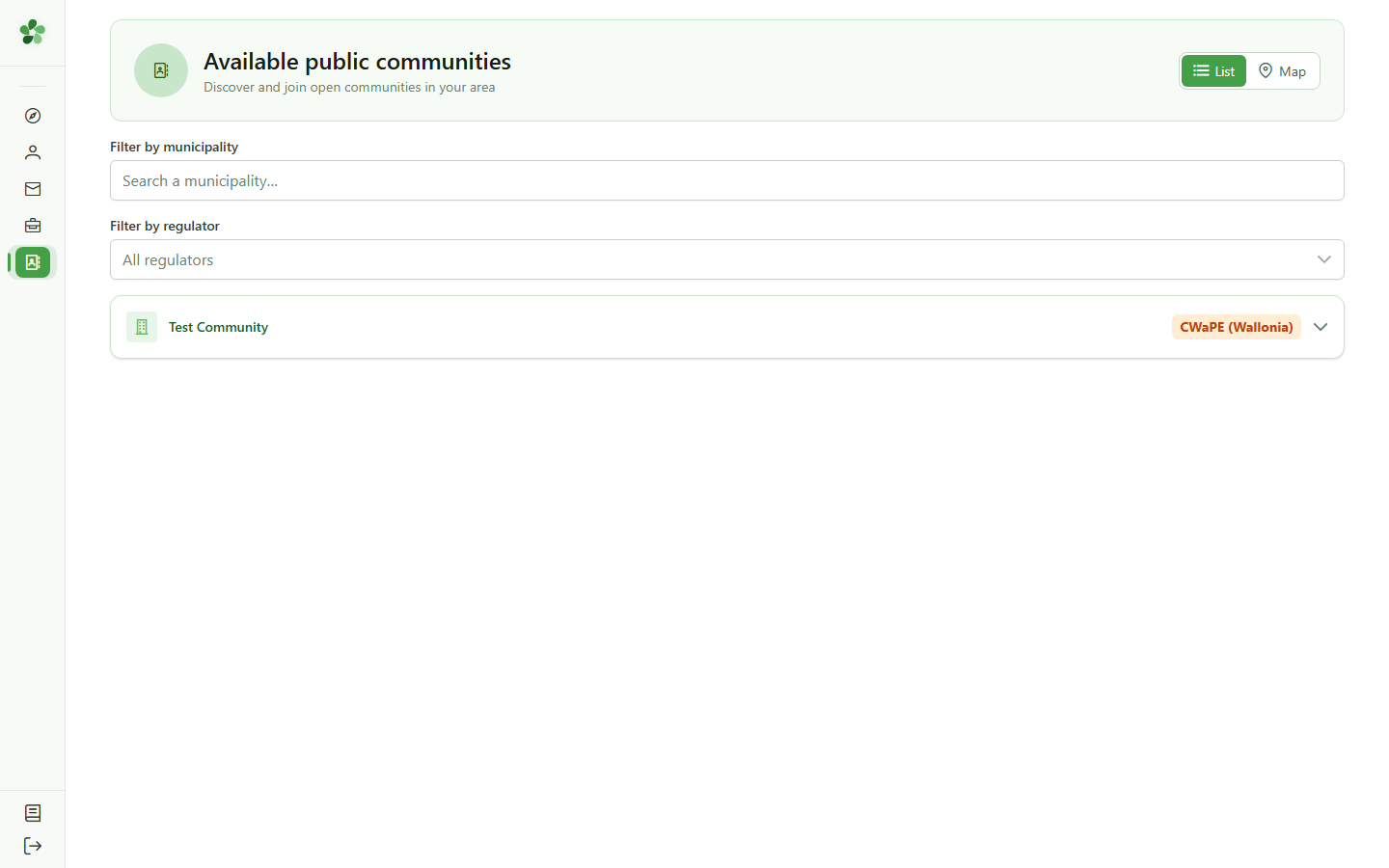
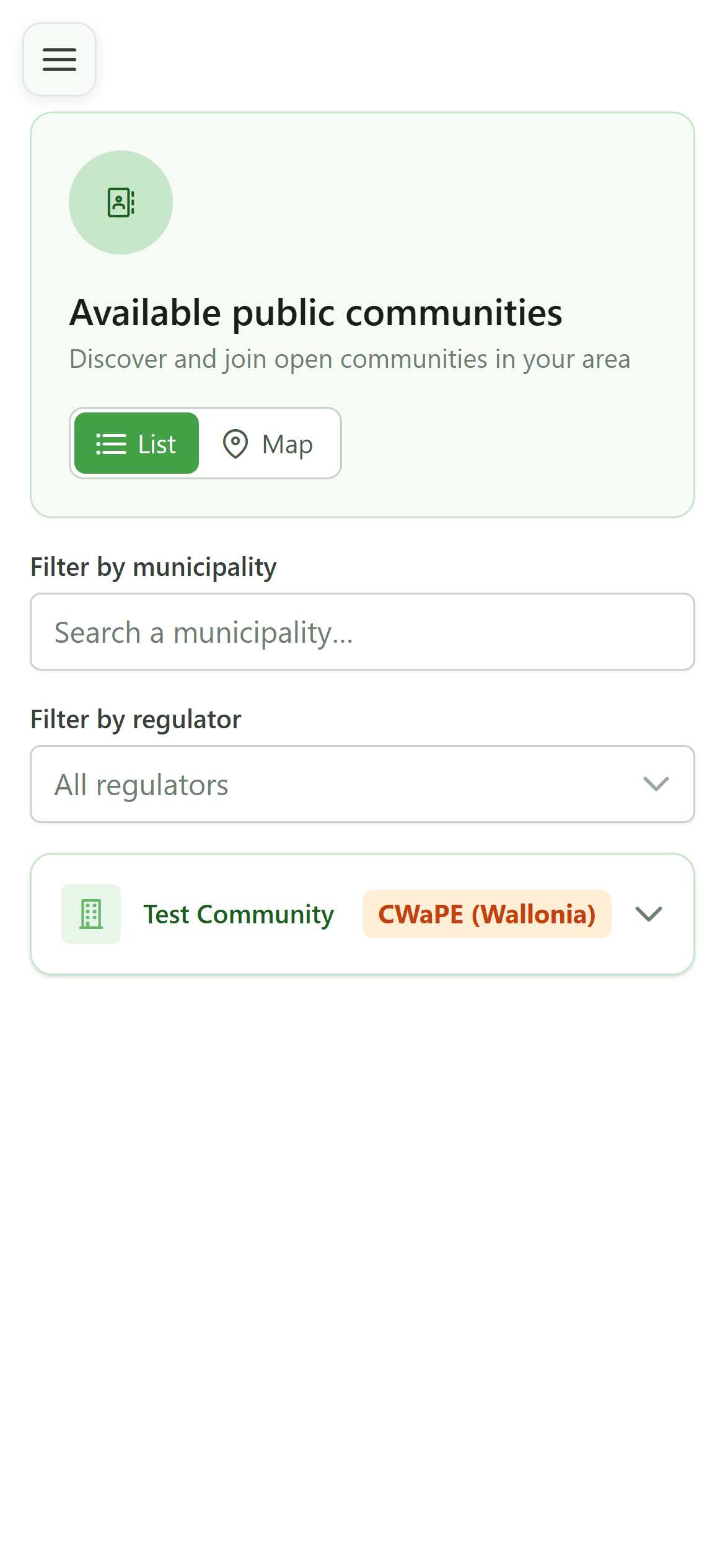
Switch between "List" and "Map" to see where the communities are. To join one, contact it: its managers are the ones who send you an invitation.
7 Your profile
Navigation
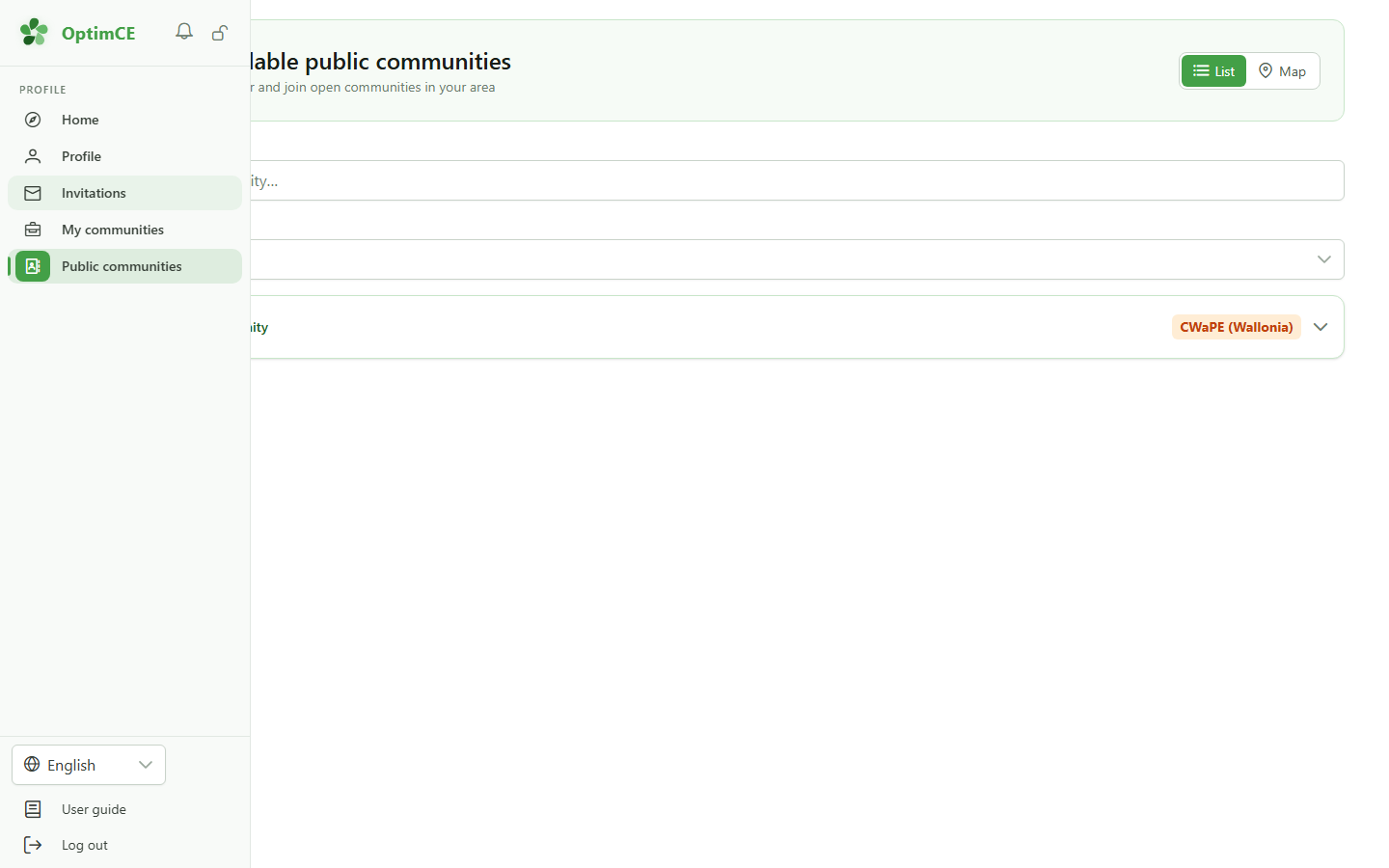
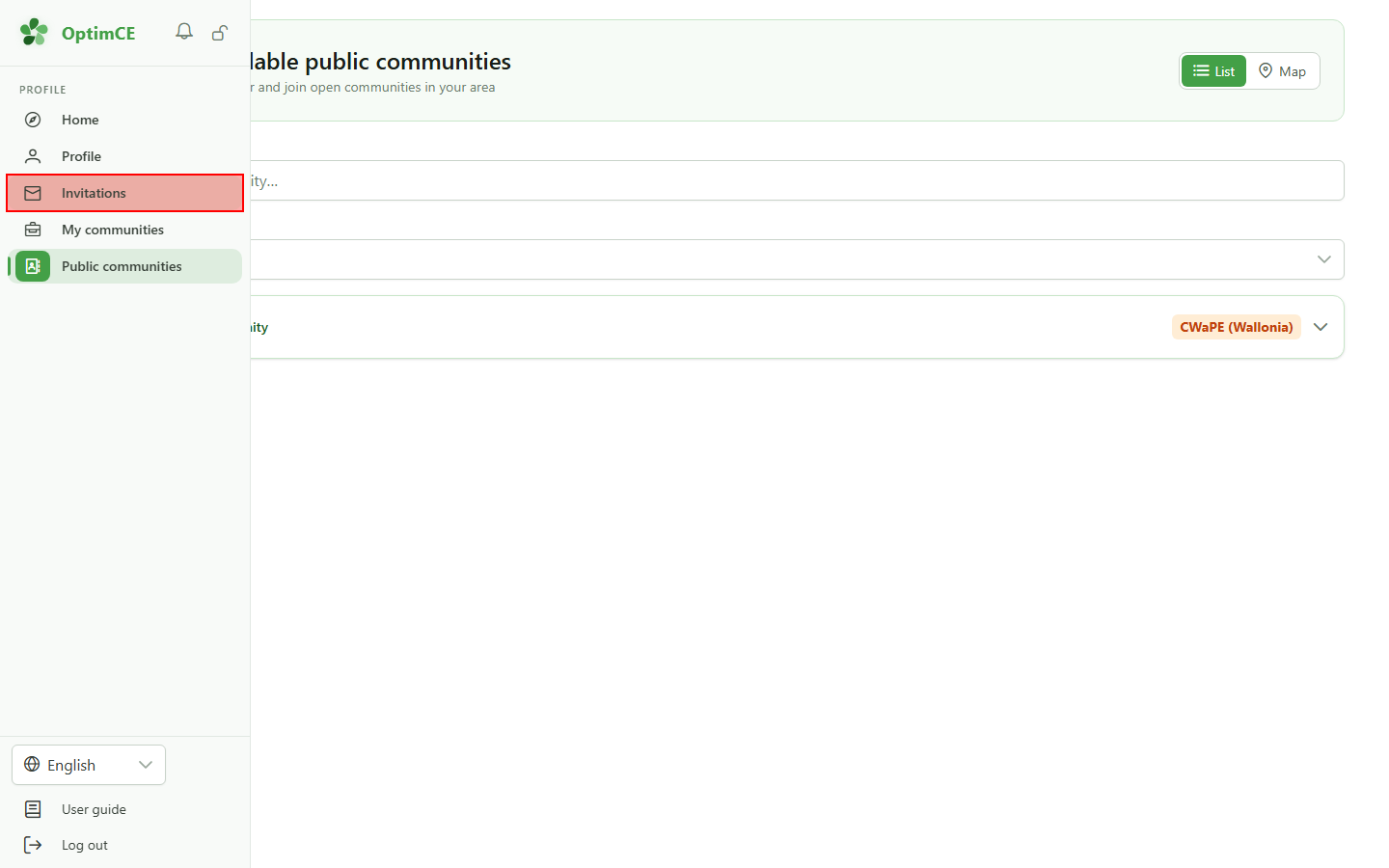
The sidebar's "Profile" section is always there: home, profile, invitations, your communities and the public communities.
8 Open your invitations
Navigation
Click "Invitations".
9 Your invitations
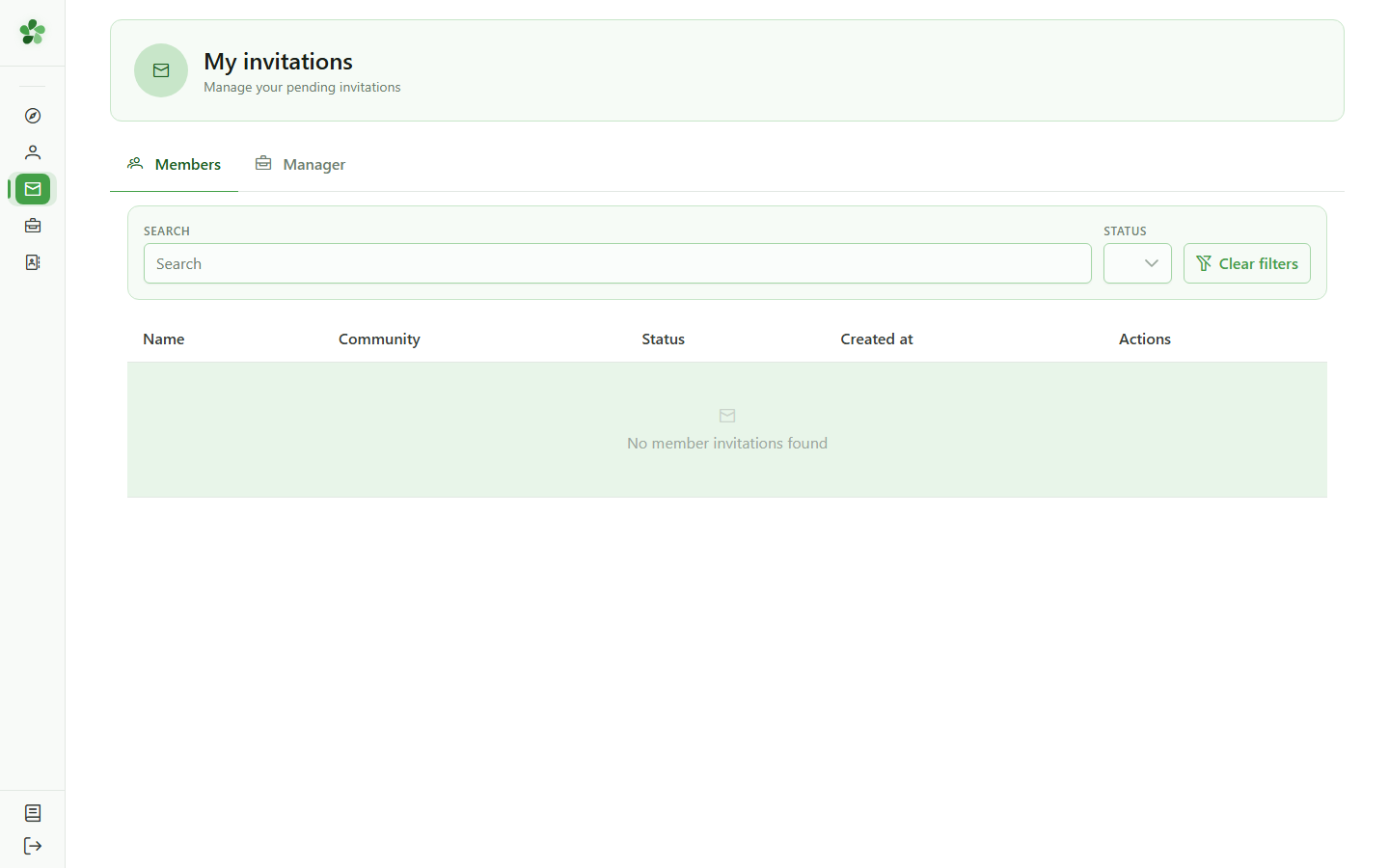
My invitations
When a community invites you, the invitation lands here — the "Members" tab to become a member, "Manager" to help run it — and your home page points it out. Accept it: the community then shows on your home page.
10 Need help?
Navigation
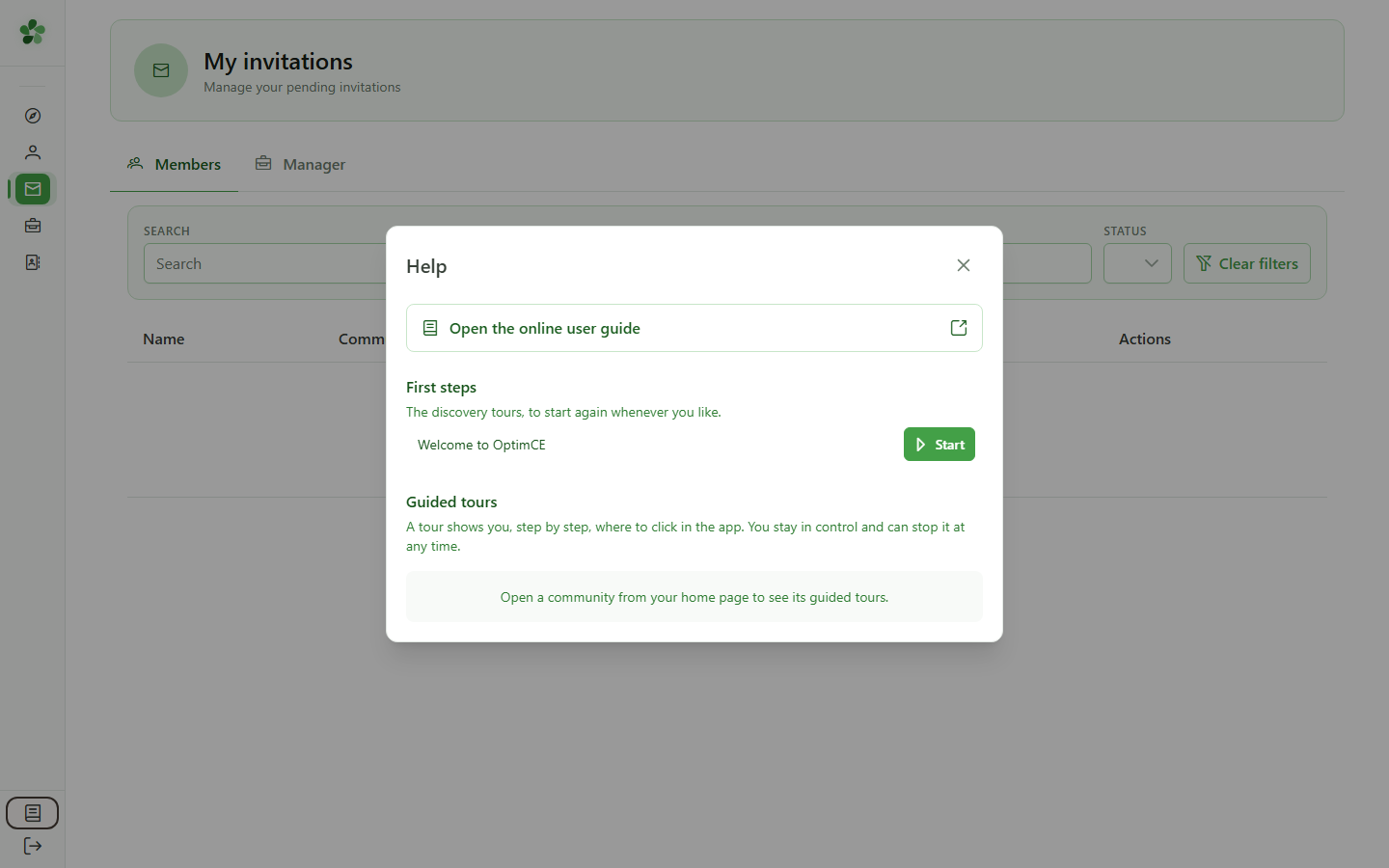
At the bottom of the sidebar, "User guide" opens the help, at any time and from any page. Click it.
11 The online guide
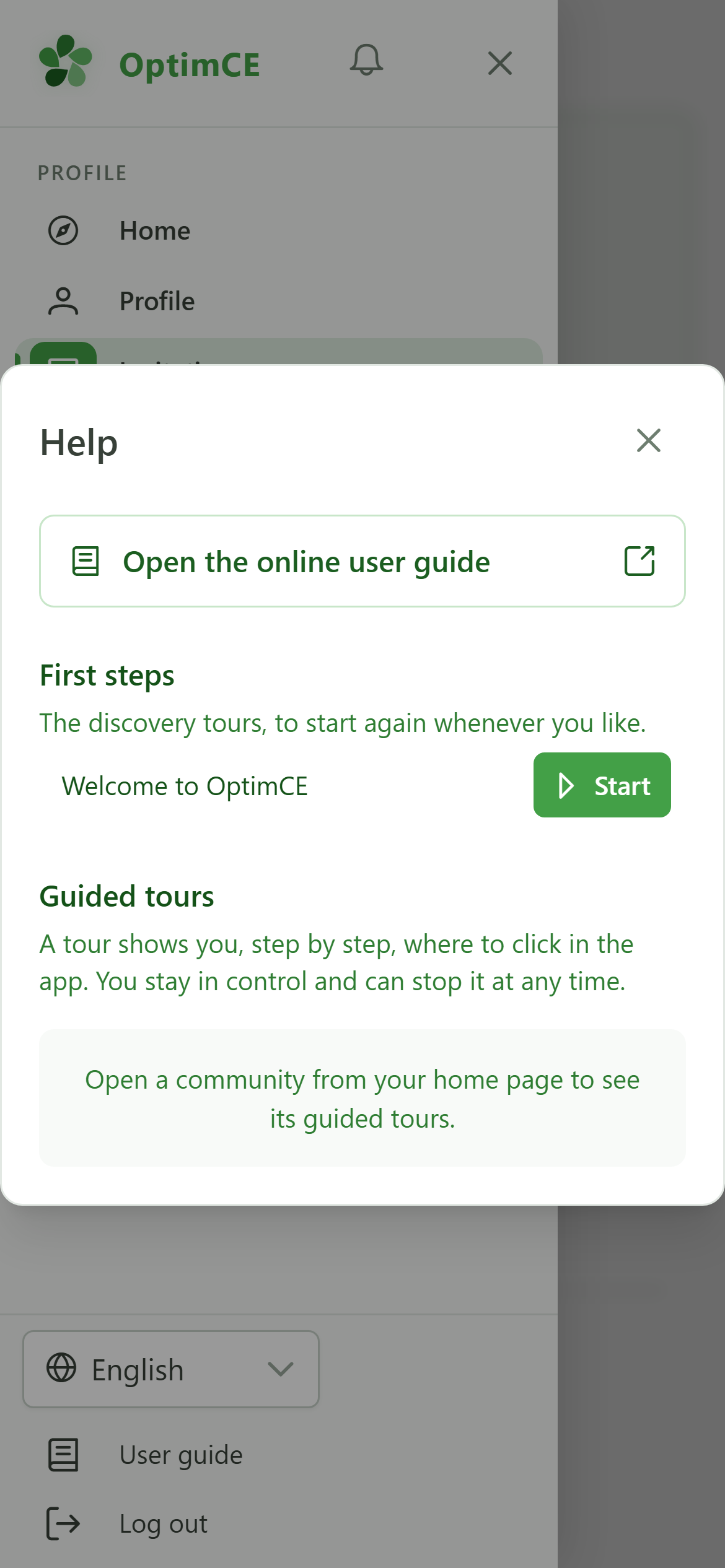
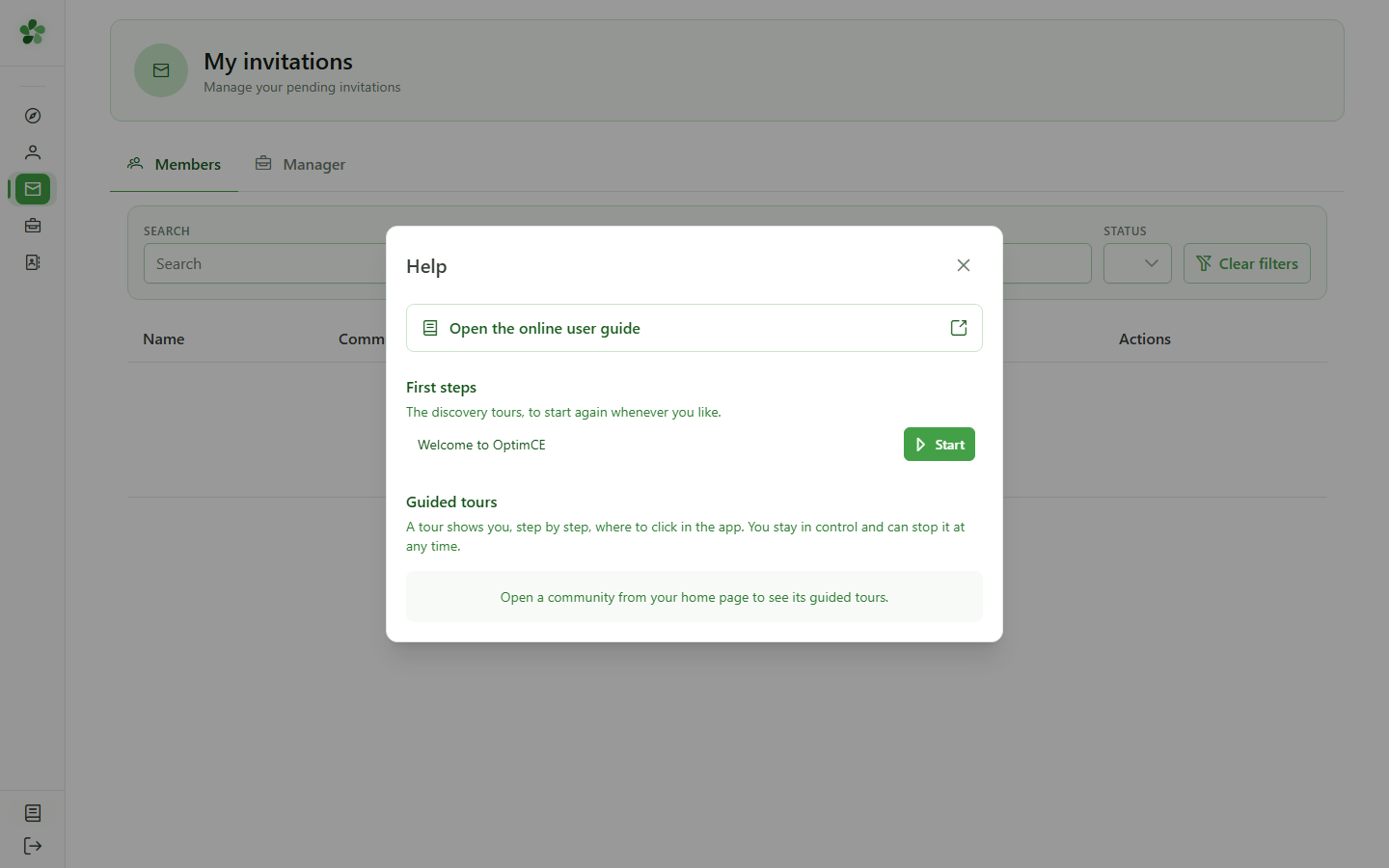
Help
"Open the online user guide" opens the guide in a new tab: every task in the application is described there step by step, with screenshots, and can also be played as an animation.
12 Guided tours
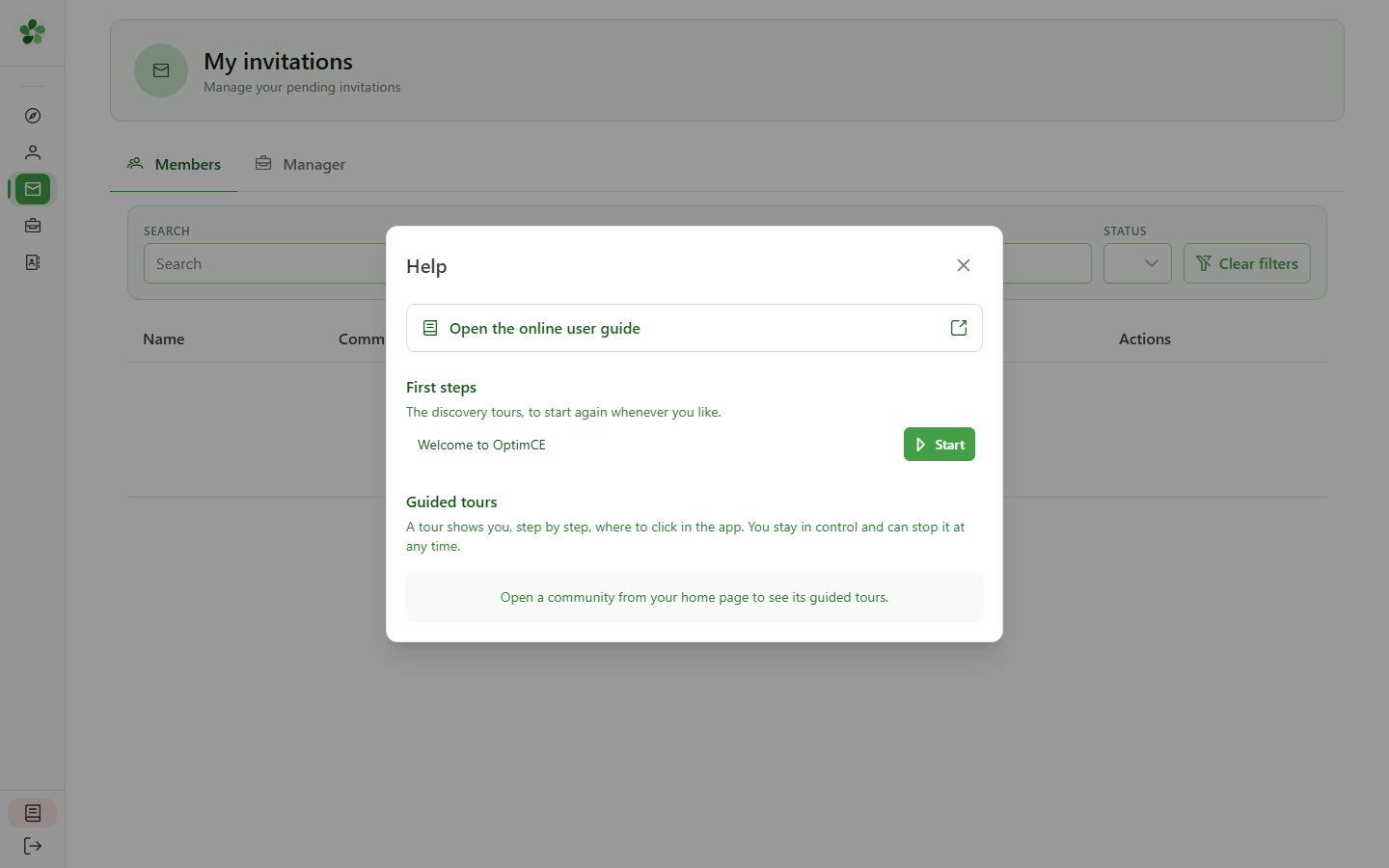
Help
"Guided tours" lists tours like this one: they show you a task right inside the application. Start one again whenever you need it; once you belong to a community, you will find the tours for your role here. Close this window to get started.
Welcome to OptimCE
Guide utilisateur
User guide
Gebruikershandleiding
Benutzerhandbuch
1 Welcome to OptimCE
Home page
OptimCE helps you share energy within an energy community. Your home page gathers everything that concerns you; for now, you do not belong to any community yet.
2 What needs you
Home page
The top band lists what needs an action from you, such as an invitation to accept. When it reads "Nothing needs you right now. Everything is in order.", there is nothing to do.
3 Create your community
Home page
Starting an energy community? "Create my community" creates it and makes you its administrator. You can then invite its members and managers.
4 Find a community
Home page
Would you rather join an existing community? Click "Find communities near me".
5 Public communities
Public communities
Here are the communities open to the public. Filter them by municipality or by regulator, then open one to read its description, its website and its sharing operations.
6 List or map
Public communities
Switch between "List" and "Map" to see where the communities are. To join one, contact it: its managers are the ones who send you an invitation.
7 Your profile
Navigation
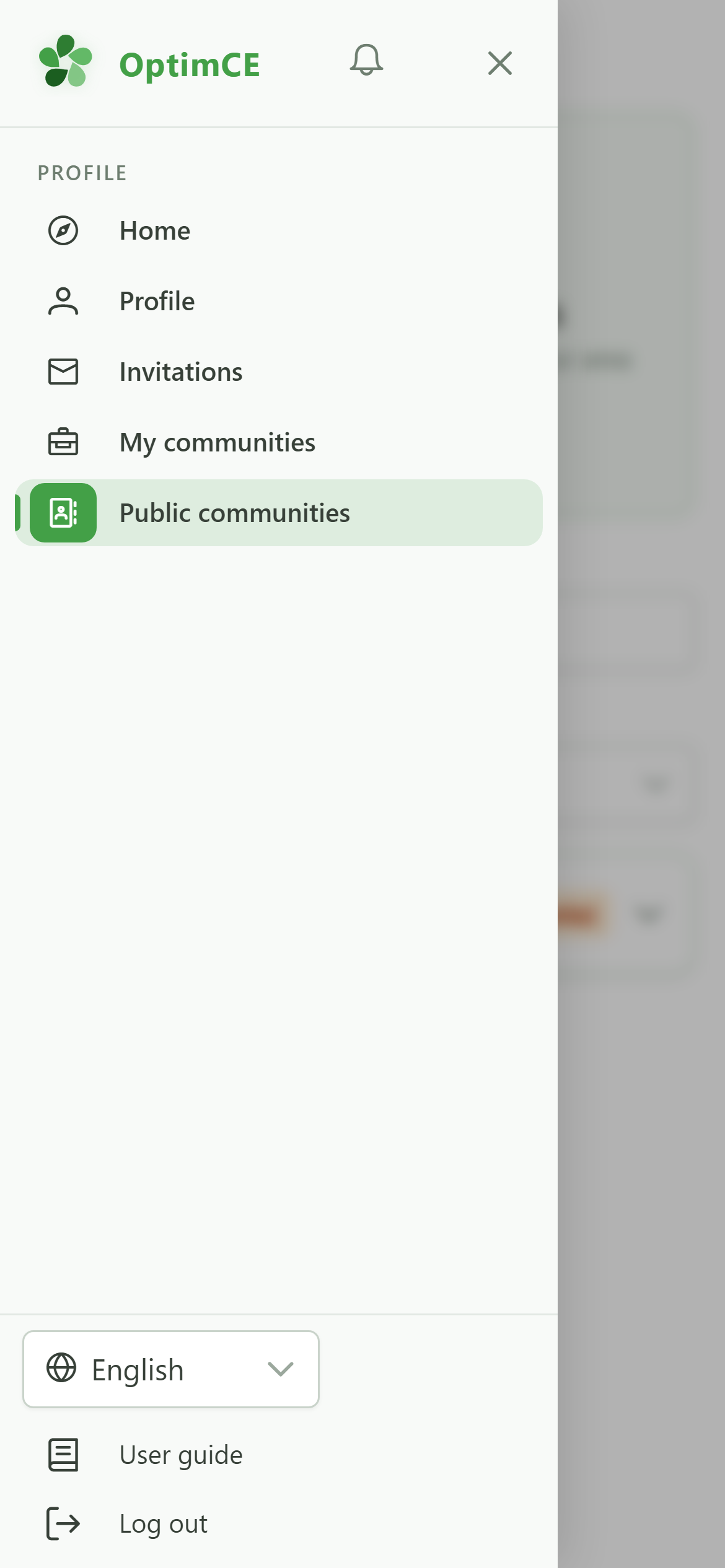
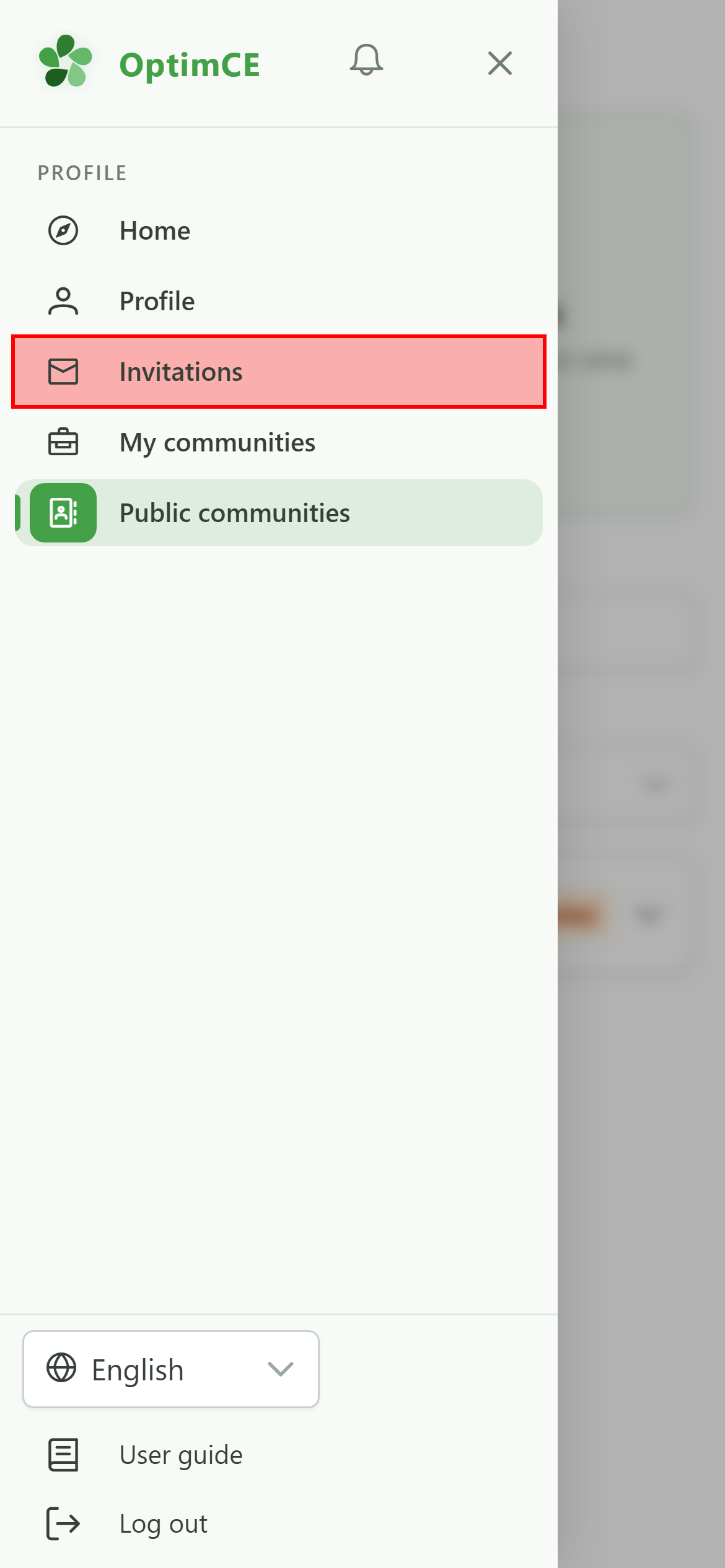
The menu's "Profile" section holds the home page, your profile, your invitations, your communities and the public communities.
8 Open your invitations
Navigation
Tap "Invitations".
9 Your invitations
My invitations
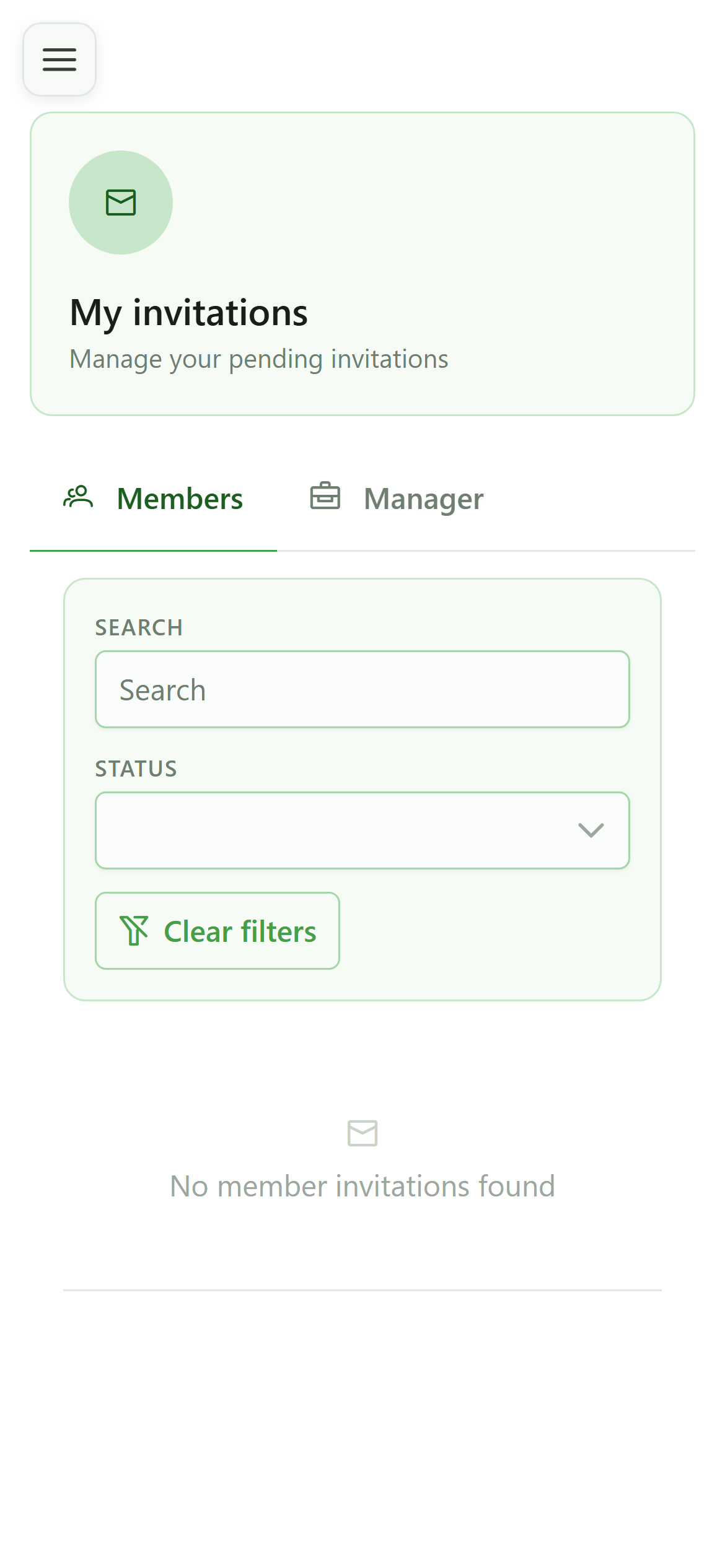
When a community invites you, the invitation lands here — the "Members" tab to become a member, "Manager" to help run it — and your home page points it out. Accept it: the community then shows on your home page.
10 Need help?
Navigation
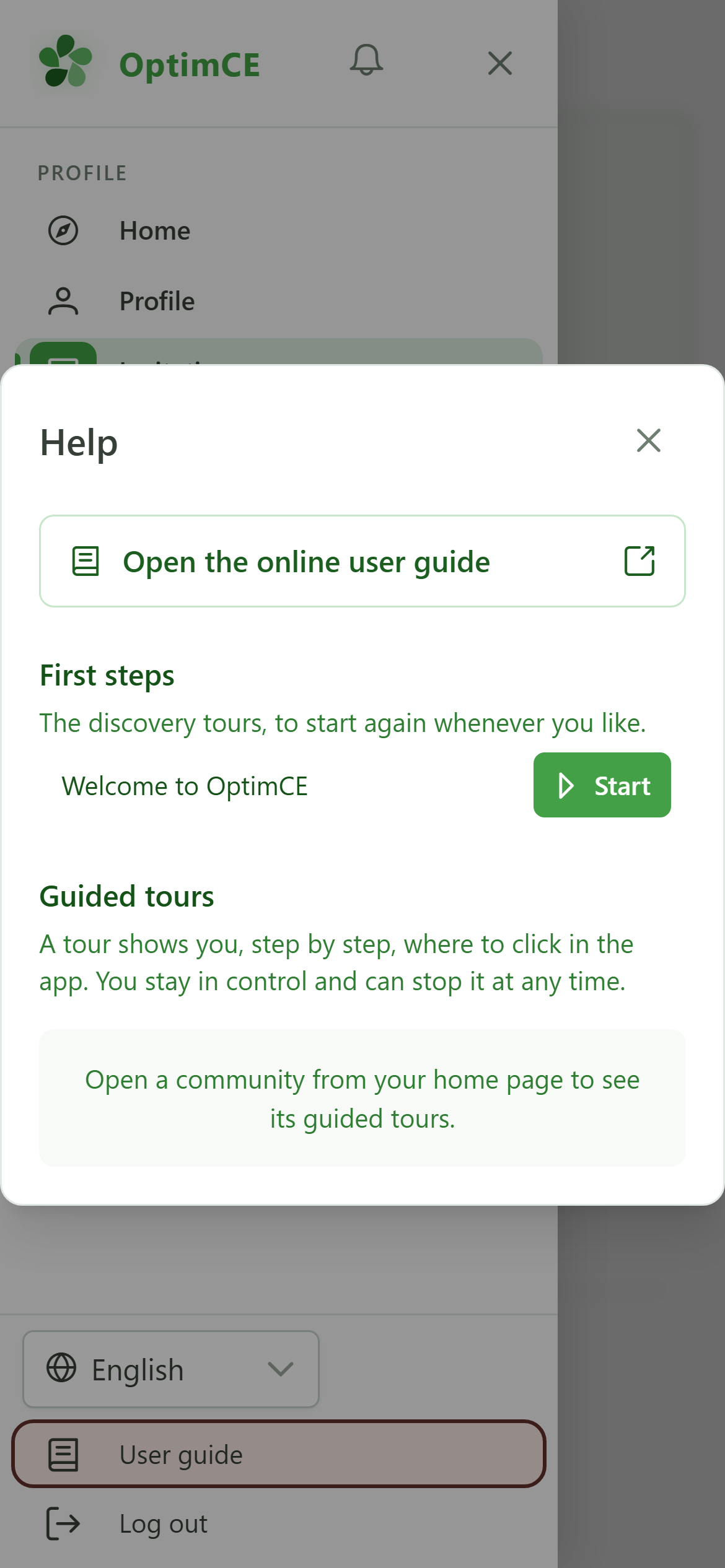
At the bottom of the menu, "User guide" opens the help, at any time and from any page. Tap it.
11 The online guide
Help
"Open the online user guide" opens the guide in a new tab: every task in the application is described there step by step, with screenshots, and can also be played as an animation.
12 Guided tours
Help
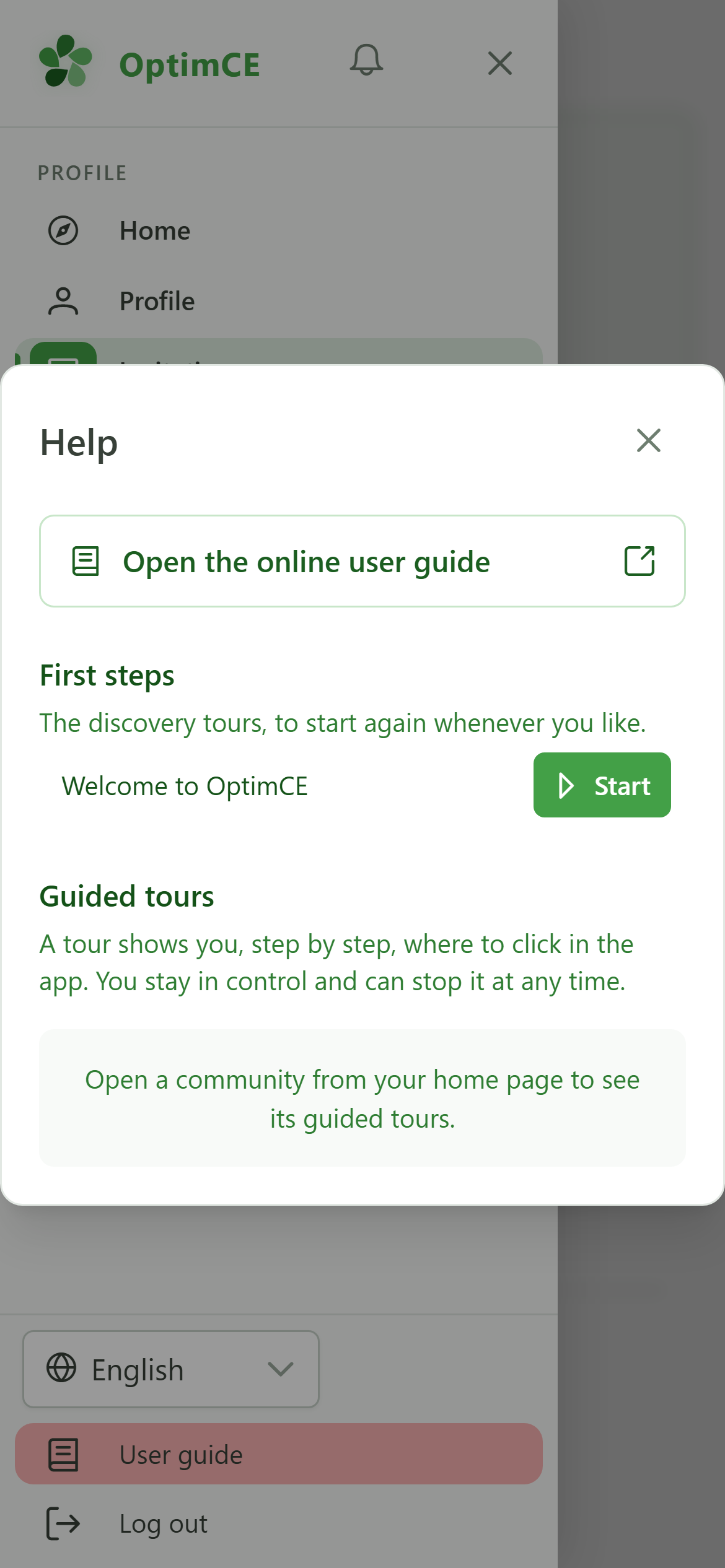
"Guided tours" lists tours like this one: they show you a task right inside the application. Start one again whenever you need it; once you belong to a community, you will find the tours for your role here. Close this window to get started.