You are a member
Guide utilisateur
User guide
Gebruikershandleiding
Benutzerhandbuch
1 Your community
Home page
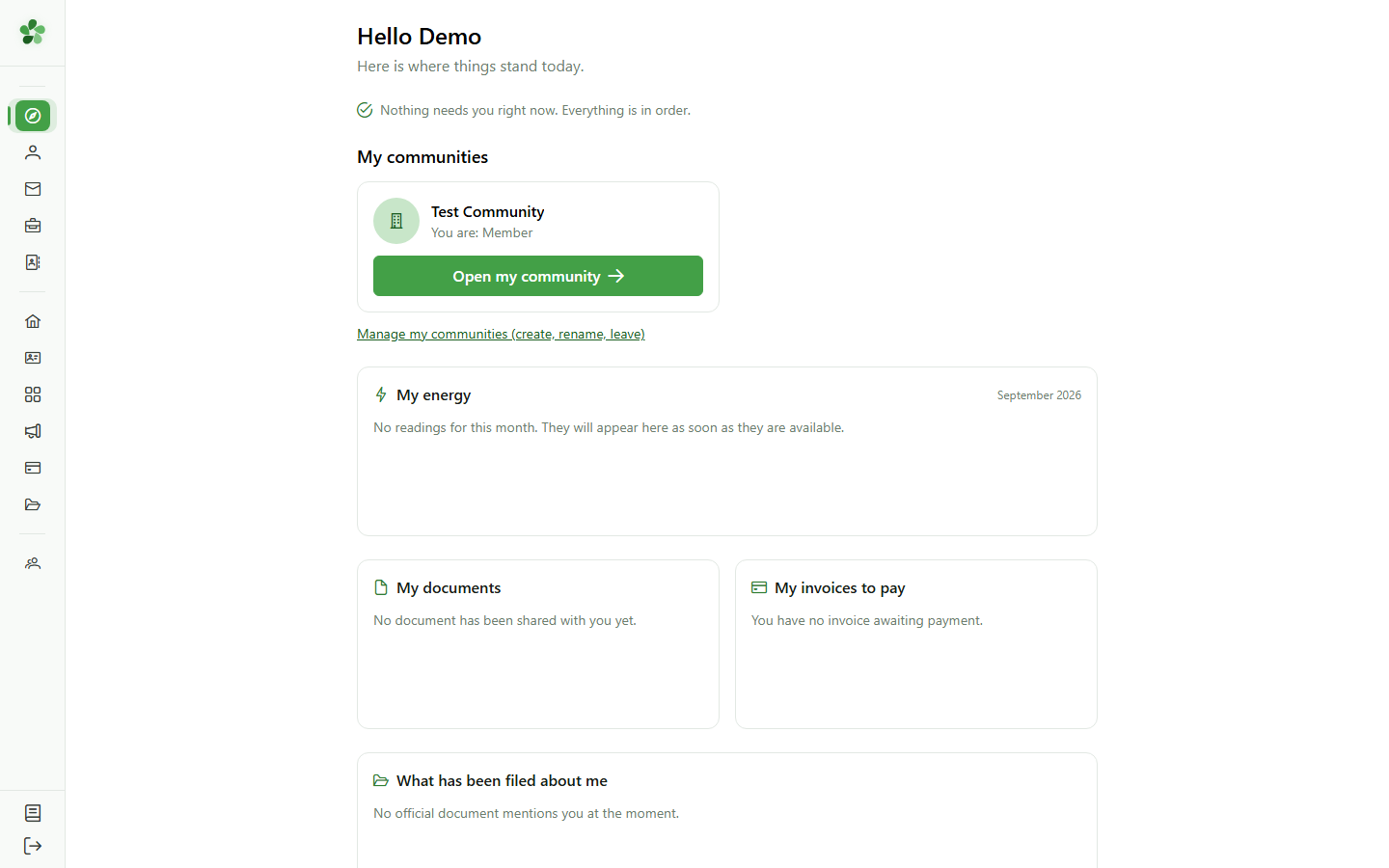
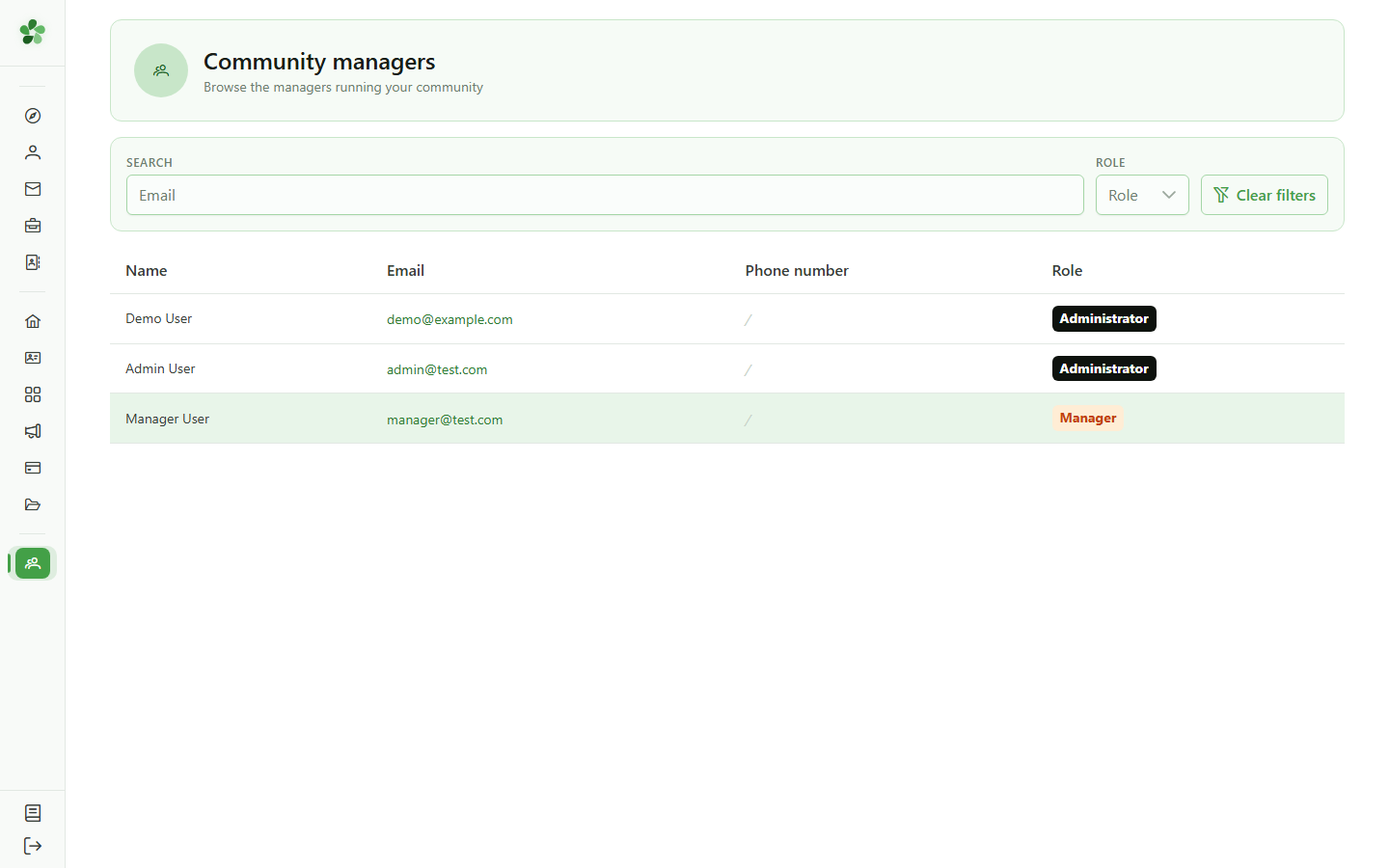
You are now a member of an energy community: it shows on your home page, with your role. If you belong to several communities, each one has its own card.
2 Open your community
Home page
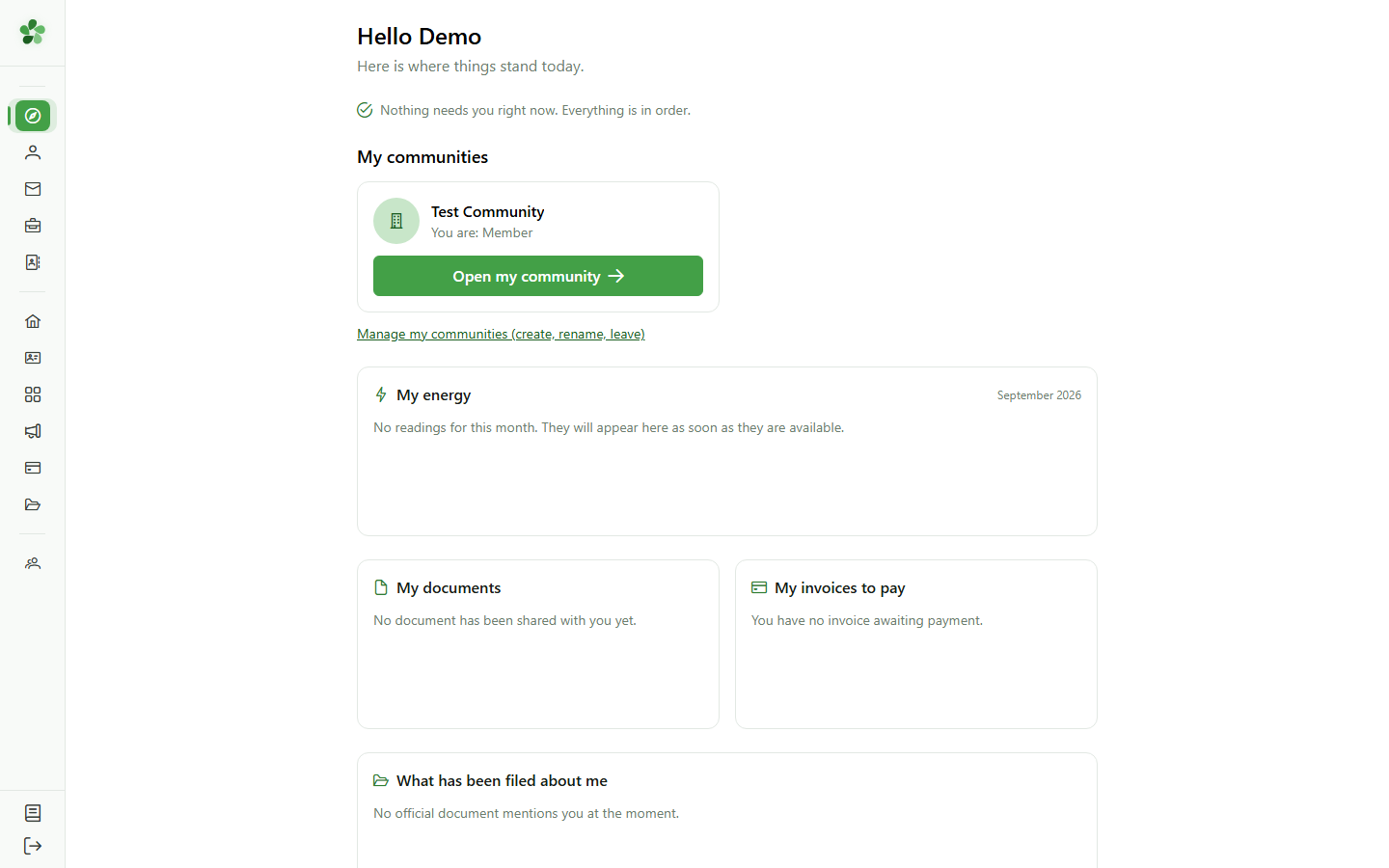
Click "Open my community" to reach its dashboard.
3 Your energy
Dashboard
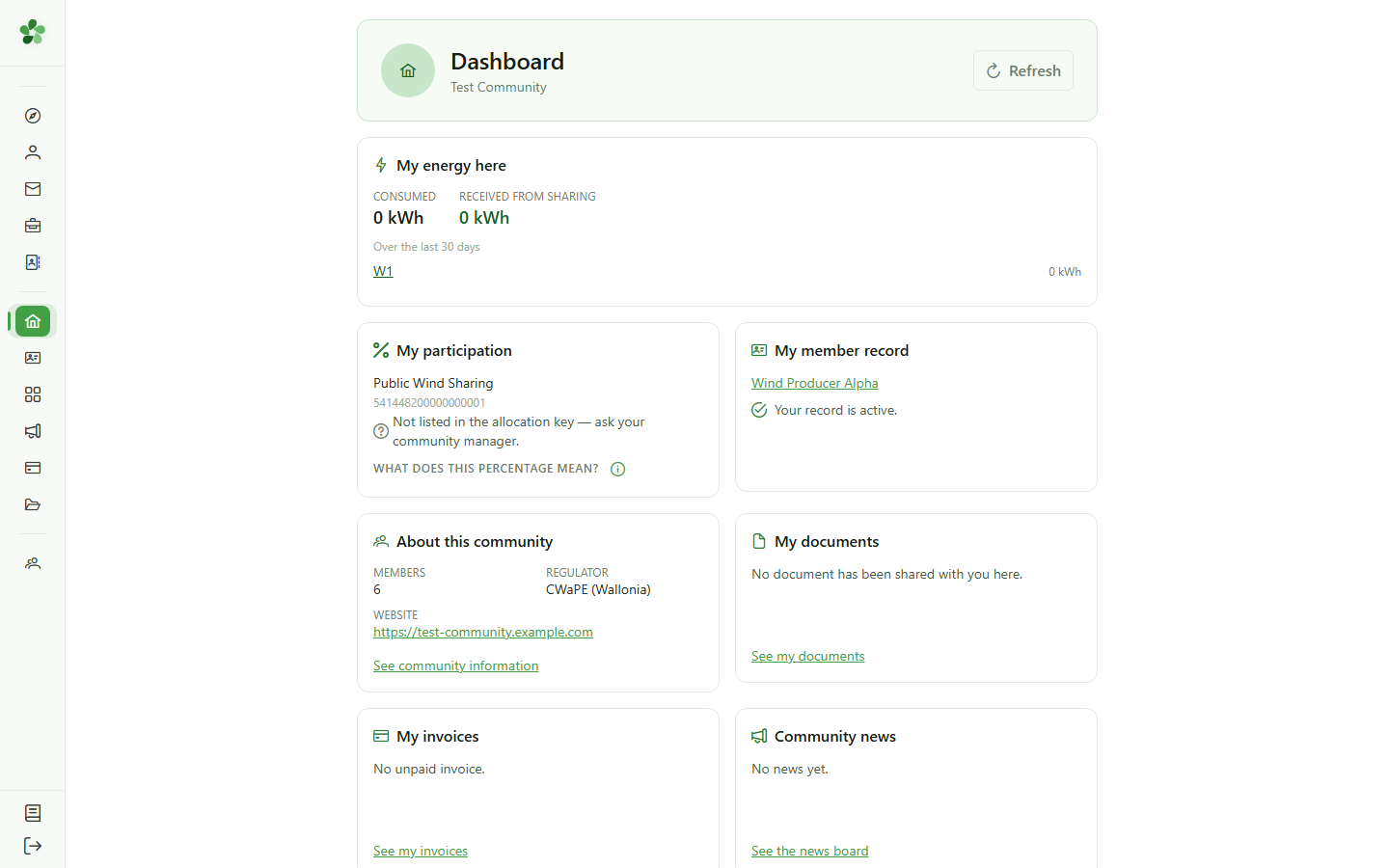
"My energy here" shows what you consumed and what you received through sharing in this community. The meter it names links to its details.
4 Your participation
Dashboard
"My participation" lists the sharing operations your meters take part in, and your place in their allocation key.
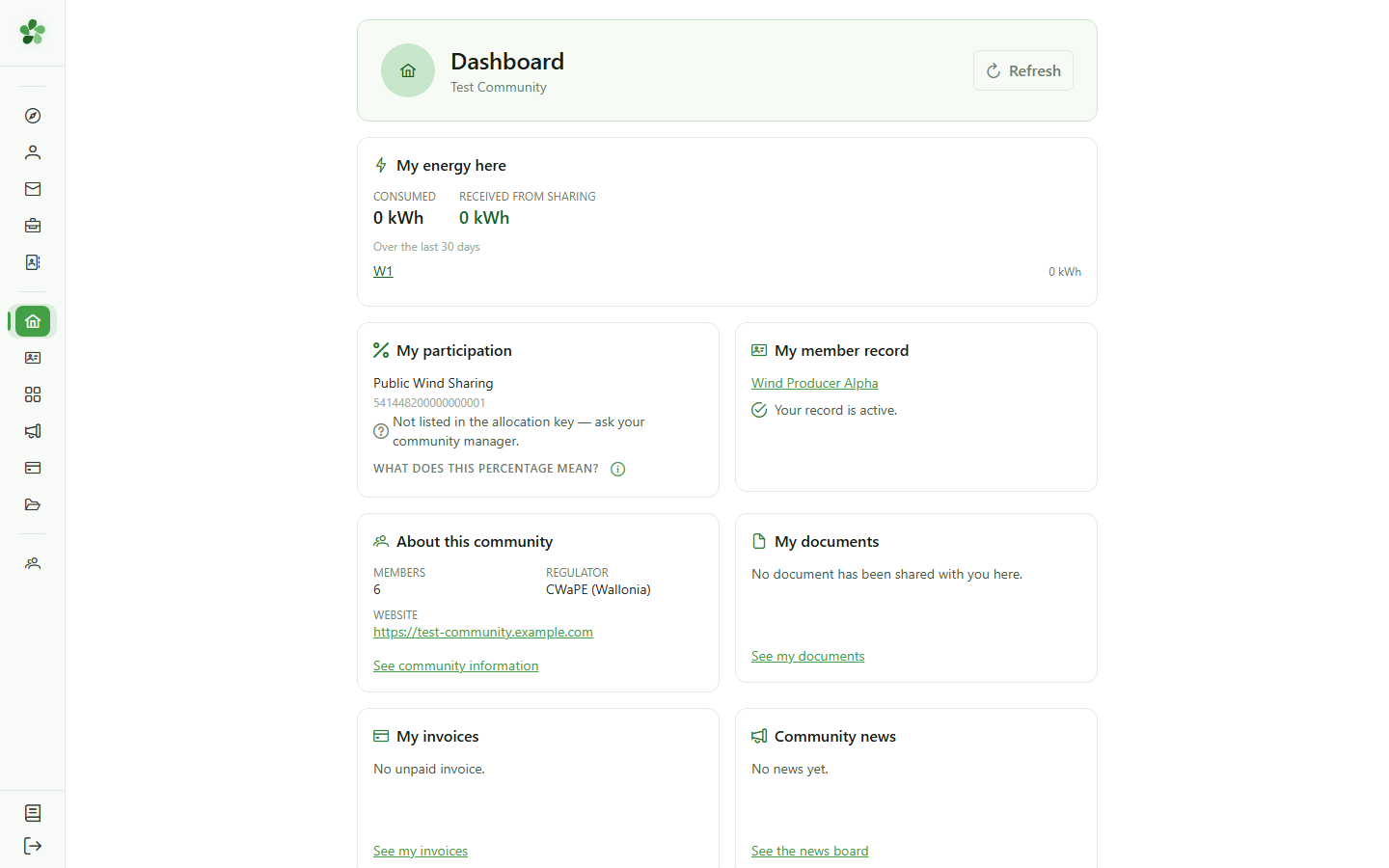
5 Your member record
Dashboard
"My member record" tells you whether your record is active. Open it to check your details: the managers are the ones who keep it up to date.
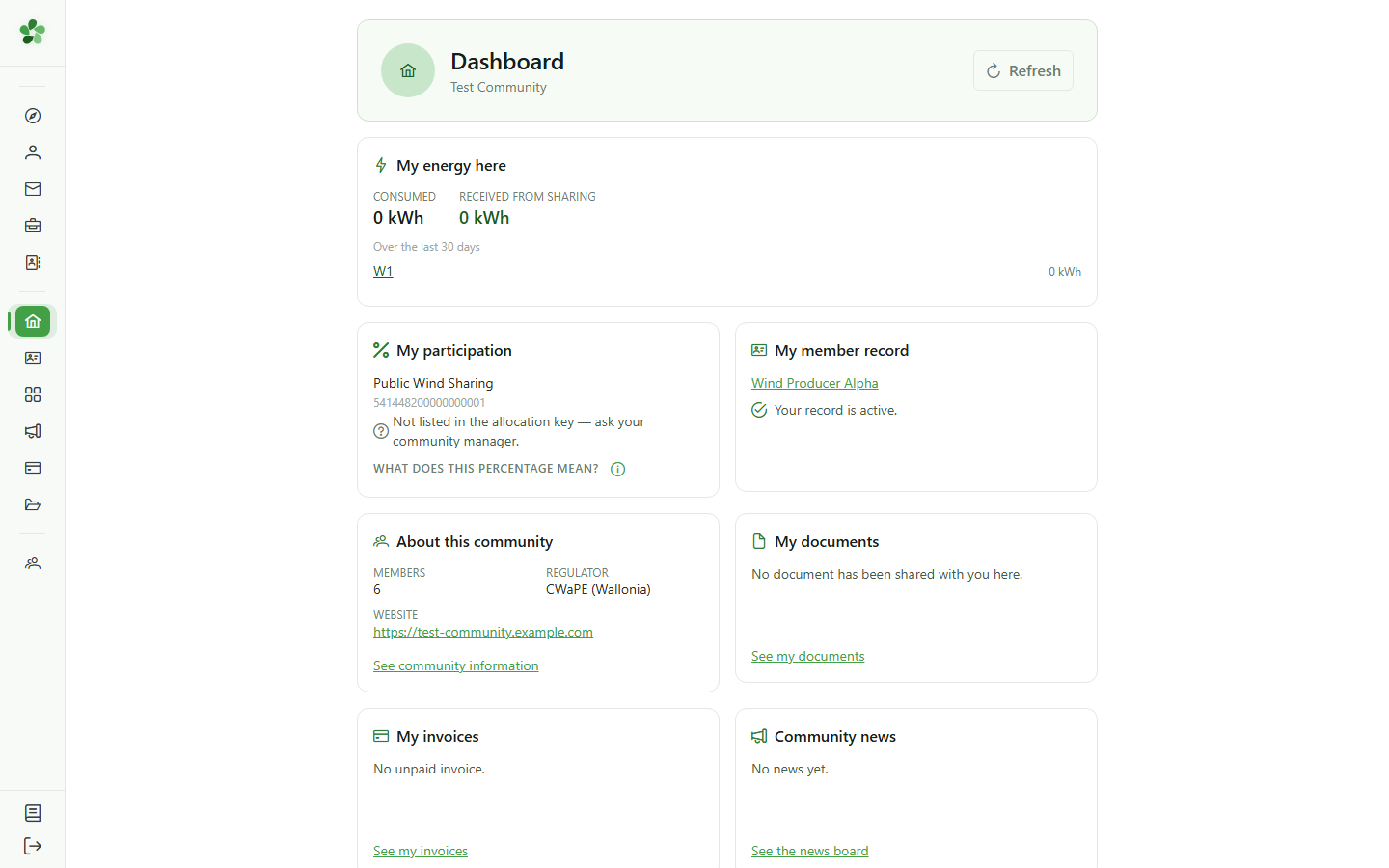
6 About the community
Dashboard
"About this community" recalls its number of members, its regulator and its website. The other tiles — documents, invoices, news — depend on the modules the community uses.
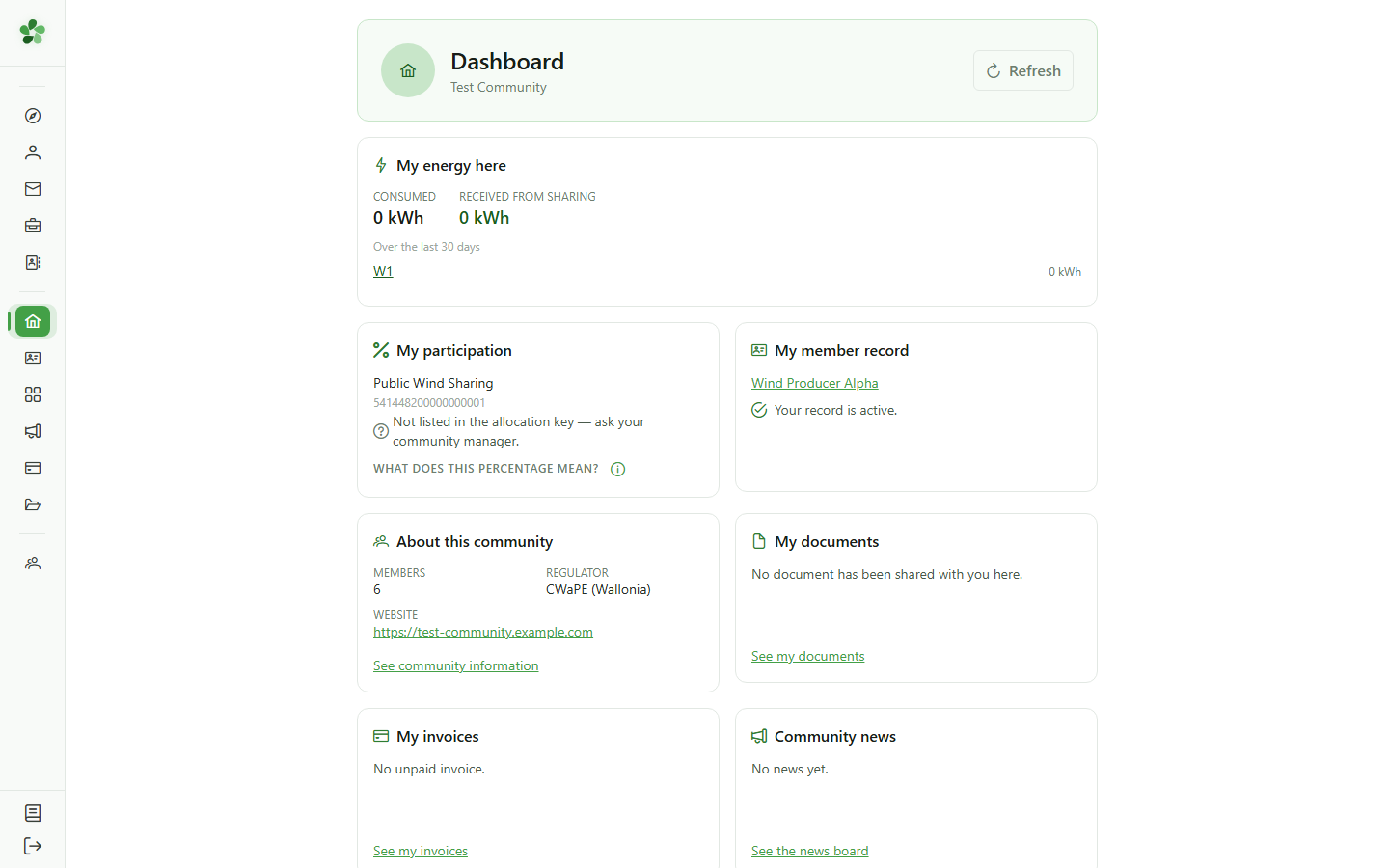
7 The "Community" section
Navigation
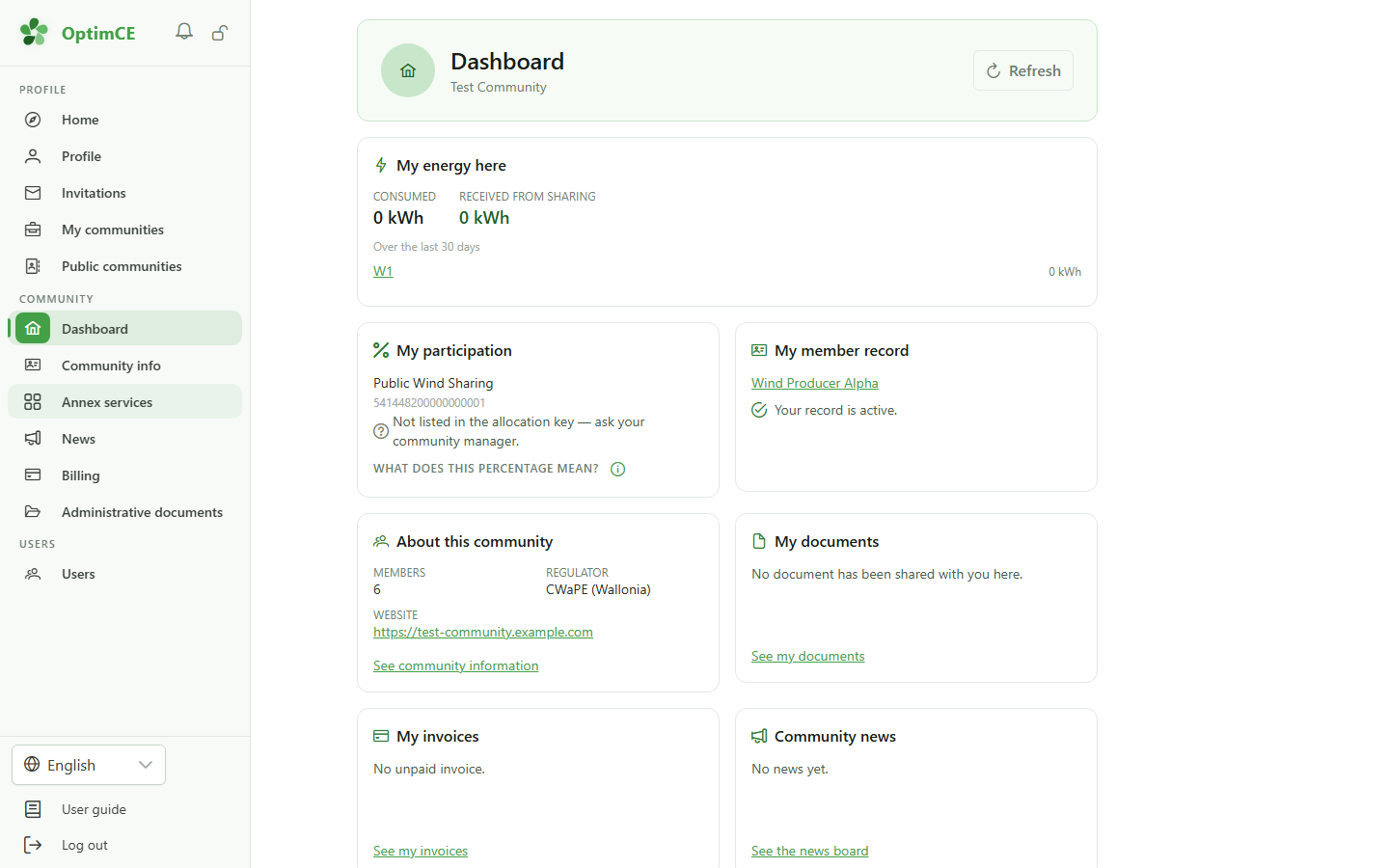
Becoming a member added the "Community" section to the sidebar: the dashboard, the community info, its annex services and, depending on its modules, news, billing or administrative documents.
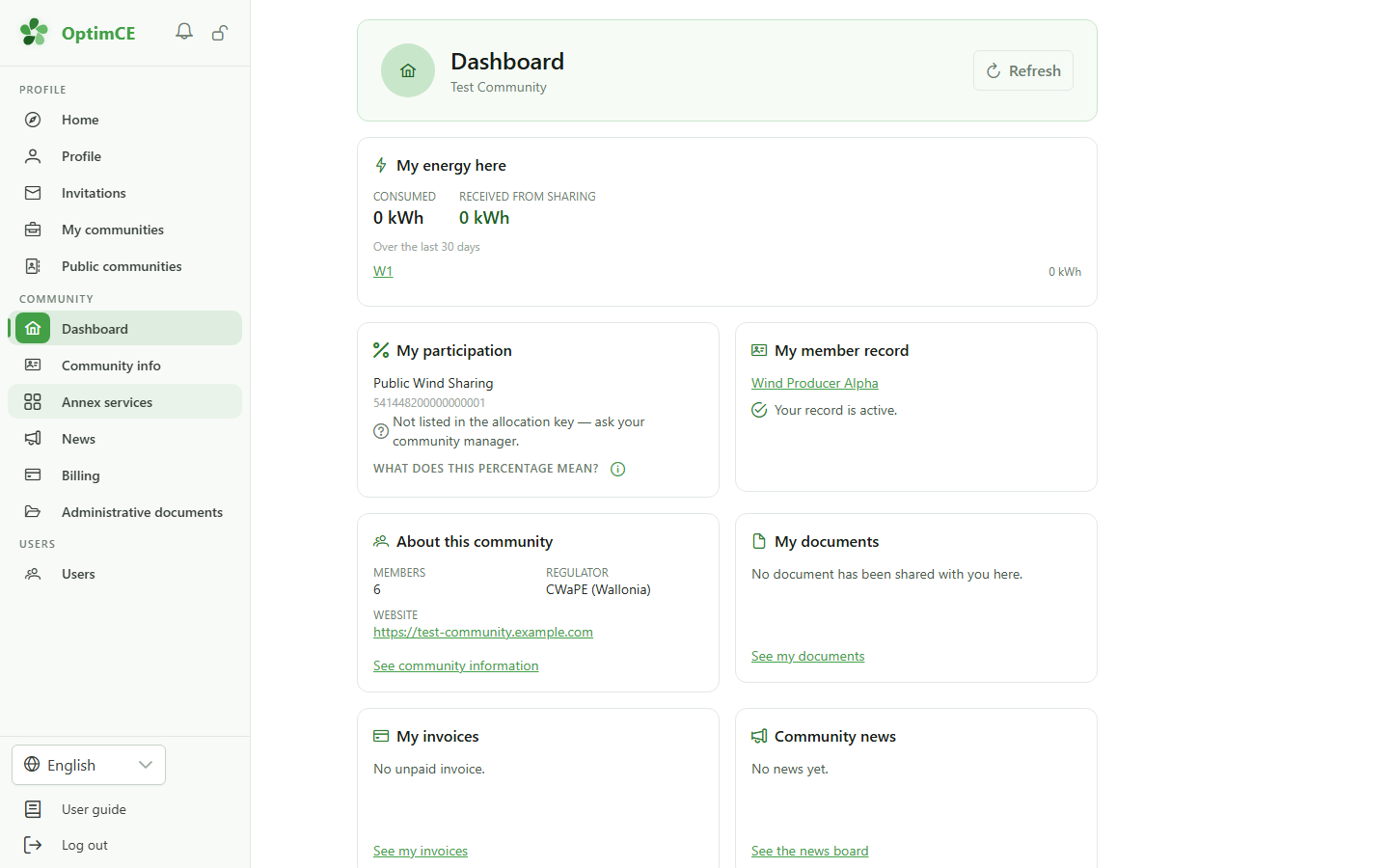
8 Who runs the community
Navigation
Just below, the members' section leads to "Community managers": the people to contact about your record, your meters or an invoice.
9 Open the managers
Navigation
Click "Community managers".
10 The managers
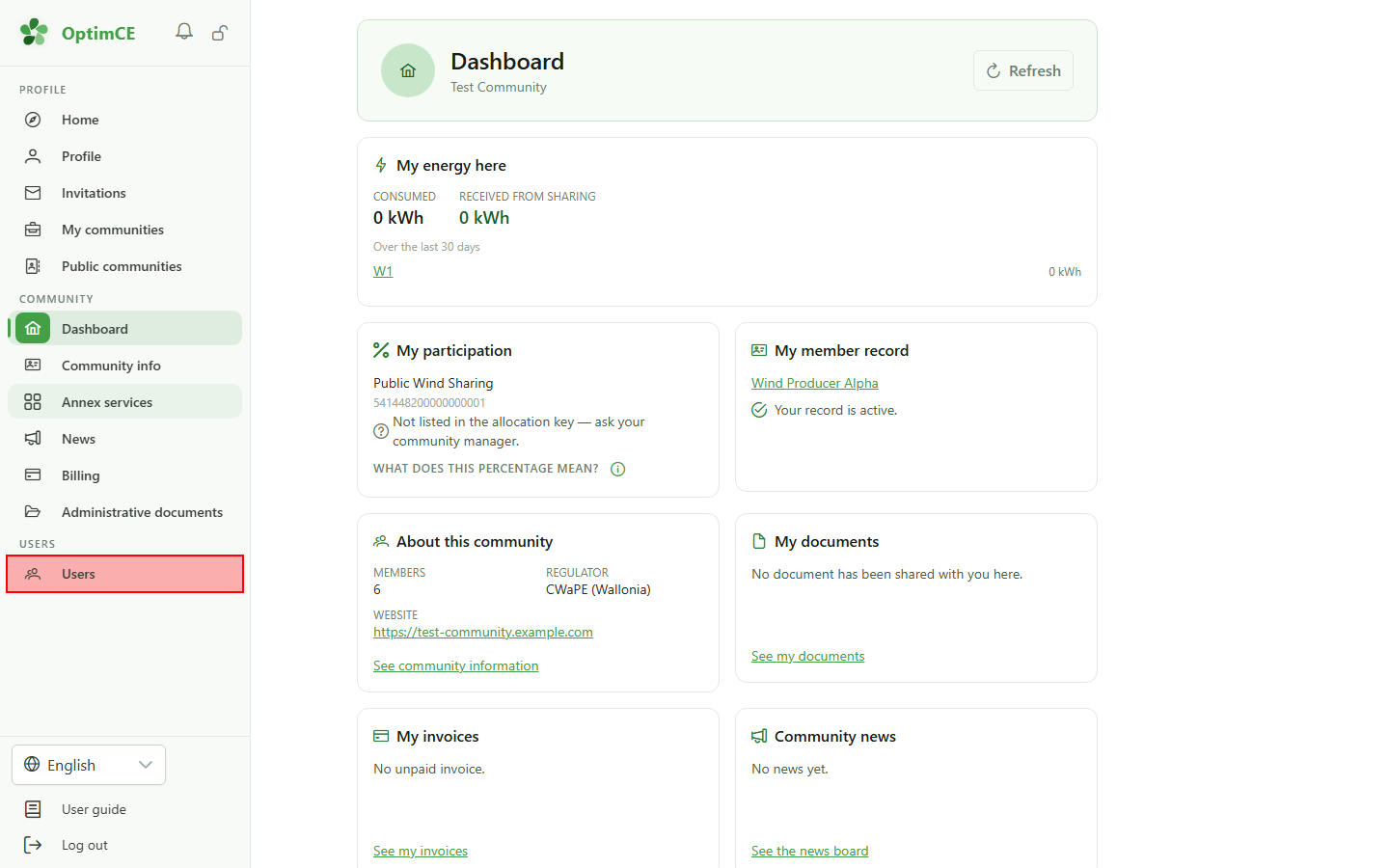
Community managers
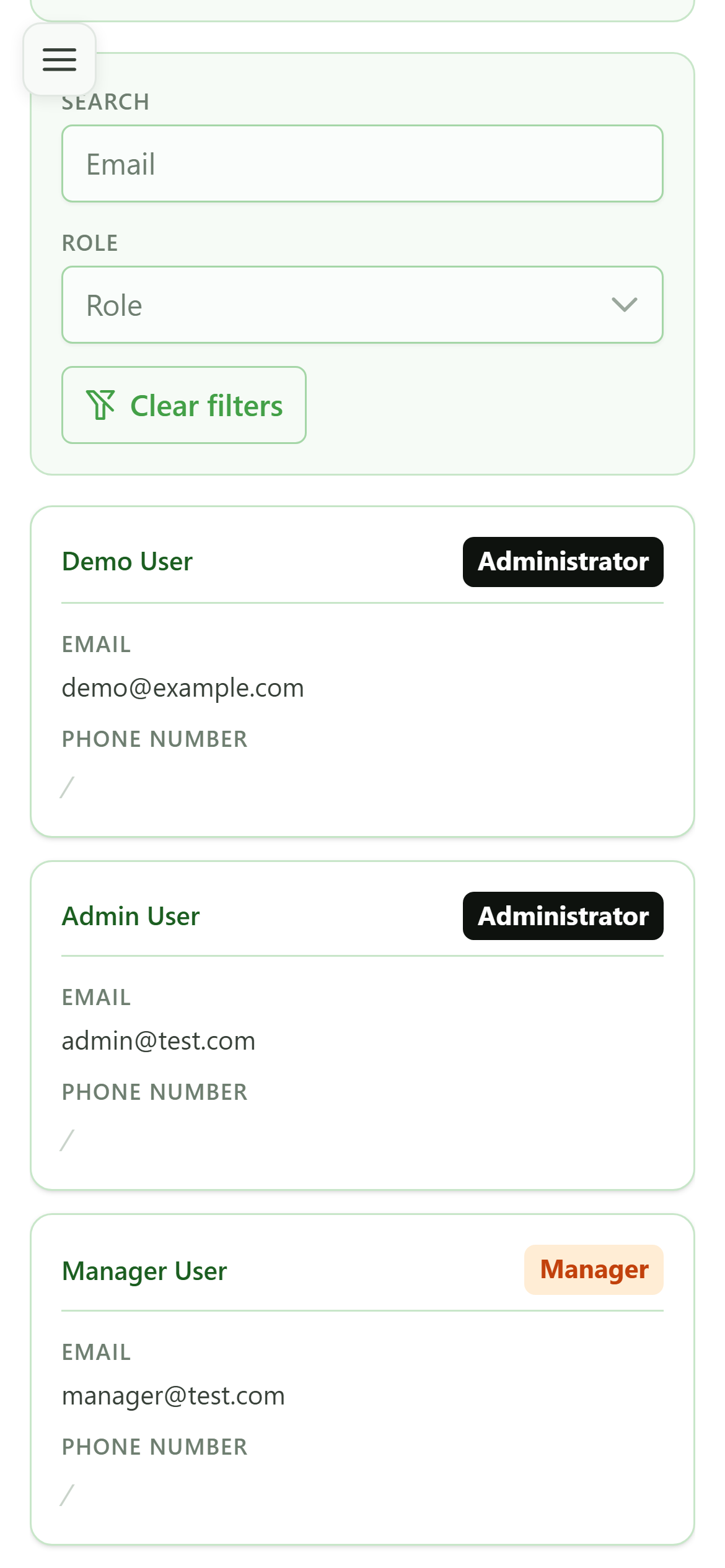
Every manager and administrator is listed here with their email and role. To go further, the home page and the member dashboard each have their own detailed tour in the "User guide".
You are a member
Guide utilisateur
User guide
Gebruikershandleiding
Benutzerhandbuch
1 Your community
Home page
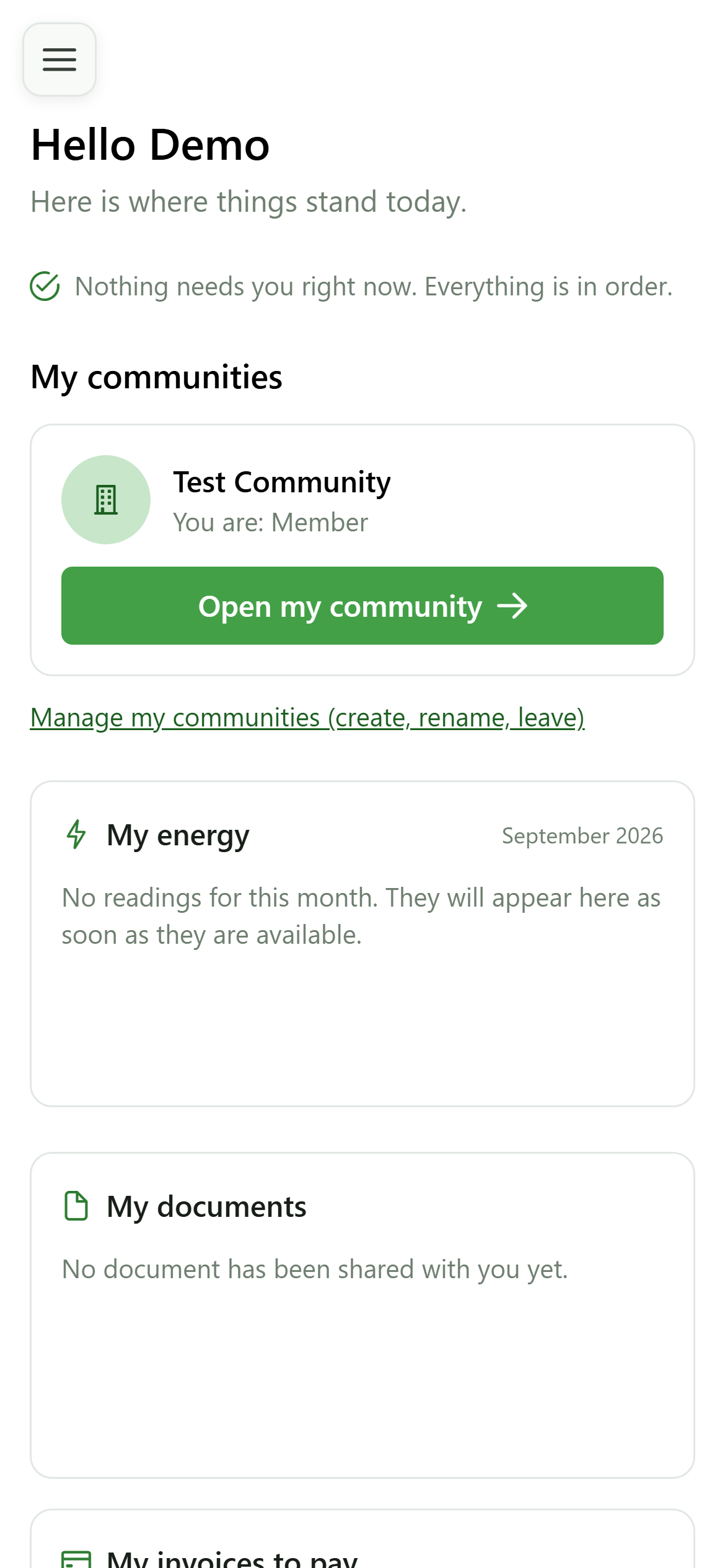
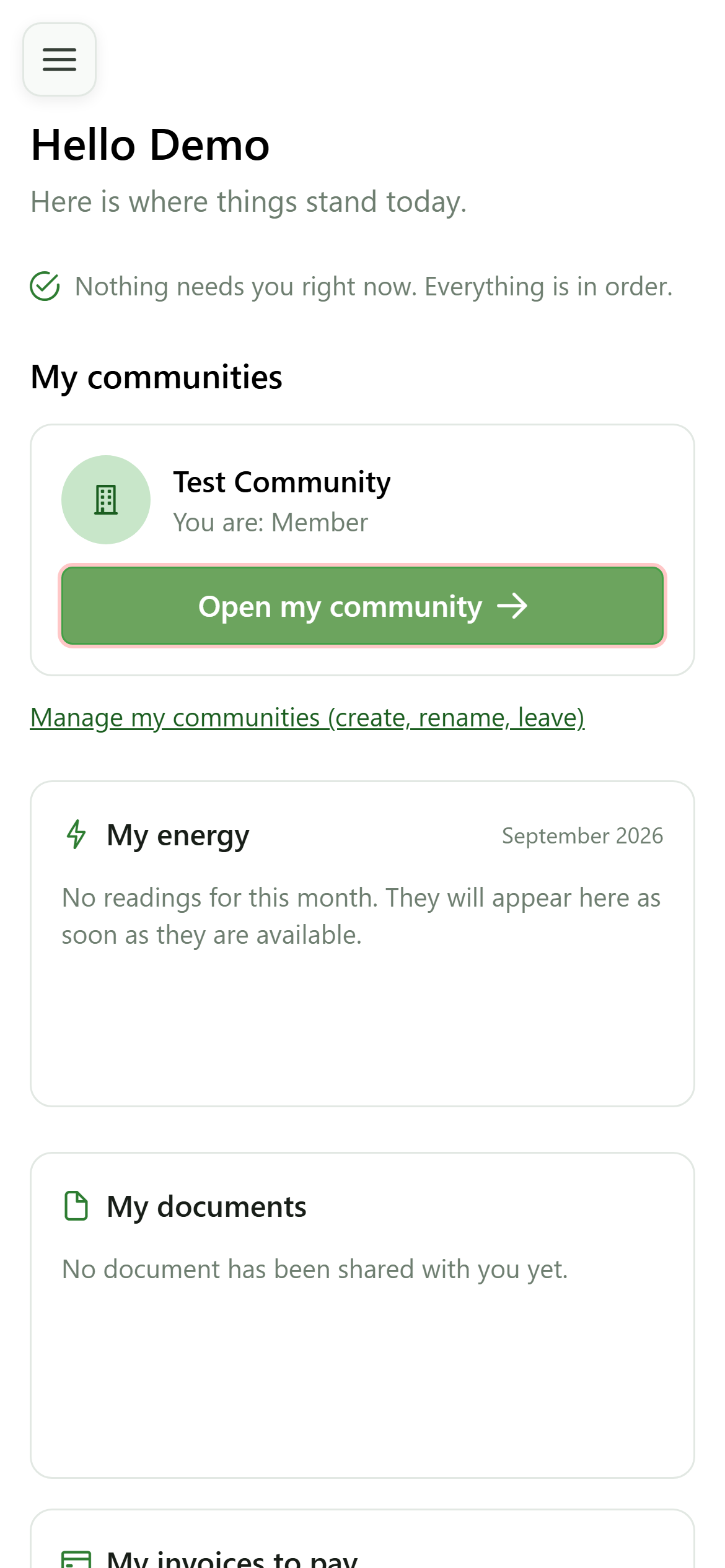
You are now a member of an energy community: it shows on your home page, with your role. If you belong to several communities, each one has its own card.
2 Open your community
Home page
Click "Open my community" to reach its dashboard.
3 Your energy
Dashboard
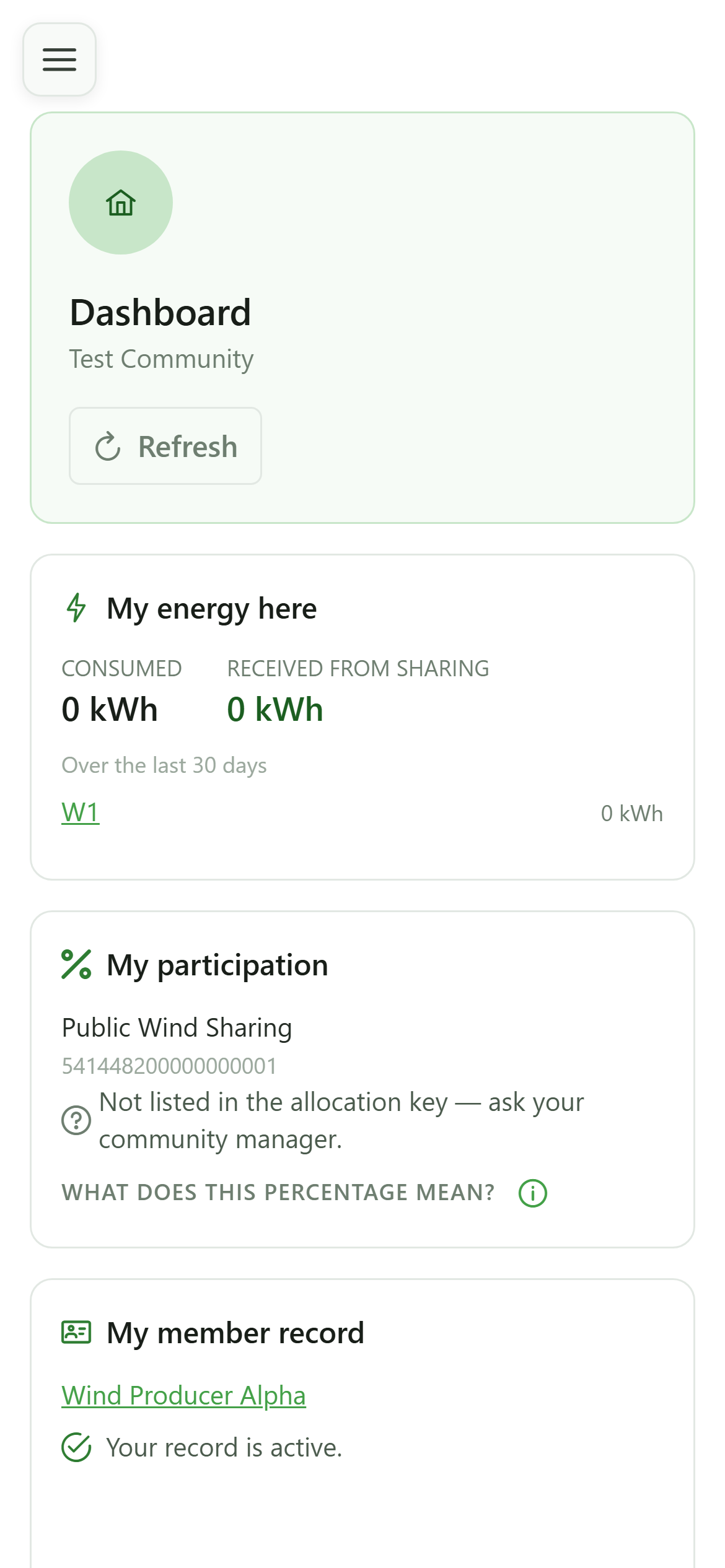
"My energy here" shows what you consumed and what you received through sharing in this community. The meter it names links to its details.
4 Your participation
Dashboard
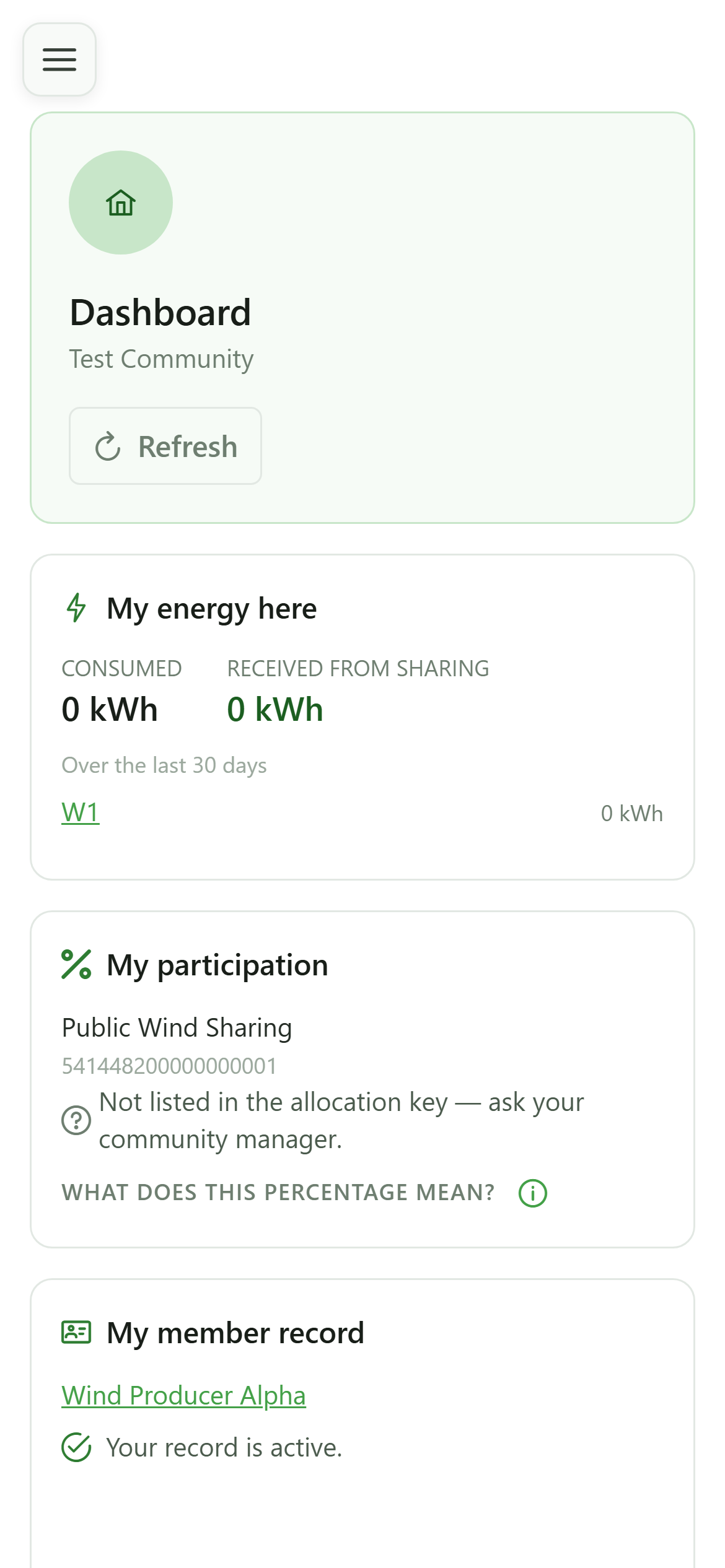
"My participation" lists the sharing operations your meters take part in, and your place in their allocation key.
5 Your member record
Dashboard
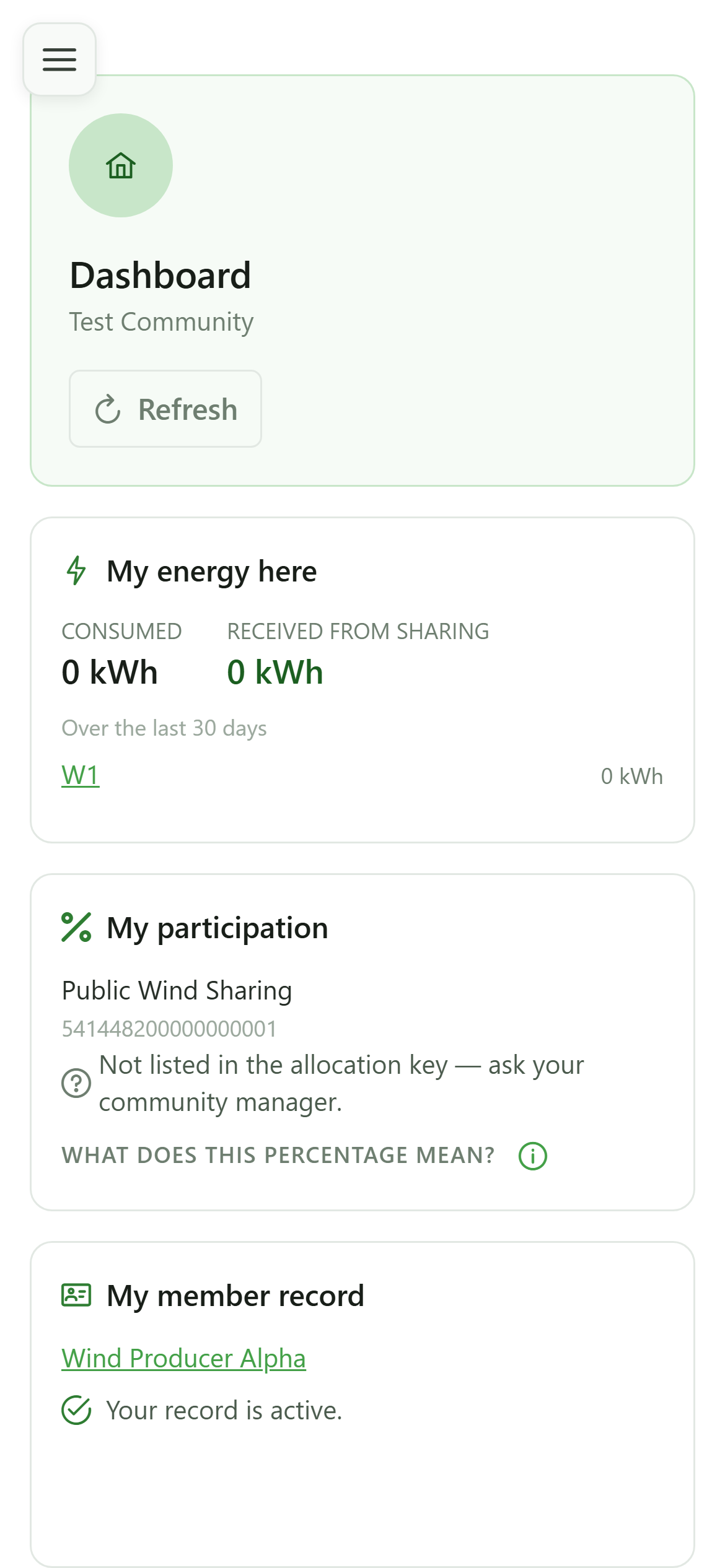
"My member record" tells you whether your record is active. Open it to check your details: the managers are the ones who keep it up to date.
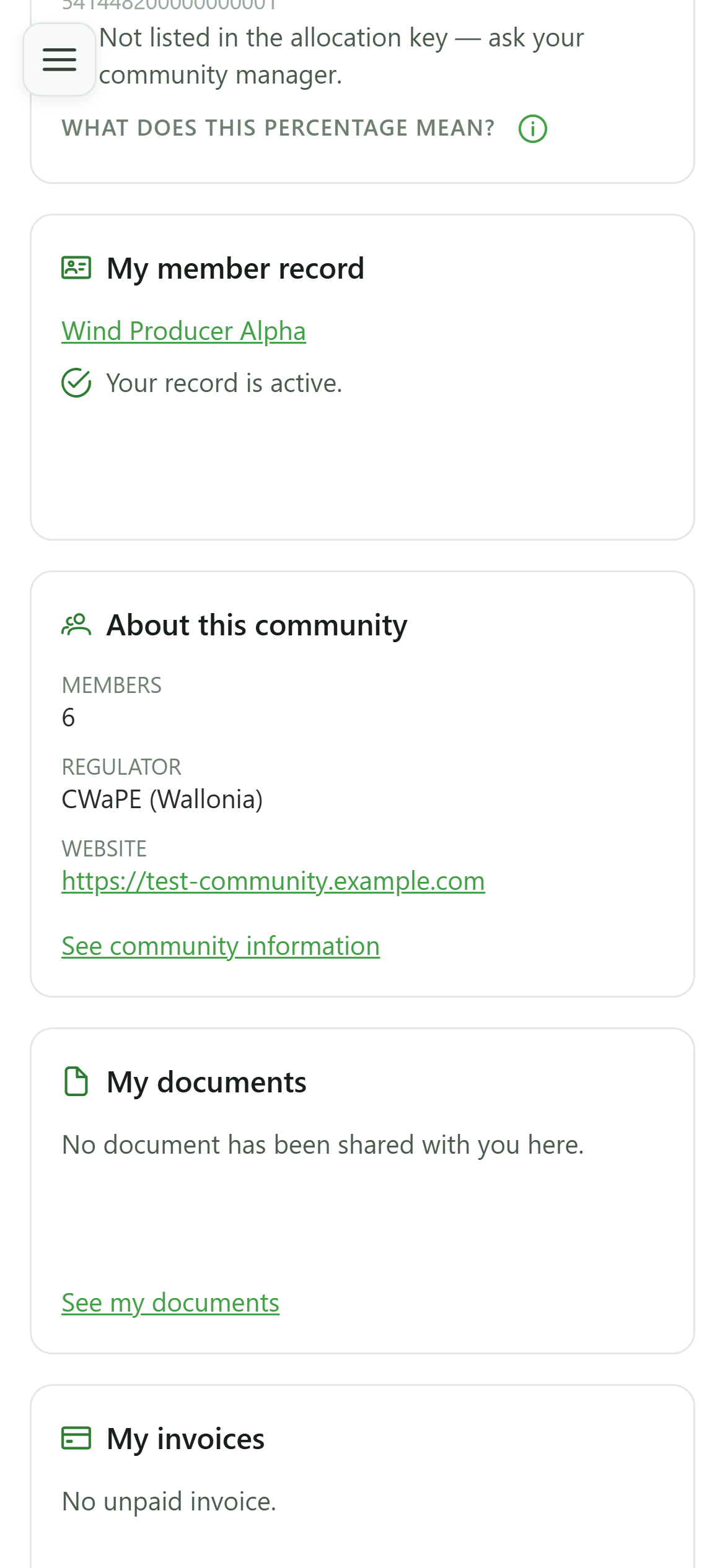
6 About the community
Dashboard
"About this community" recalls its number of members, its regulator and its website. The other tiles — documents, invoices, news — depend on the modules the community uses.
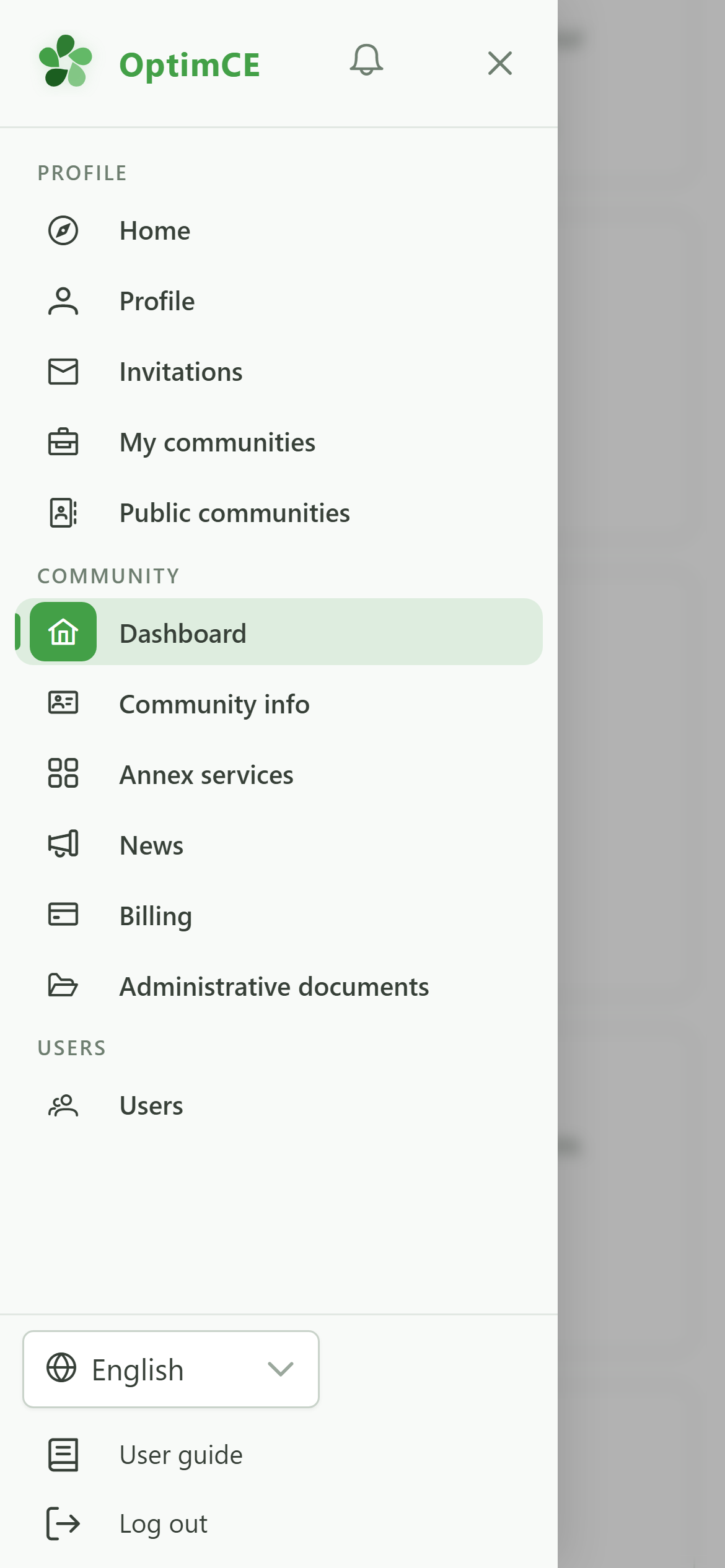
7 The "Community" section
Navigation
Becoming a member added the "Community" section to the menu: the dashboard, the community info, its annex services and, depending on its modules, news, billing or administrative documents.
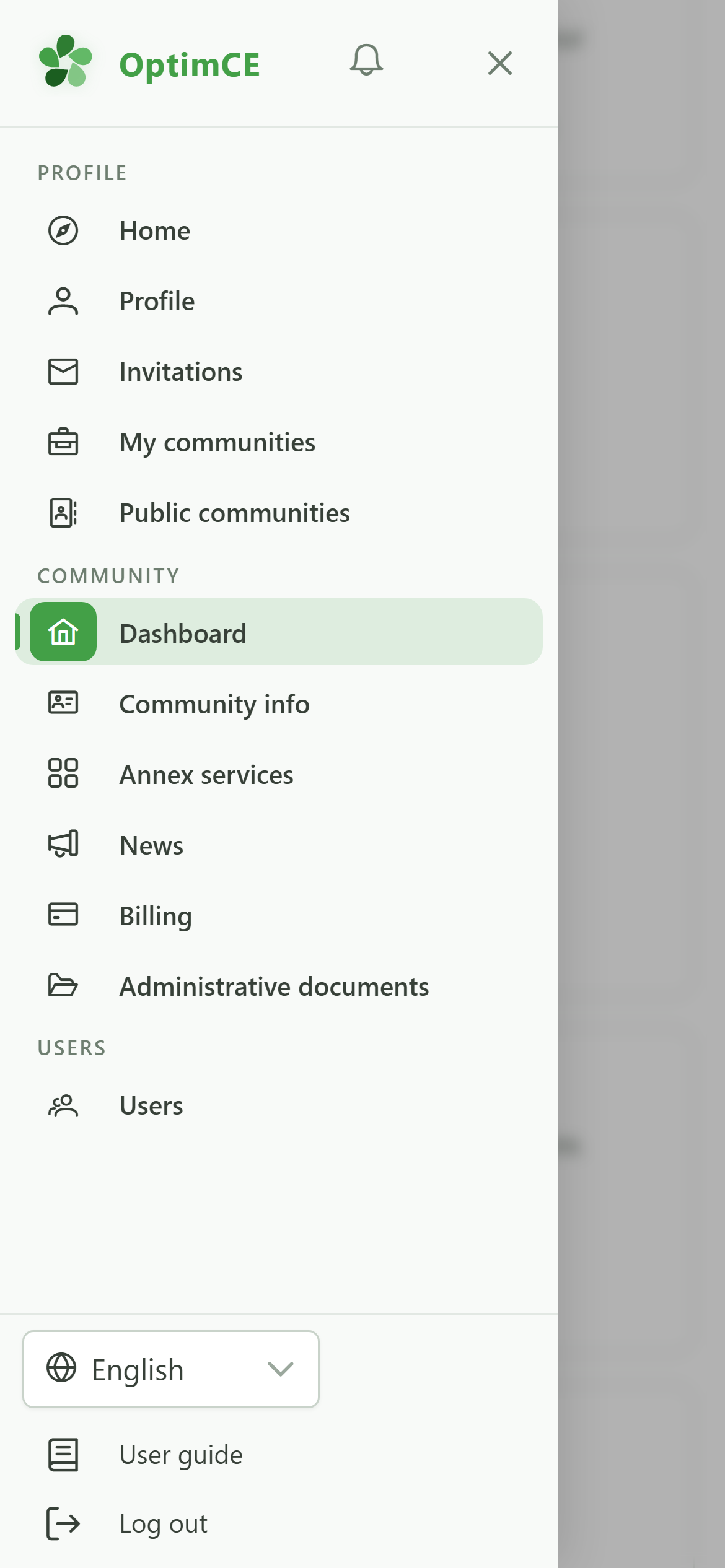
8 Who runs the community
Navigation
Just below, the members' section leads to "Community managers": the people to contact about your record, your meters or an invoice.
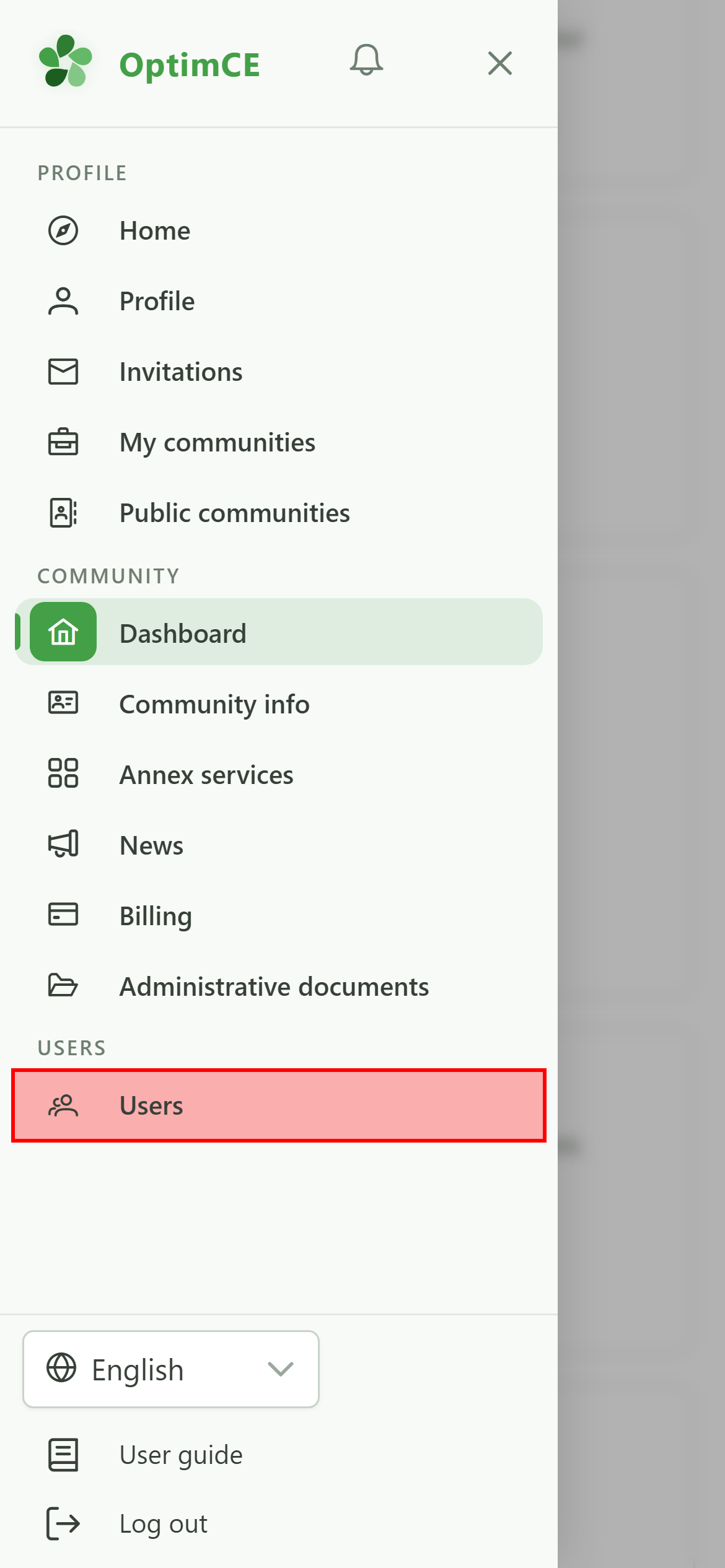
9 Open the managers
Navigation
Tap "Community managers".
10 The managers
Community managers
Every manager and administrator is listed here with their email and role. To go further, the home page and the member dashboard each have their own detailed tour in the "User guide".