You are an administrator
Guide utilisateur
User guide
Gebruikershandleiding
Benutzerhandbuch
1 You are an administrator
Dashboard
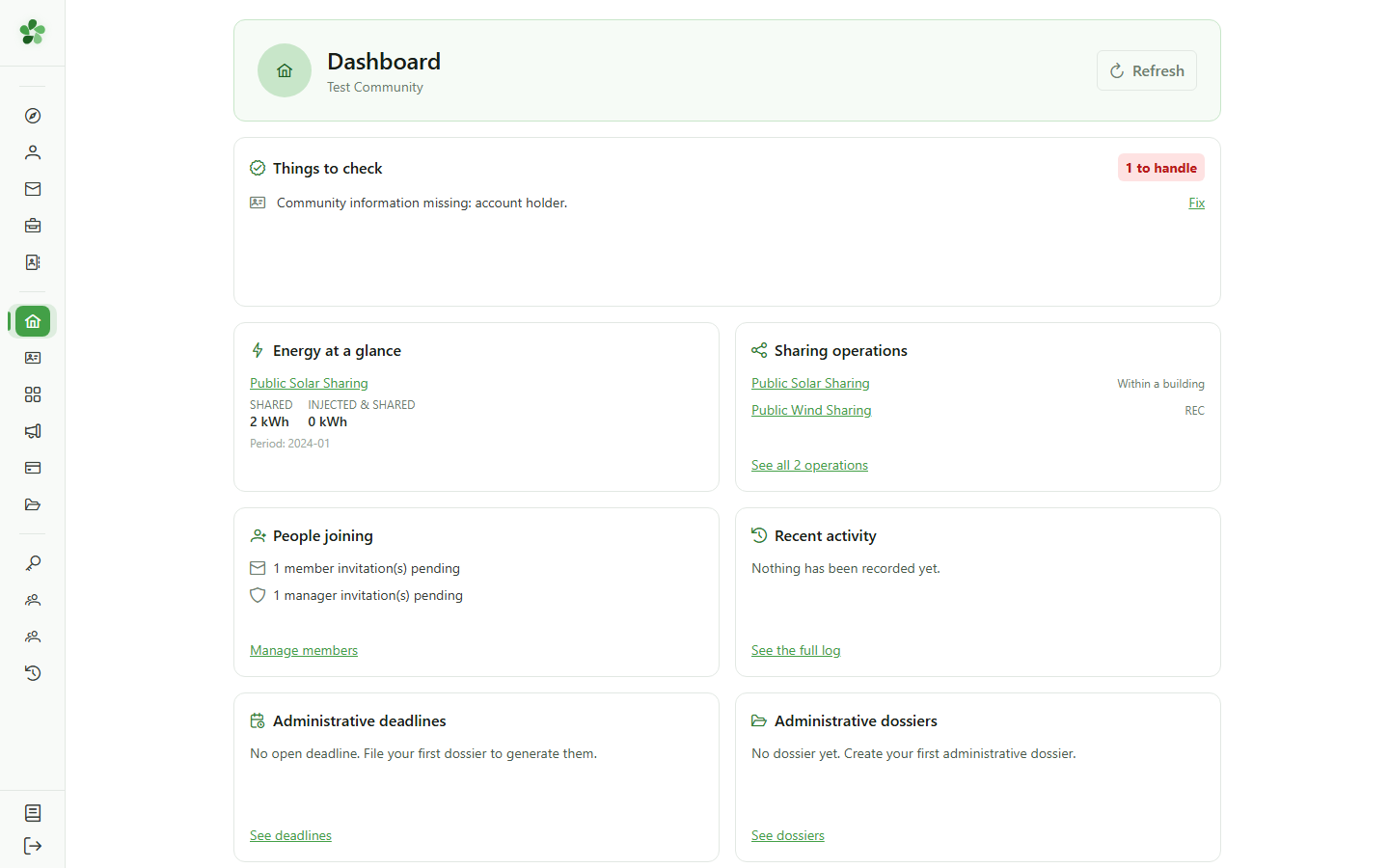
You have everything a manager has, this dashboard included, plus three decisions that are yours alone: the modules the community uses, who runs it with you, and its legal details.
2 Modules
Dashboard
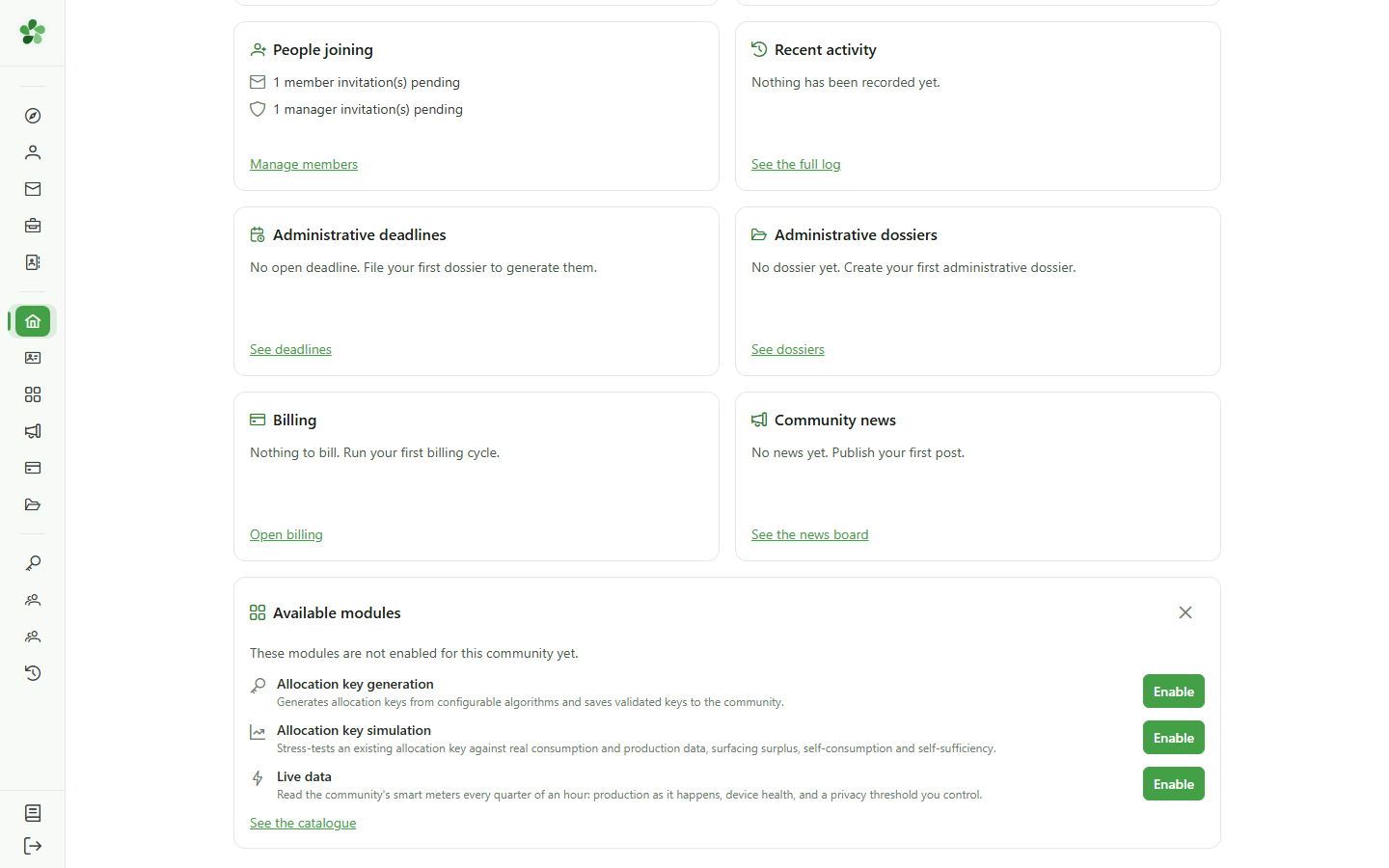
As long as some modules are not enabled, the dashboard offers them in "Available modules": "Enable" subscribes the community there. A manager is told to ask you instead. You find them all in "Annex services".
3 The "Management" section
Navigation
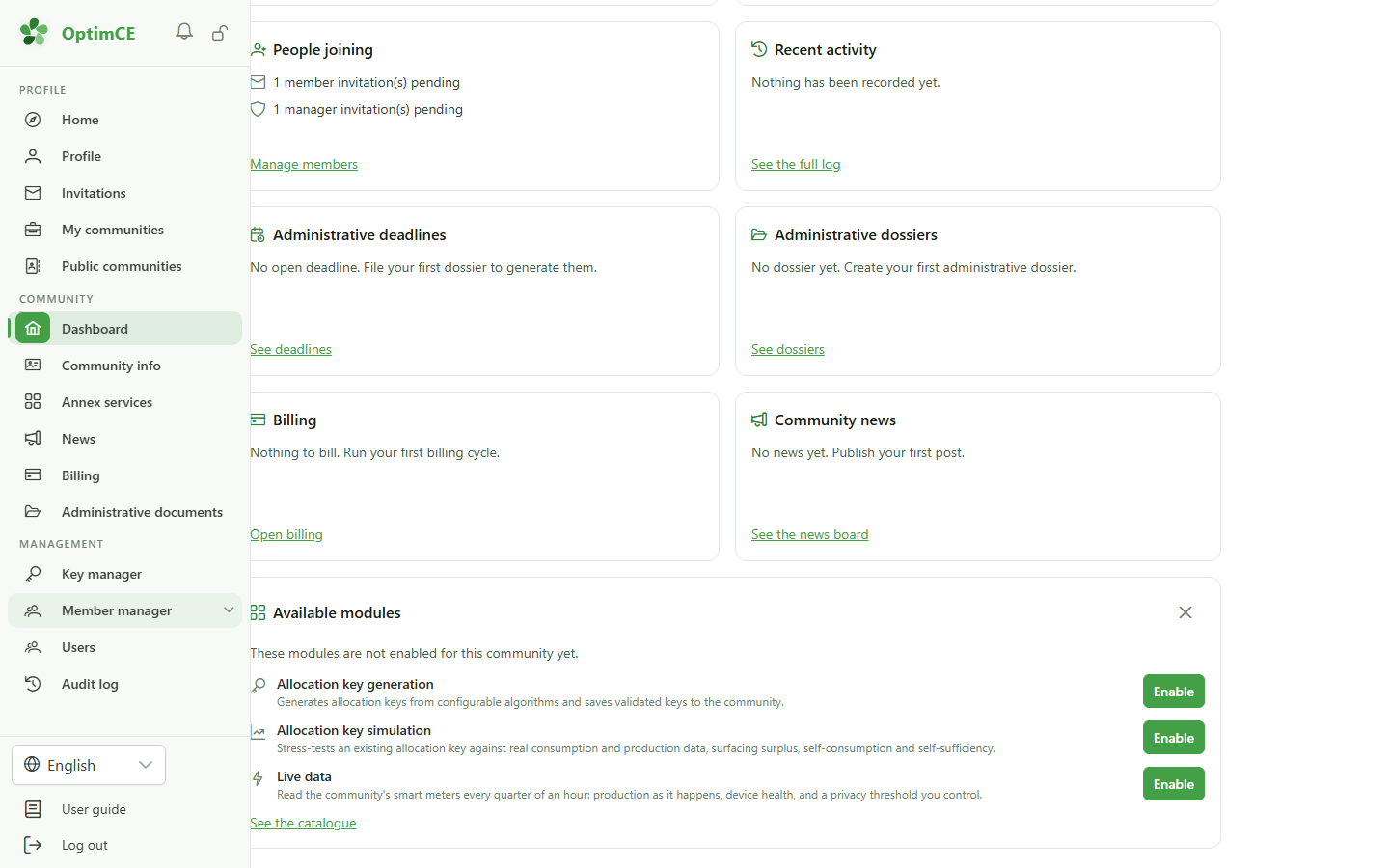
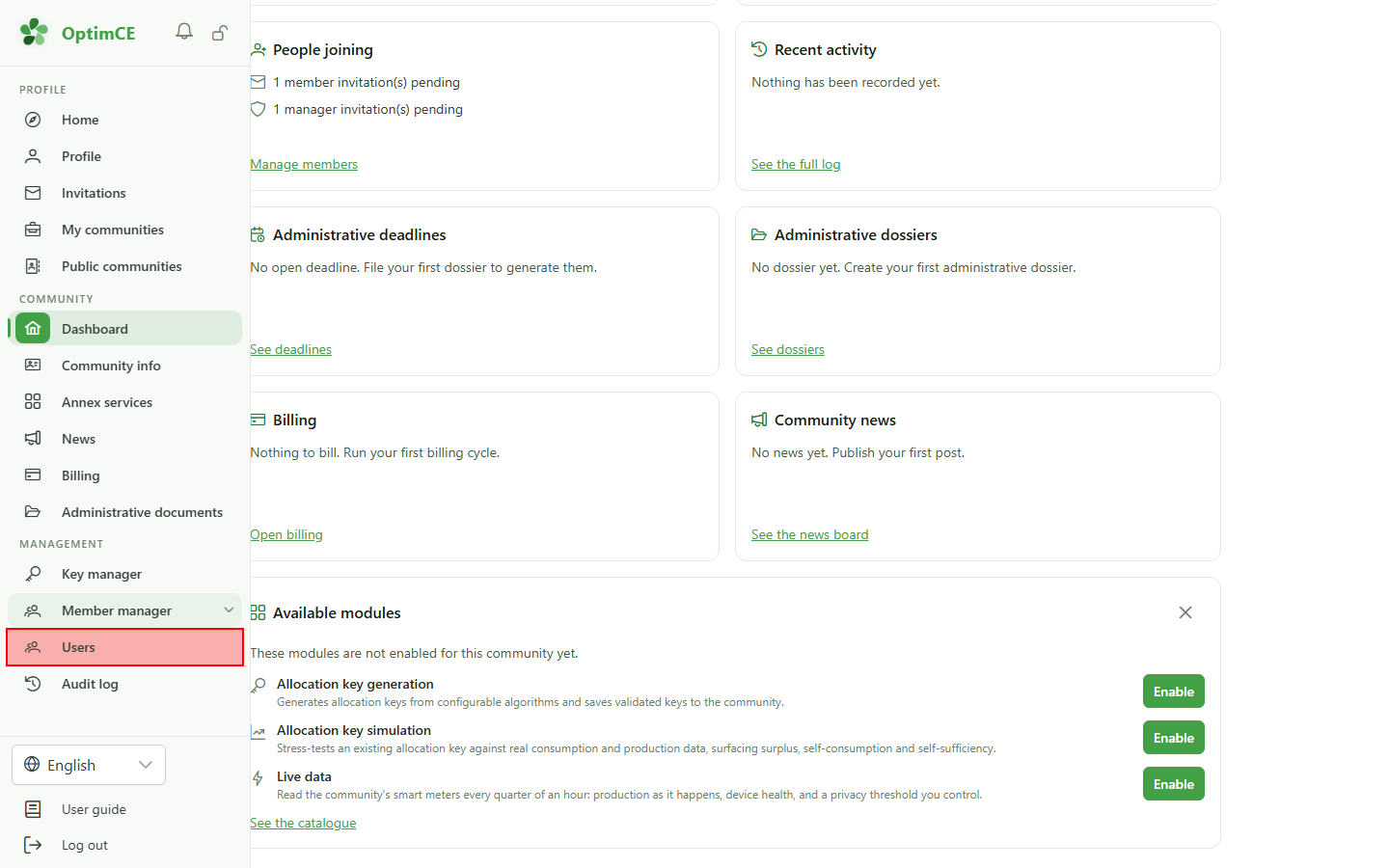
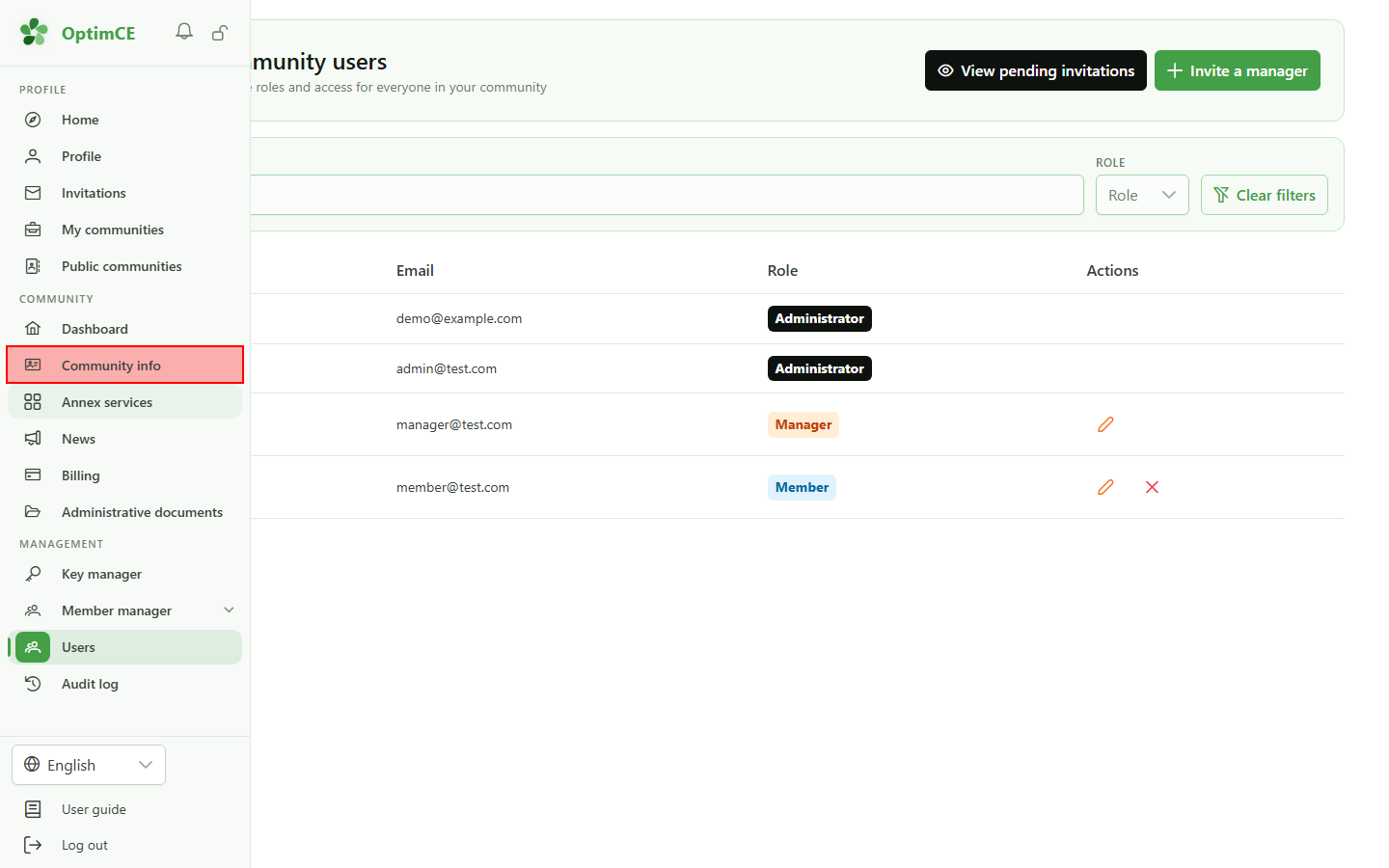
As an administrator, you keep the managers' "Management" section. Its "Users" page is where you choose who runs the community with you.
4 The community's users
Navigation
In the "Management" section, click "Users".
5 Invite a manager
Community users
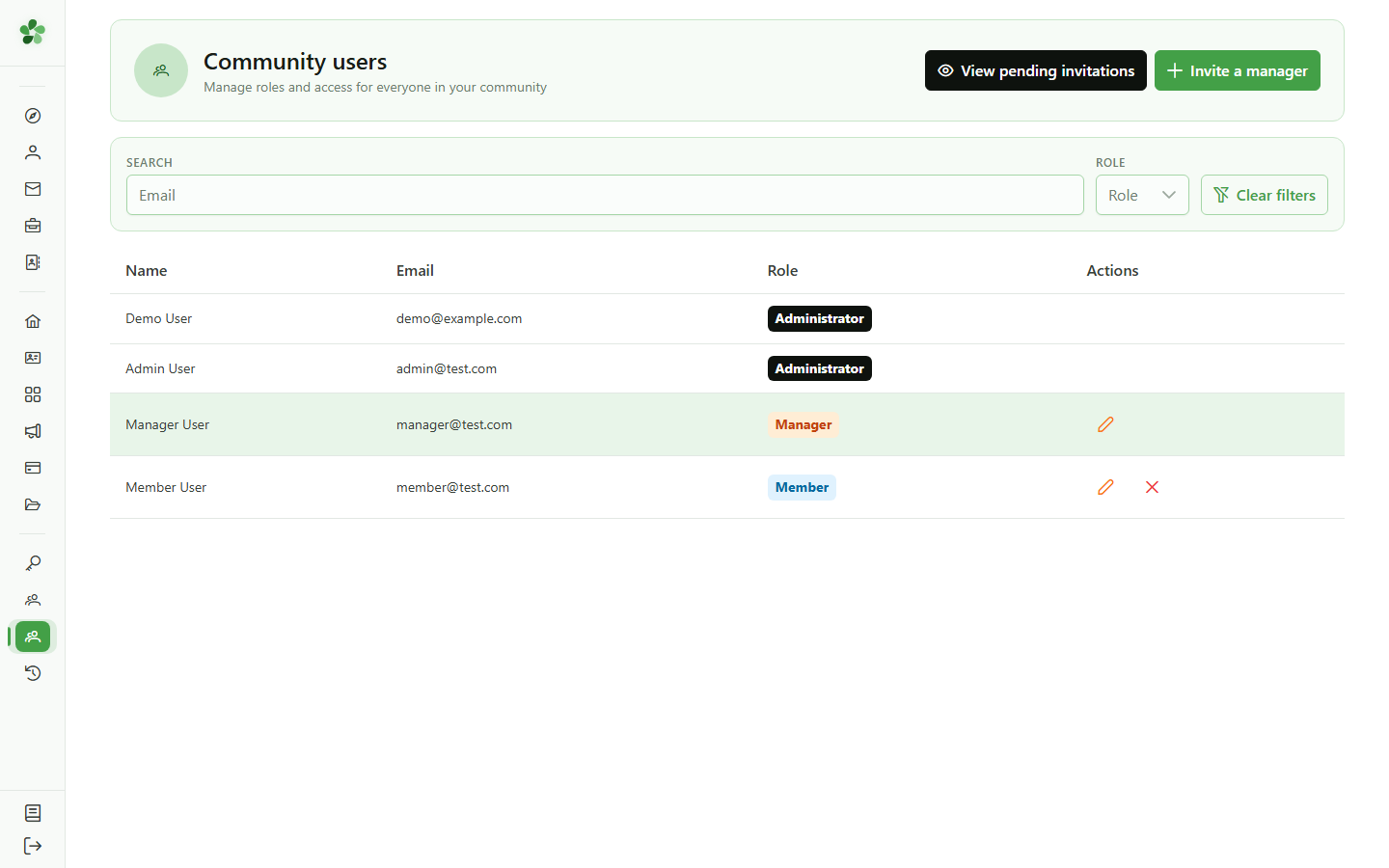
Only an administrator can bring in a manager: "Invite a manager" sends them an invitation by email, which they accept from their invitations.
6 Invitations and roles
Community users
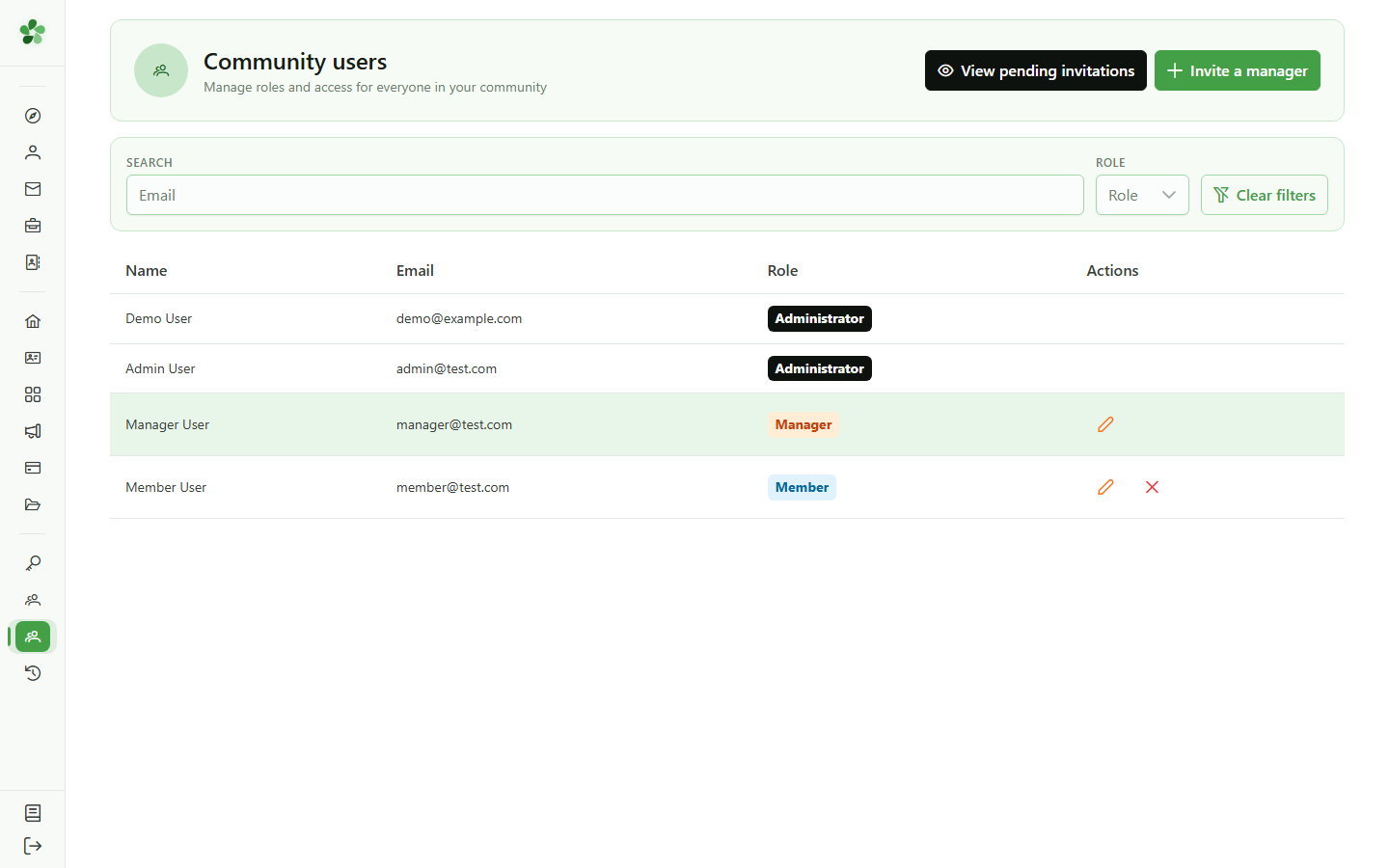
"View pending invitations" shows who has not answered yet. In the list, you alone can change a user's role — member, manager or administrator — or remove them from the community.
7 The "Community" section
Navigation
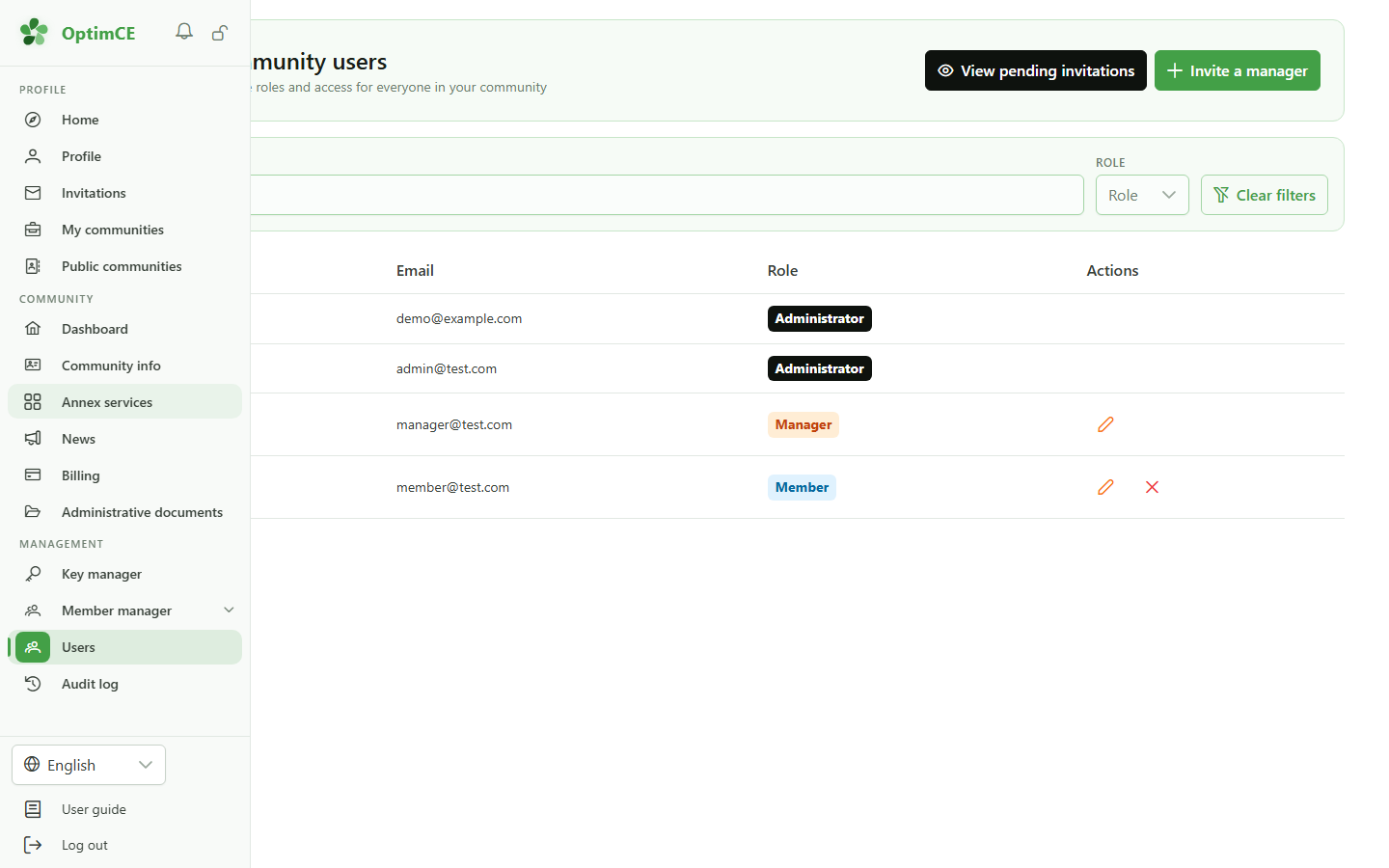
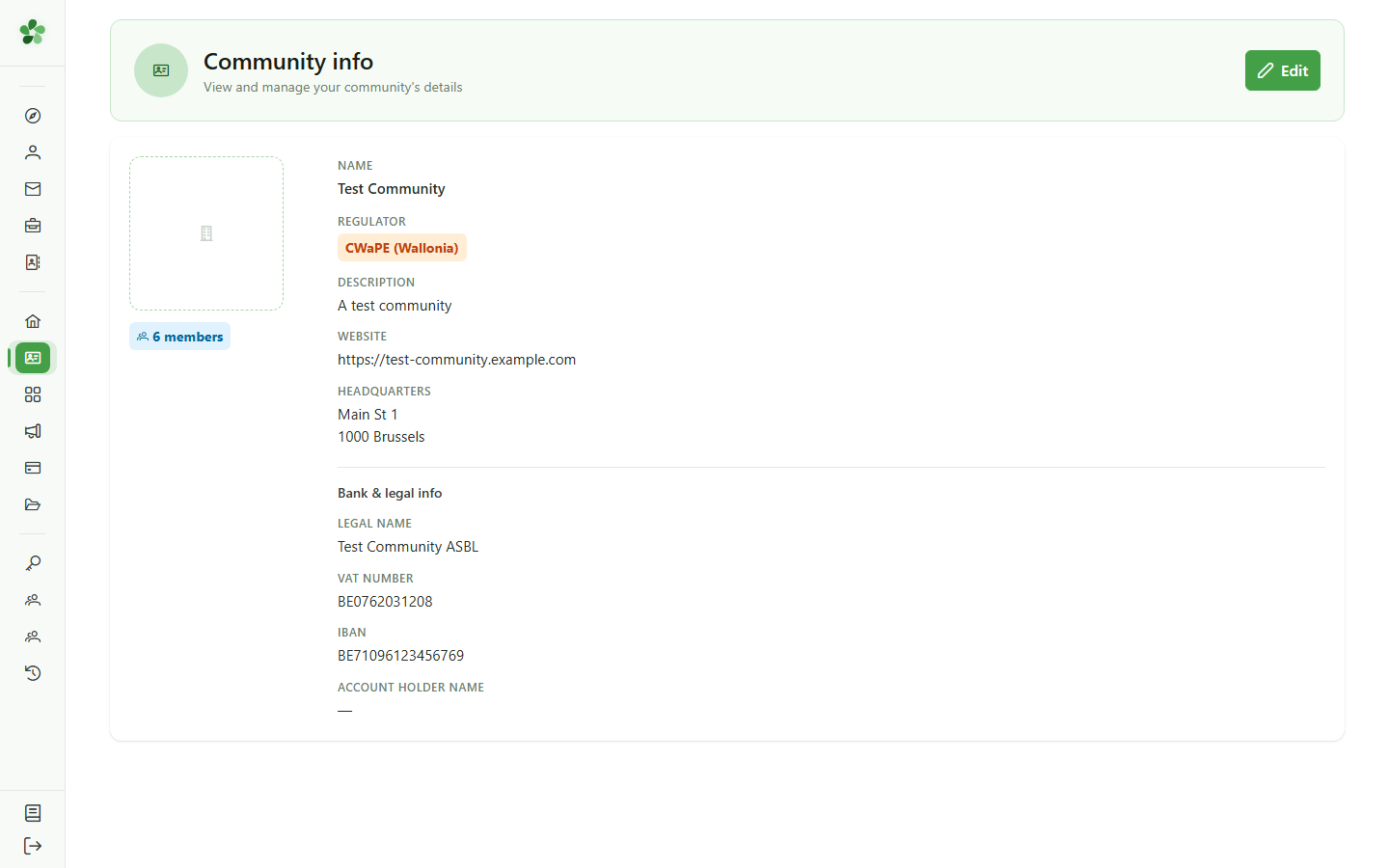
The "Community" section leads to the dashboard, the community info and its annex services. Its "Community info" page holds the legal details only you can change.
8 The community info
Navigation
In the "Community" section, click "Community info".
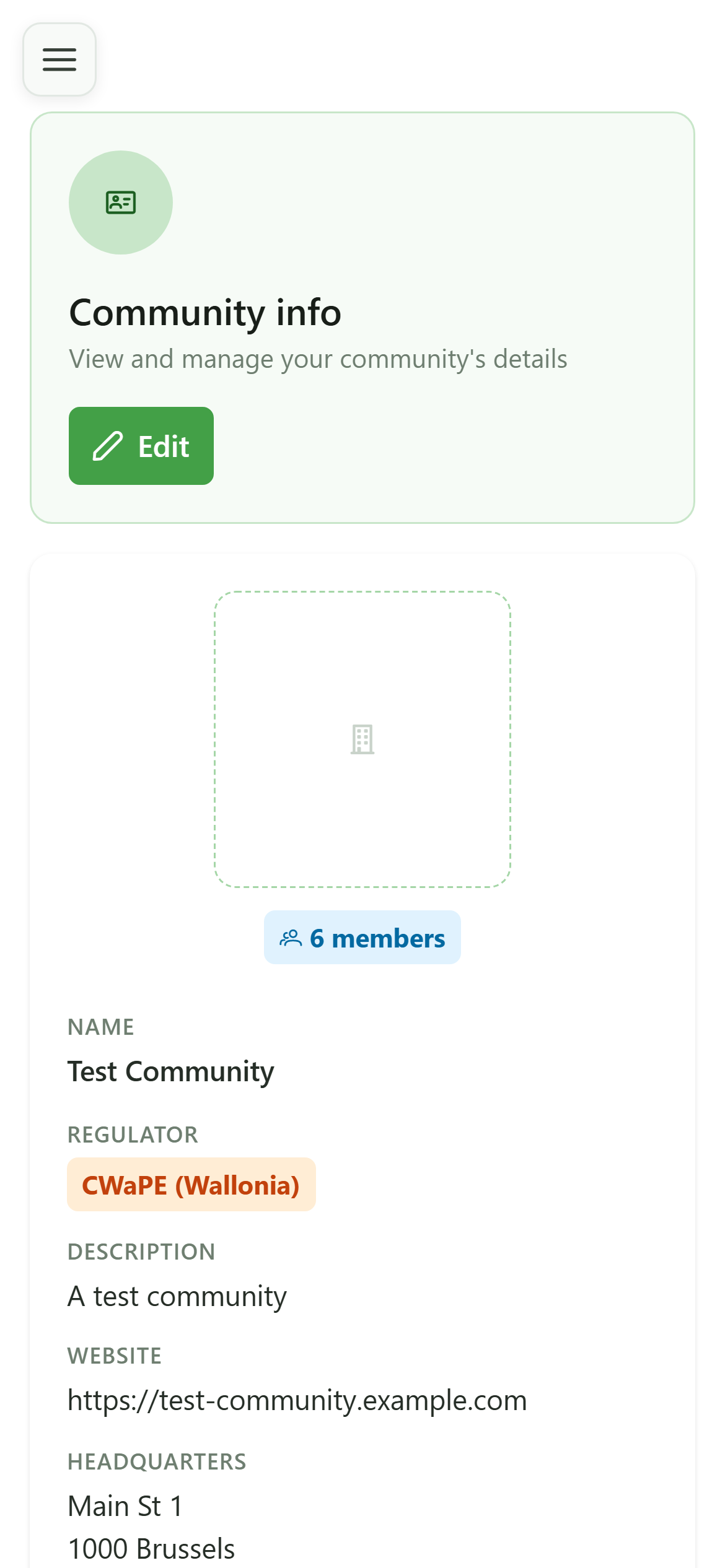
9 The legal details
Community info
Members and managers read this information; only you can change it. "Edit" opens the name, description, address, company number and IBAN — what then appears on invoices and official documents.
You are an administrator
Guide utilisateur
User guide
Gebruikershandleiding
Benutzerhandbuch
1 You are an administrator
Dashboard
You have everything a manager has, this dashboard included, plus three decisions that are yours alone: the modules the community uses, who runs it with you, and its legal details.
2 Modules
Dashboard
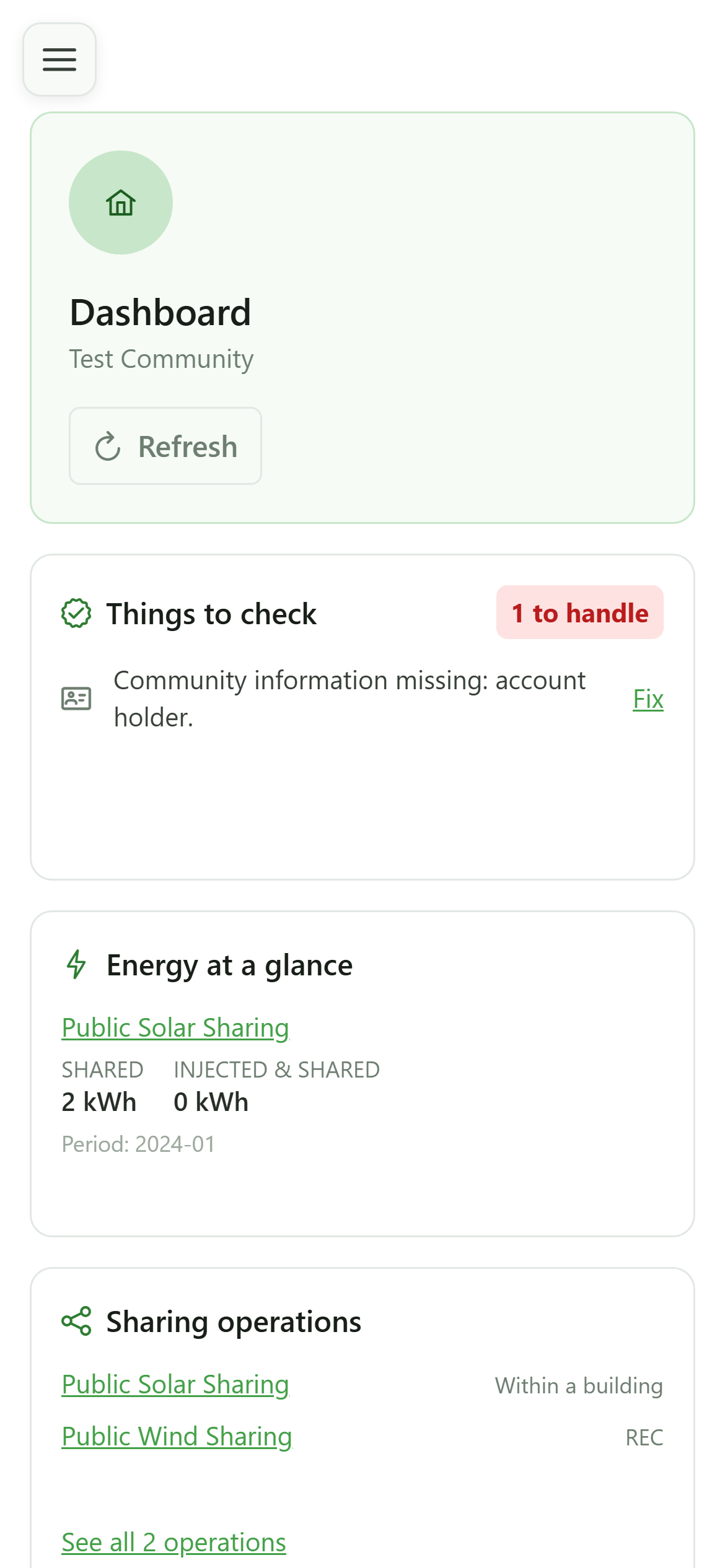
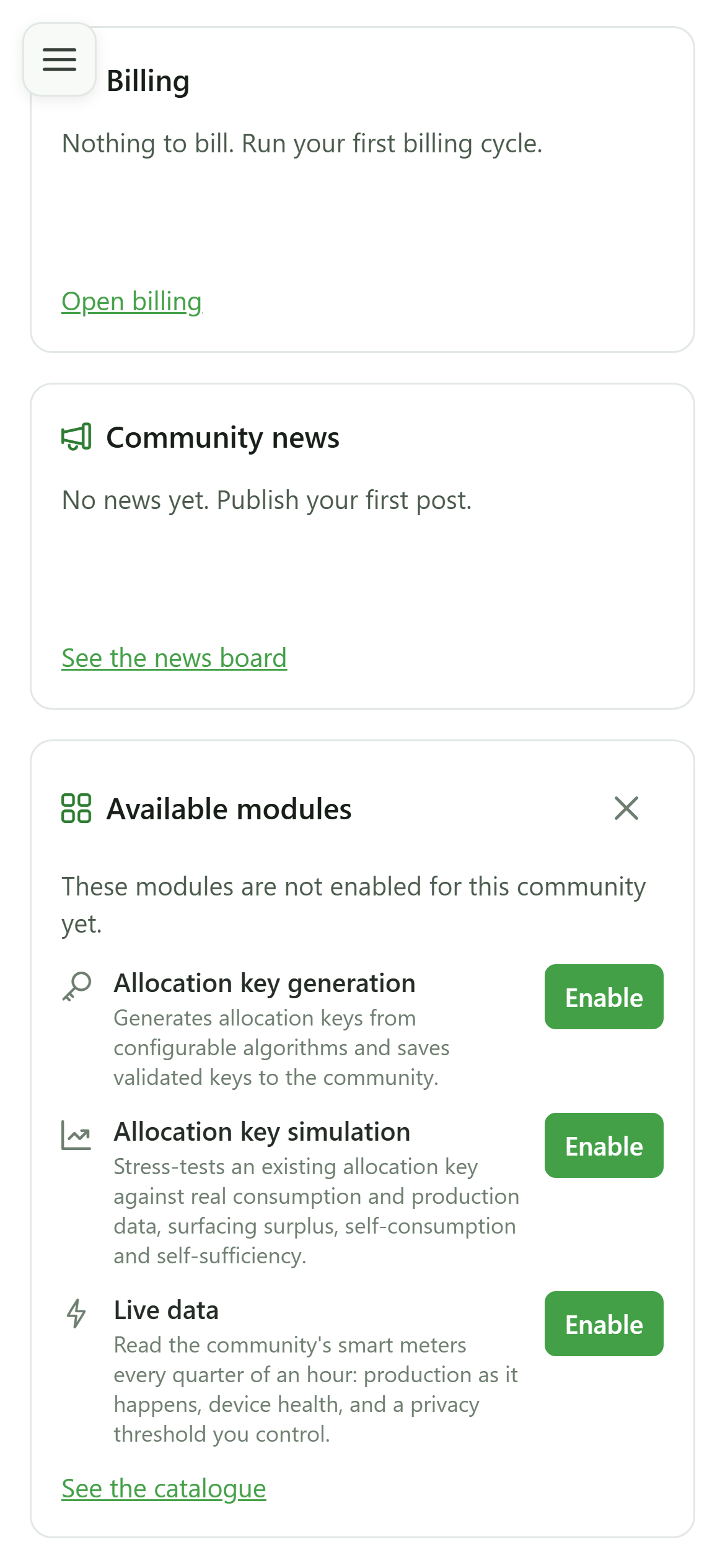
As long as some modules are not enabled, the dashboard offers them in "Available modules": "Enable" subscribes the community there. A manager is told to ask you instead. You find them all in "Annex services".
3 The "Management" section
Navigation
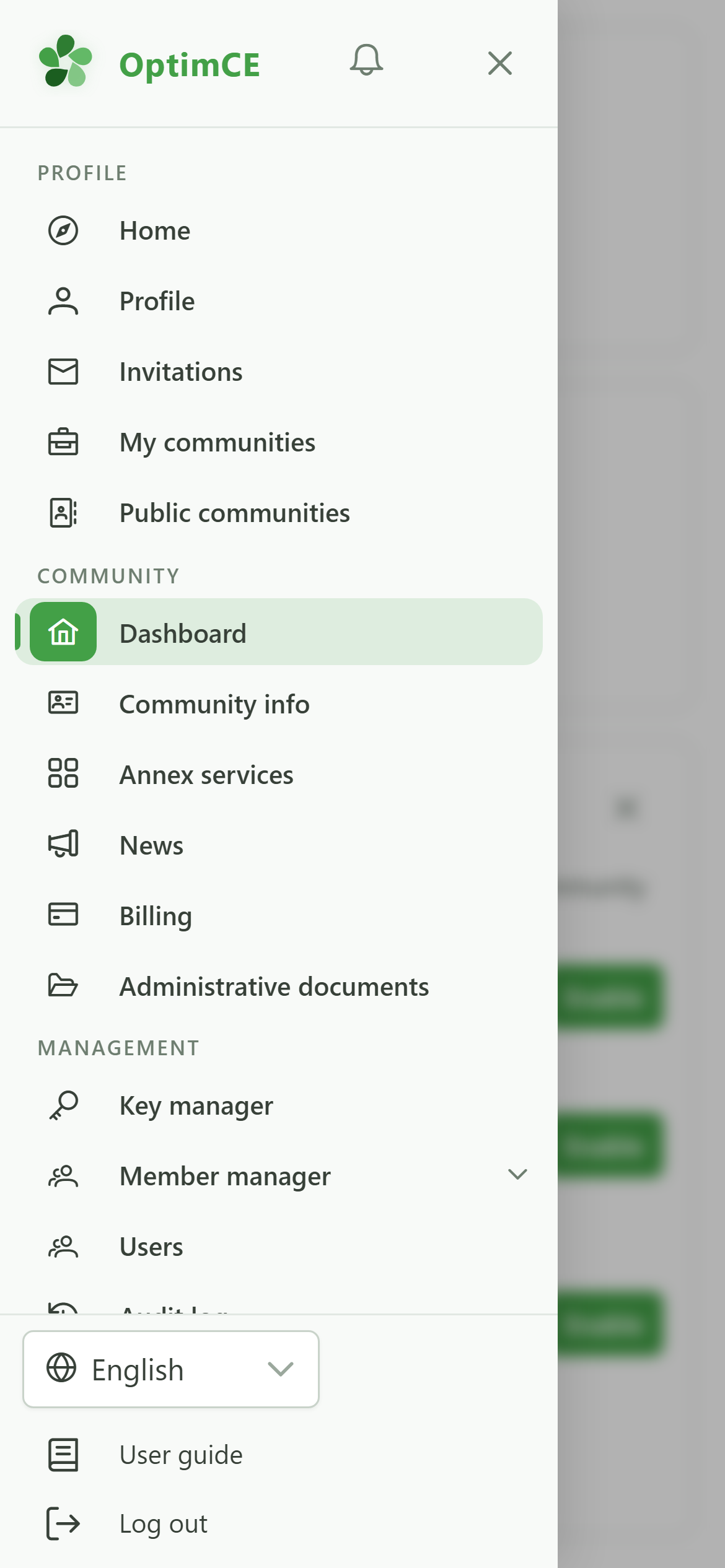
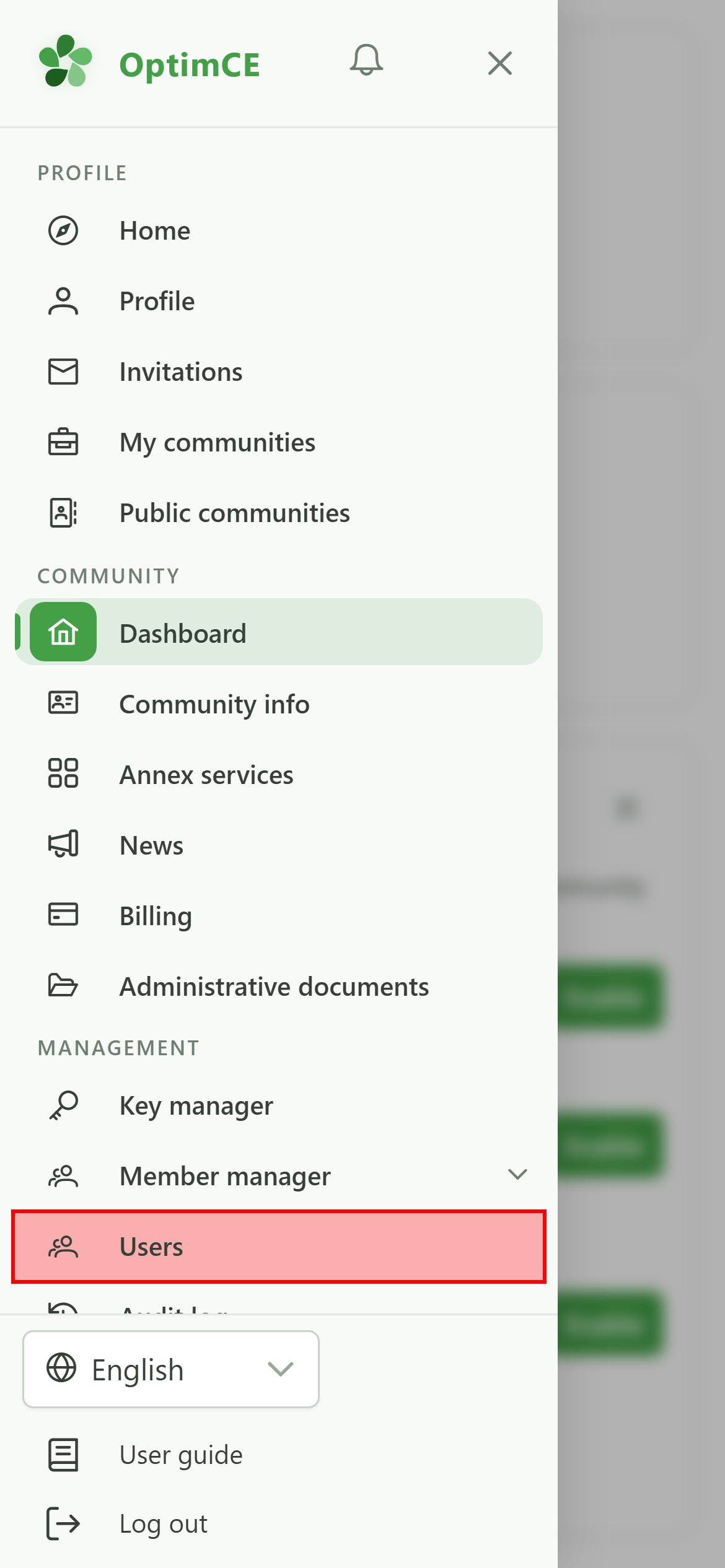
As an administrator, you keep the managers' "Management" section. Its "Users" page is where you choose who runs the community with you.
4 The community's users
Navigation
In the menu's "Management" section, tap "Users".
5 Invite a manager
Community users
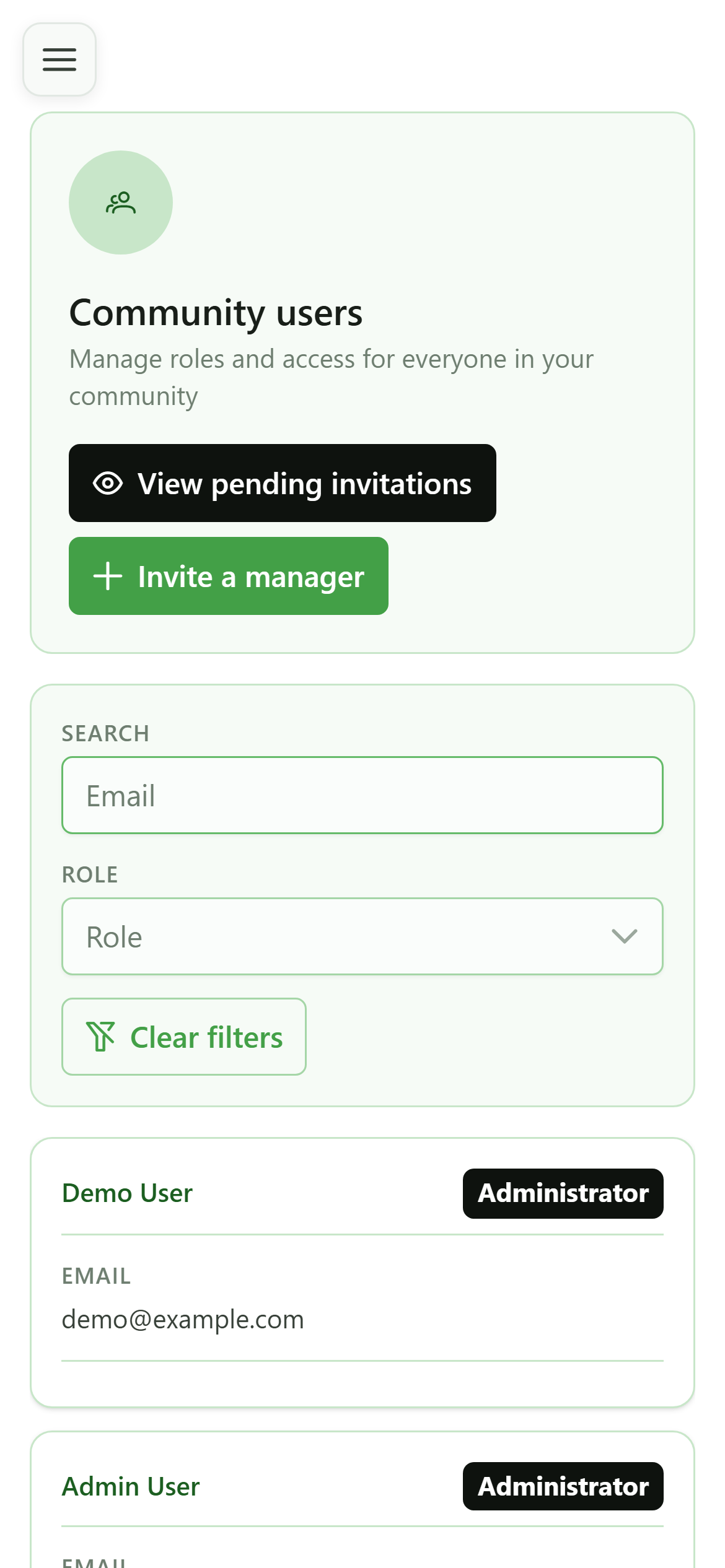
Only an administrator can bring in a manager: "Invite a manager" sends them an invitation by email, which they accept from their invitations.
6 Invitations and roles
Community users
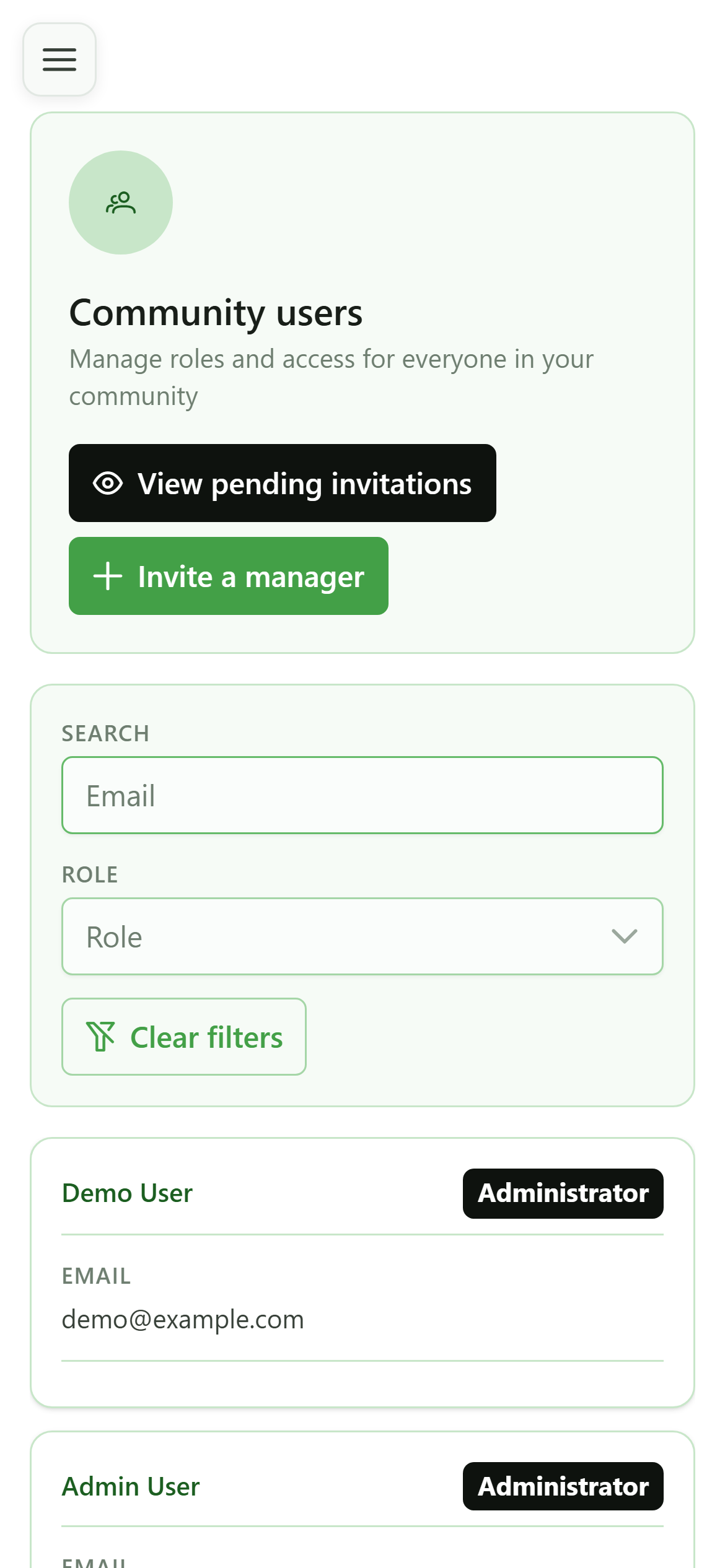
"View pending invitations" shows who has not answered yet. In the list, you alone can change a user's role — member, manager or administrator — or remove them from the community.
7 The "Community" section
Navigation
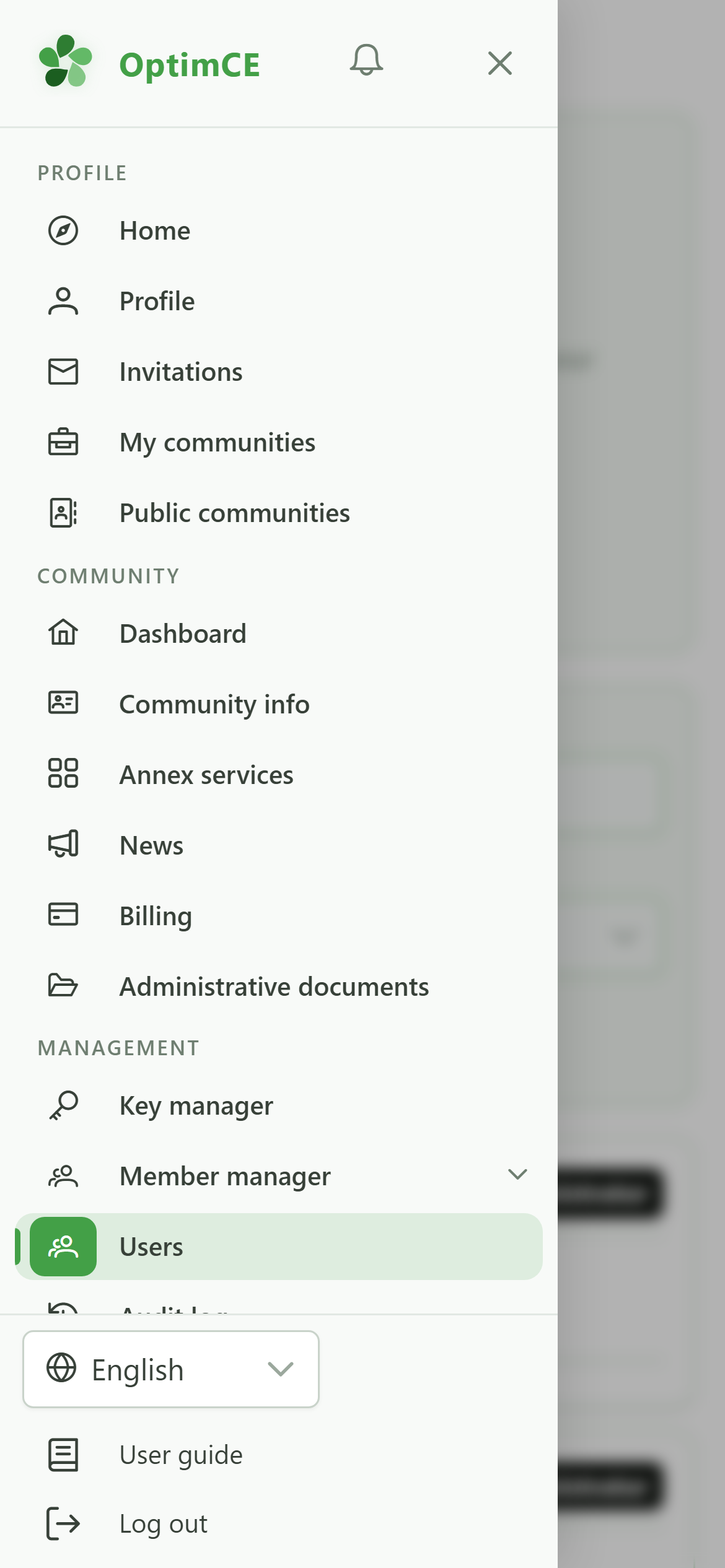
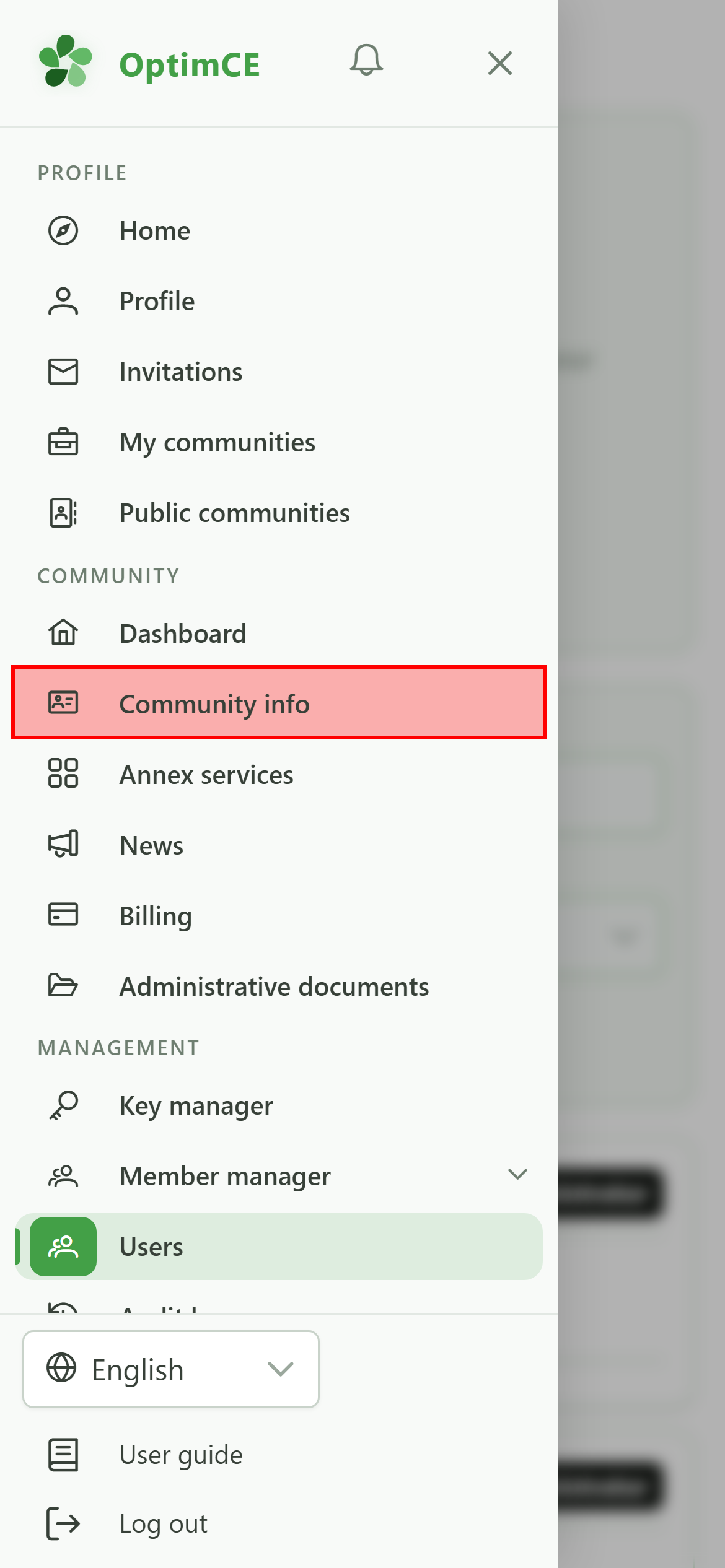
The "Community" section leads to the dashboard, the community info and its annex services. Its "Community info" page holds the legal details only you can change.
8 The community info
Navigation
In the menu's "Community" section, tap "Community info".
9 The legal details
Community info
Members and managers read this information; only you can change it. "Edit" opens the name, description, address, company number and IBAN — what then appears on invoices and official documents.