Choose your notifications
Guide utilisateur
User guide
Gebruikershandleiding
Benutzerhandbuch
1 Open your profile
Navigation
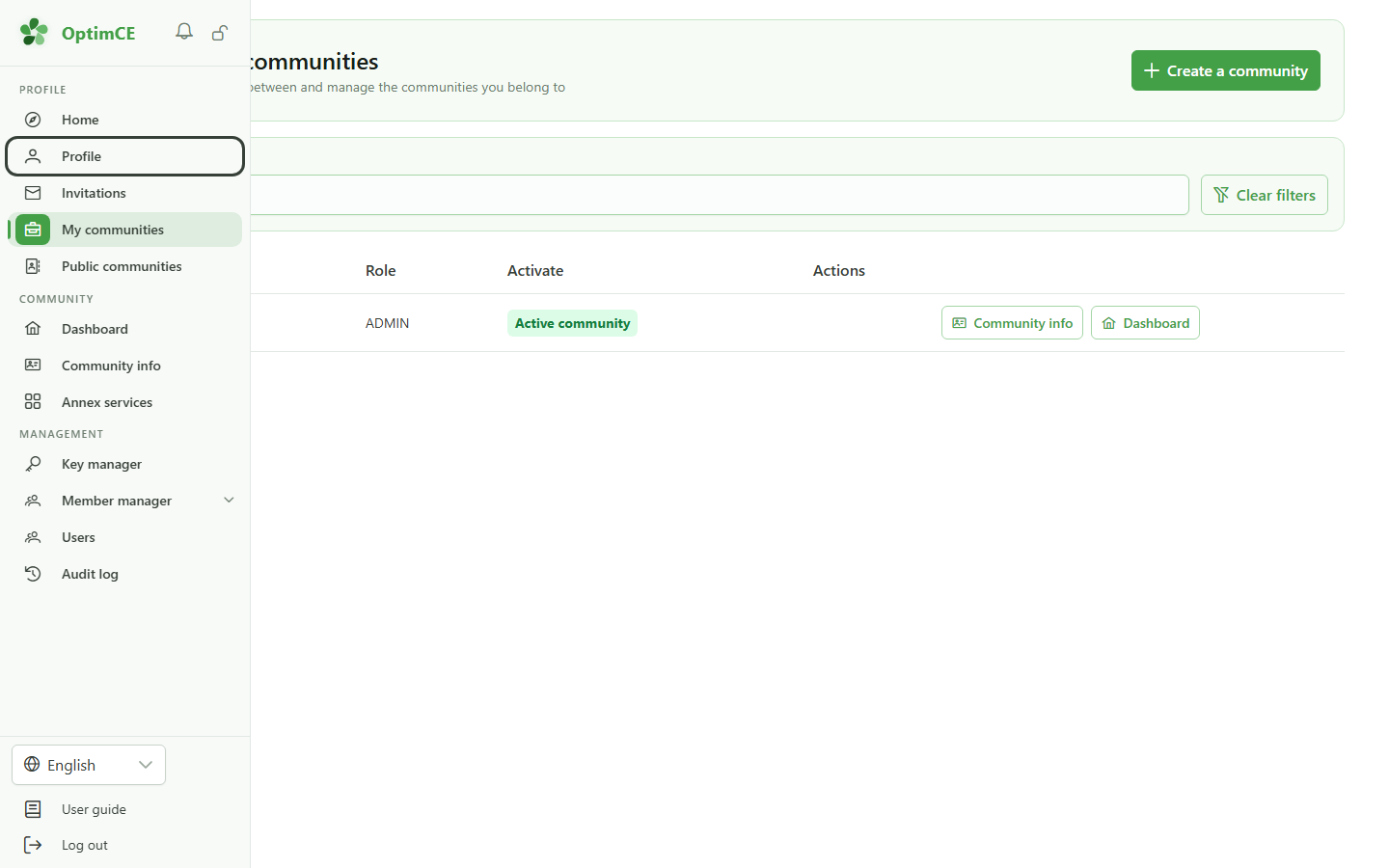
In the sidebar's profile menu, click "Profile": notification preferences are personal, they do not depend on the active community.
2 Notifications tab
Profile
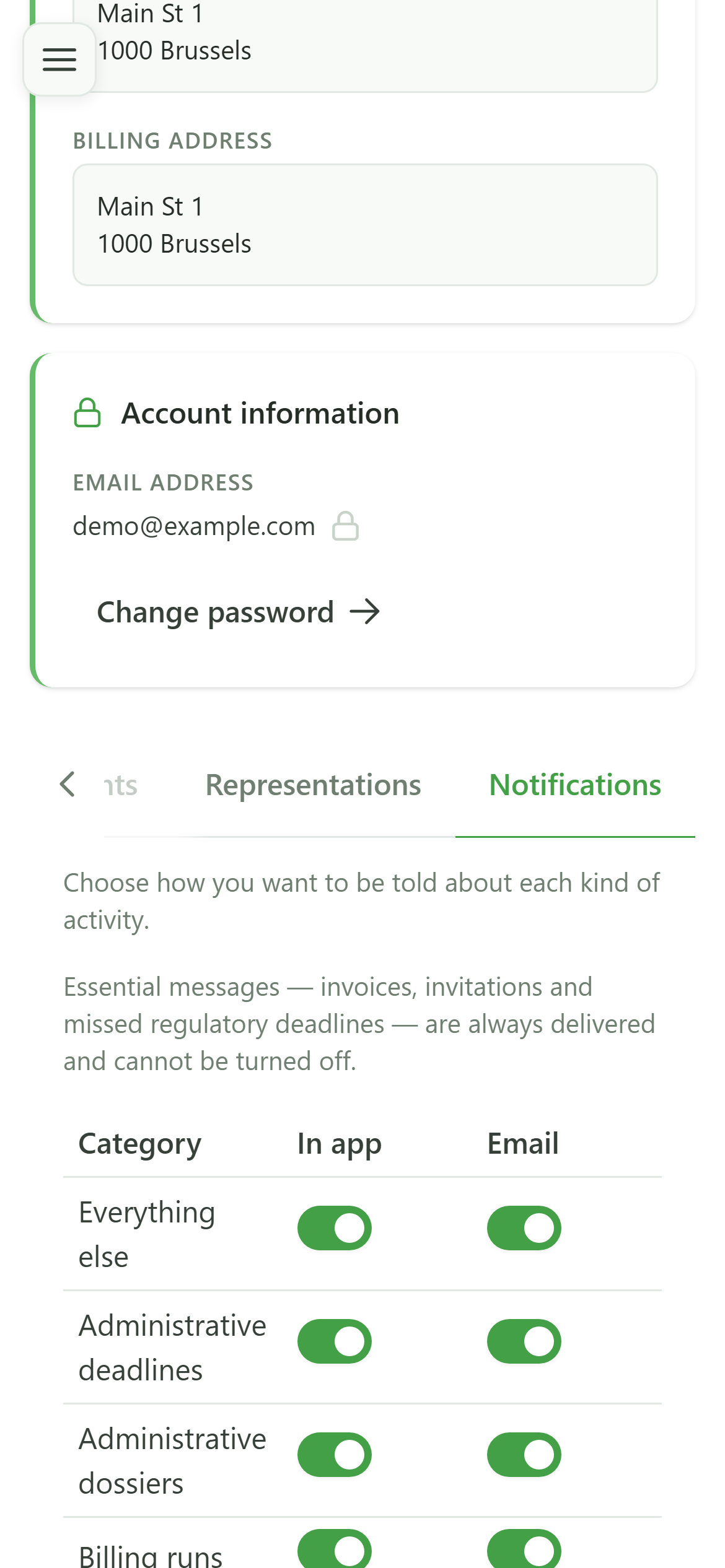
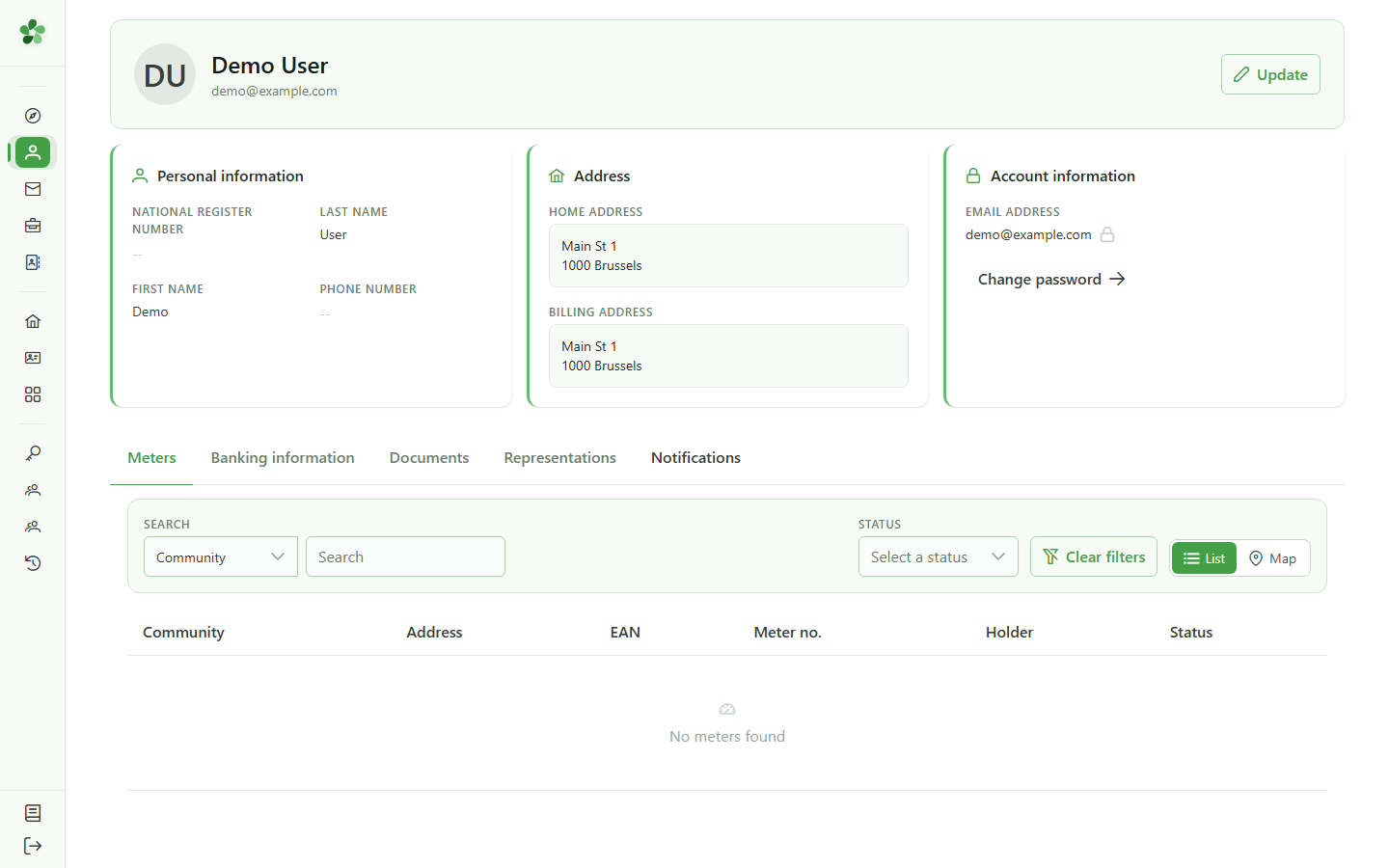
The last tab of your profile controls how OptimCE tells you about things.
3 Categories and channels
Notification preferences
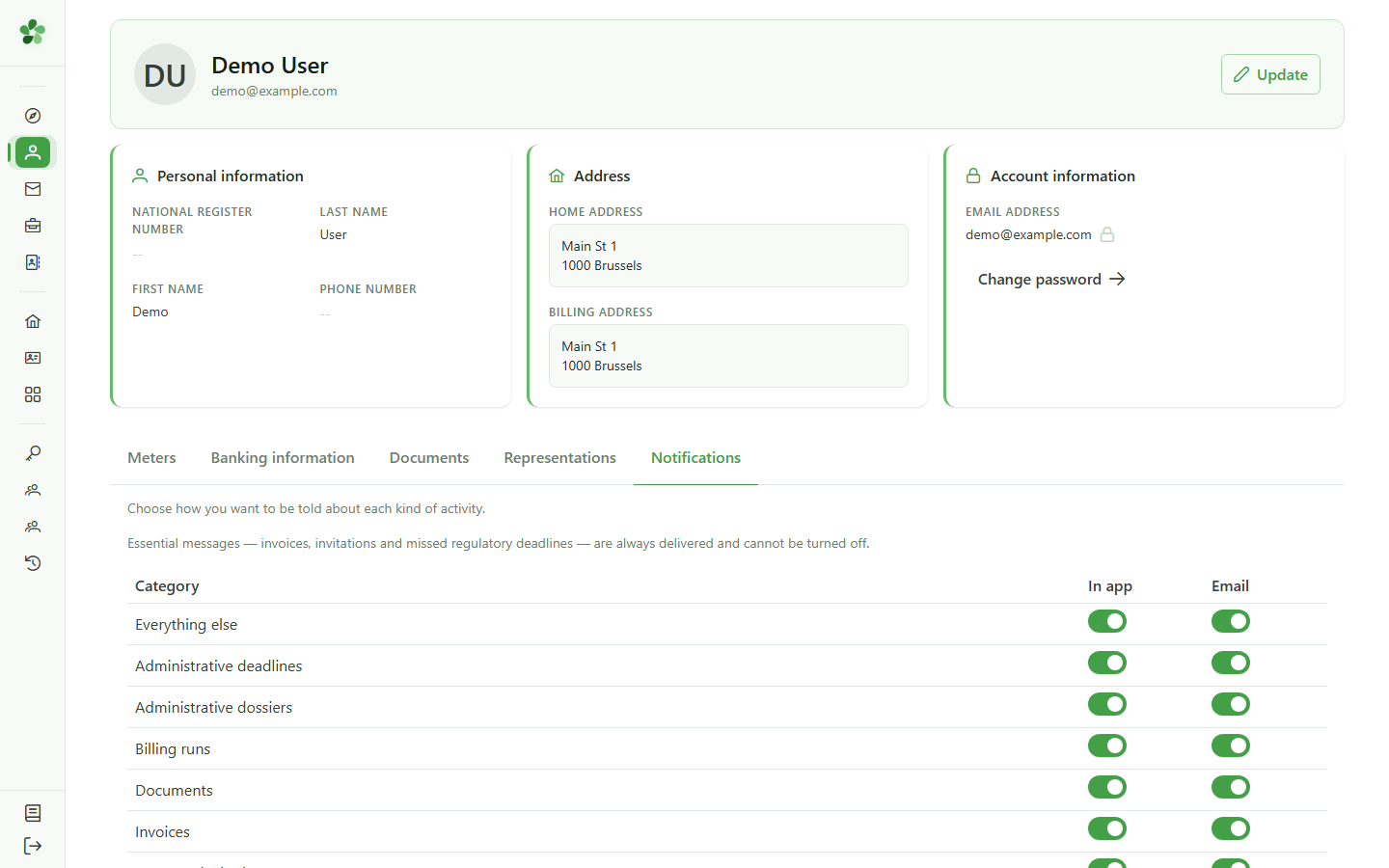
Each row is a kind of activity — news, invoices, deadlines… — and each column a channel. "Everything else" covers the categories without a row of their own. Essential messages (invoices, invitations, missed deadlines) are always delivered.
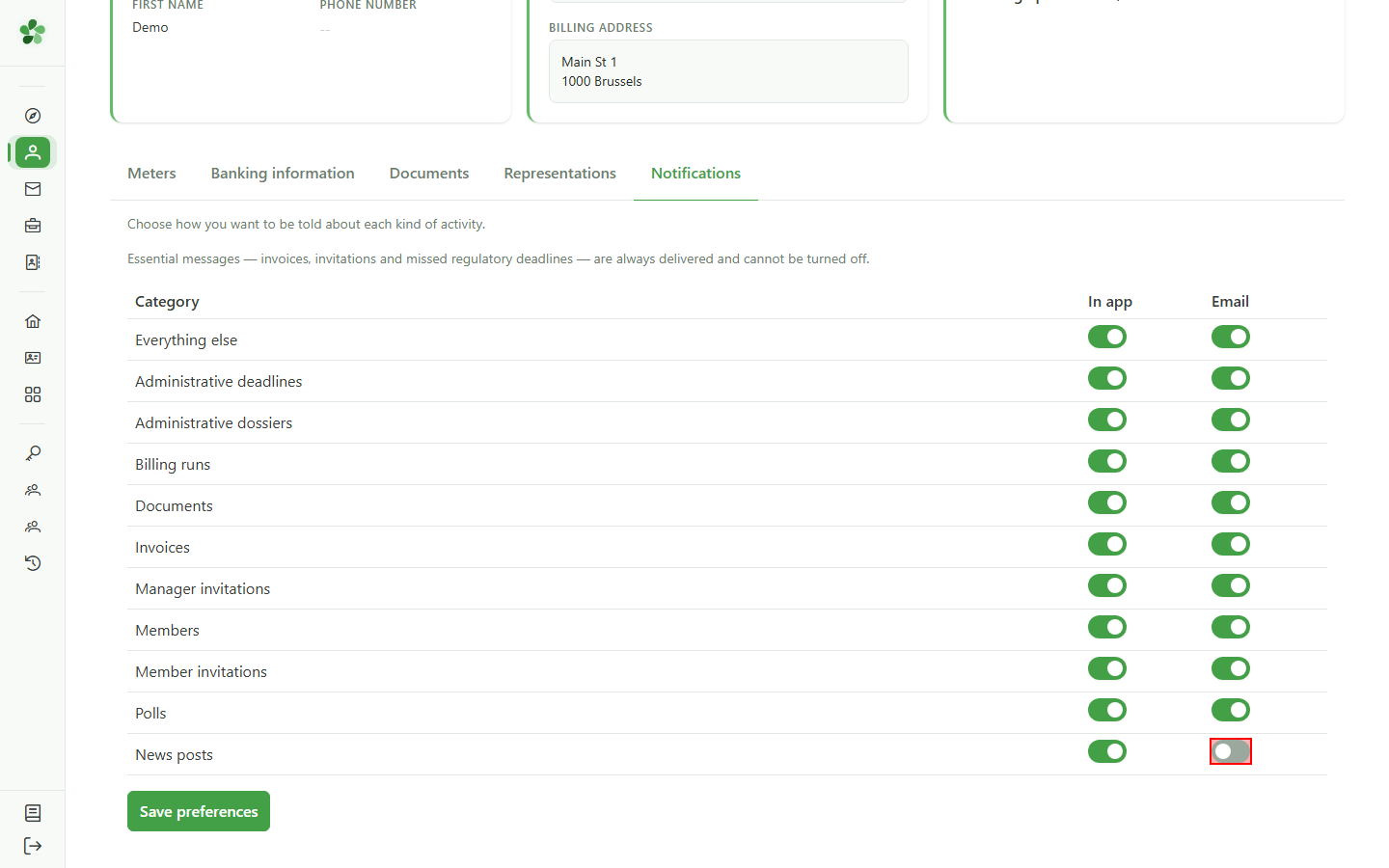
4 Turn a channel off
Notification preferences
Switch "Email" off on the "News posts" row: you will still see the posts inside the application, but no email will be sent.
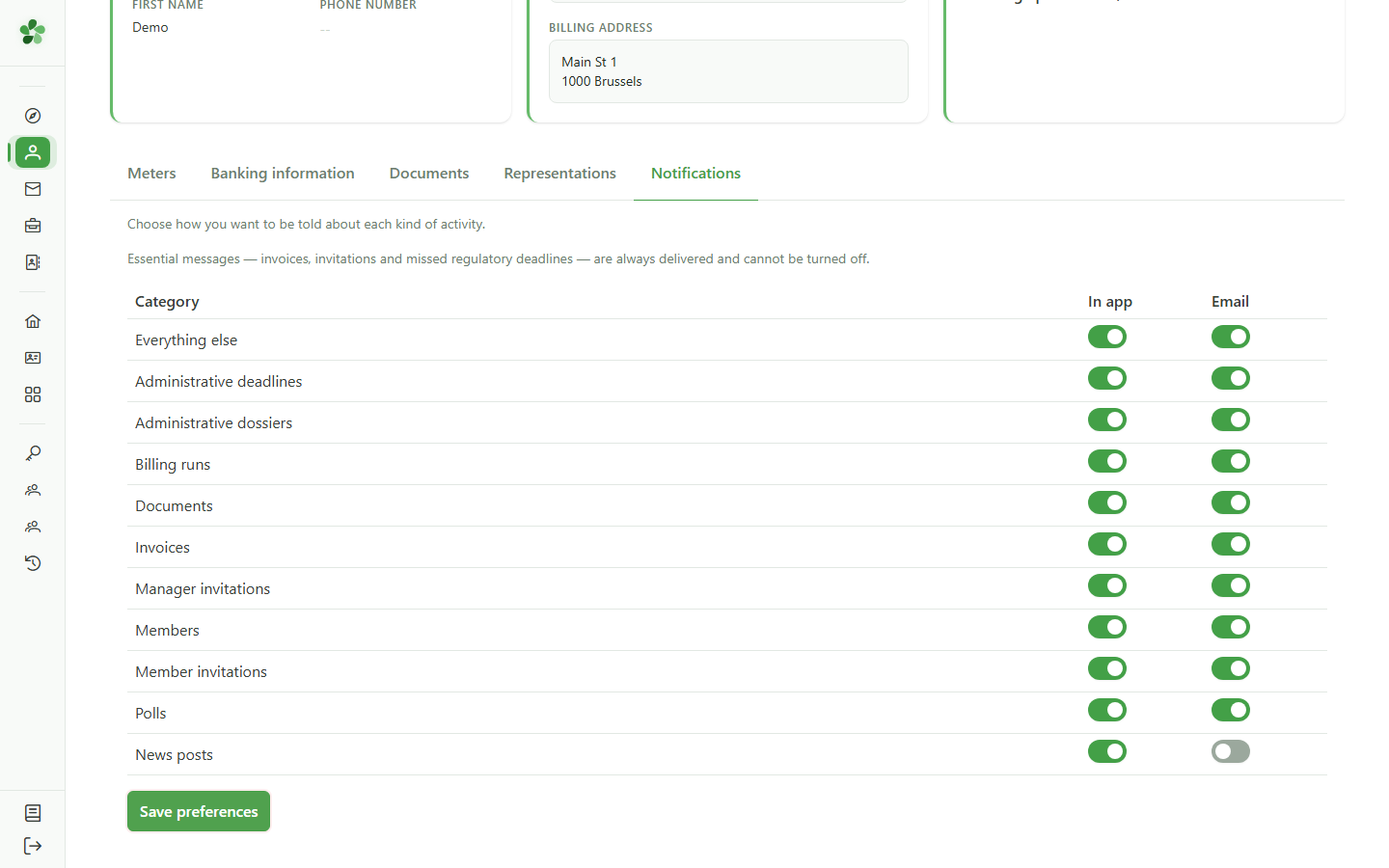
5 Save
Notification preferences
Nothing is applied until you save. Click "Save preferences".
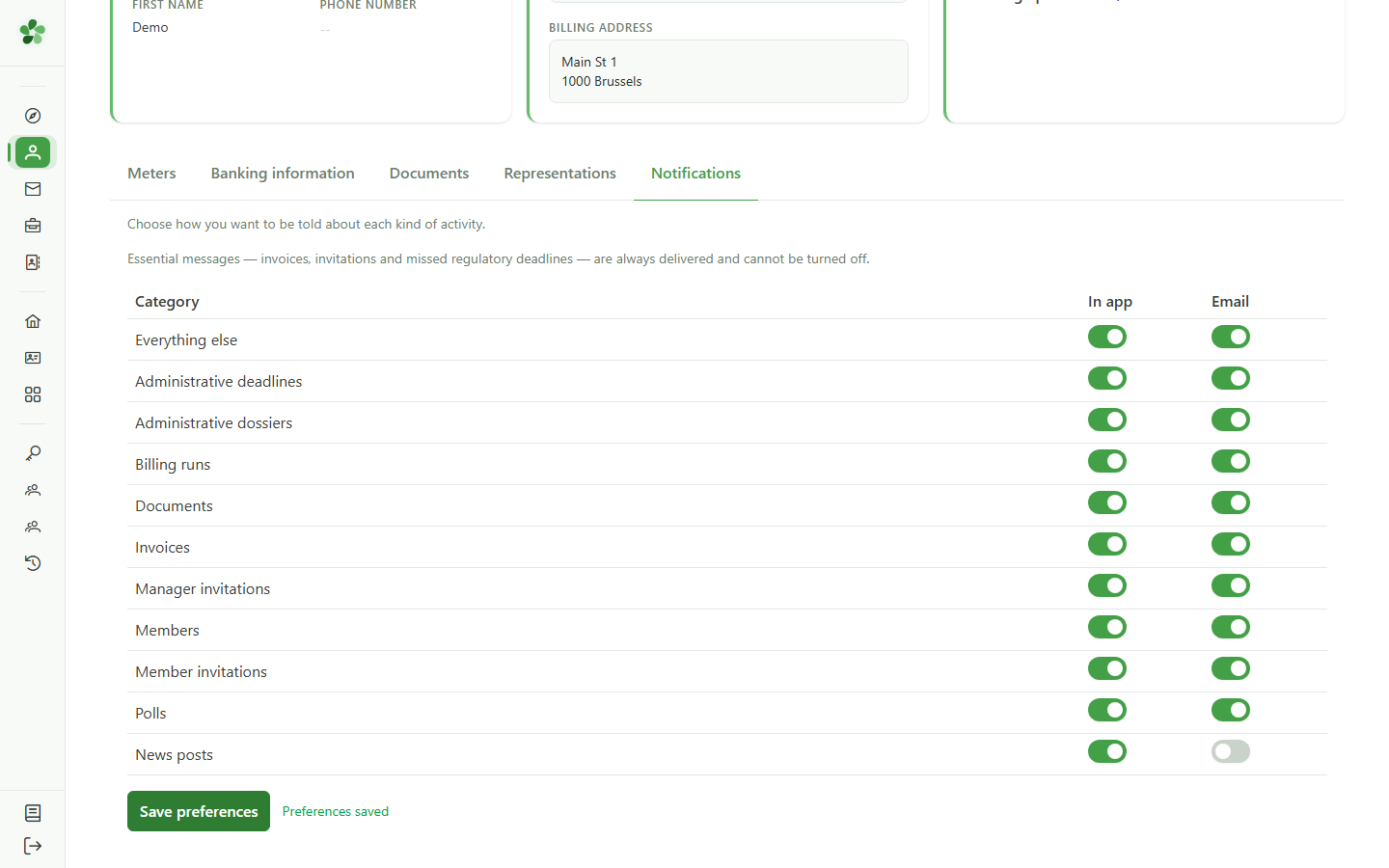
6 Preferences saved
Notification preferences
A confirmation appears next to the button. It clears as soon as you change a setting again.
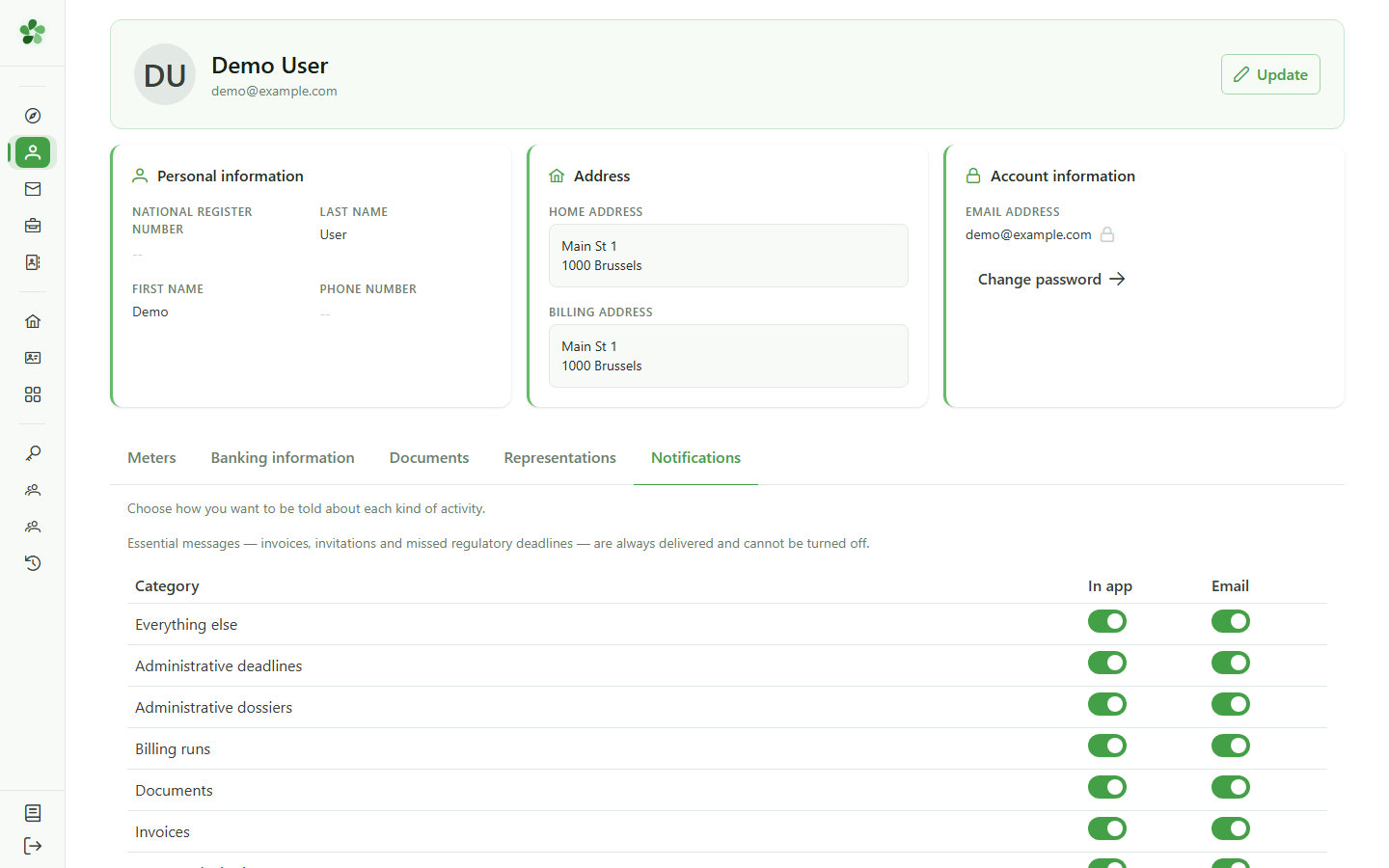
7 A setting that follows you
Notification preferences
Your preferences belong to your account, not to this device: you will find them unchanged the next time you sign in, wherever that is.
Choose your notifications
Guide utilisateur
User guide
Gebruikershandleiding
Benutzerhandbuch
1 Open your profile
Navigation
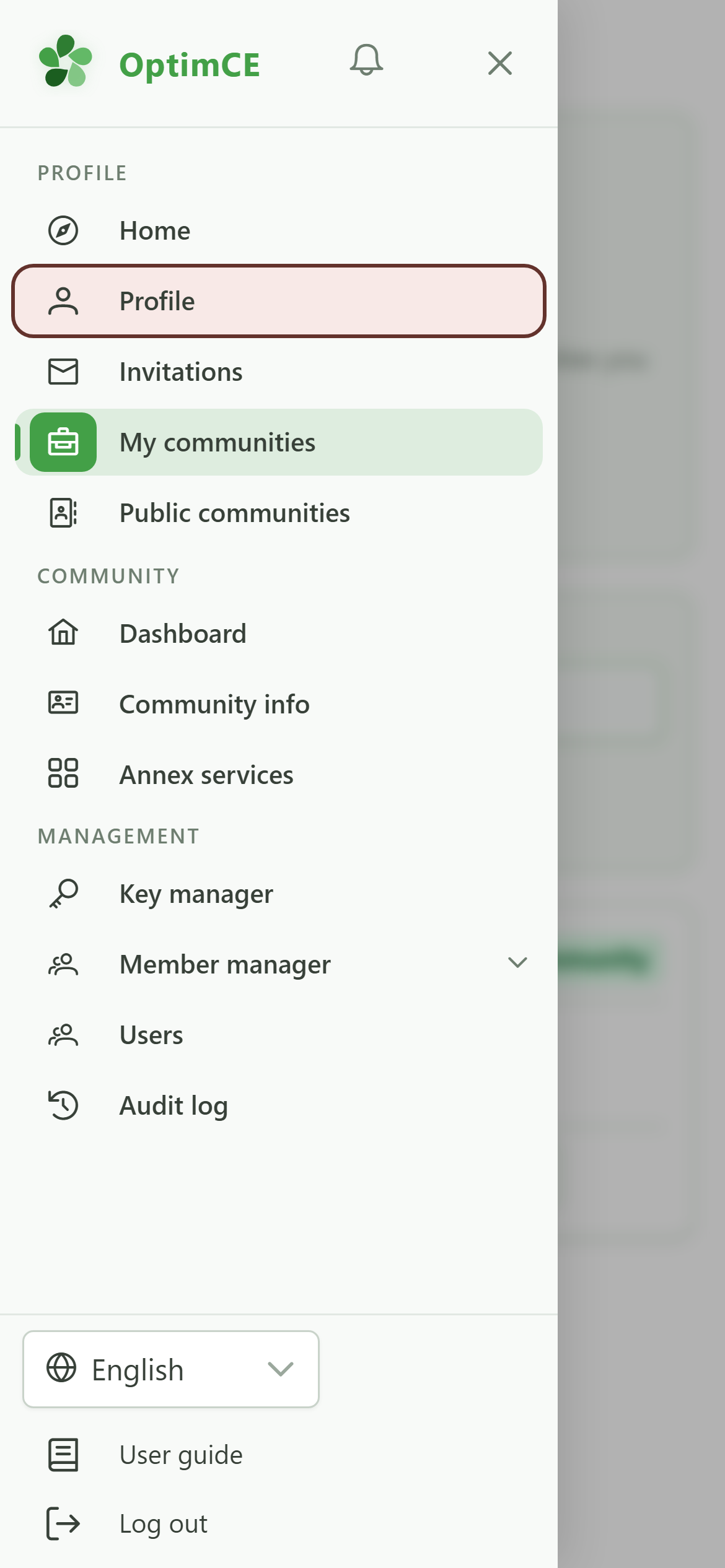
Tap the menu icon to open the drawer, then "Profile".
2 Notifications tab
Profile
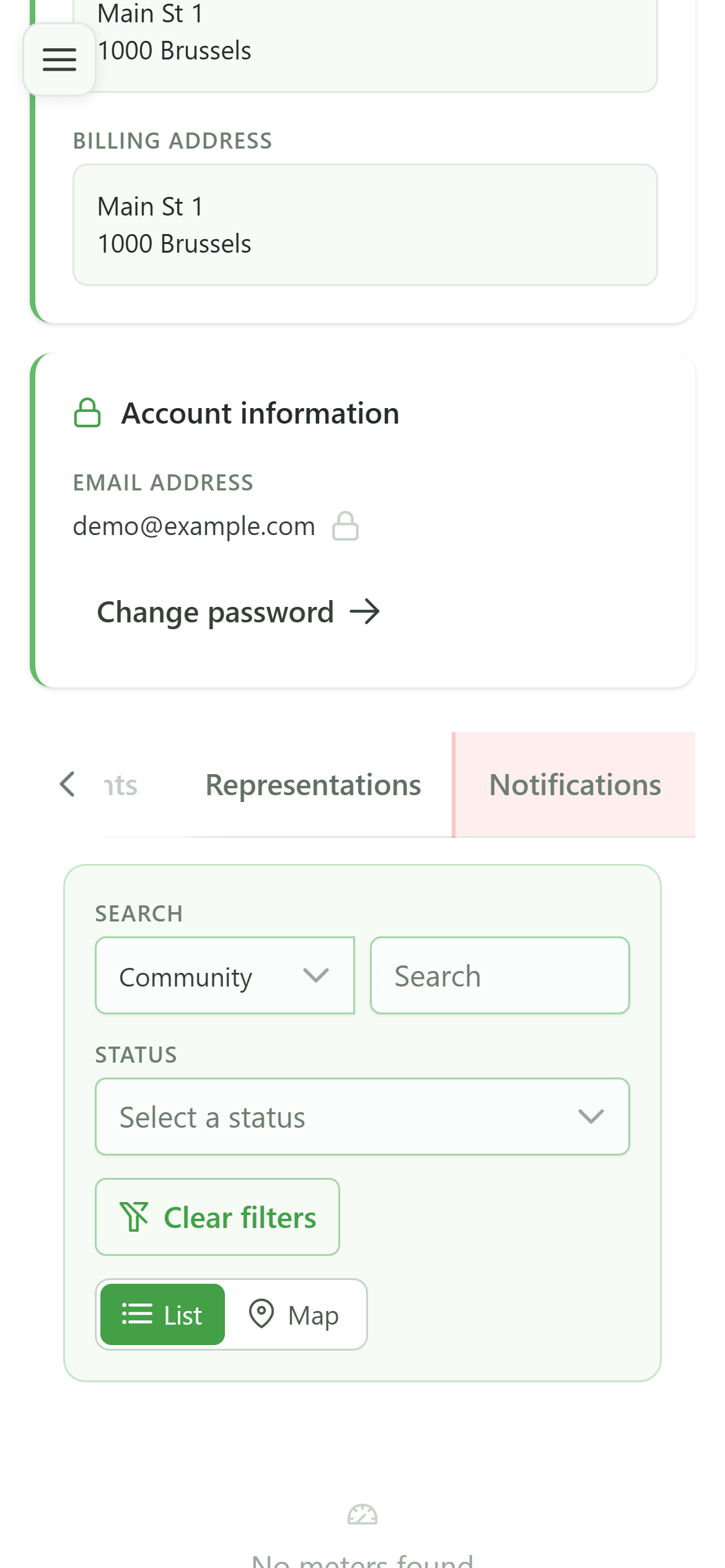
The last tab of your profile controls how OptimCE tells you about things.
3 Categories and channels
Notification preferences
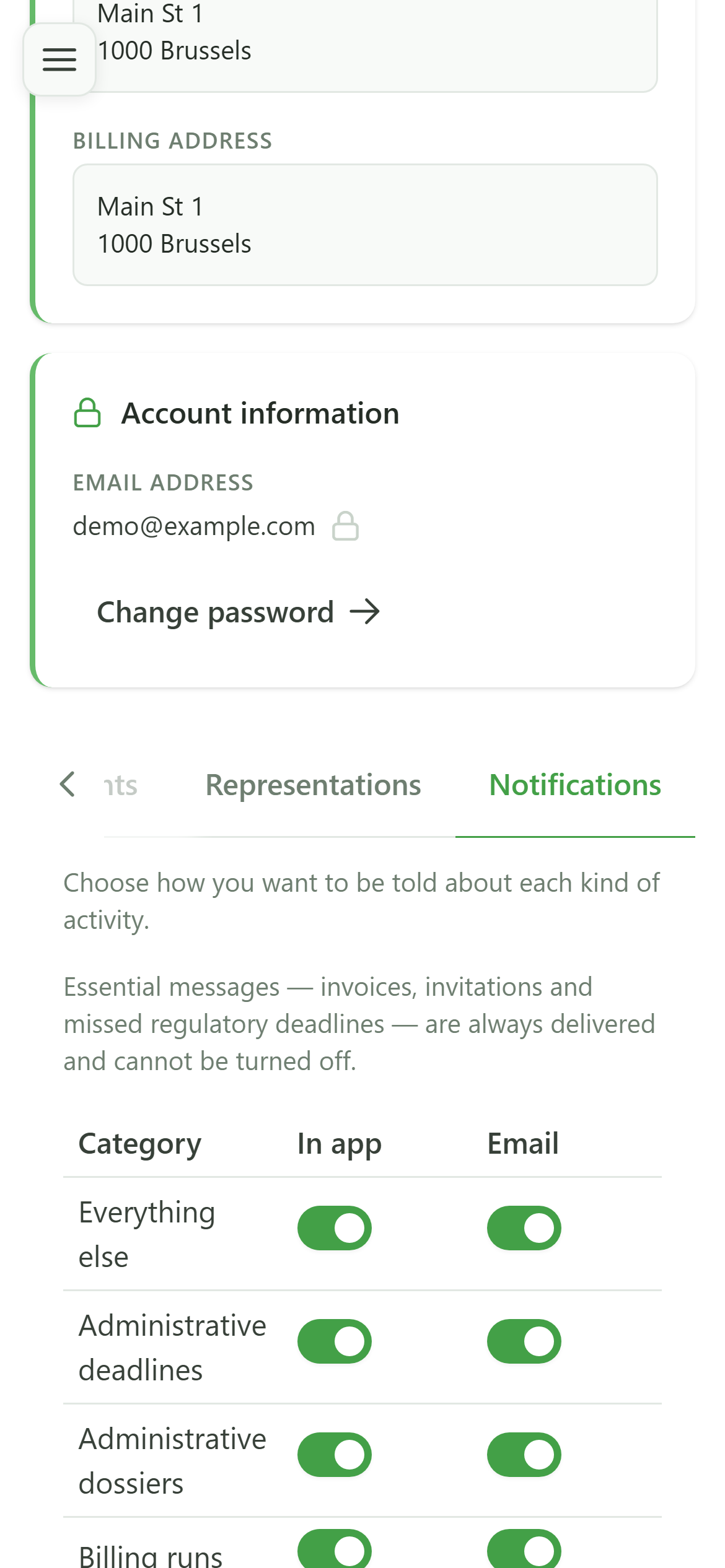
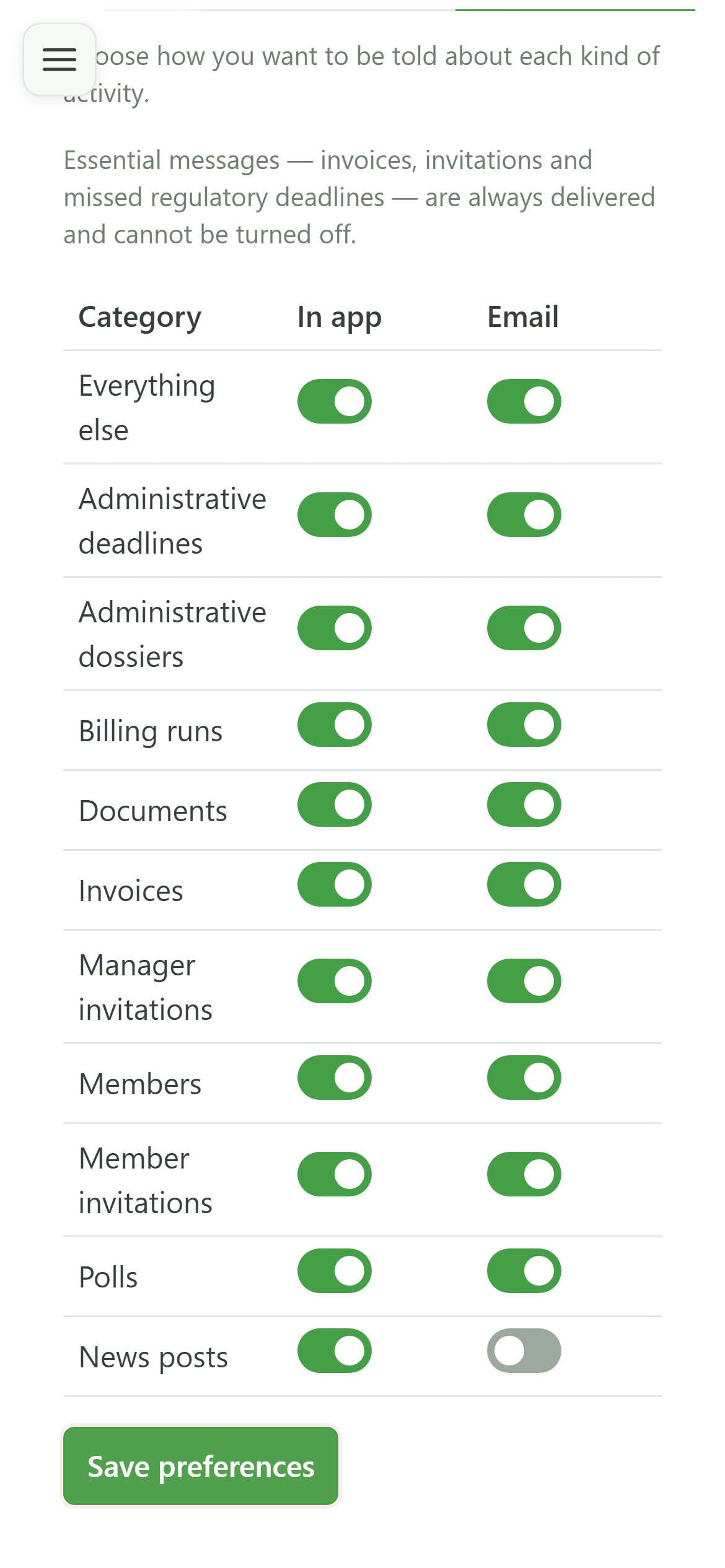
Each row is a kind of activity — news, invoices, deadlines… — and each column a channel. "Everything else" covers the categories without a row of their own. Essential messages (invoices, invitations, missed deadlines) are always delivered.
4 Turn a channel off
Notification preferences
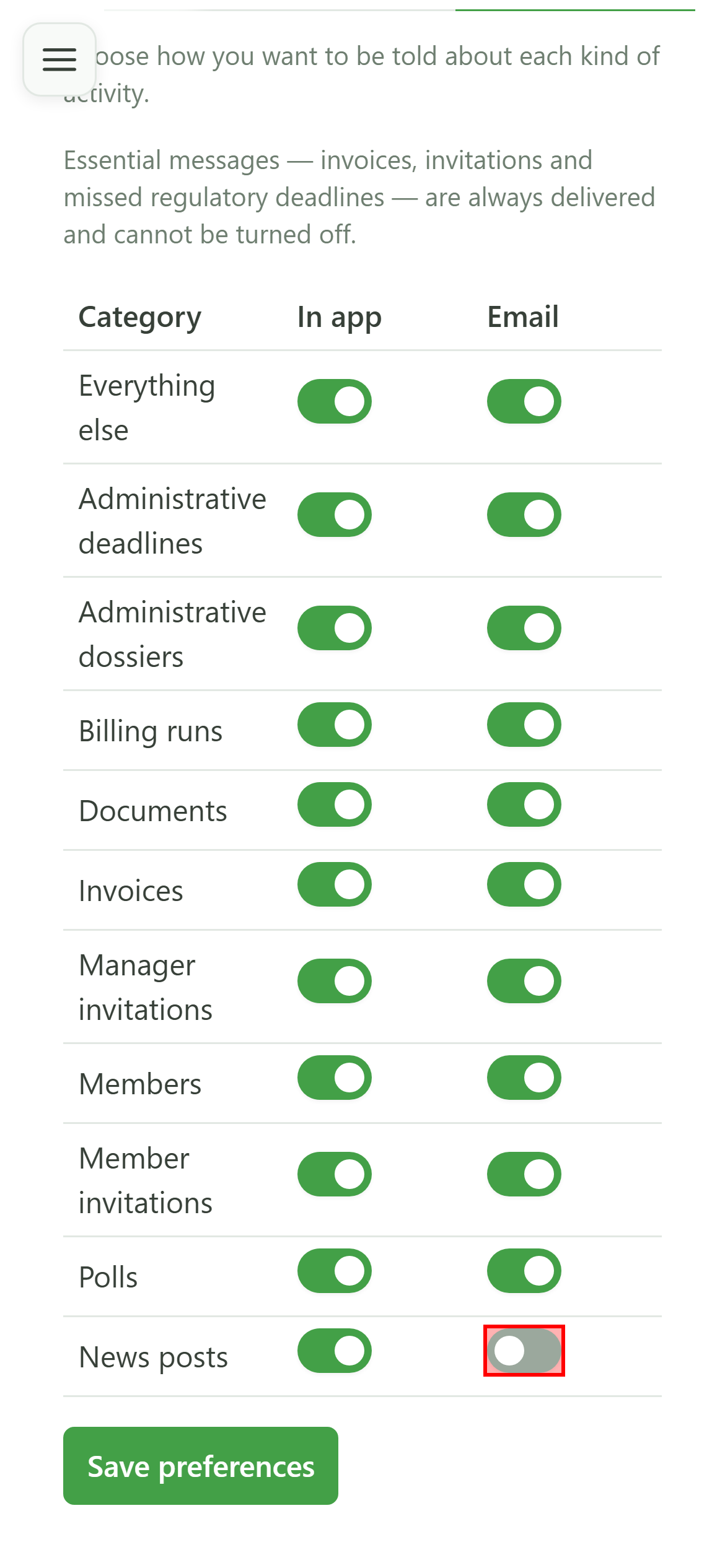
Switch "Email" off on the "News posts" row: you will still see the posts inside the application, but no email will be sent.
5 Save
Notification preferences
Nothing is applied until you save. Click "Save preferences".
6 Preferences saved
Notification preferences
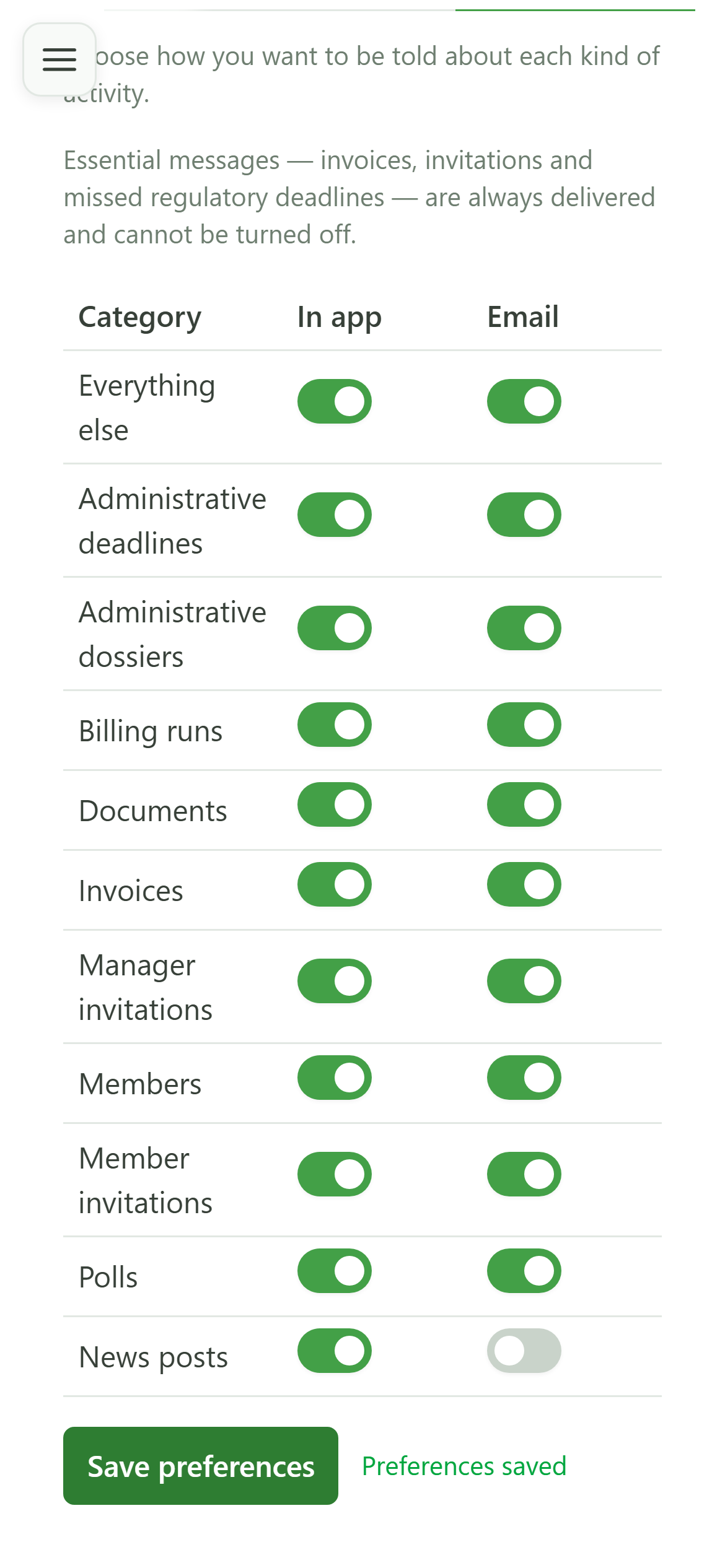
A confirmation appears next to the button. It clears as soon as you change a setting again.
7 A setting that follows you
Notification preferences
Your preferences belong to your account, not to this device: you will find them unchanged the next time you sign in, wherever that is.