Create a poll
Guide utilisateur
User guide
Gebruikershandleiding
Benutzerhandbuch
1 Open the news board
Navigation
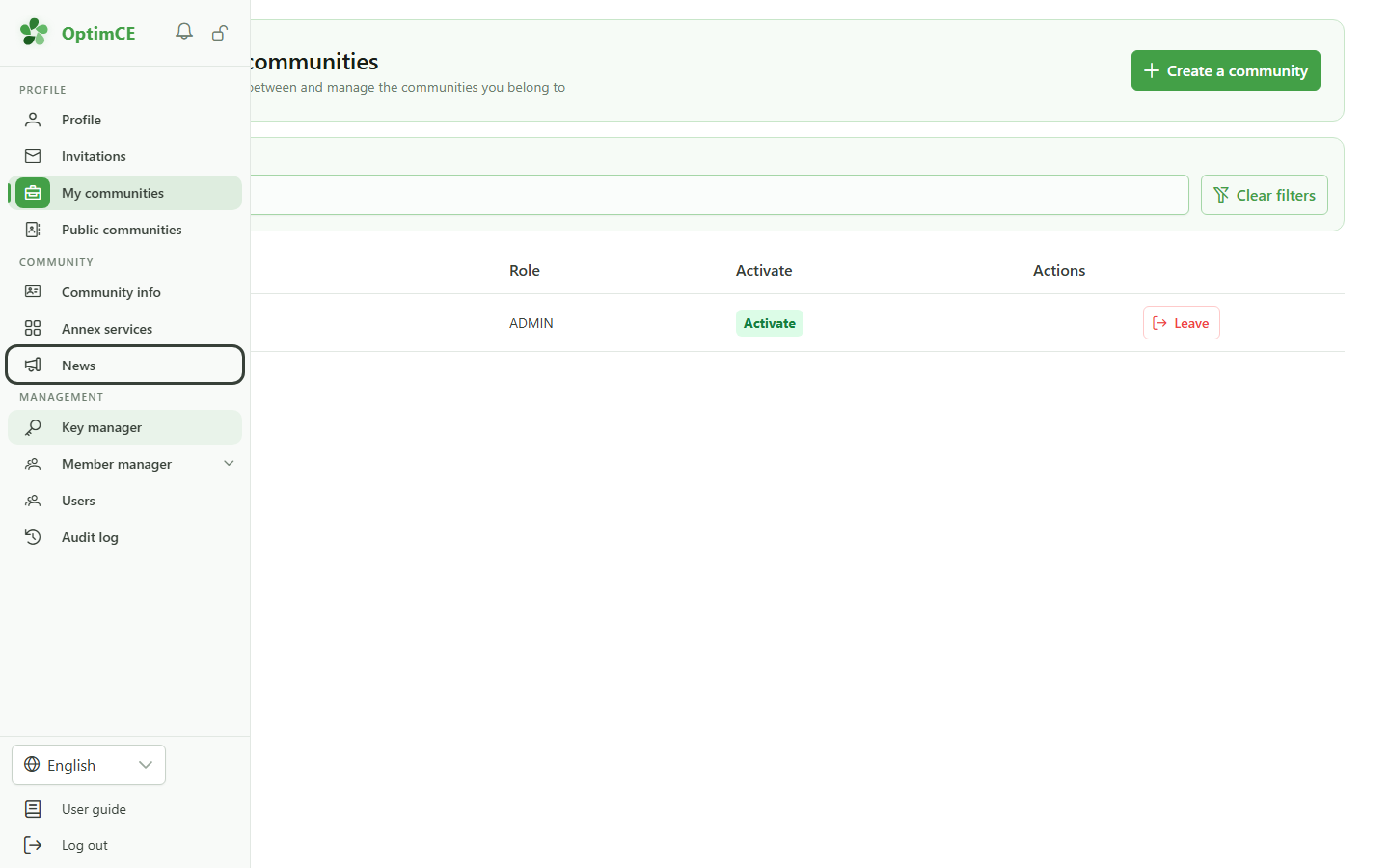
In the sidebar's "Community" section, click "News" to open the community news board.
2 Open the composer
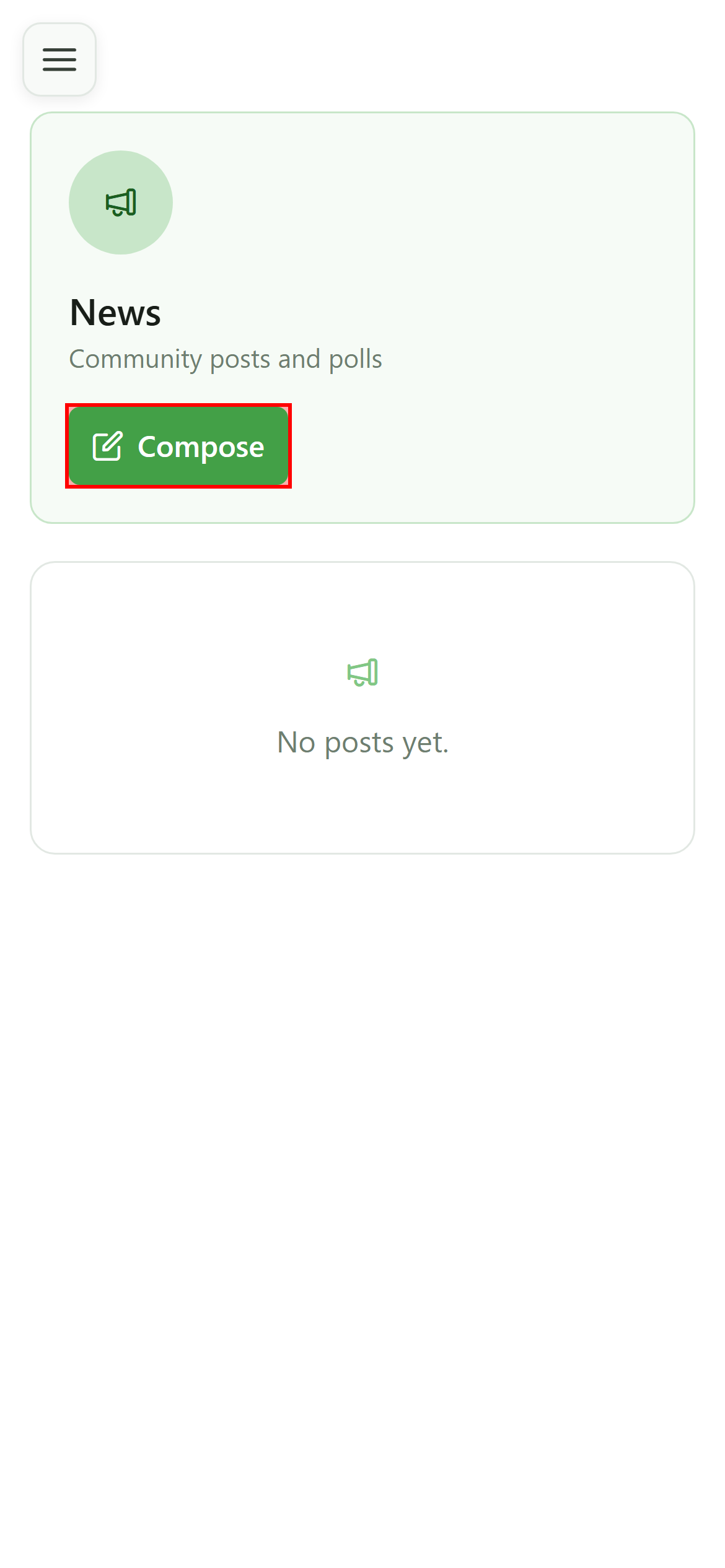
Compose
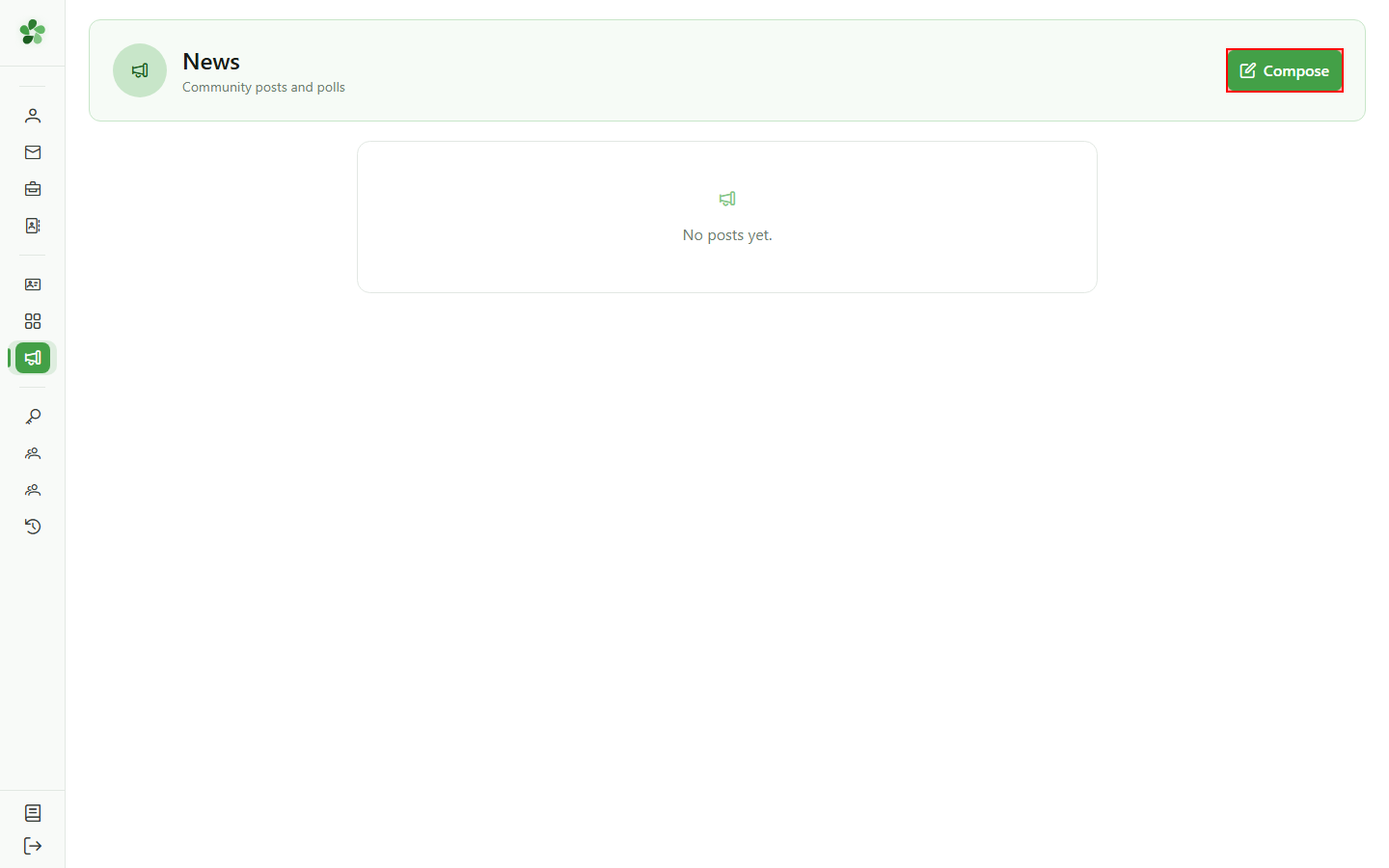
Click "New post" to open the compose dialog.
3 Switch to a poll
Post kind
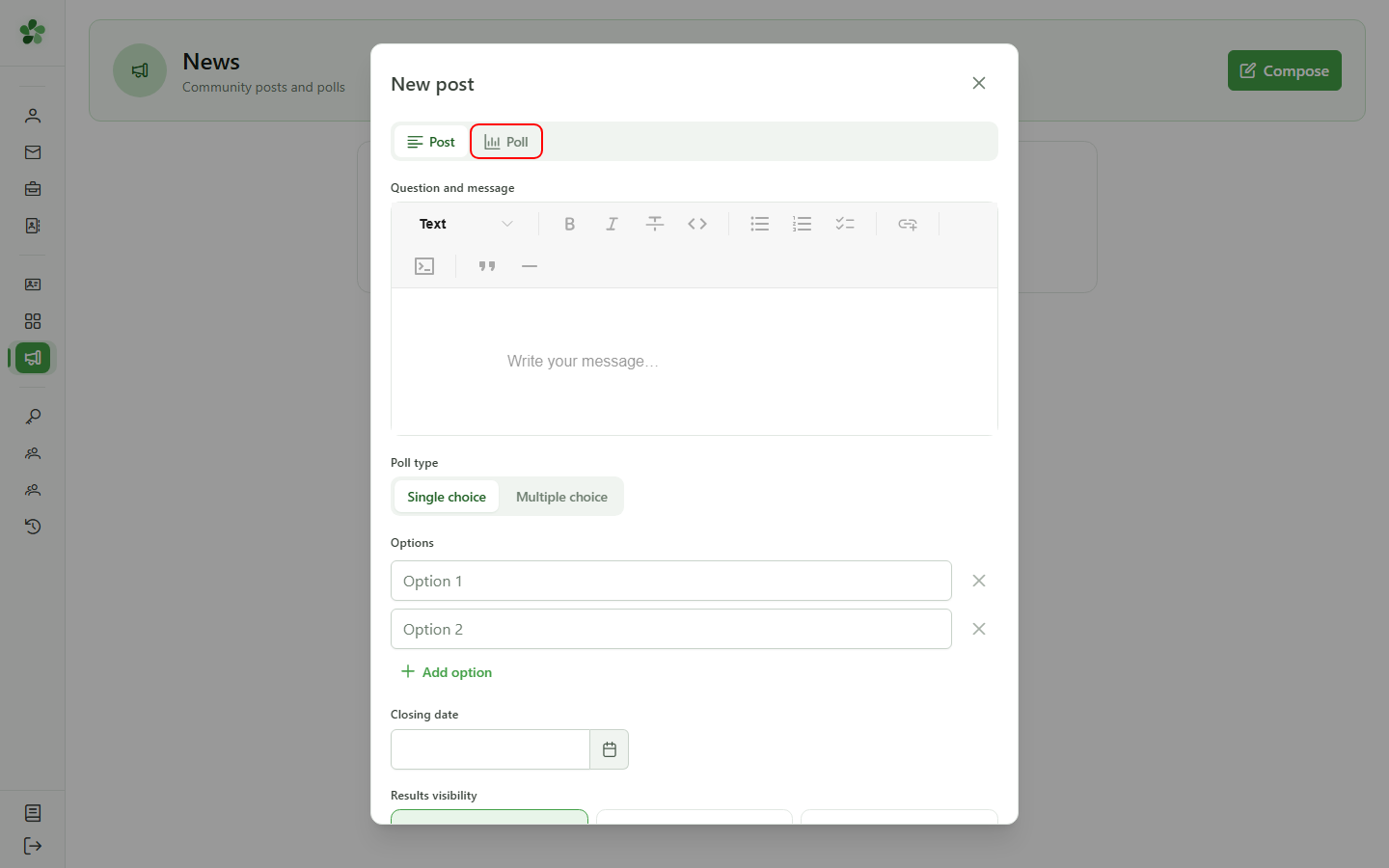
At the top of the dialog, switch to the "Poll" tab. Extra fields appear: question, answer options, closing date, and visibility.
4 Ask the question
Poll
Type the poll question in the editor, just like a regular news post.
5 Single or multiple choice
Poll
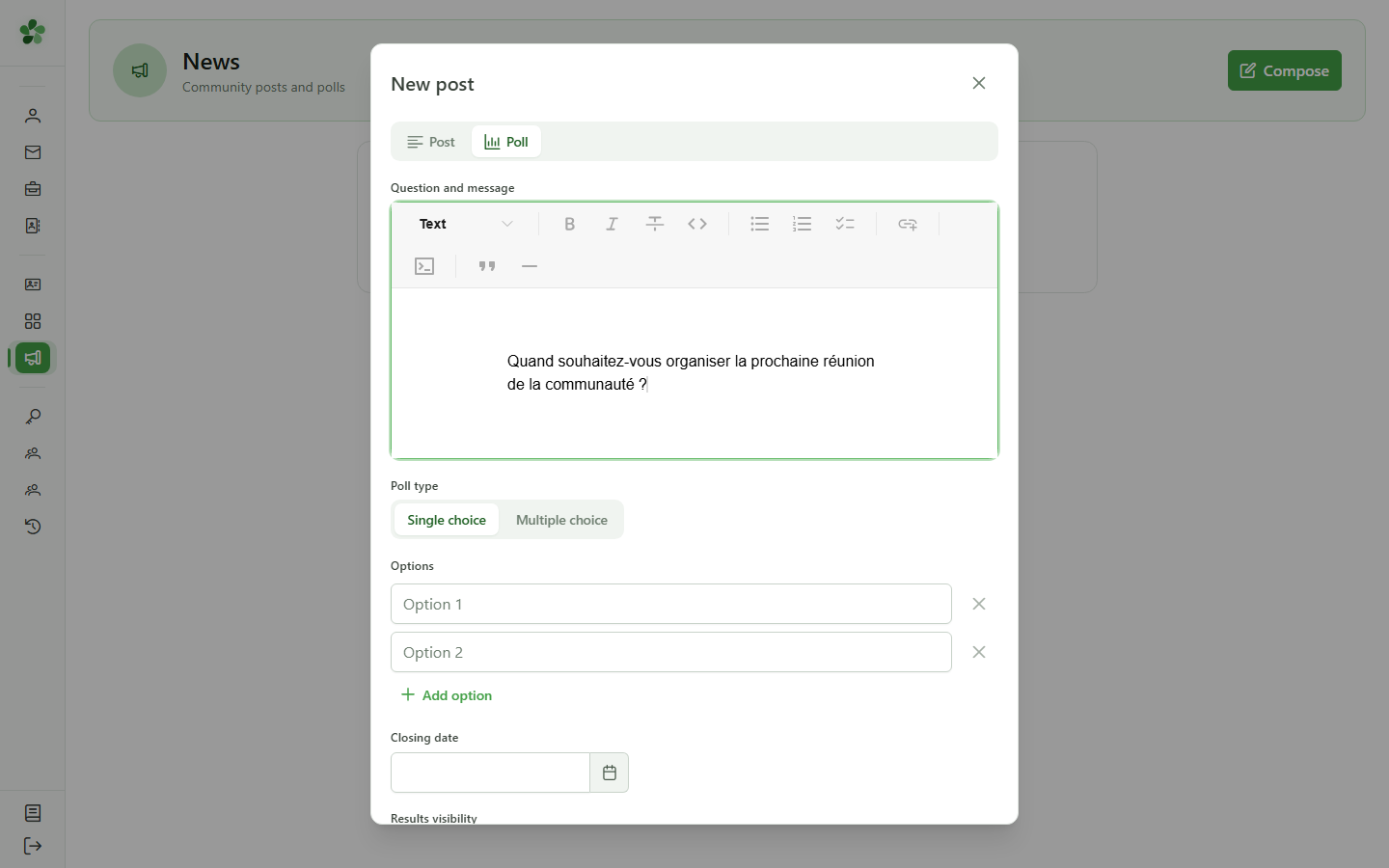
Choose whether members can select a single answer ("Single choice") or several ("Multiple choice"). We keep "Single choice".
6 Add the answer options
Poll
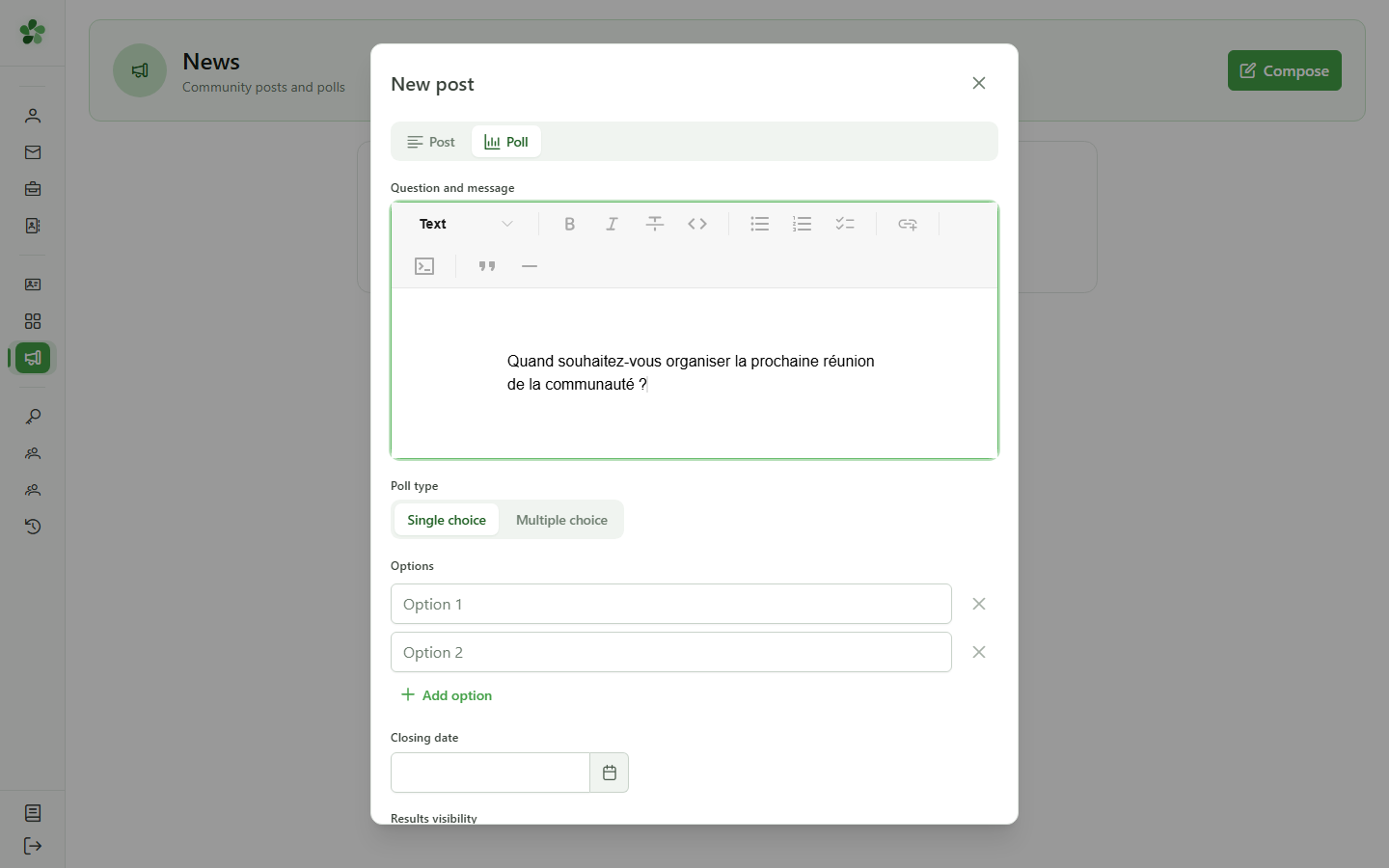
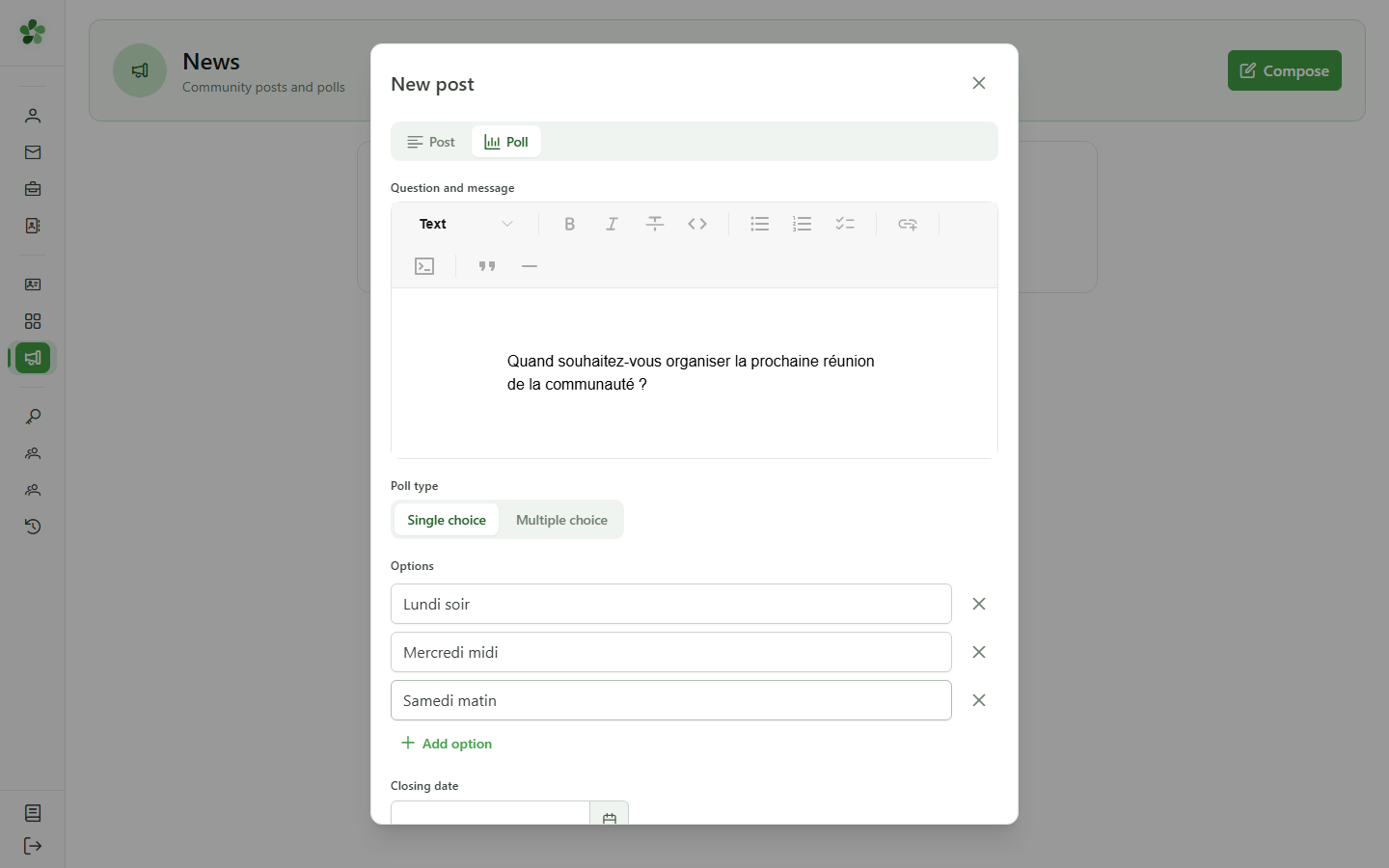
Provide at least two answer options. The "Add option" button adds more, and the trash icon removes one.
7 Set a closing date
Poll
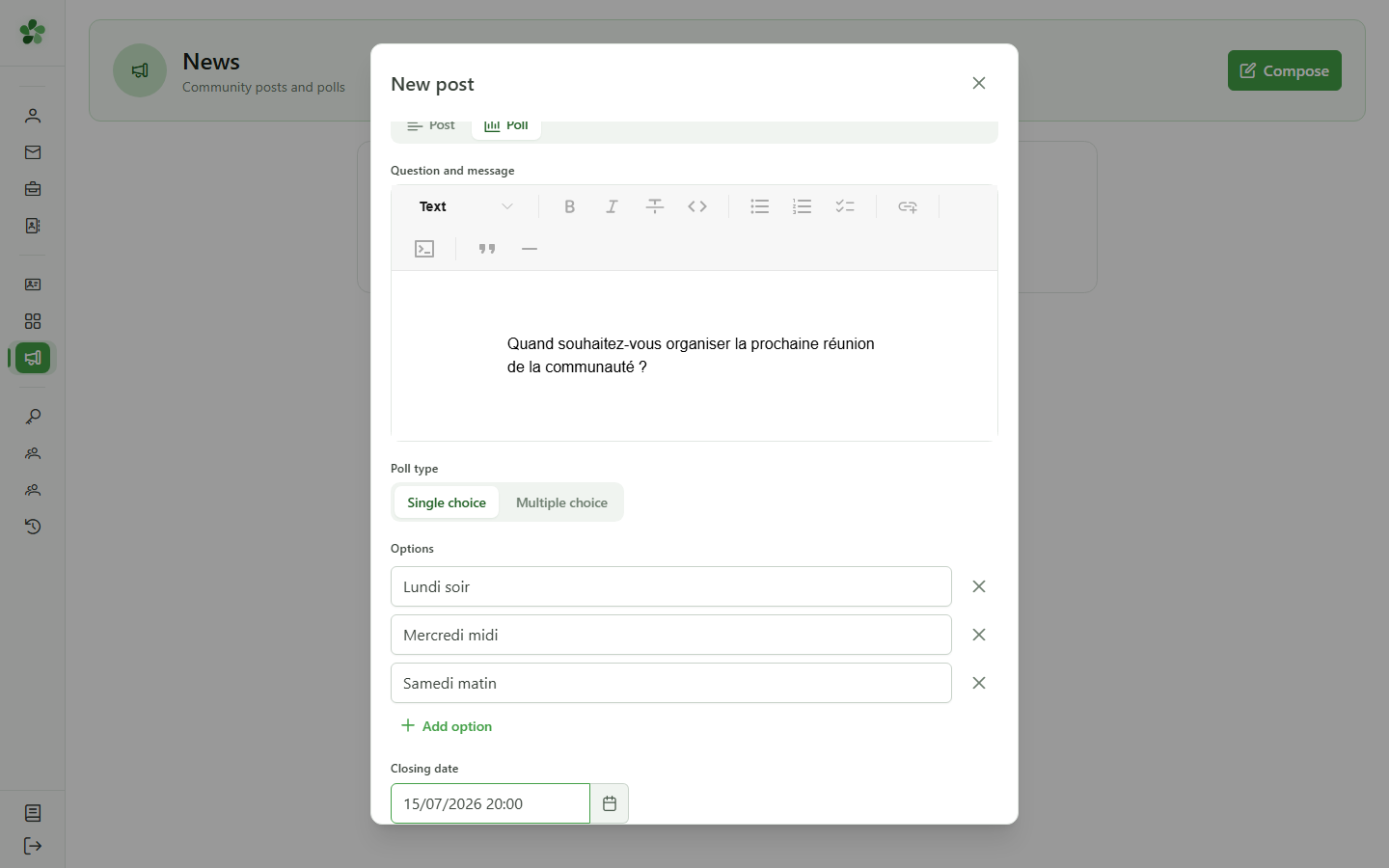
Pick the closing date and time from the calendar. After this deadline no more votes are accepted and, depending on the chosen visibility, results may be revealed.
8 Choose who sees the results
Visibility
Three presets cover the most common cases. Each one combines what managers see, what members see, and when.
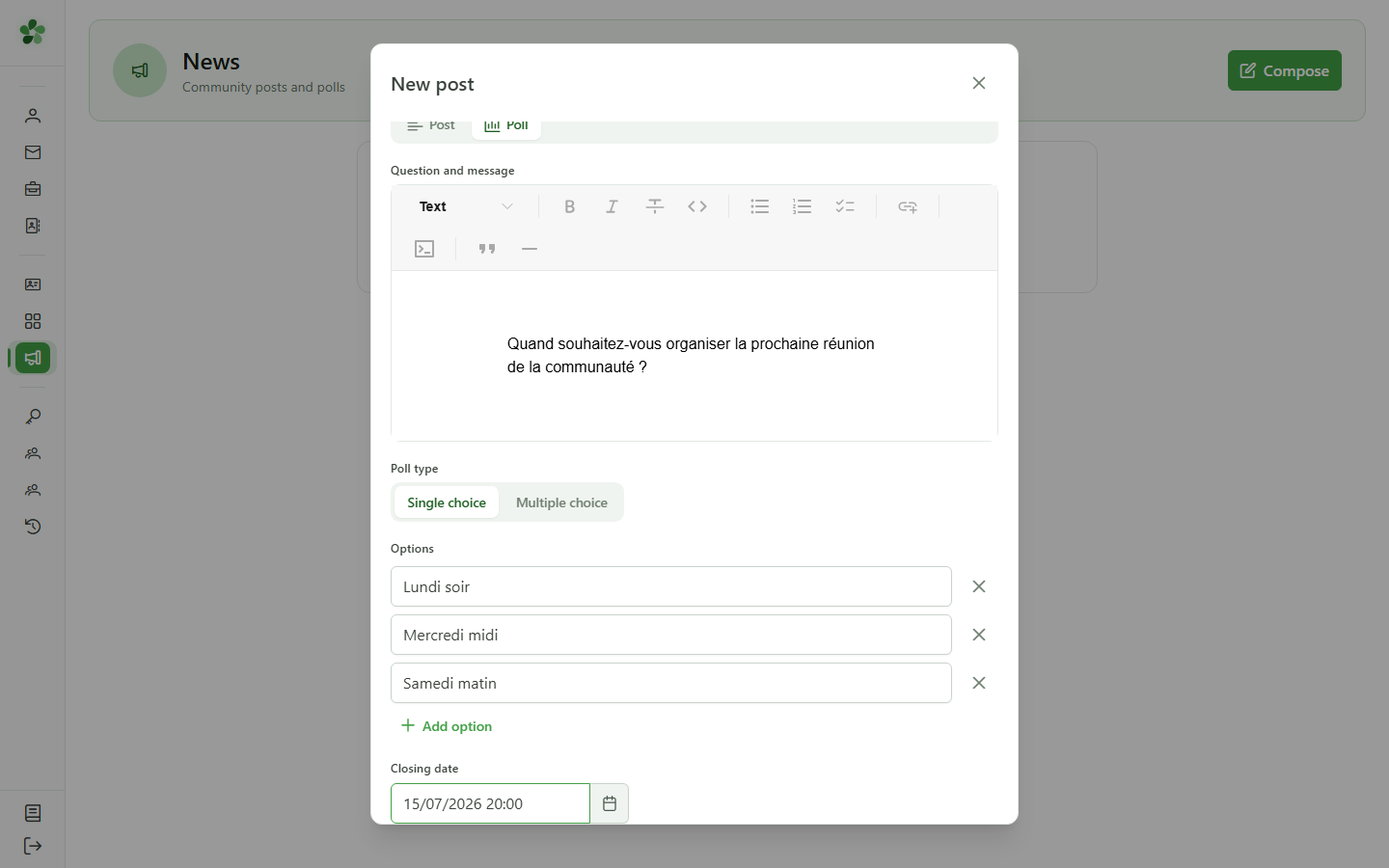
9 Anonymous
Visibility — preset
Members see only the total number of votes per option, and only after they have voted themselves. Nobody sees who voted for what — managers also get totals only. Ideal for a confidential vote.
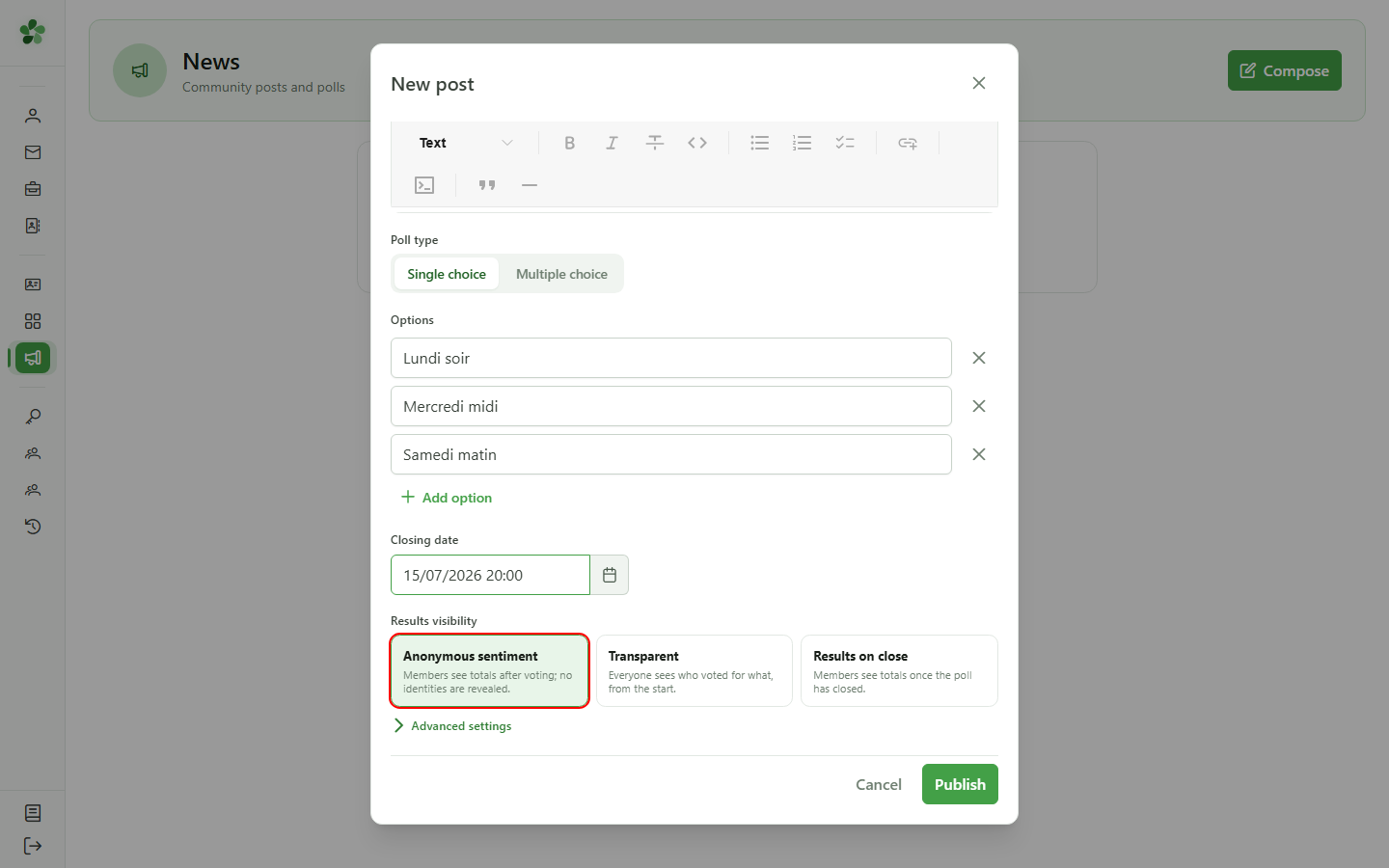
10 Transparent
Visibility — preset
Everyone sees the full results immediately, including who voted for which option, even before voting. Ideal for an open decision where everyone owns their choice.
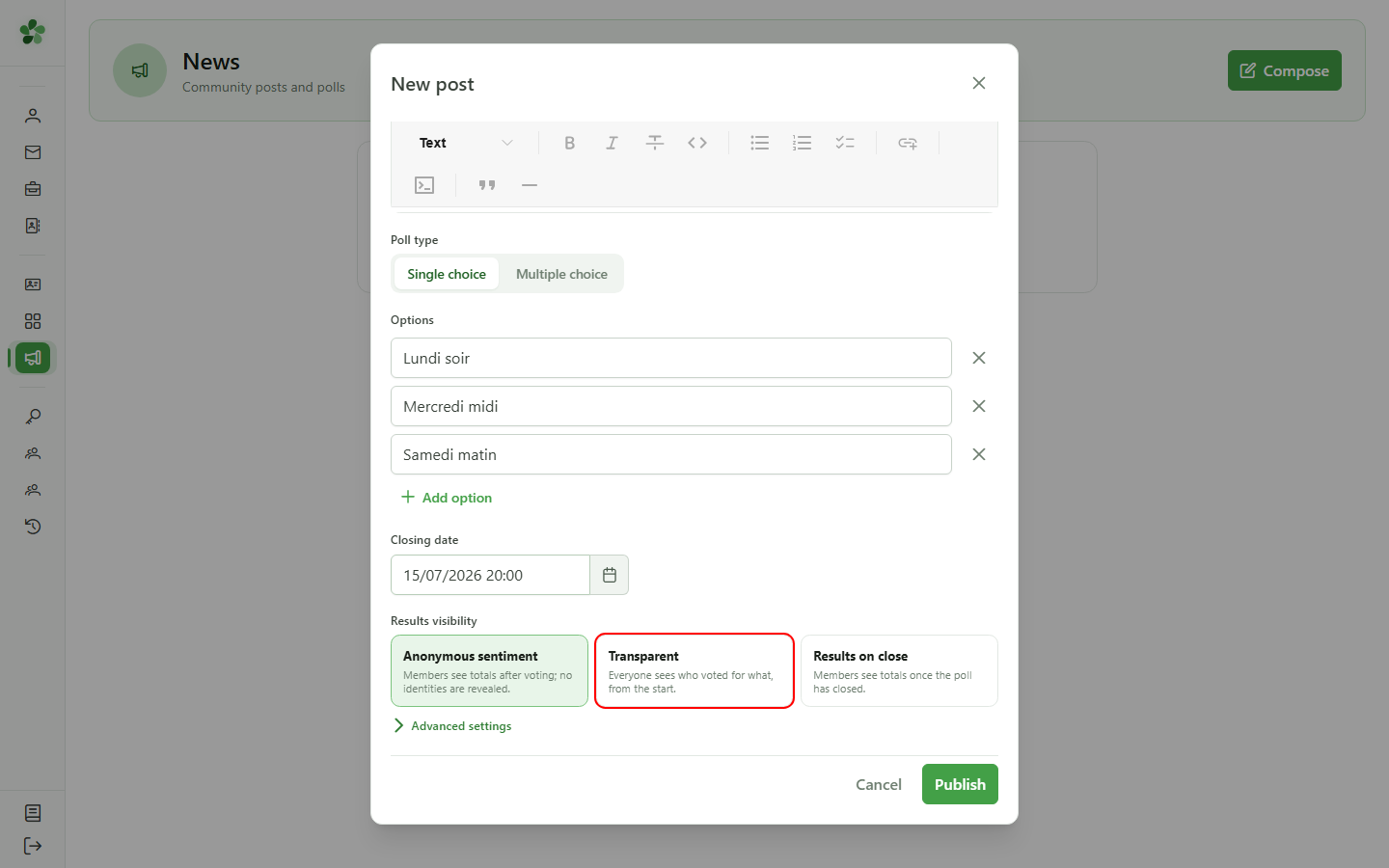
11 On close
Visibility — preset
Members only discover the totals once the poll closes; until then results stay hidden. Managers, however, see the breakdown (who voted for what) at any time to follow participation.
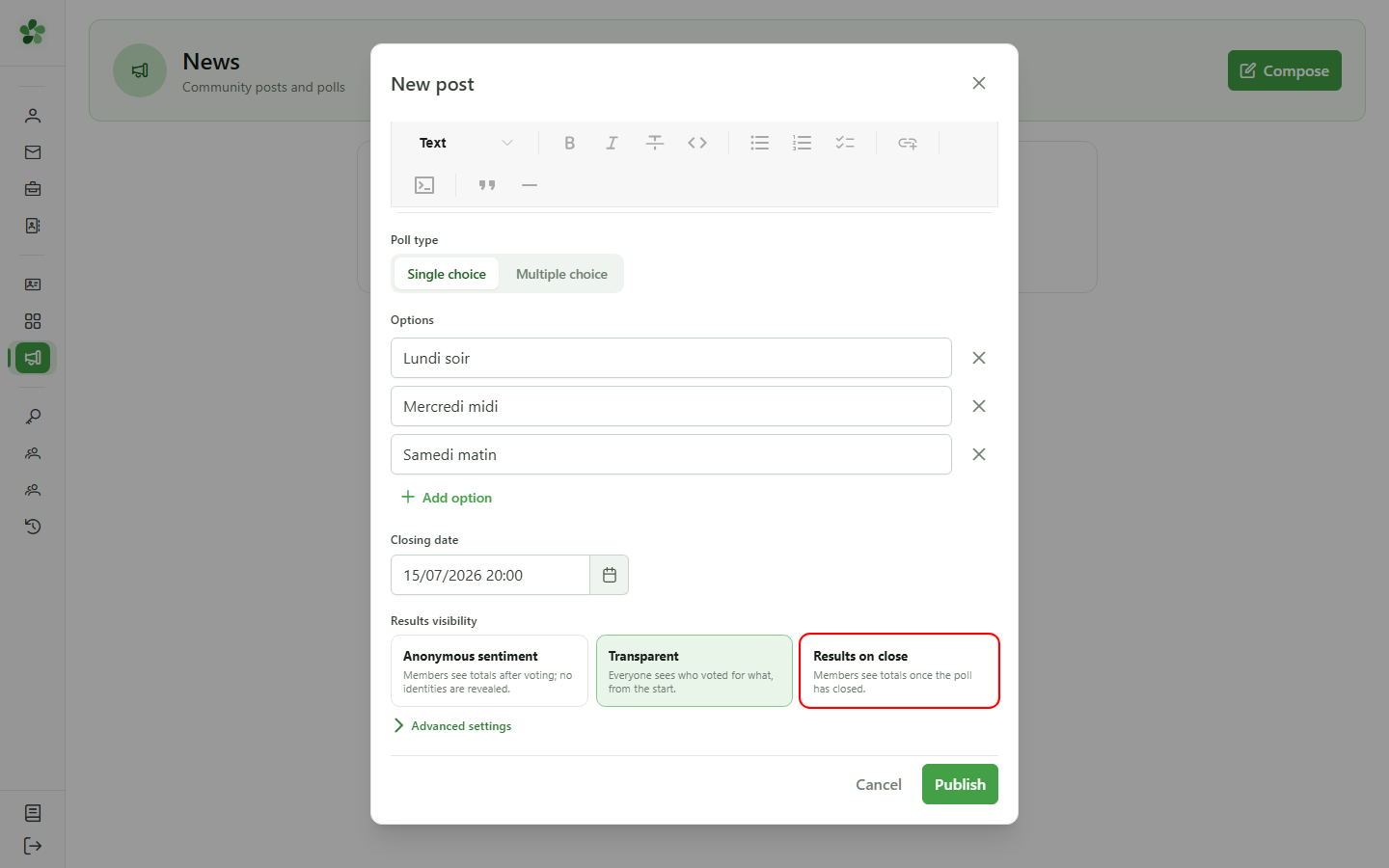
12 Fine-grained control (advanced)
Visibility
The "Advanced" button reveals three independent settings. A preset is just a shortcut for these three fields — you can combine them freely.
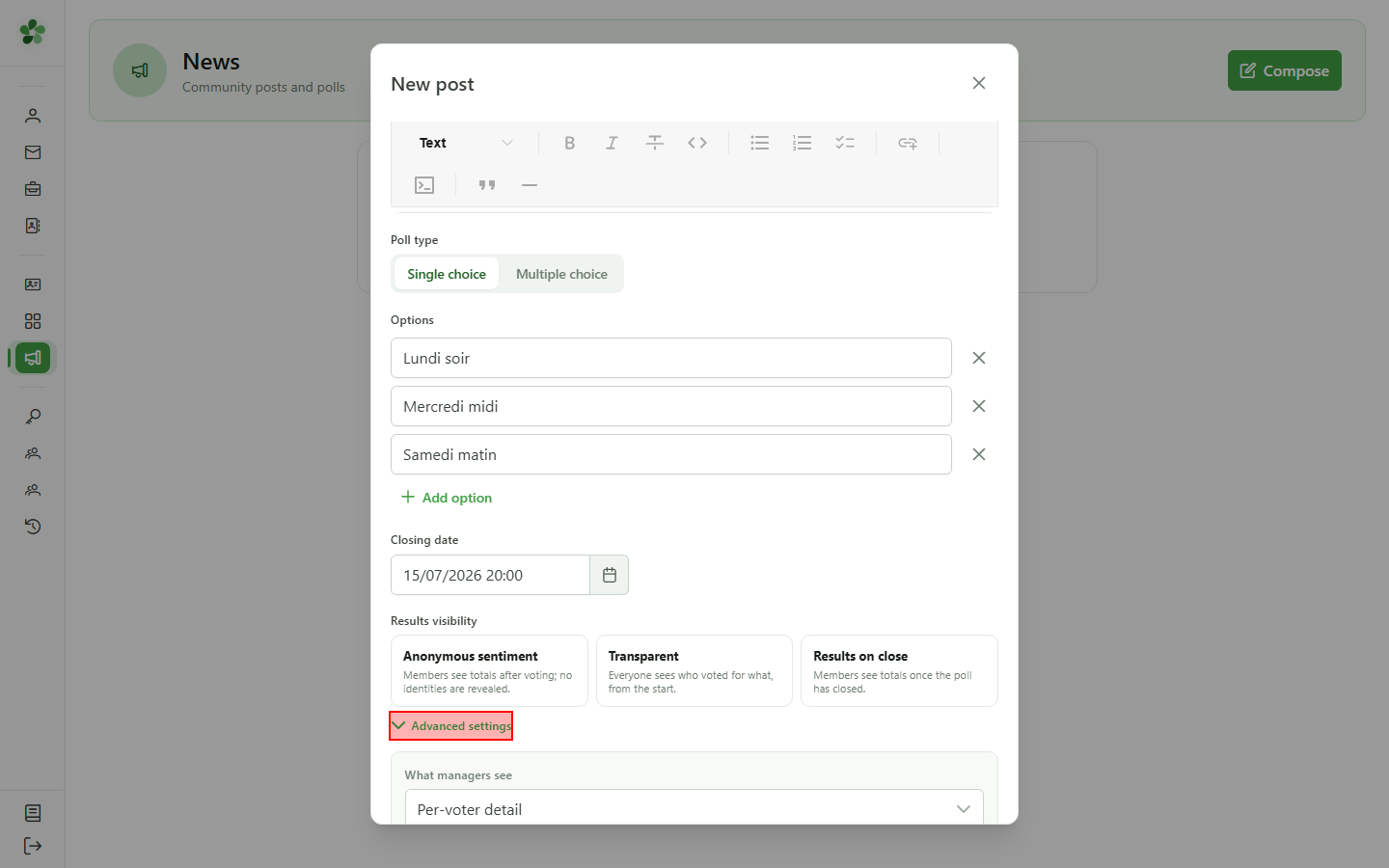
13 Manager visibility
Visibility — advanced
What managers see. "Aggregate": only the totals per option. "Full": the per-voter breakdown — who voted for each option.
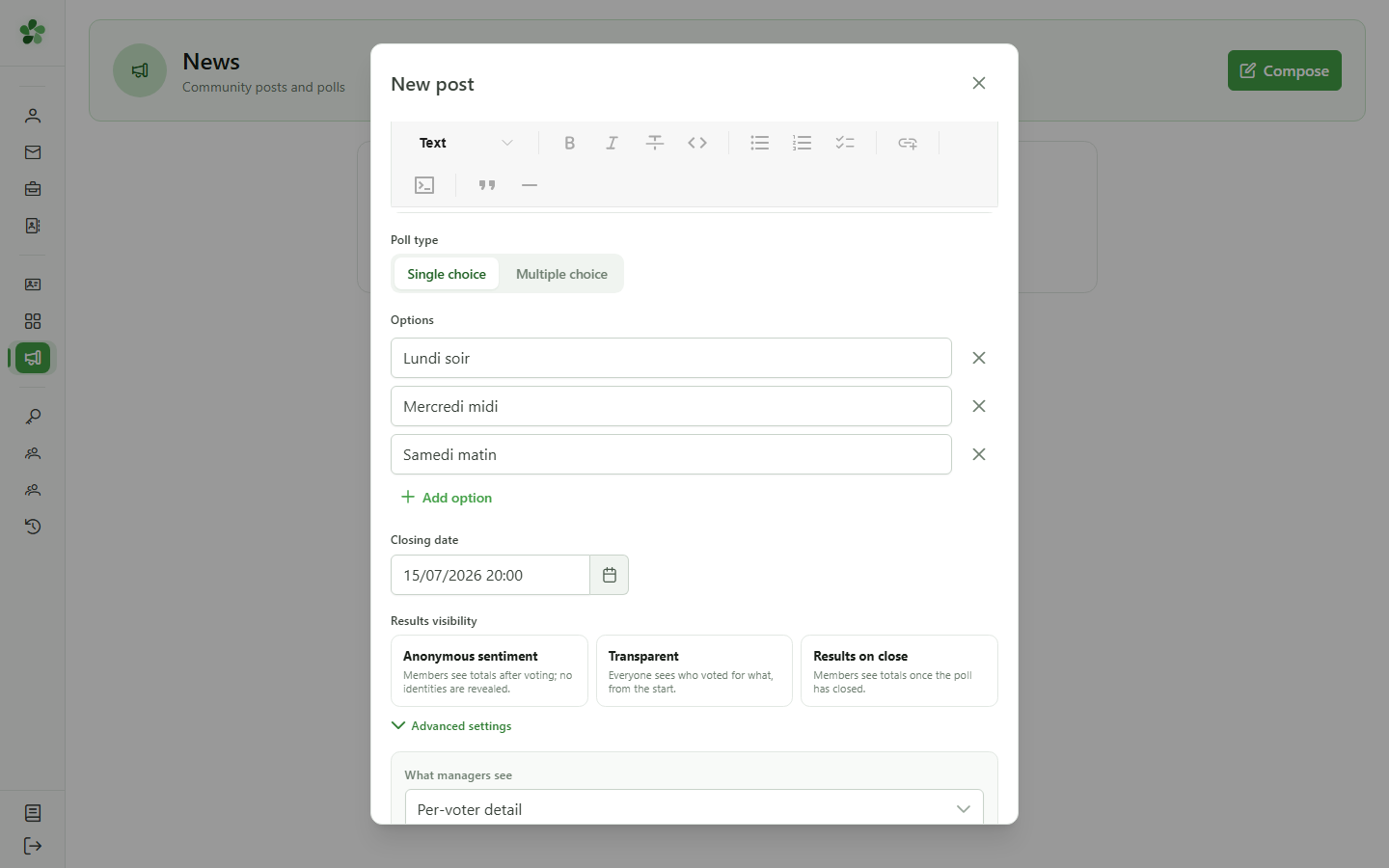
14 Member visibility
Visibility — advanced
What members are allowed to see. "None": never any results. "Aggregate": the totals. "Full": the per-voter breakdown.
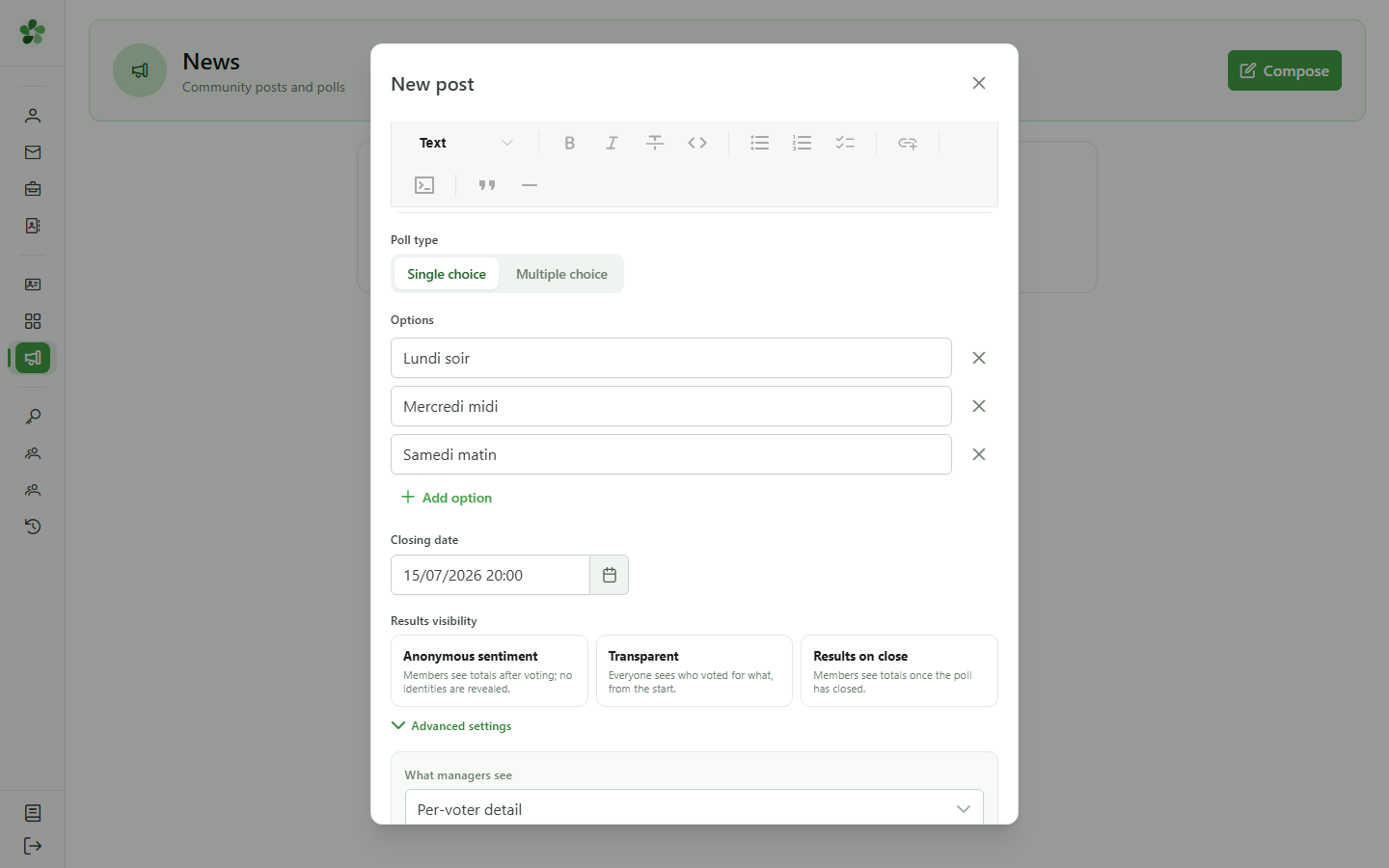
15 Member display
Visibility — advanced
When members see what they are allowed to. "Never", "Before vote", "After vote", or "When the poll ends". This setting is what distinguishes, for instance, a vote whose result only appears once participation is recorded.
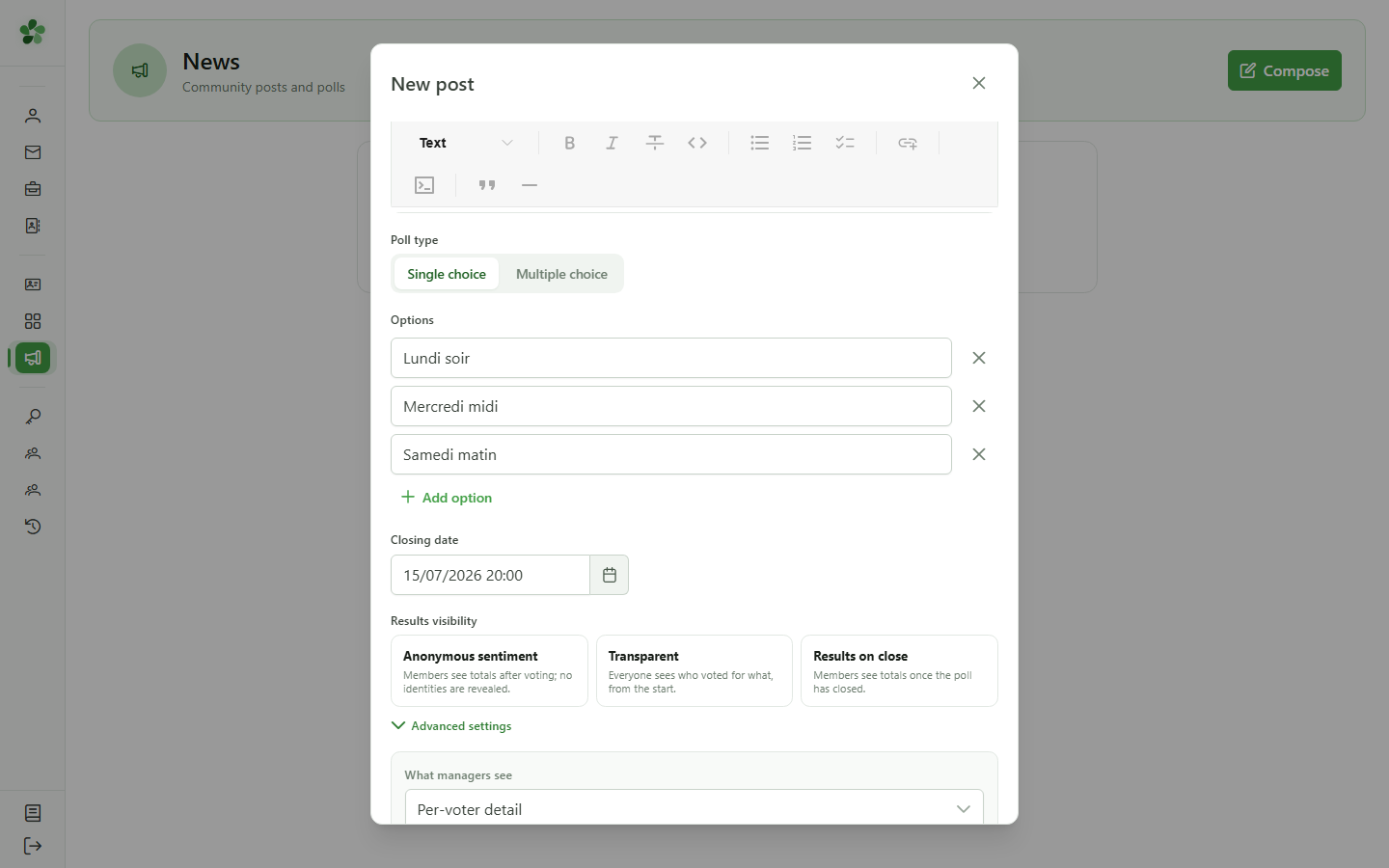
16 Back to a preset
Visibility
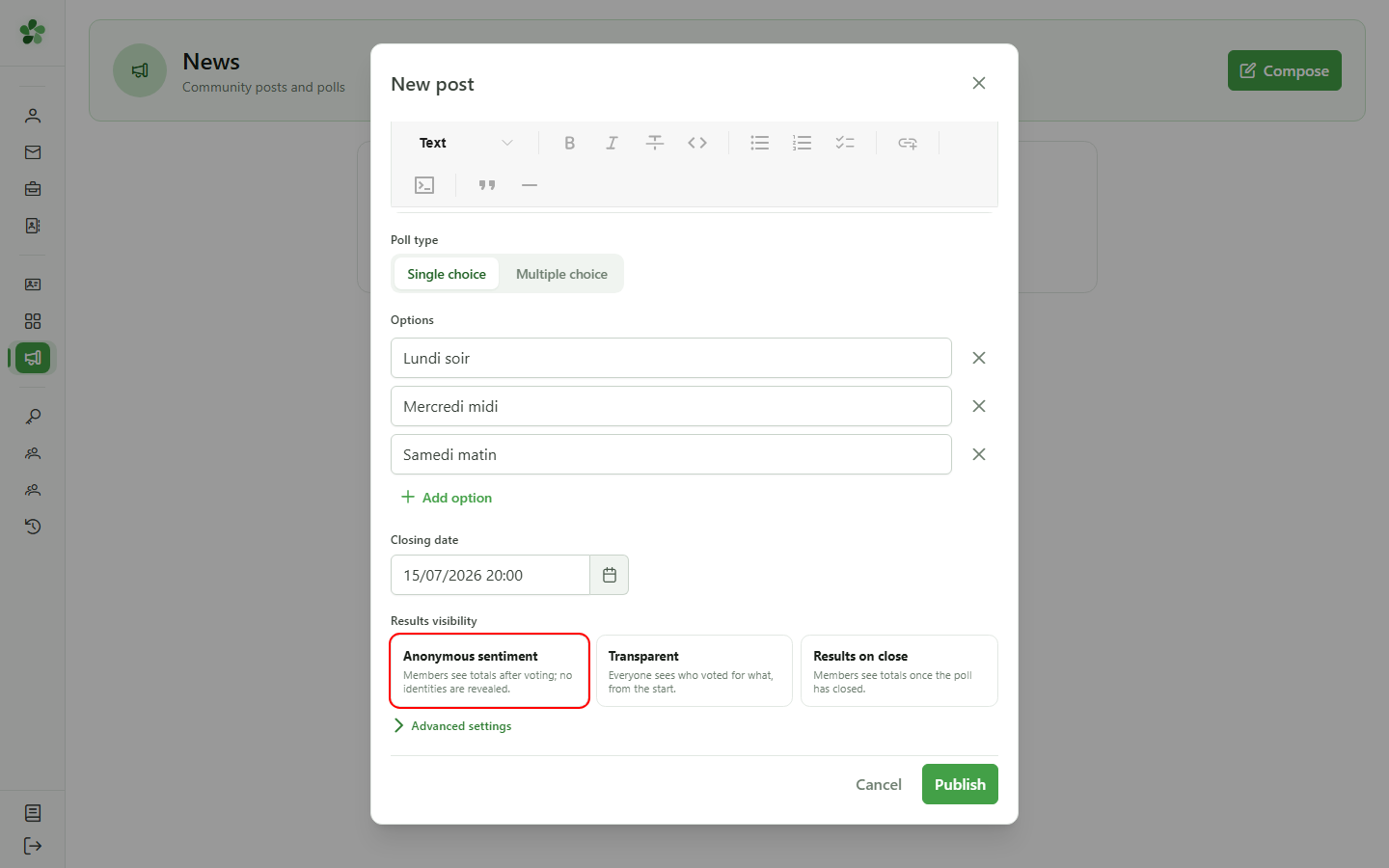
To finish, we pick the "Anonymous" preset again, which collapses the advanced settings and applies a consistent, ready-to-publish combination.
17 Publish the poll
Poll
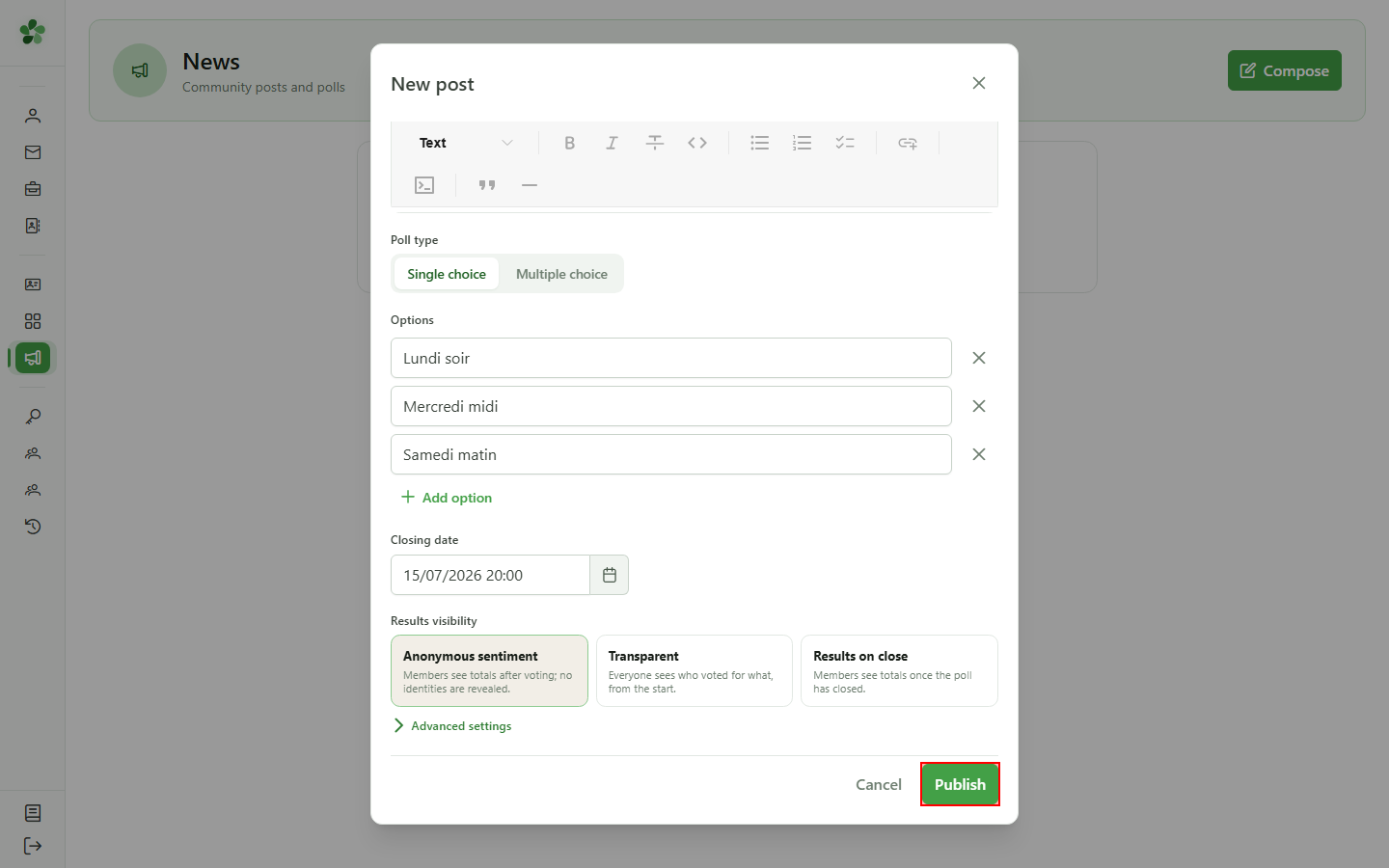
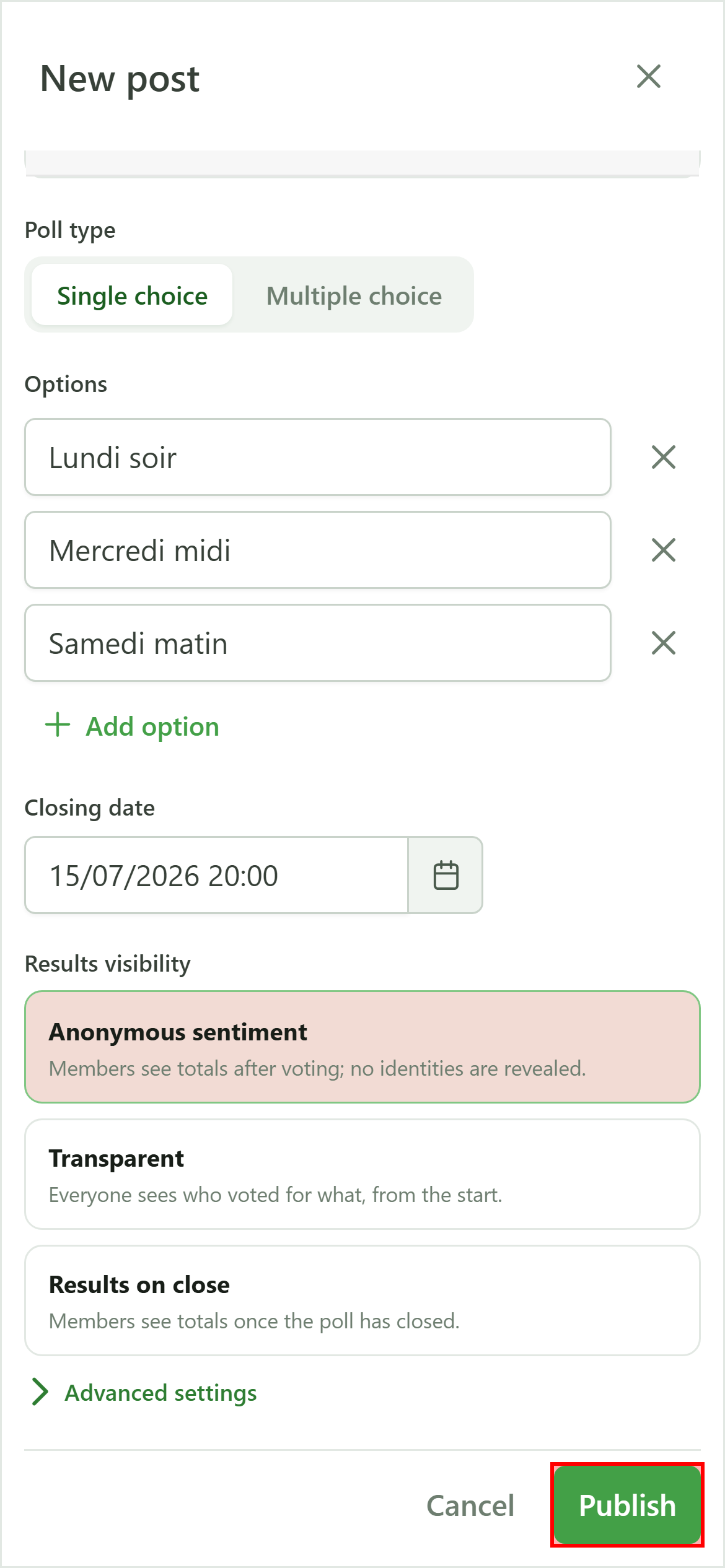
Click "Publish". The poll is broadcast to every member, who receives a notification inviting them to vote.
18 Your poll is live
Poll
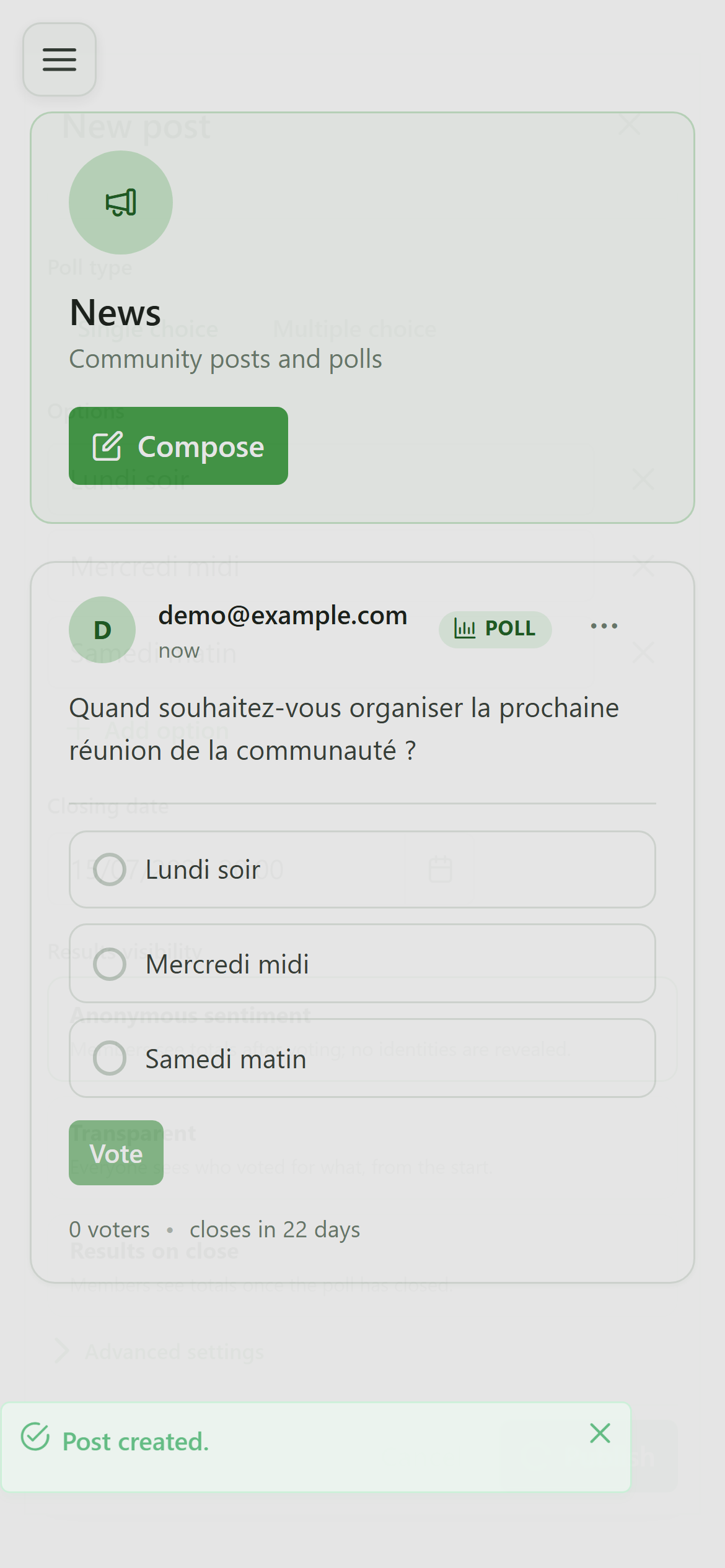
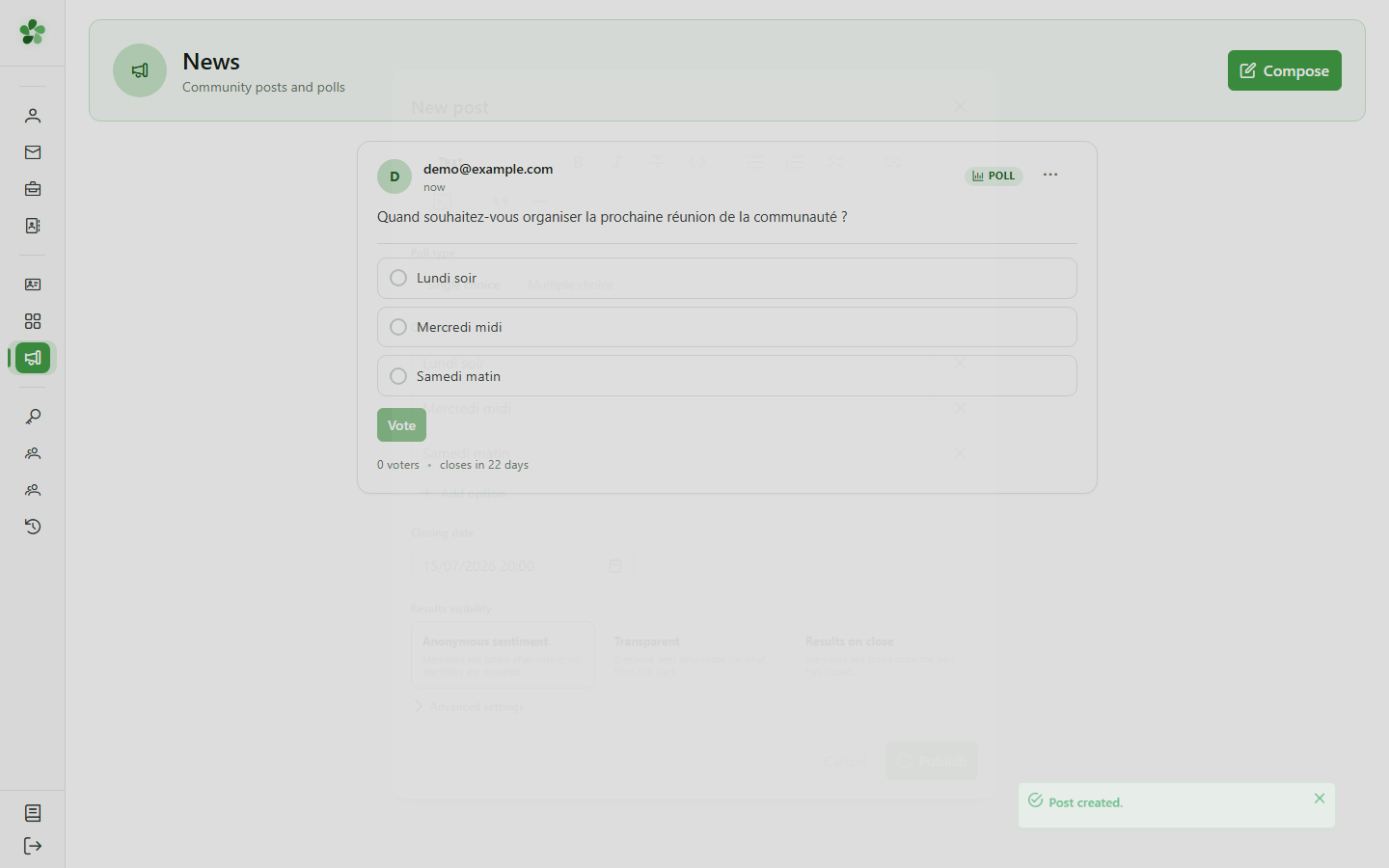
The poll appears on the board with its options. Members can now vote; results will be shown according to the visibility you chose.
Create a poll
Guide utilisateur
User guide
Gebruikershandleiding
Benutzerhandbuch
1 Open the news board
Navigation
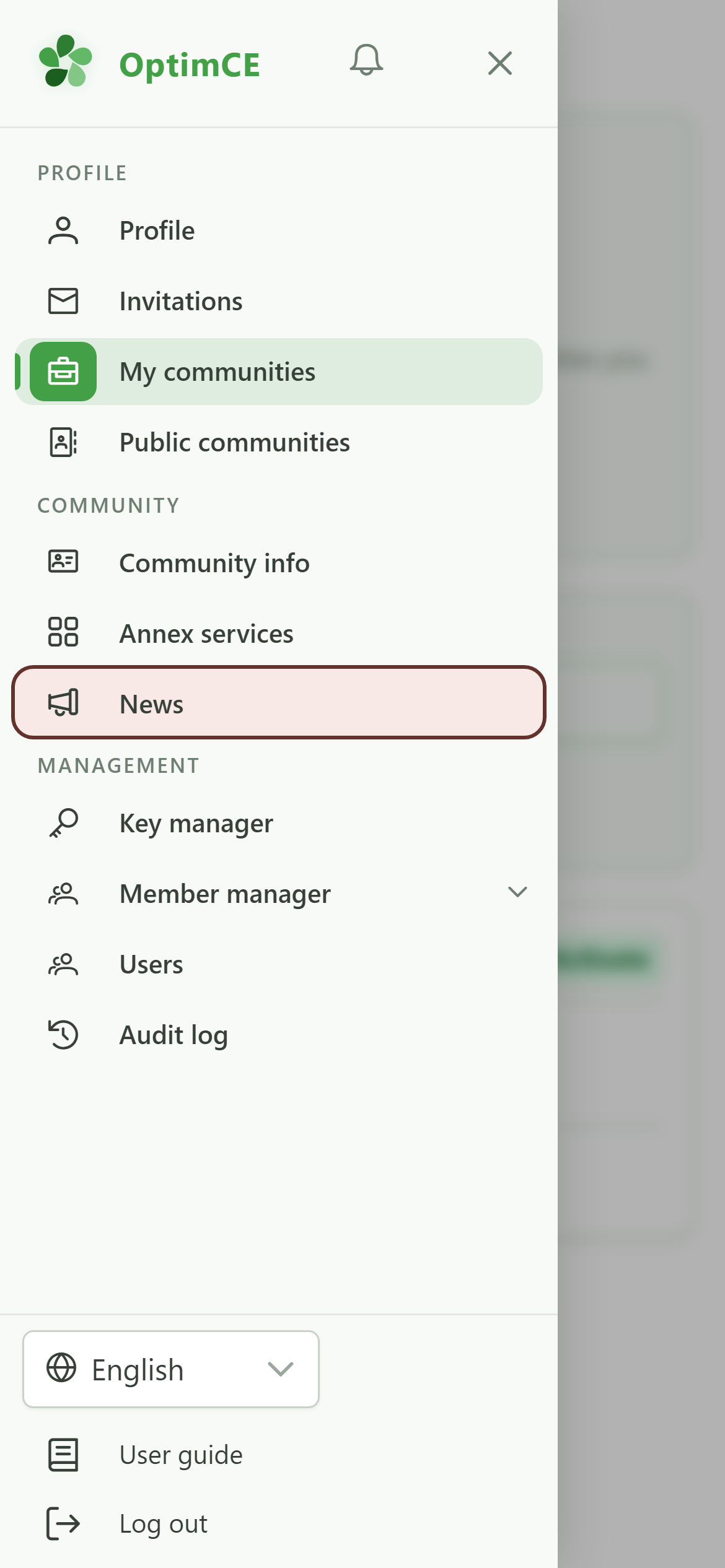
Tap the menu icon to open the navigation drawer, then in the "Community" section tap "News".
2 Open the composer
Compose
Click "New post" to open the compose dialog.
3 Switch to a poll
Post kind
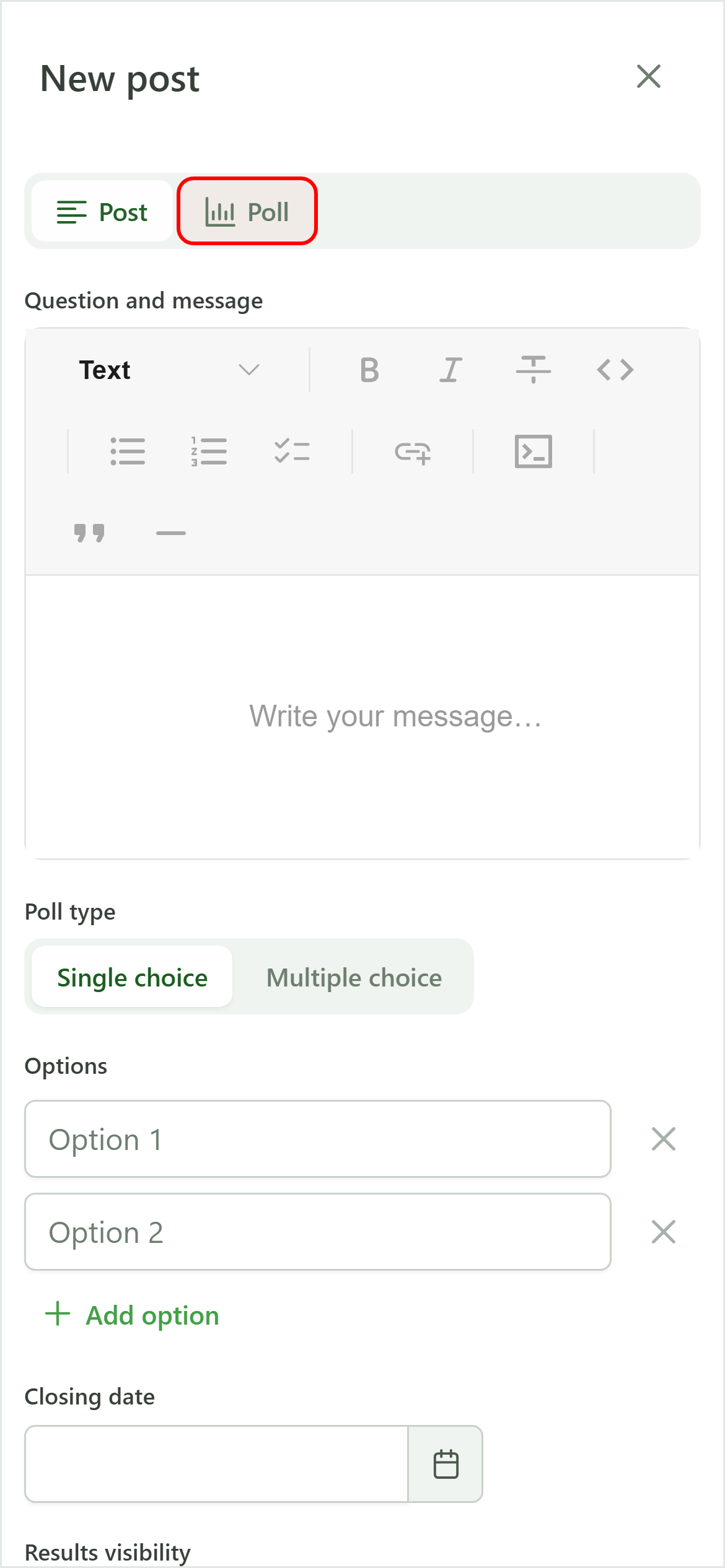
At the top of the dialog, switch to the "Poll" tab. Extra fields appear: question, answer options, closing date, and visibility.
4 Ask the question
Poll
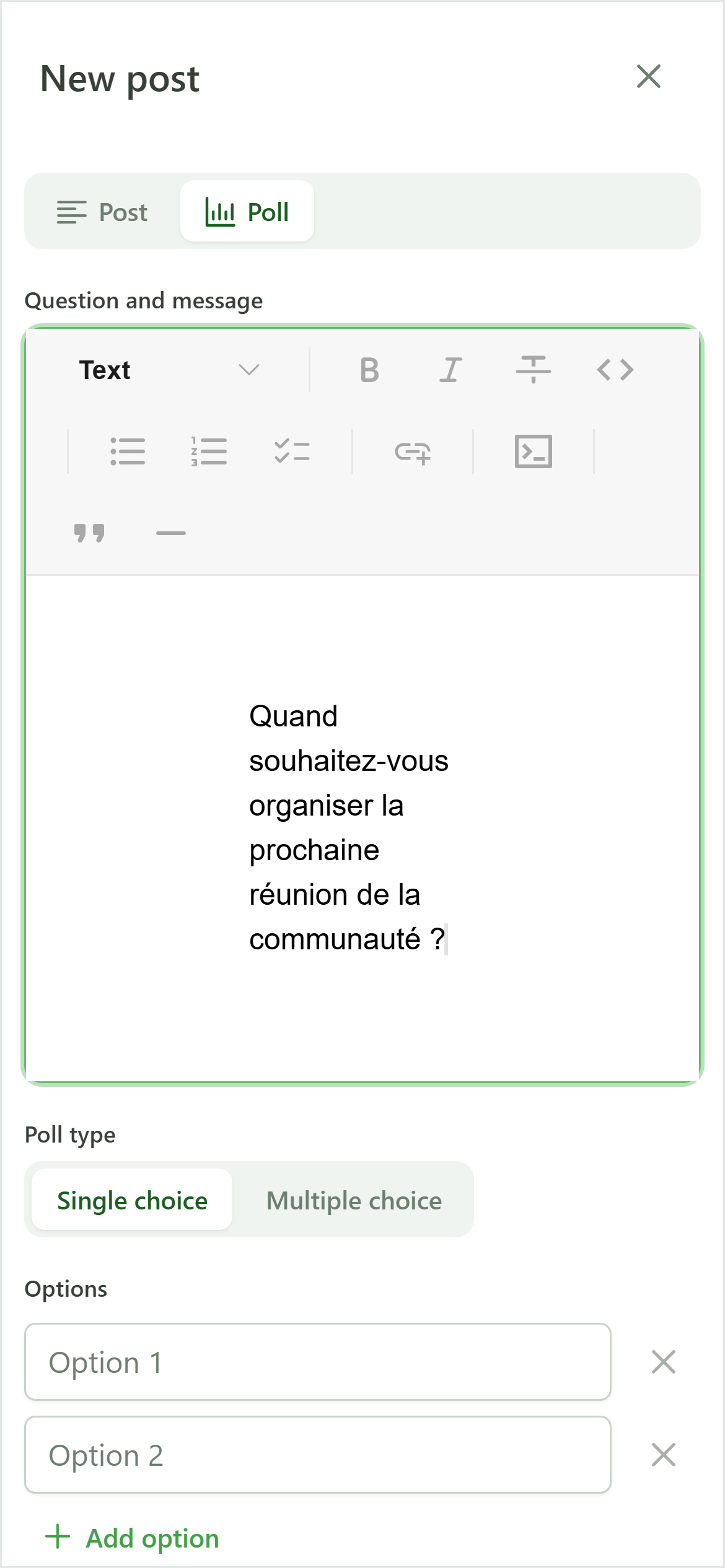
Type the poll question in the editor, just like a regular news post.
5 Single or multiple choice
Poll
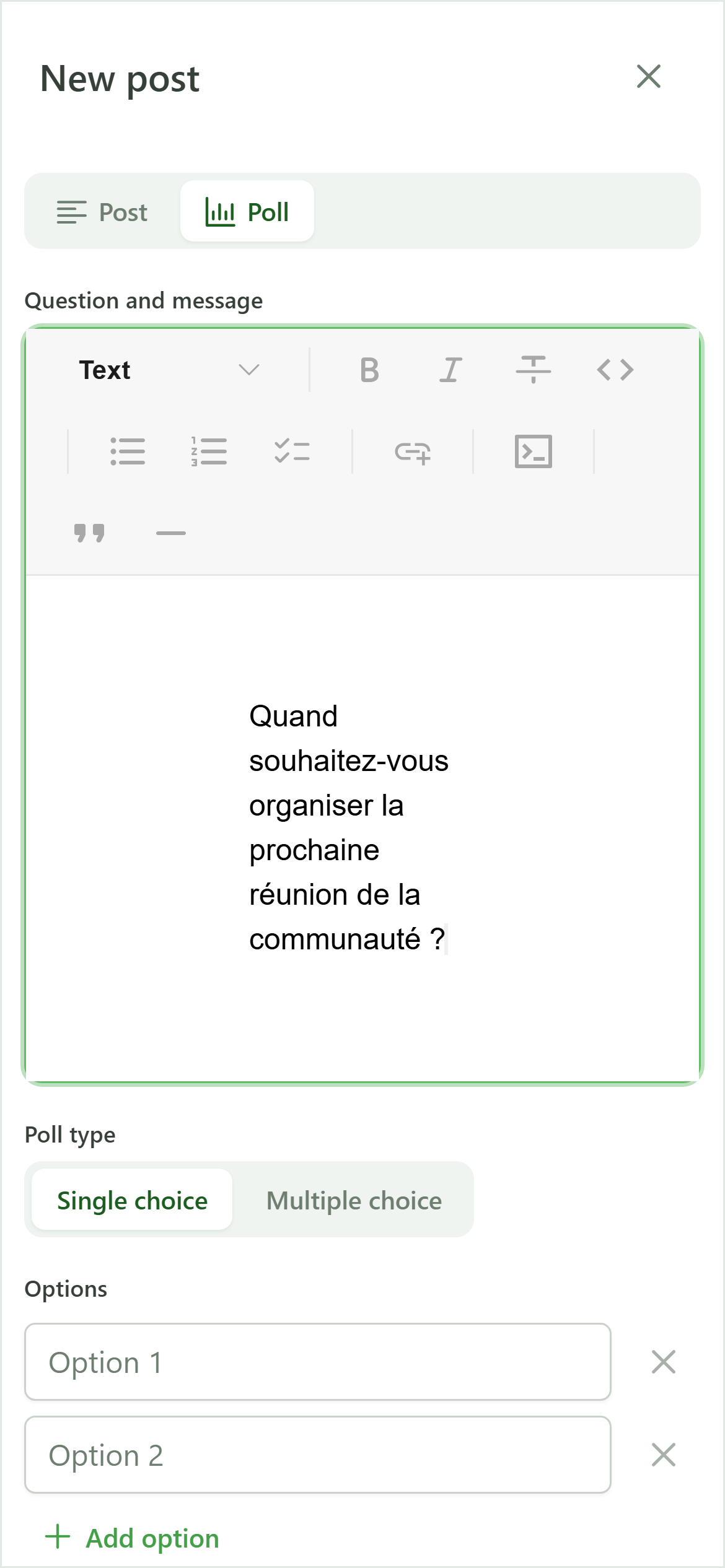
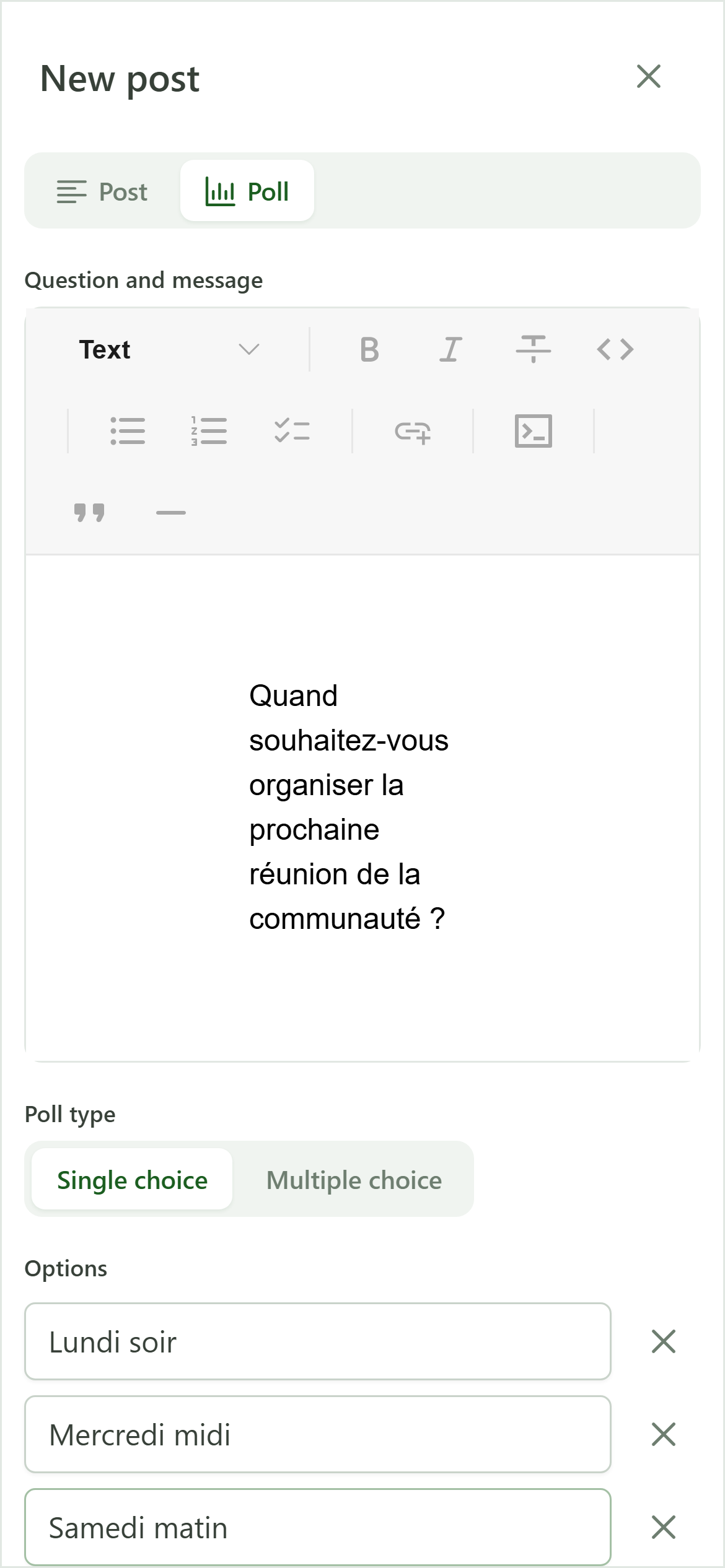
Choose whether members can select a single answer ("Single choice") or several ("Multiple choice"). We keep "Single choice".
6 Add the answer options
Poll
Provide at least two answer options. The "Add option" button adds more, and the trash icon removes one.
7 Set a closing date
Poll
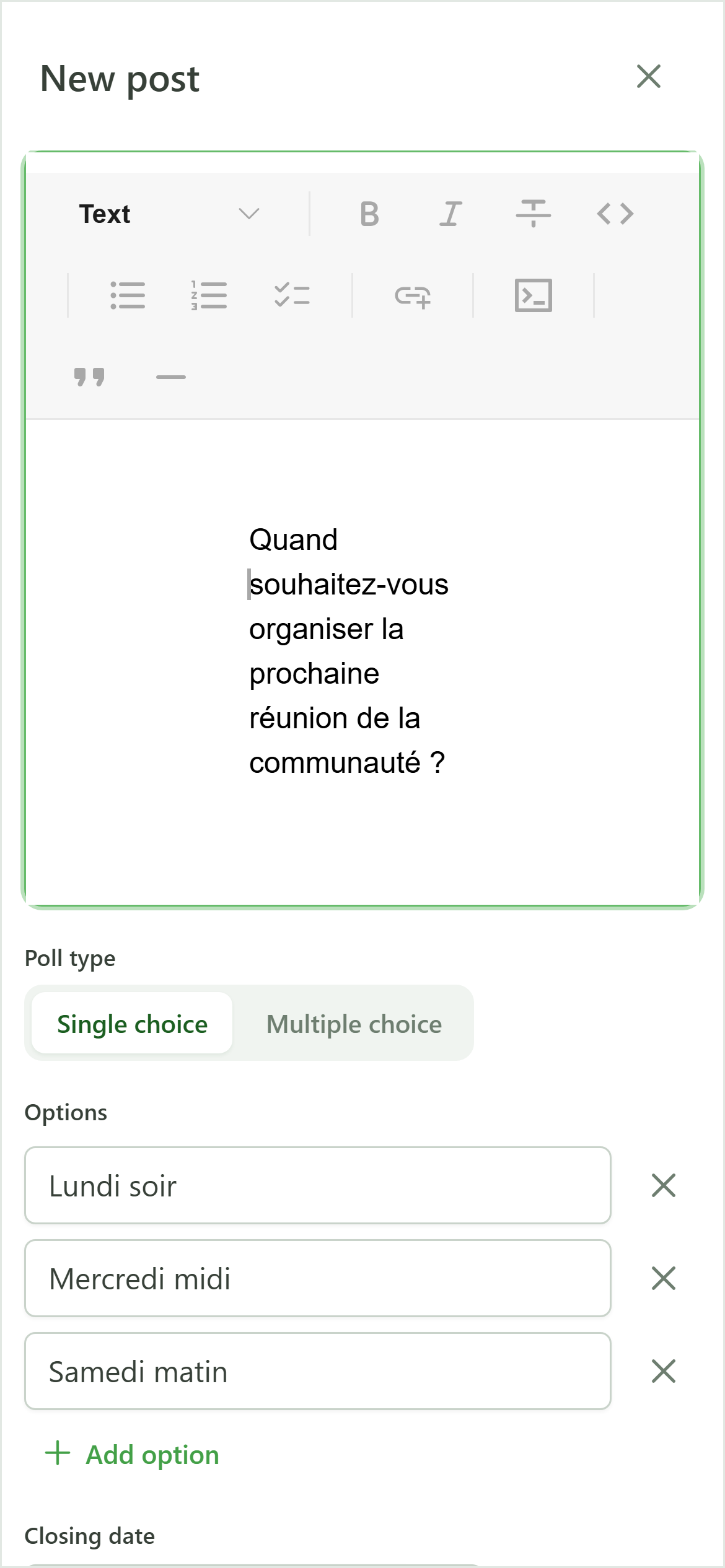
Pick the closing date and time from the calendar. After this deadline no more votes are accepted and, depending on the chosen visibility, results may be revealed.
8 Choose who sees the results
Visibility
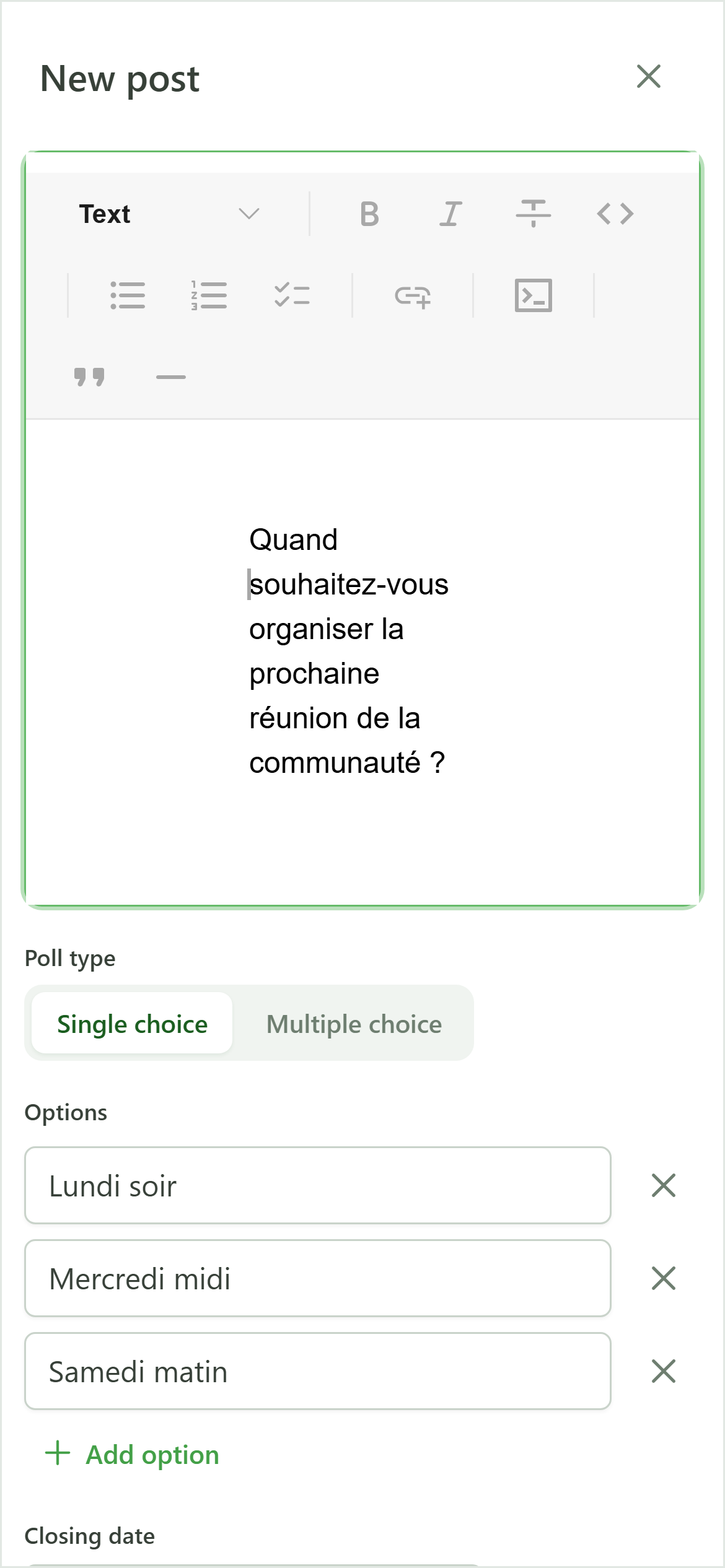
Three presets cover the most common cases. Each one combines what managers see, what members see, and when.
9 Anonymous
Visibility — preset
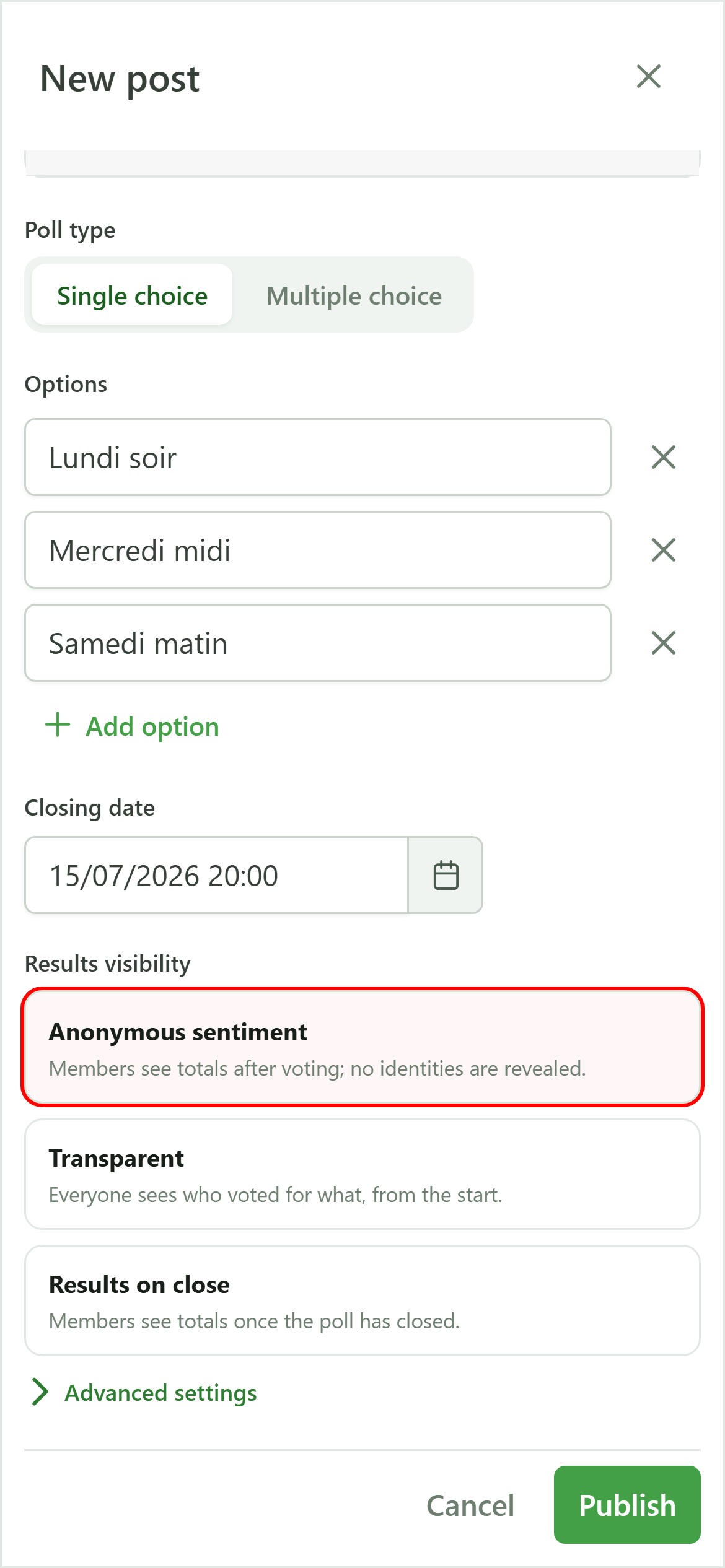
Members see only the total number of votes per option, and only after they have voted themselves. Nobody sees who voted for what — managers also get totals only. Ideal for a confidential vote.
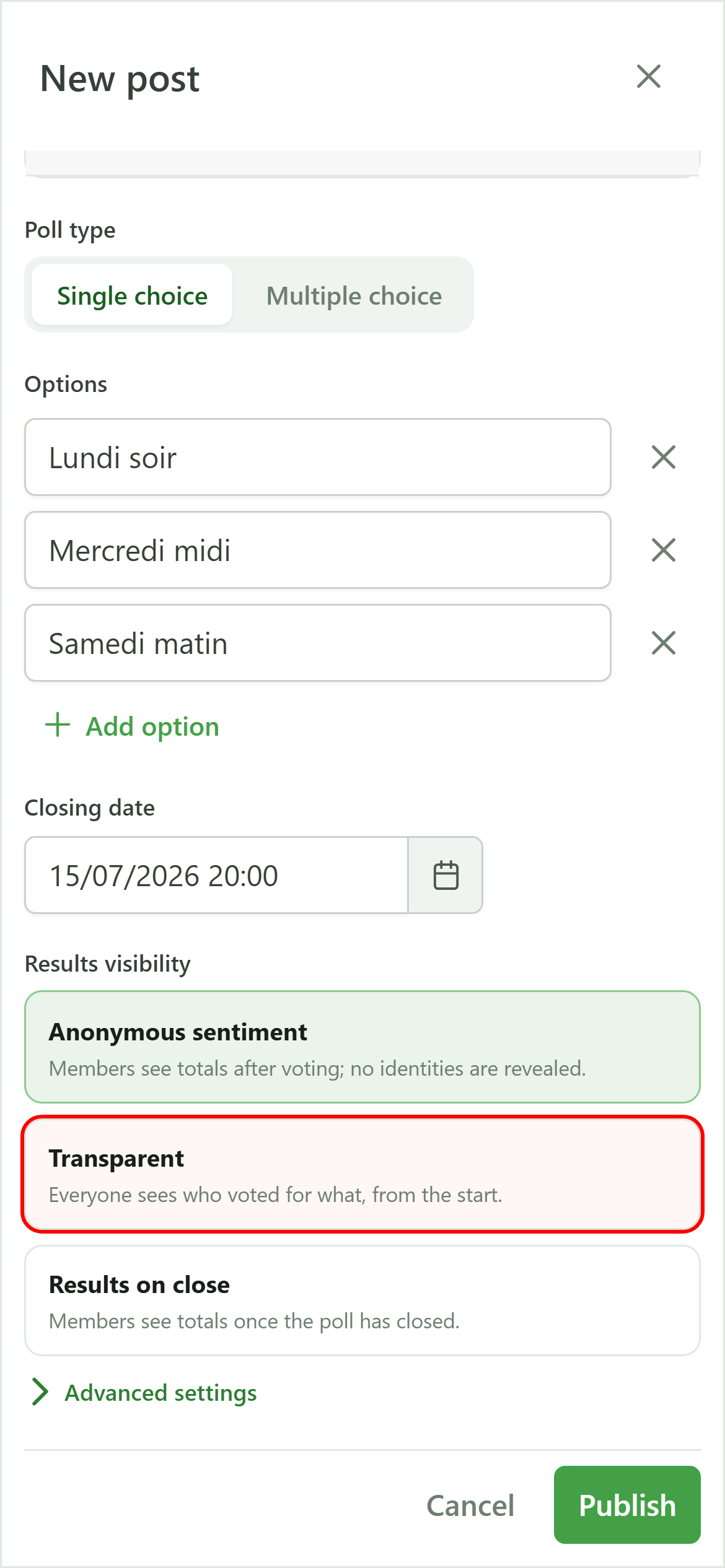
10 Transparent
Visibility — preset
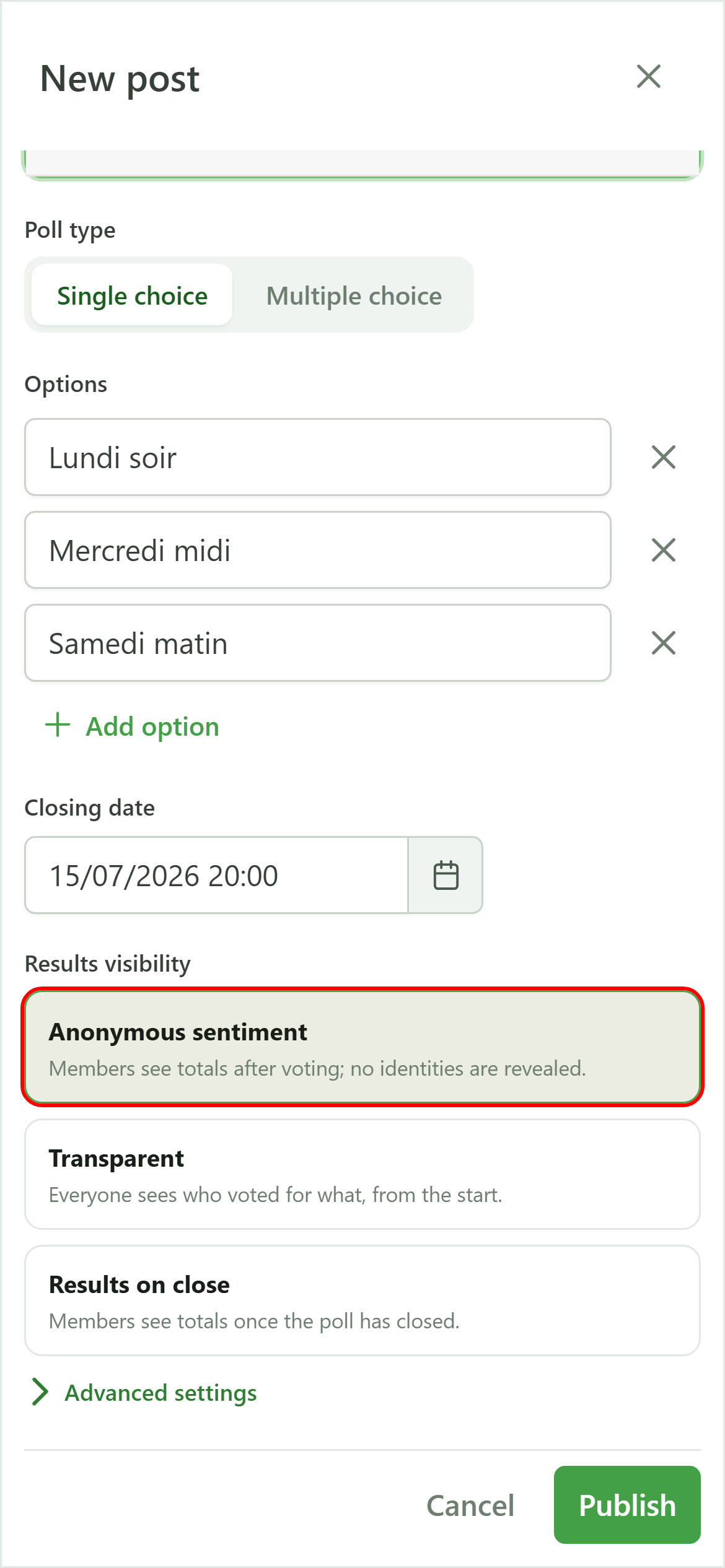
Everyone sees the full results immediately, including who voted for which option, even before voting. Ideal for an open decision where everyone owns their choice.
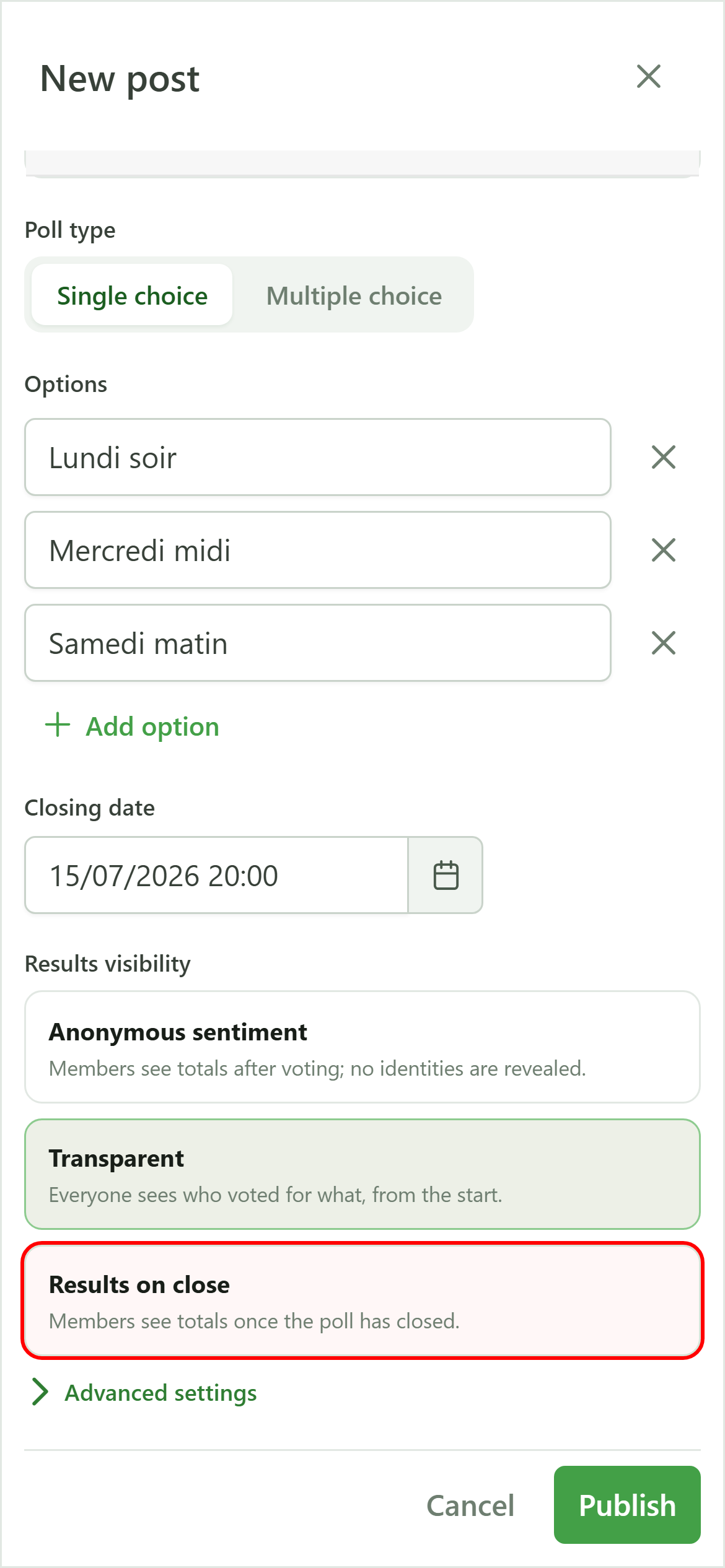
11 On close
Visibility — preset
Members only discover the totals once the poll closes; until then results stay hidden. Managers, however, see the breakdown (who voted for what) at any time to follow participation.
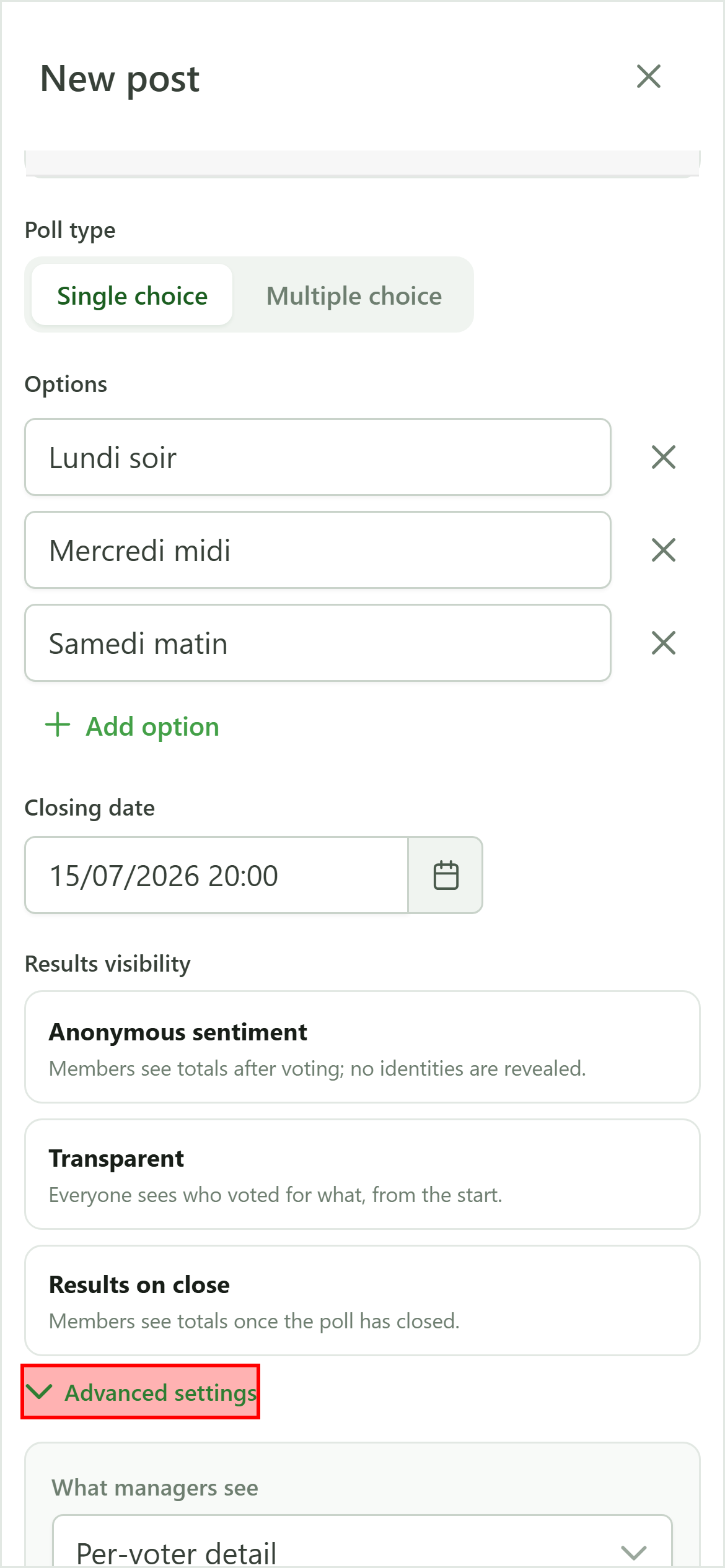
12 Fine-grained control (advanced)
Visibility
The "Advanced" button reveals three independent settings. A preset is just a shortcut for these three fields — you can combine them freely.
13 Manager visibility
Visibility — advanced
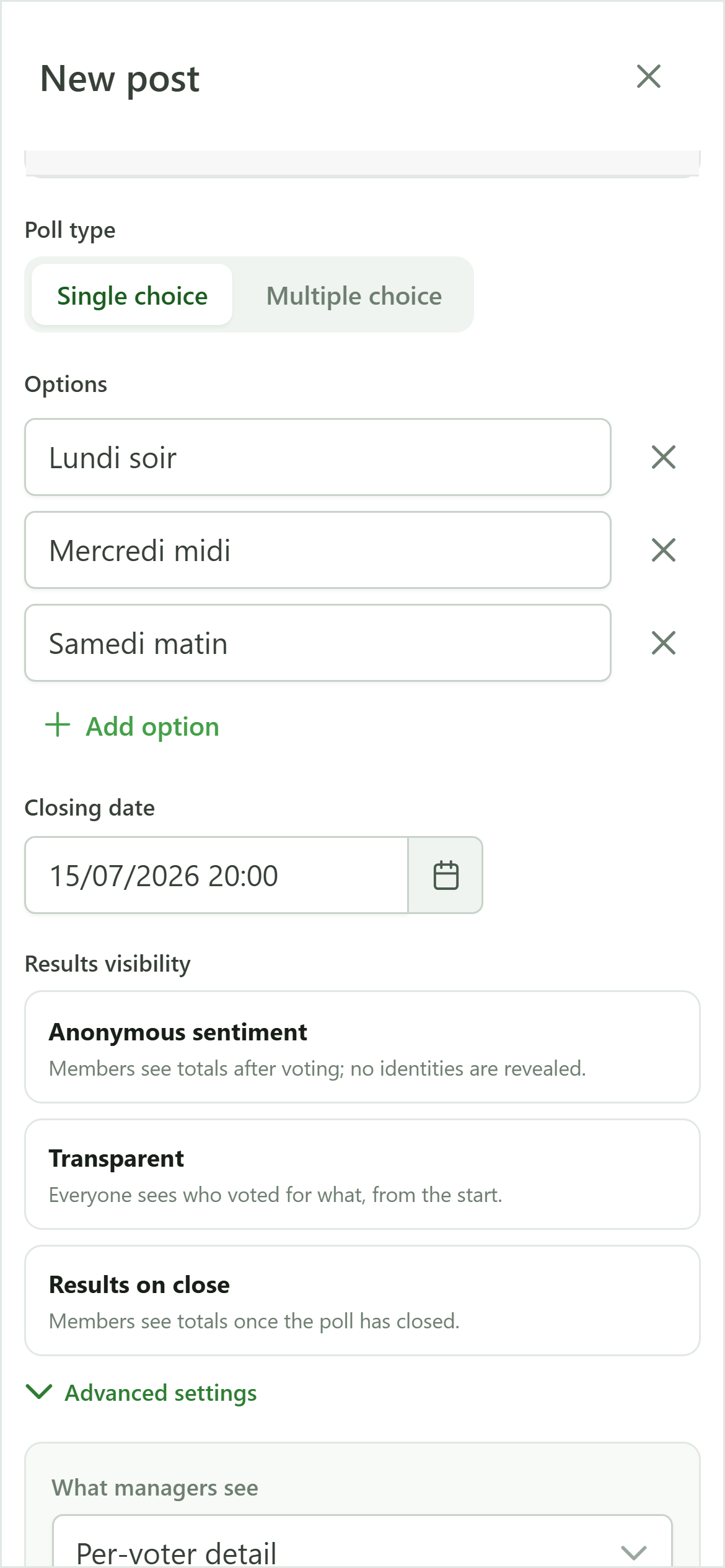
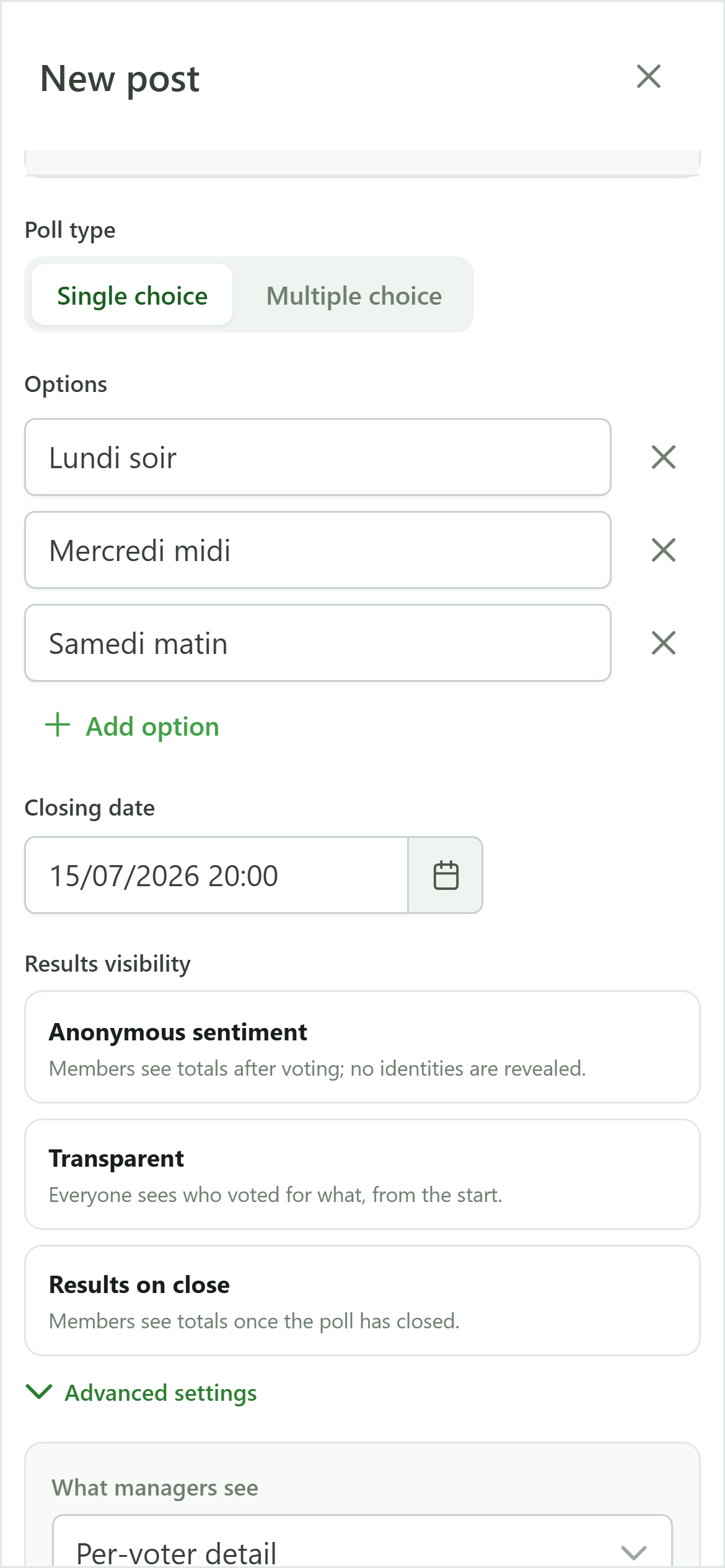
What managers see. "Aggregate": only the totals per option. "Full": the per-voter breakdown — who voted for each option.
14 Member visibility
Visibility — advanced
What members are allowed to see. "None": never any results. "Aggregate": the totals. "Full": the per-voter breakdown.
15 Member display
Visibility — advanced
When members see what they are allowed to. "Never", "Before vote", "After vote", or "When the poll ends". This setting is what distinguishes, for instance, a vote whose result only appears once participation is recorded.
16 Back to a preset
Visibility
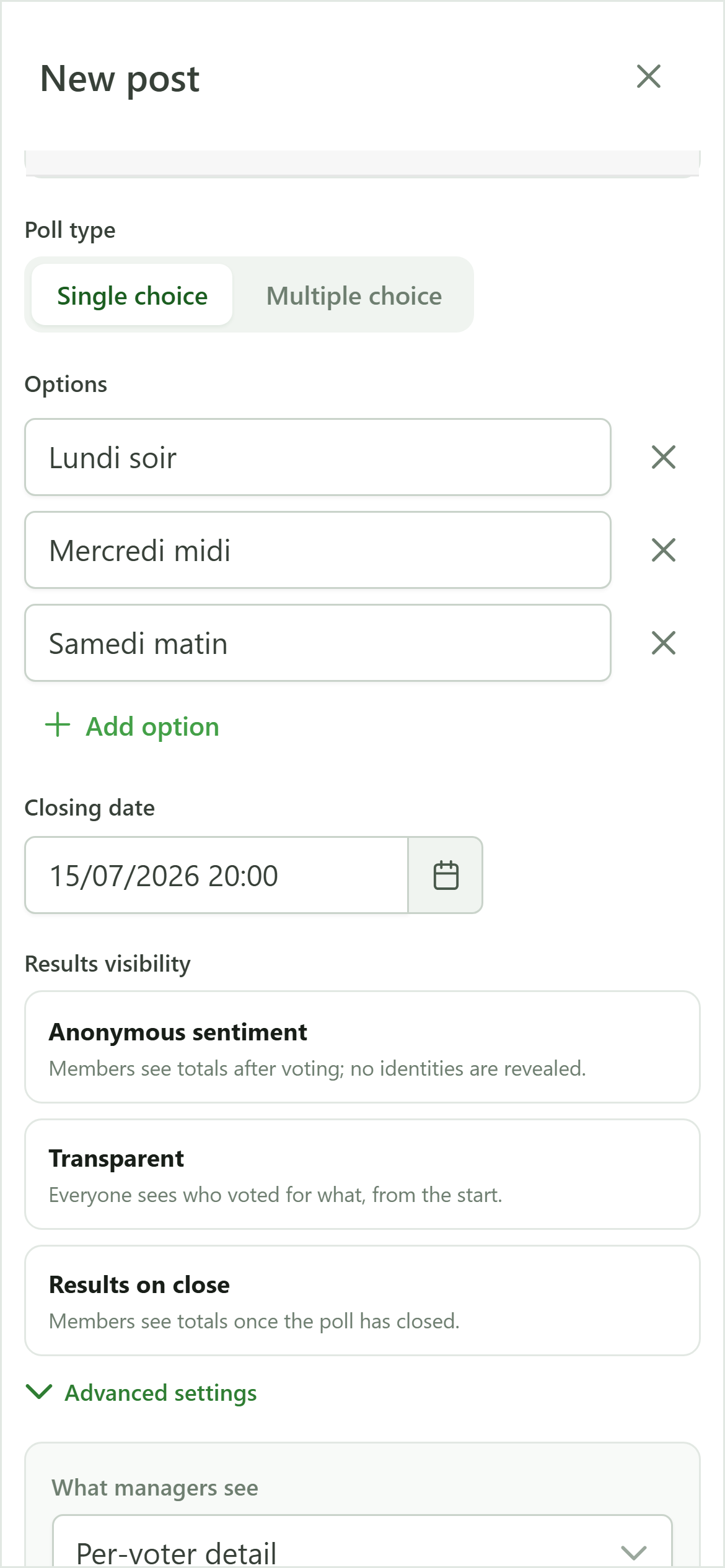
To finish, we pick the "Anonymous" preset again, which collapses the advanced settings and applies a consistent, ready-to-publish combination.
17 Publish the poll
Poll
Click "Publish". The poll is broadcast to every member, who receives a notification inviting them to vote.
18 Your poll is live
Poll
The poll appears on the board with its options. Members can now vote; results will be shown according to the visibility you chose.