Publish a news
Guide utilisateur
User guide
Gebruikershandleiding
Benutzerhandbuch
1 Open the news board
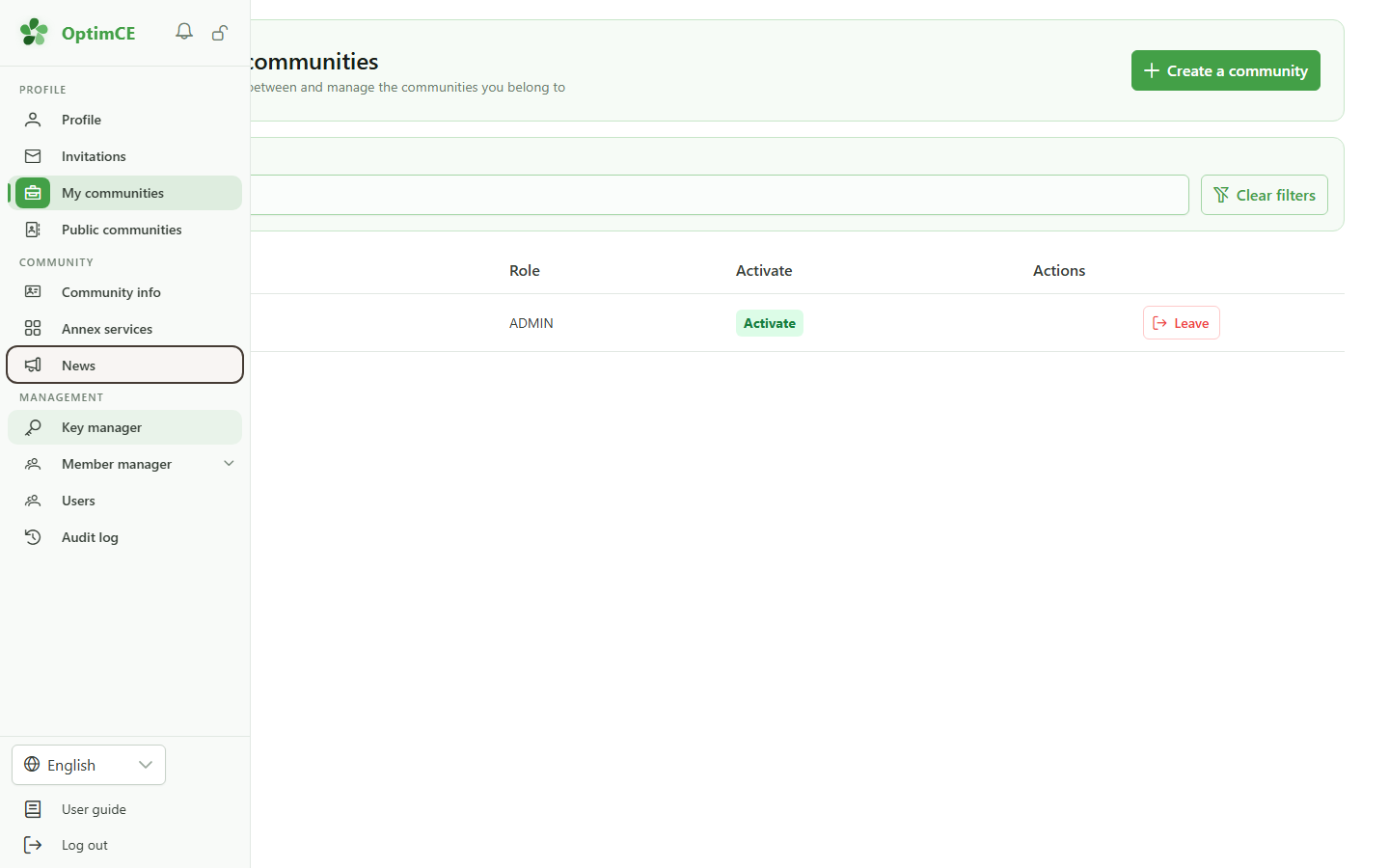
Navigation
In the sidebar's "Community" section, click "News" to open the community news board.
2 The news board
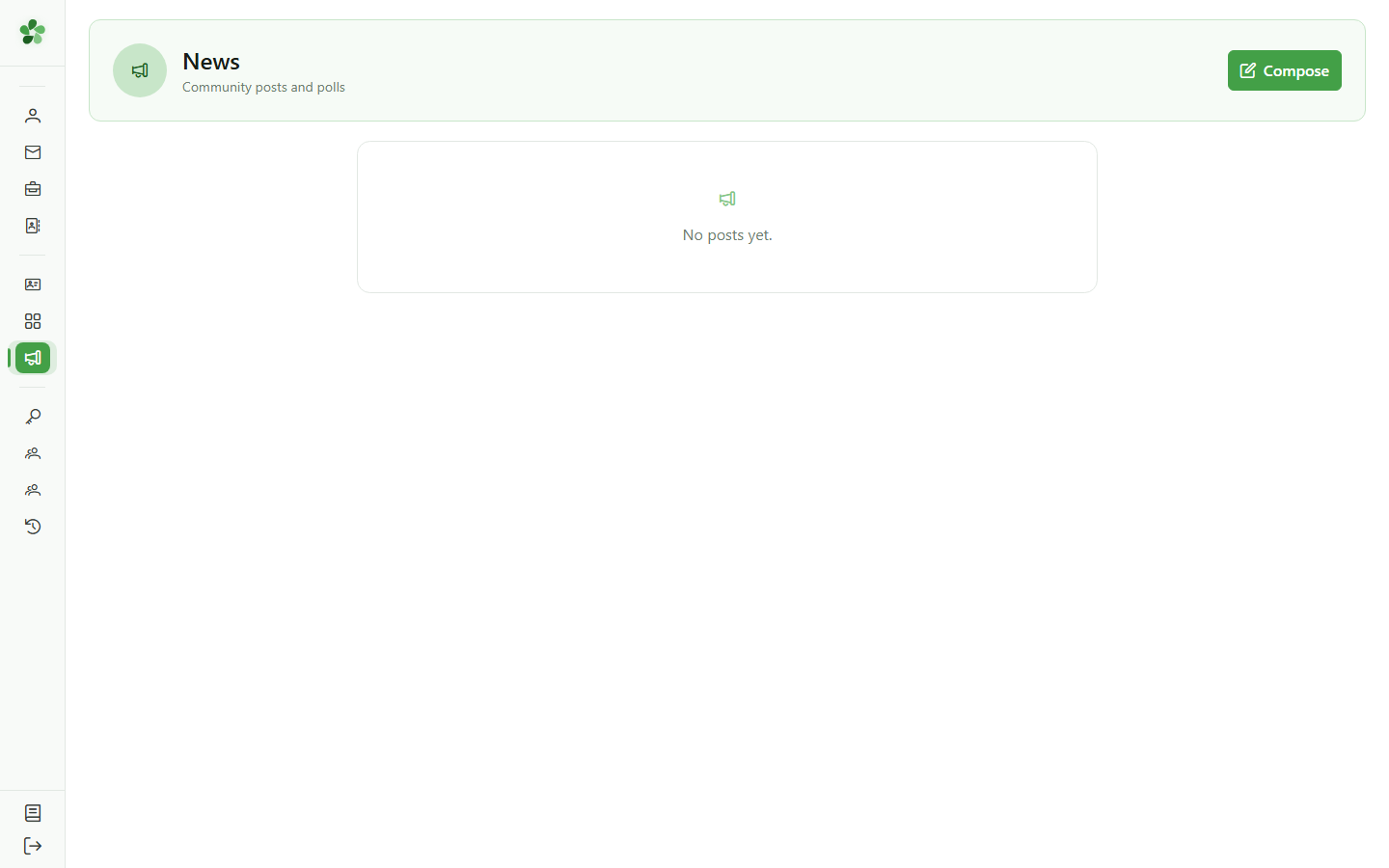
News
The news board is shown. It is still empty — no news has been published yet. As a manager you can create one with the "New post" button.
3 Open the composer
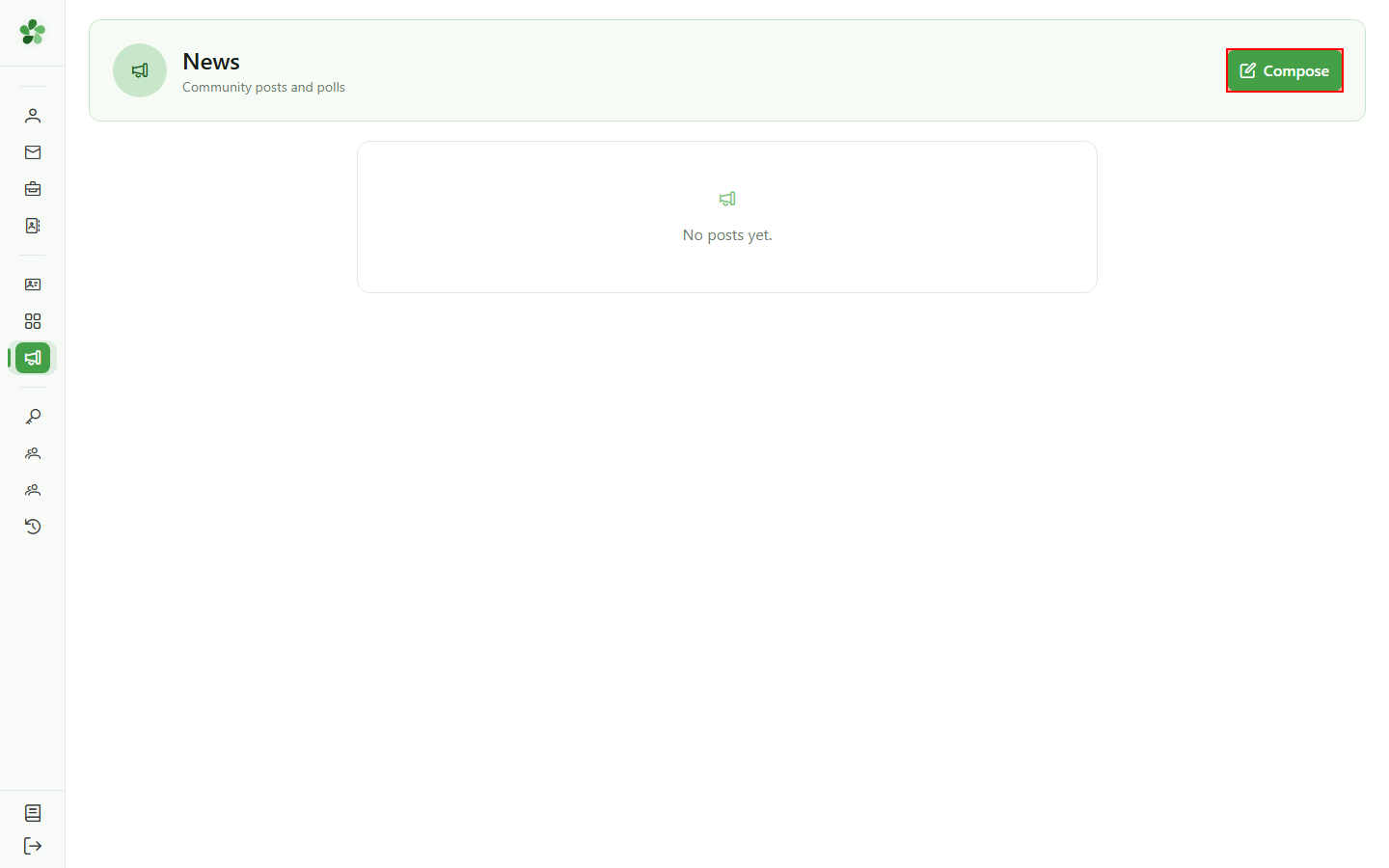
Compose
Click "New post" in the top right to open the compose dialog.
4 Compose a news
Compose
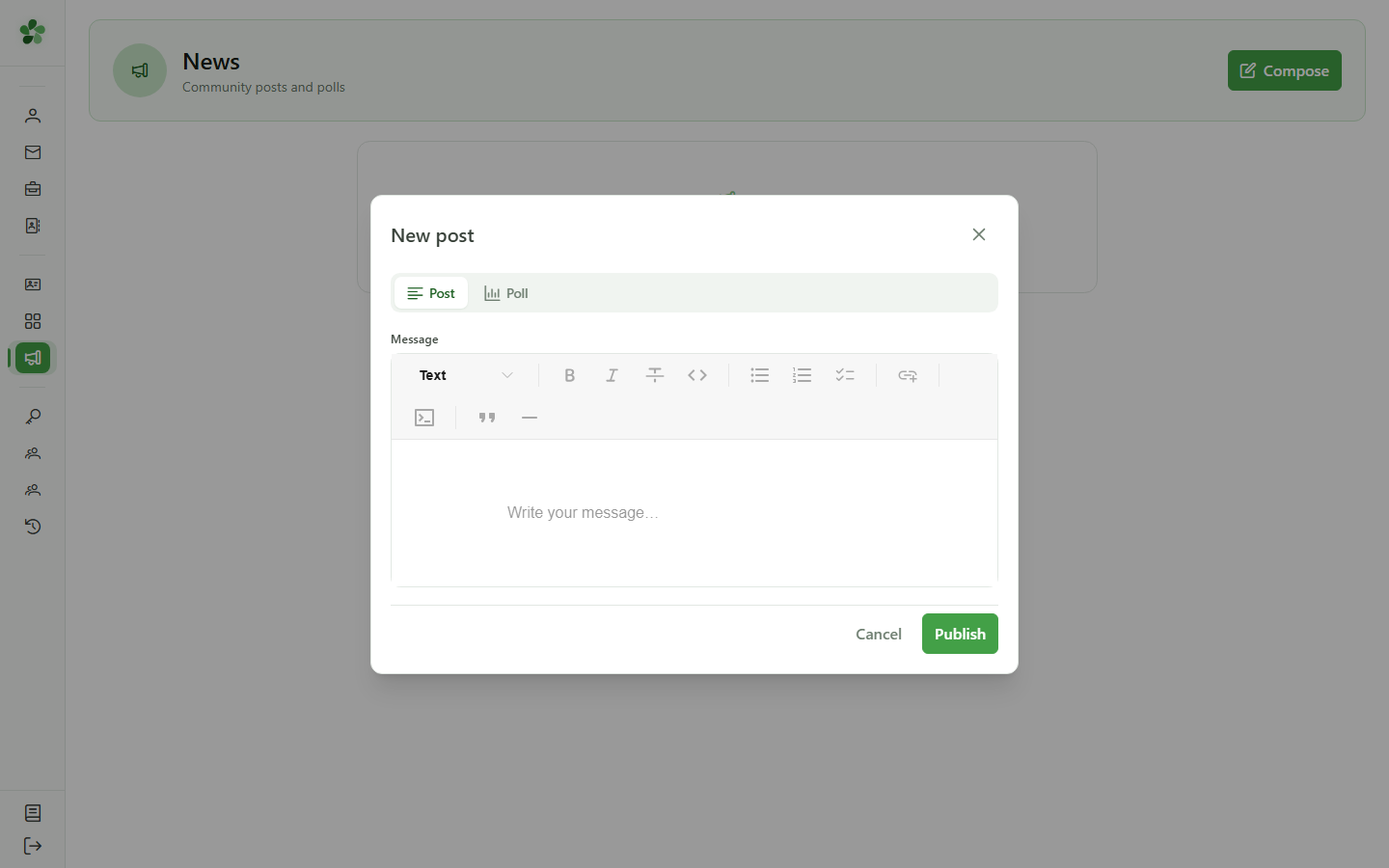
The dialog opens on the "Post" kind. The "Poll" tab would create a poll instead — here we publish a plain news post.
5 Write the message
Compose
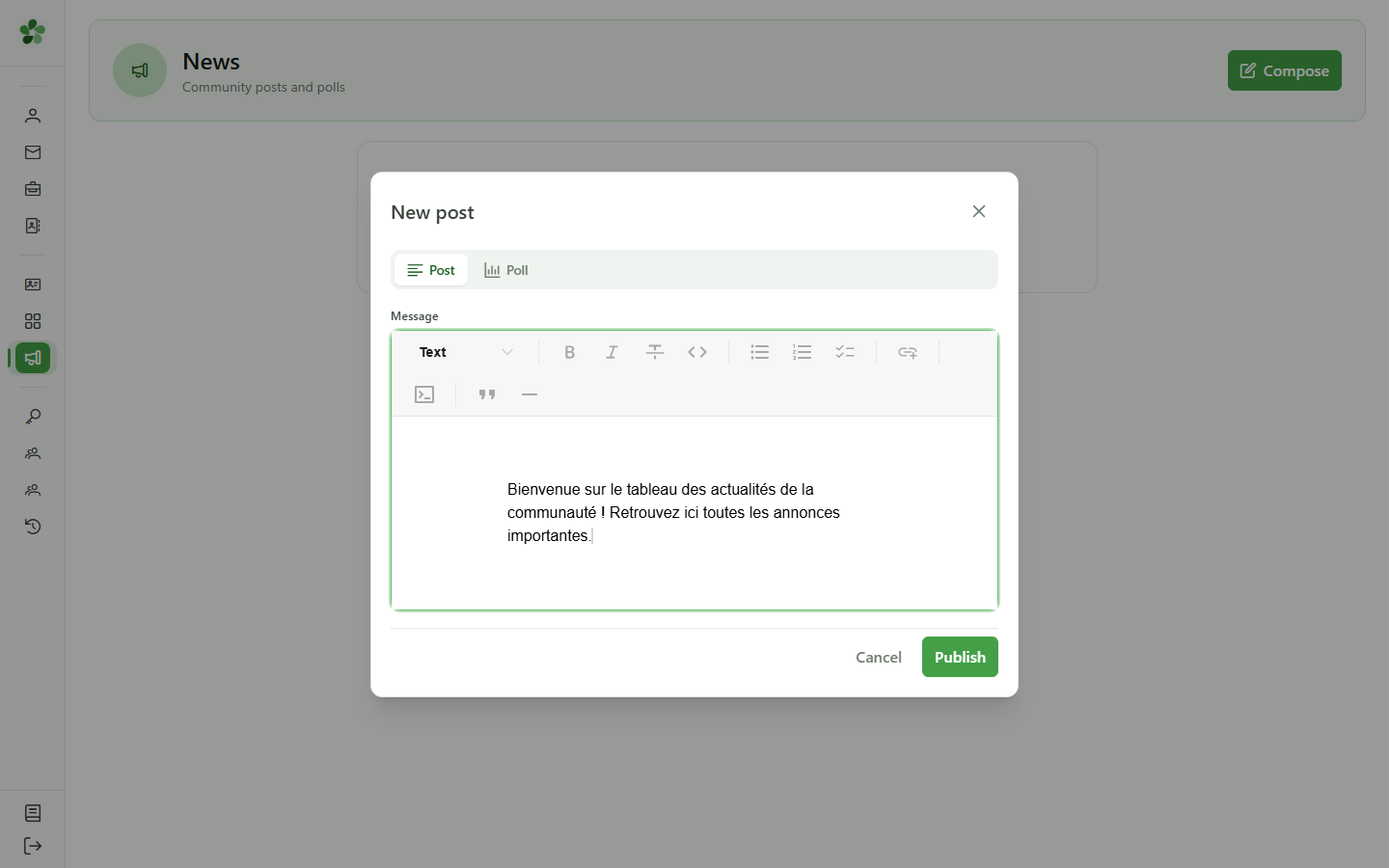
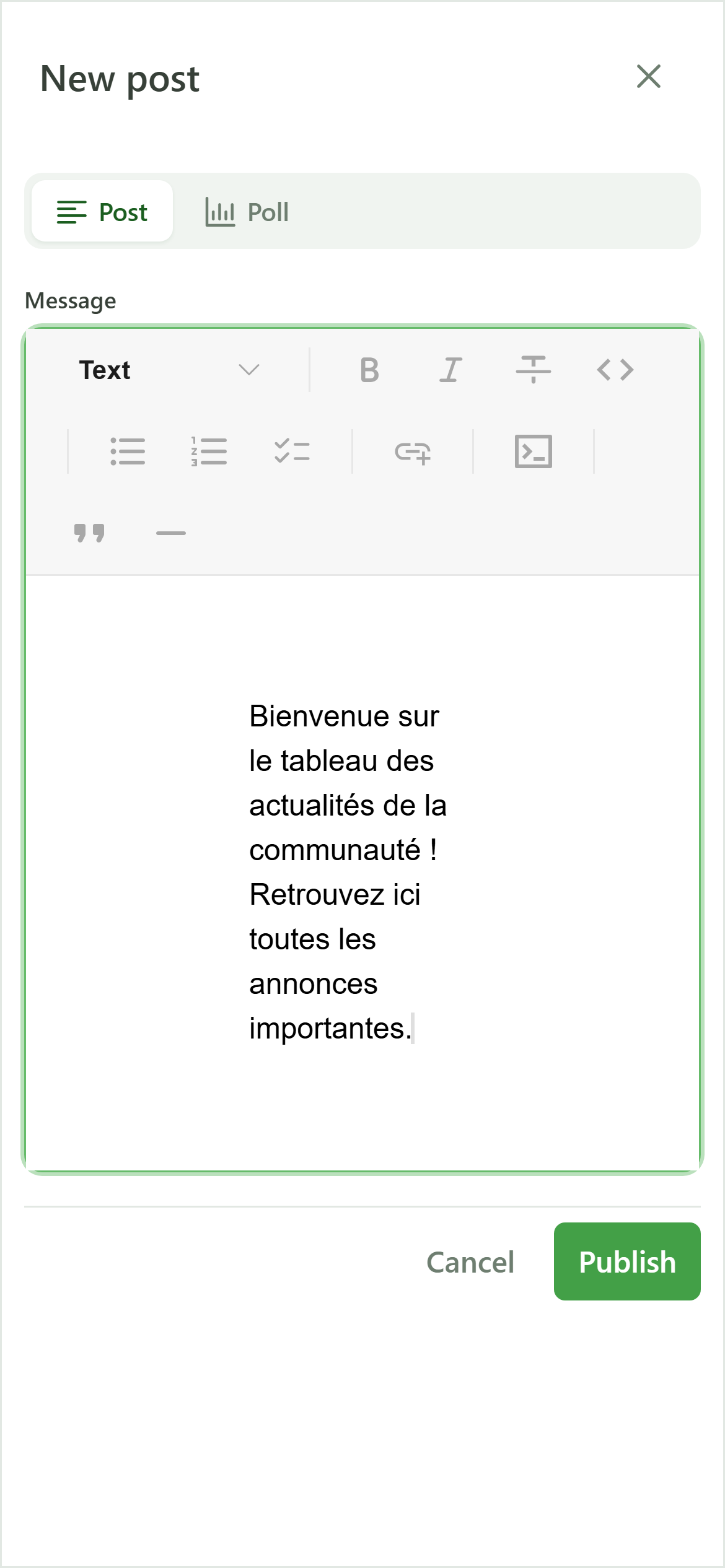
Type your news content in the editor. The toolbar lets you format the text (headings, bold, lists, links).
6 Publish
Compose
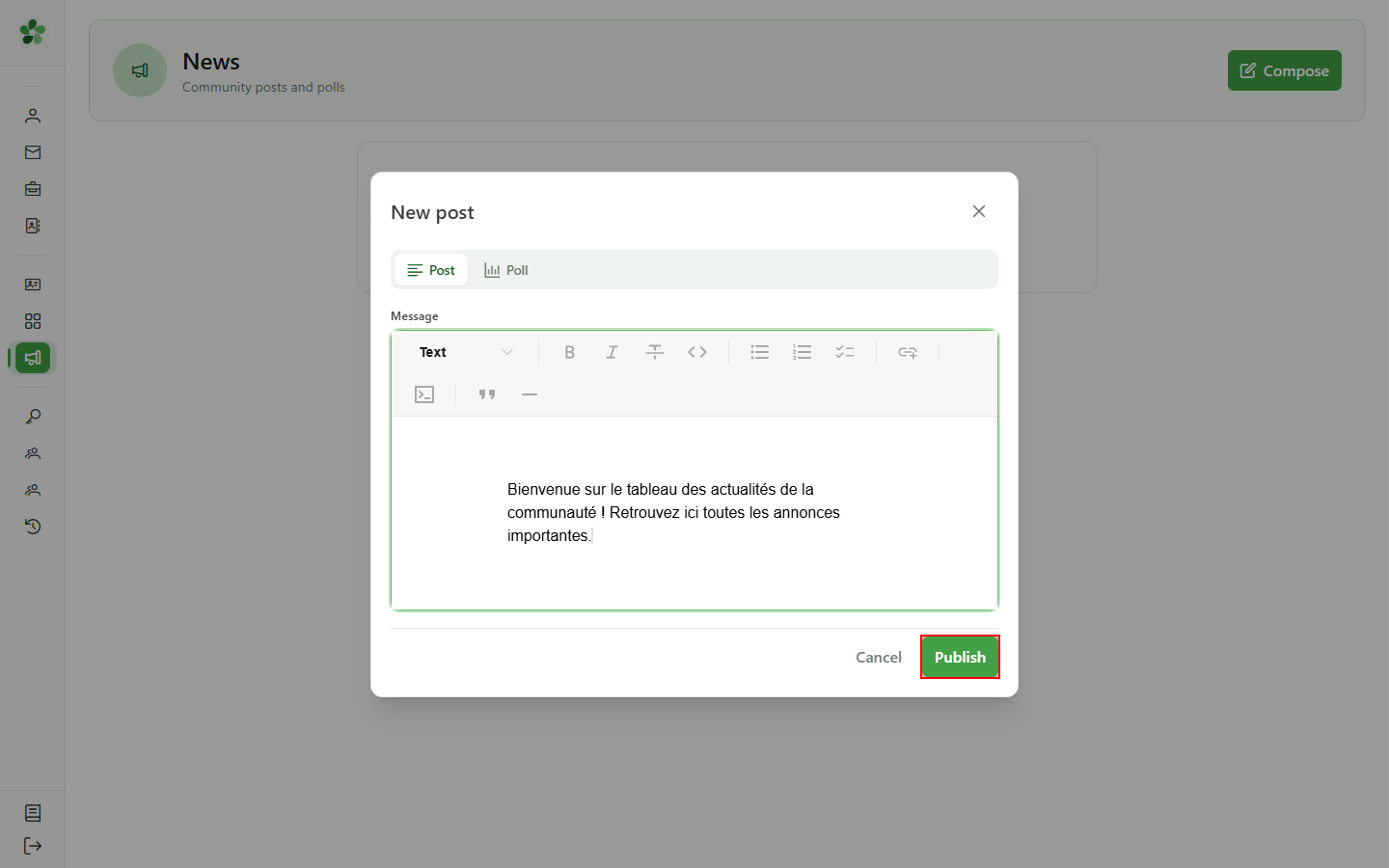
Click "Publish" to broadcast the news to every member of the community.
7 Your news is published
News
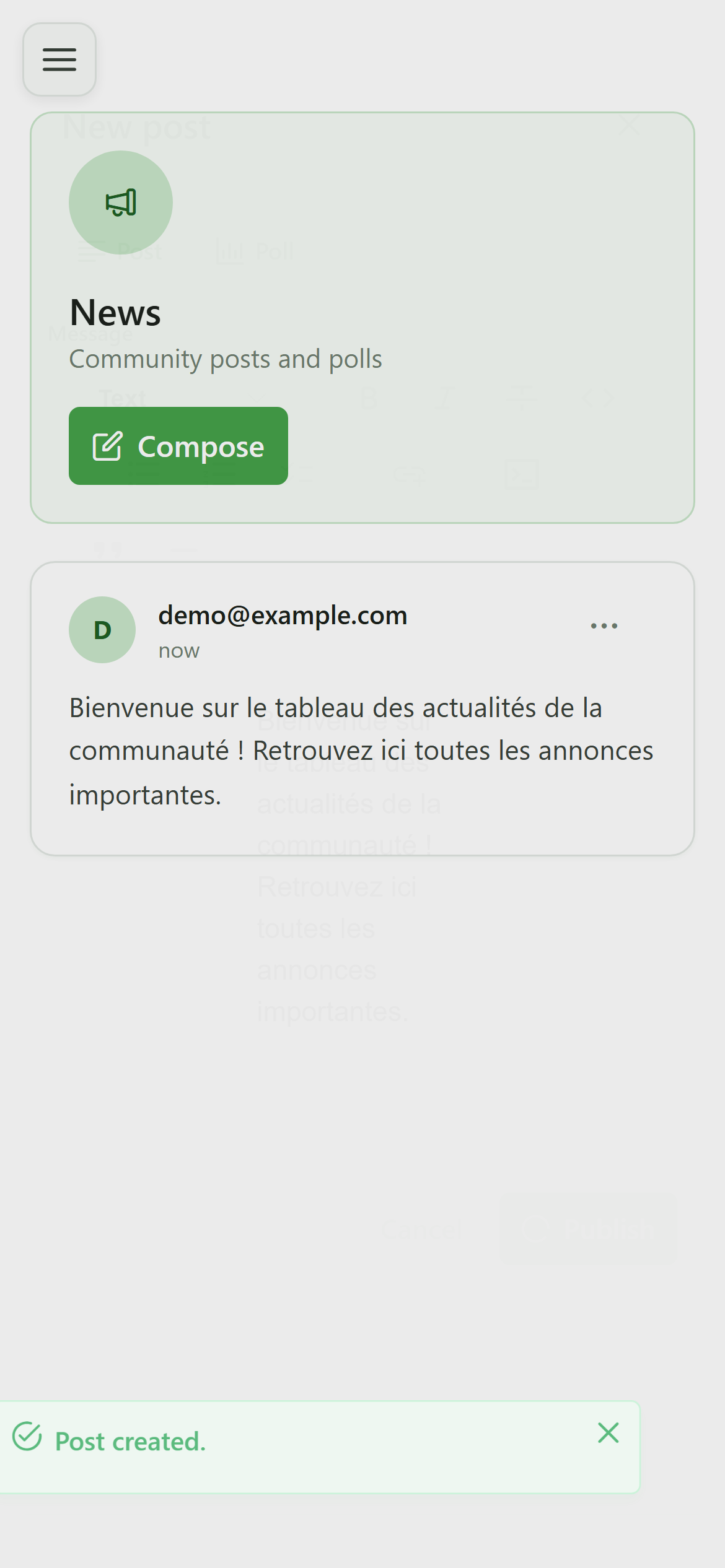
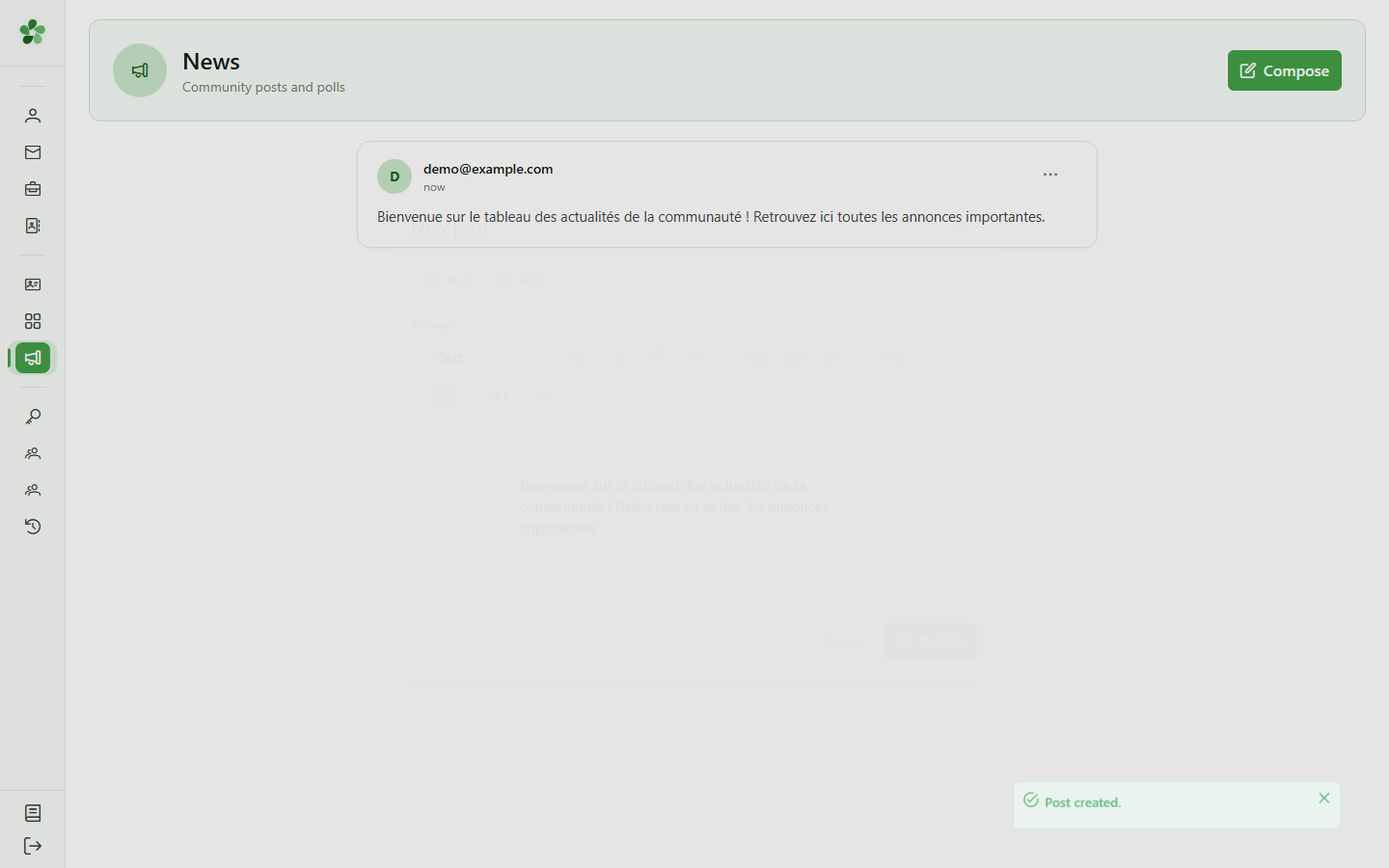
The news appears at the top of the board, signed by its author. Every member of the community sees it and receives a notification.
Publish a news
Guide utilisateur
User guide
Gebruikershandleiding
Benutzerhandbuch
1 Open the news board
Navigation
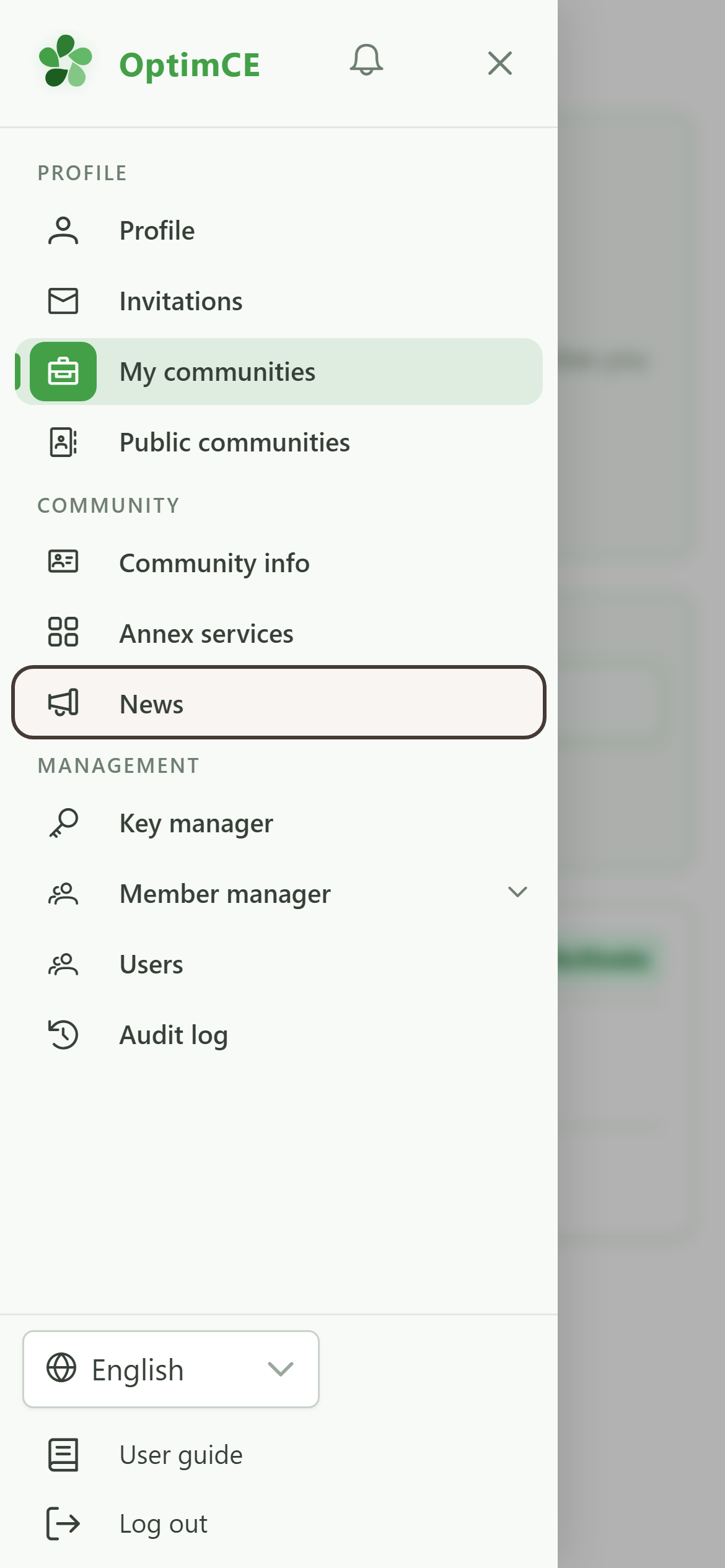
Tap the menu icon to open the navigation drawer, then in the "Community" section tap "News".
2 The news board
News
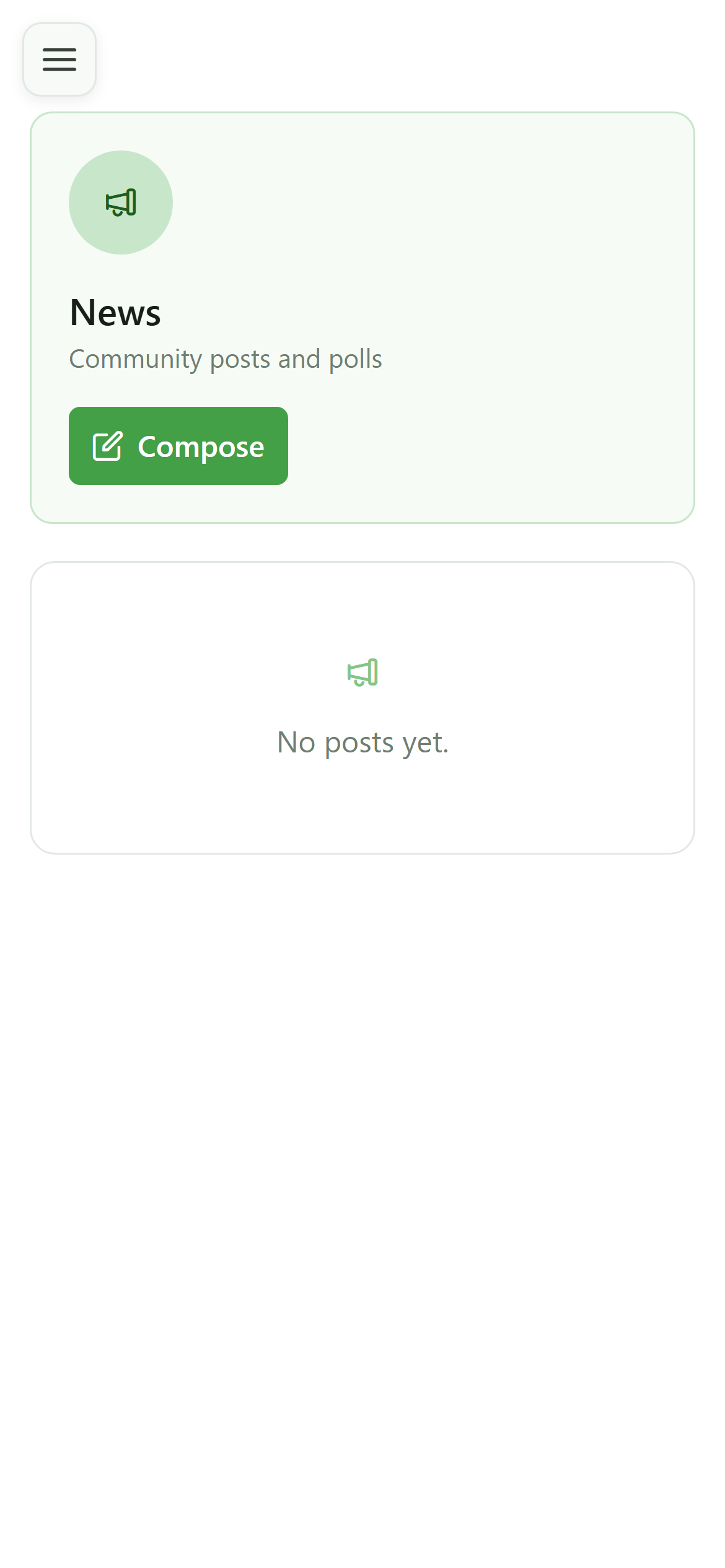
The news board is shown. It is still empty — no news has been published yet. As a manager you can create one with the "New post" button.
3 Open the composer
Compose
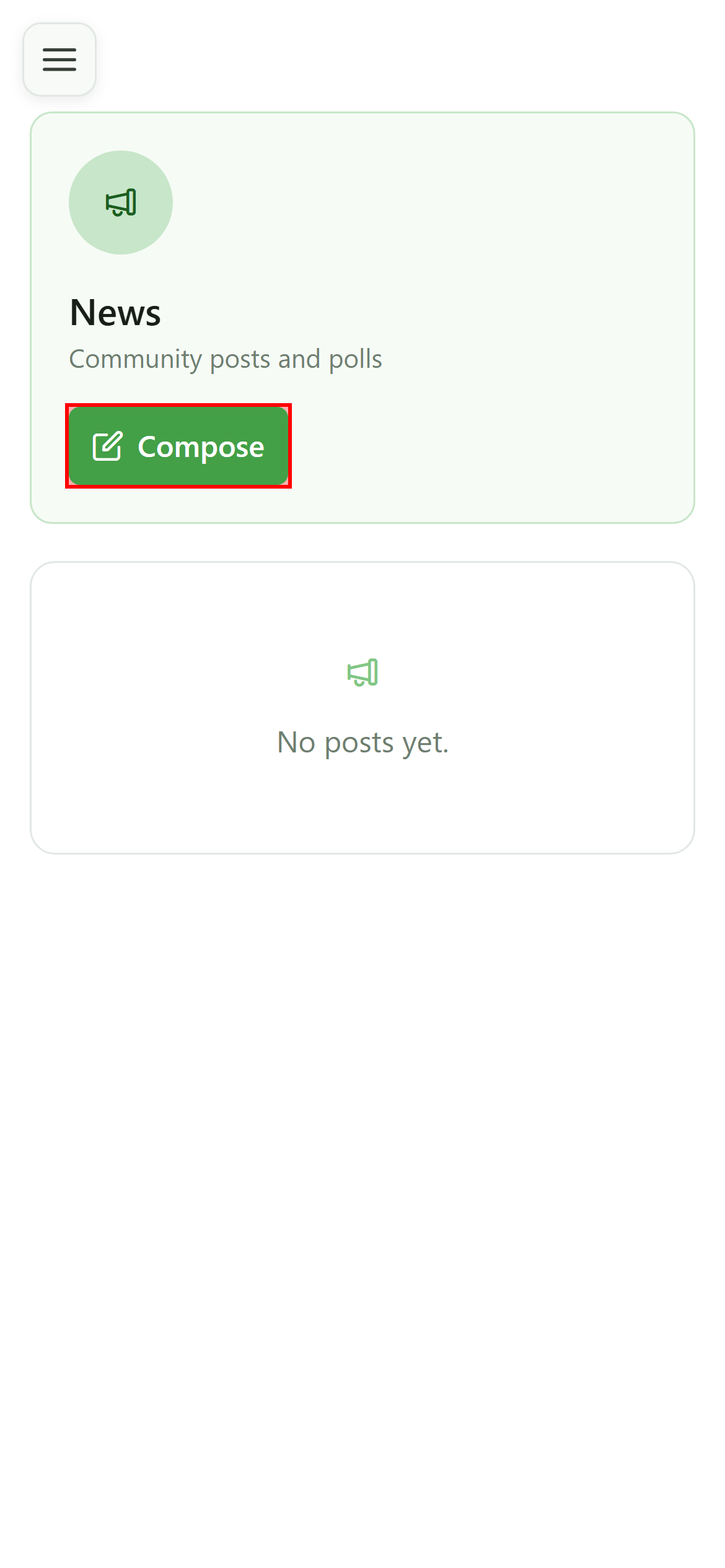
Click "New post" in the top right to open the compose dialog.
4 Compose a news
Compose
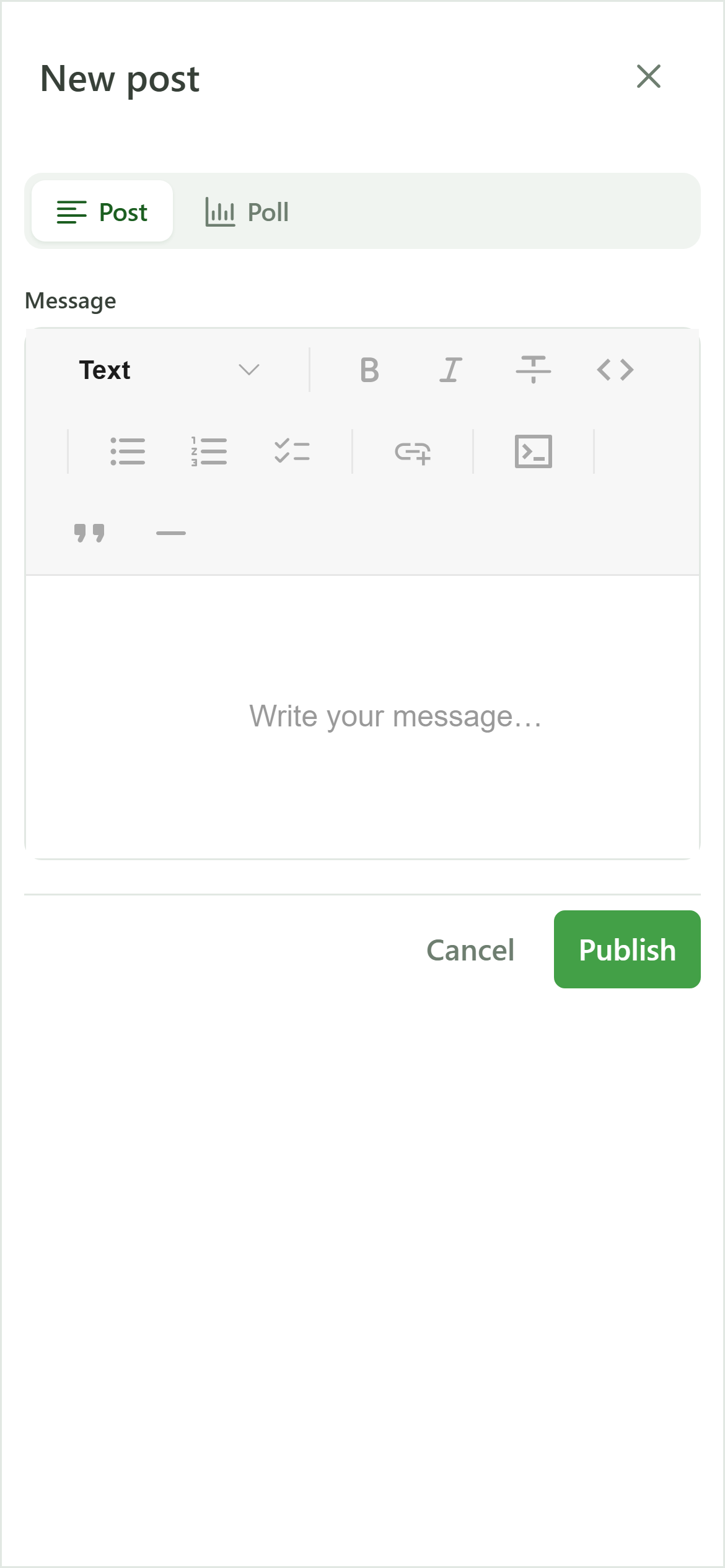
The dialog opens on the "Post" kind. The "Poll" tab would create a poll instead — here we publish a plain news post.
5 Write the message
Compose
Type your news content in the editor. The toolbar lets you format the text (headings, bold, lists, links).
6 Publish
Compose
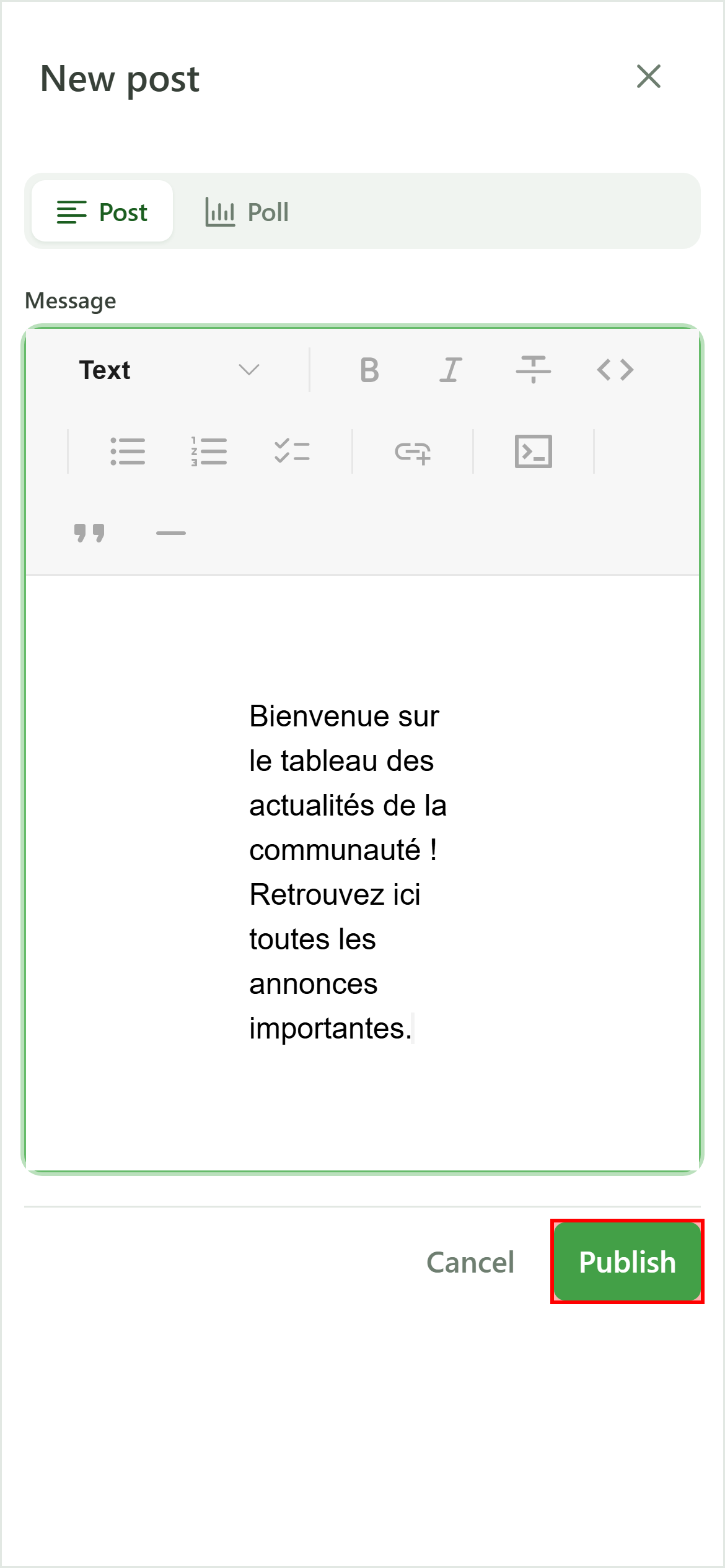
Click "Publish" to broadcast the news to every member of the community.
7 Your news is published
News
The news appears at the top of the board, signed by its author. Every member of the community sees it and receives a notification.