Edit a meter
Guide utilisateur
User guide
1 Open the meter detail
Picking the meter
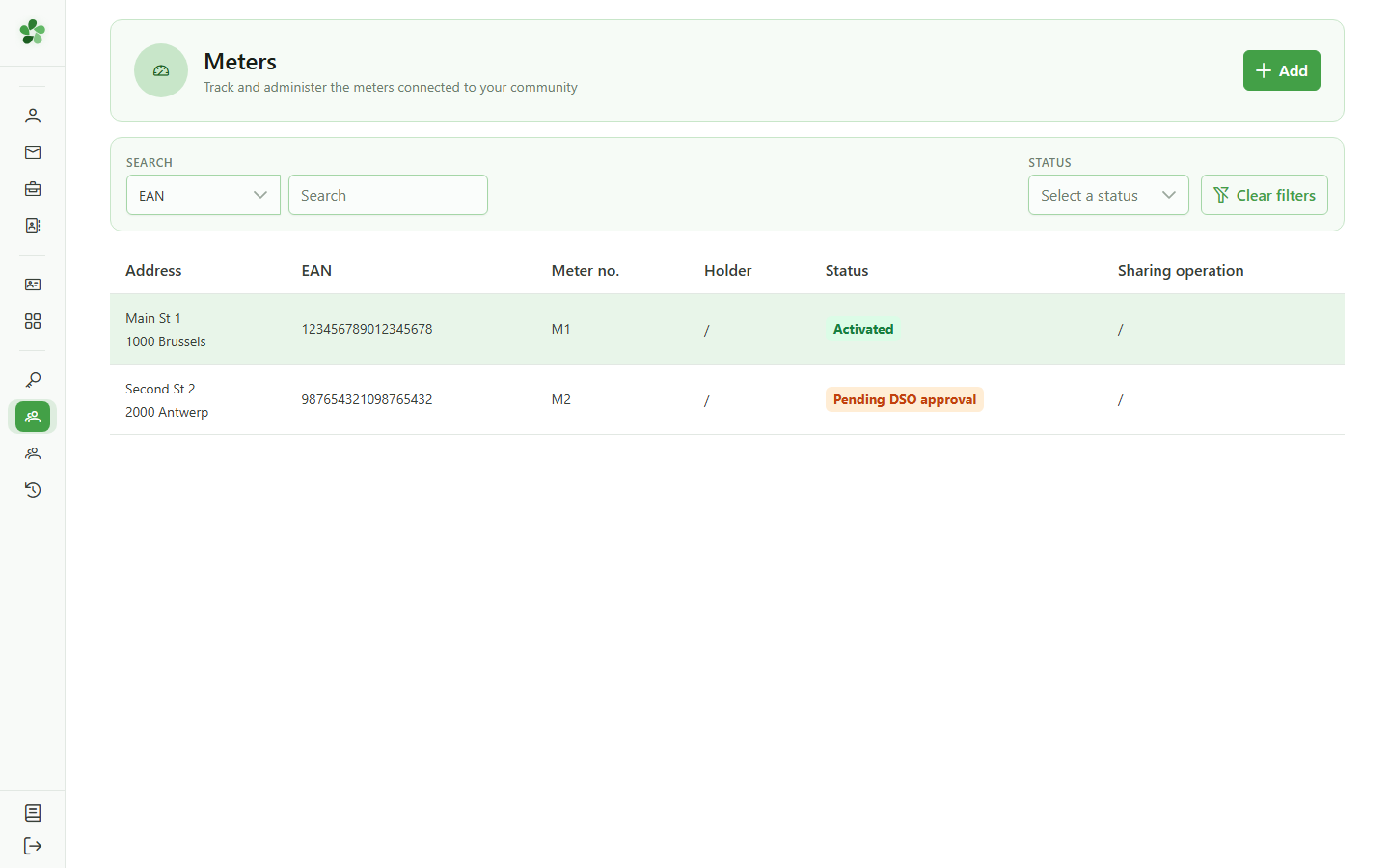
Click the row of the meter you want to edit to open its detail page.
2 Initial detail
Meter overview
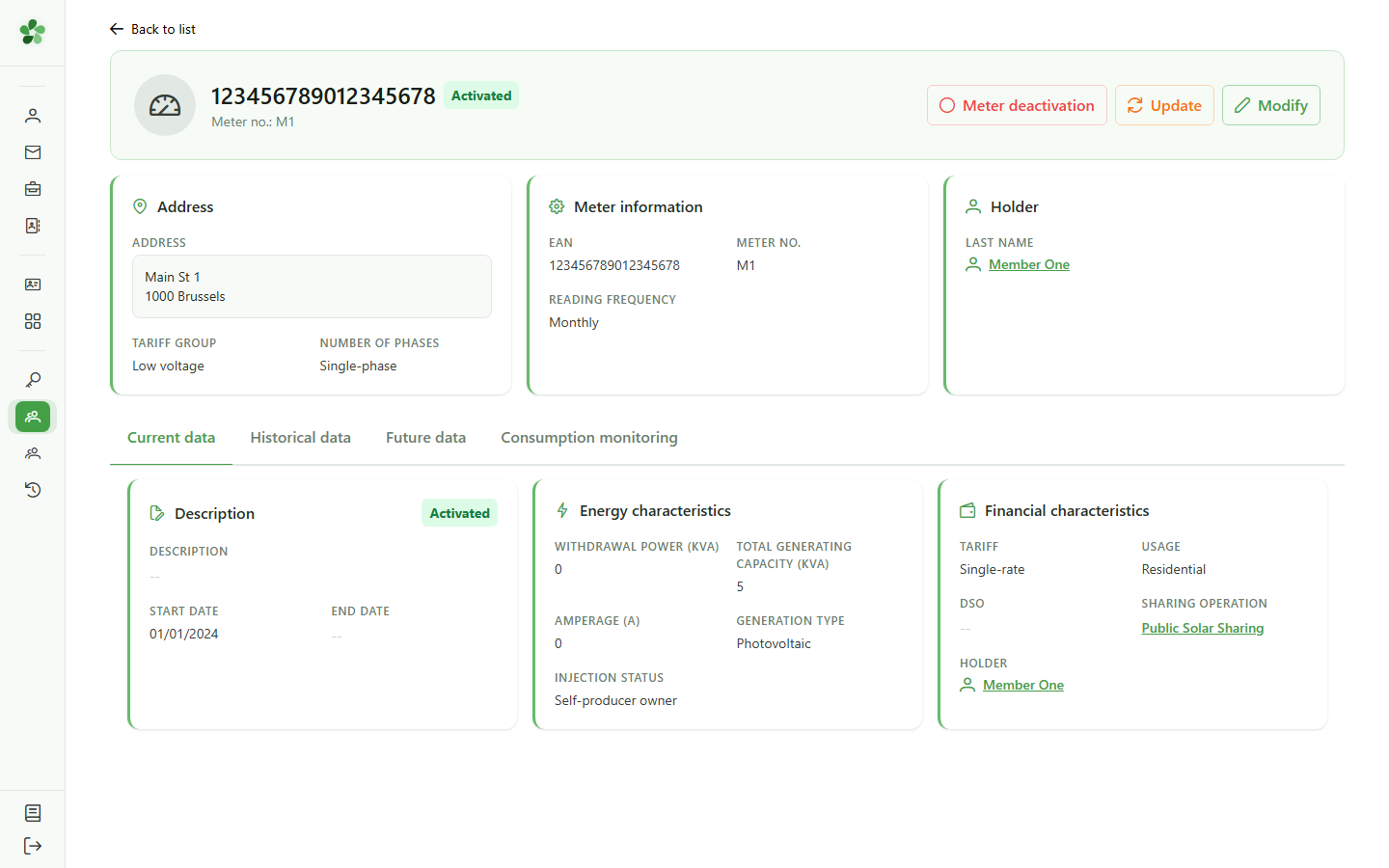
The detail page shows the meter's current information: EAN, installation address and technical characteristics.
3 Open the edit form
Updating the meter
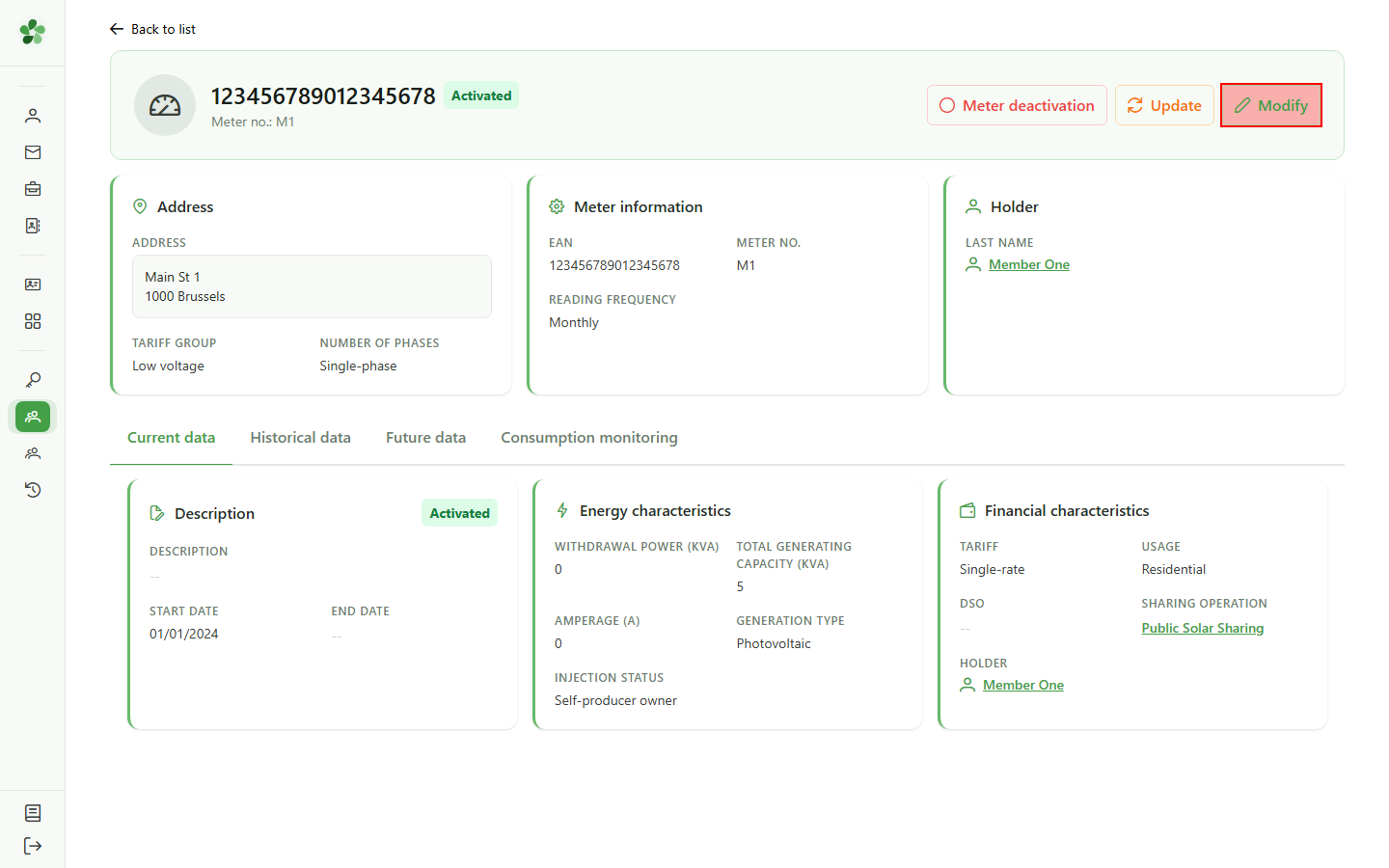
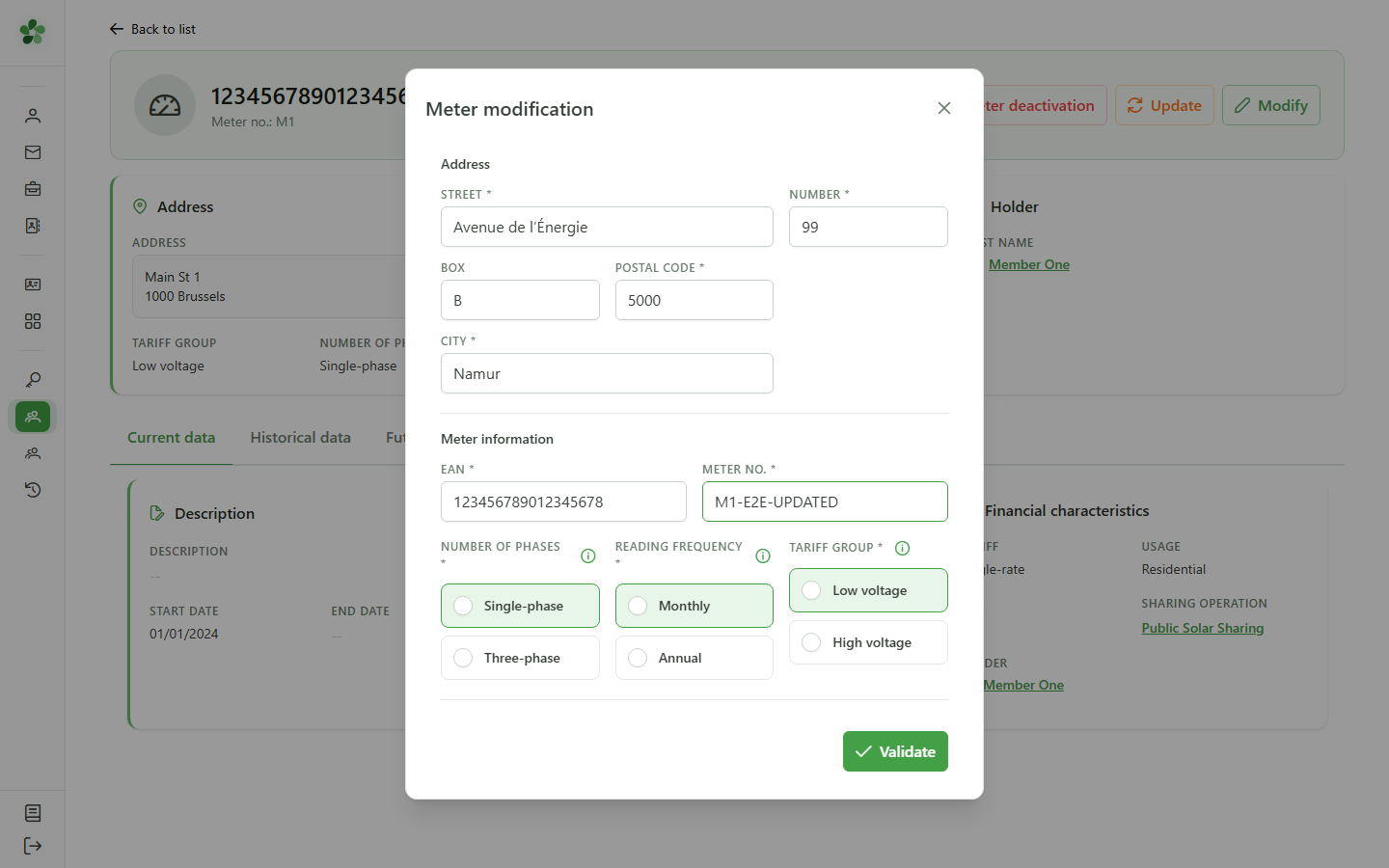
Click "Modify" to open the dialog containing the meter's editable fields (address, number, EAN and characteristics).
4 Update the address
Updating the meter
Edit the fields you want to change — here the installation address and the meter's physical number. The EAN and technical characteristics stay the same.
5 Save
Saving
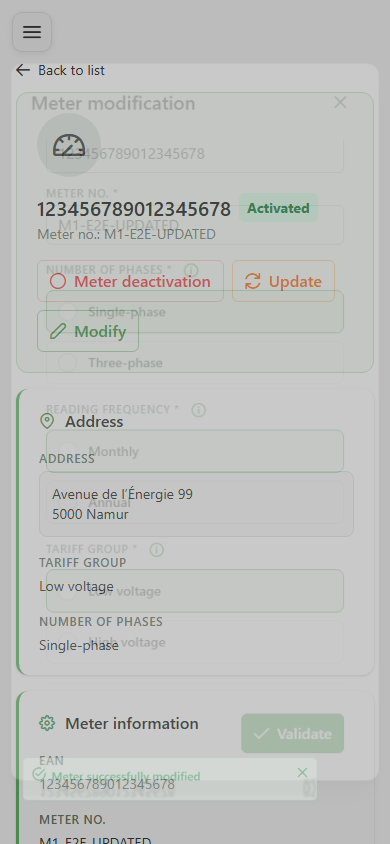
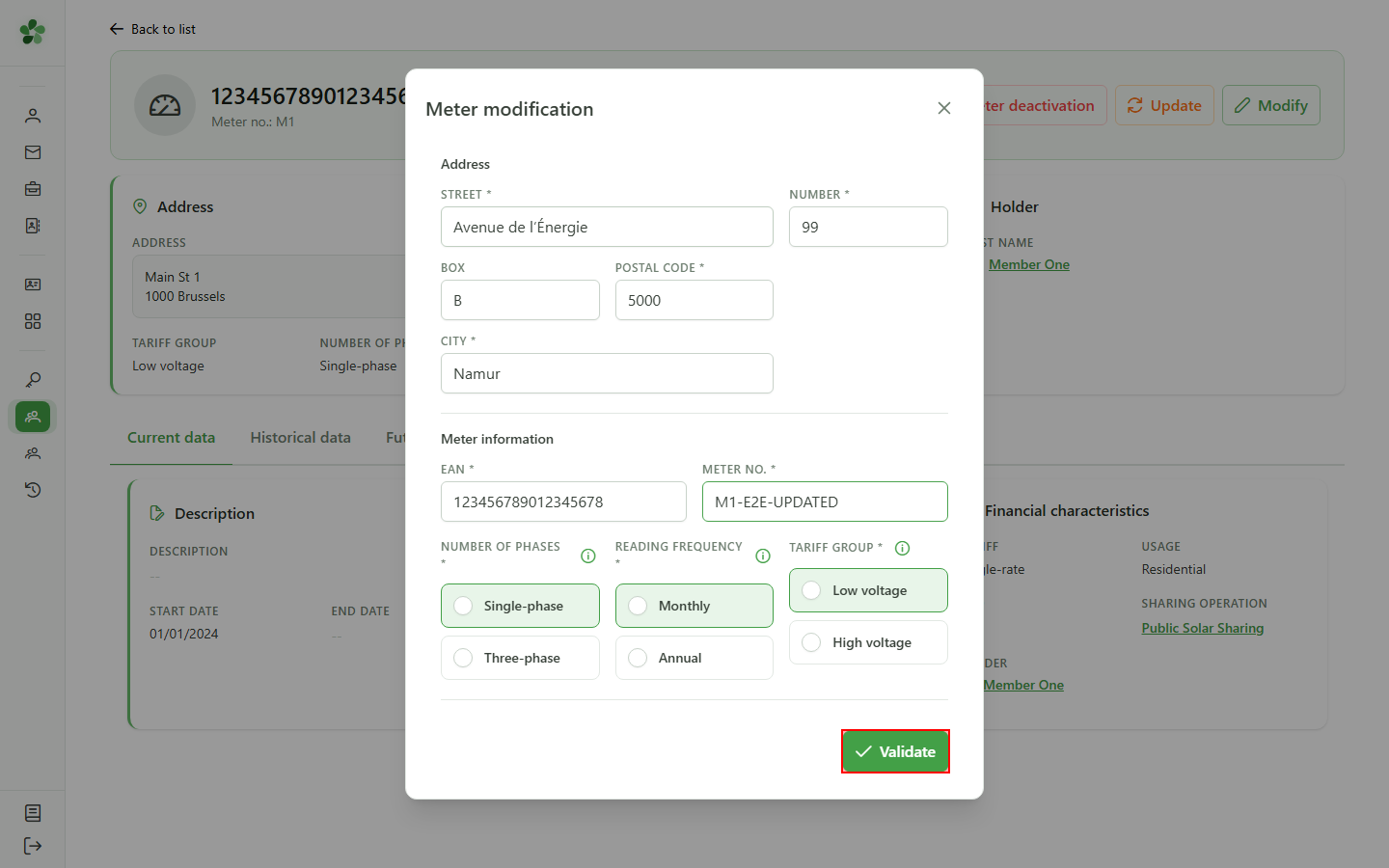
Click "Save" to send the changes to the CRM. The dialog closes once the update is acknowledged.
6 Meter updated
Confirmation
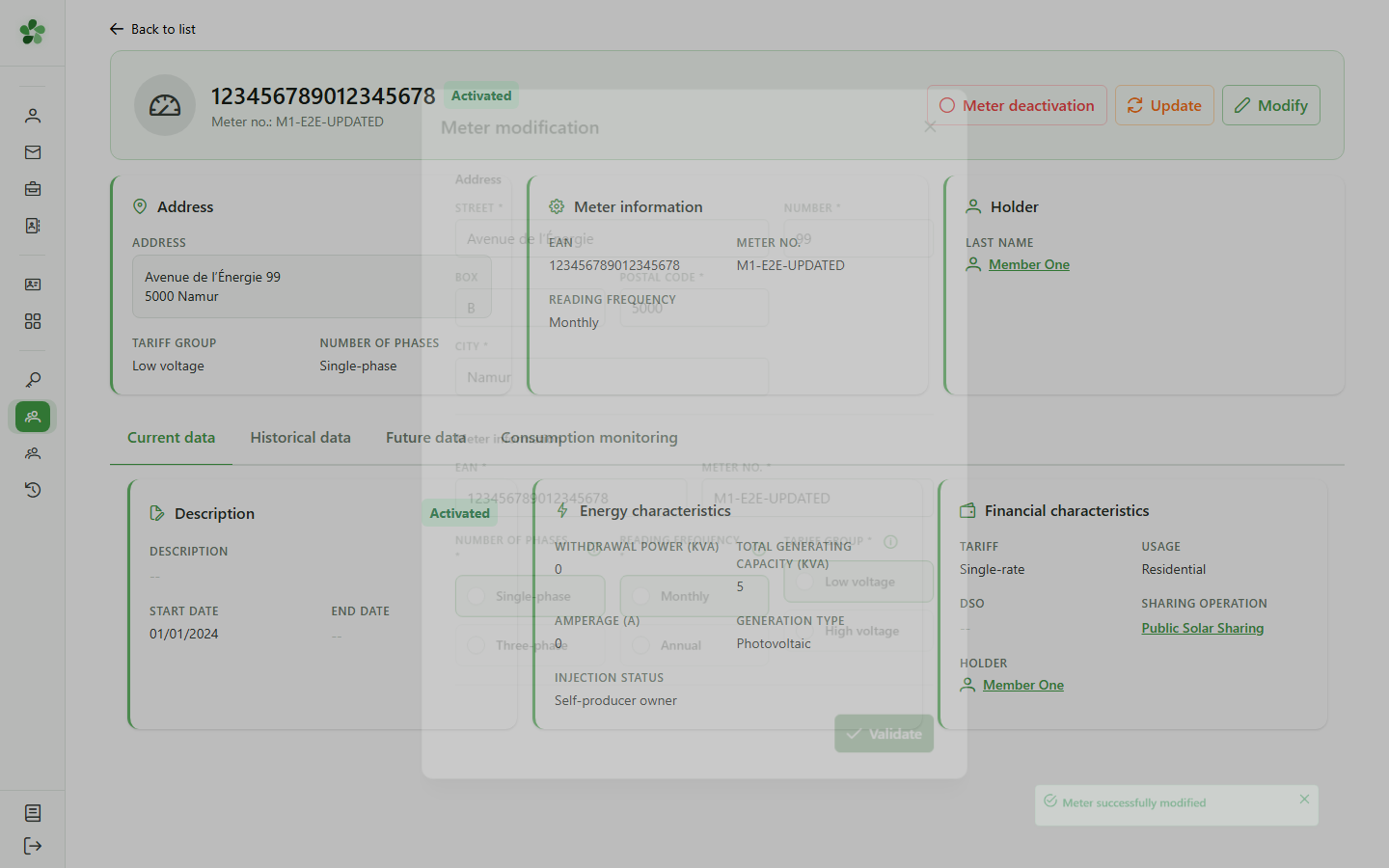
Back on the meter detail page, the new address and meter number appear immediately — the change has been persisted server-side.
Edit a meter
Guide utilisateur
User guide
1 Open the meter detail
Picking the meter
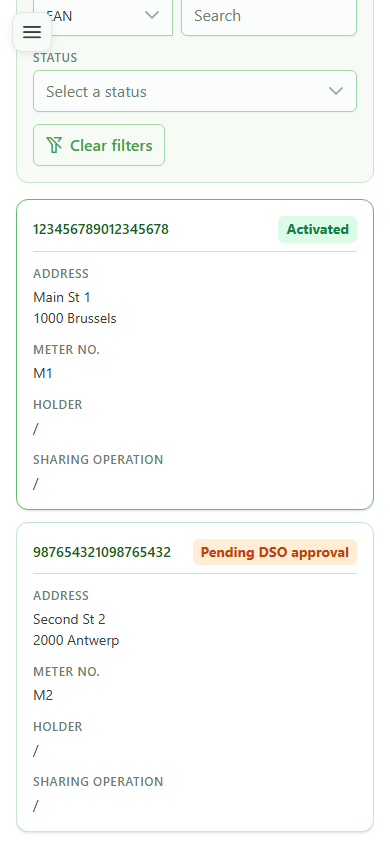
Tap the card of the meter you want to edit to open its detail page.
2 Initial detail
Meter overview
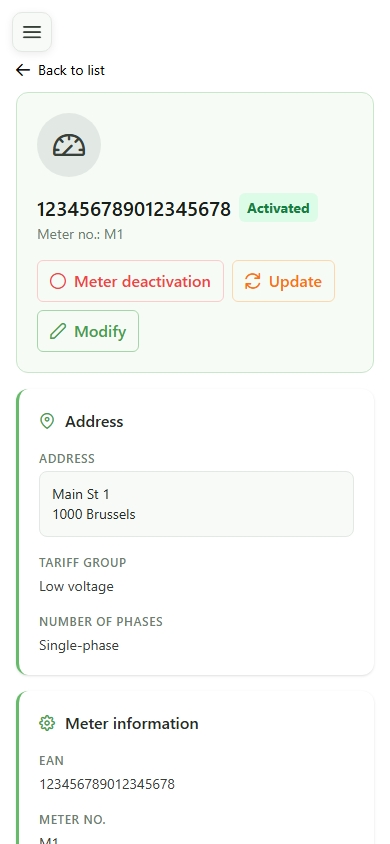
The detail page shows the meter's current information: EAN, installation address and technical characteristics.
3 Open the edit form
Updating the meter
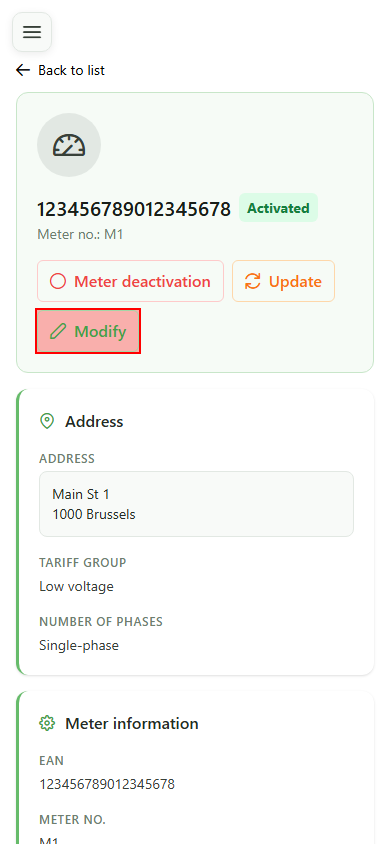
Click "Modify" to open the dialog containing the meter's editable fields (address, number, EAN and characteristics).
4 Update the address
Updating the meter
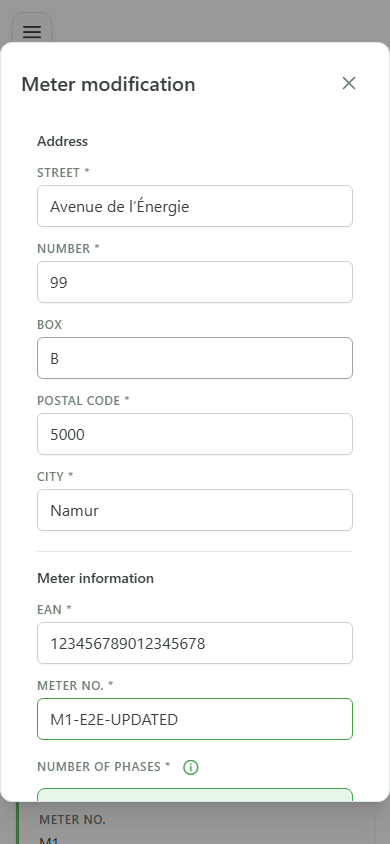
Edit the fields you want to change — here the installation address and the meter's physical number. The EAN and technical characteristics stay the same.
5 Save
Saving
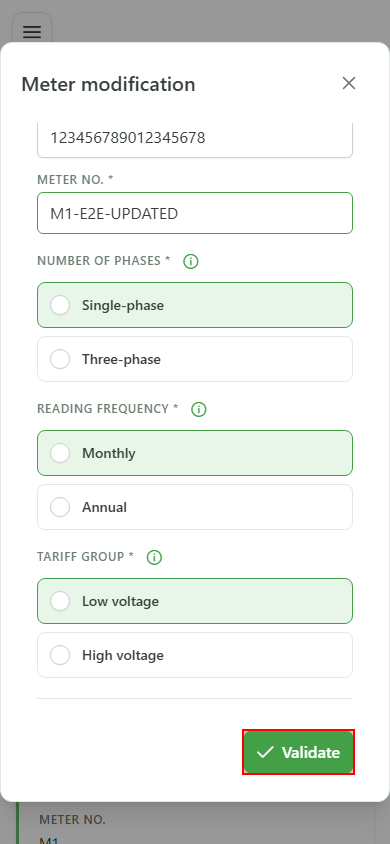
Click "Save" to send the changes to the CRM. The dialog closes once the update is acknowledged.
6 Meter updated
Confirmation
Back on the meter detail page, the new address and meter number appear immediately — the change has been persisted server-side.