Edit a member
Guide utilisateur
User guide
1 Open the members list
Navigation
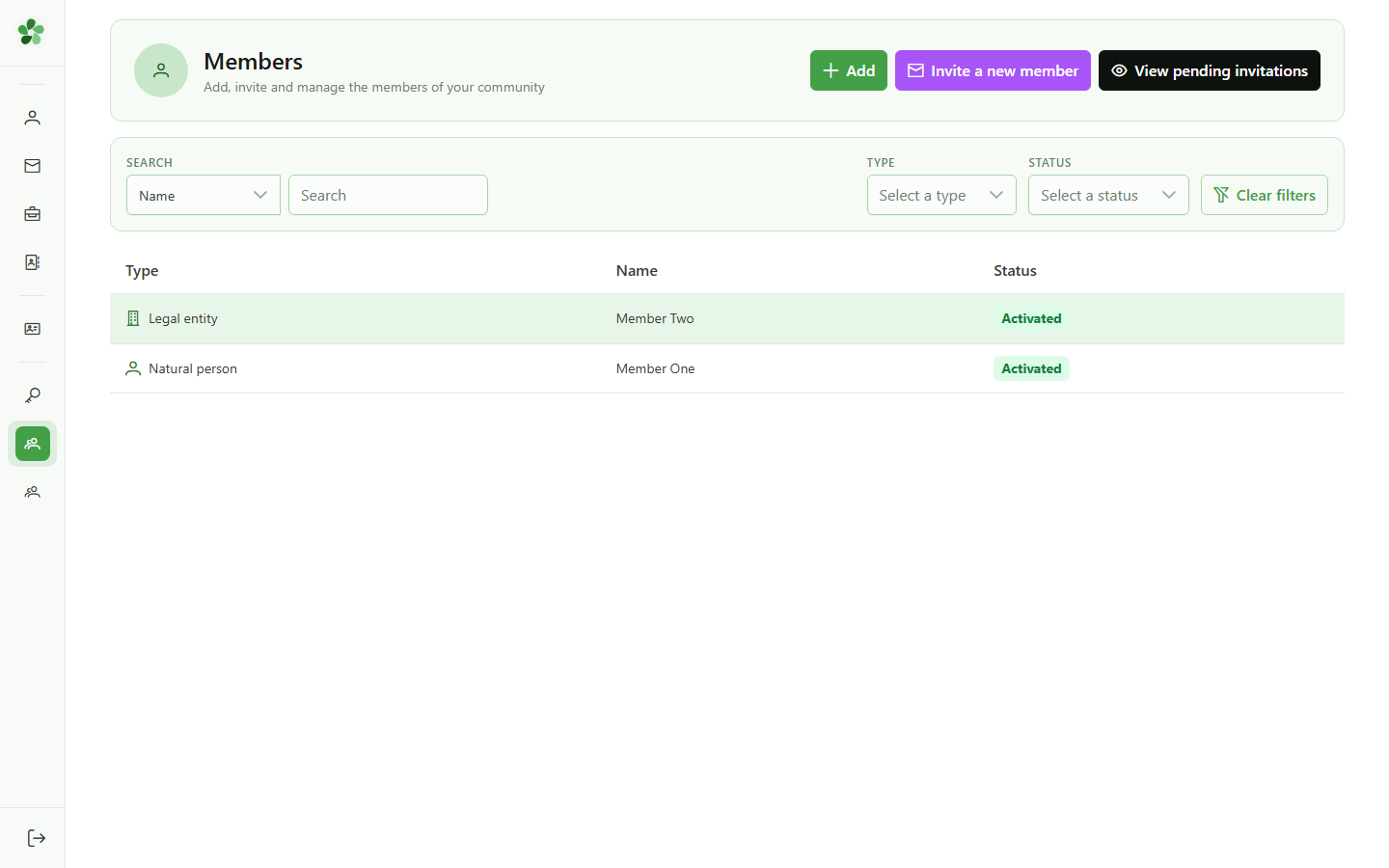
From the management menu, open the members list to locate the person whose information you want to update.
2 Select the member
Find the member
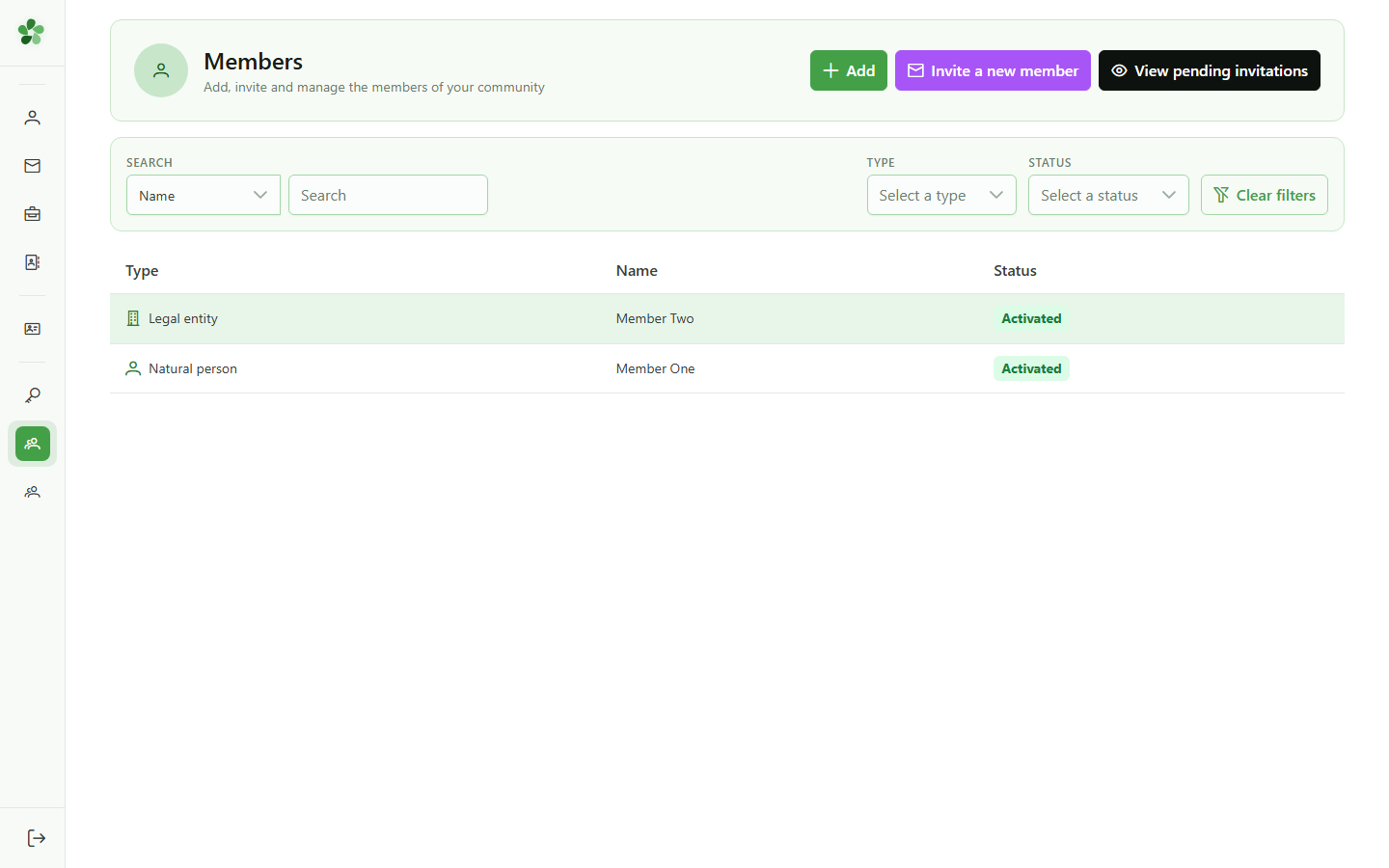
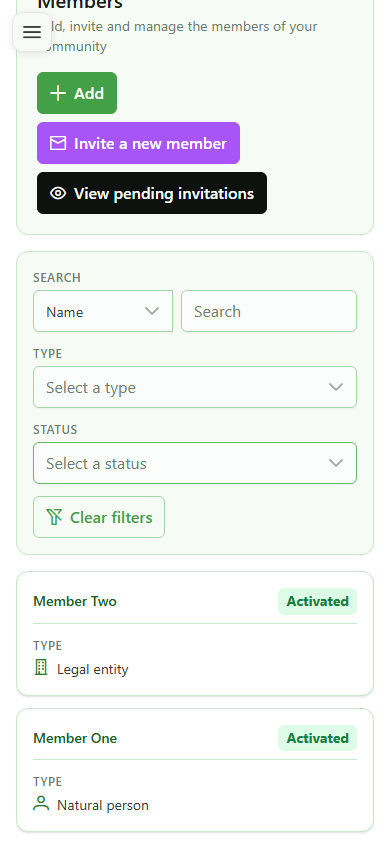
Click the row of the member you want to update — here "Member One" — to open their detail page.
3 Open the modification form
Editing the member
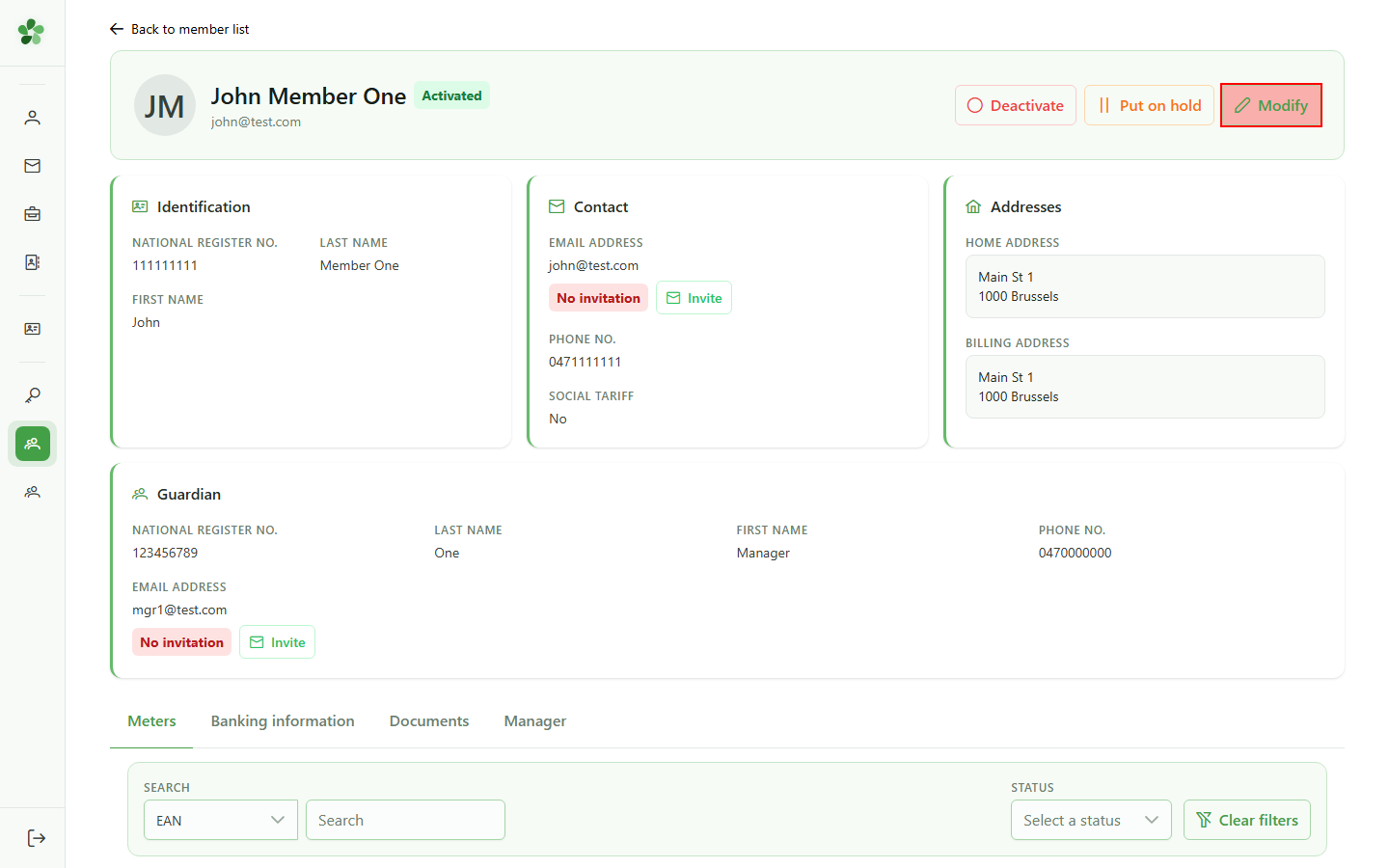
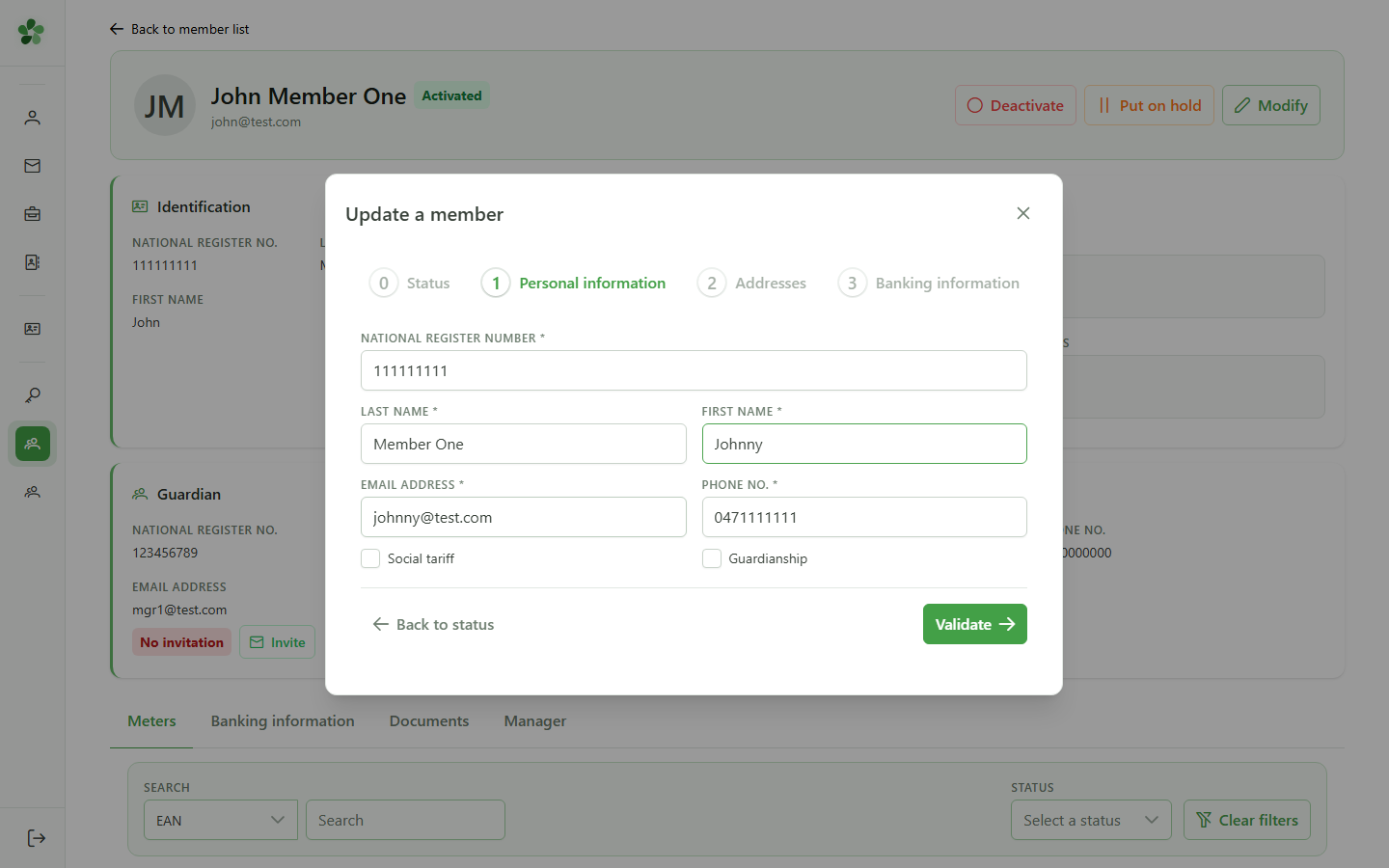
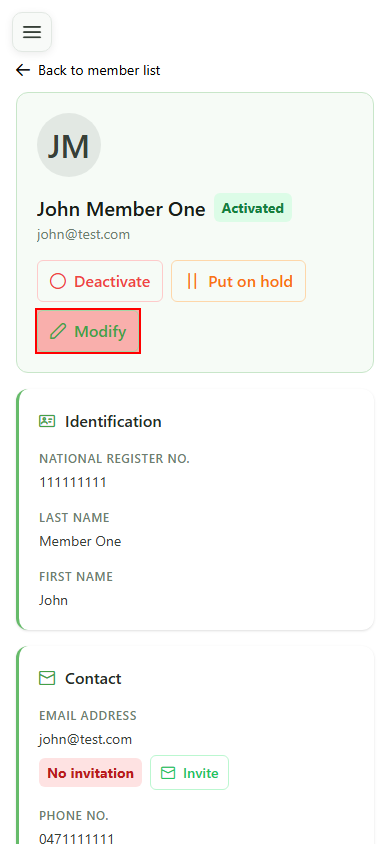
Click "Modify" in the member header — the update dialog opens, pre-populated with the member's current information.
4 Enter the new information
Editing the member
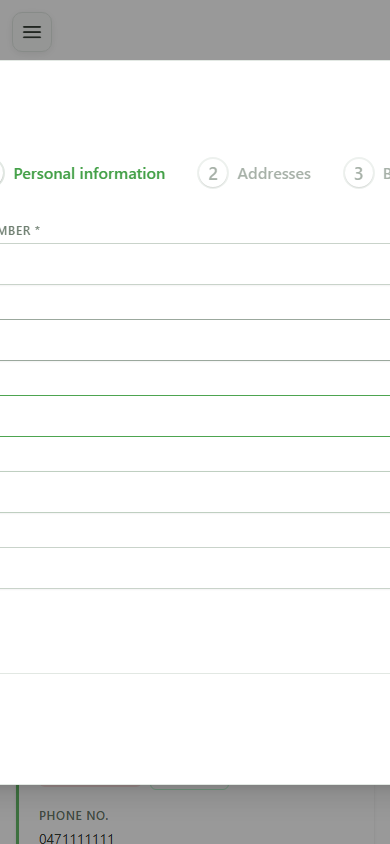
Update the first name and email address in the matching fields. The other fields stay as they were and are preserved unchanged.
5 Save the changes
Confirmation
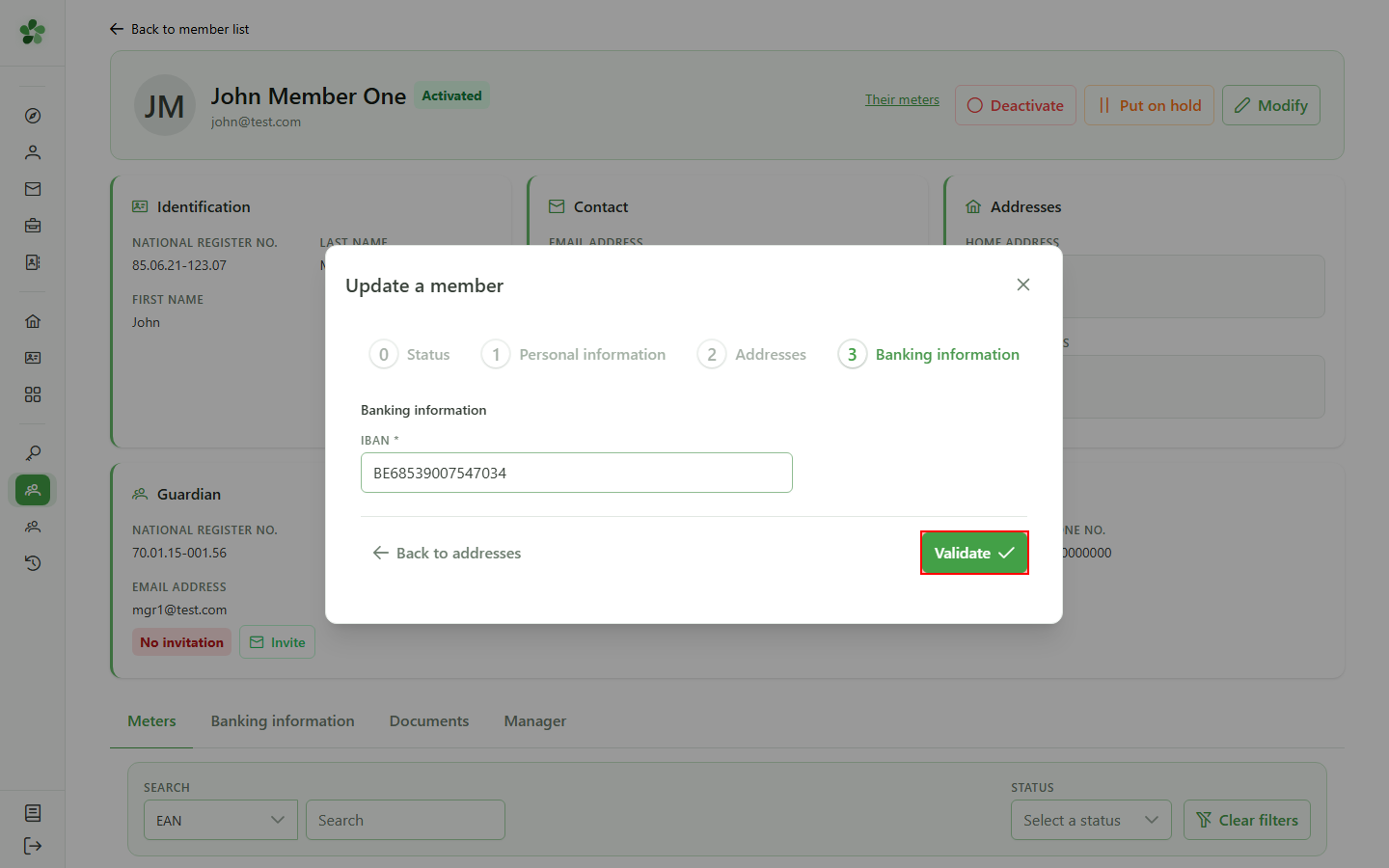
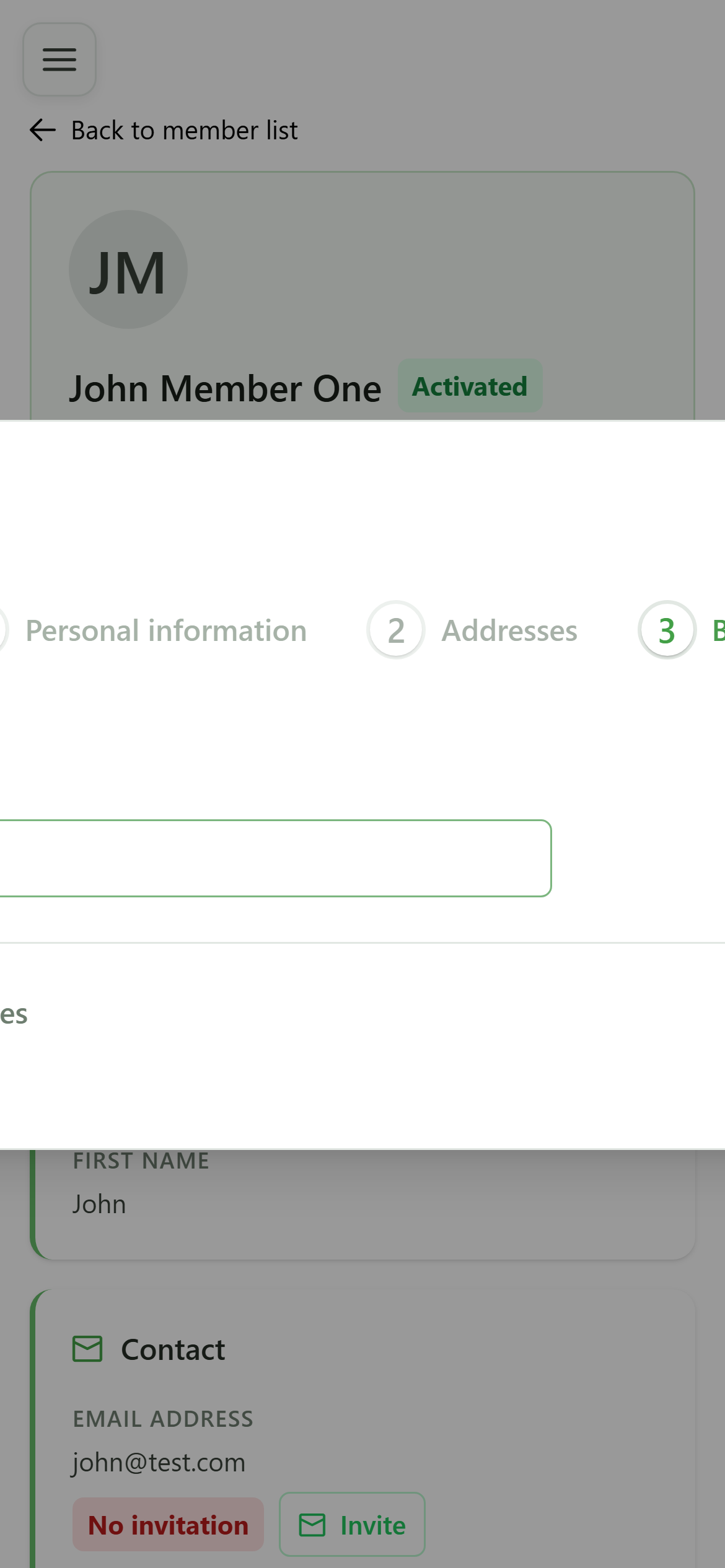
Step through the address and banking panels without changing anything, then click "Save" to send the updated information to the CRM.
6 Member updated
Confirmation
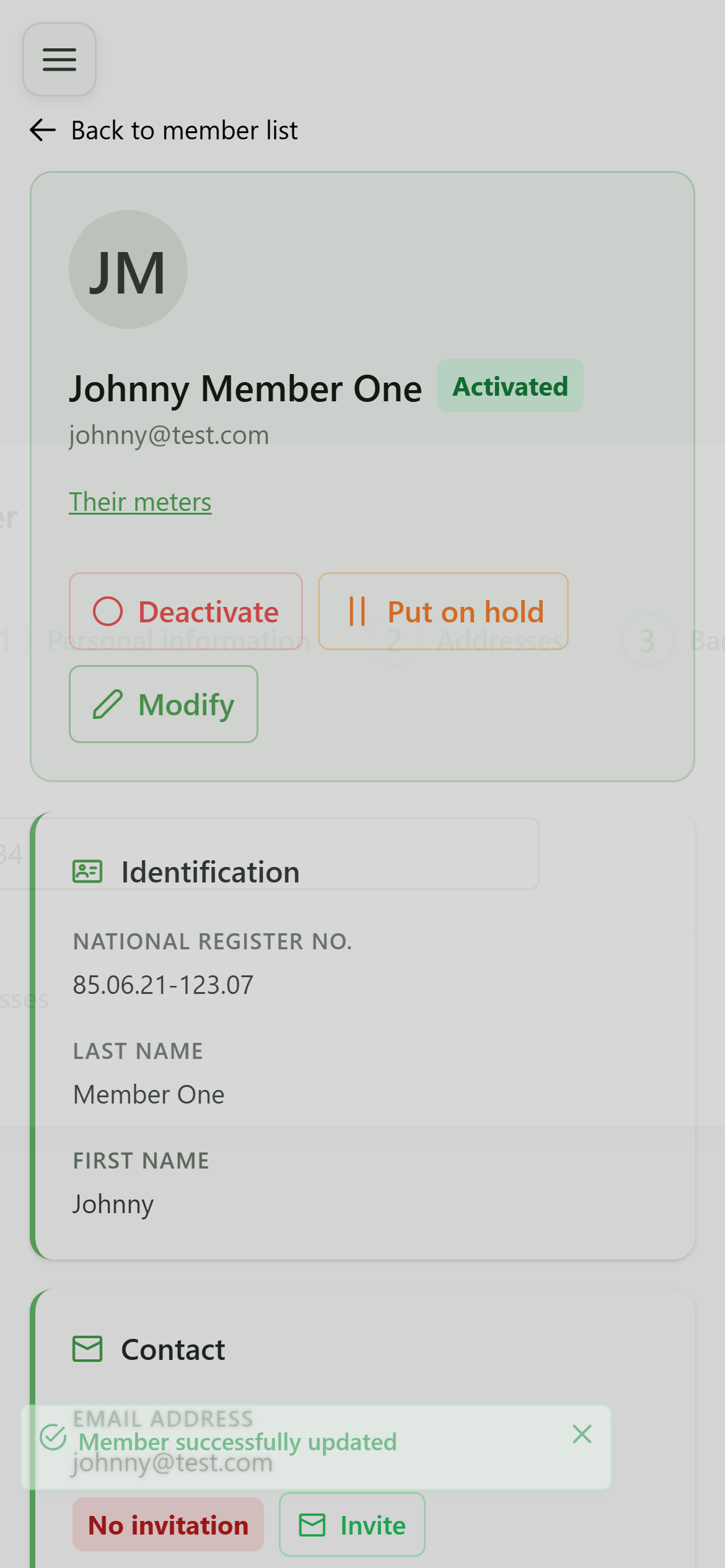
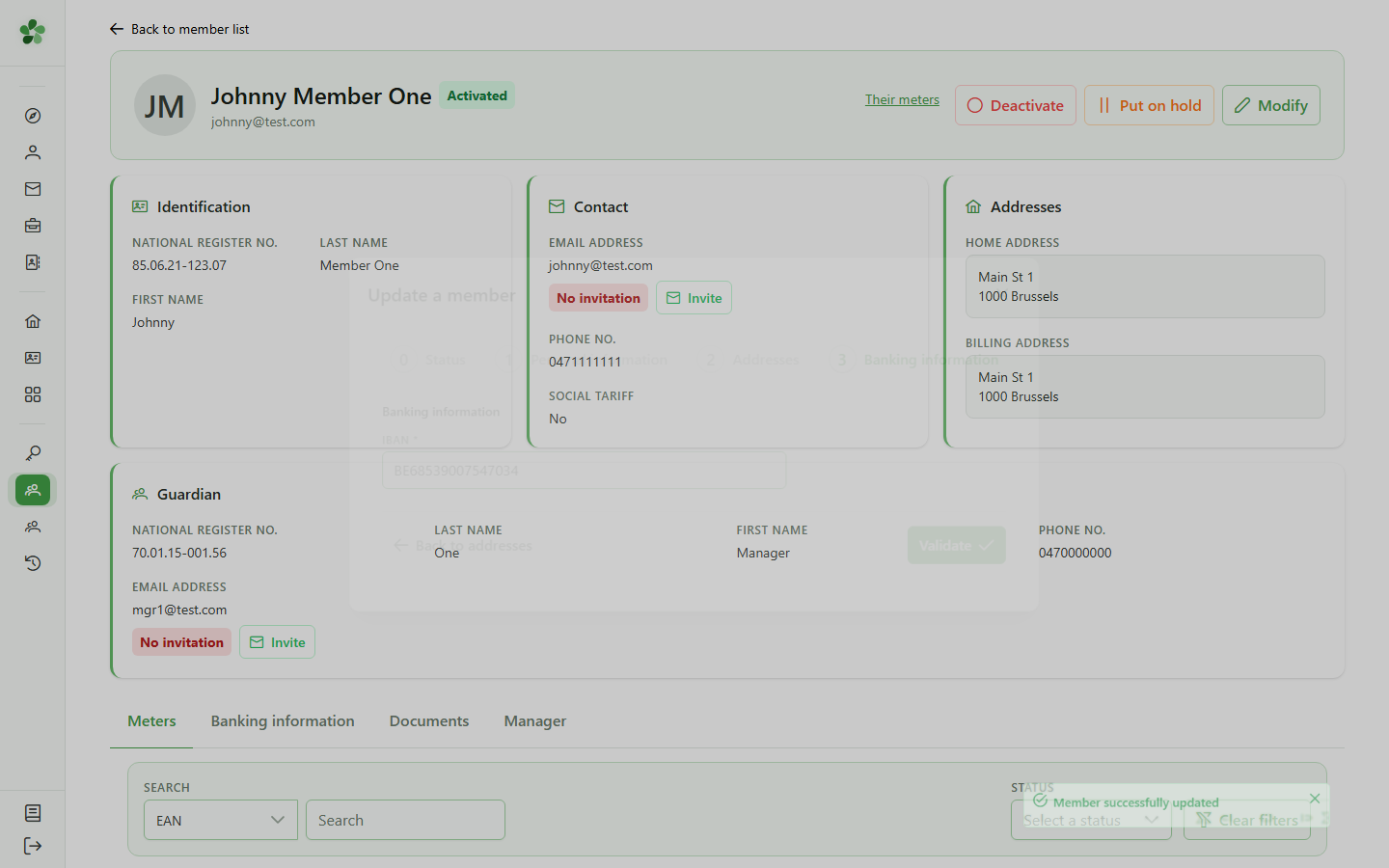
Back on the member's detail page, the new first name and email address show up right away — the change has been persisted server-side.
Edit a member
Guide utilisateur
User guide
1 Open the members list
Navigation
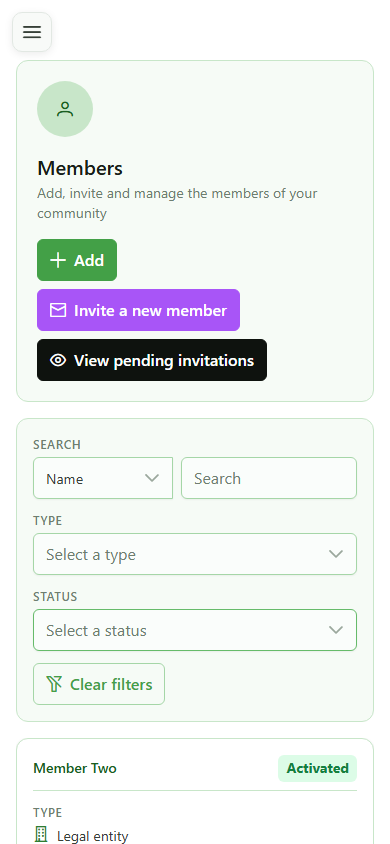
From the management menu, open the members list to locate the person whose information you want to update.
2 Select the member
Find the member
Click the row of the member you want to update — here "Member One" — to open their detail page.
3 Open the modification form
Editing the member
Click "Modify" in the member header — the update dialog opens, pre-populated with the member's current information.
4 Enter the new information
Editing the member
Update the first name and email address in the matching fields. The other fields stay as they were and are preserved unchanged.
5 Save the changes
Confirmation
Step through the address and banking panels without changing anything, then click "Save" to send the updated information to the CRM.
6 Member updated
Confirmation
Back on the member's detail page, the new first name and email address show up right away — the change has been persisted server-side.