Upload a document to a member
Guide utilisateur
User guide
Gebruikershandleiding
Benutzerhandbuch
1 Documents tab
Member documents
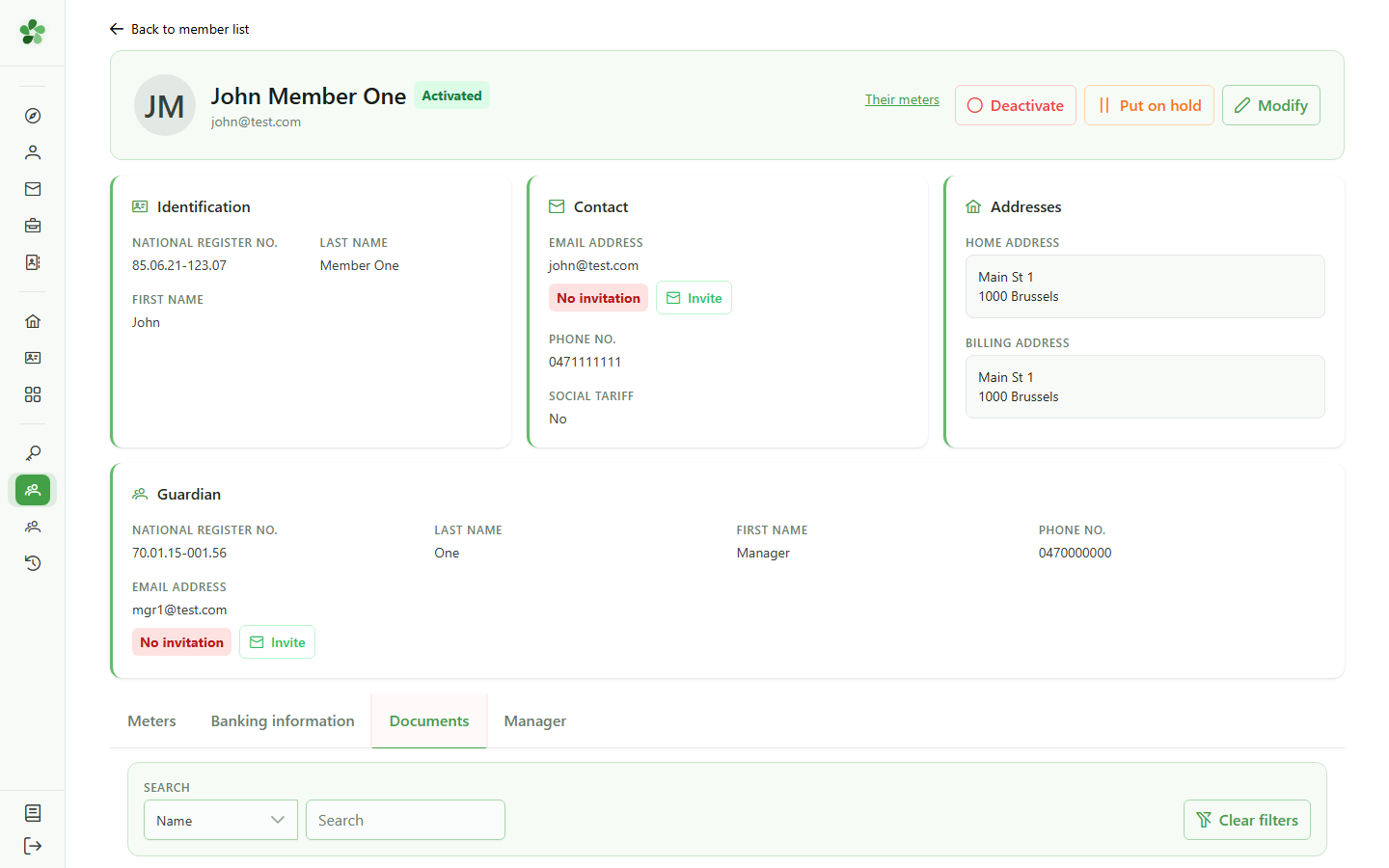
Open the member's "Documents" tab. You can review existing documents and add new ones.
2 Add a document
Member documents
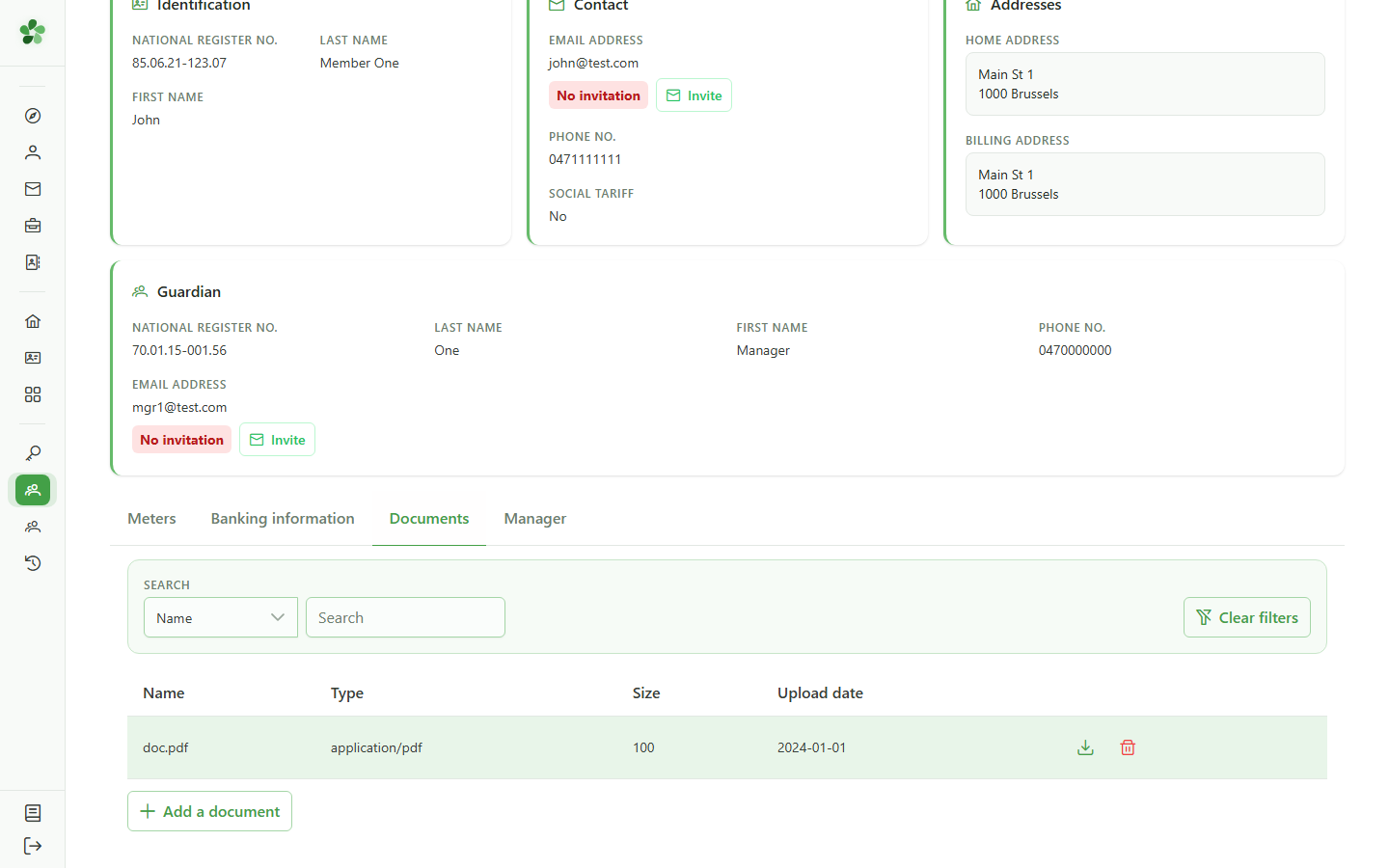
Click "Add document" to open the upload dialog.
3 Choose the file
Member documents
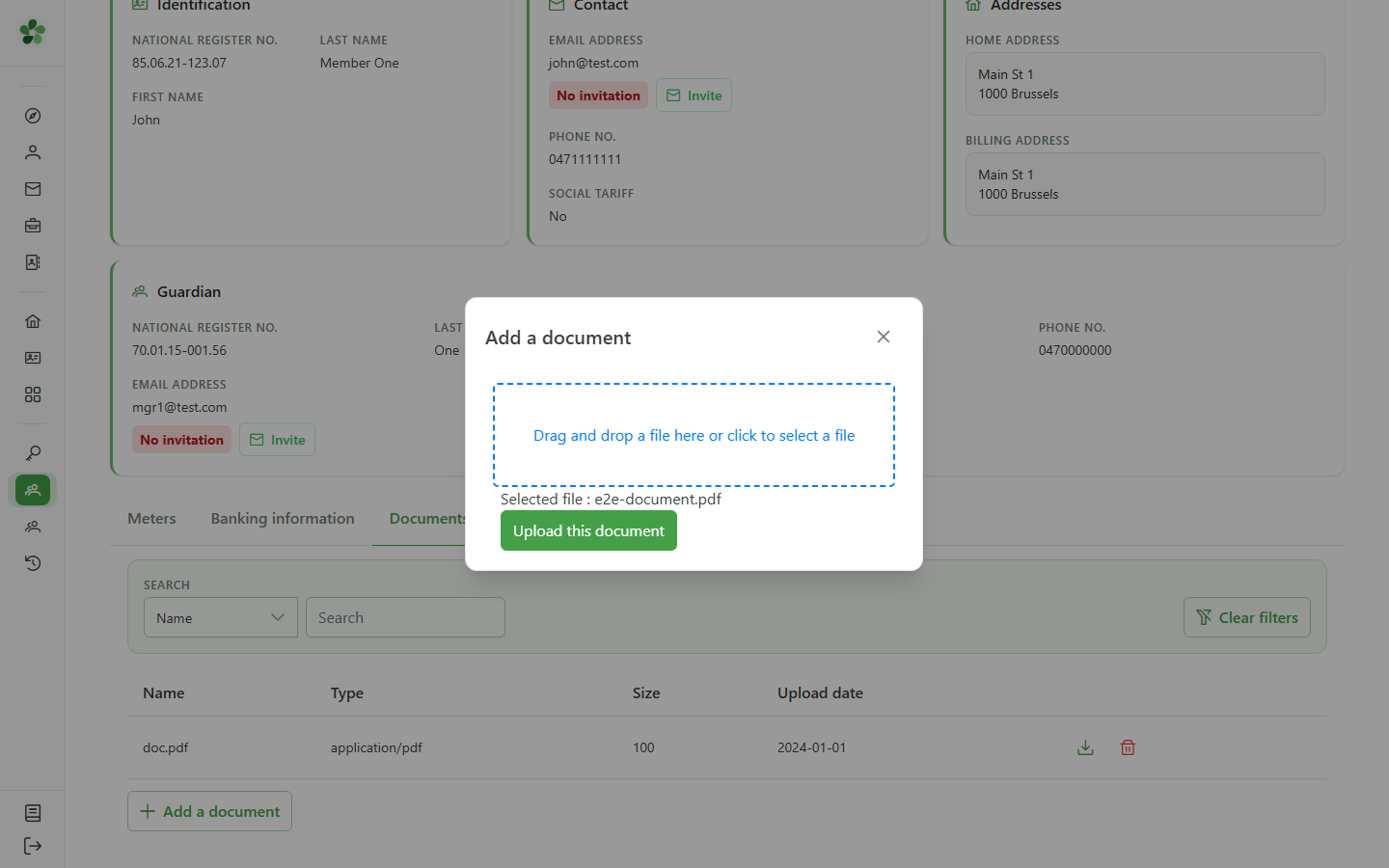
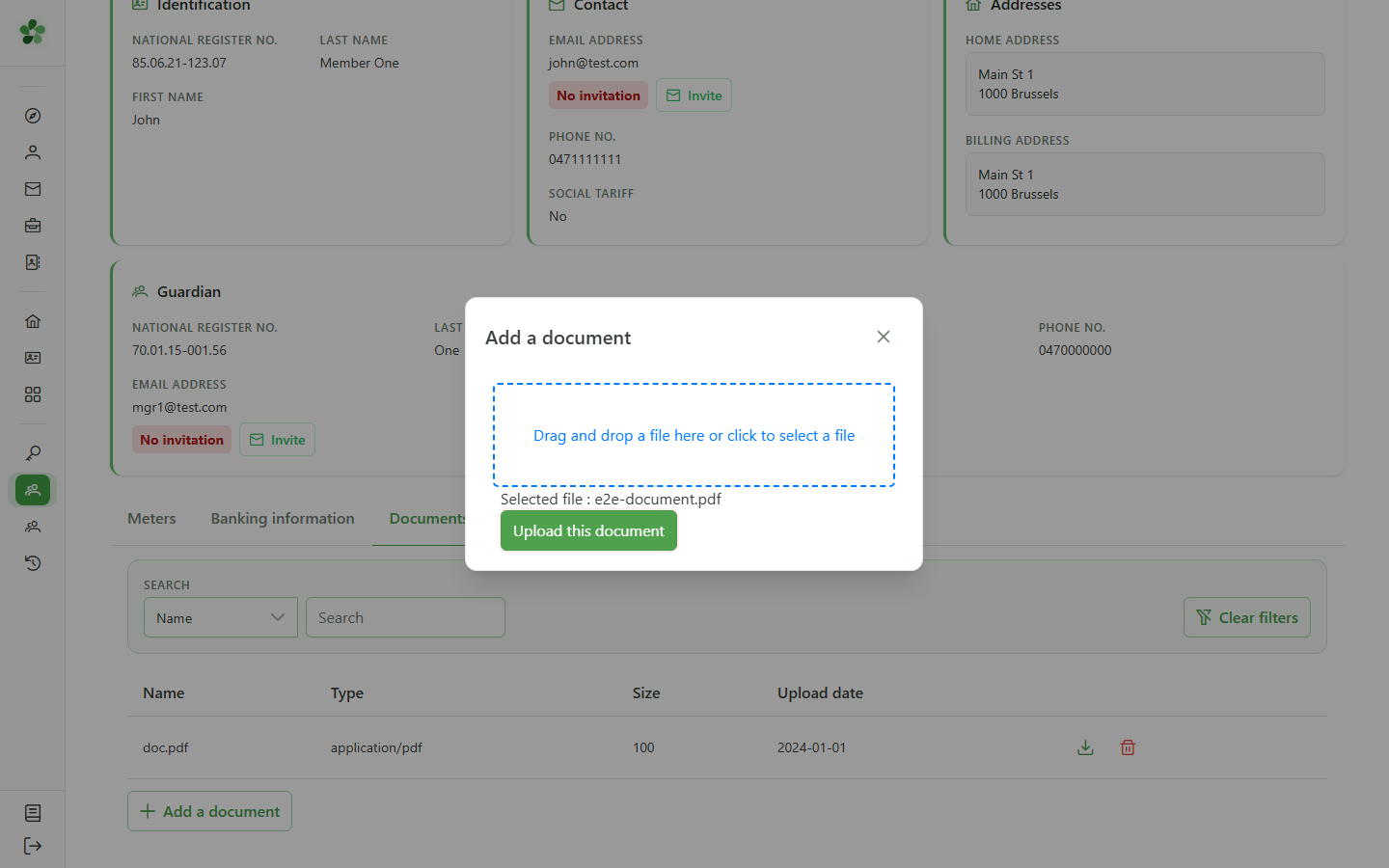
Select the file to upload from your computer (or drag it into the drop zone).
4 Upload
Member documents
Click "Upload": the document is saved and attached to the member.
5 Document added
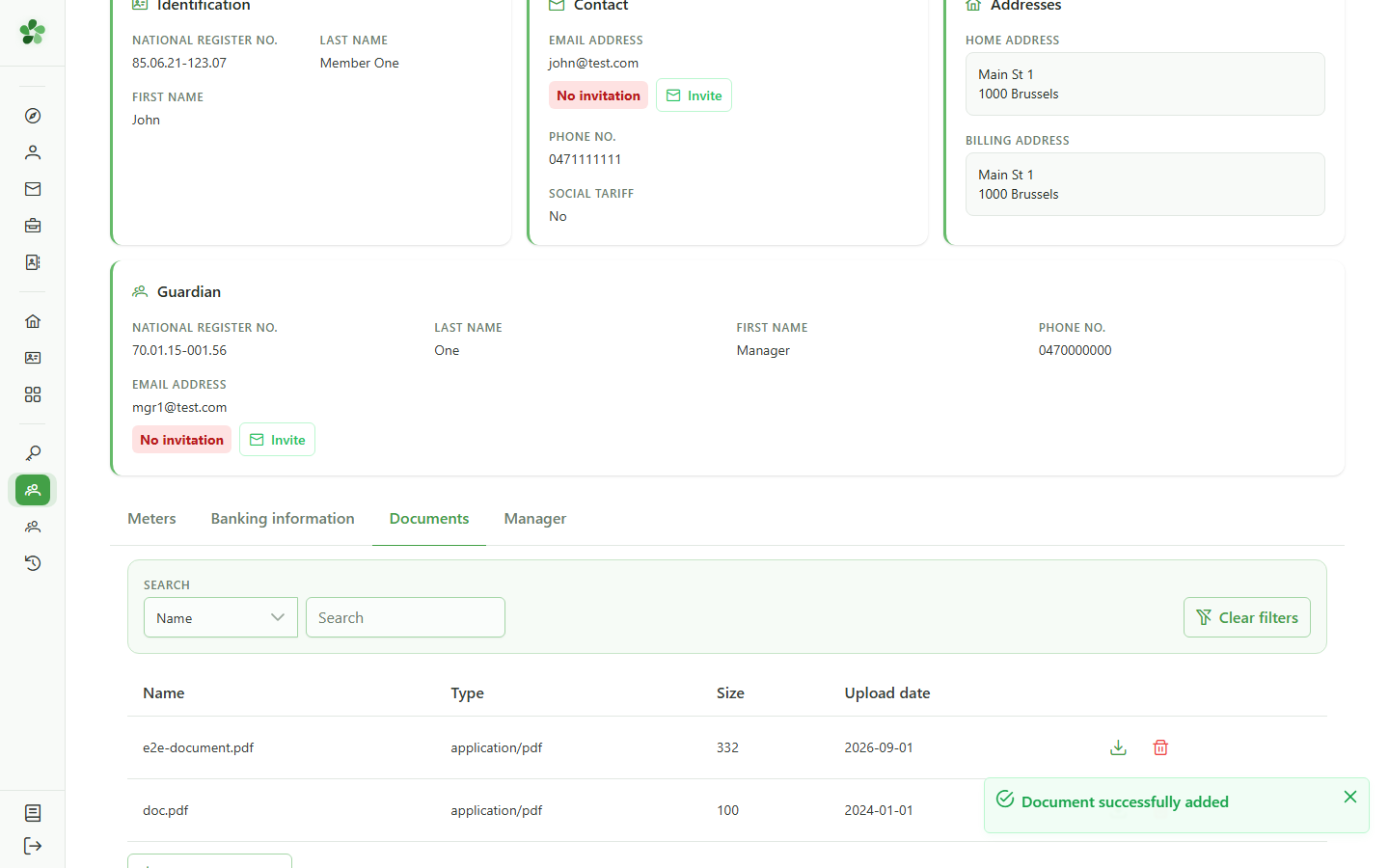
Confirmation
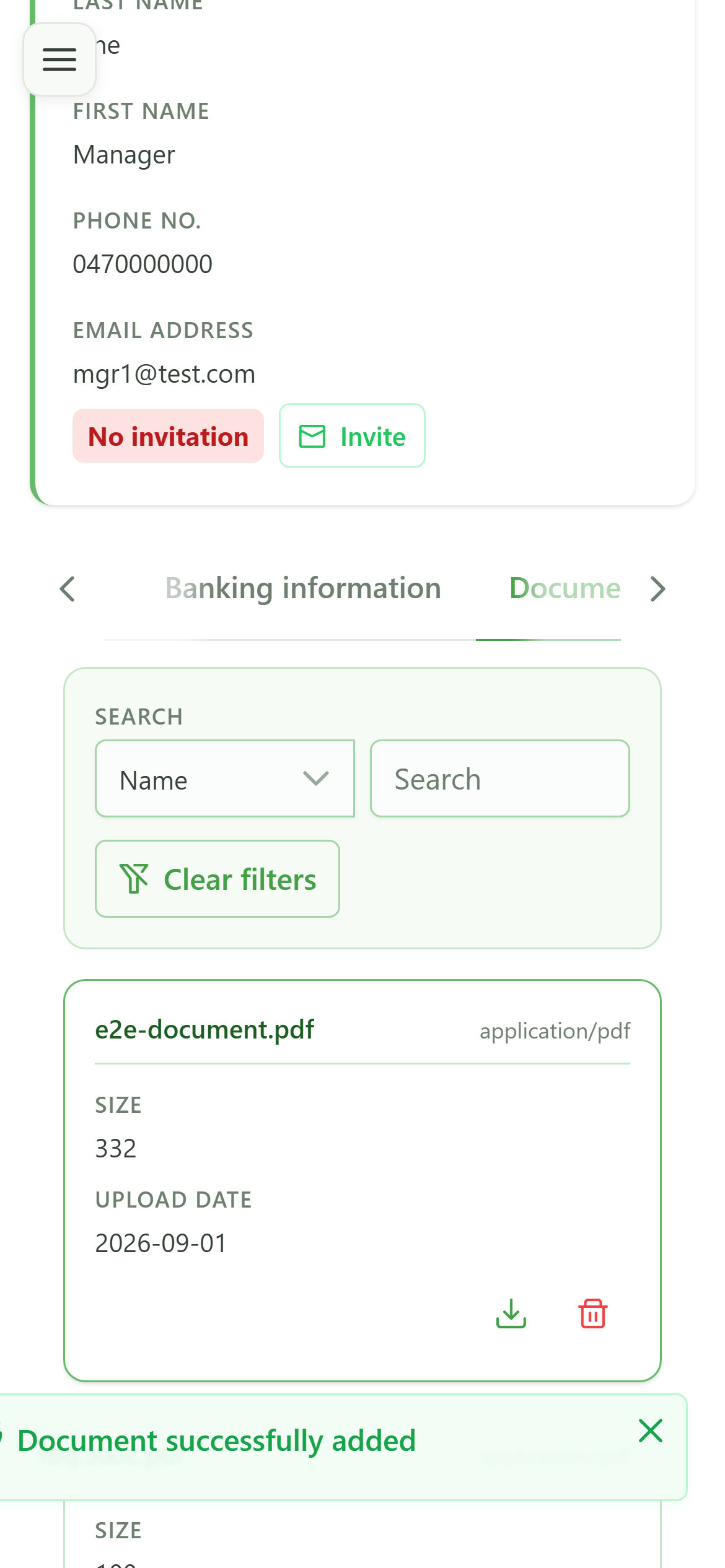
The document "e2e-document.pdf" now appears in the member's document list.
Upload a document to a member
Guide utilisateur
User guide
Gebruikershandleiding
Benutzerhandbuch
1 Documents tab
Member documents
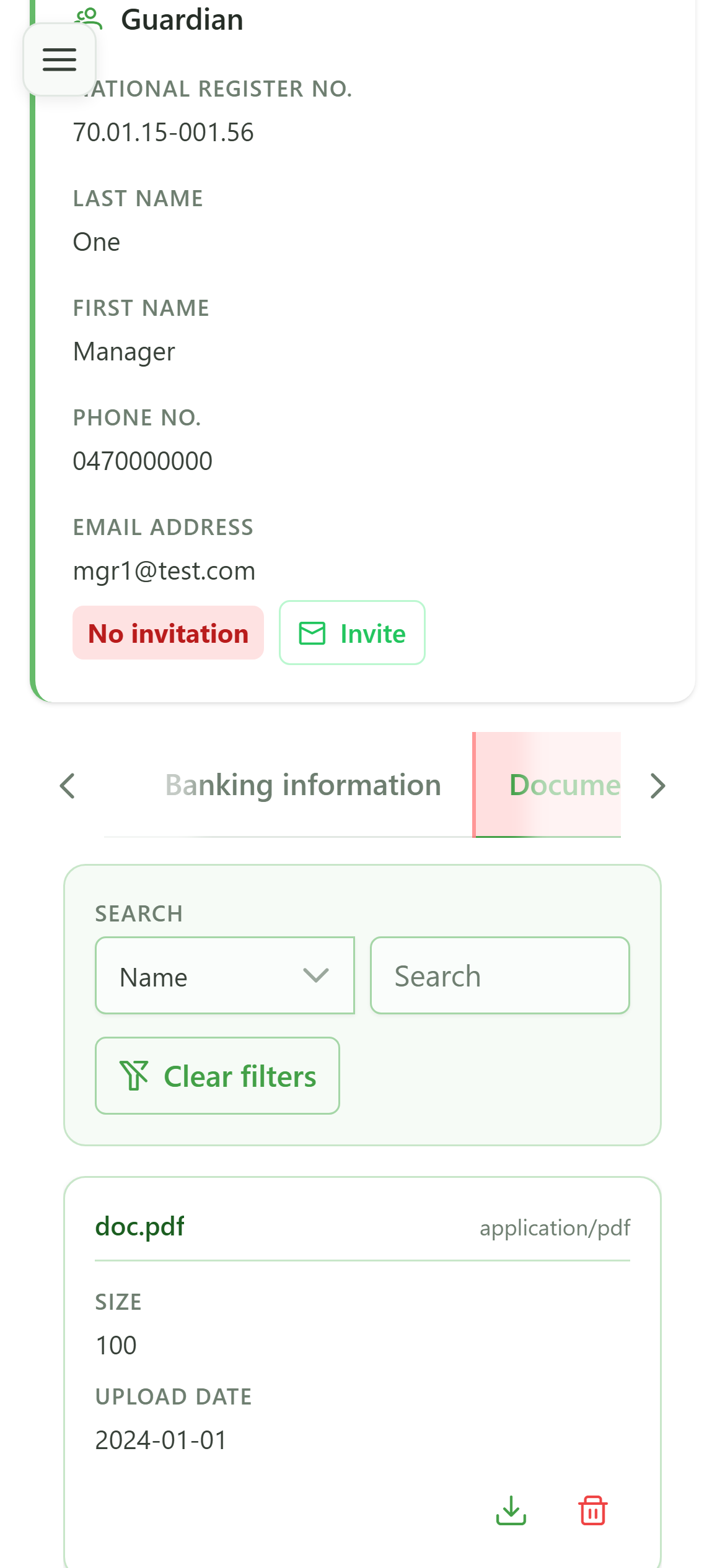
Open the member's "Documents" tab. You can review existing documents and add new ones.
2 Add a document
Member documents
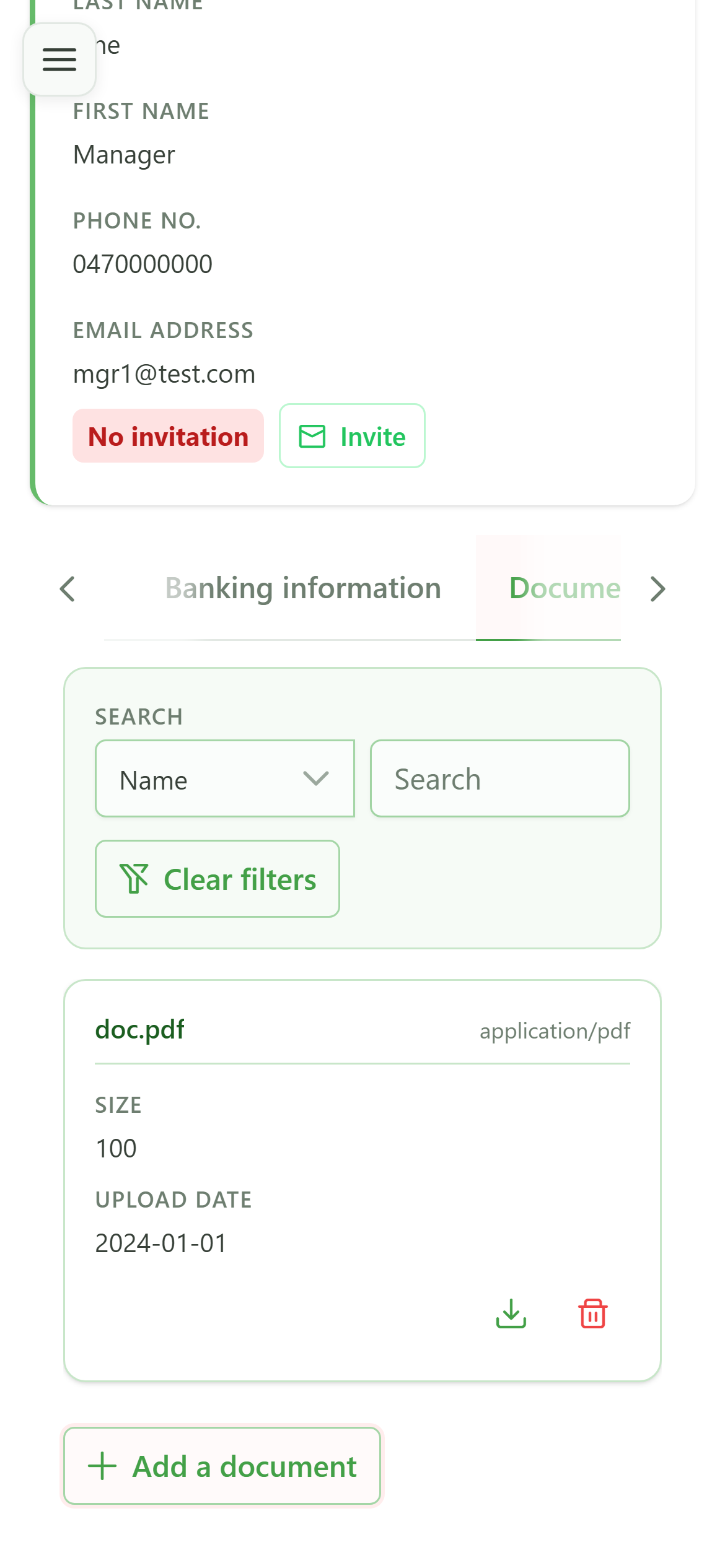
Click "Add document" to open the upload dialog.
3 Choose the file
Member documents
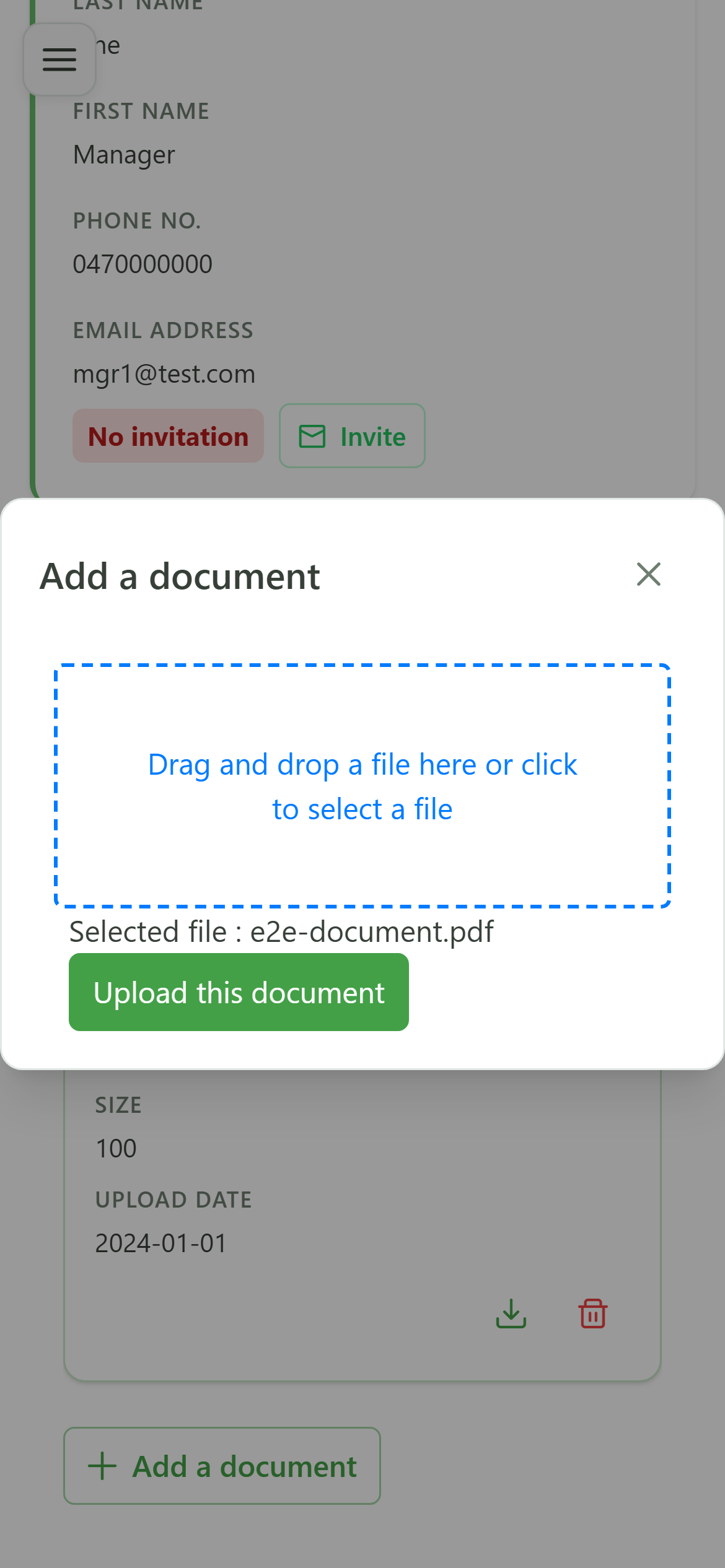
Select the file to upload from your computer (or drag it into the drop zone).
4 Upload
Member documents
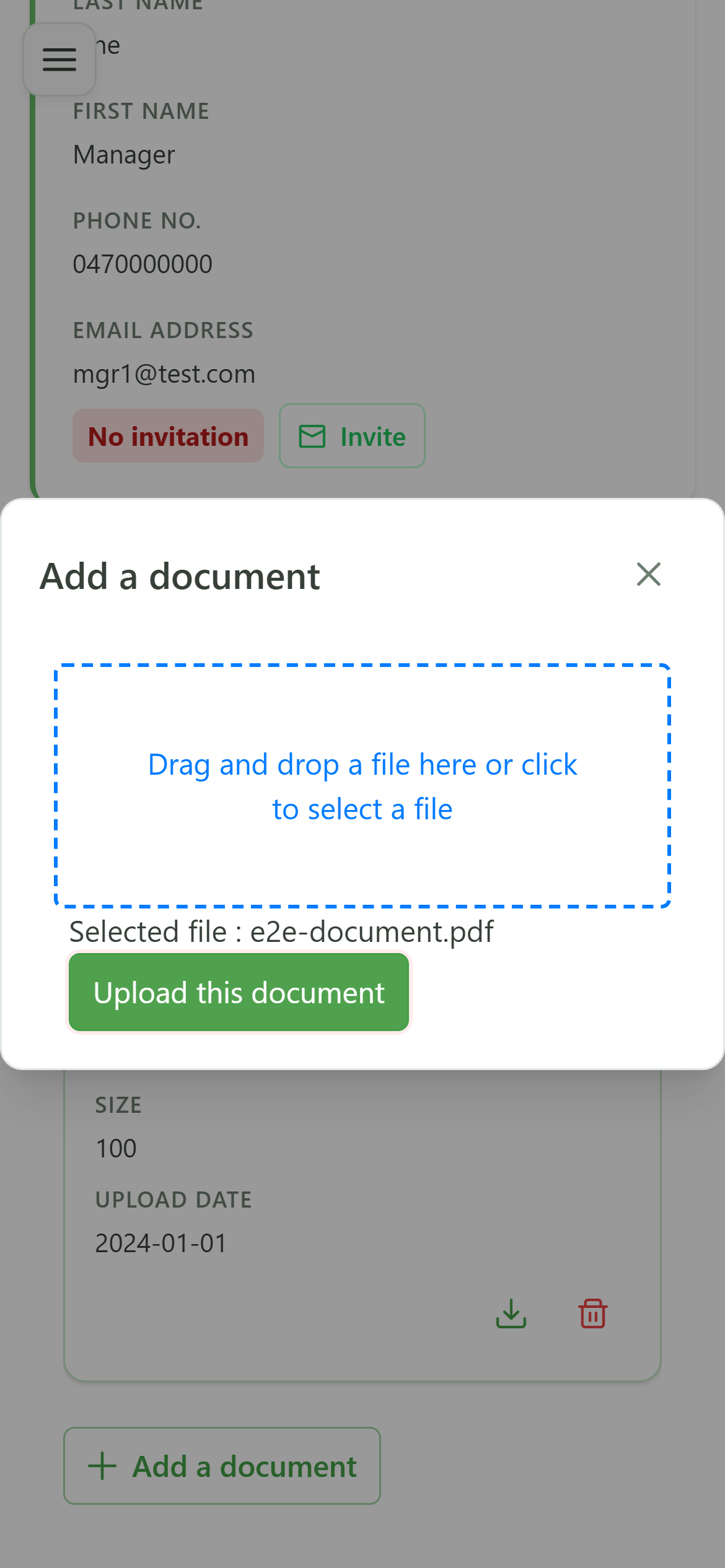
Click "Upload": the document is saved and attached to the member.
5 Document added
Confirmation
The document "e2e-document.pdf" now appears in the member's document list.