Create a company member
Guide utilisateur
User guide
Gebruikershandleiding
Benutzerhandbuch
1 Open the members list
Navigation
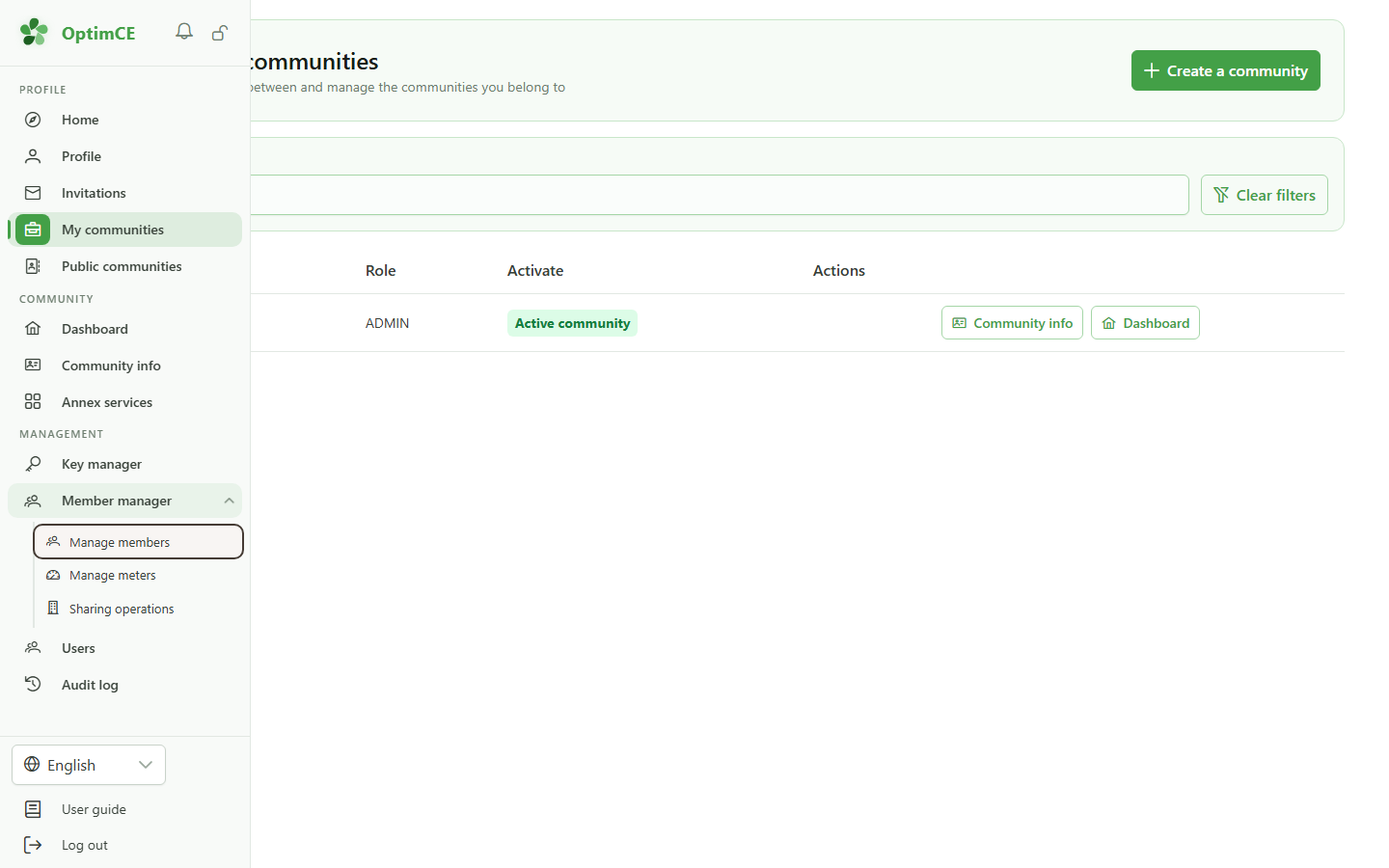
In the "Management" section, open "Members" then click "Members".
2 Add a member
Creating a company member
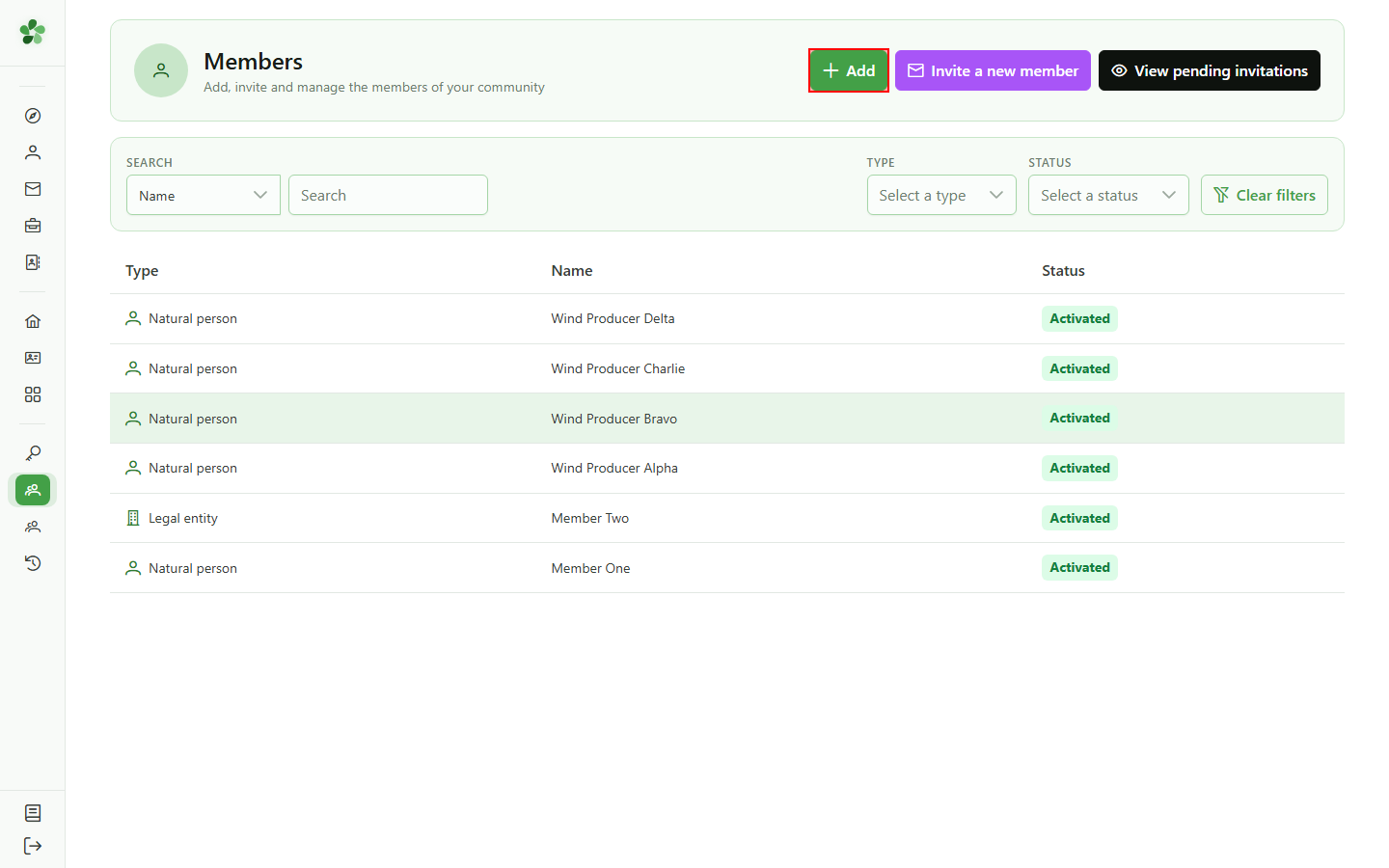
Click "Add member" to open the four-step creation wizard.
3 Pick the "Company" type
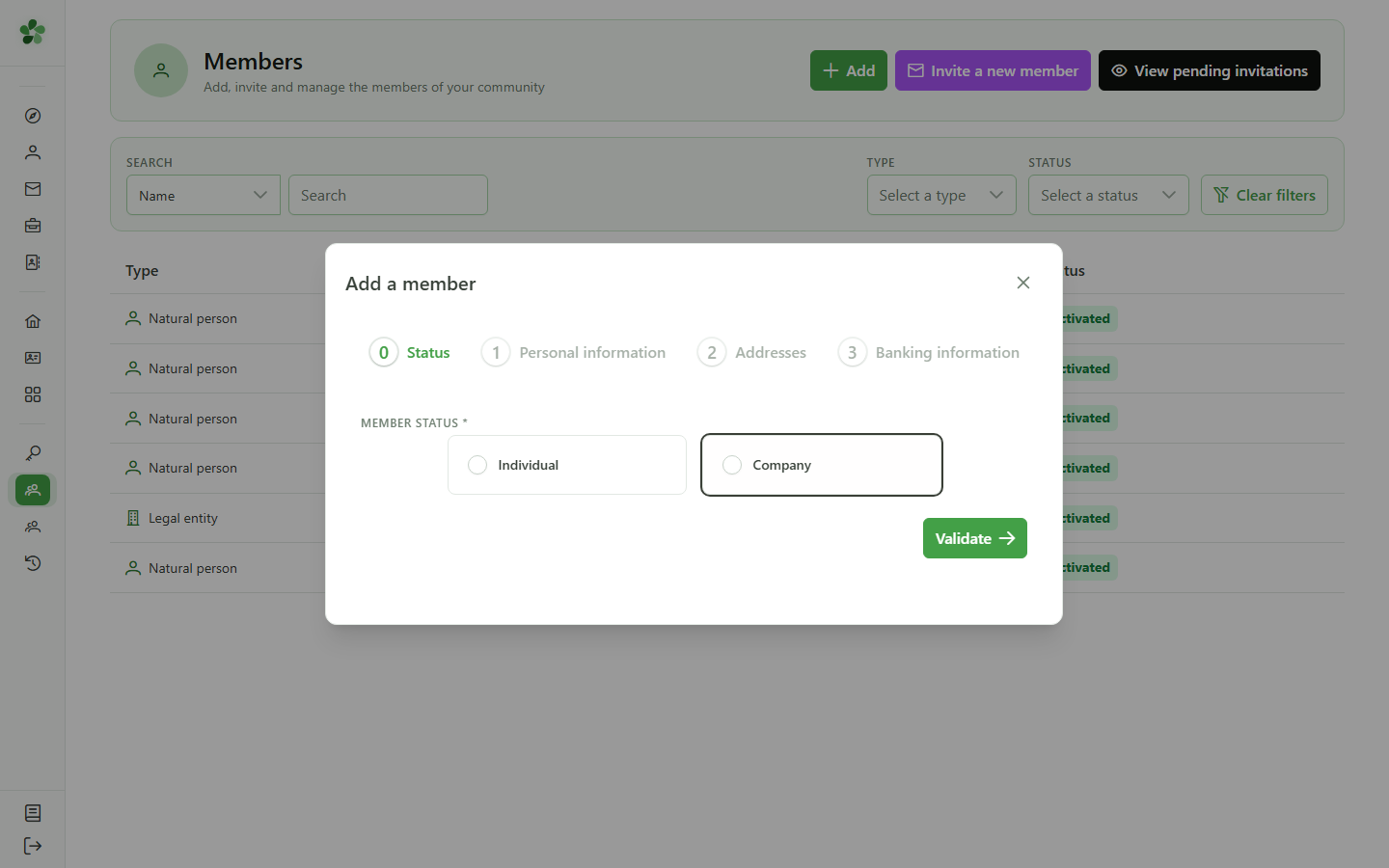
Step 1 — Type
Select "Company" to create a legal-entity member. The next step adapts its fields: company number and VAT number instead of a national number.
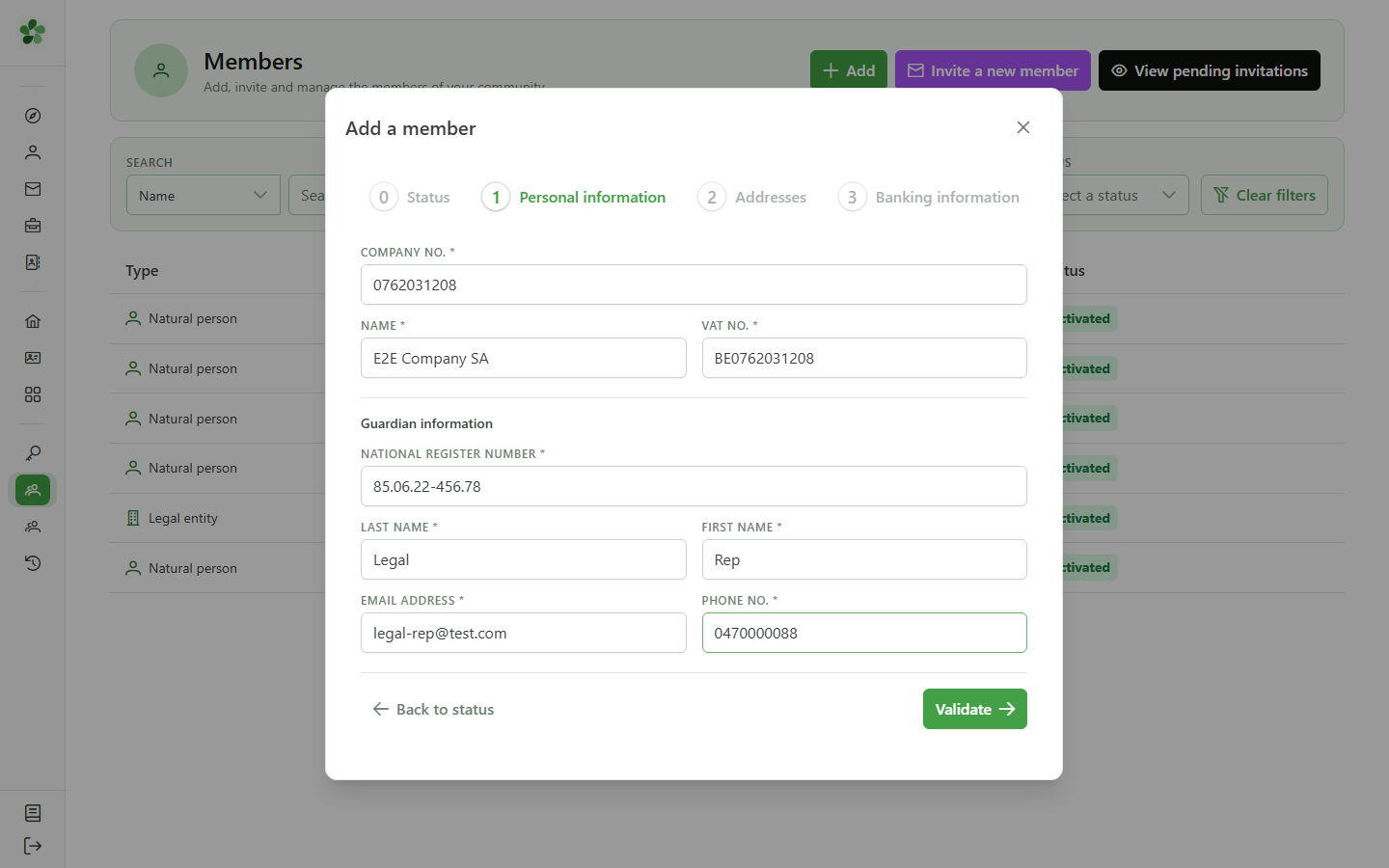
4 Fill in the company
Step 2 — Identity
Enter the company number, legal name and VAT number. Since a company is a legal entity, also provide its legal representative: national number, name, email and phone.
5 Enter the address
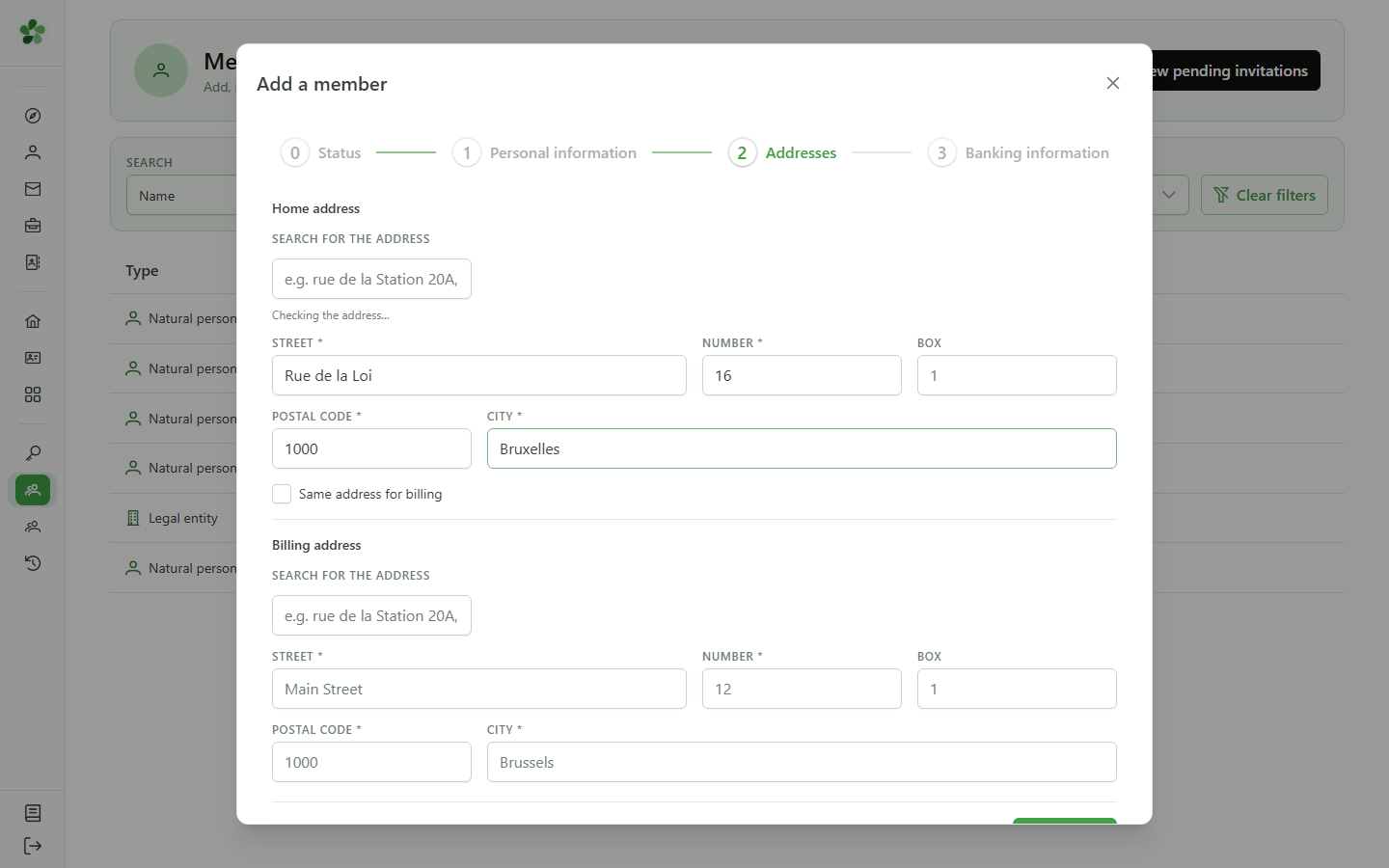
Step 3 — Address
Fill in the registered office address. Tick "Same address" to reuse it as the billing address.
6 Enter the IBAN
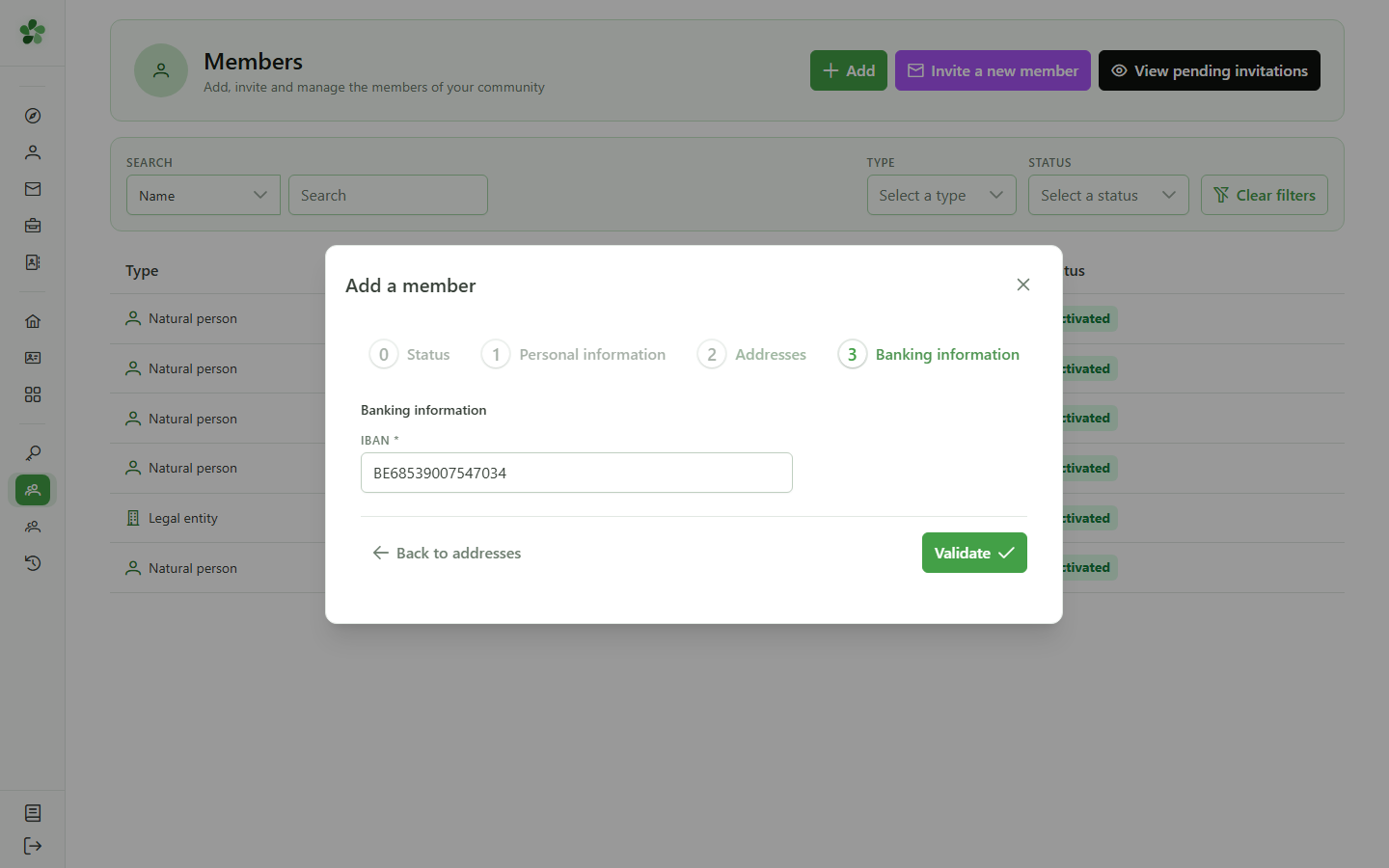
Step 4 — Banking
Enter the company's IBAN, used for refunds tied to sharing operations.
7 Submit the new member
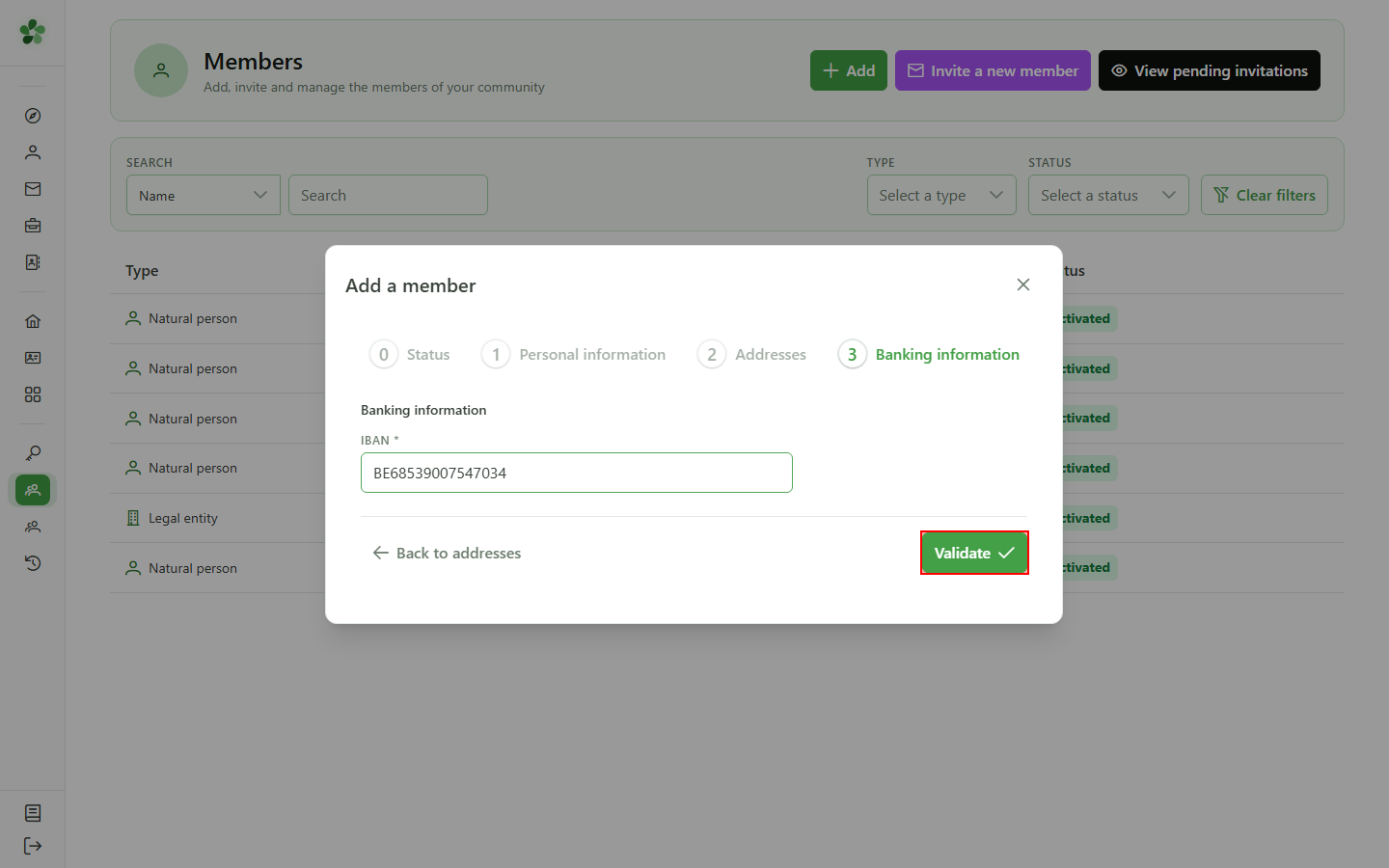
Confirmation
Click "Submit" to create the company and attach it to the active community.
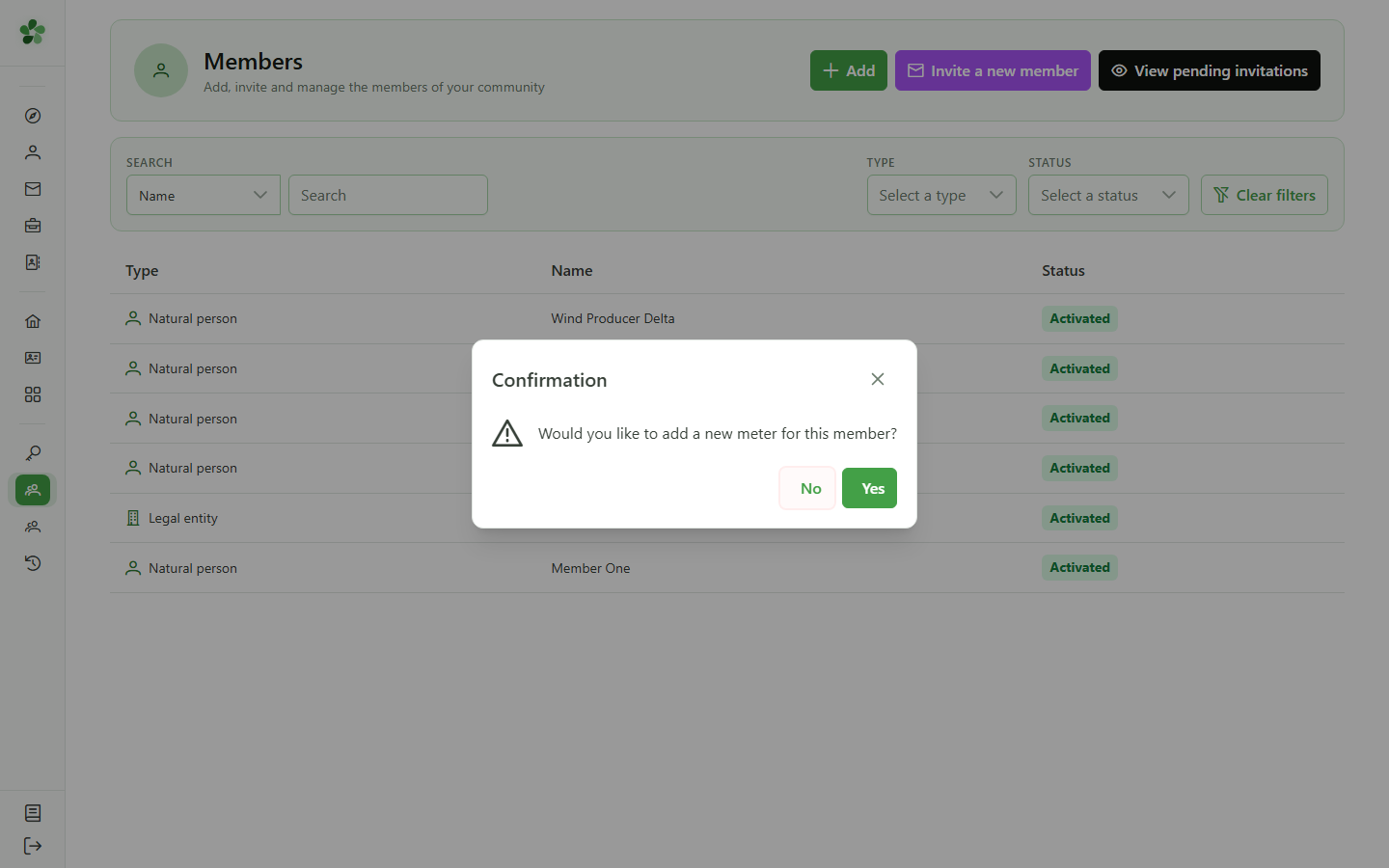
8 Skip adding a meter
Confirmation dialog
A dialog offers to add a meter right away. Pick "No" to stop here.
9 The company is created
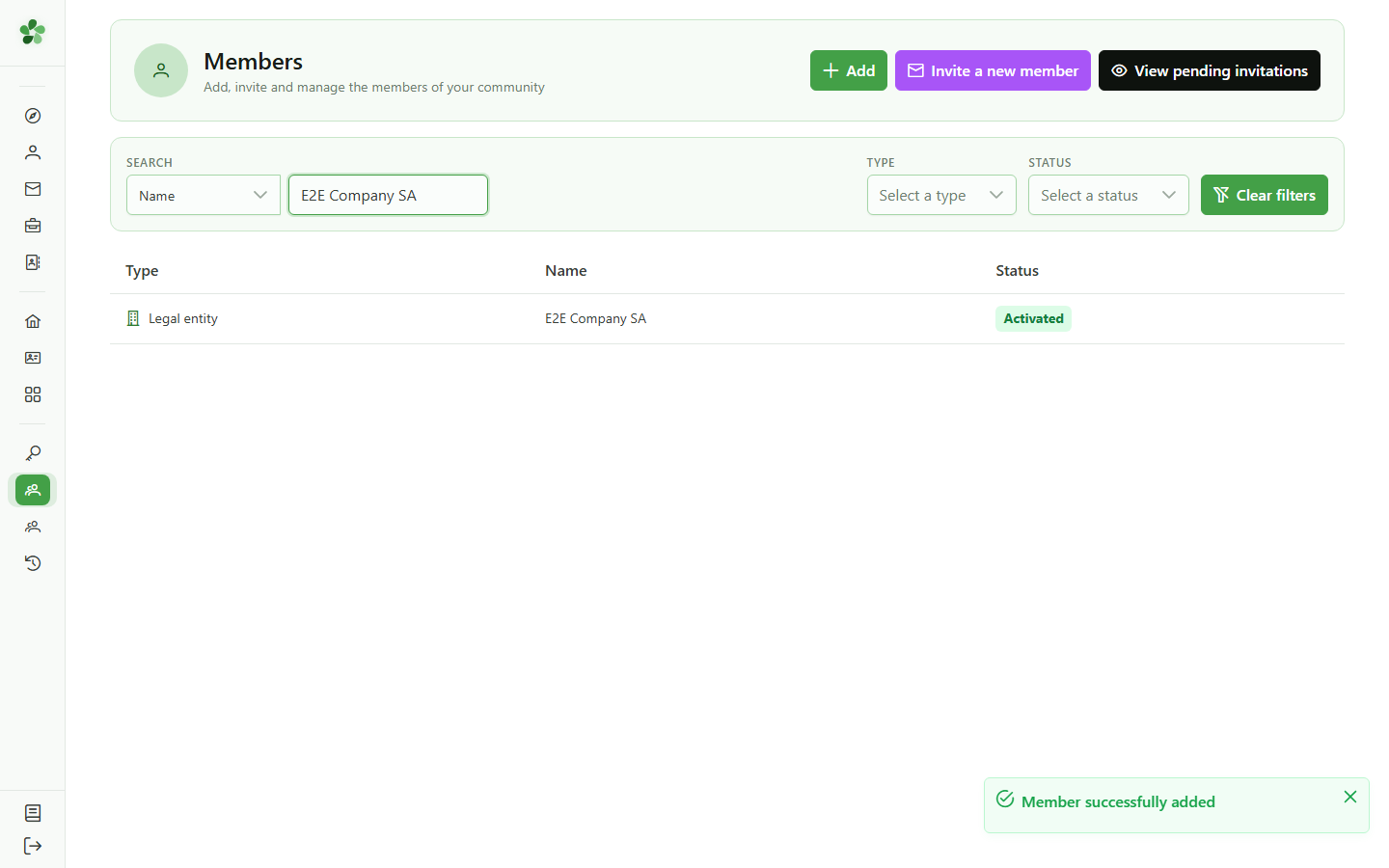
Confirmation
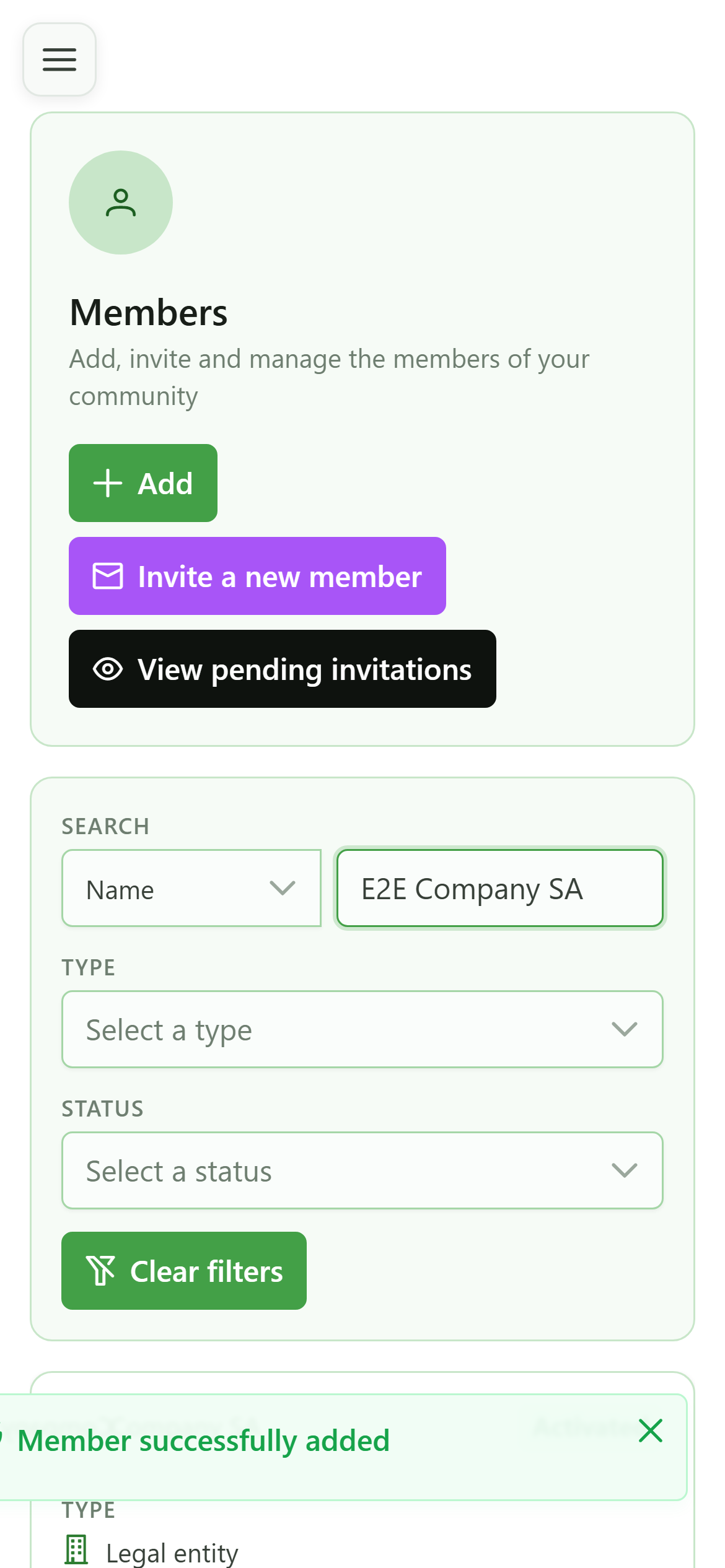
"E2E Company SA" now appears in the members list, tagged with the "Company" type.
Create a company member
Guide utilisateur
User guide
Gebruikershandleiding
Benutzerhandbuch
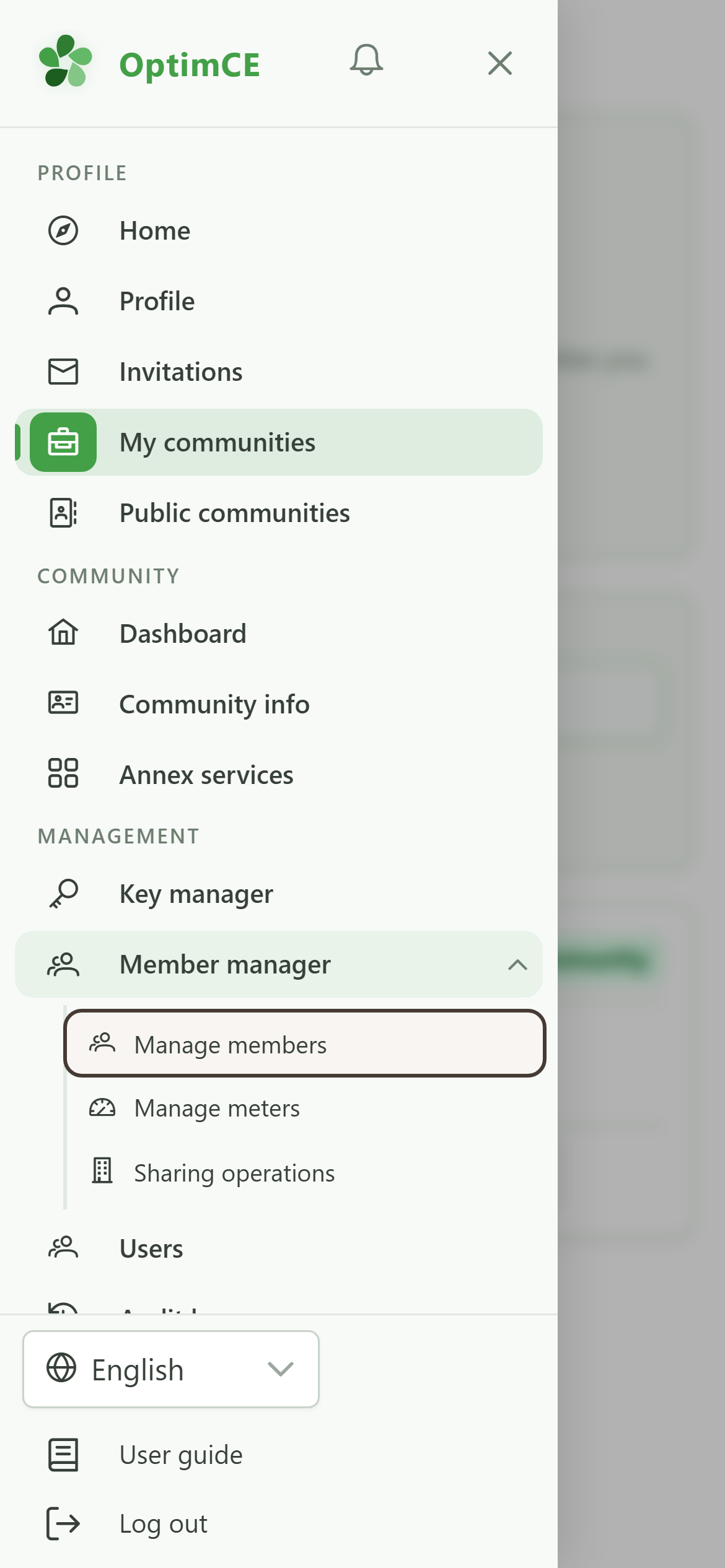
1 Open the members list
Navigation
In the drawer, open "Members" then tap "Members".
2 Add a member
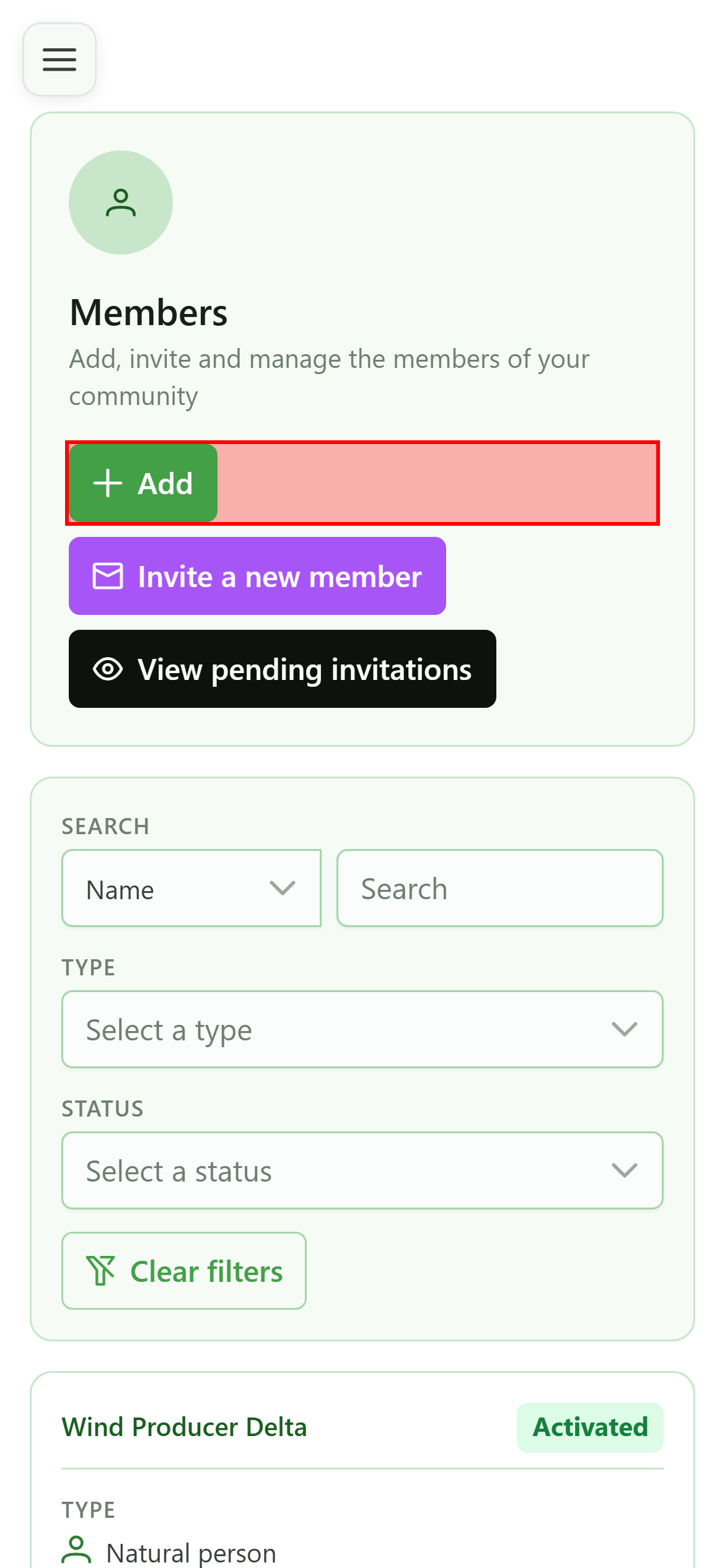
Creating a company member
Click "Add member" to open the four-step creation wizard.
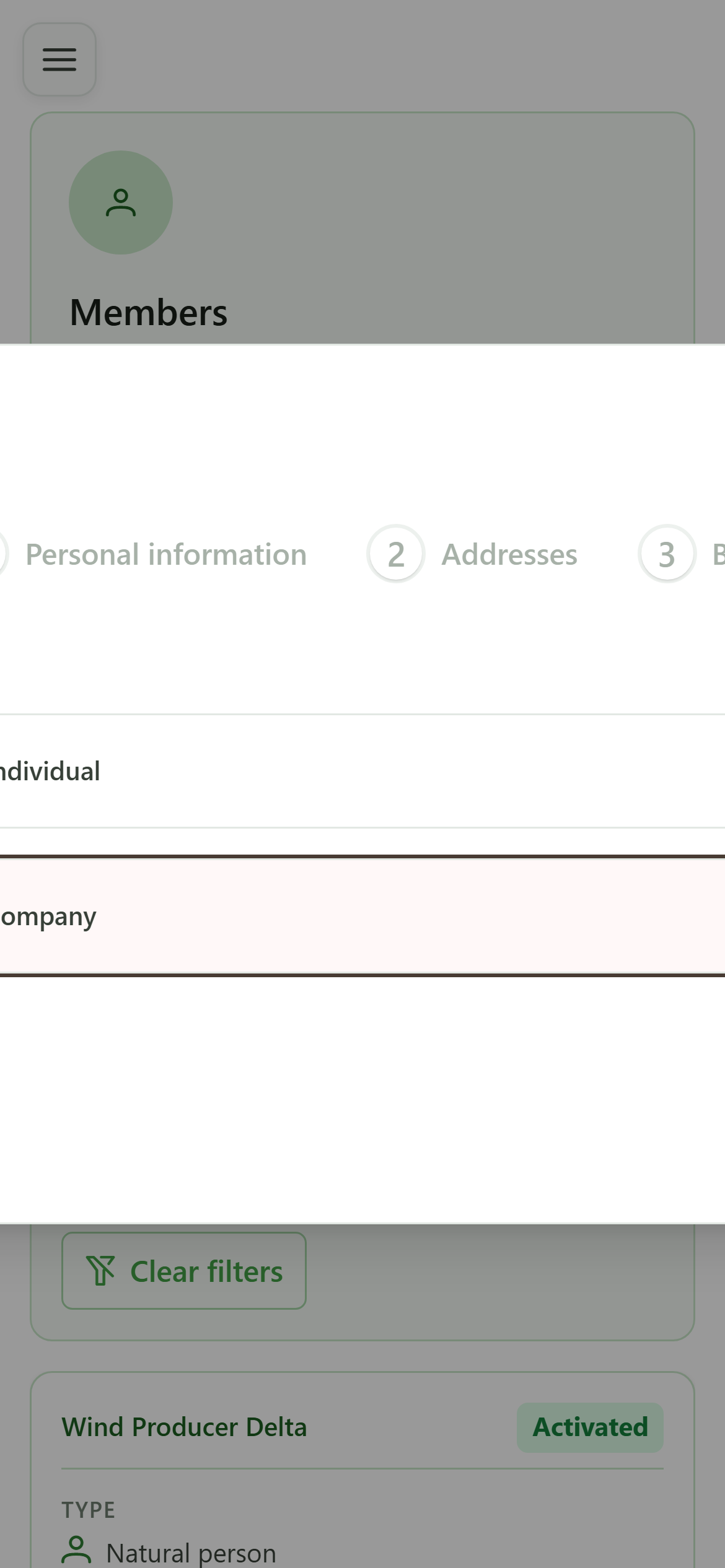
3 Pick the "Company" type
Step 1 — Type
Select "Company" to create a legal-entity member. The next step adapts its fields: company number and VAT number instead of a national number.
4 Fill in the company
Step 2 — Identity
Enter the company number, legal name and VAT number. Since a company is a legal entity, also provide its legal representative: national number, name, email and phone.
5 Enter the address
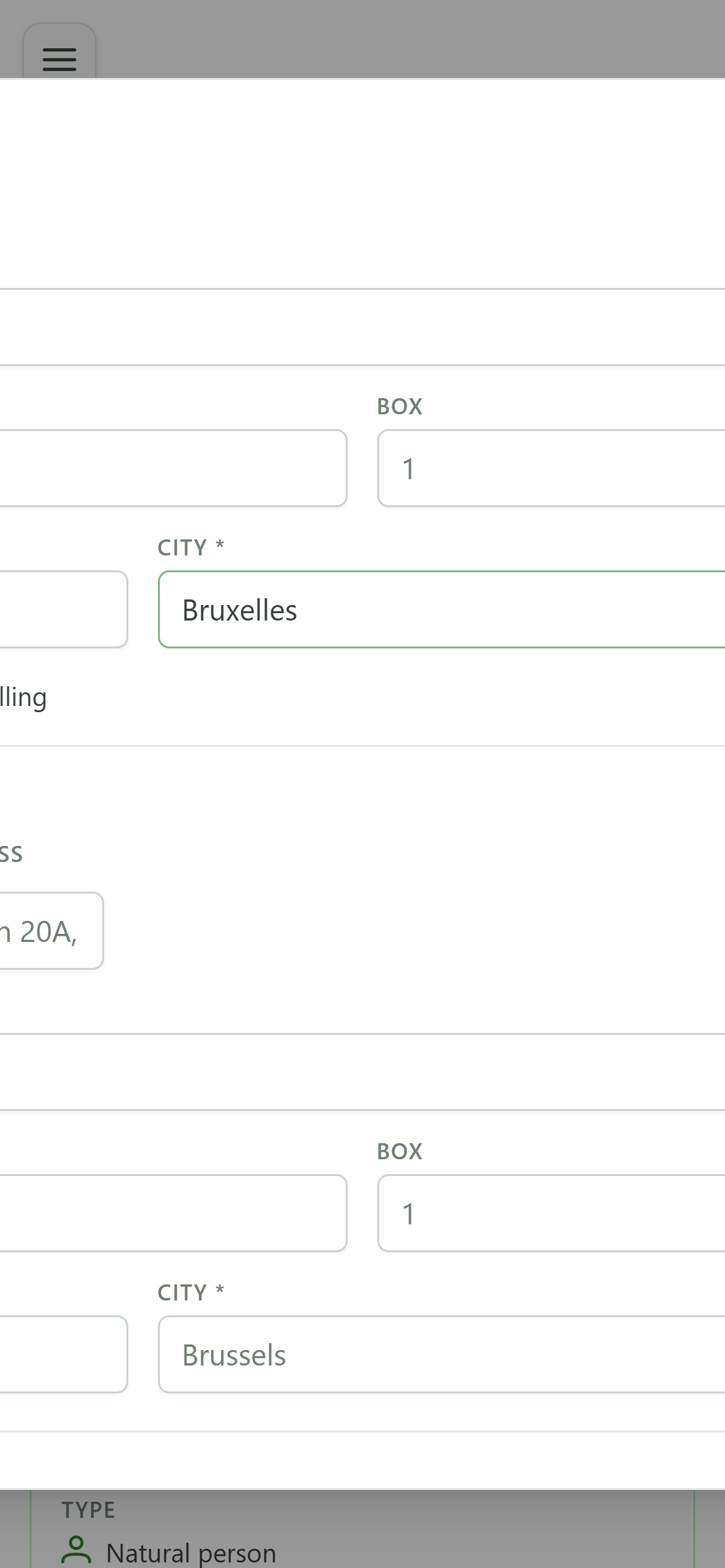
Step 3 — Address
Fill in the registered office address. Tick "Same address" to reuse it as the billing address.
6 Enter the IBAN
Step 4 — Banking
Enter the company's IBAN, used for refunds tied to sharing operations.
7 Submit the new member
Confirmation
Click "Submit" to create the company and attach it to the active community.
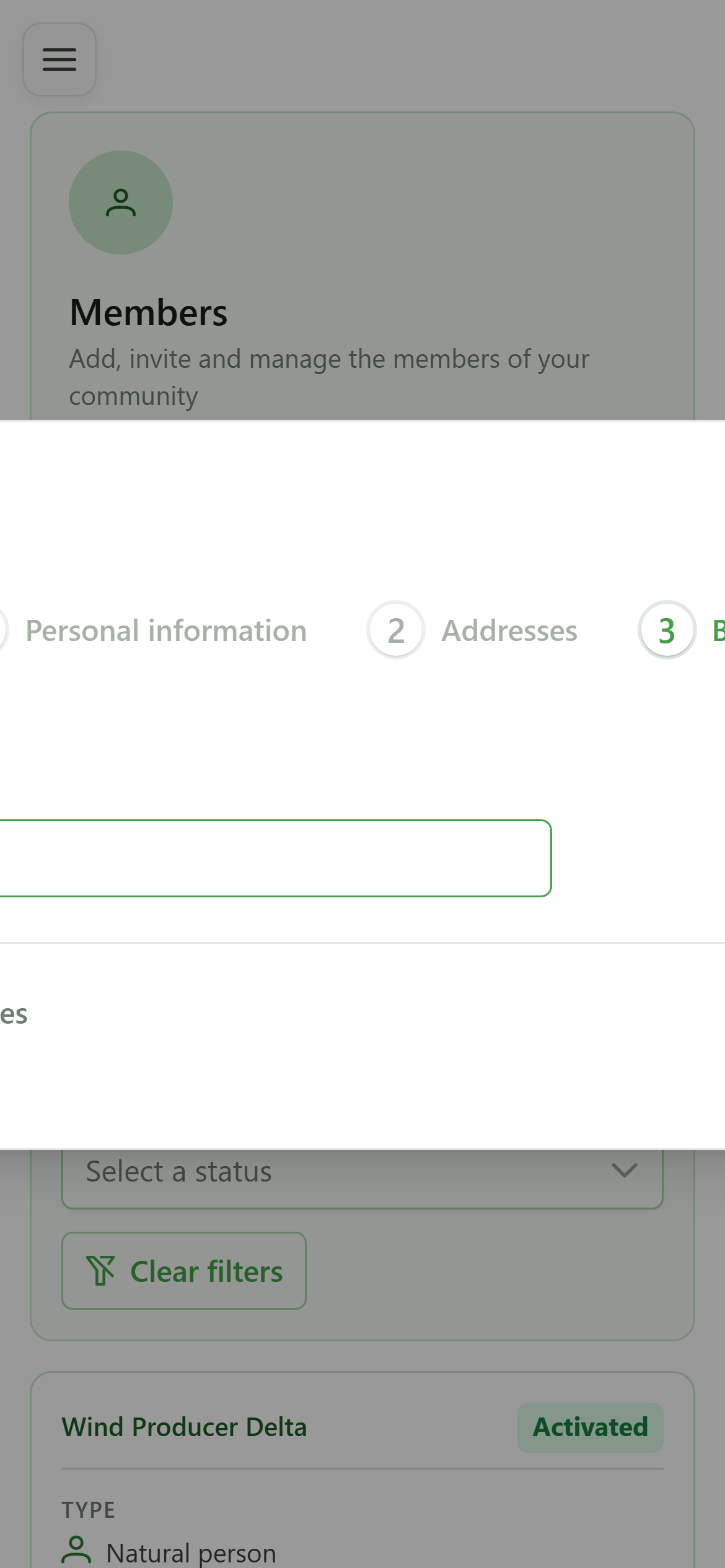
8 Skip adding a meter
Confirmation dialog
A dialog offers to add a meter right away. Pick "No" to stop here.
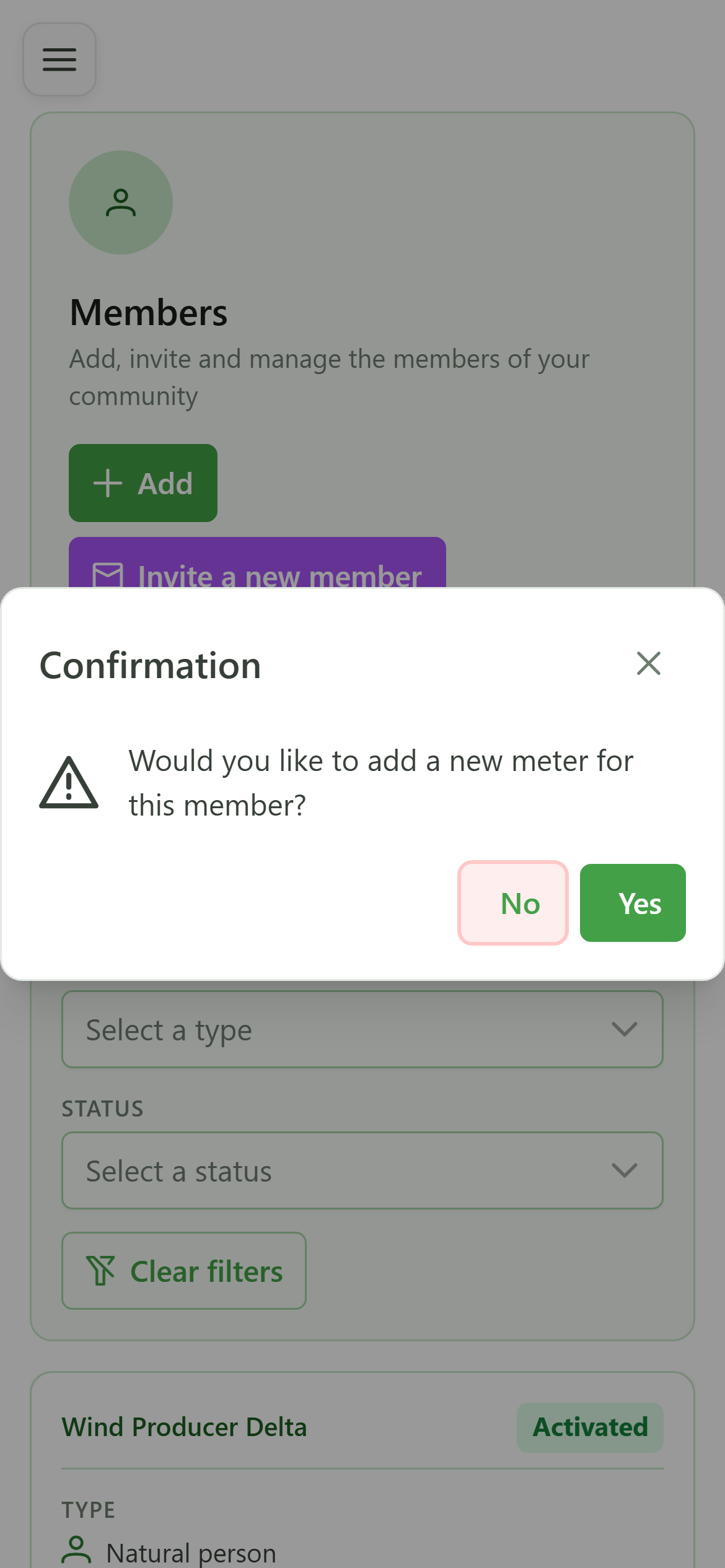
9 The company is created
Confirmation
"E2E Company SA" now appears in the members list, tagged with the "Company" type.