Edit an allocation key
Guide utilisateur
User guide
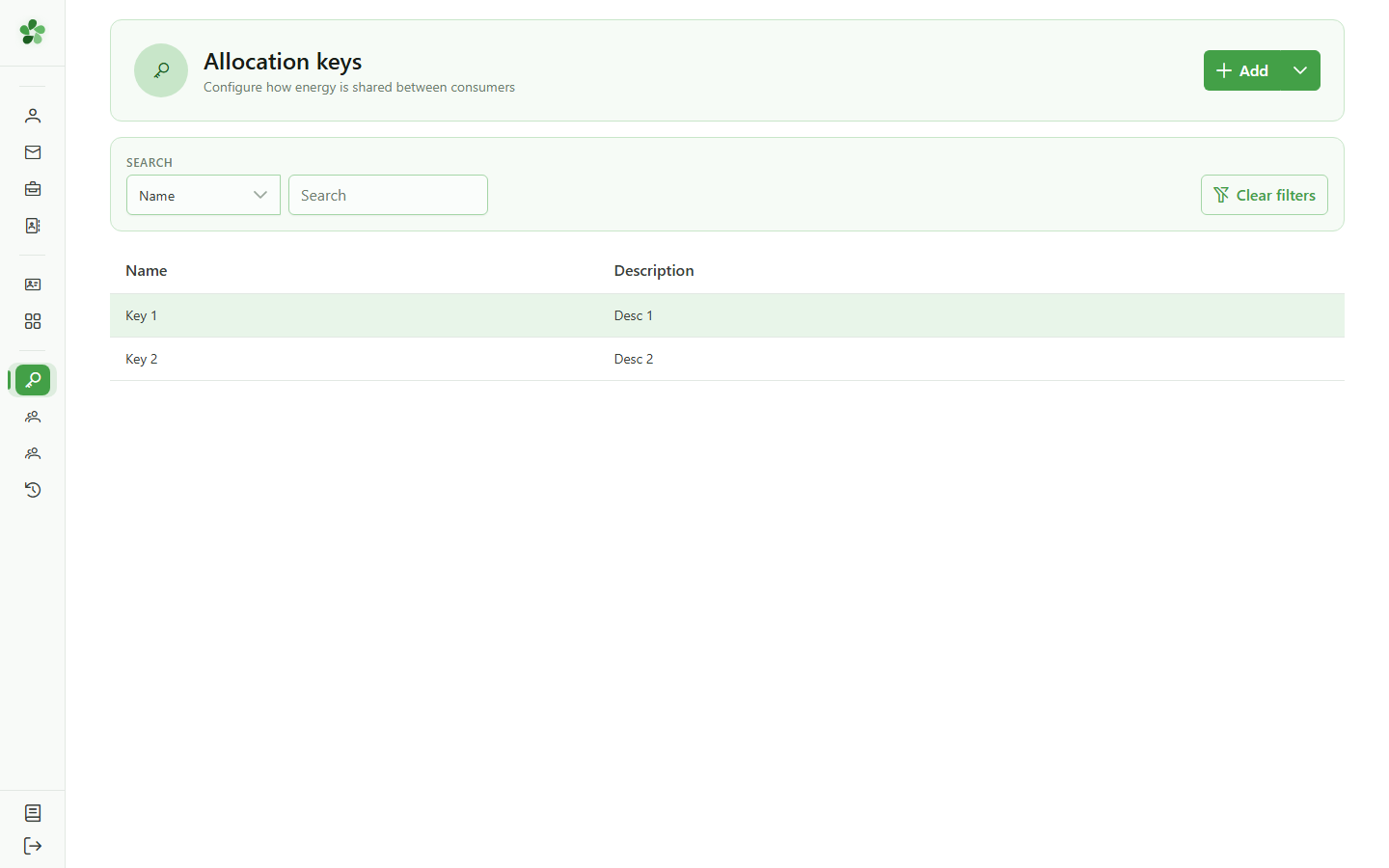
1 Open the keys list
Starting point
From the Management menu, open the community's allocation keys list to find the one you want to modify.
2 Select the key
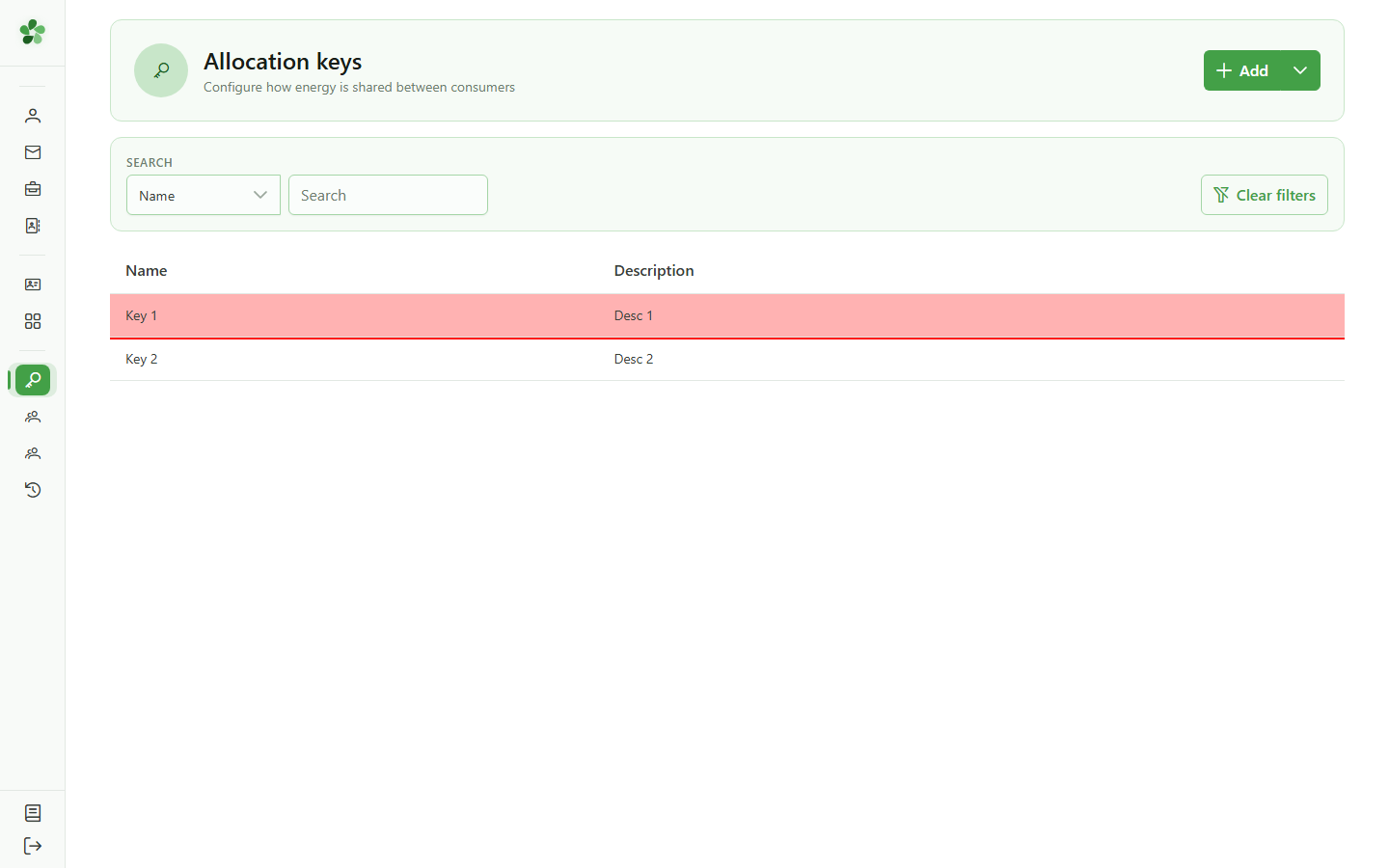
Pick the key
Click the row of the key you want to modify to open its detail page.
3 Switch to edit mode
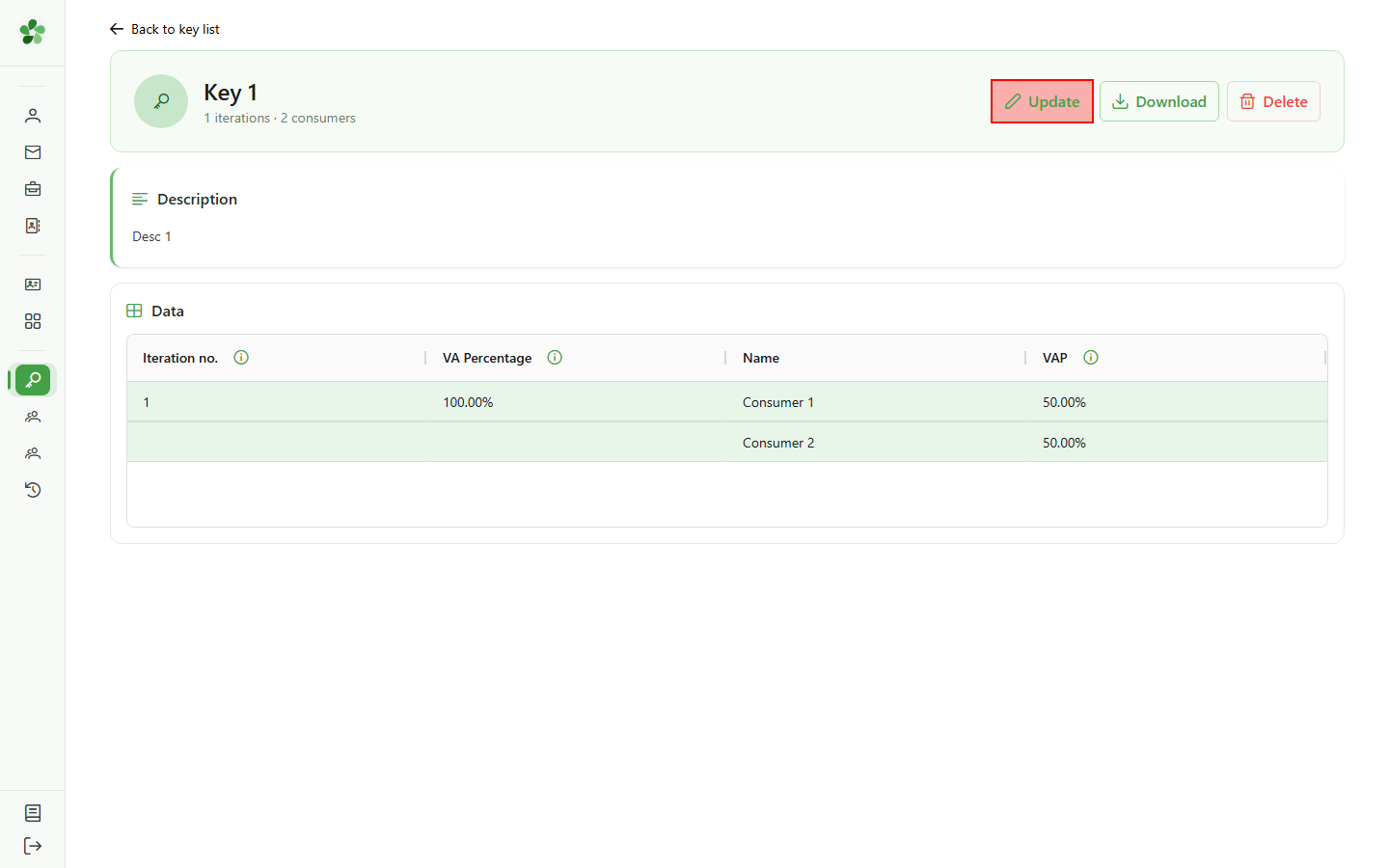
Edit mode
Click "Update" — the key opens in the same editor used for creation, pre-filled with the existing values.
4 Rename the key
Identification
Edit the name and description to reflect the key's new purpose. These fields appear in the list and make it easier to find.
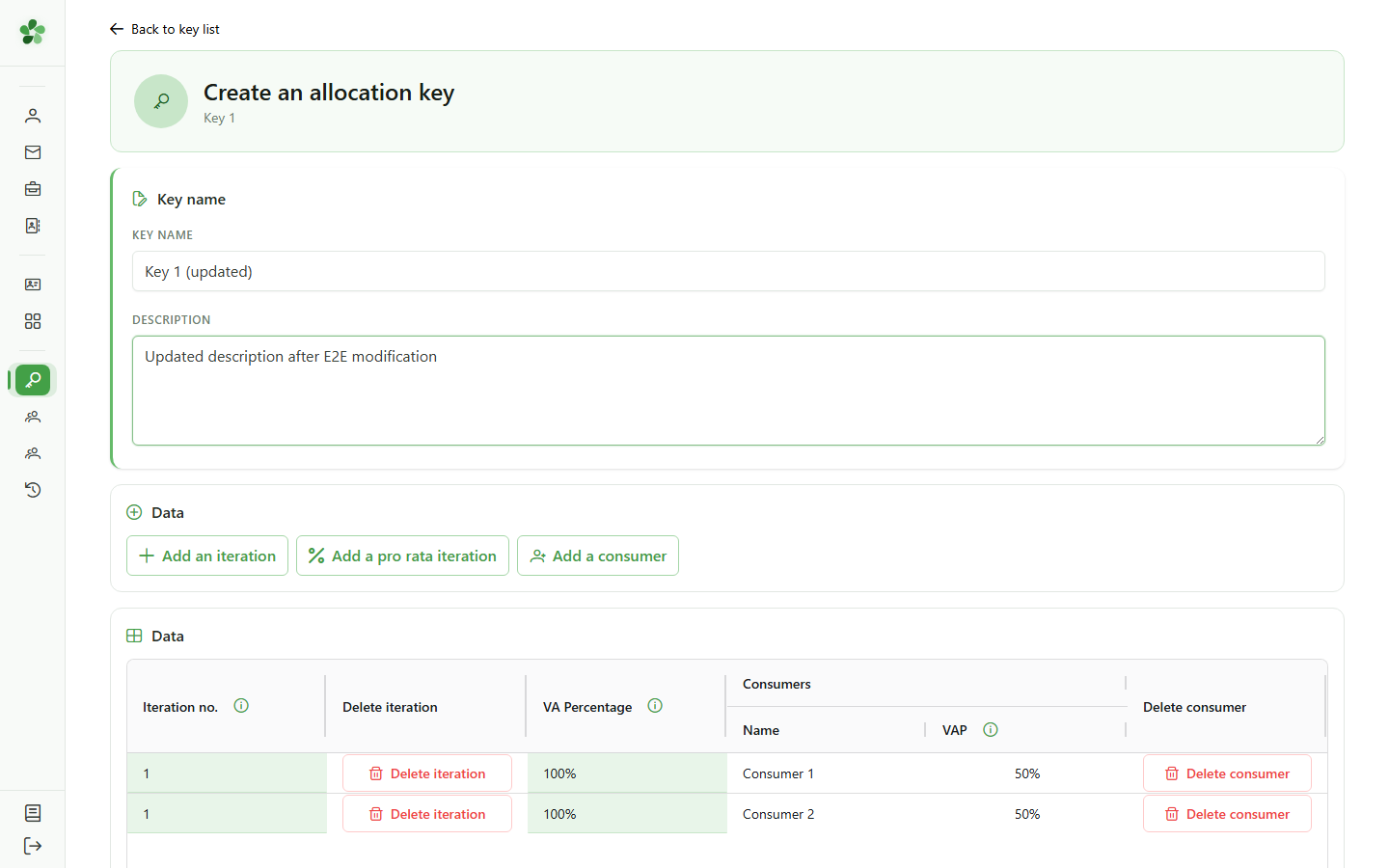
5 Rebalance the consumers
Allocation
Double-click the consumer percentages to edit them — here we move from 50/50 to 60/40. The per-iteration total must still equal 100%.
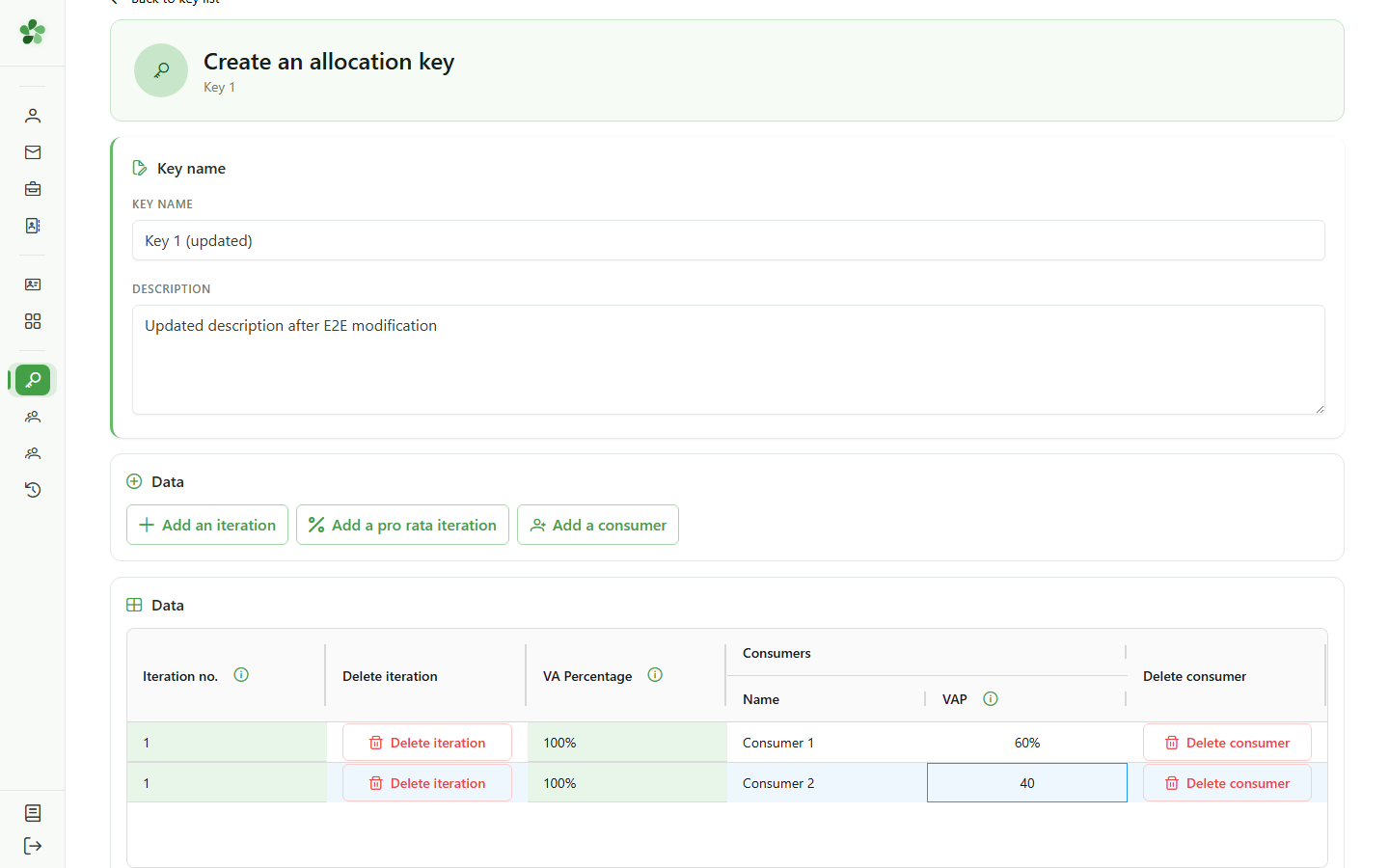
6 Review before saving
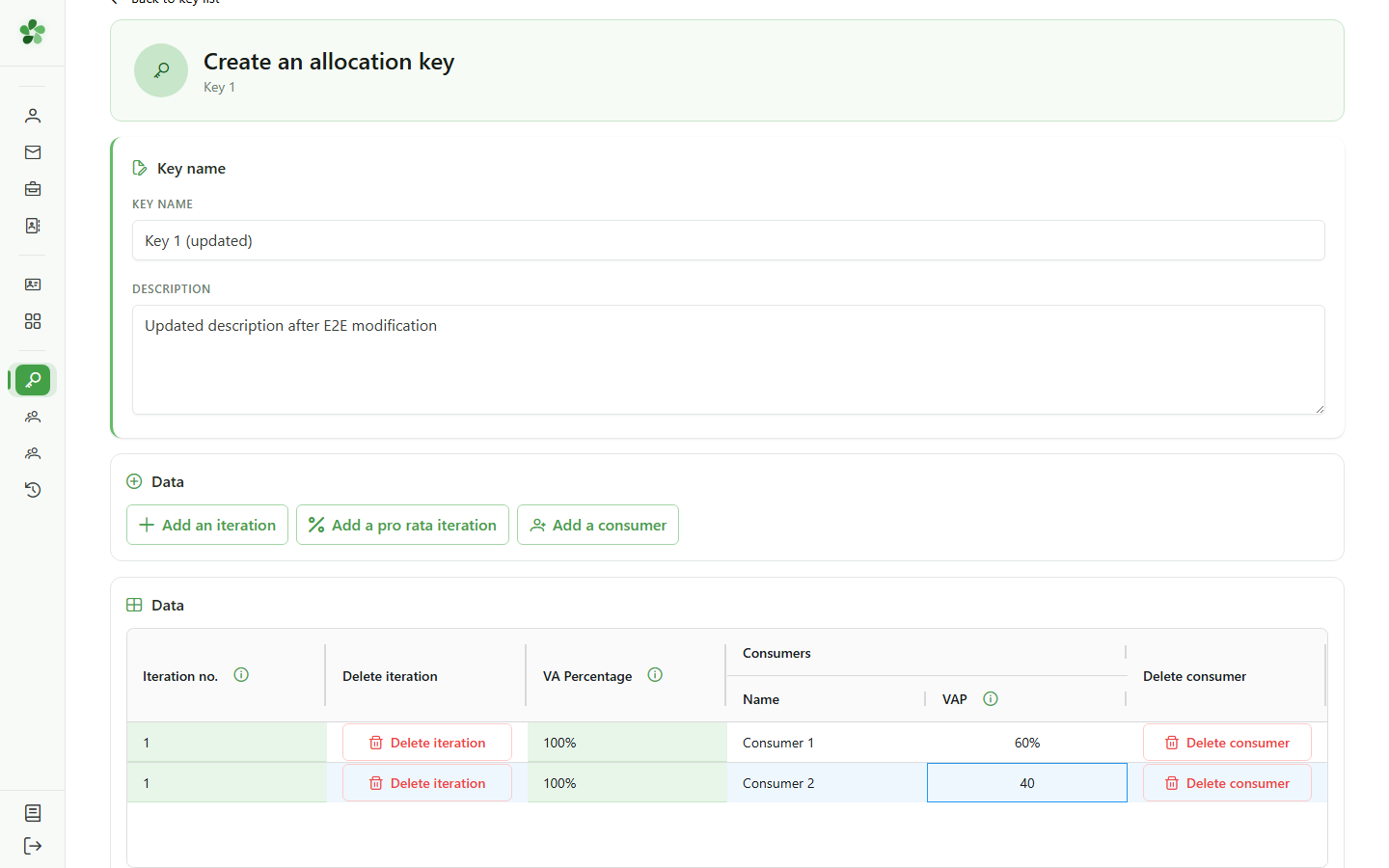
Final review
Scan the whole grid: name, description and the new percentages must match what you intended before you save.
7 Save the changes
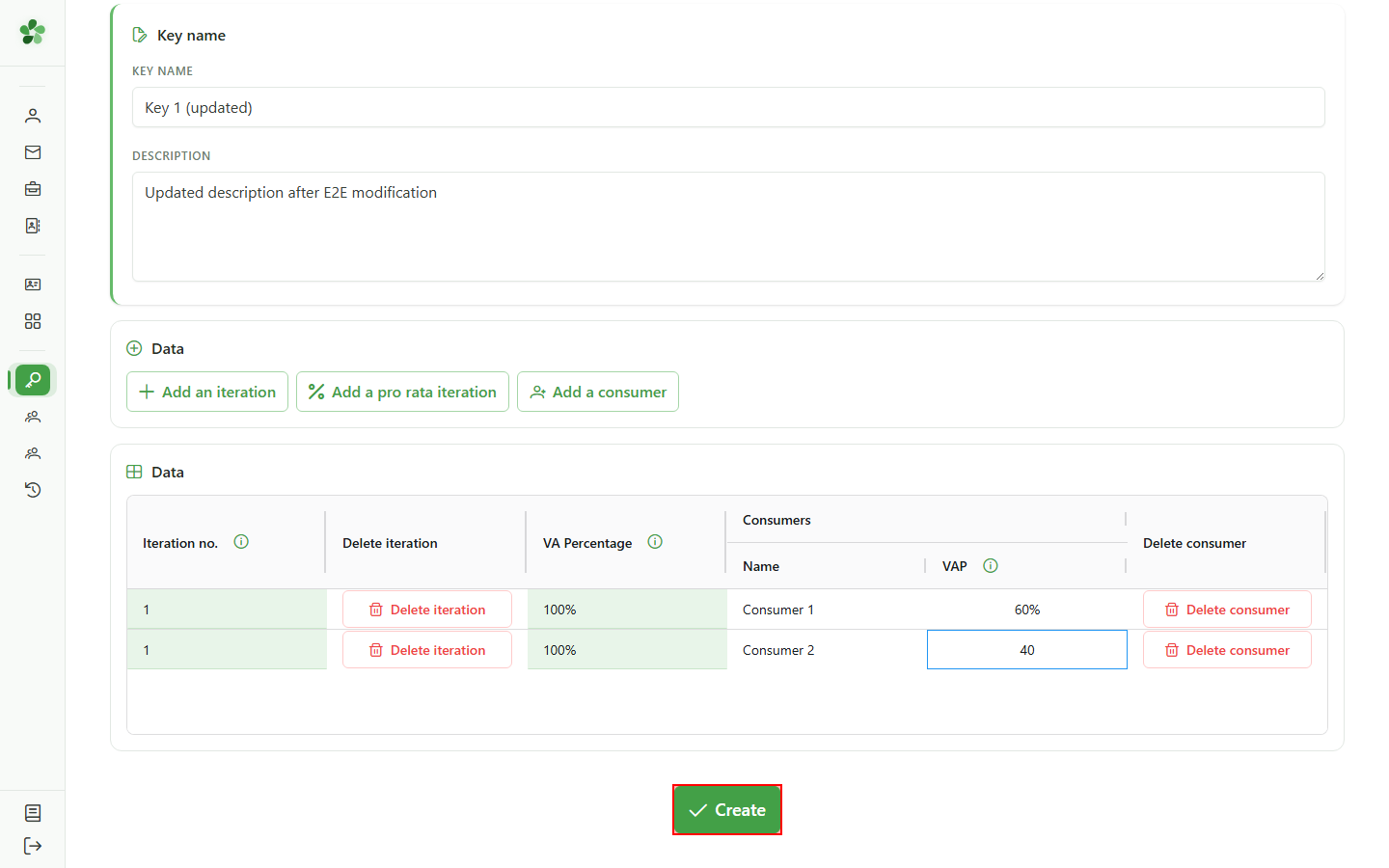
Persist
Click the save button — the app validates the percentages and redirects you back to the keys list.
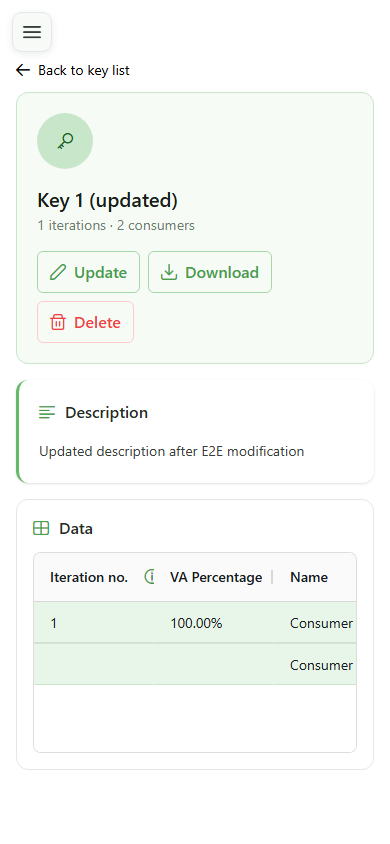
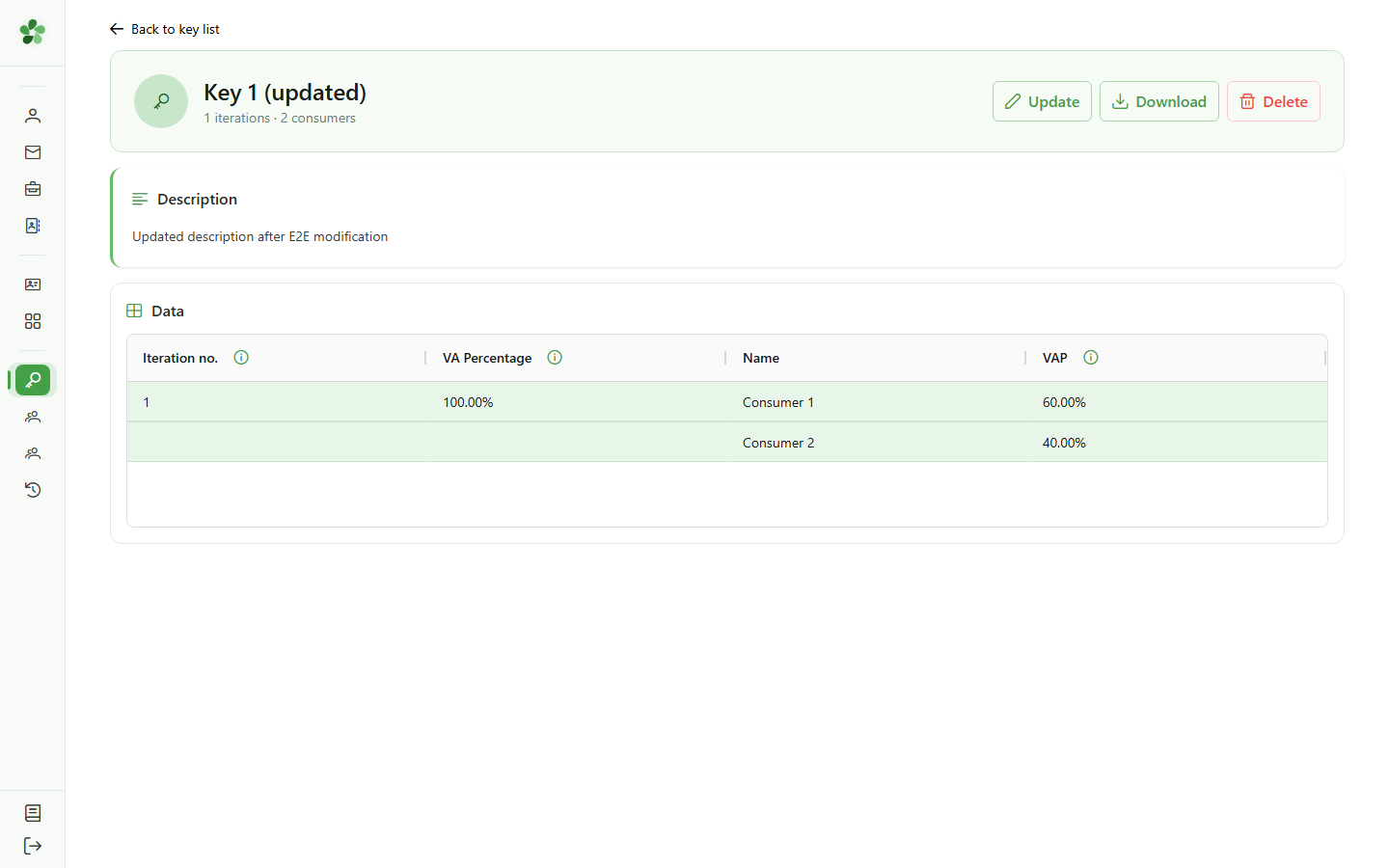
8 Changes persisted
Confirmation
The detail page now shows the new description — the key has been successfully updated on the server.
Edit an allocation key
Guide utilisateur
User guide
1 Open the keys list
Starting point
From the Management menu, open the community's allocation keys list to find the one you want to modify.
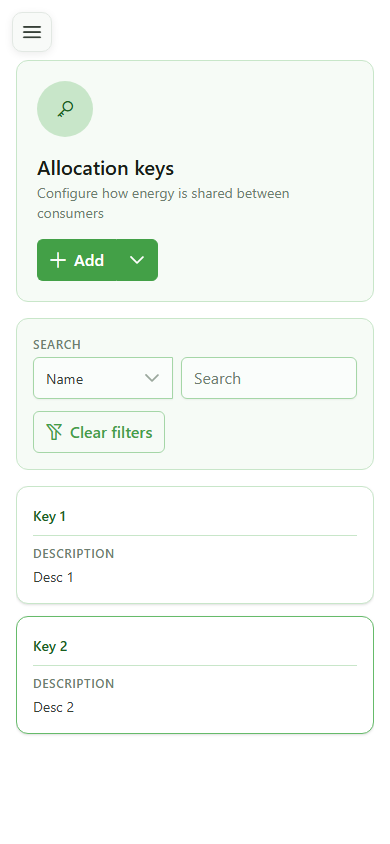
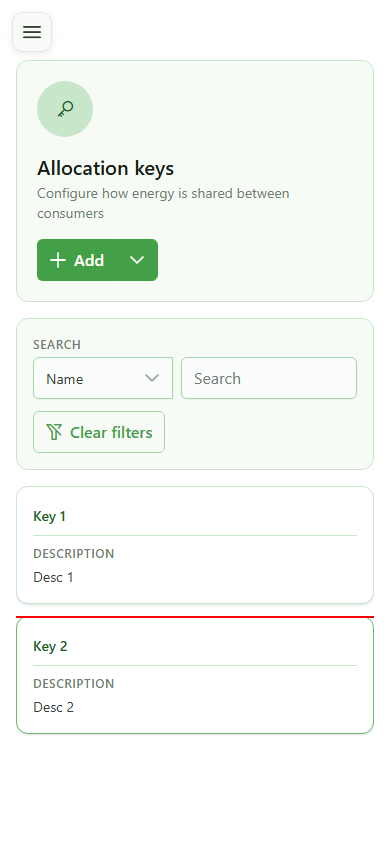
2 Select the key
Pick the key
Tap the card of the key you want to modify to open its detail page.
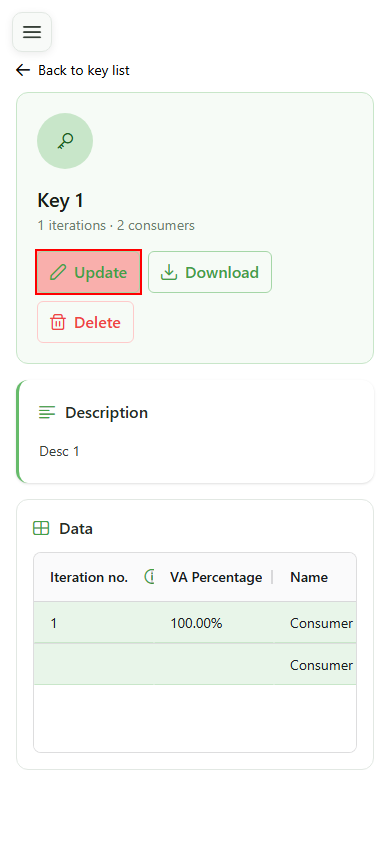
3 Switch to edit mode
Edit mode
Click "Update" — the key opens in the same editor used for creation, pre-filled with the existing values.
4 Rename the key
Identification
Edit the name and description to reflect the key's new purpose. These fields appear in the list and make it easier to find.
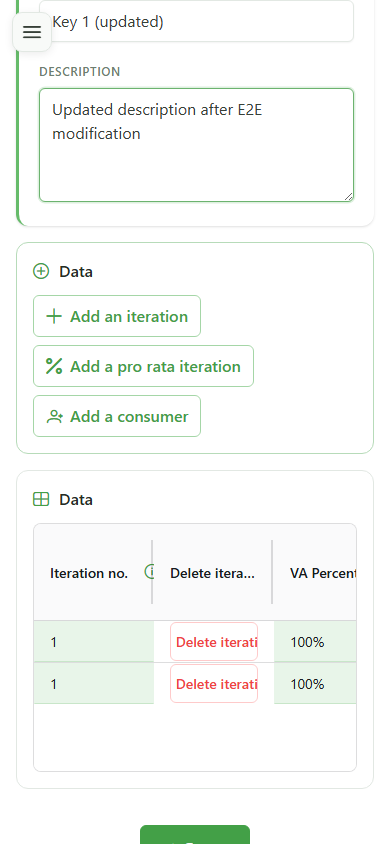
5 Rebalance the consumers
Allocation
Double-click the consumer percentages to edit them — here we move from 50/50 to 60/40. The per-iteration total must still equal 100%.
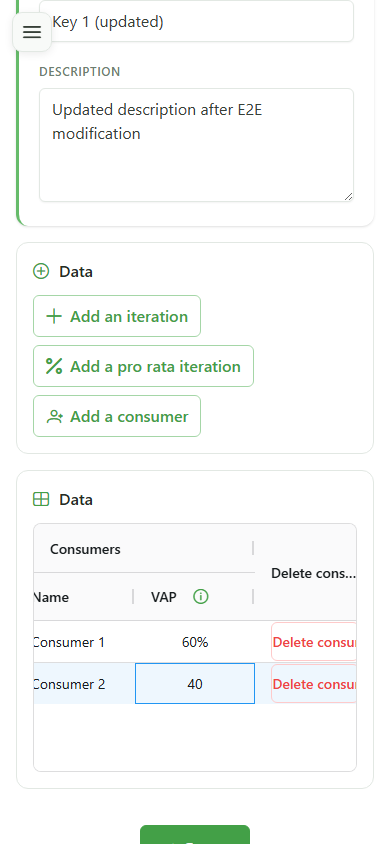
6 Review before saving
Final review
Scan the whole grid: name, description and the new percentages must match what you intended before you save.
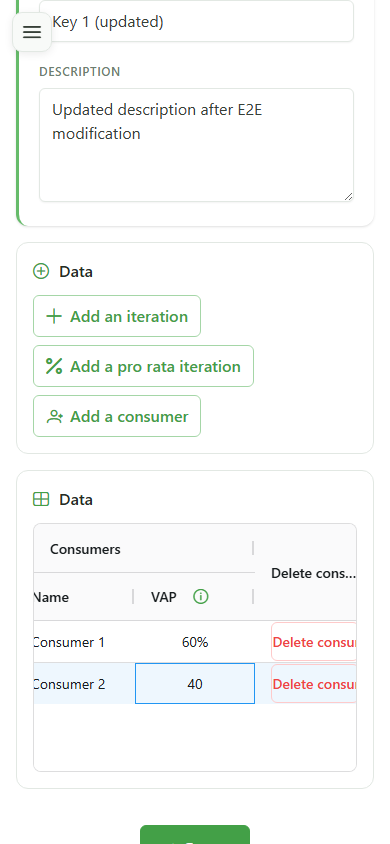
7 Save the changes
Persist
Click the save button — the app validates the percentages and redirects you back to the keys list.
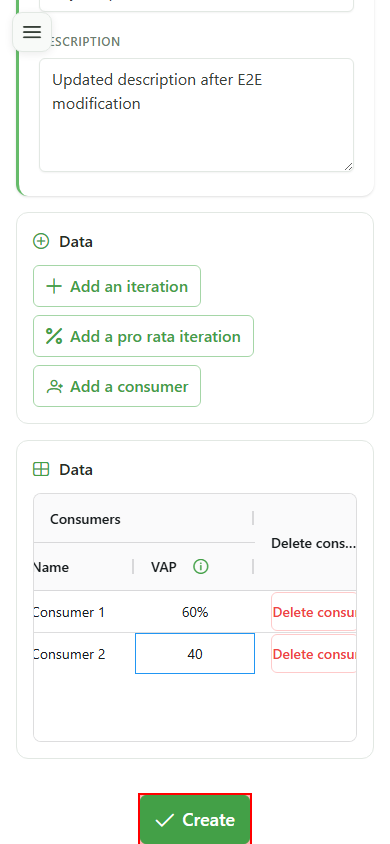
8 Changes persisted
Confirmation
The detail page now shows the new description — the key has been successfully updated on the server.