Delete an allocation key
Guide utilisateur
User guide
Gebruikershandleiding
Benutzerhandbuch
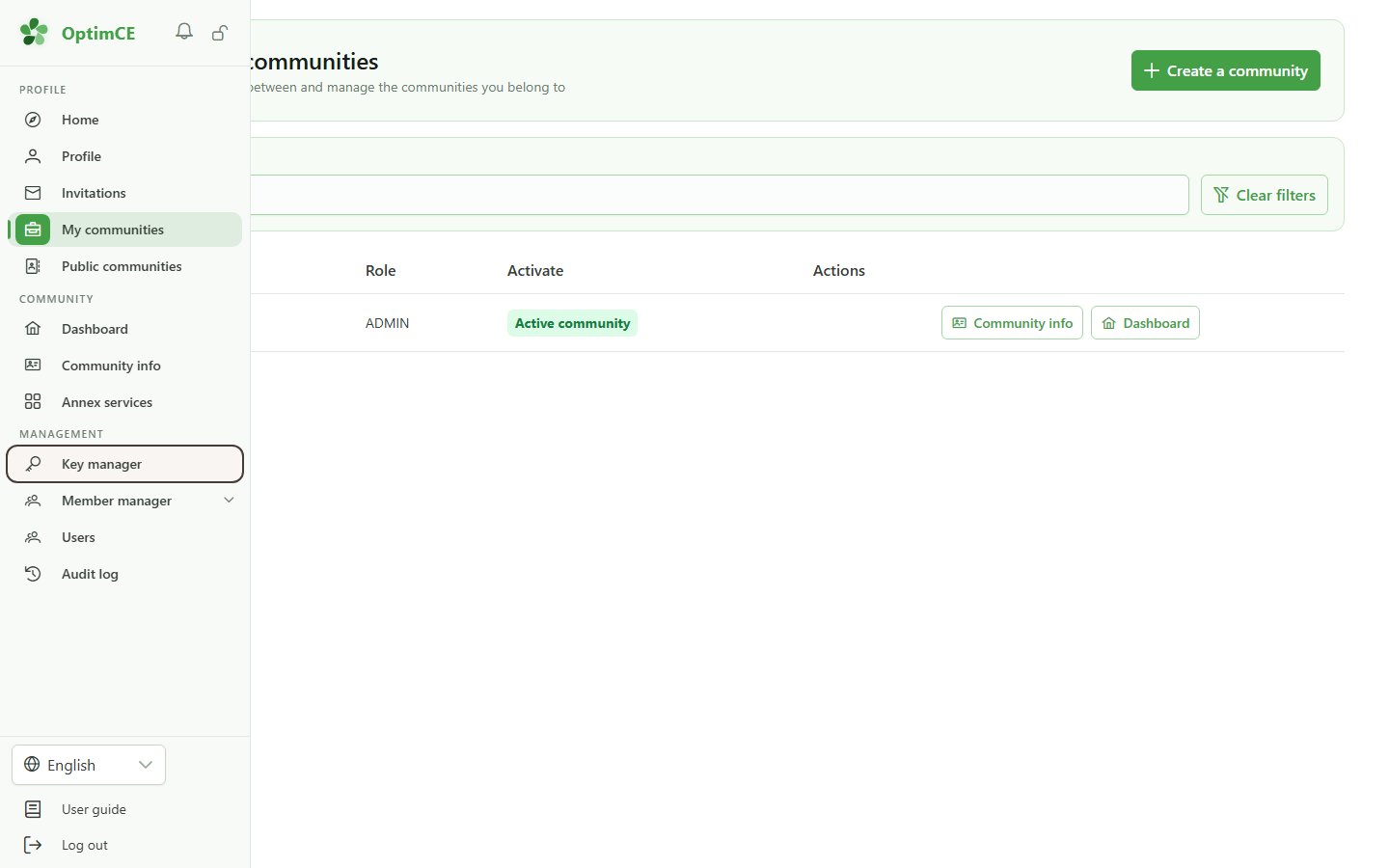
1 Open the allocation keys
Navigation
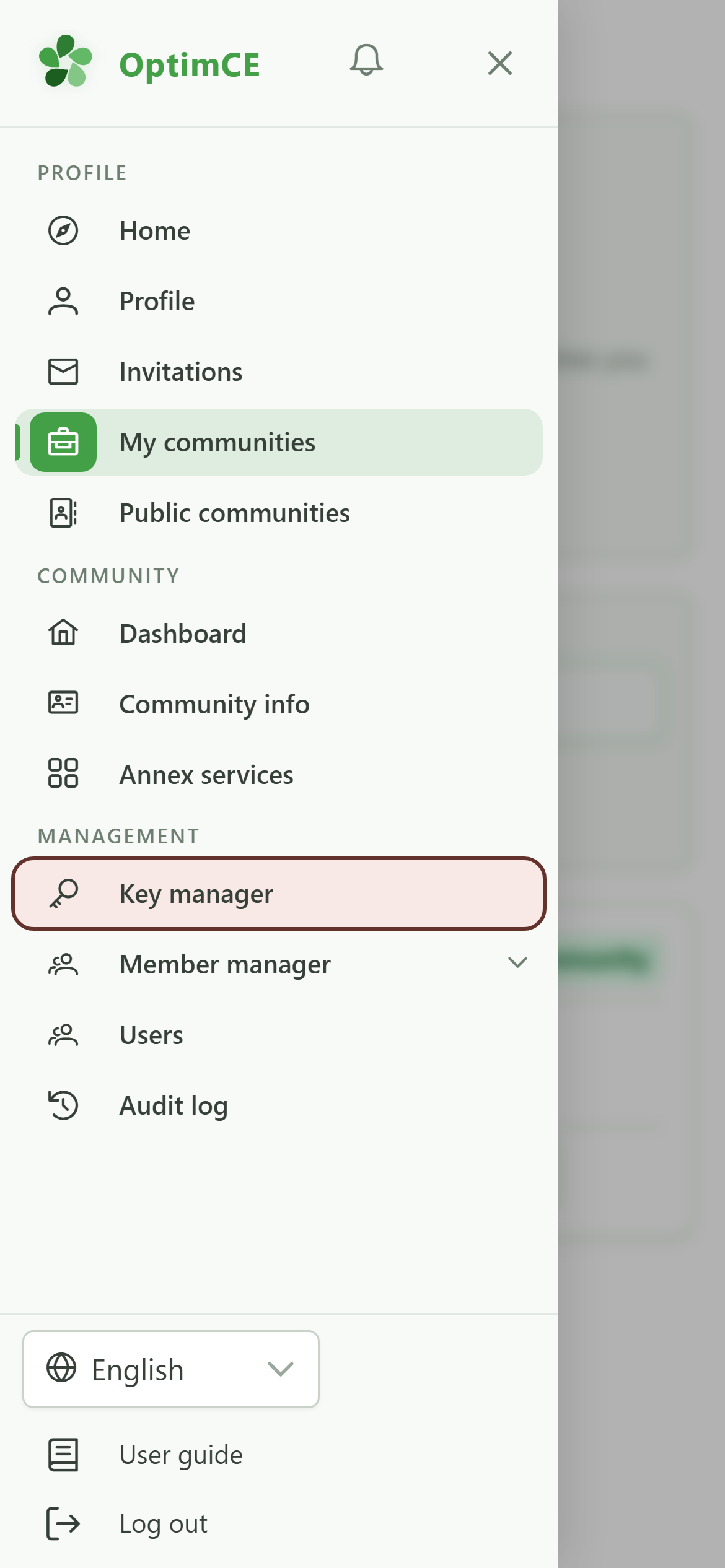
In the sidebar's "Management" section, click "Allocation keys".
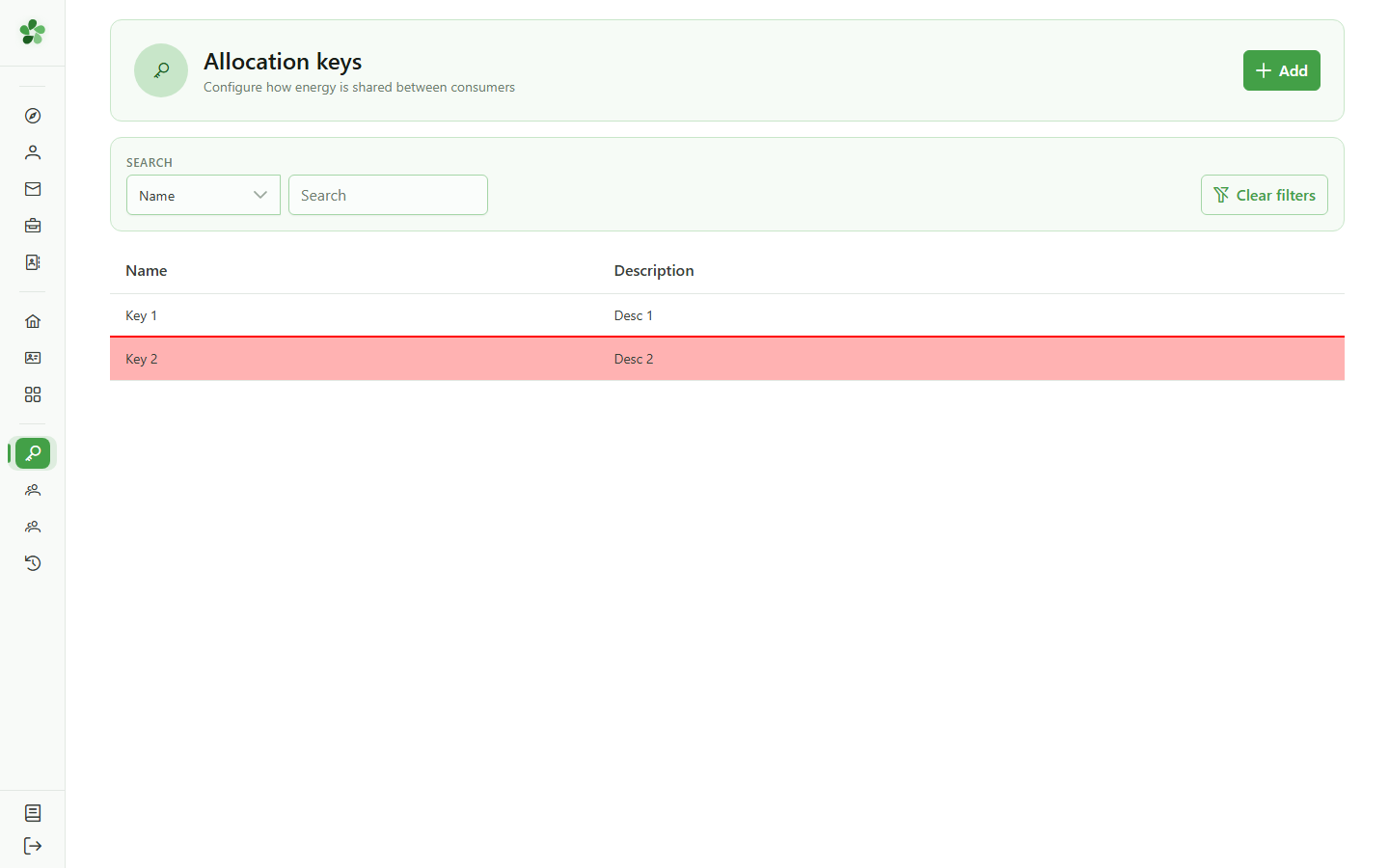
2 Open a key
Deleting a key
Click the key you want to delete to open its detail page.
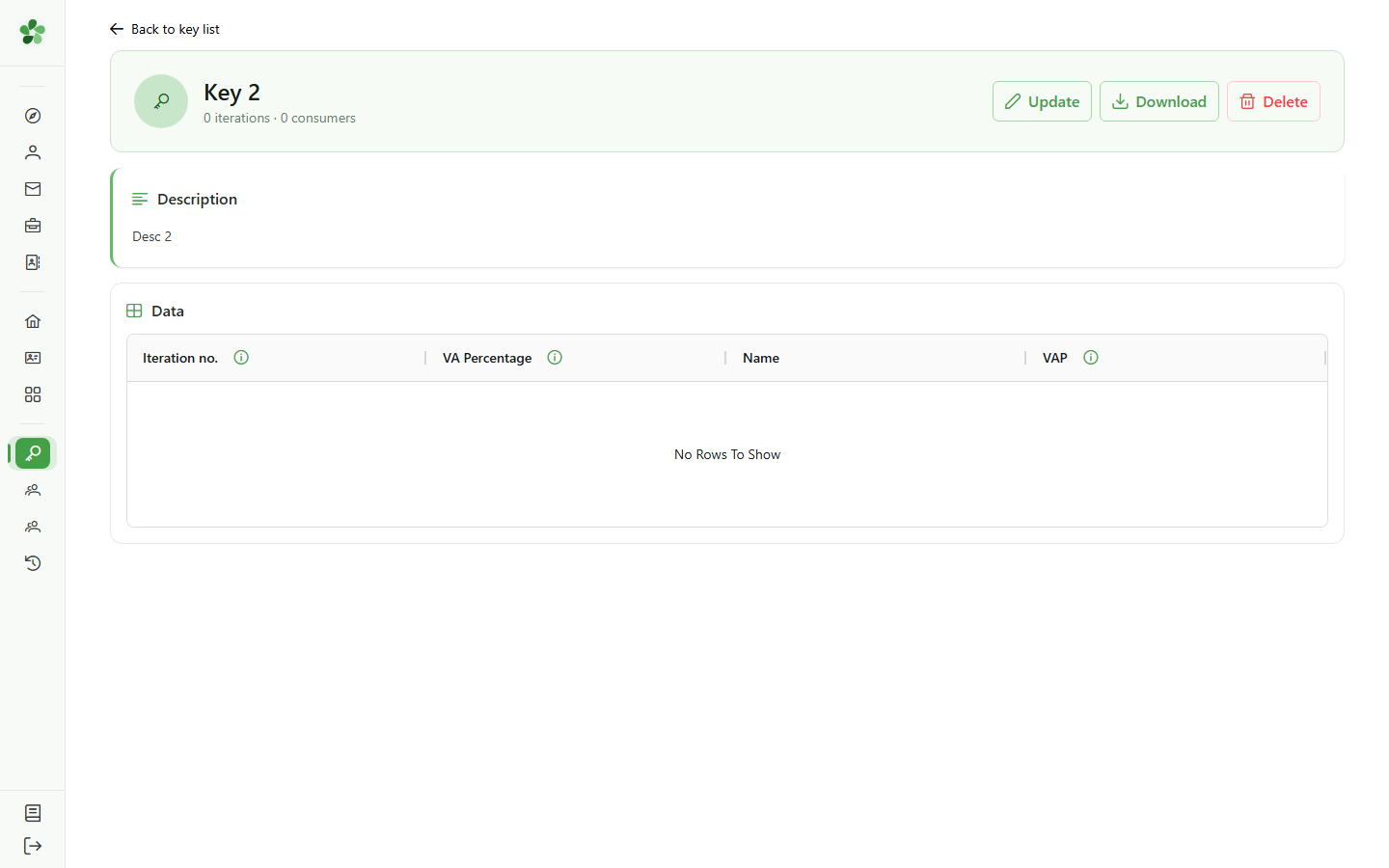
3 Delete the key
Deleting a key
The "Delete" button permanently removes the key from the community. If it was assigned to a sharing operation, that assignment is removed too.
4 Key deleted
Confirmation
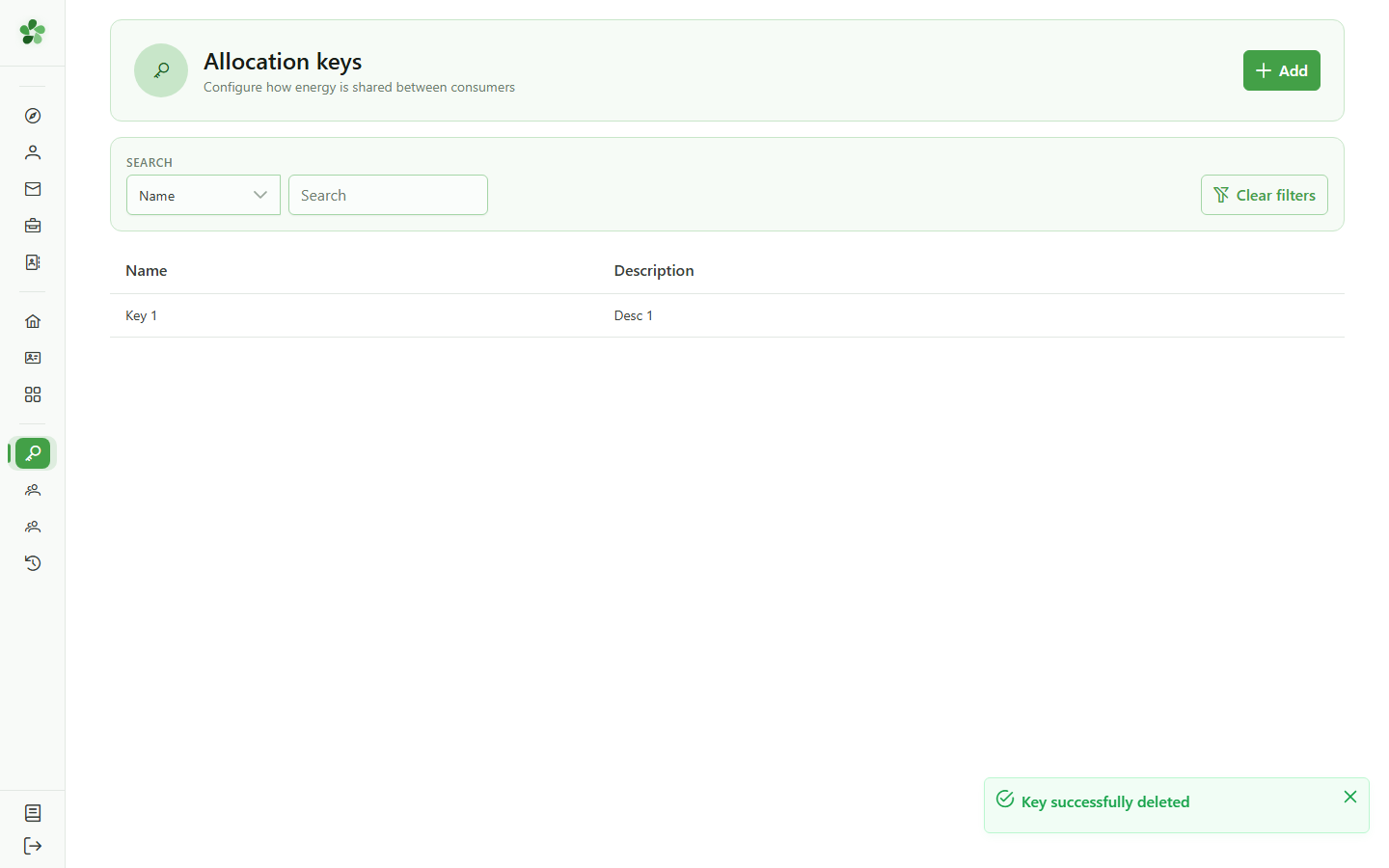
Back on the keys list, "Key 2" no longer appears: the deletion has been saved.
Delete an allocation key
Guide utilisateur
User guide
Gebruikershandleiding
Benutzerhandbuch
1 Open the allocation keys
Navigation
Tap the menu icon to open the drawer, then "Allocation keys".
2 Open the key
Navigation
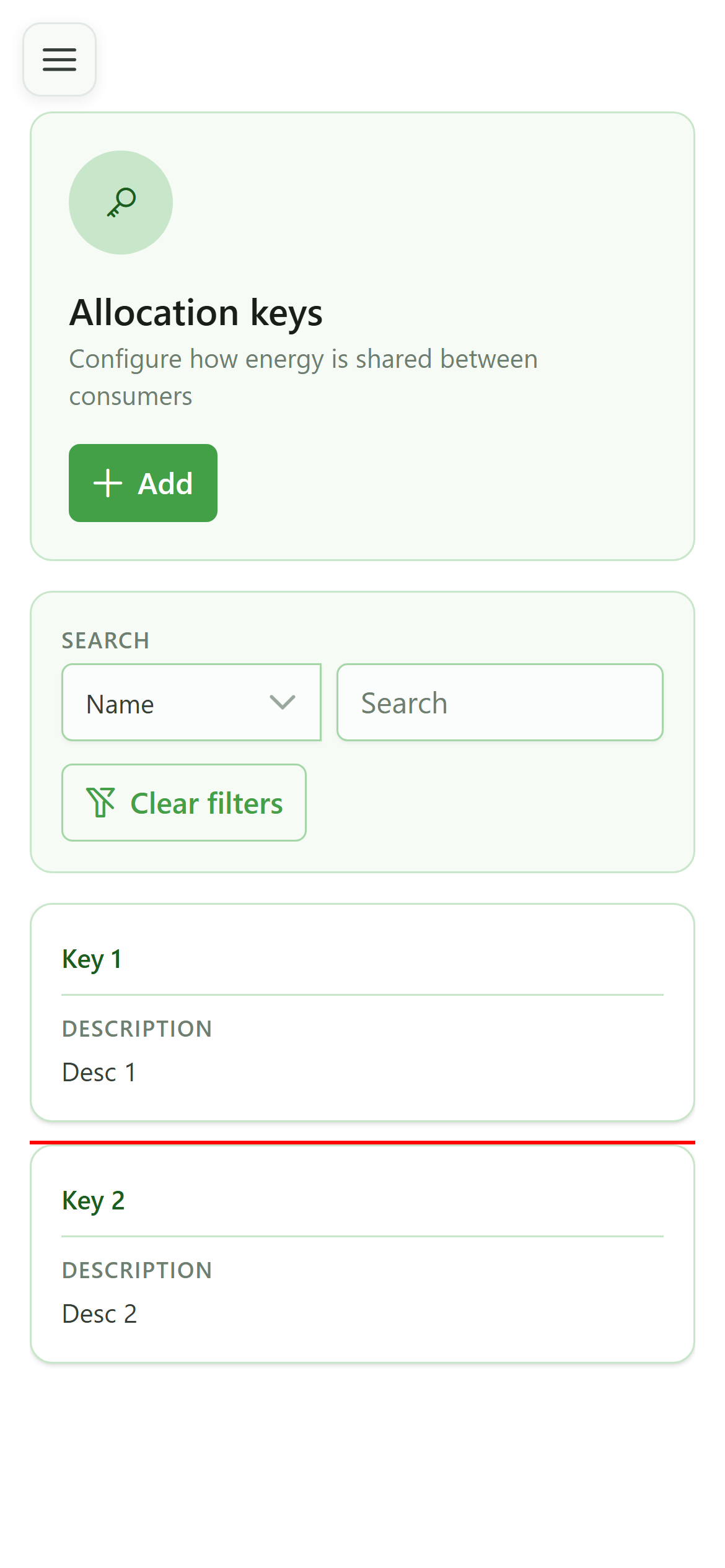
Tap the "Key 2" row in the list to open its detail page.
3 Delete the key
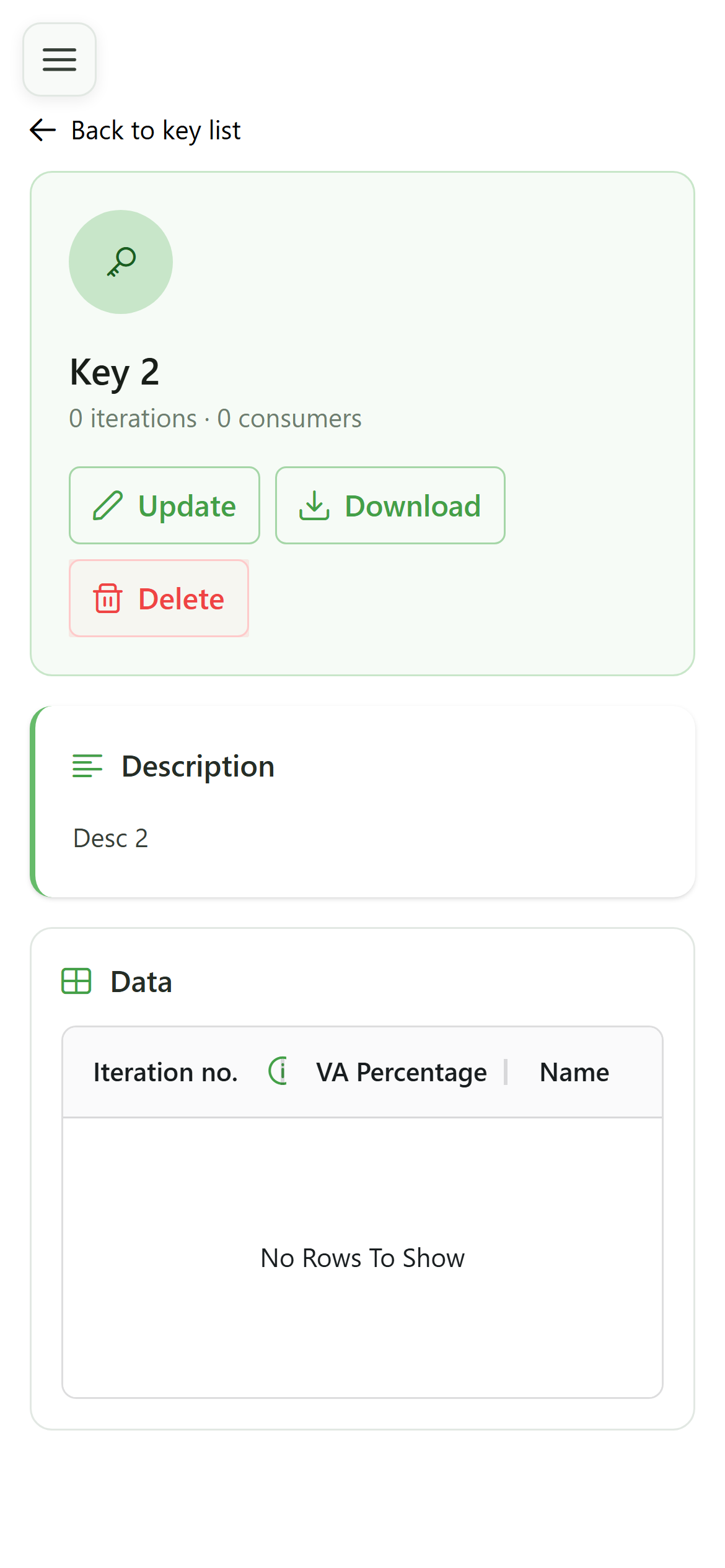
Deleting a key
The "Delete" button permanently removes the key from the community. If it was assigned to a sharing operation, that assignment is removed too.
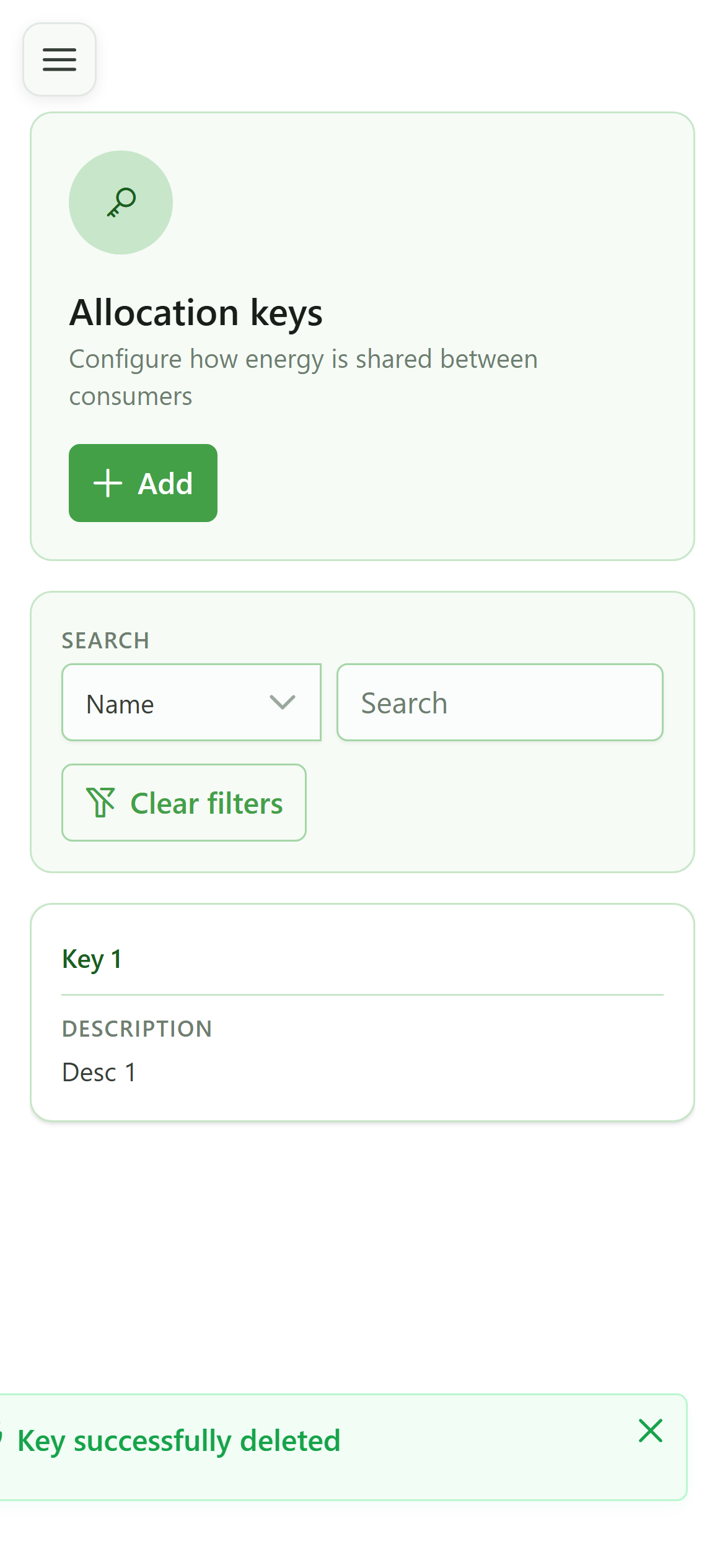
4 Key deleted
Confirmation
Back on the keys list, "Key 2" no longer appears: the deletion has been saved.