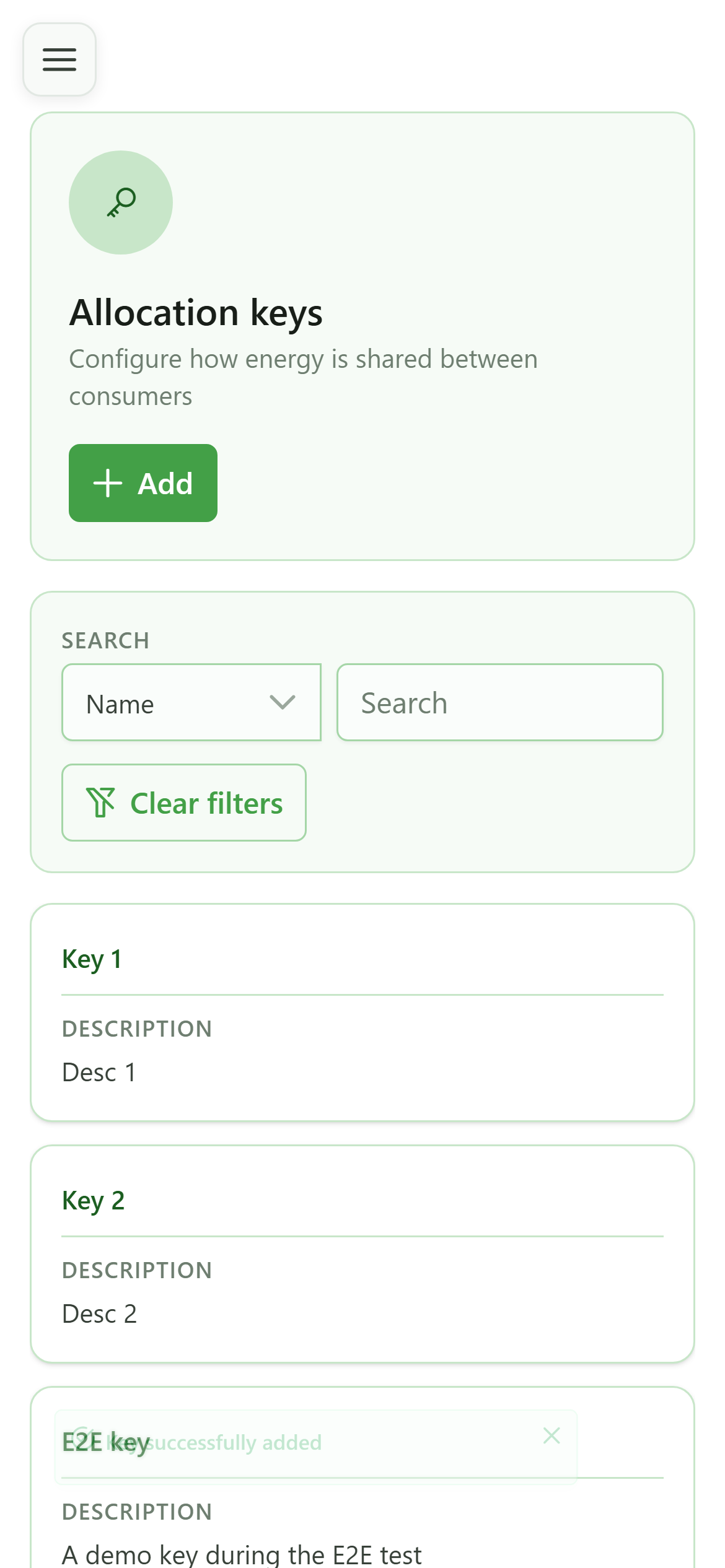
Create an allocation key (form)
Guide utilisateur
User guide
1 Add a key
Creating a key
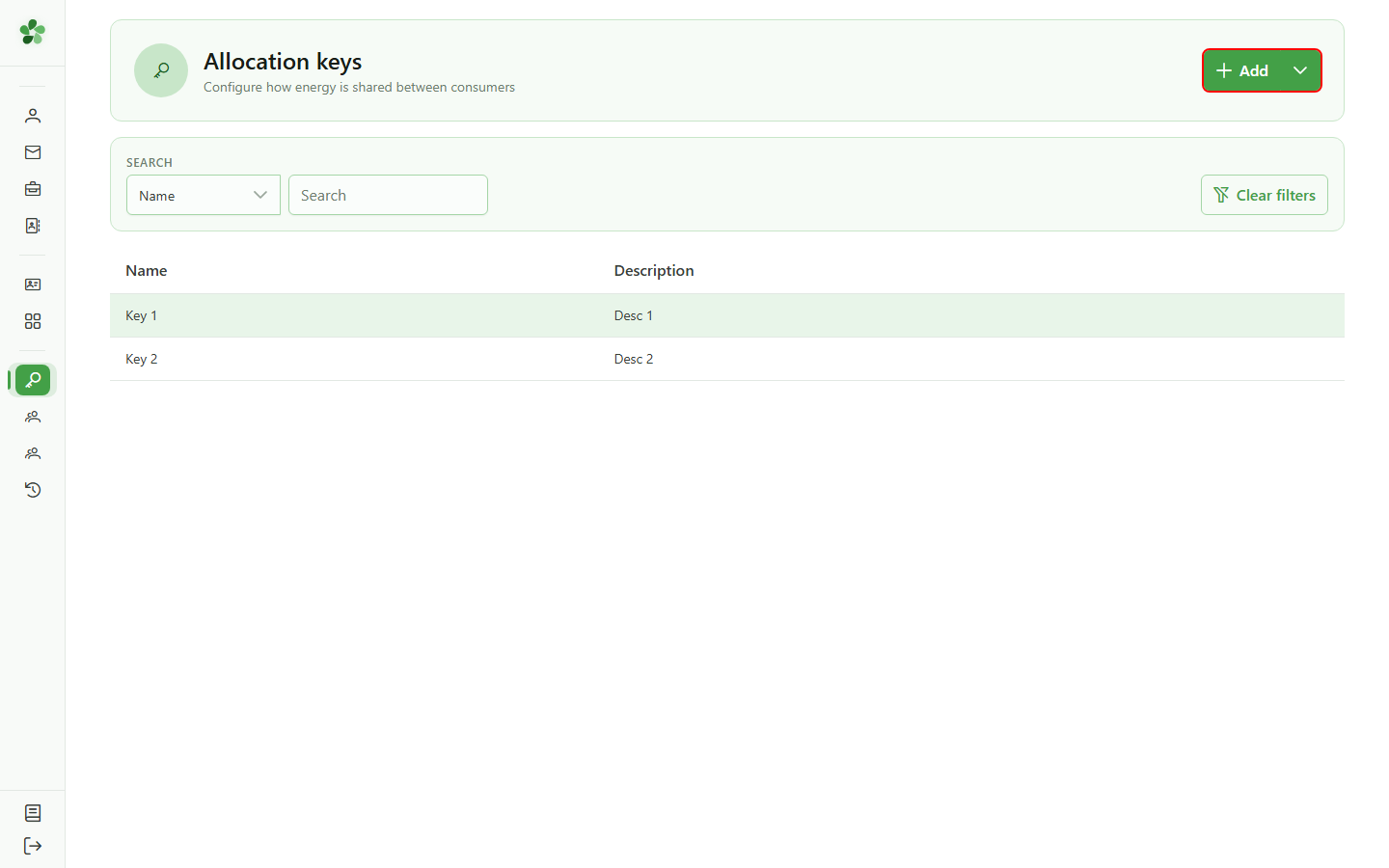
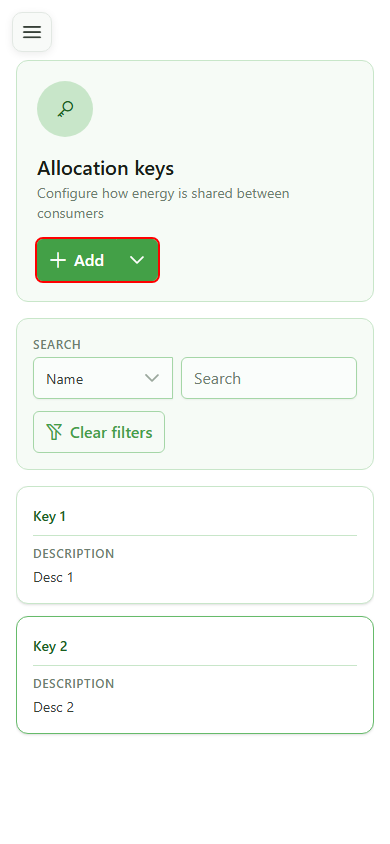
Click "Add" — OptimCE first asks how you want to build the new allocation key.
2 Choose the mode
Creating a key
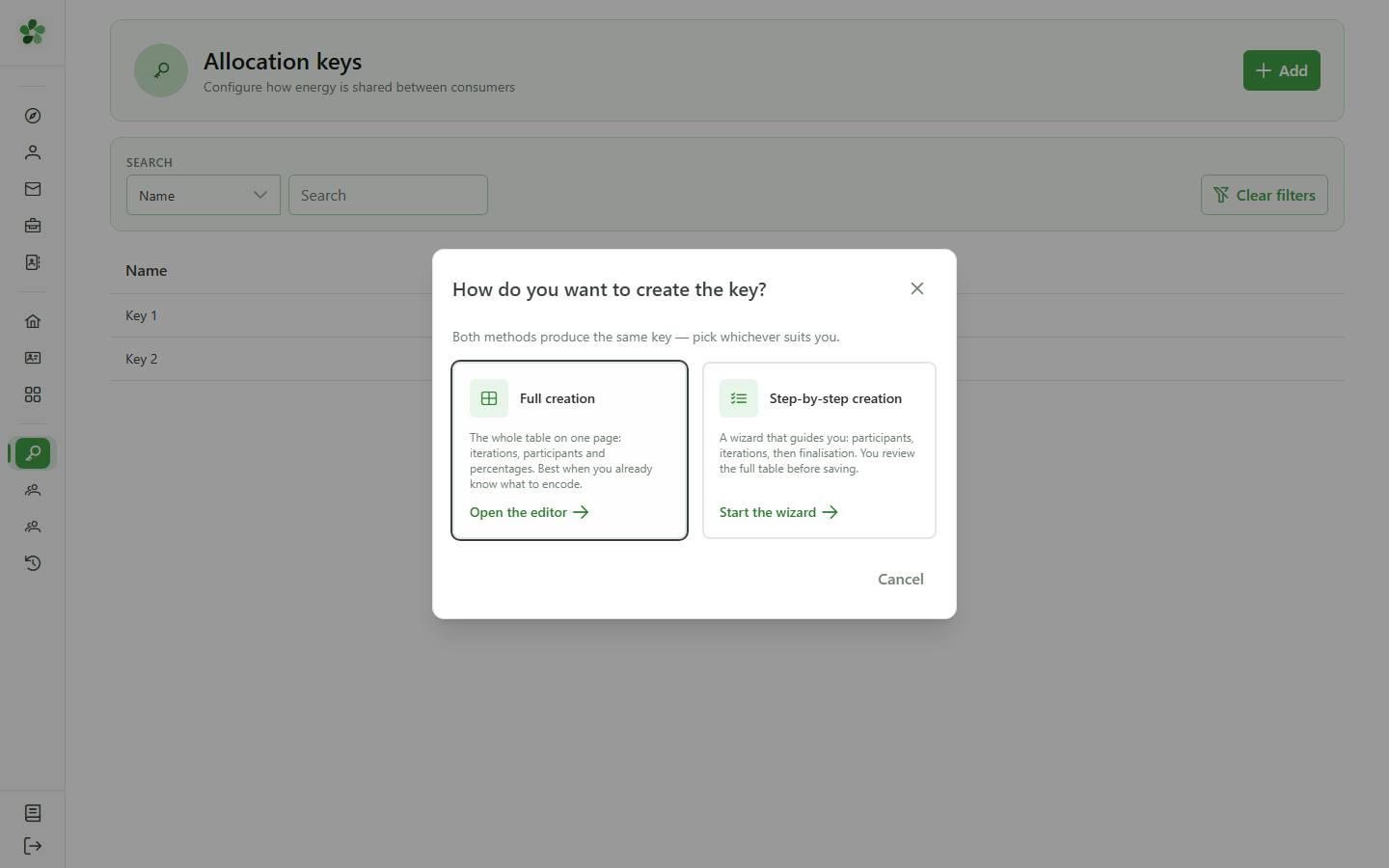
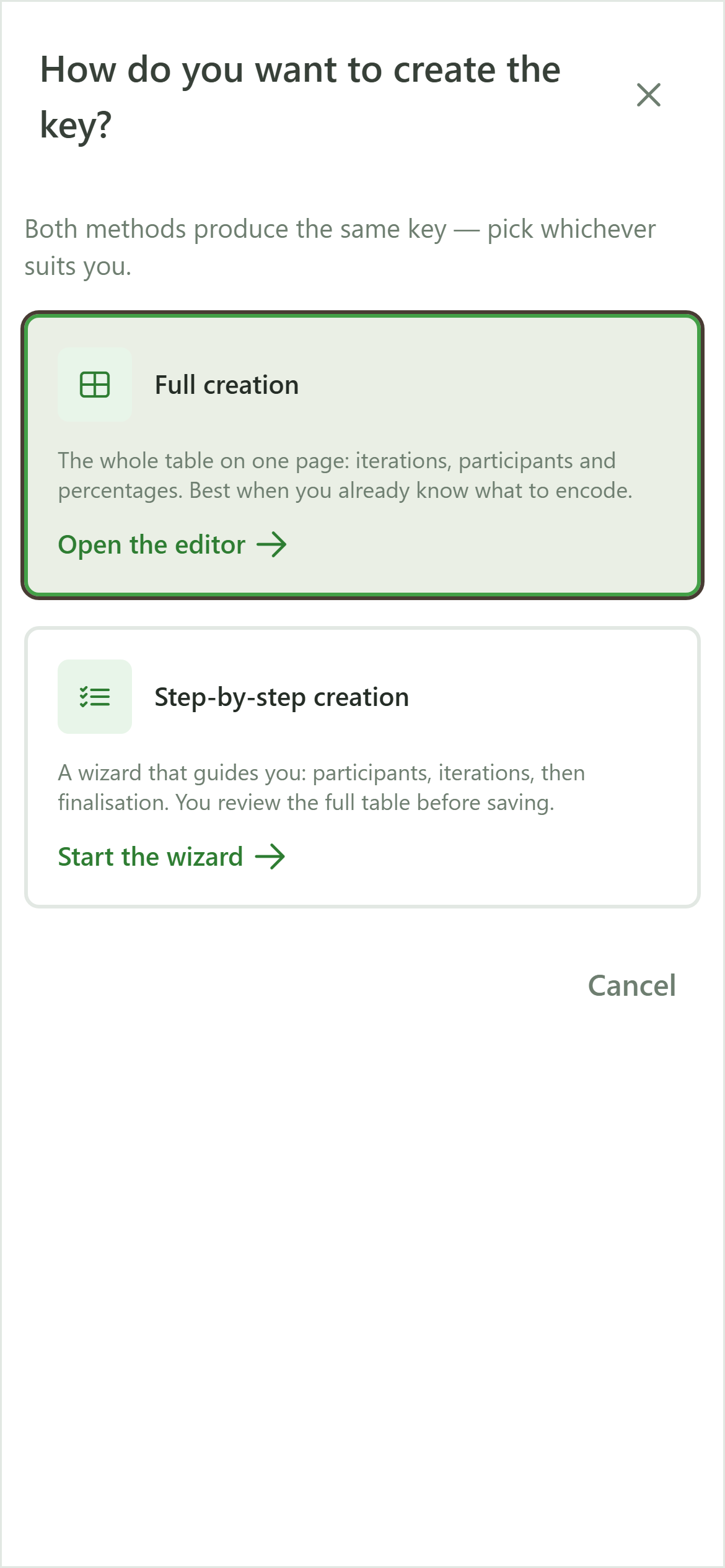
Two ways of building a key are offered. Pick "Full editor" to type the iterations and percentages straight into the grid.
3 Name the key
Key identification
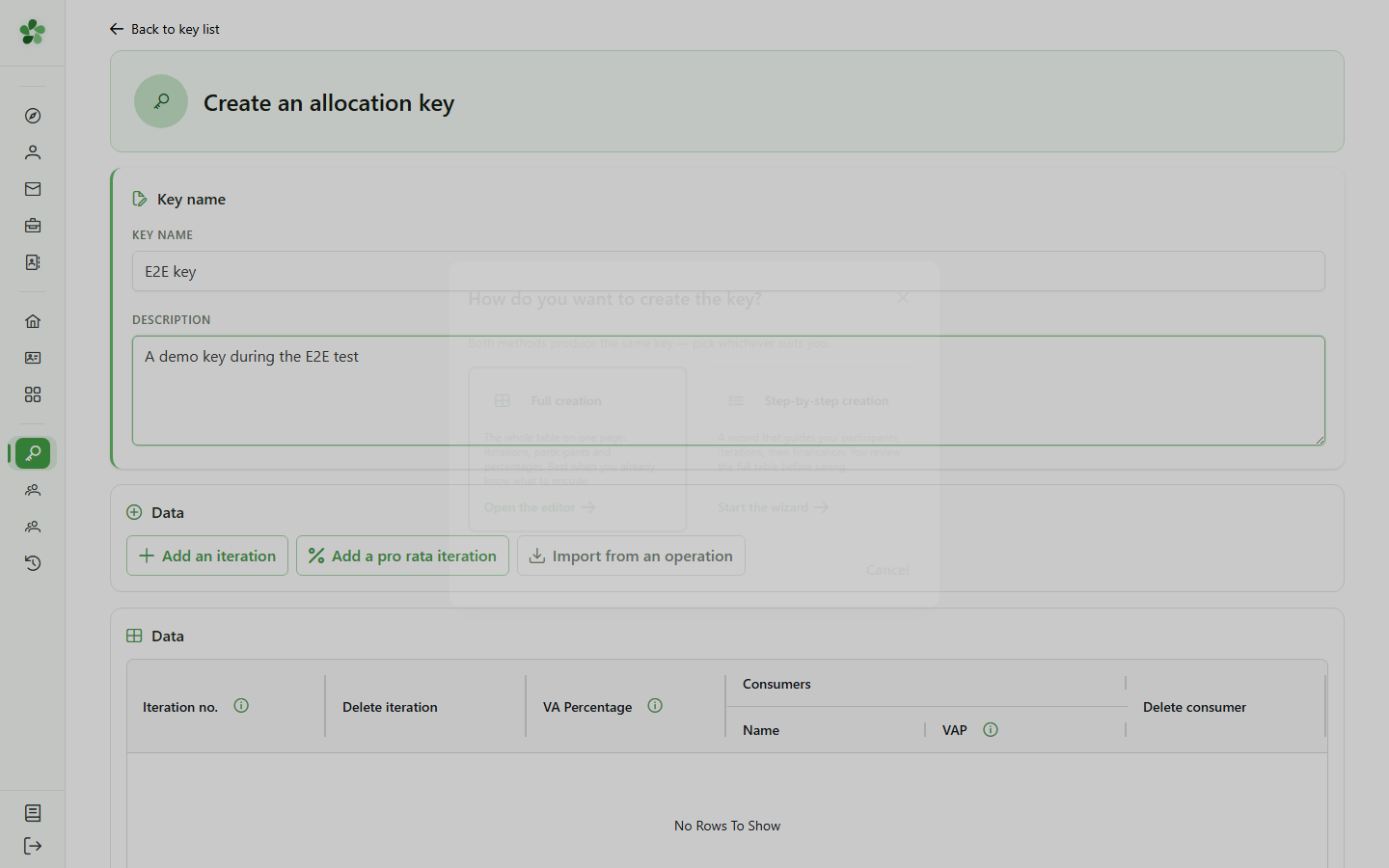
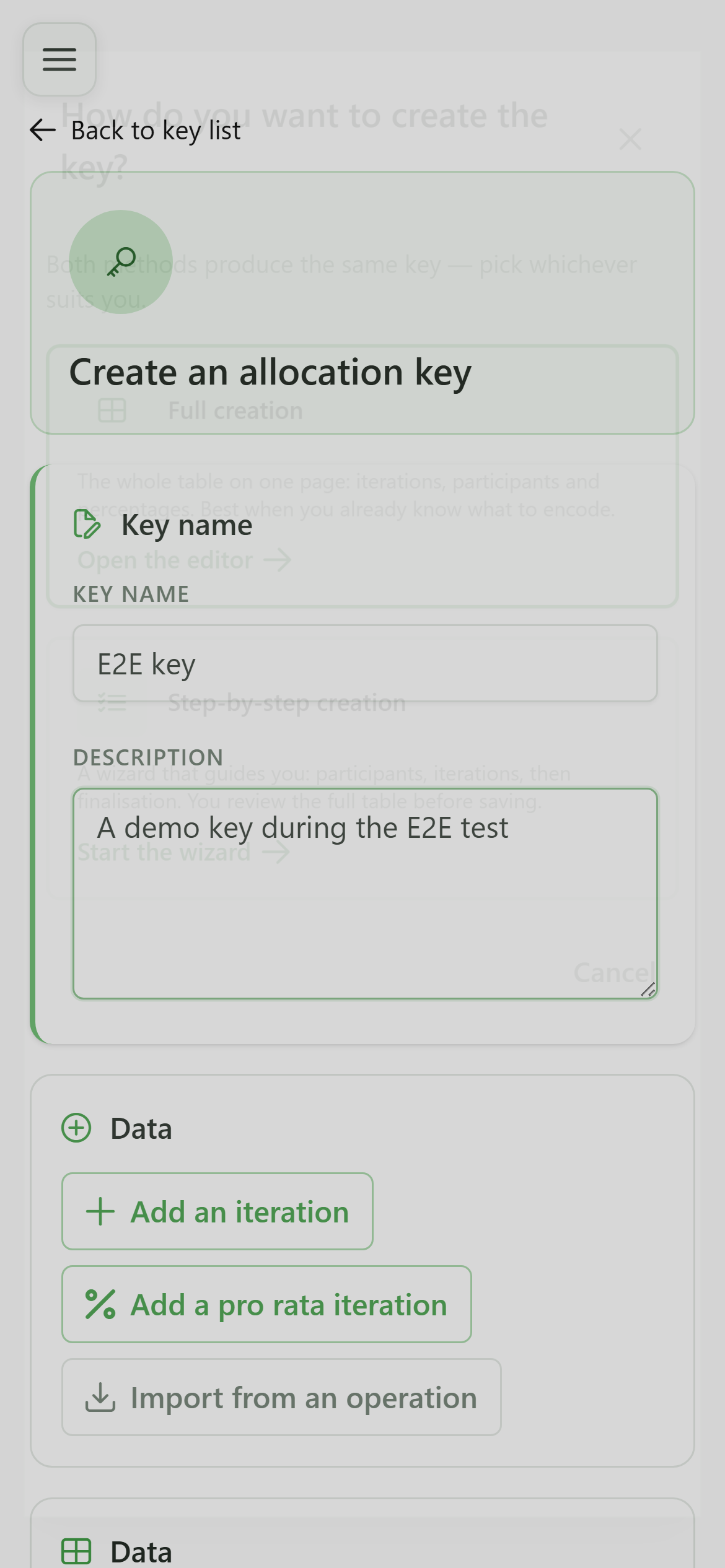
Give the new allocation key a name and a description. This metadata appears in the key list and makes it easier to find later.
4 Add an iteration
First iteration
Click "Add iteration" — the grid spawns a fresh iteration block with an initial consumer row ready to edit.
5 Add consumers
First iteration
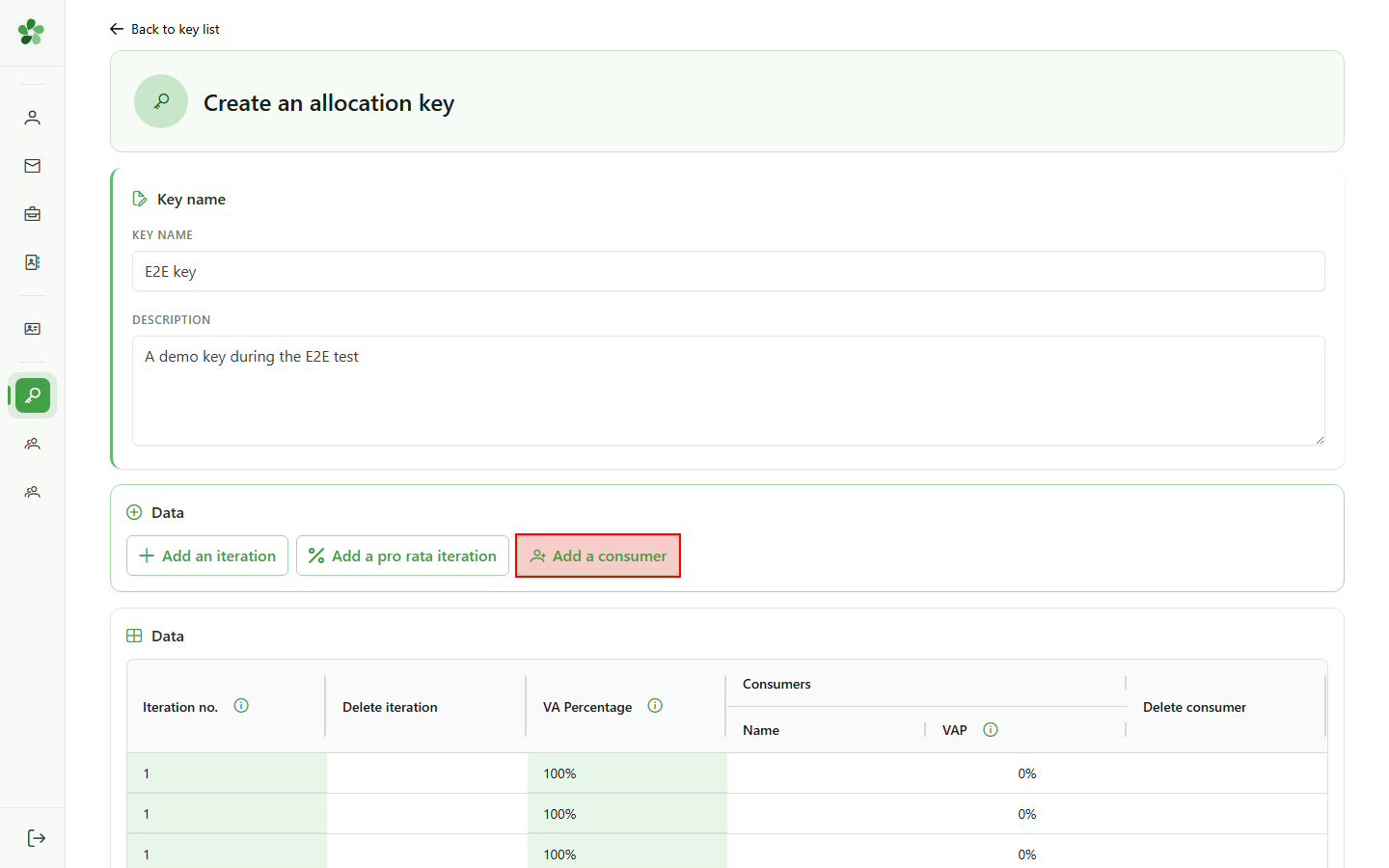
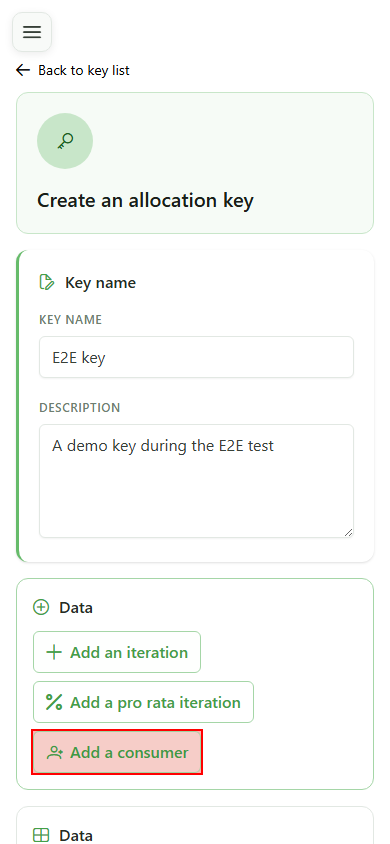
Click "Add consumer" as many times as needed to reach the desired count — three rows in this scenario.
6 Configure the iteration
First iteration
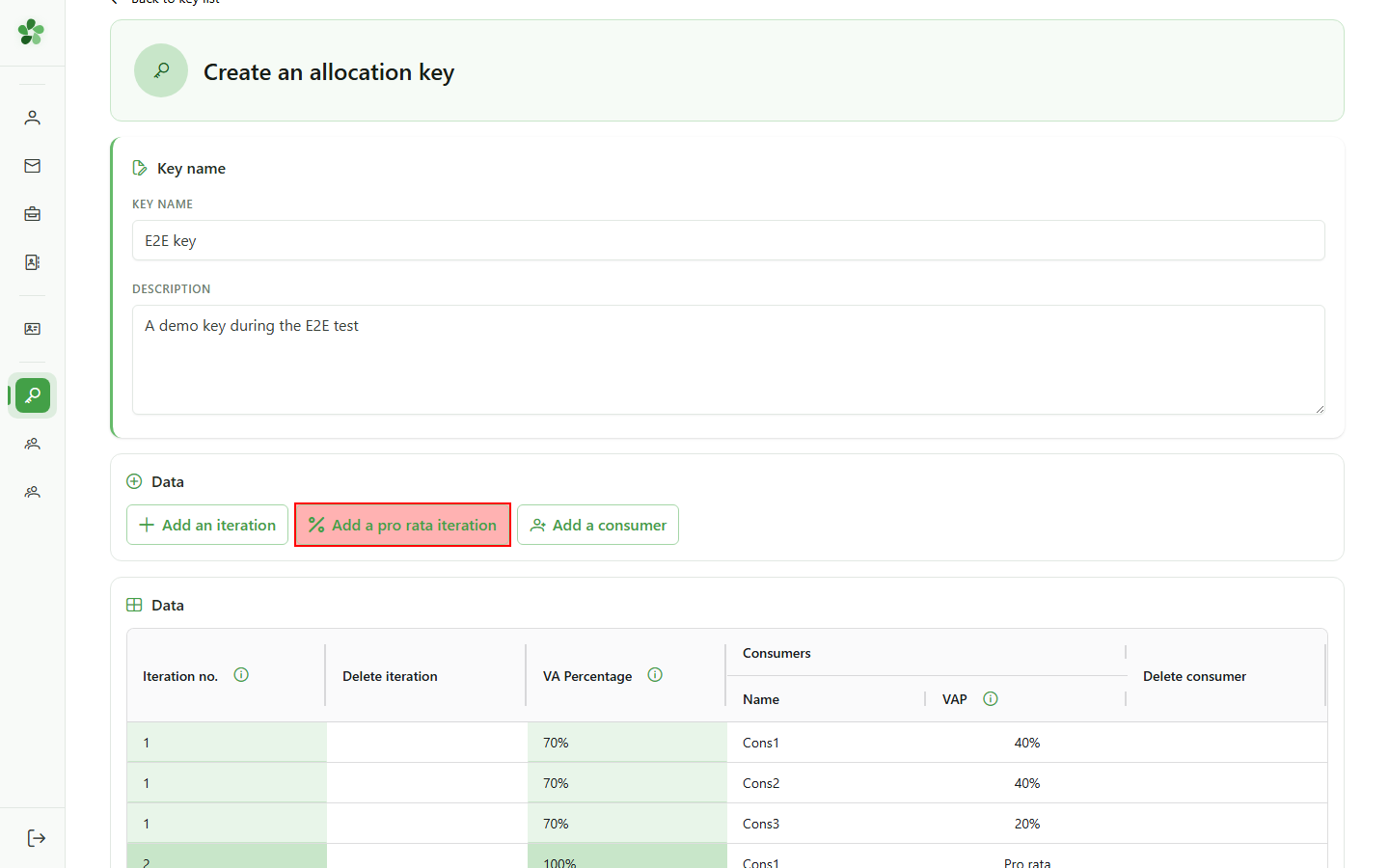
Set 70% of the energy for this iteration, name the three consumers (Cons1, Cons2, Cons3) and manually split the share 40/40/20.
7 Add a prorata iteration
Second iteration
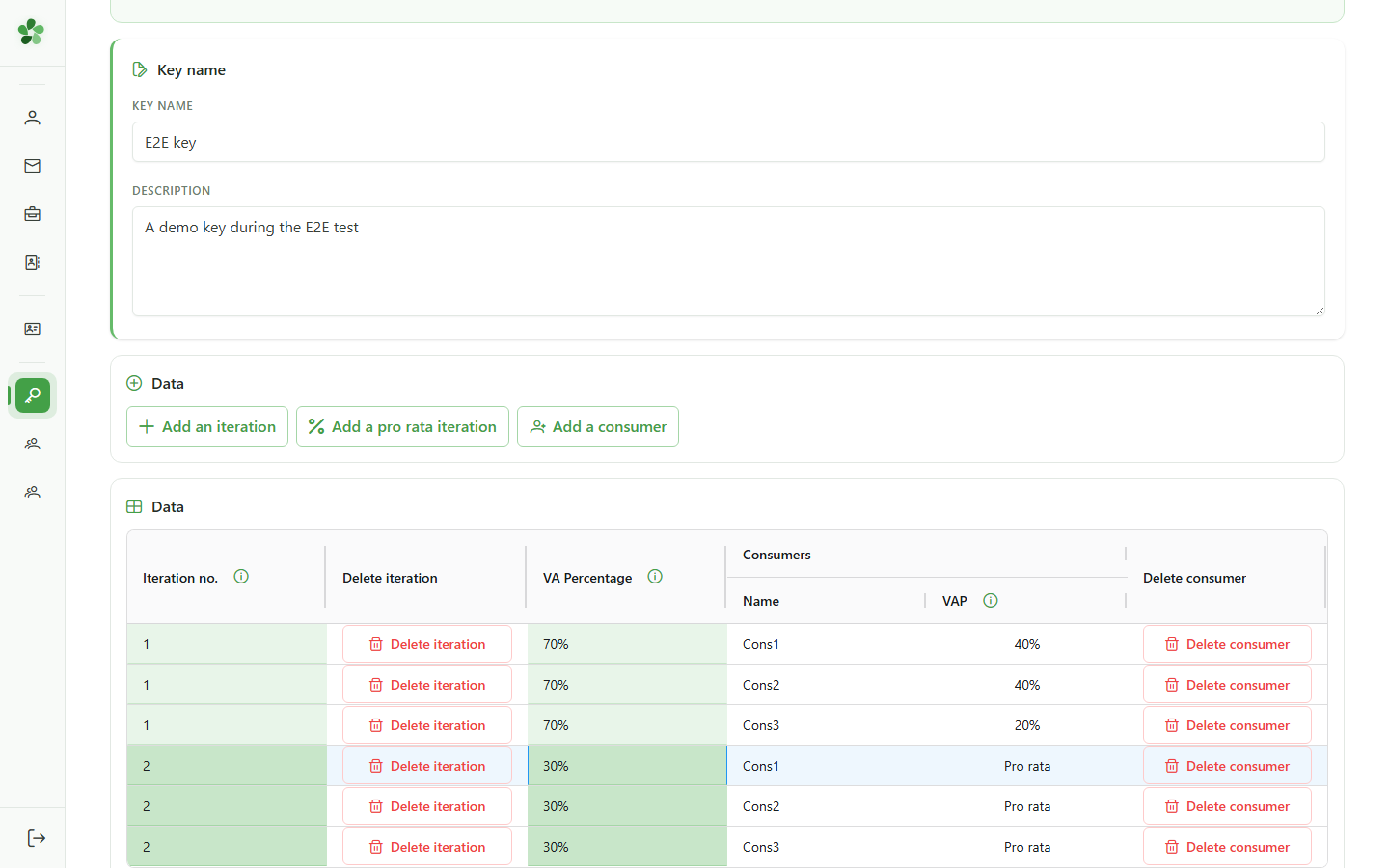
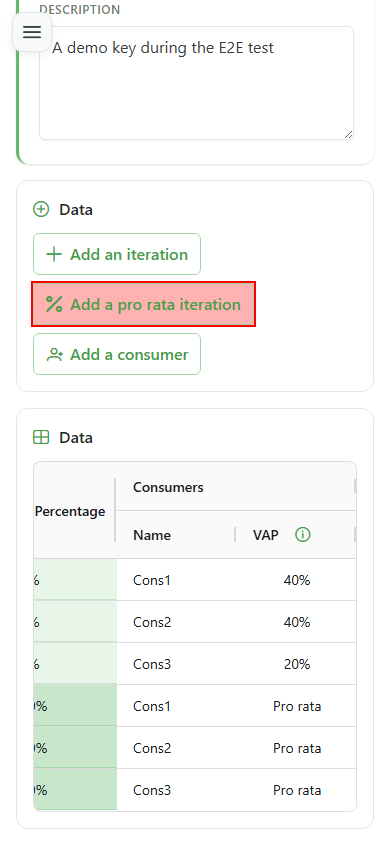
Click "Add prorata iteration" — consumer names are carried over automatically and the percentages will be computed from actual consumption.
8 Set the weight
Second iteration
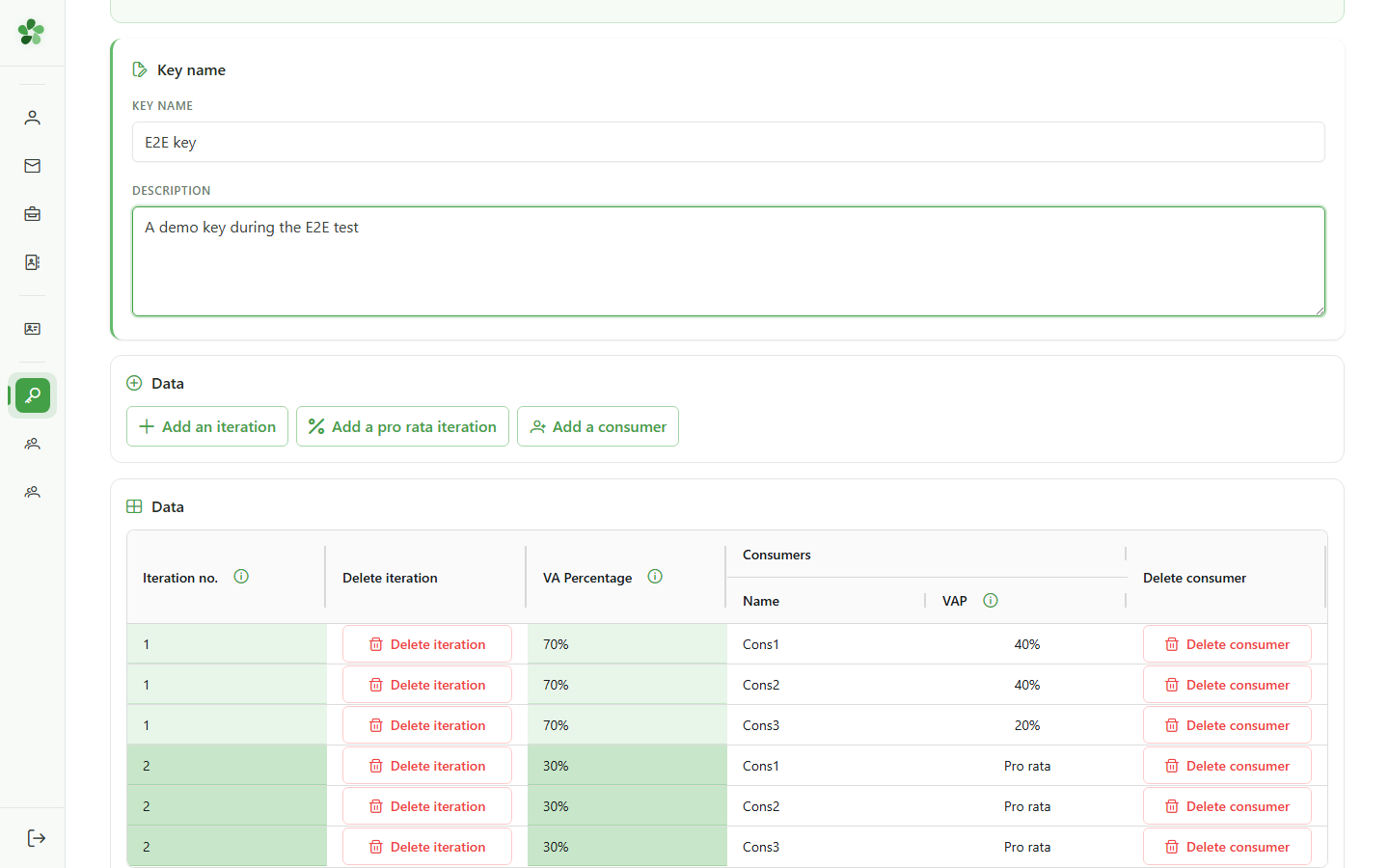
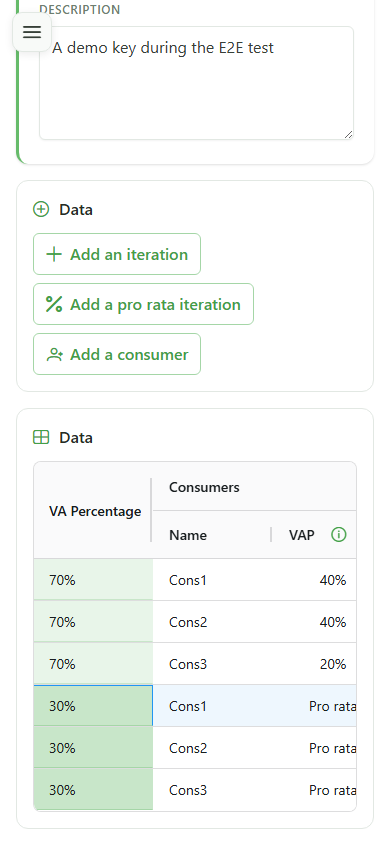
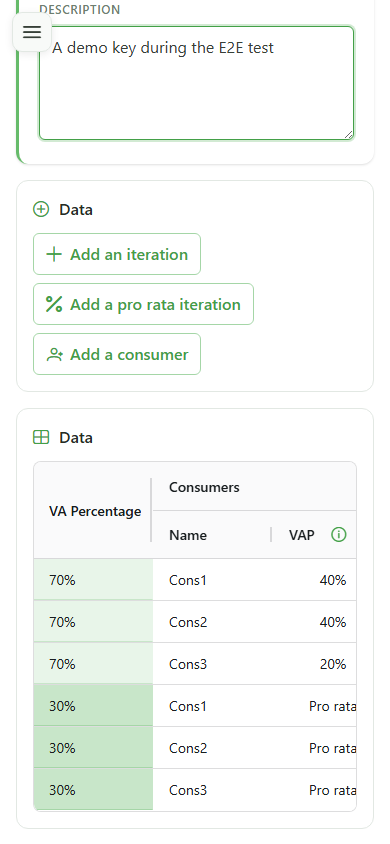
Type 30% as the weight of the second iteration so the two iterations together reach 100% of the energy.
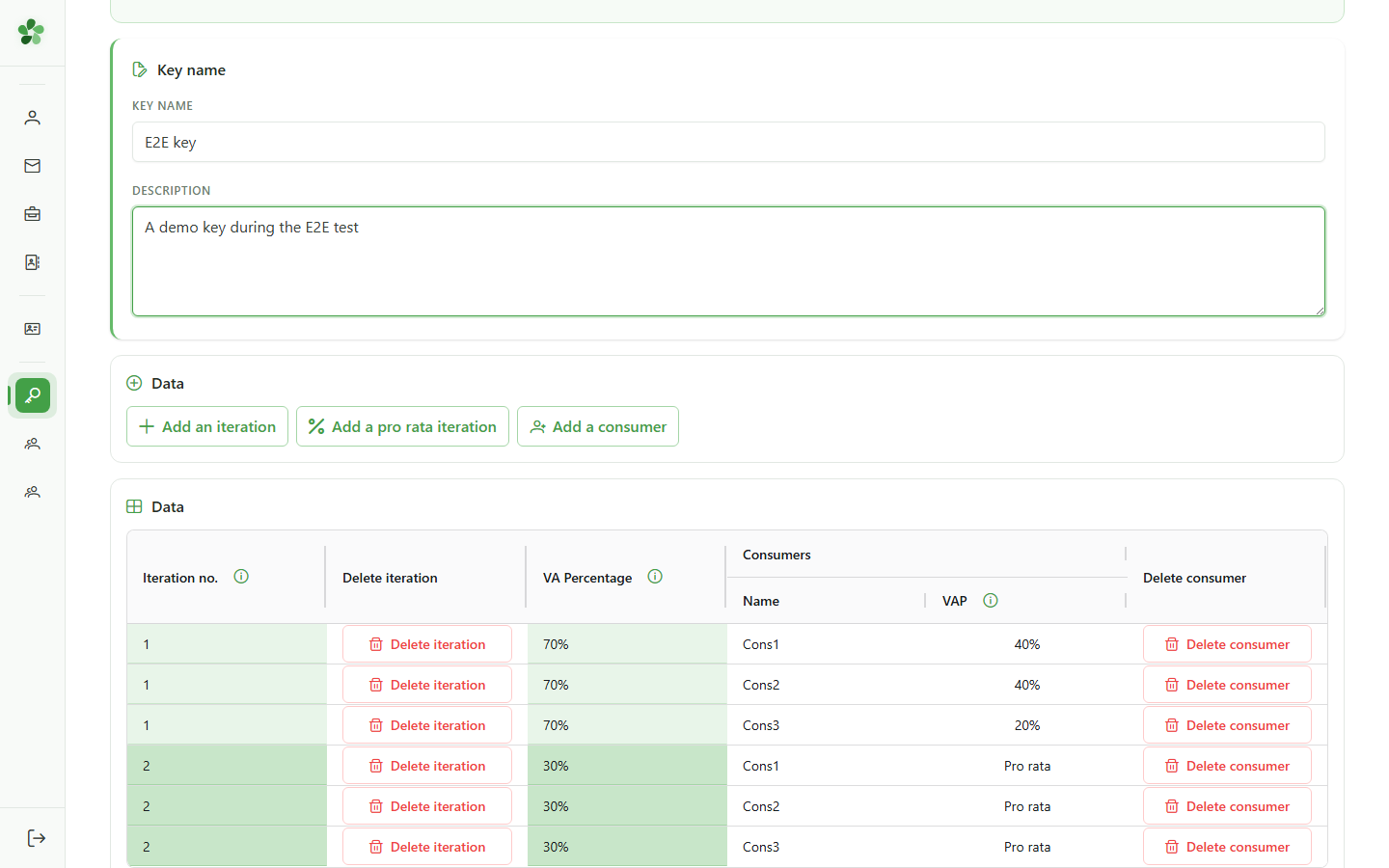
9 Iteration recomputed
Second iteration
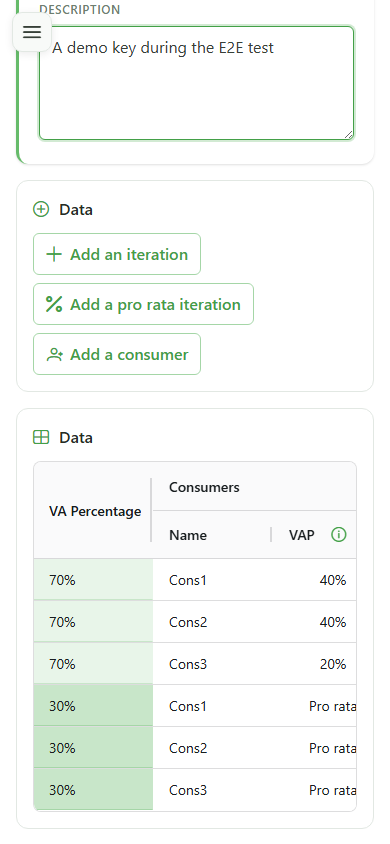
As soon as the weight is committed (Enter or clicking outside the cell), the whole second iteration is recomputed automatically in prorata mode.
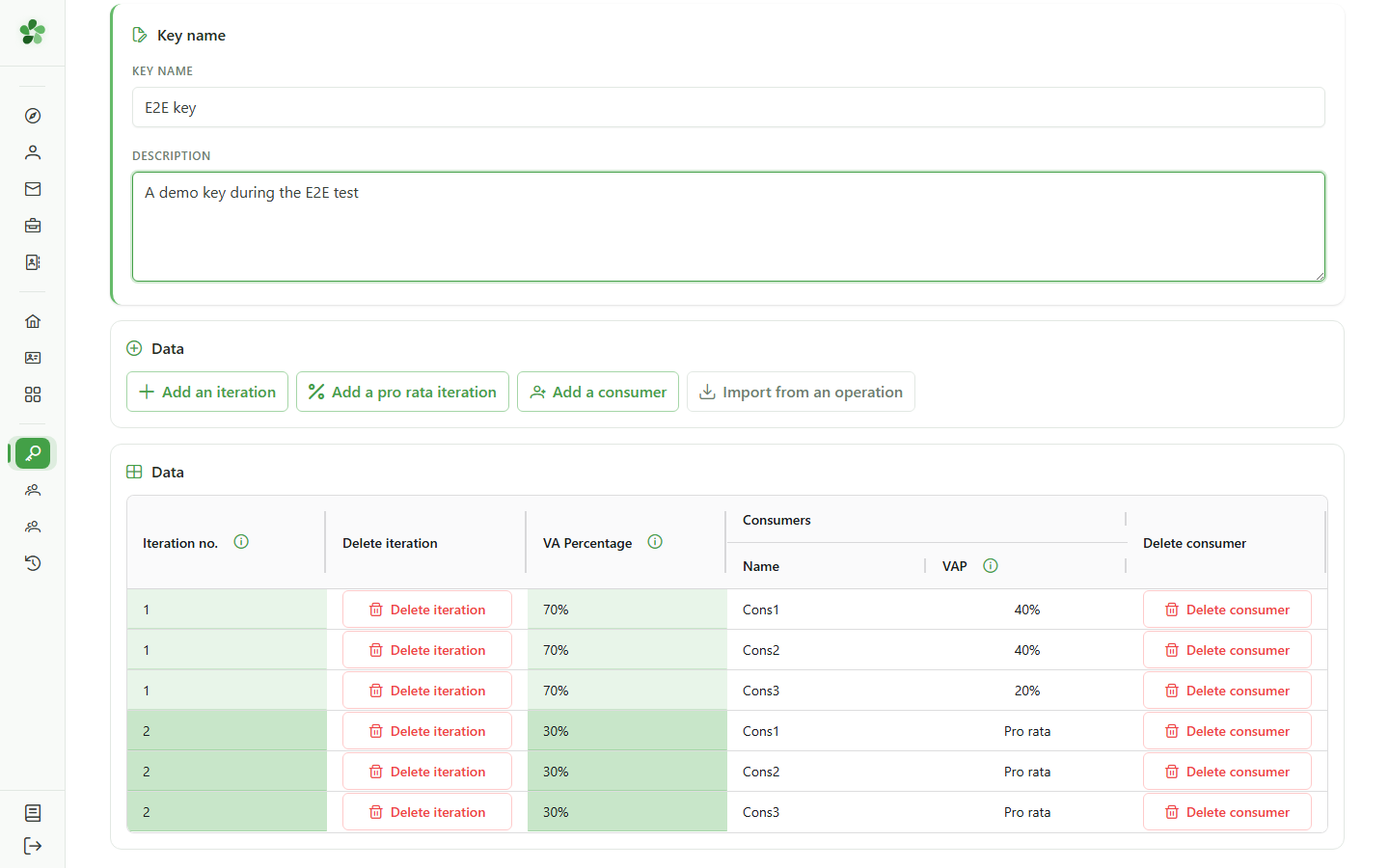
10 Review the configuration
Final review
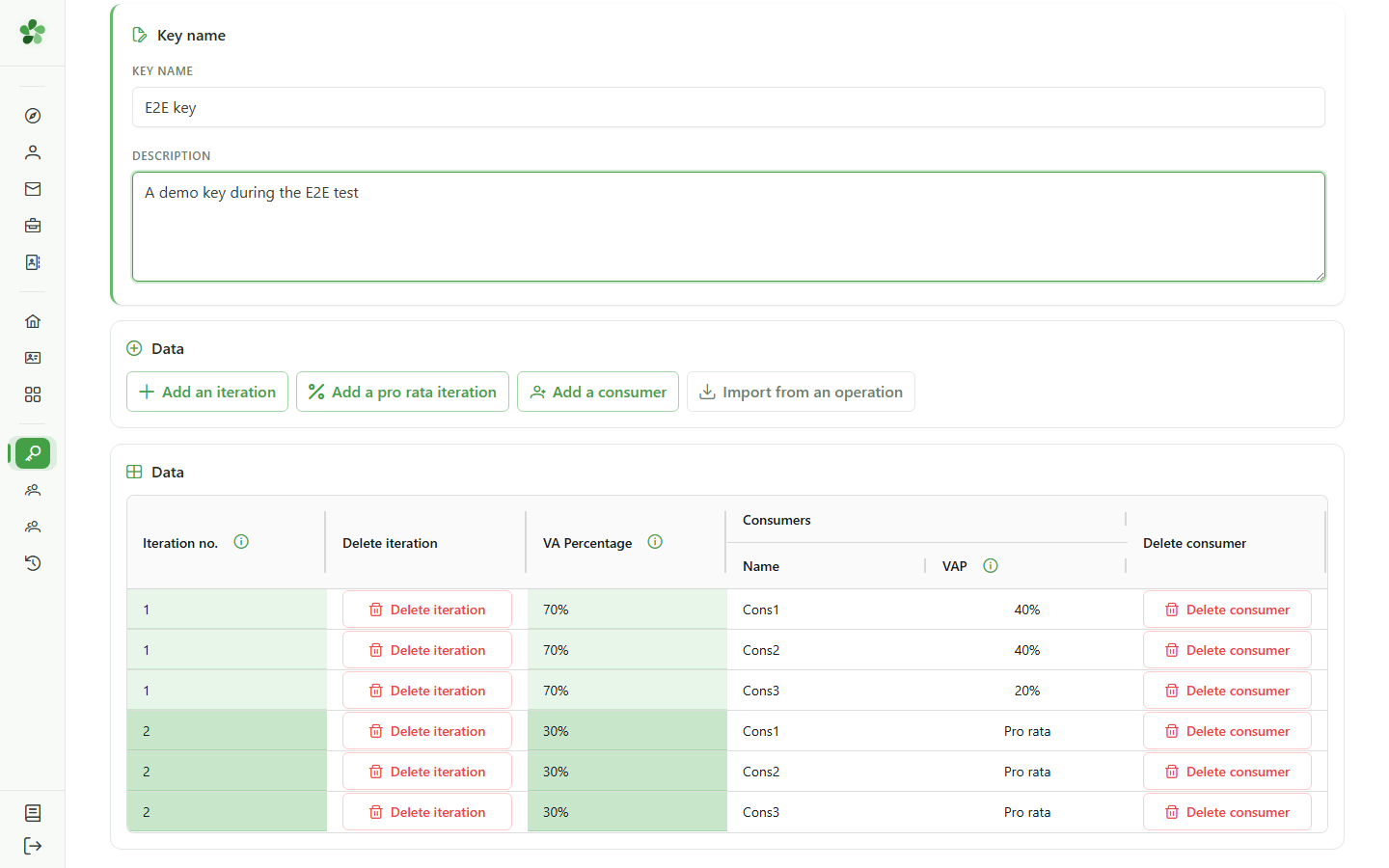
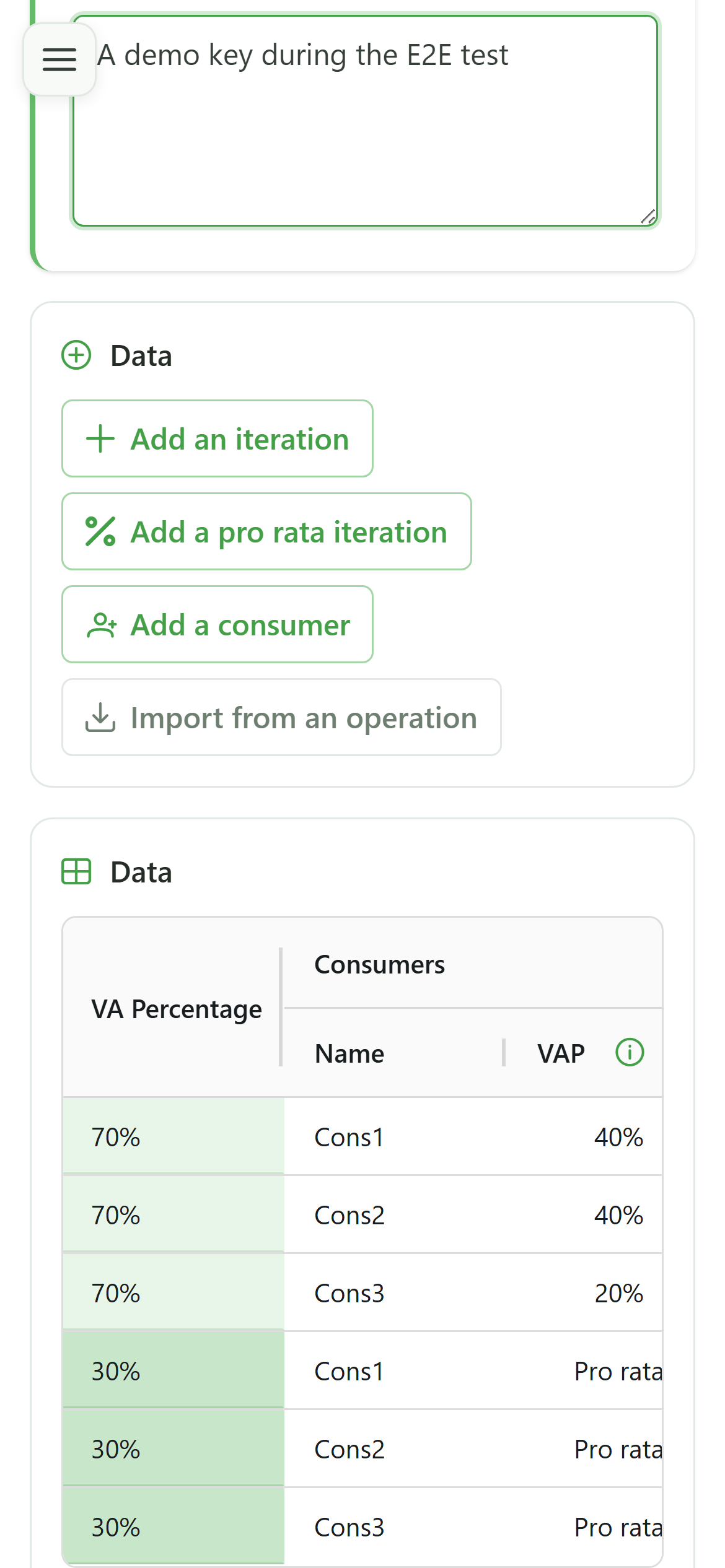
Scan the full grid to confirm the iterations, names and percentages before saving the key.
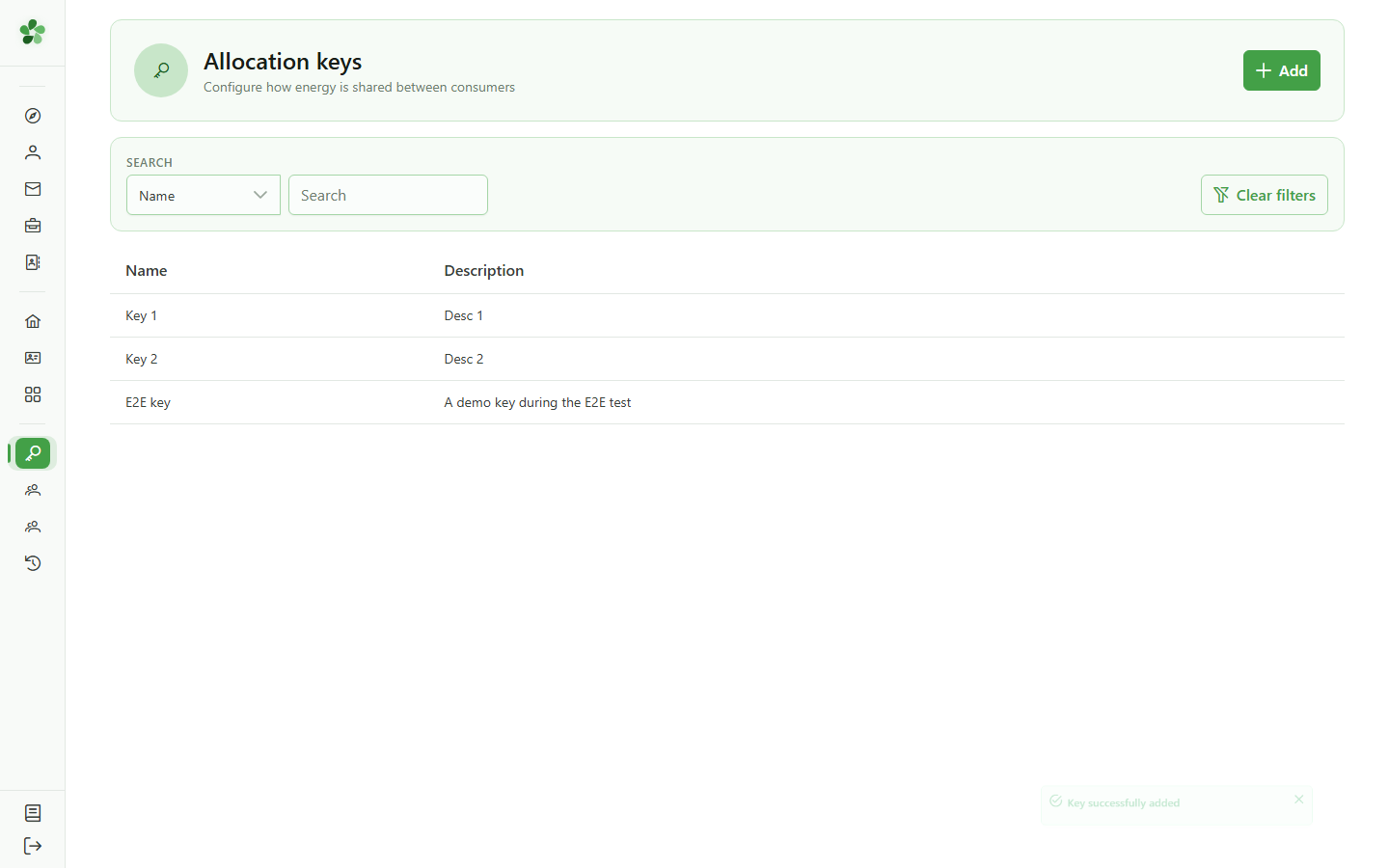
11 Key created
Confirmation
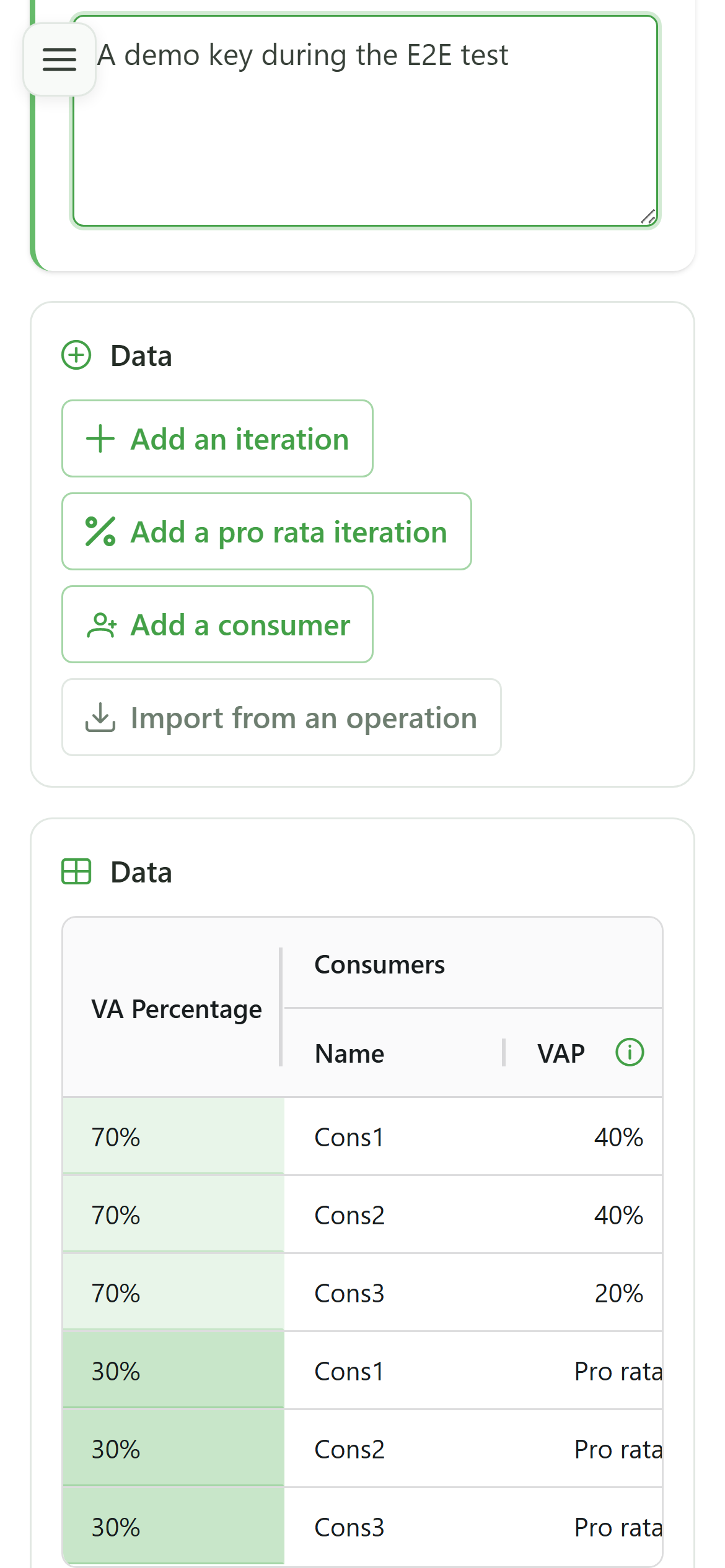
The new "E2E key" shows up in the community's allocation keys list, ready to be used by a sharing operation.
Create an allocation key (form)
Guide utilisateur
User guide
1 Add a key
Creating a key
Click "Add" — OptimCE first asks how you want to build the new allocation key.
2 Choose the mode
Creating a key
Two ways of building a key are offered. Pick "Full editor" to type the iterations and percentages straight into the grid.
3 Name the key
Key identification
Give the new allocation key a name and a description. This metadata appears in the key list and makes it easier to find later.
4 Add an iteration
First iteration
Click "Add iteration" — the grid spawns a fresh iteration block with an initial consumer row ready to edit.
5 Add consumers
First iteration
Click "Add consumer" as many times as needed to reach the desired count — three rows in this scenario.
6 Configure the iteration
First iteration
Set 70% of the energy for this iteration, name the three consumers (Cons1, Cons2, Cons3) and manually split the share 40/40/20.
7 Add a prorata iteration
Second iteration
Click "Add prorata iteration" — consumer names are carried over automatically and the percentages will be computed from actual consumption.
8 Set the weight
Second iteration
Type 30% as the weight of the second iteration so the two iterations together reach 100% of the energy.
9 Iteration recomputed
Second iteration
As soon as the weight is committed (Enter or clicking outside the cell), the whole second iteration is recomputed automatically in prorata mode.
10 Review the configuration
Final review
Scan the full grid to confirm the iterations, names and percentages before saving the key.
11 Key created
Confirmation
The new "E2E key" shows up in the community's allocation keys list, ready to be used by a sharing operation.