Your home page
Guide utilisateur
User guide
Gebruikershandleiding
Benutzerhandbuch
1 Your home page
After signing in
Whatever your role, signing in brings you here. This page is not about one community: it gathers what concerns you, personally, across all of them.
2 What needs you
Home page
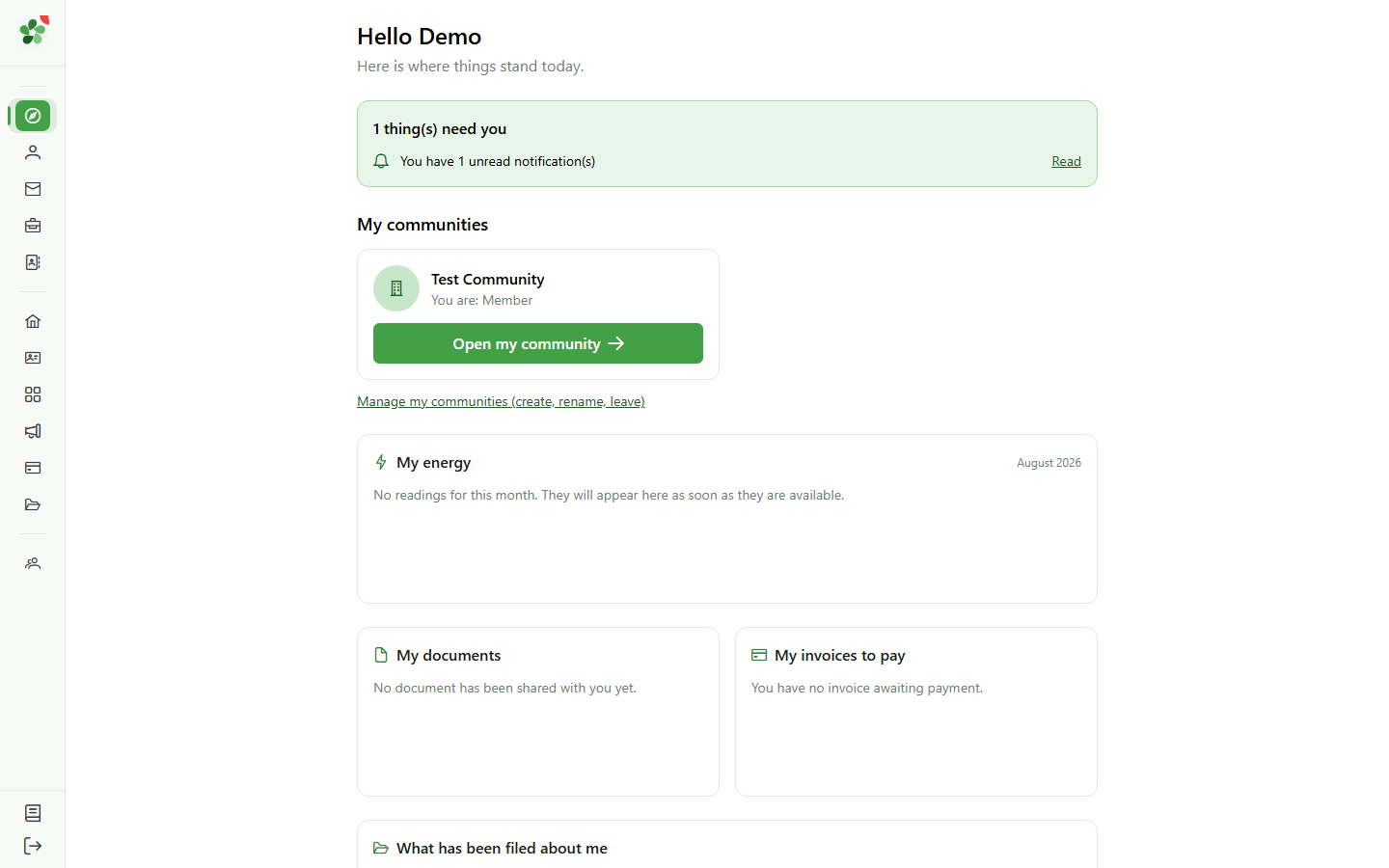
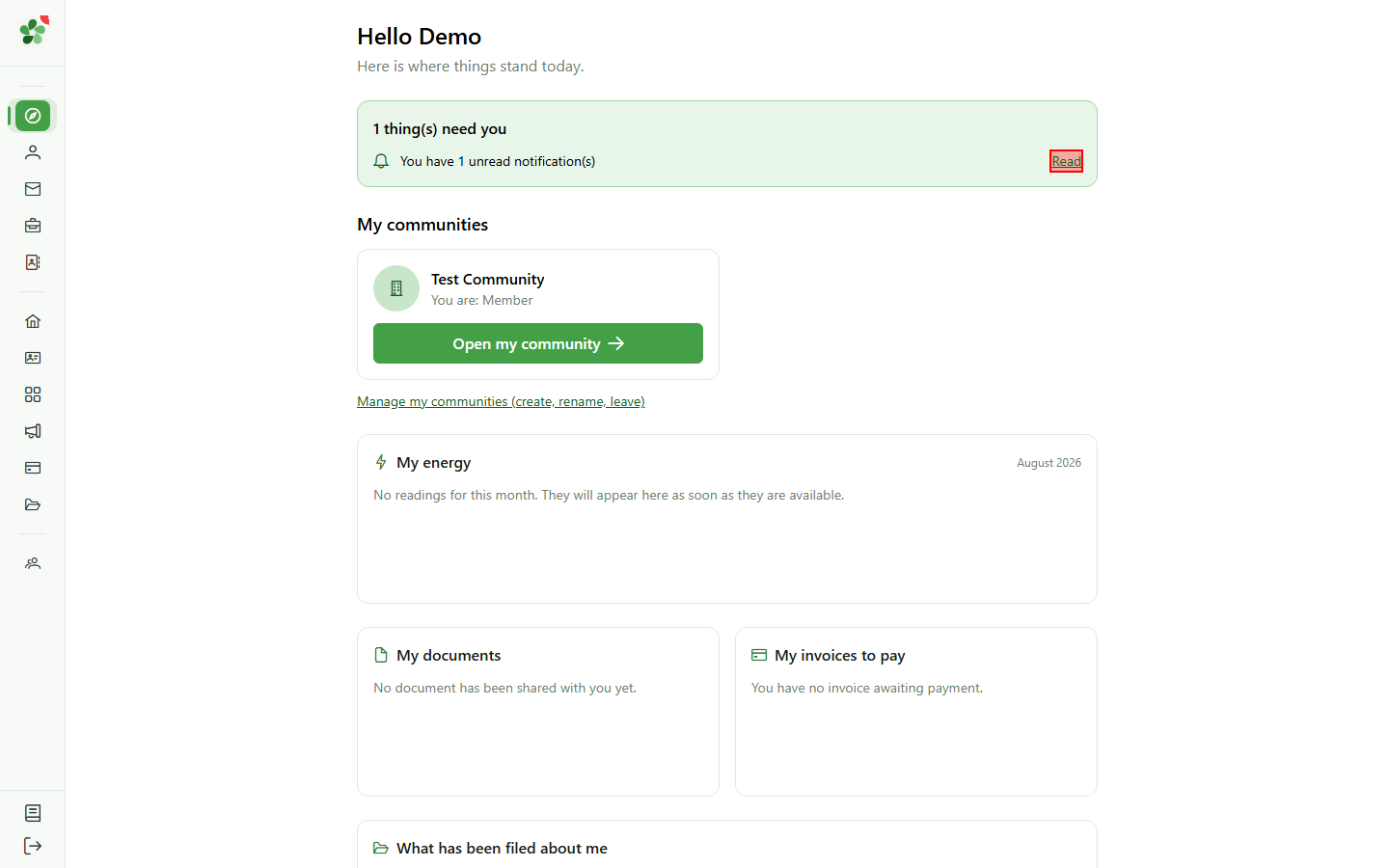
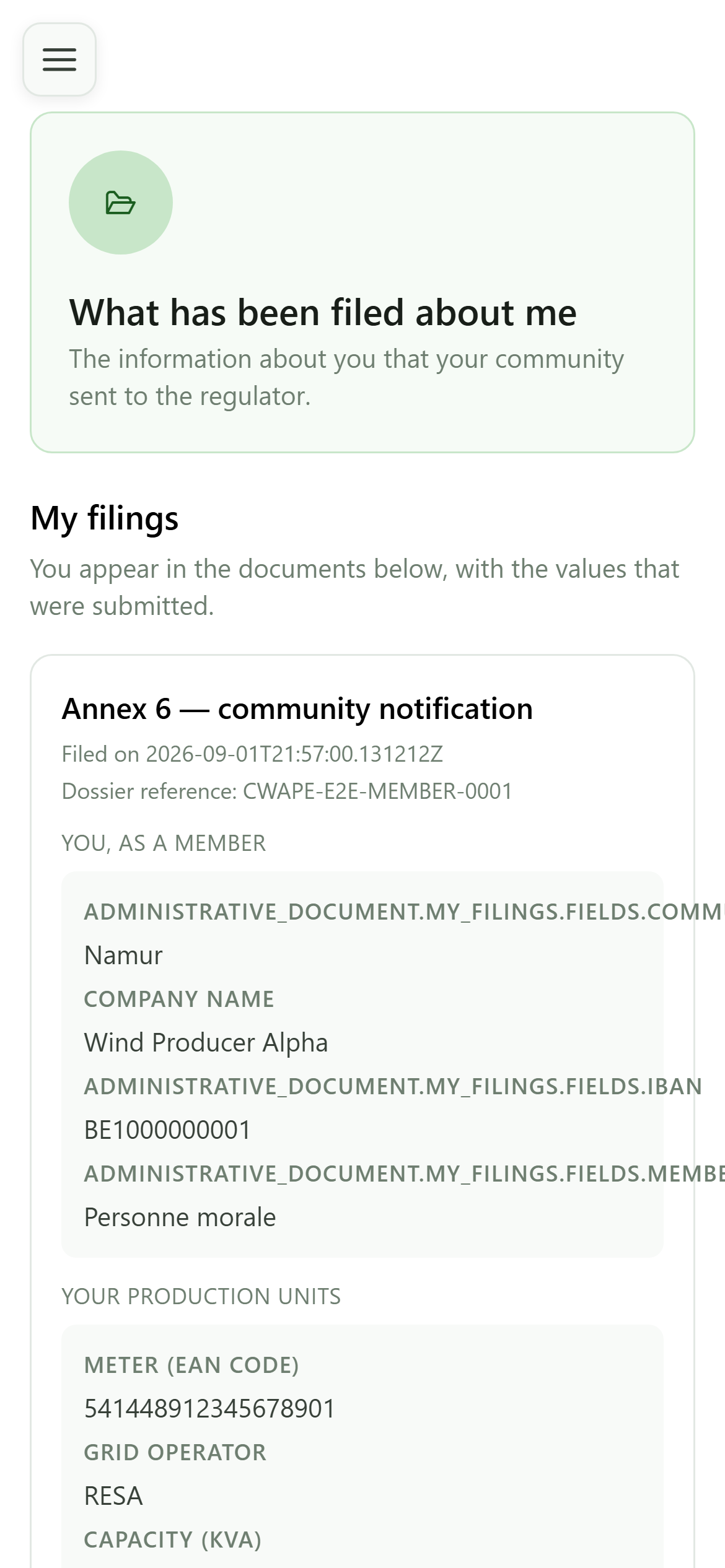
The band at the top counts what is waiting on you: invitations received, a record to complete, unread notifications. When there is nothing, it collapses to a single reassuring line.
3 My communities
Home page
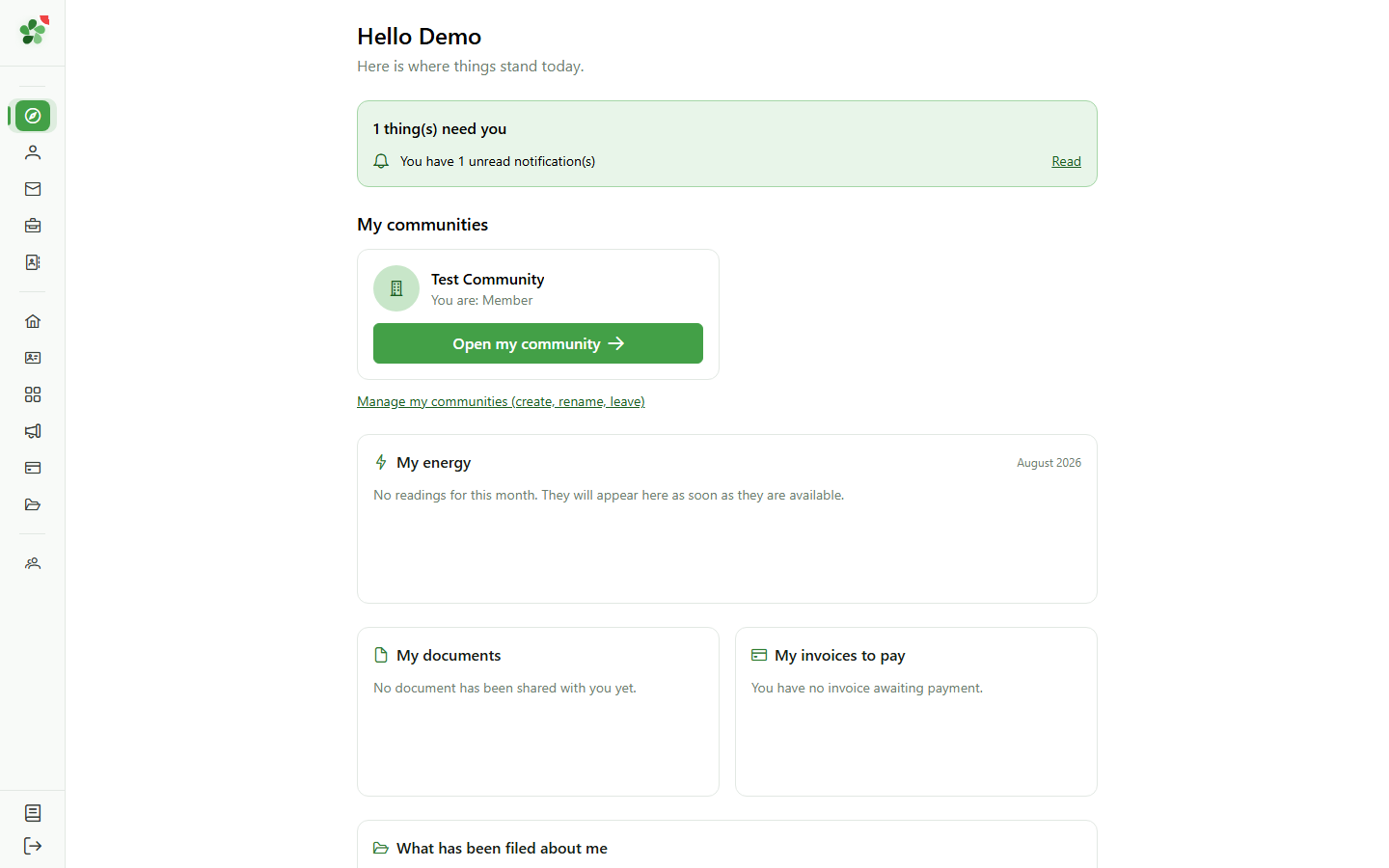
Each card shows a community and your role in it. The button opens it: that community becomes your active one and you land on its dashboard.
4 My energy
Home page
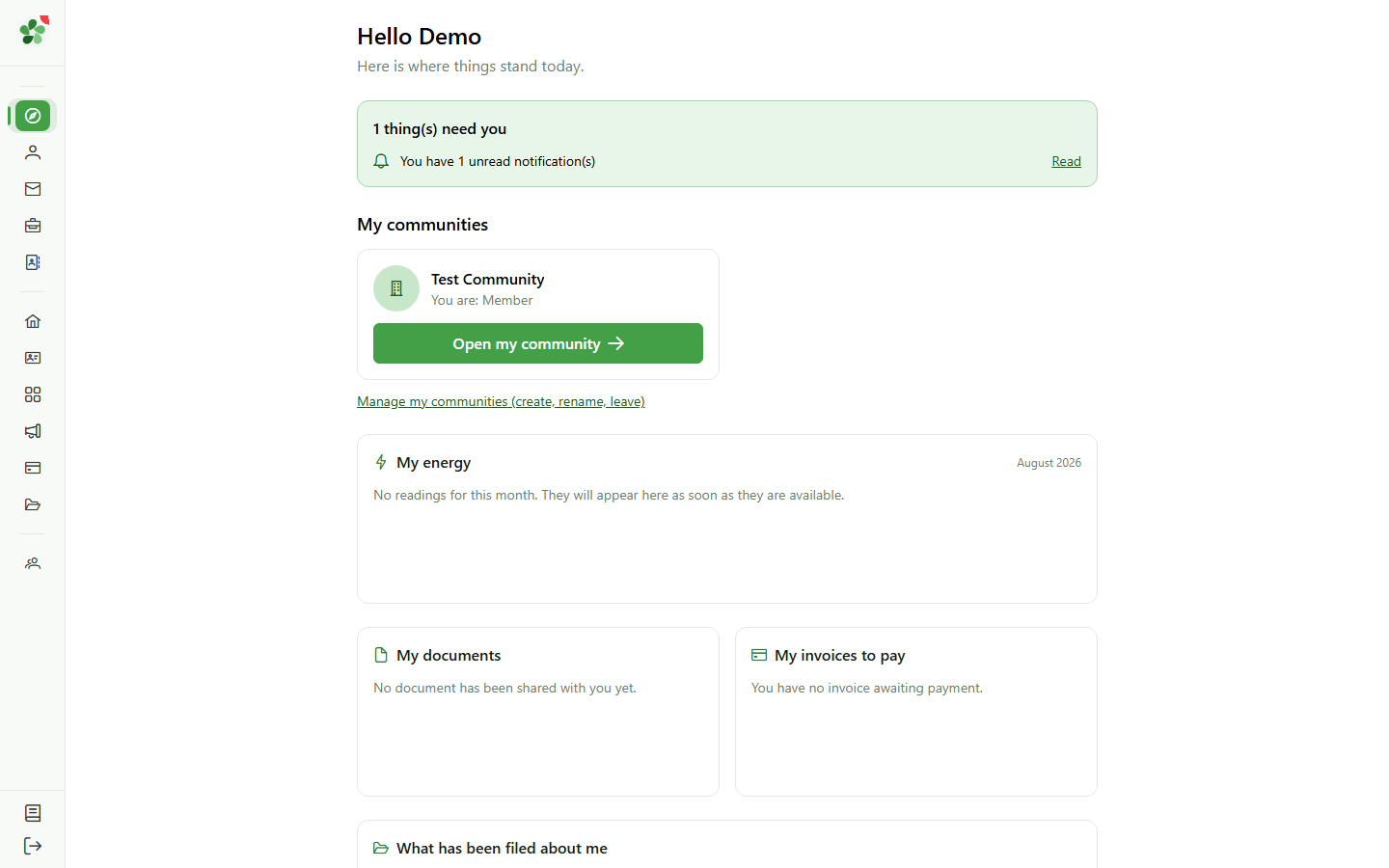
The panel gathers your meters across every community for the latest month with readings. A meter with no reading says "no reading yet" rather than showing a misleading zero.
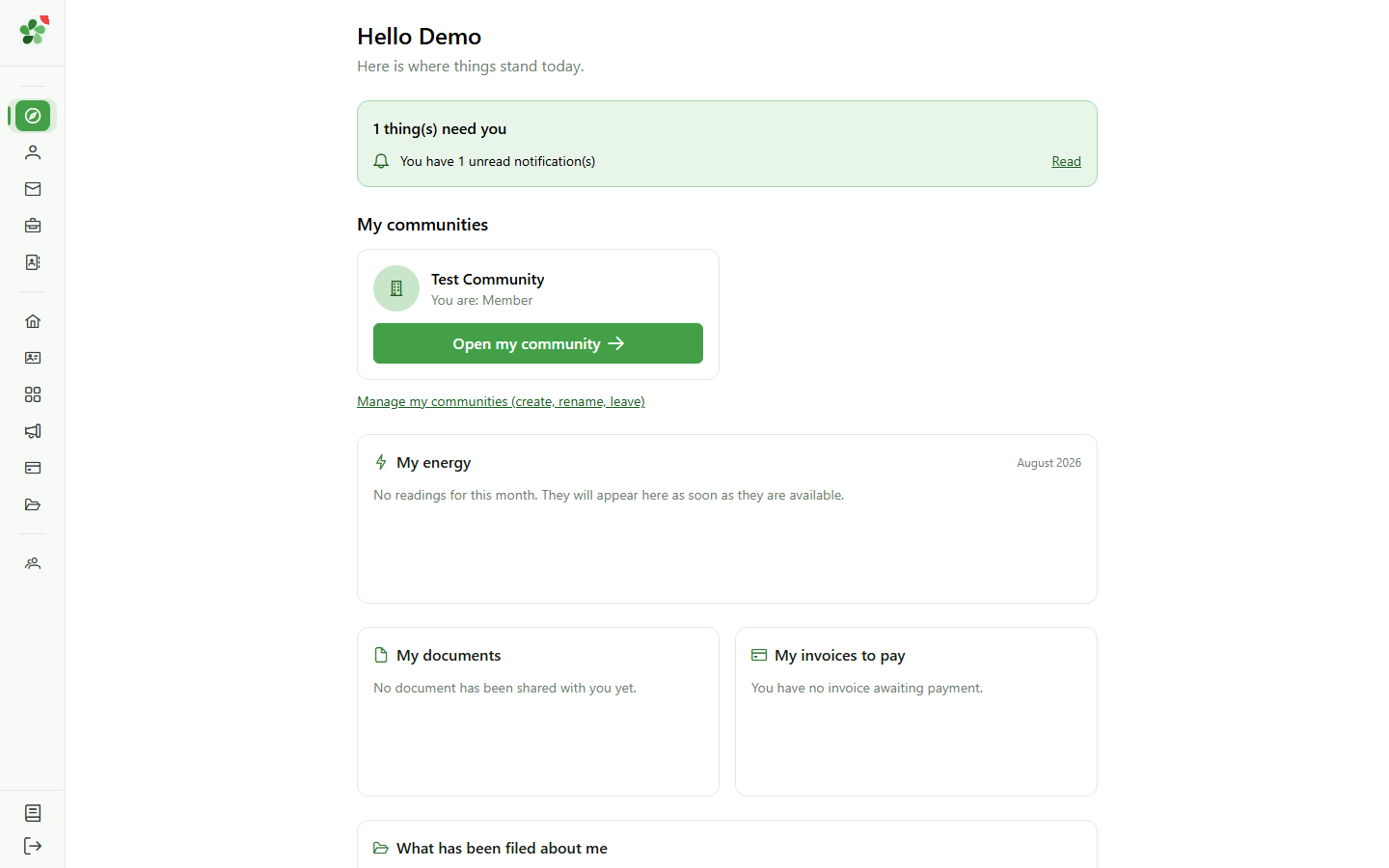
5 My invoices and my documents
Home page
Invoices to pay and the documents shared with you are gathered here. Invoices only show up for communities that use the billing module.
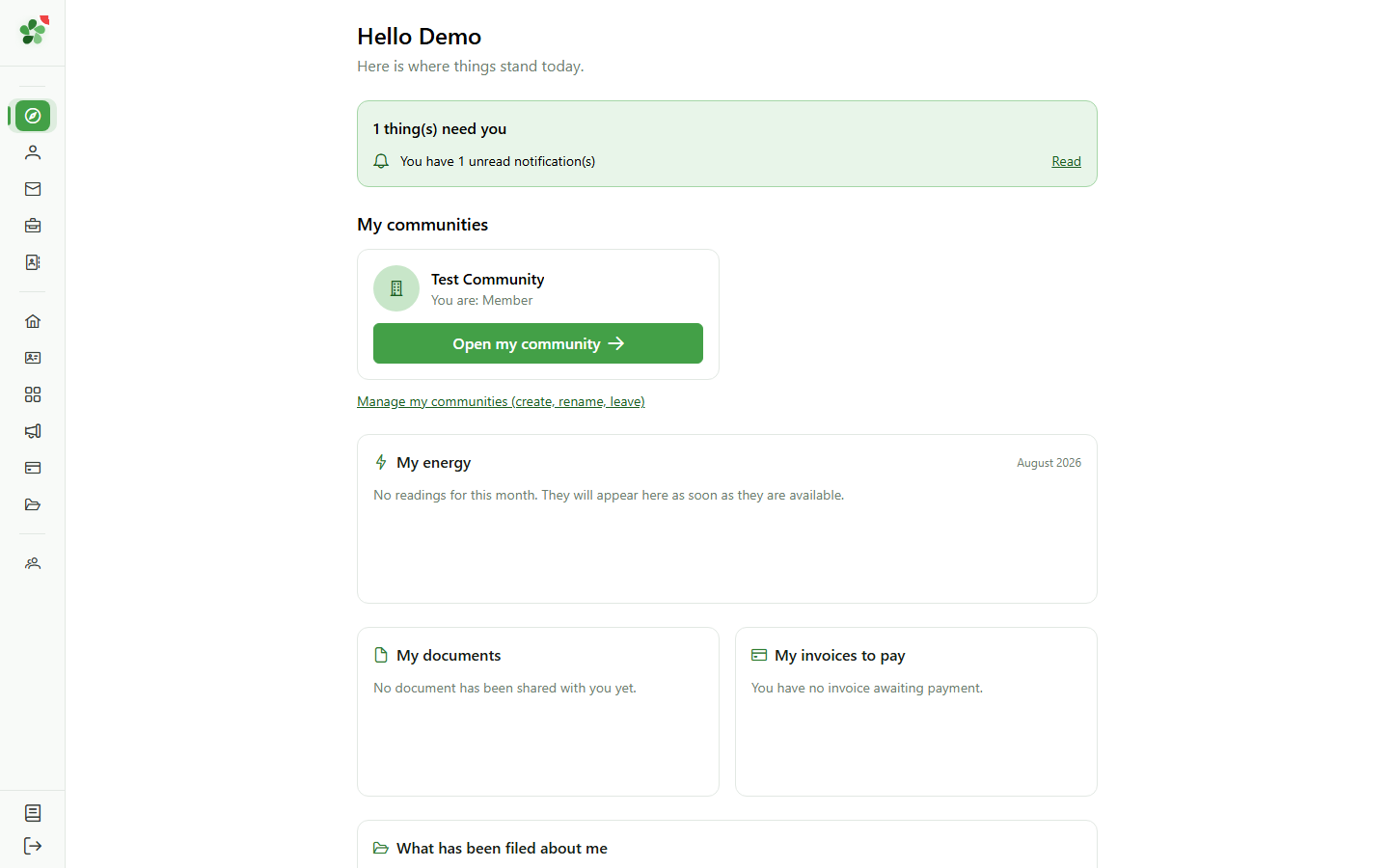
6 What has been filed about me
Home page
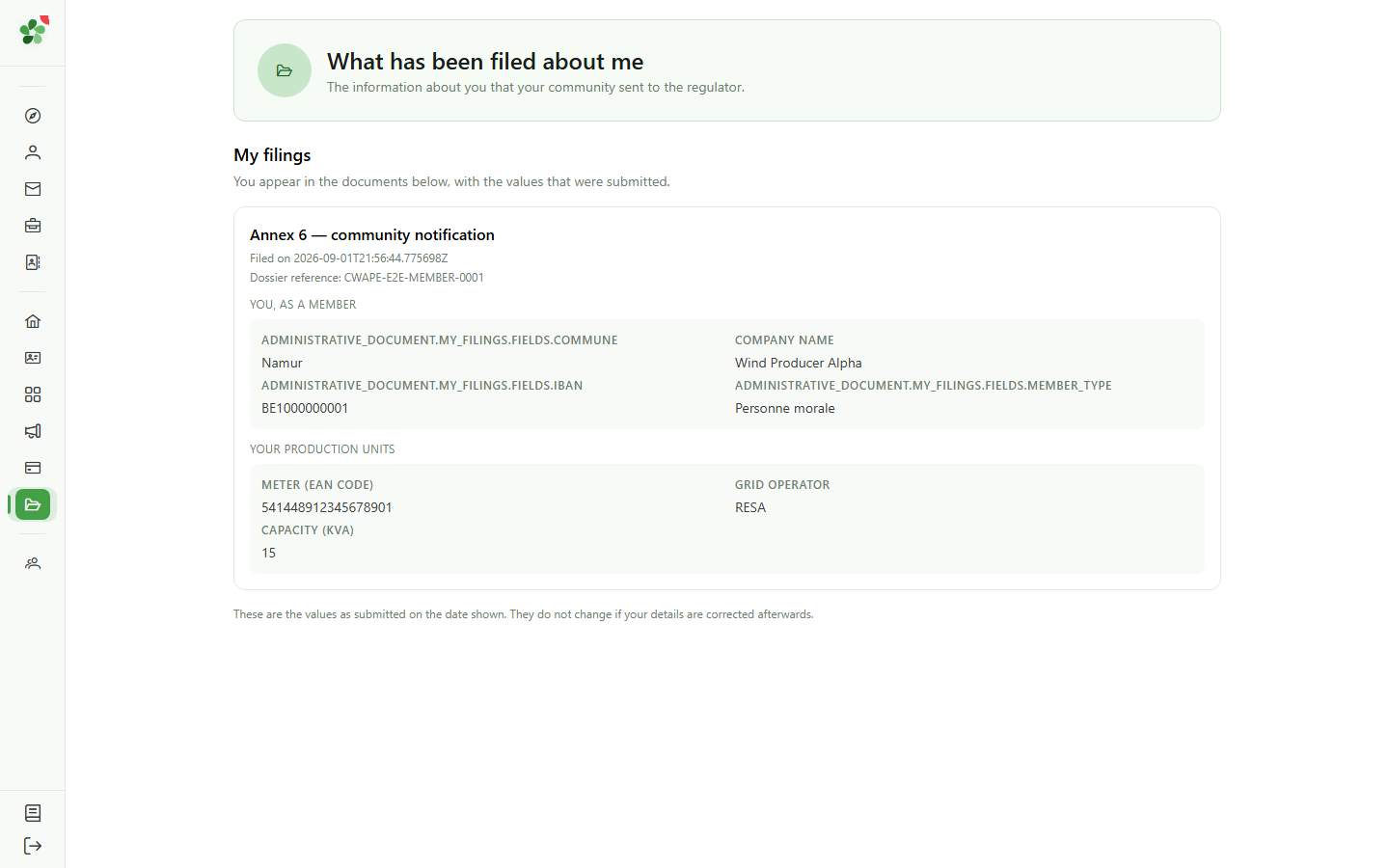
The last panel flags the official documents sent to the regulator that mention you. The button opens the detail inside the community concerned.
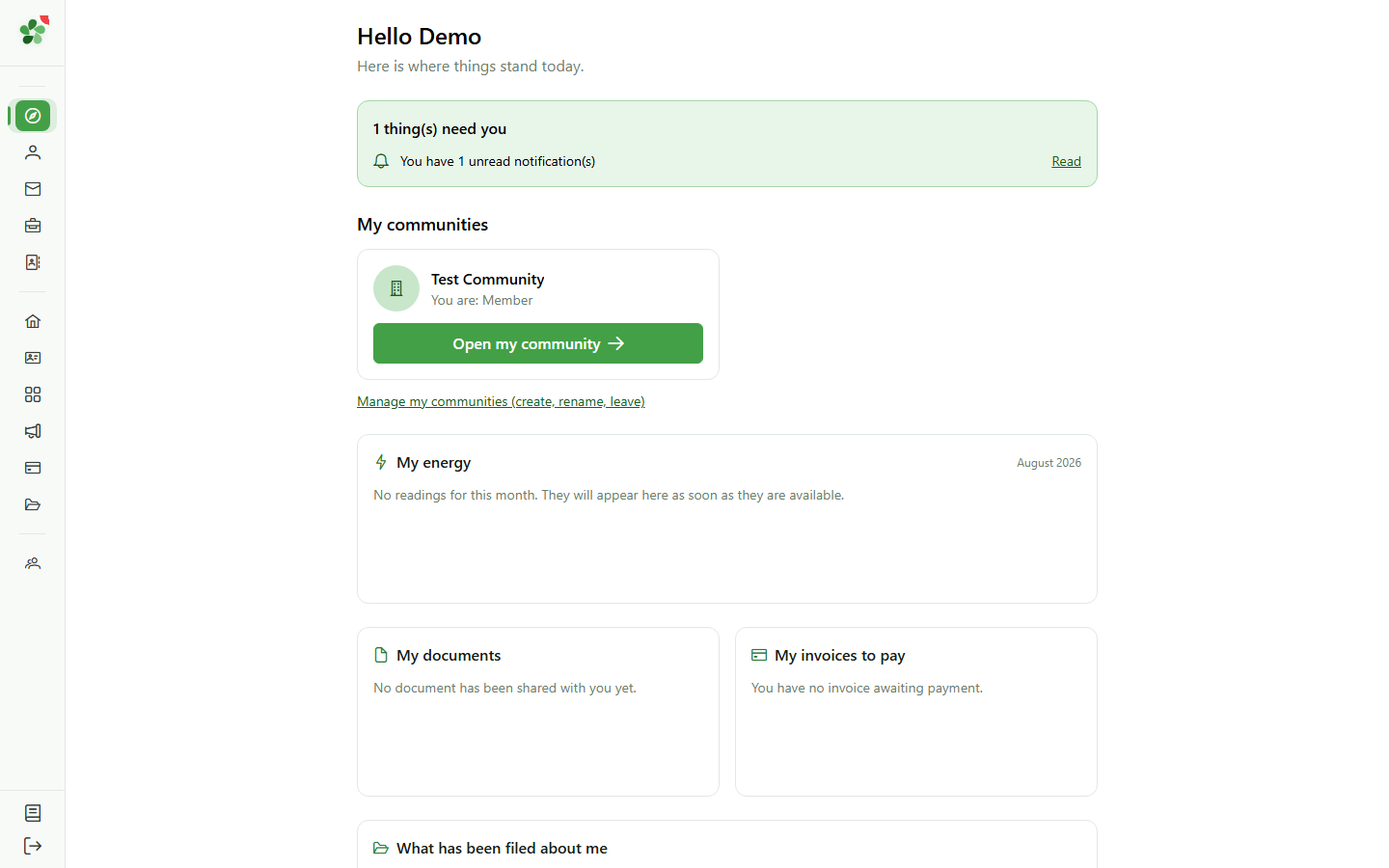
7 See the detail
Home page
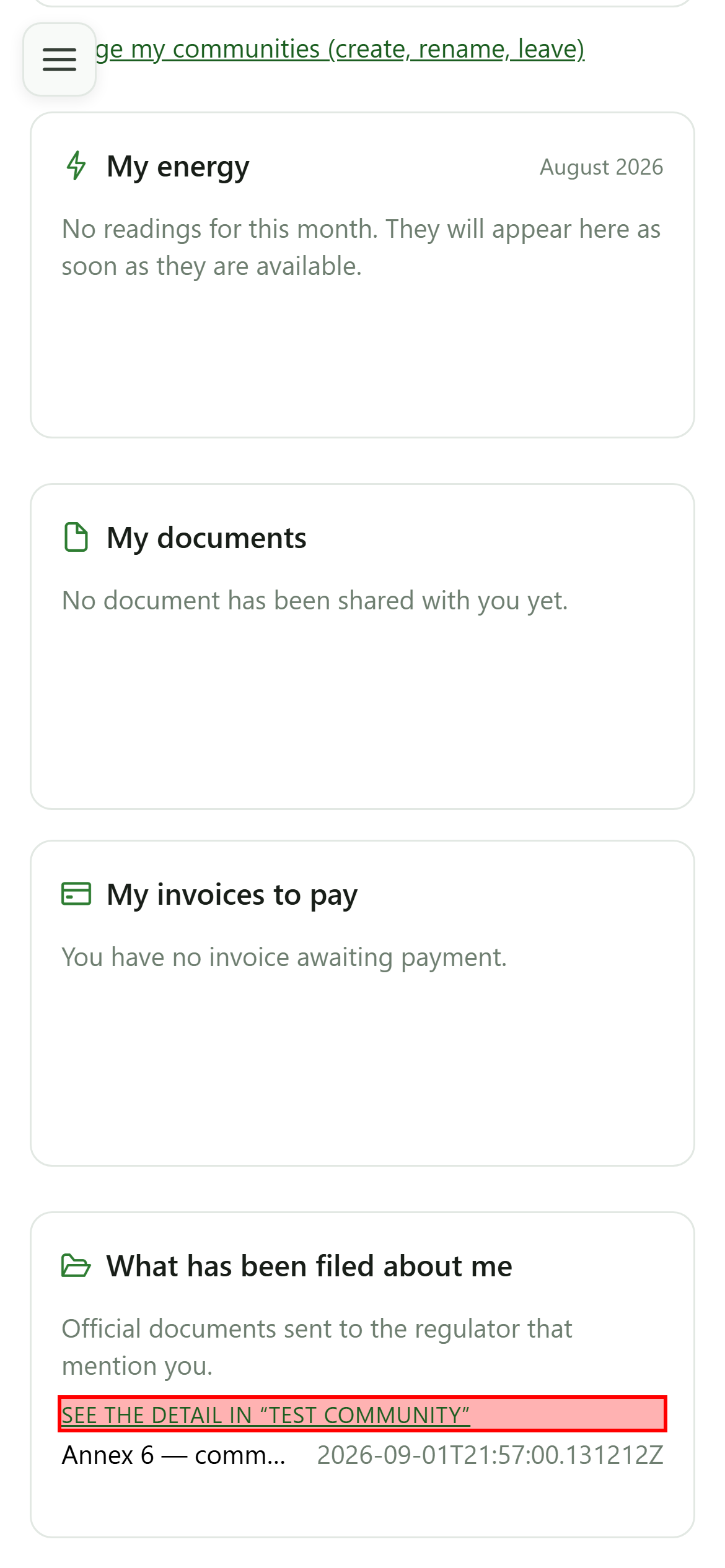
The button switches to the community concerned and opens its administrative documents — you do not have to switch community yourself.
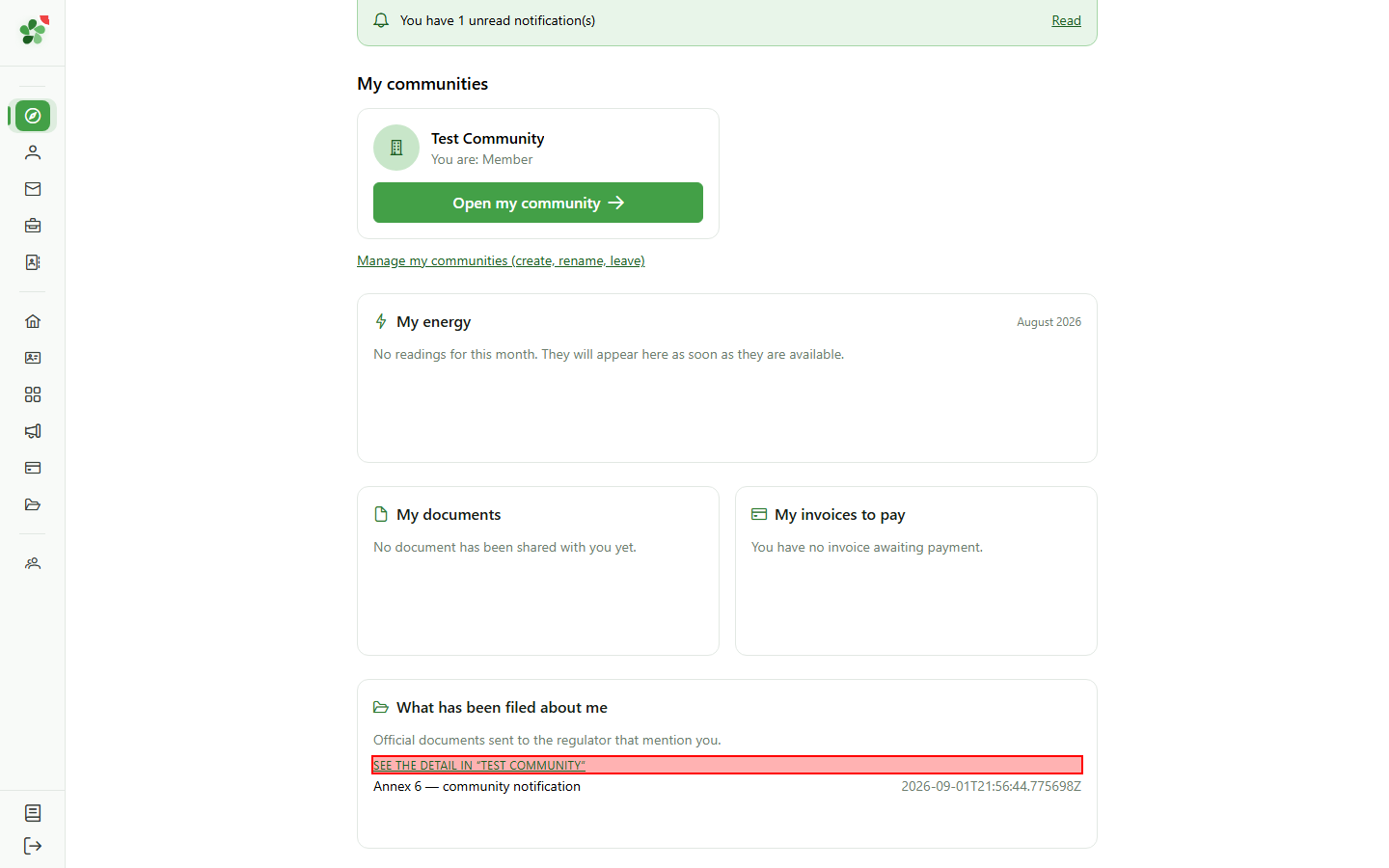
8 In the right community
Administrative documents
You land straight on the information about you, inside the community that filed it.
9 Deal with what is waiting
What needs you
Every row of the band is a shortcut to the screen where the action happens: the invitations list, your member record, or your notifications.
10 Straight to the right place
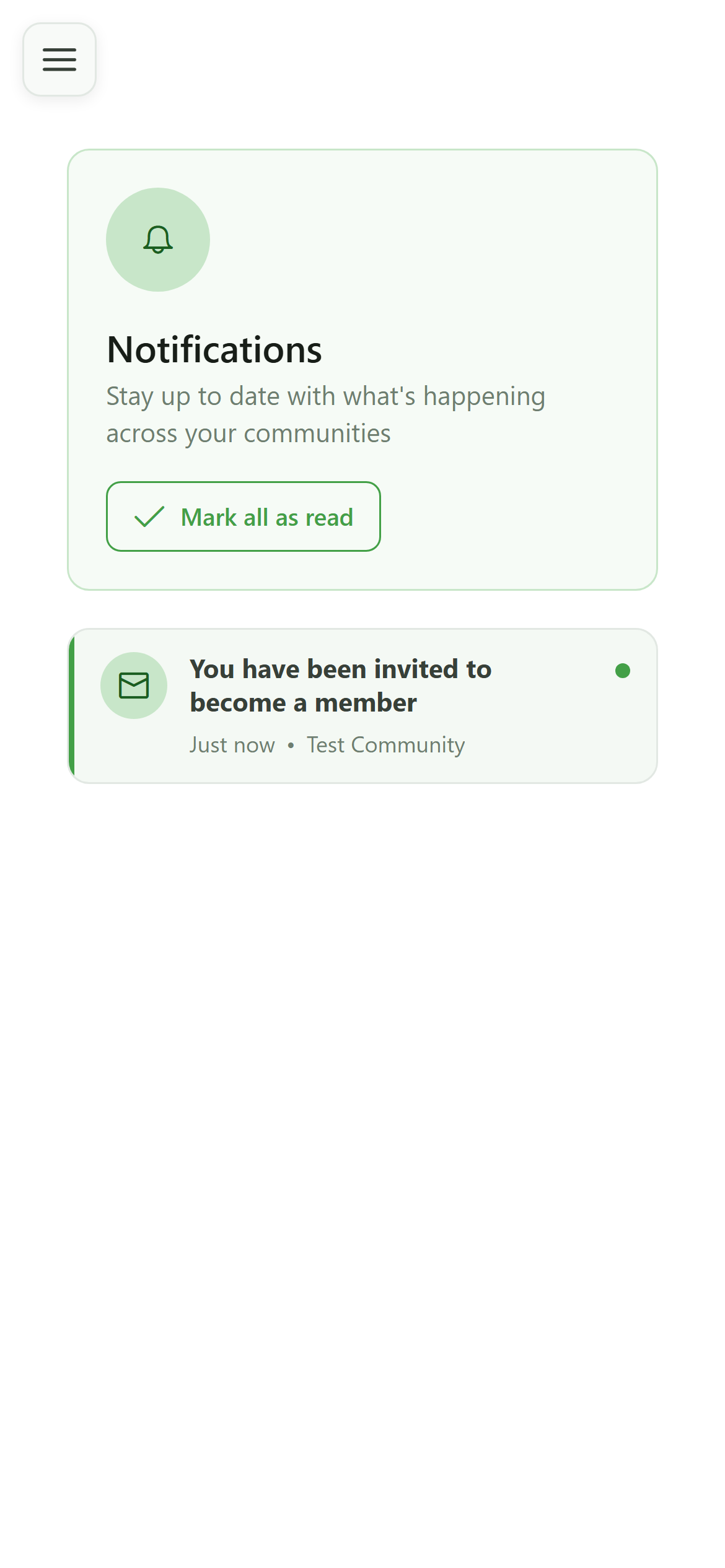
Notifications
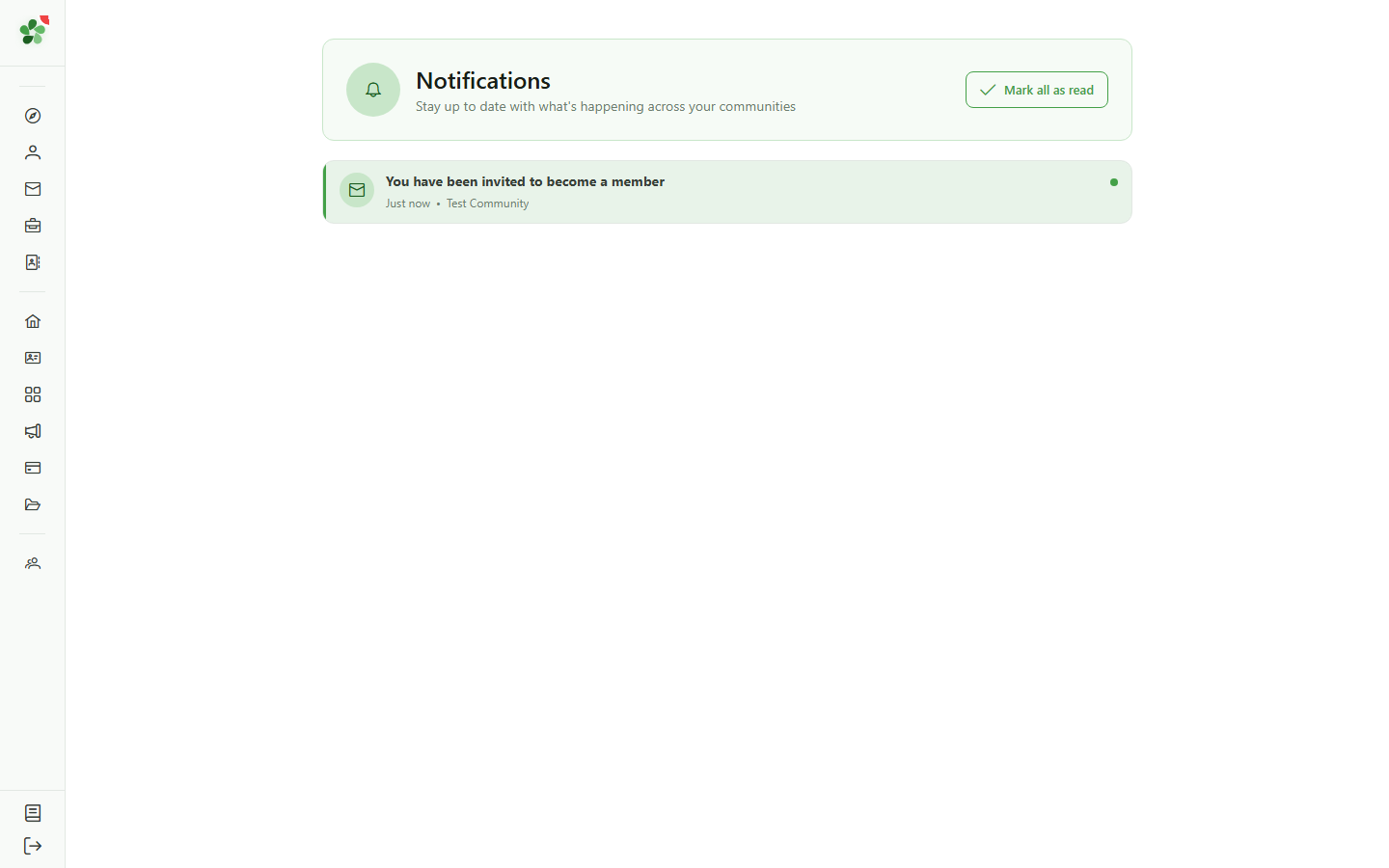
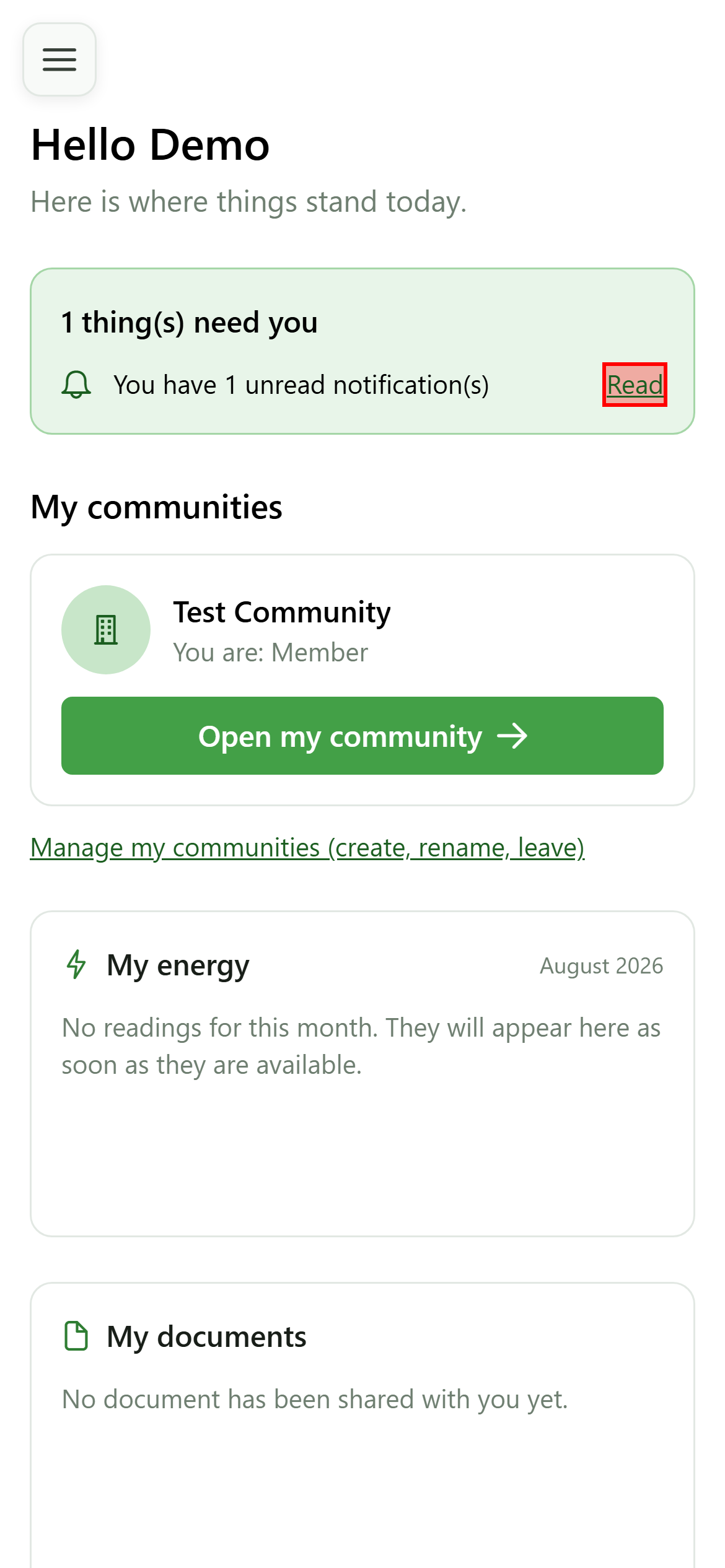
Here, an unread notification: the shortcut opens the notifications page, where you can read it and mark it as read.
Your home page
Guide utilisateur
User guide
Gebruikershandleiding
Benutzerhandbuch
1 Your home page
After signing in
Whatever your role, signing in brings you here. This page is not about one community: it gathers what concerns you, personally, across all of them.
2 What needs you
Home page
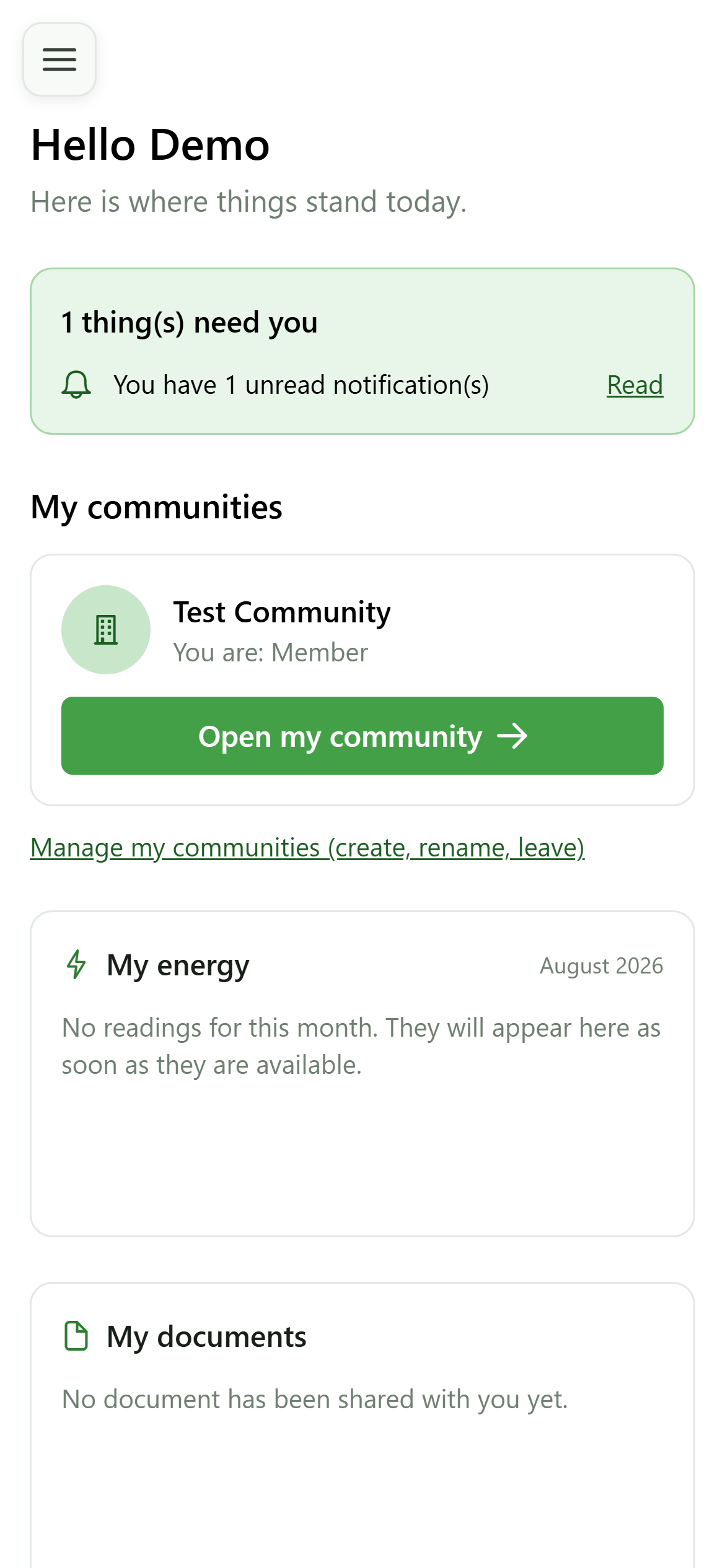
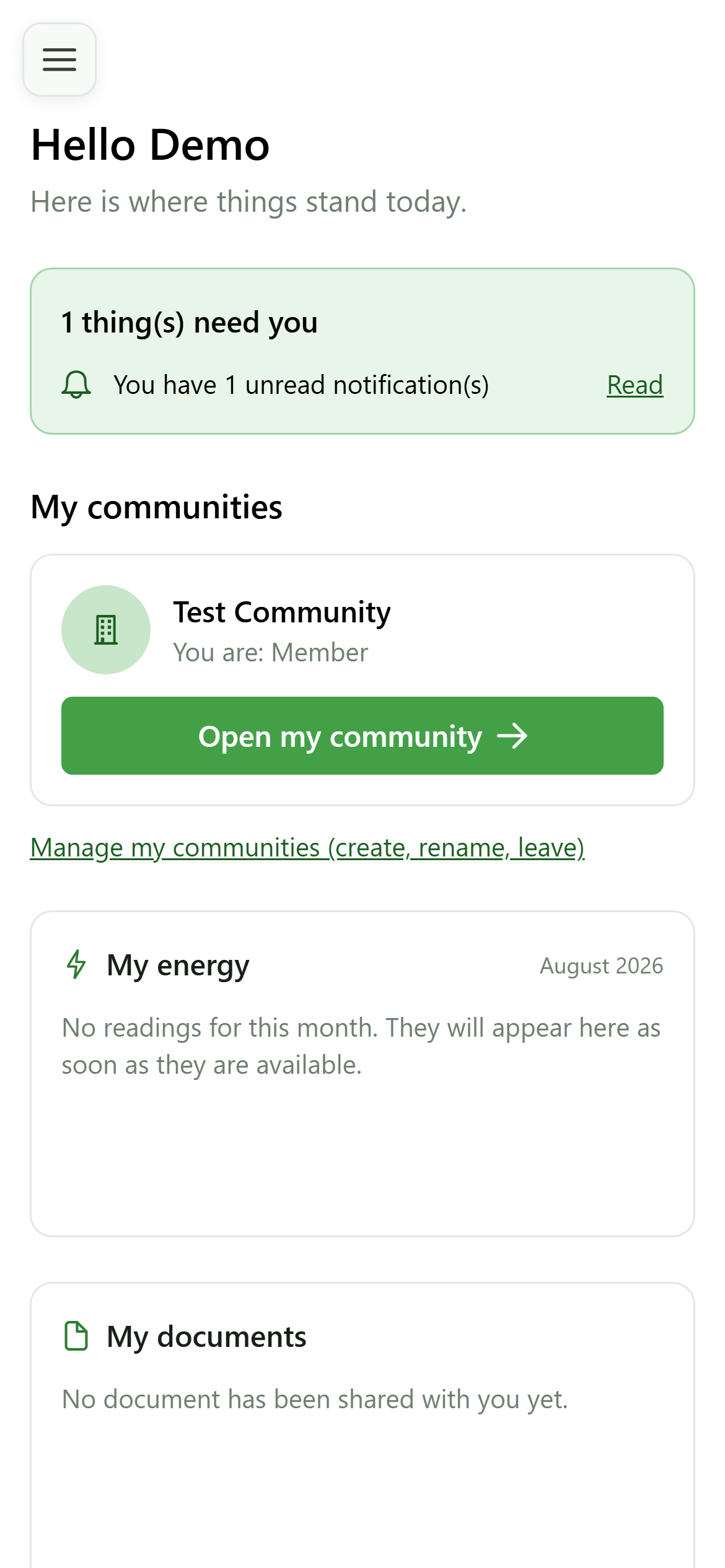
The band at the top counts what is waiting on you: invitations received, a record to complete, unread notifications. When there is nothing, it collapses to a single reassuring line.
3 My communities
Home page
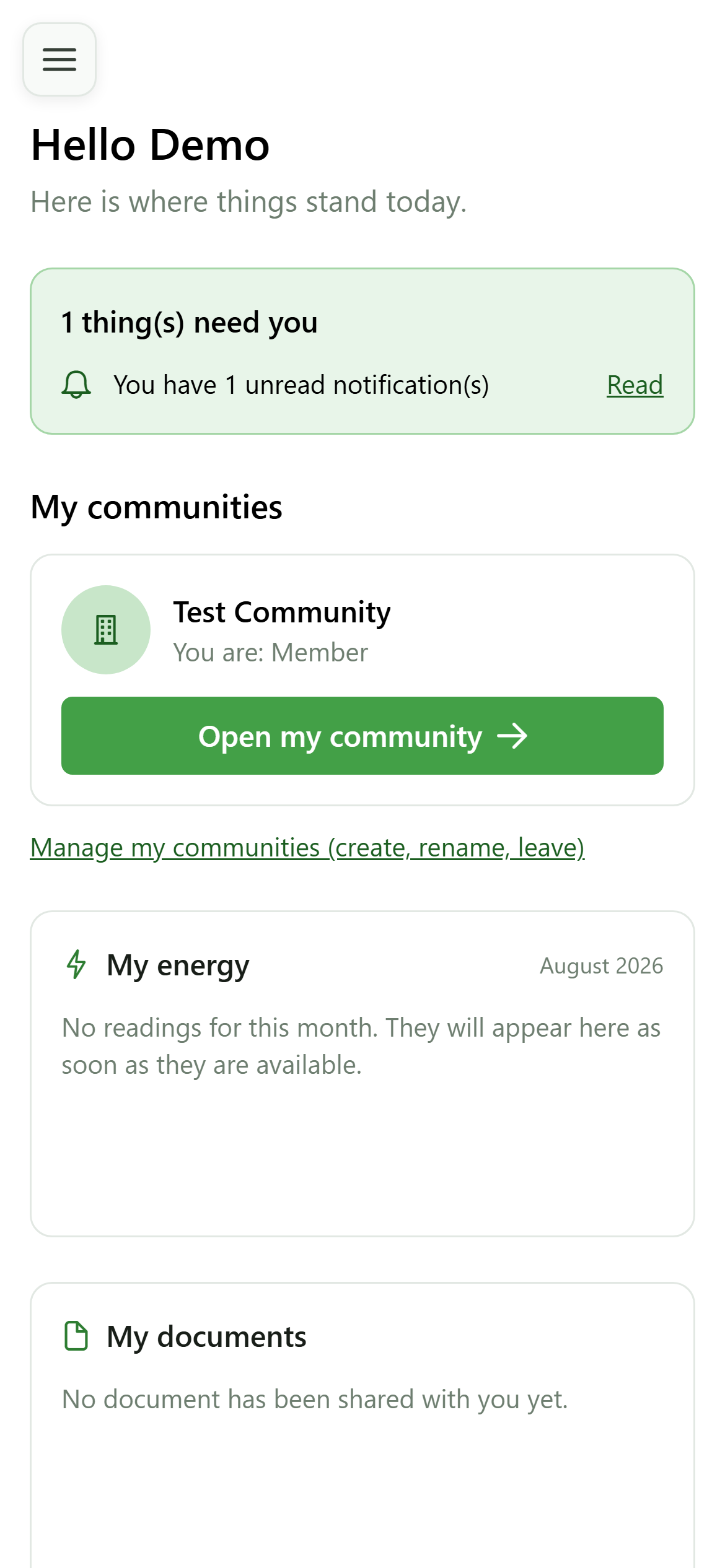
Each card shows a community and your role in it. The button opens it: that community becomes your active one and you land on its dashboard.
4 My energy
Home page
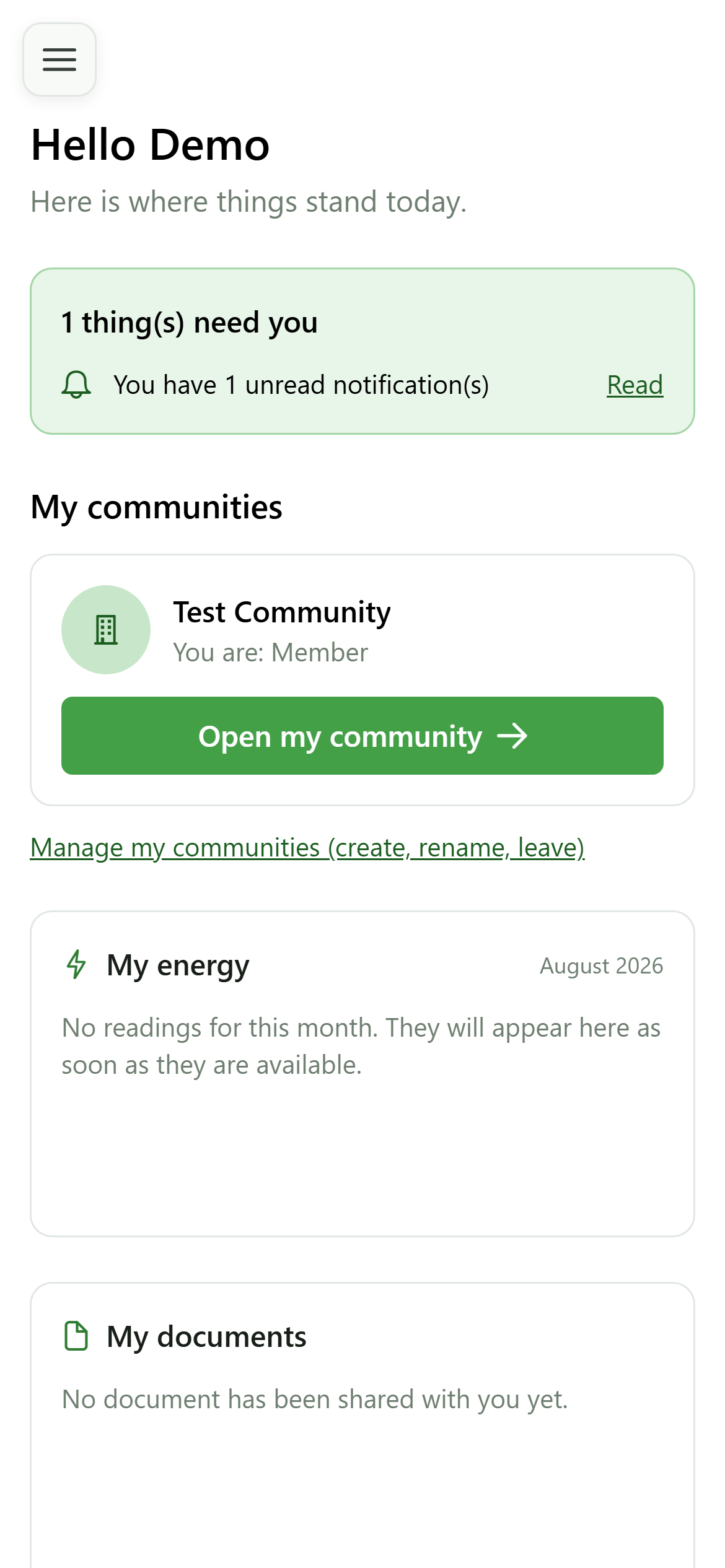
The panel gathers your meters across every community for the latest month with readings. A meter with no reading says "no reading yet" rather than showing a misleading zero.
5 My invoices and my documents
Home page
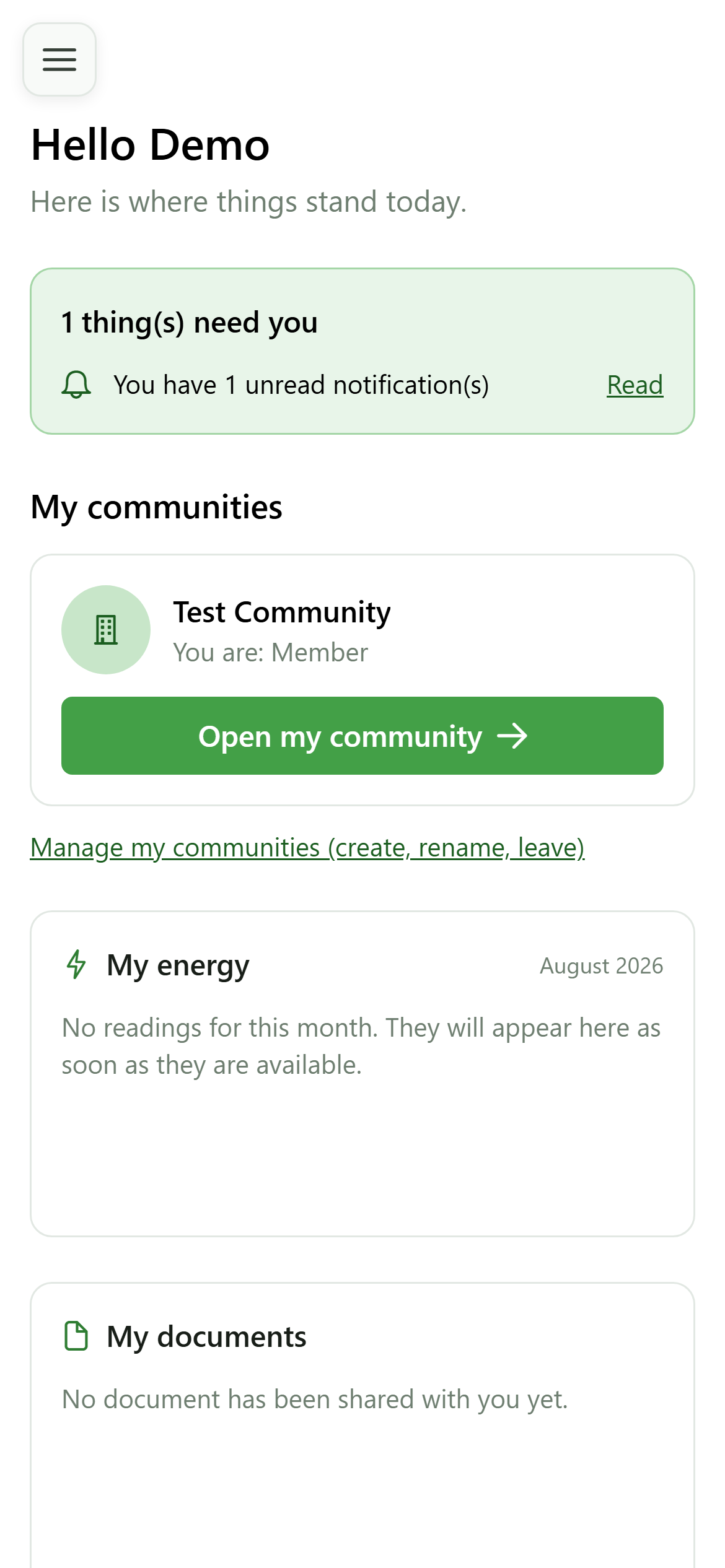
Invoices to pay and the documents shared with you are gathered here. Invoices only show up for communities that use the billing module.
6 What has been filed about me
Home page
The last panel flags the official documents sent to the regulator that mention you. The button opens the detail inside the community concerned.
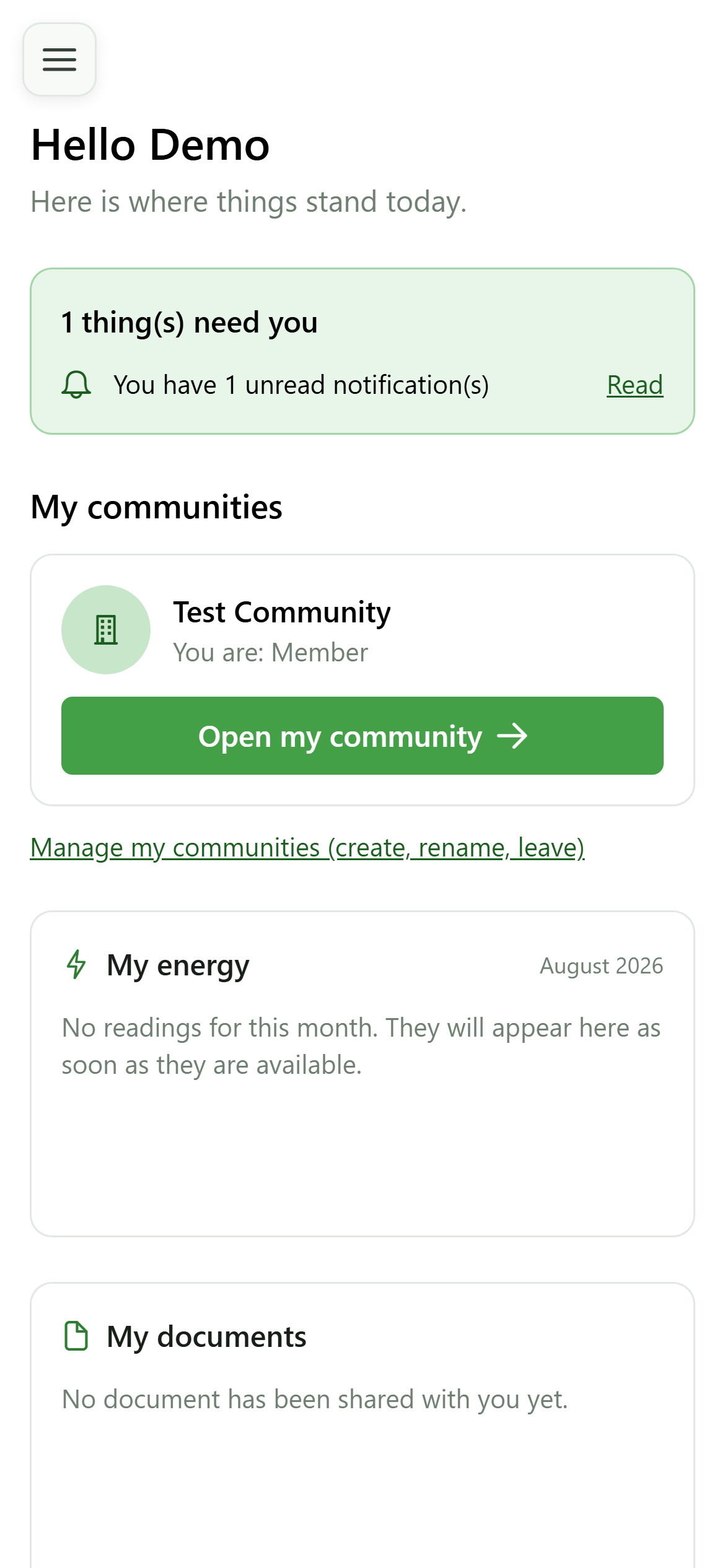
7 See the detail
Home page
The button switches to the community concerned and opens its administrative documents — you do not have to switch community yourself.
8 In the right community
Administrative documents
You land straight on the information about you, inside the community that filed it.
9 Deal with what is waiting
What needs you
Every row of the band is a shortcut to the screen where the action happens: the invitations list, your member record, or your notifications.
10 Straight to the right place
Notifications
Here, an unread notification: the shortcut opens the notifications page, where you can read it and mark it as read.