The member dashboard
Guide utilisateur
User guide
Gebruikershandleiding
Benutzerhandbuch
1 Open your community
Home page
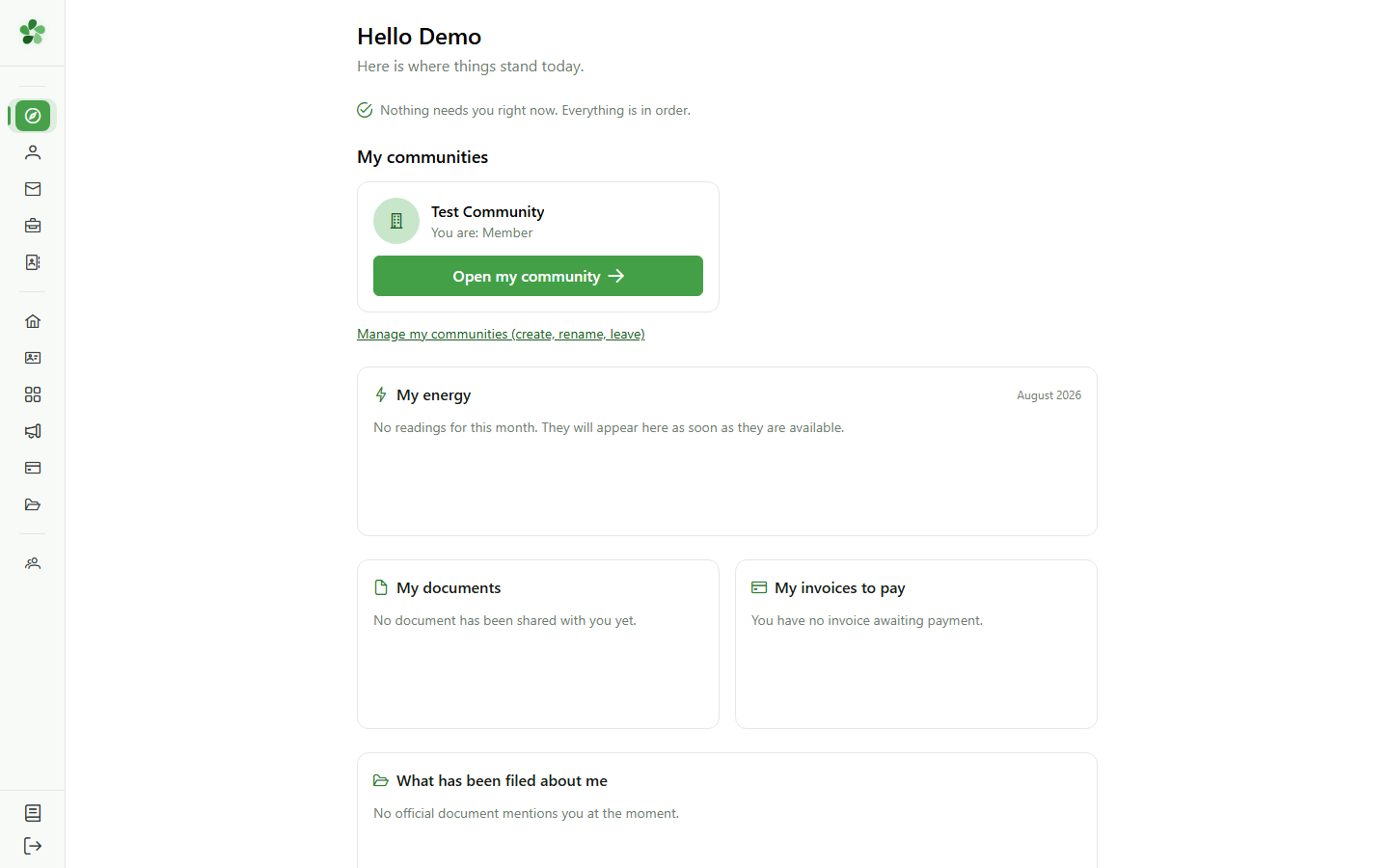
From the home page, open the community you want to look at.
2 The dashboard
Overview
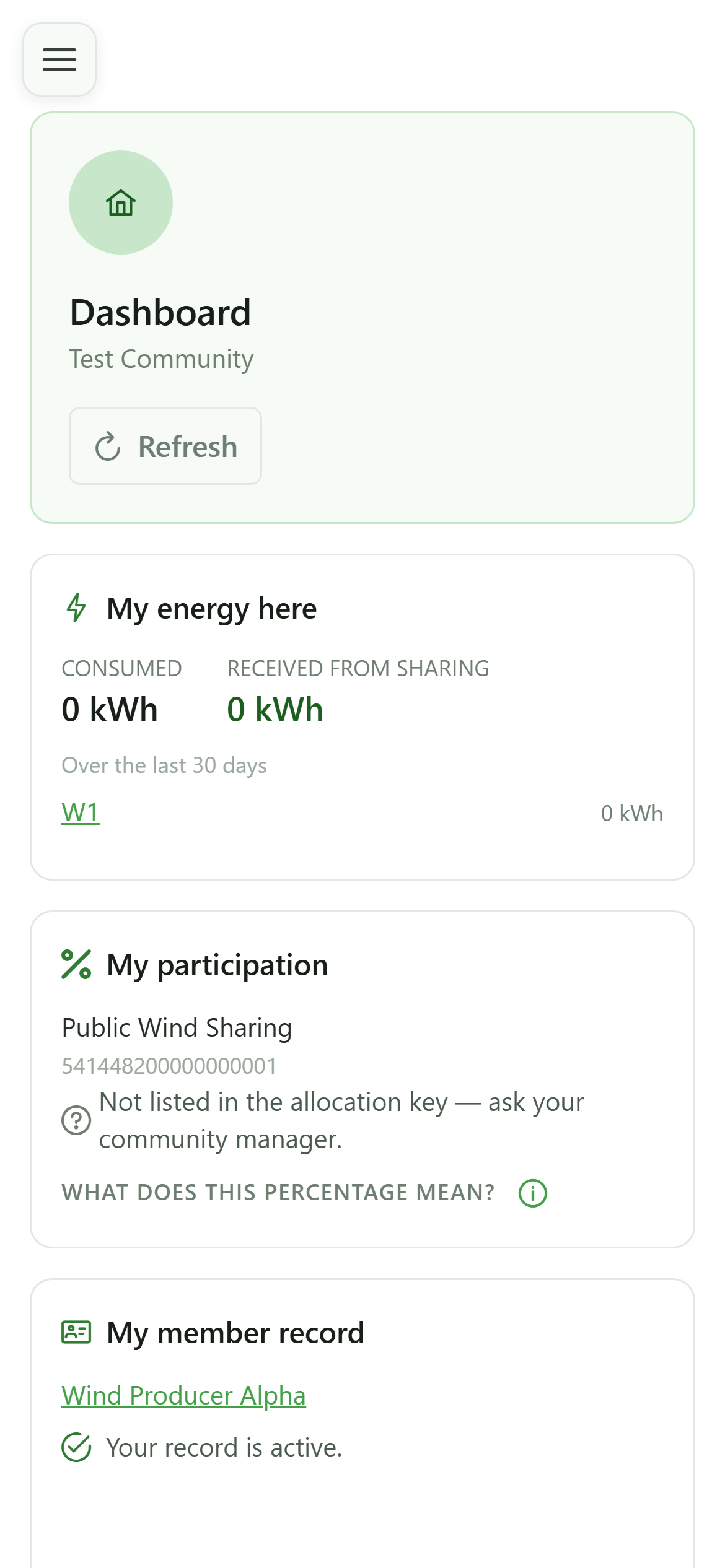
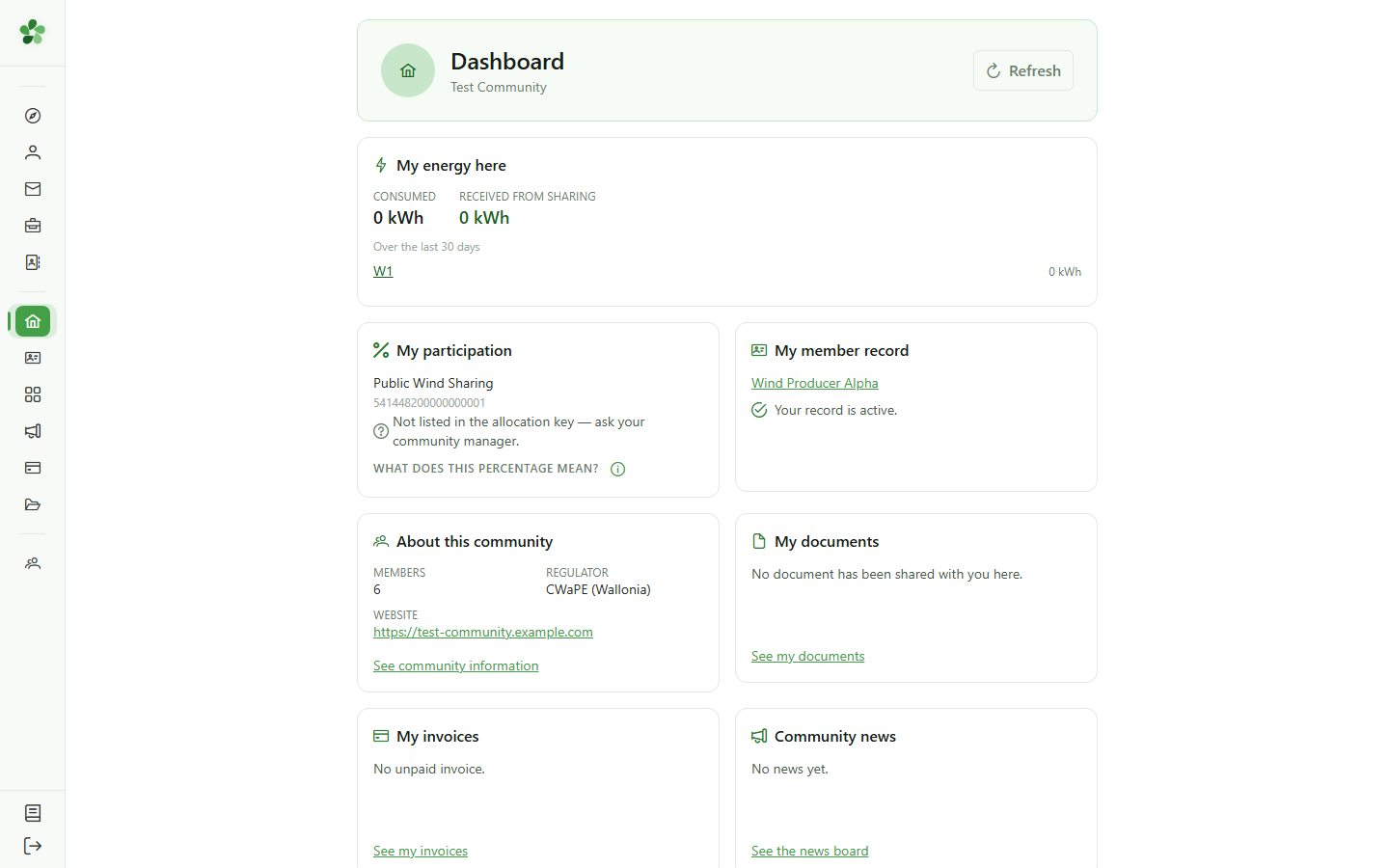
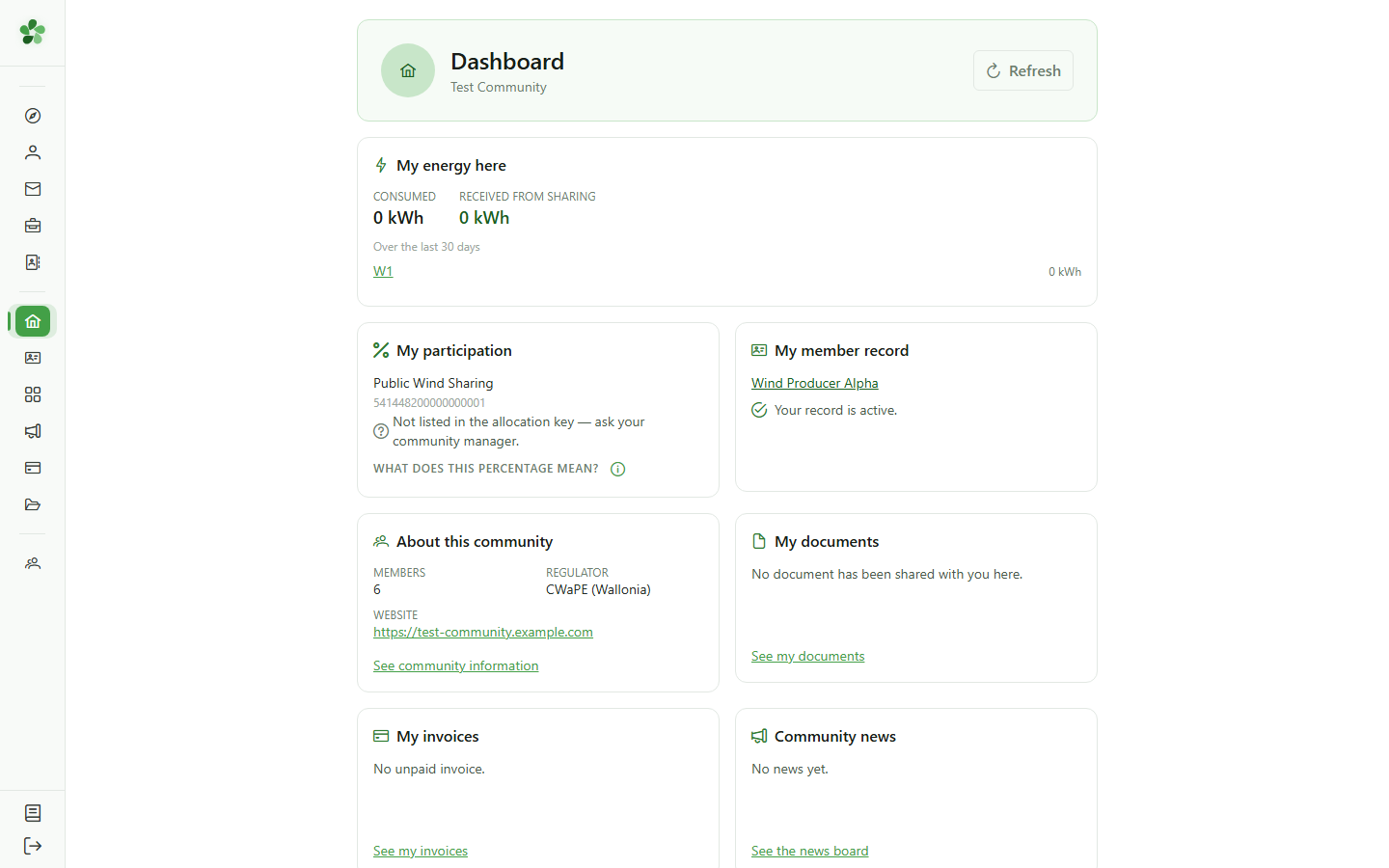
The dashboard adapts to your role. As a member you do not see the community's management, but your own situation inside it.
3 My energy here
Dashboard
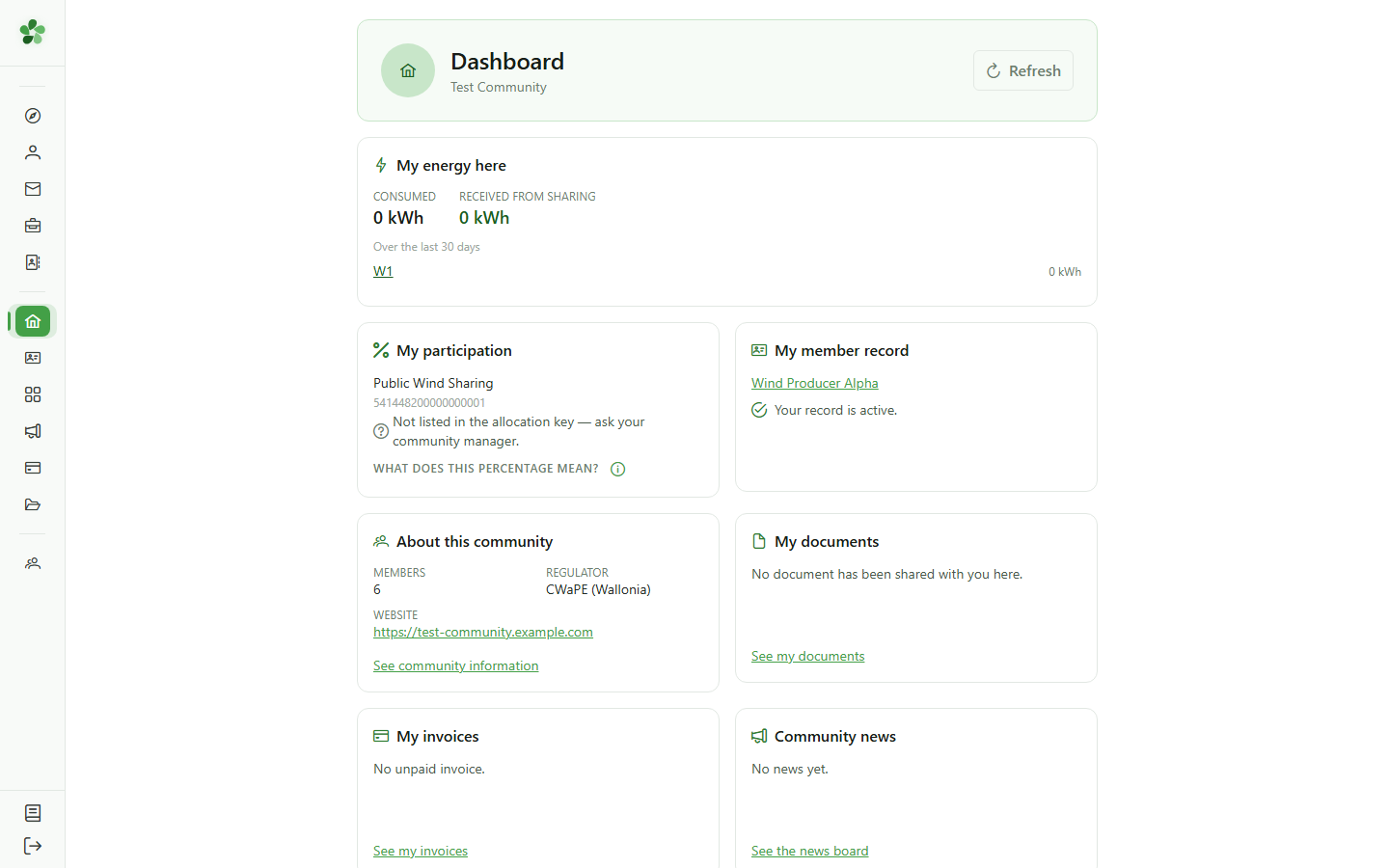
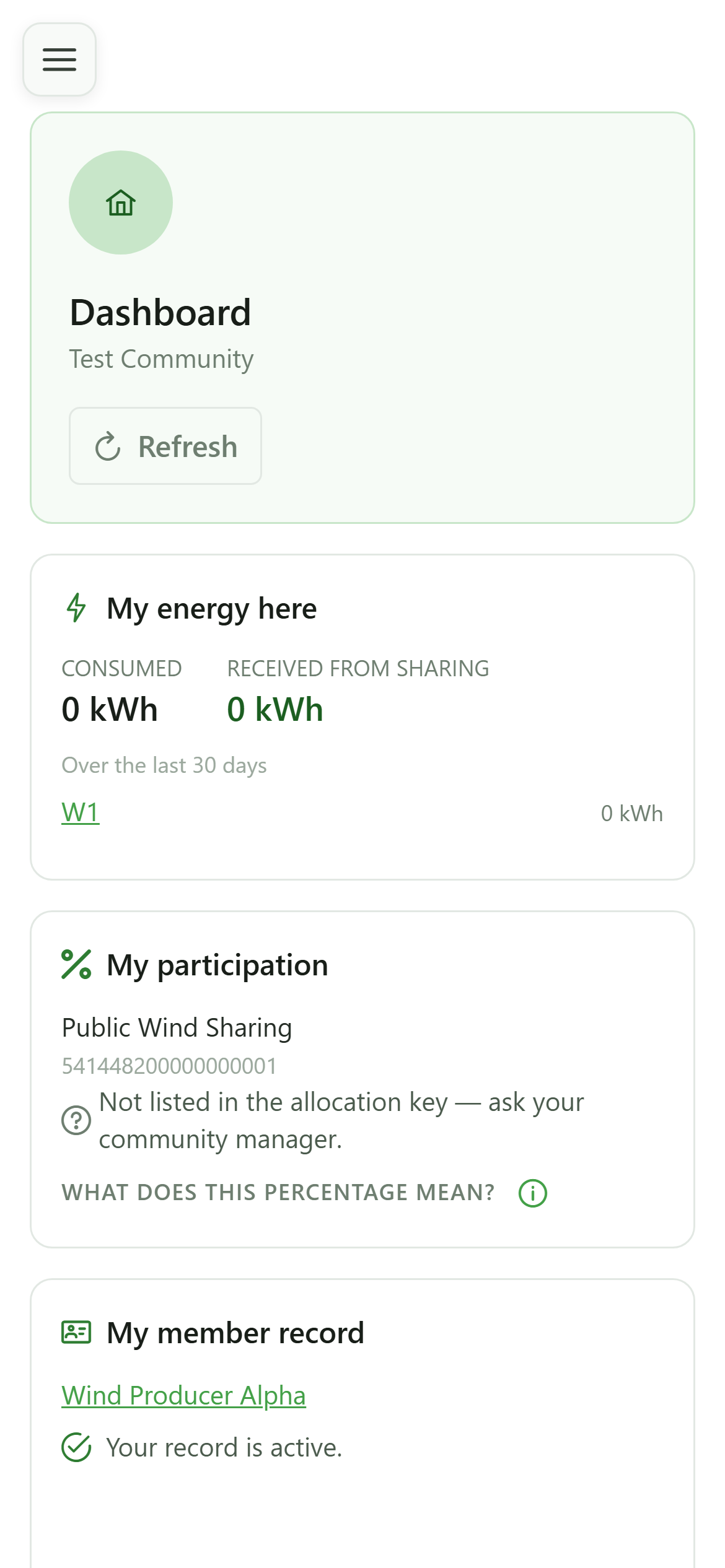
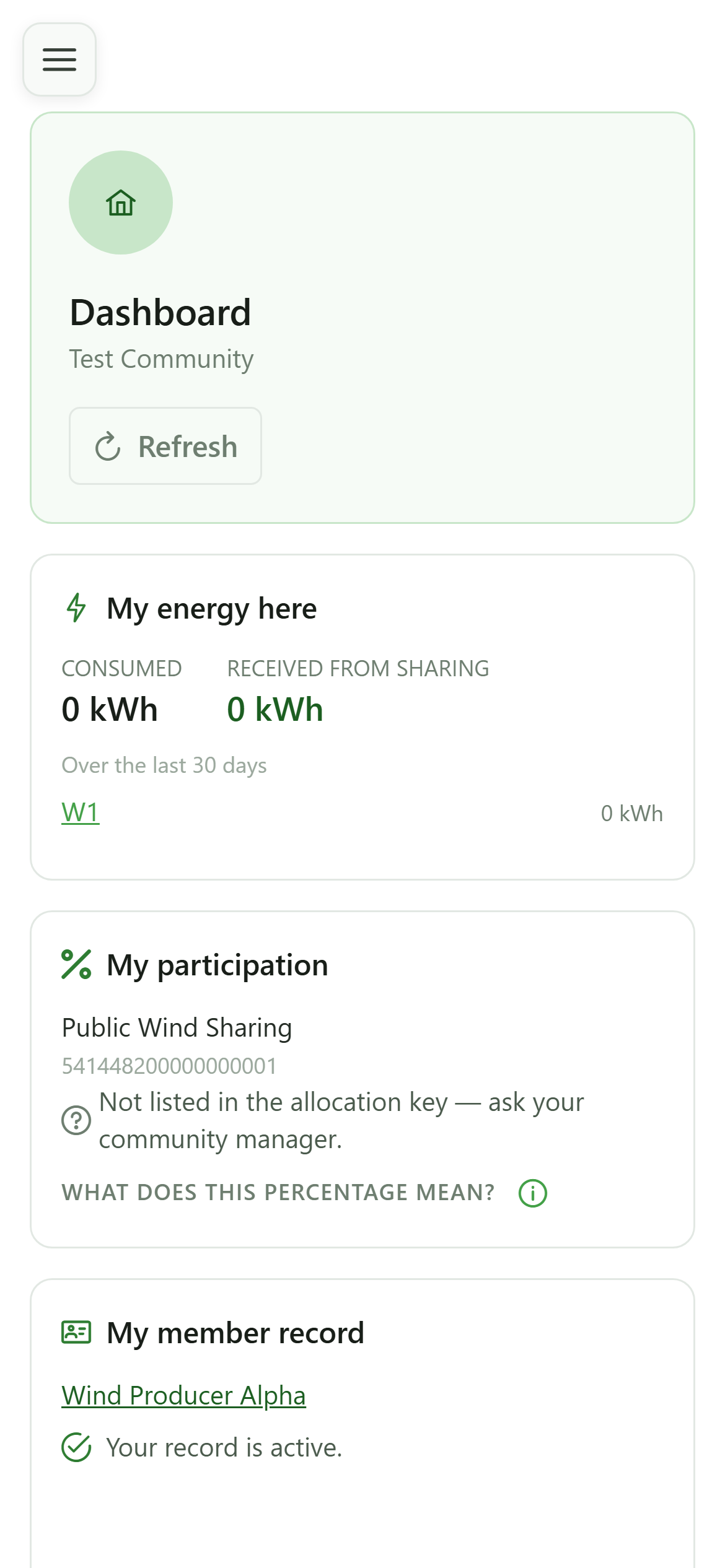
The first tile totals, over the last thirty days, what you consumed and what the sharing brought you, then breaks it down meter by meter.
4 My participation
Dashboard
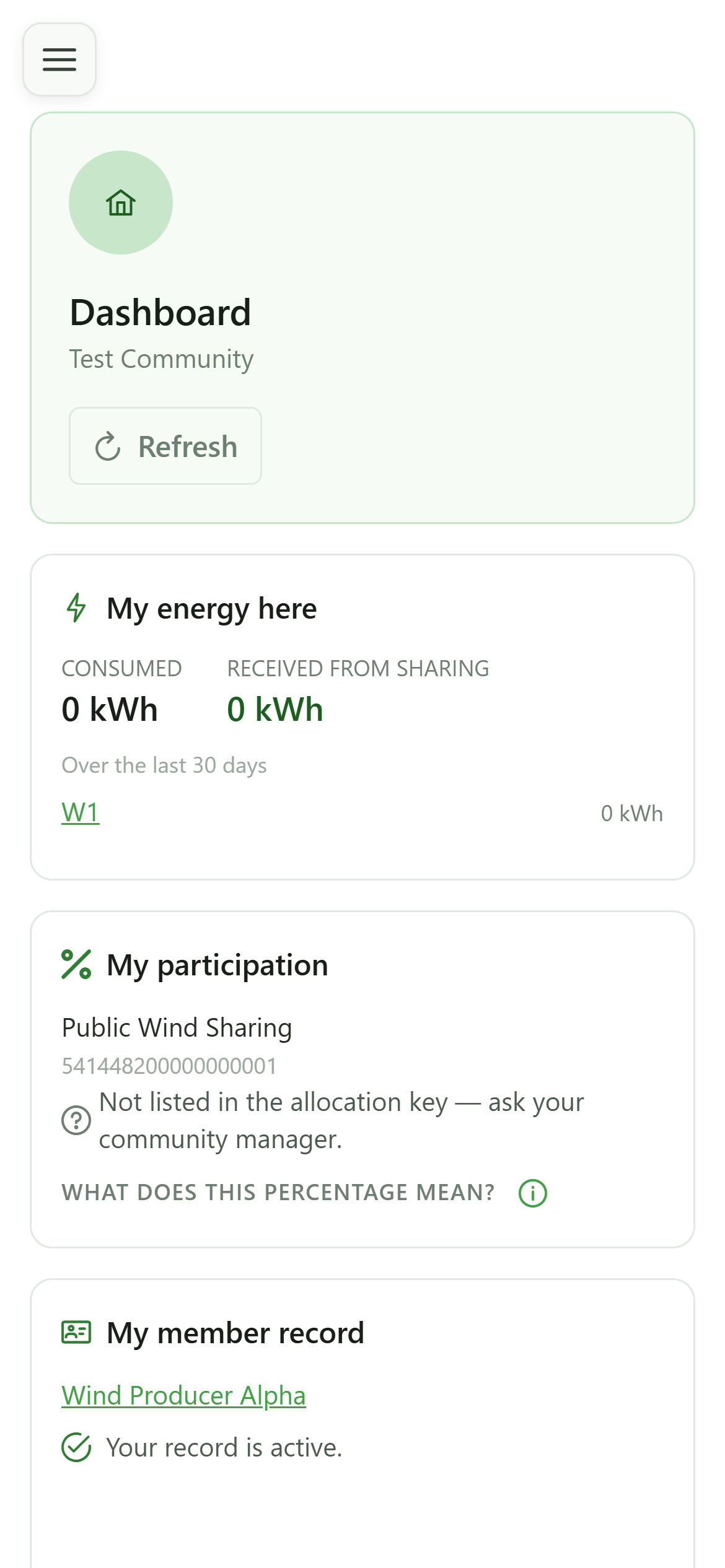
For each sharing operation the tile shows the share that comes to you: a fixed percentage, a split in proportion to your consumption, or a note that your meter is not part of the key currently in force.
5 My member record
Dashboard
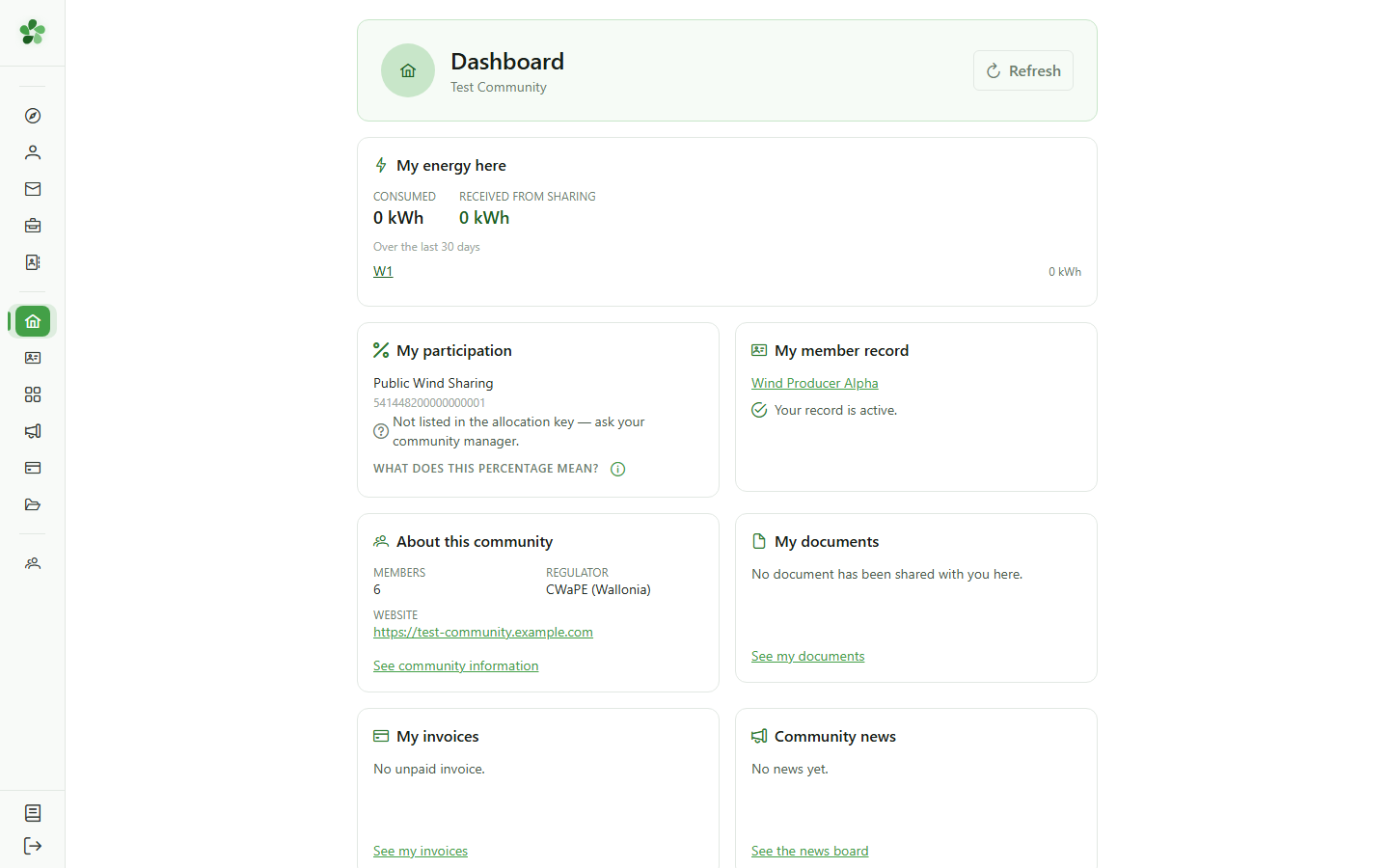
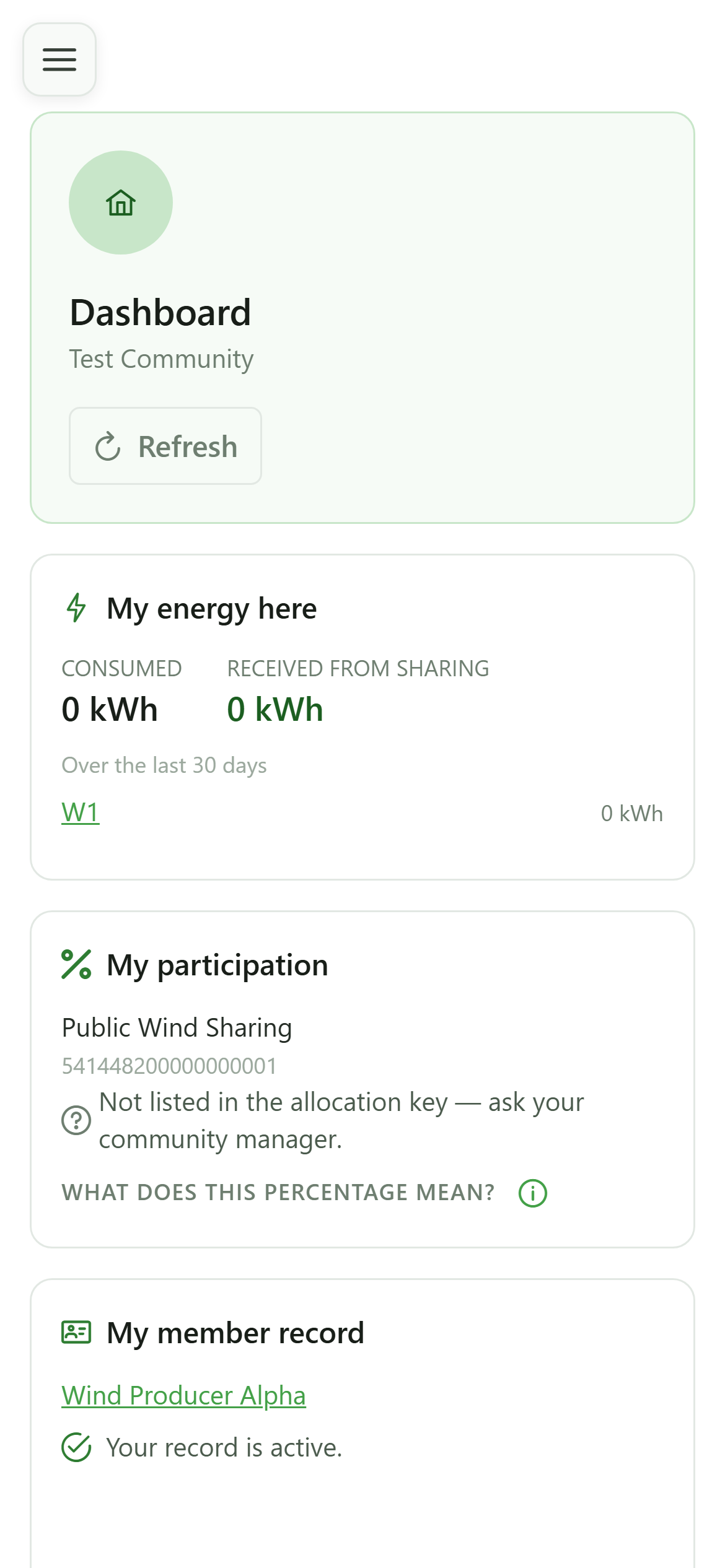
The tile confirms your record is active, or flags that it is still waiting for a manager to validate it.
6 Look at your record
My member record
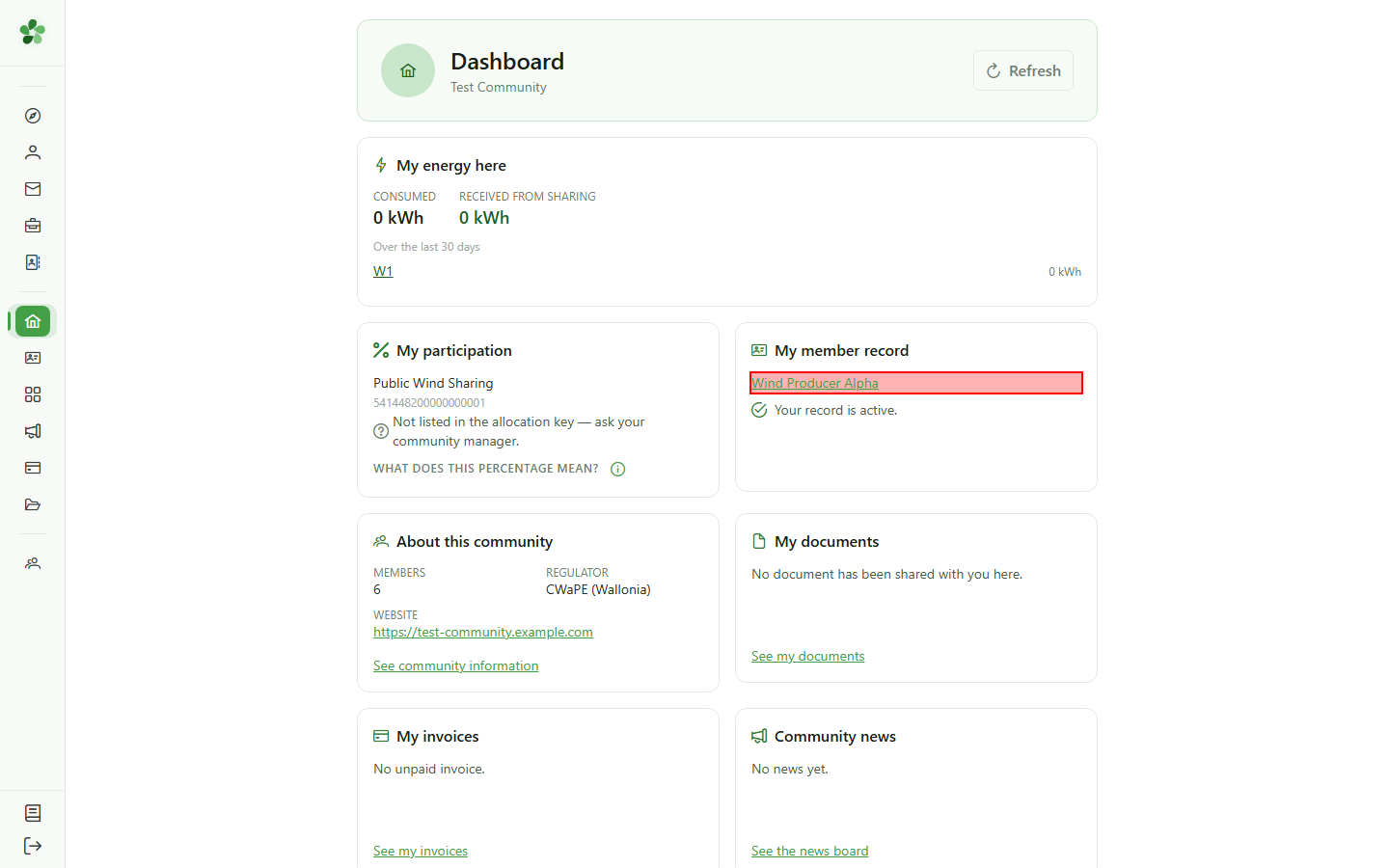
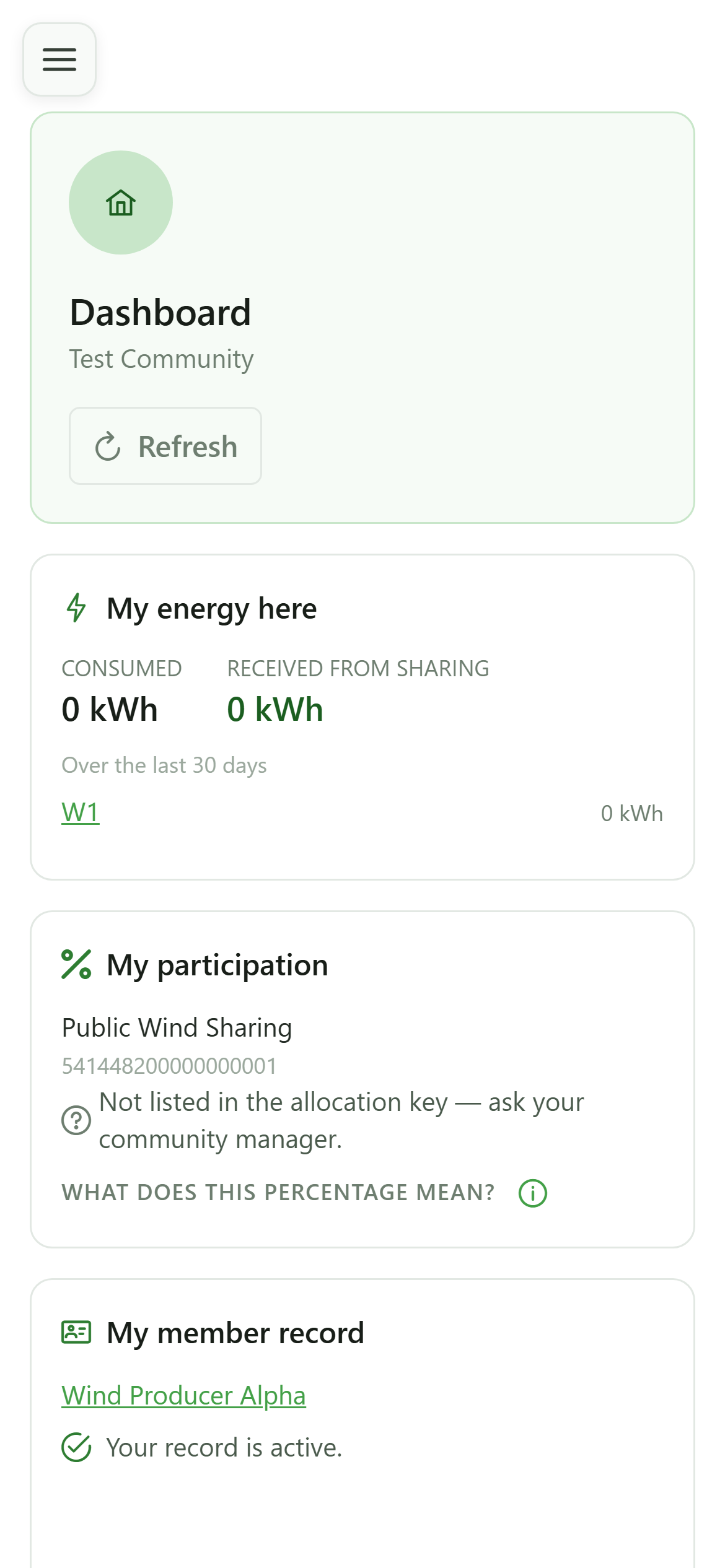
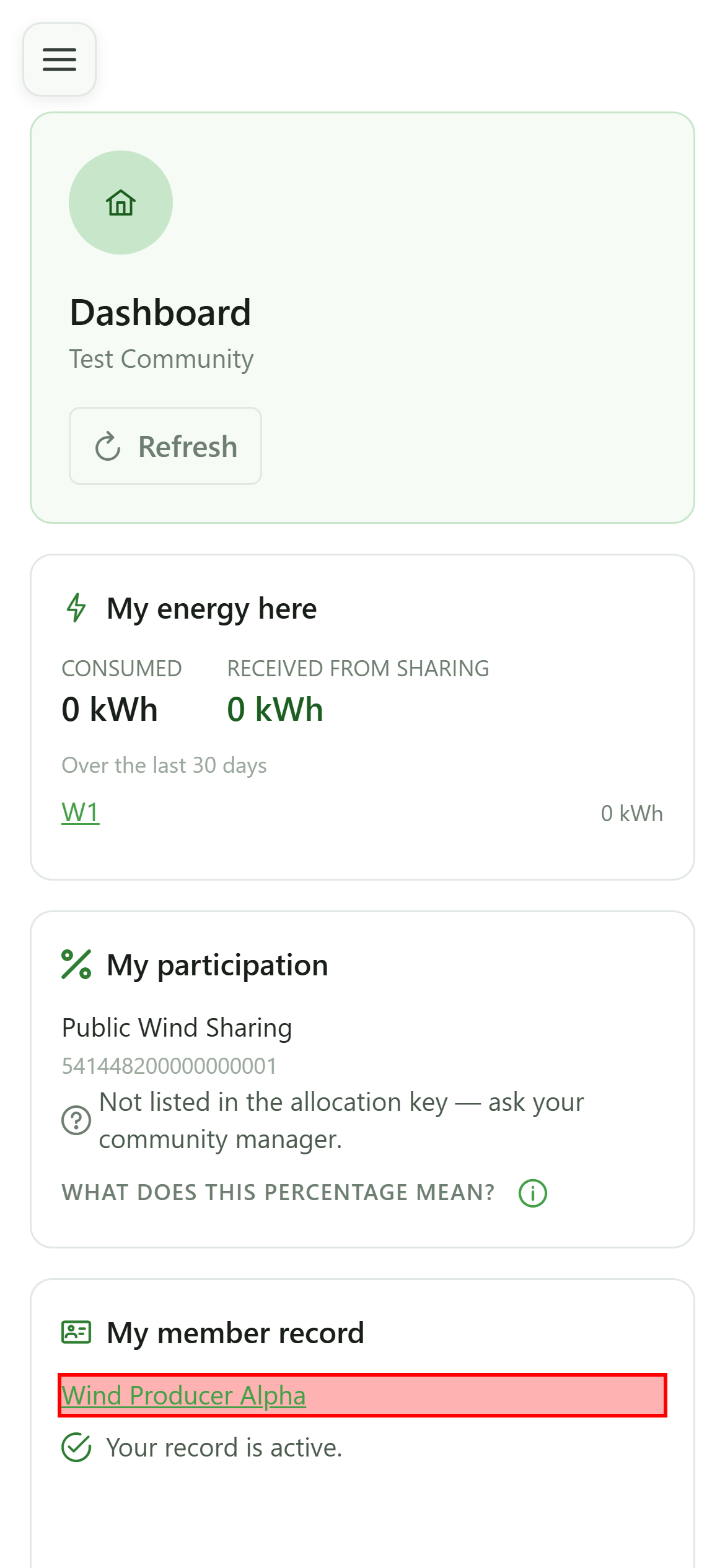
The link opens your record read-only — the same information your manager holds.
7 About this community
Dashboard
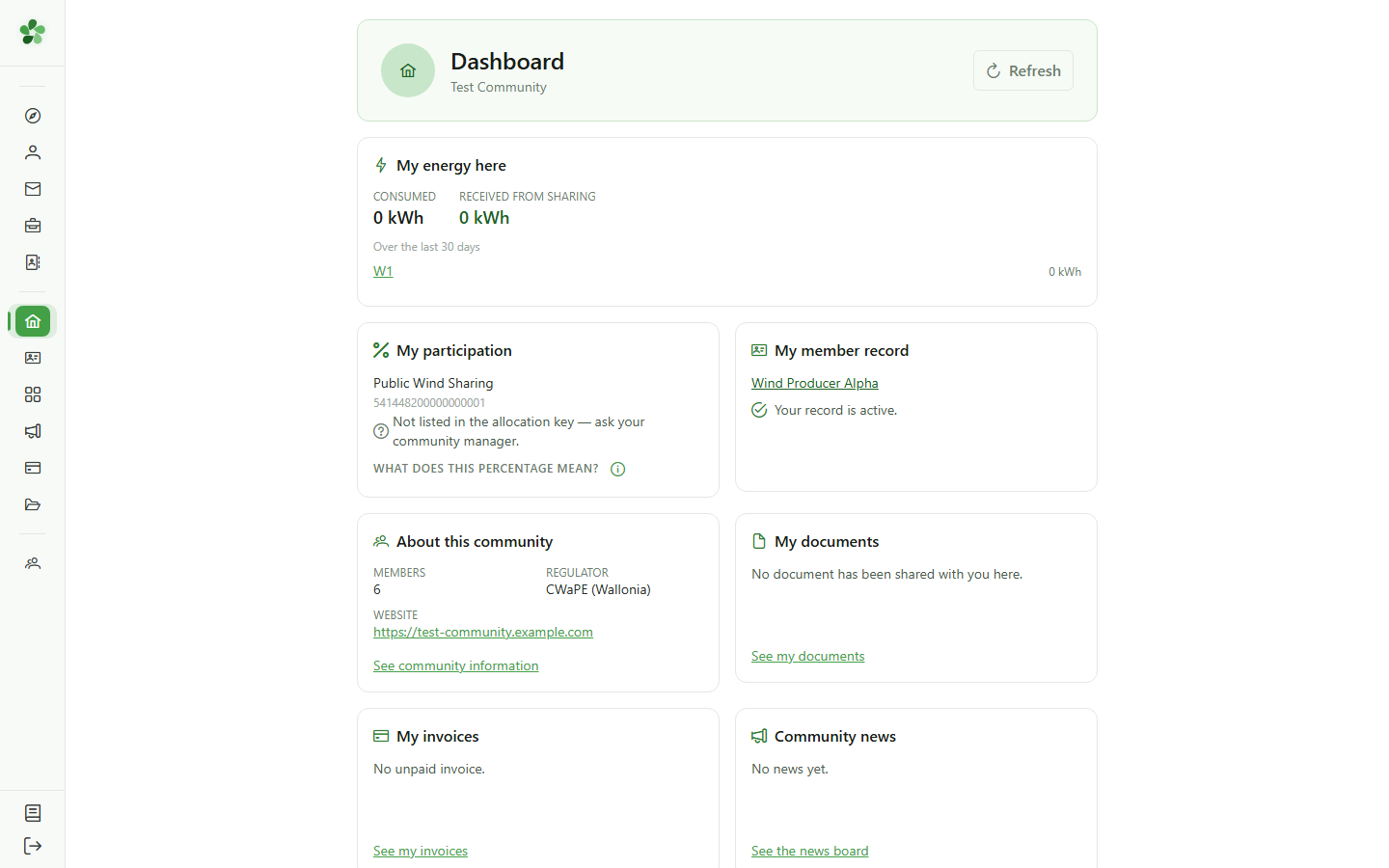
Member count, regulator, website: enough to know who you are dealing with. The link opens the community's full information page.
8 Invoices and news
Dashboard
These two tiles only appear when the community uses the matching modules. Your unpaid invoices are summarised there, as are the latest posts on the news board.
9 Refresh
Dashboard
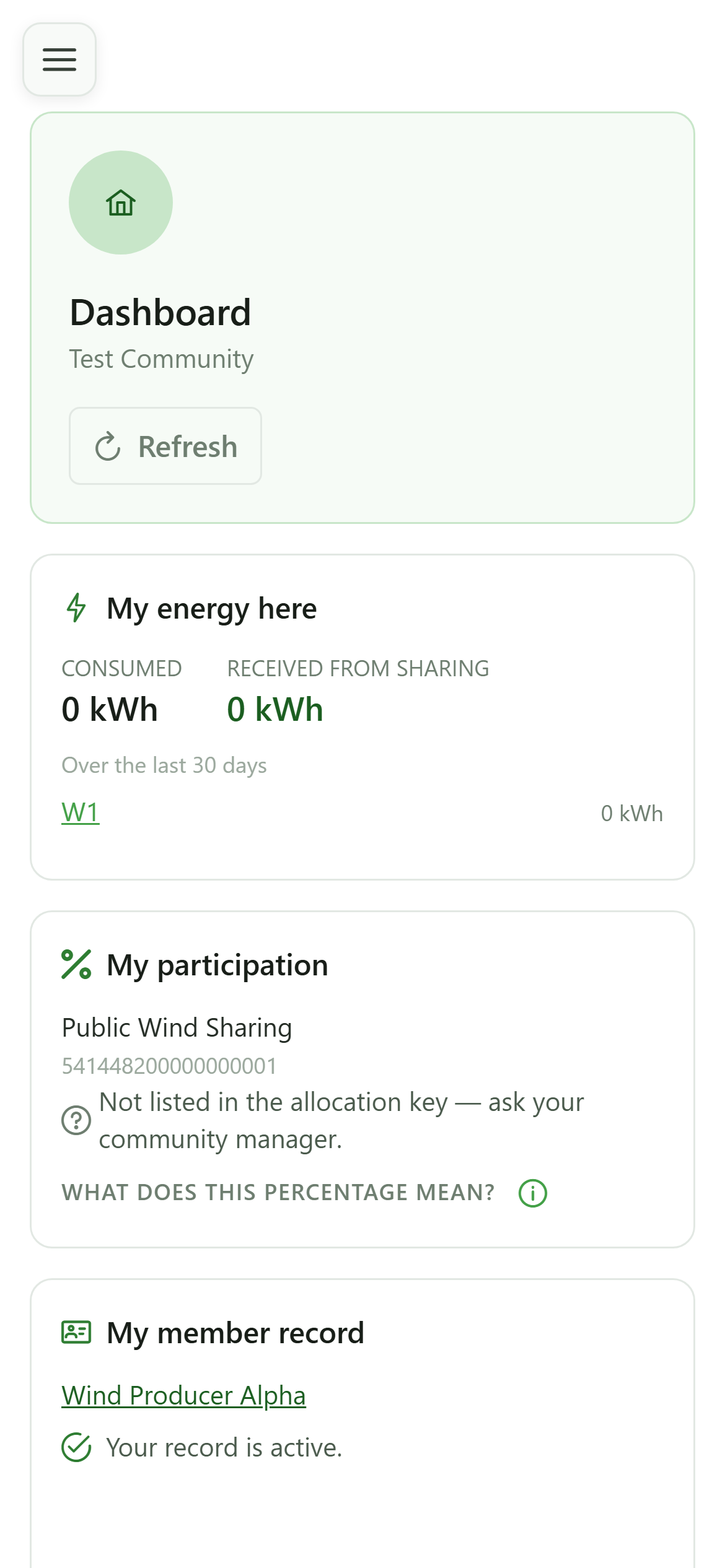
The "Refresh" button reloads every tile without reloading the page.
10 Up-to-date data
Dashboard
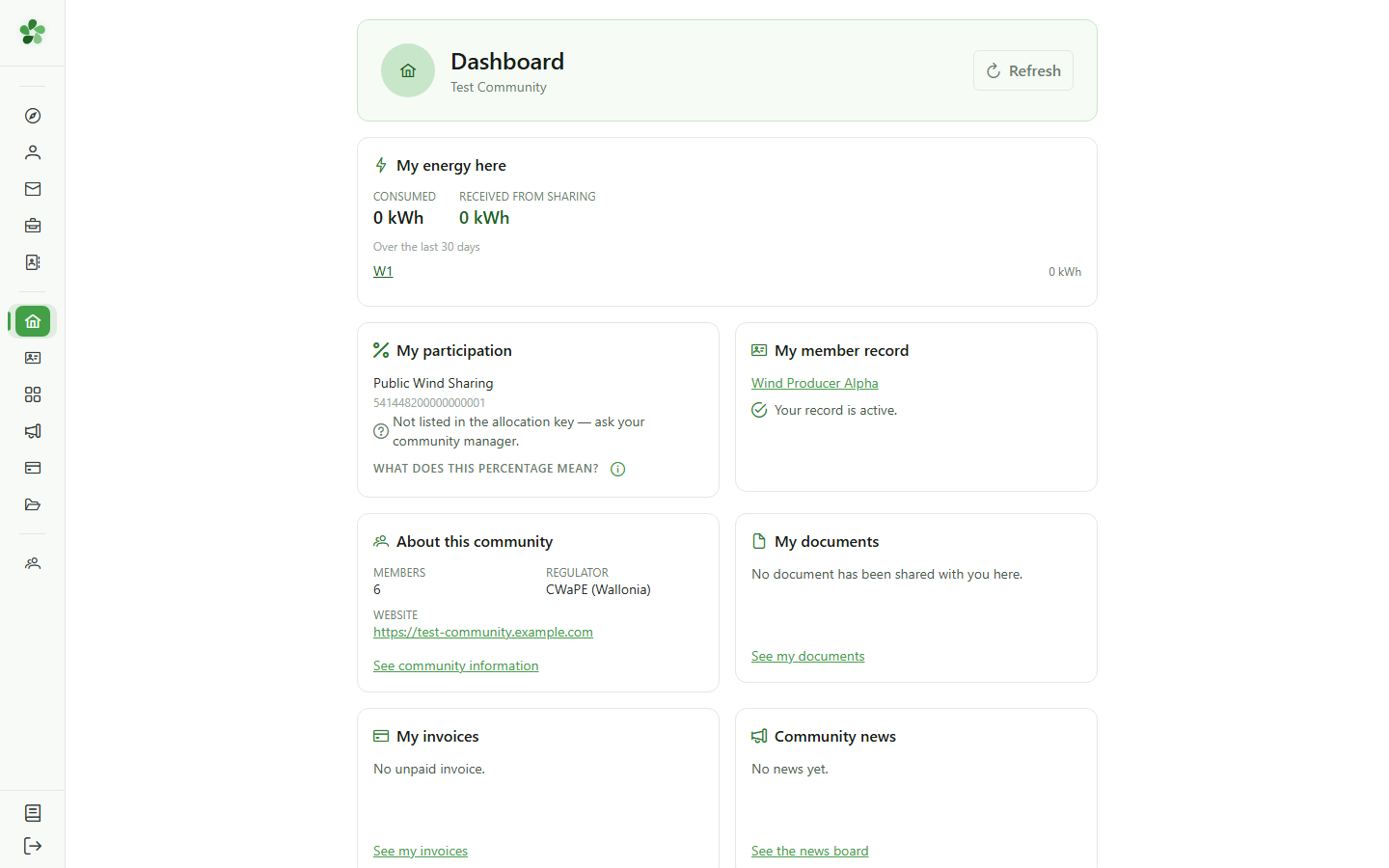
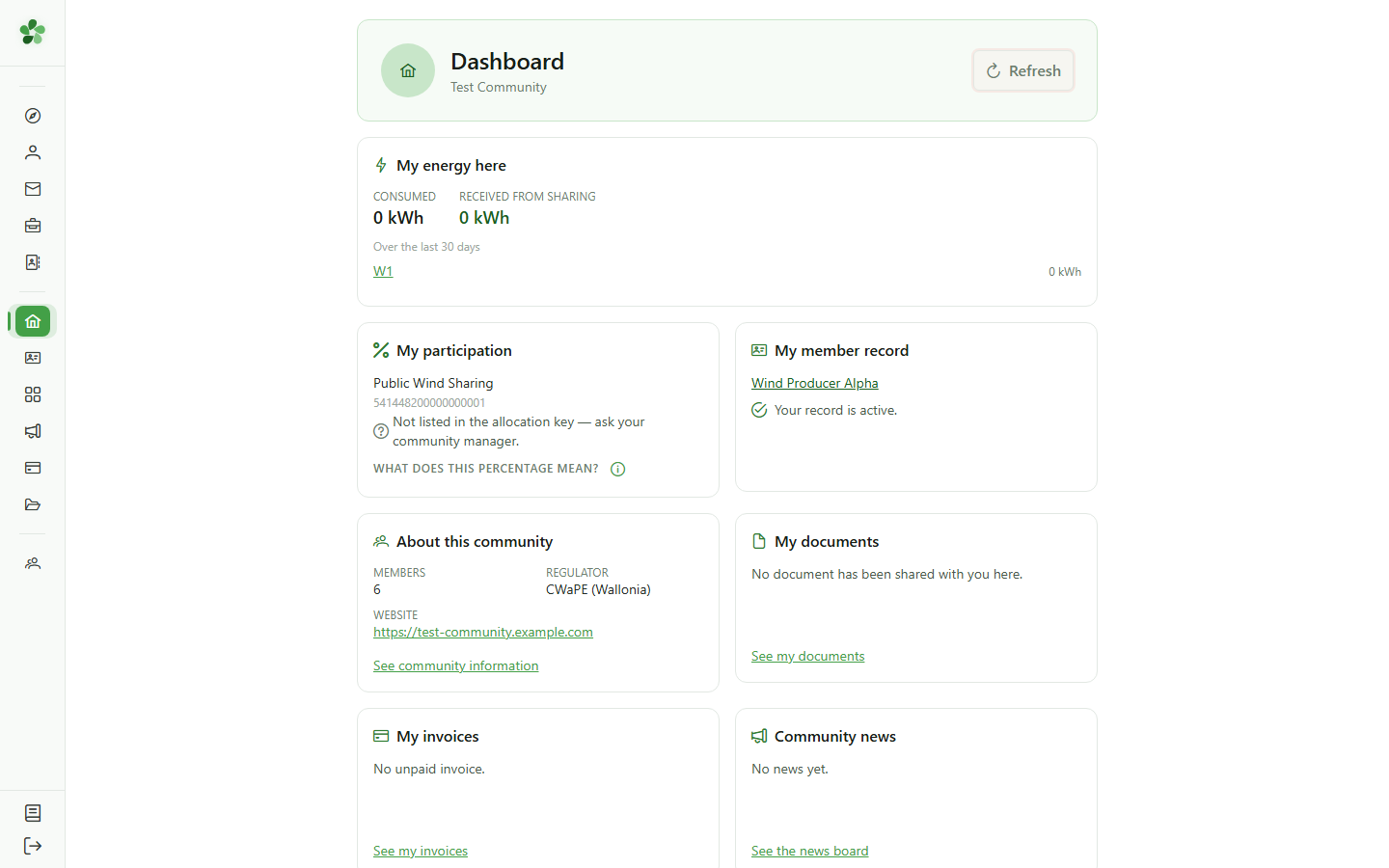
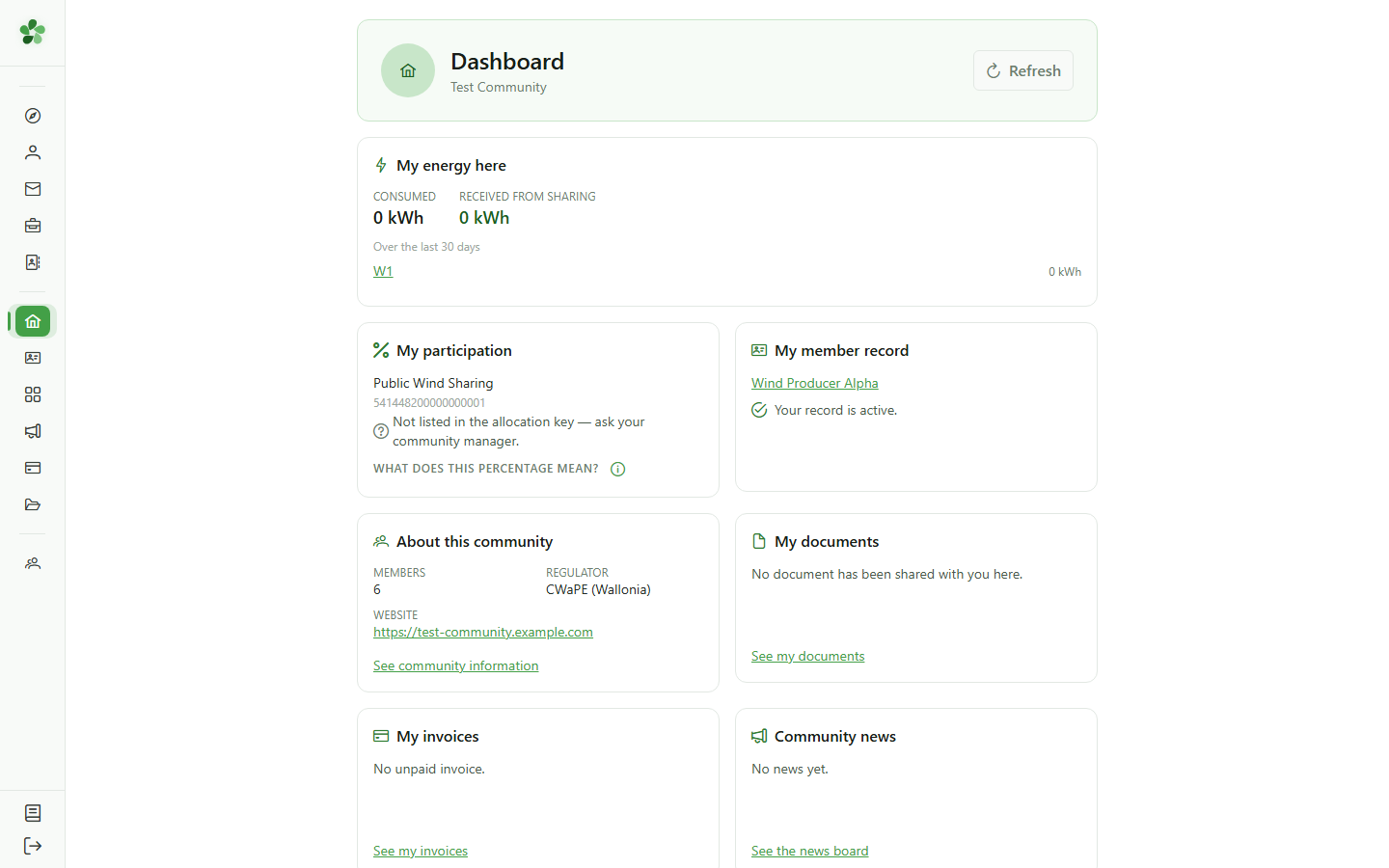
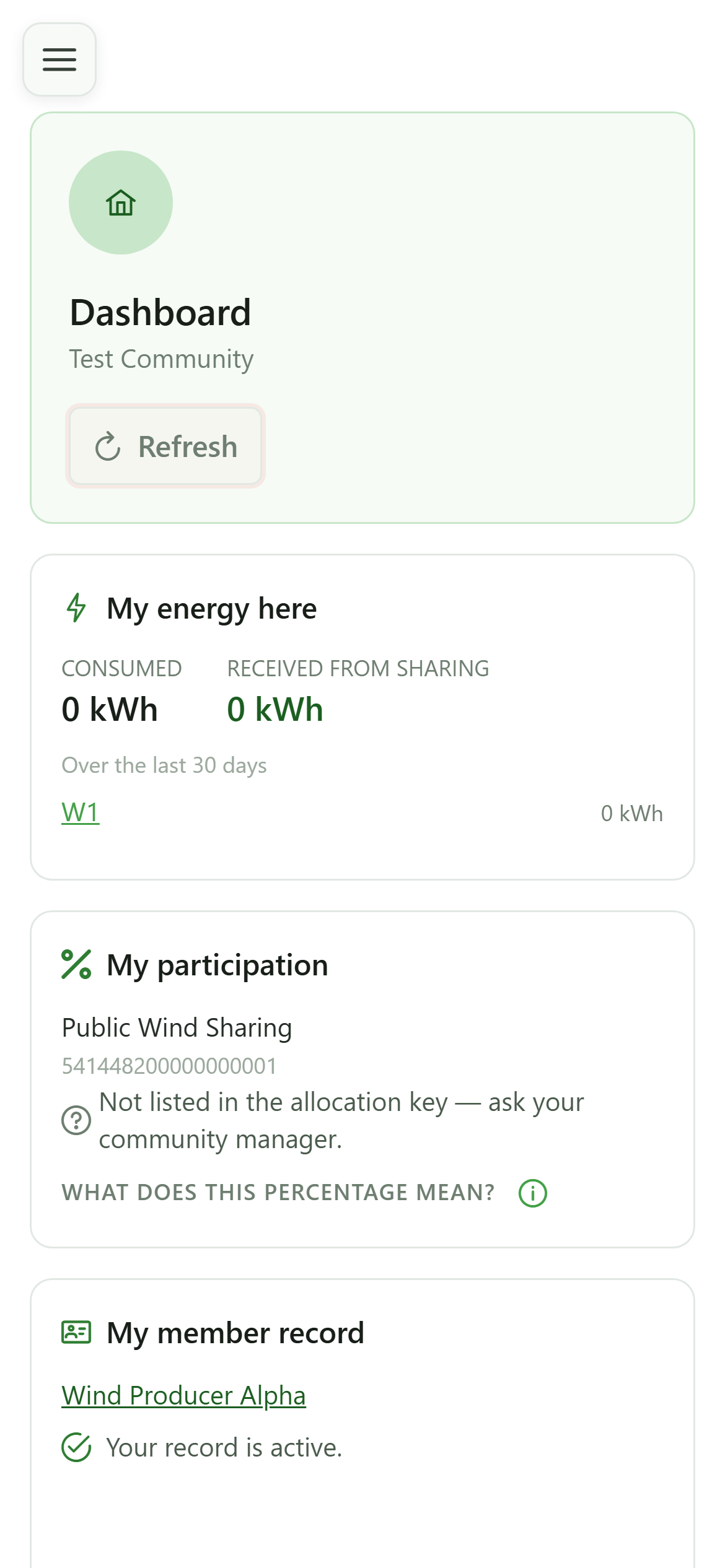
The tiles reload one by one and settle back with the freshest data.
The member dashboard
Guide utilisateur
User guide
Gebruikershandleiding
Benutzerhandbuch
1 Open your community
Home page
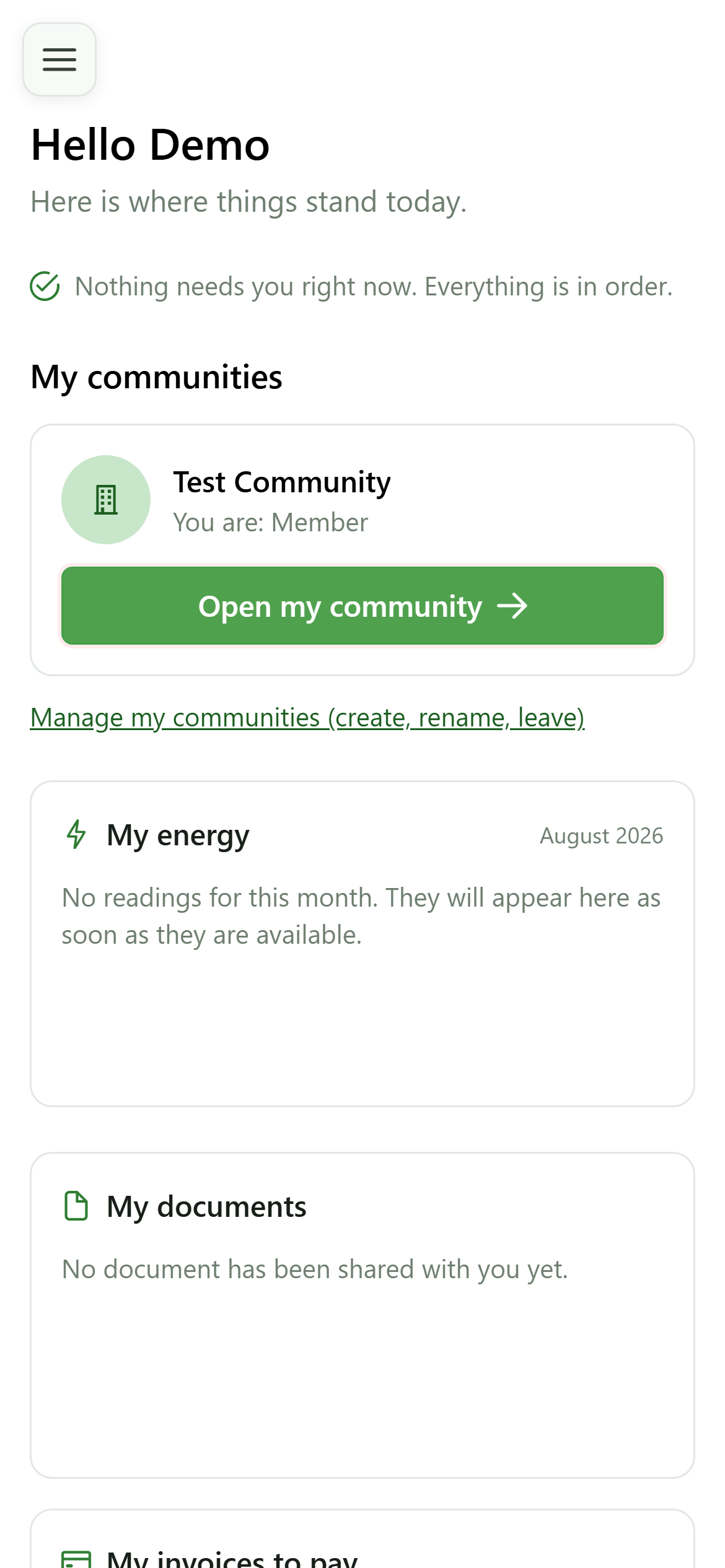
From the home page, open the community you want to look at.
2 The dashboard
Overview
The dashboard adapts to your role. As a member you do not see the community's management, but your own situation inside it.
3 My energy here
Dashboard
The first tile totals, over the last thirty days, what you consumed and what the sharing brought you, then breaks it down meter by meter.
4 My participation
Dashboard
For each sharing operation the tile shows the share that comes to you: a fixed percentage, a split in proportion to your consumption, or a note that your meter is not part of the key currently in force.
5 My member record
Dashboard
The tile confirms your record is active, or flags that it is still waiting for a manager to validate it.
6 Look at your record
My member record
The link opens your record read-only — the same information your manager holds.
7 About this community
Dashboard
Member count, regulator, website: enough to know who you are dealing with. The link opens the community's full information page.
8 Invoices and news
Dashboard
These two tiles only appear when the community uses the matching modules. Your unpaid invoices are summarised there, as are the latest posts on the news board.
9 Refresh
Dashboard
The "Refresh" button reloads every tile without reloading the page.
10 Up-to-date data
Dashboard
The tiles reload one by one and settle back with the freshest data.