Manage the community's users
Guide utilisateur
User guide
Gebruikershandleiding
Benutzerhandbuch
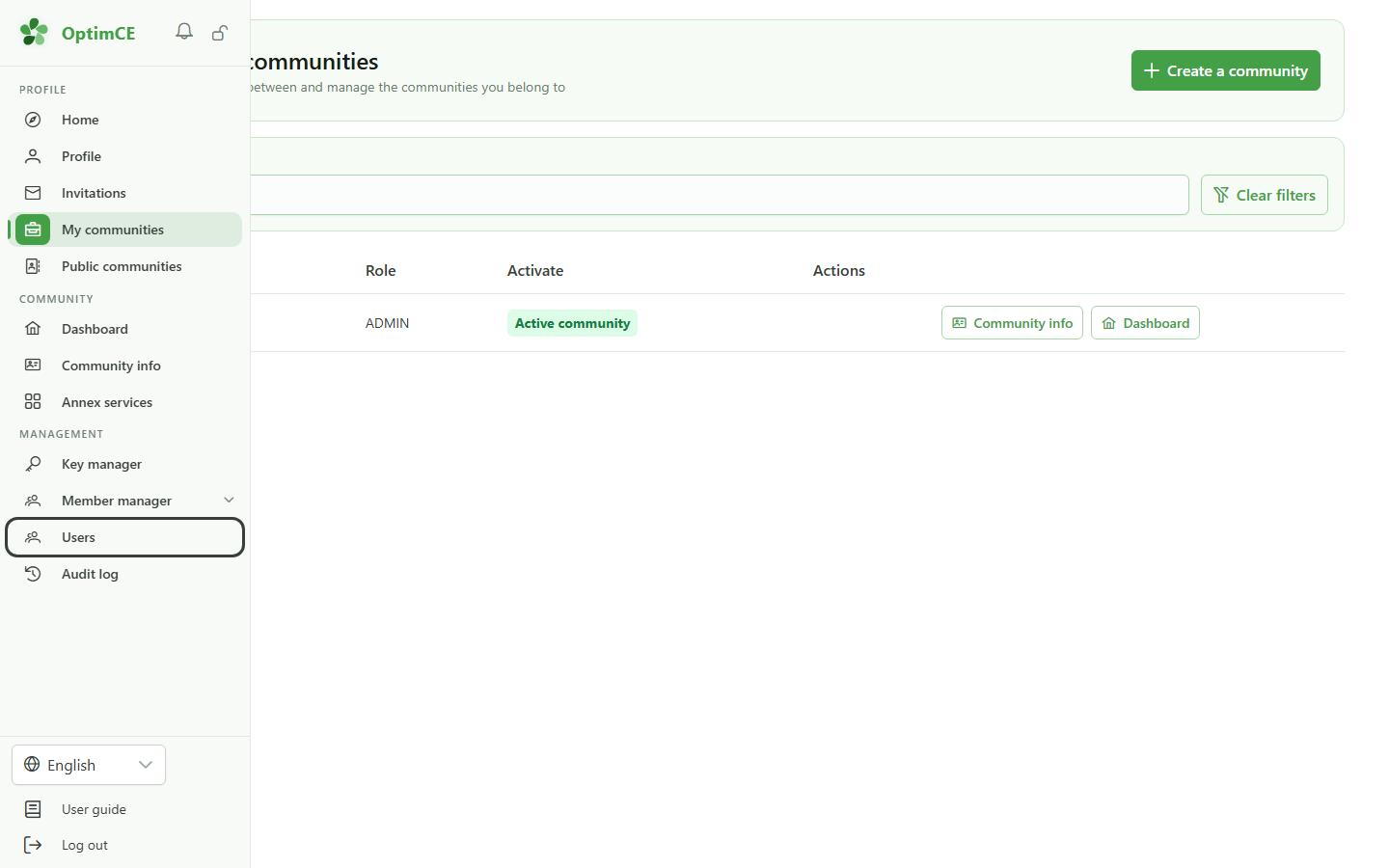
1 Open the users list
Navigation
In the sidebar's "Management" section, click "Users" to manage the people who have access to your community.
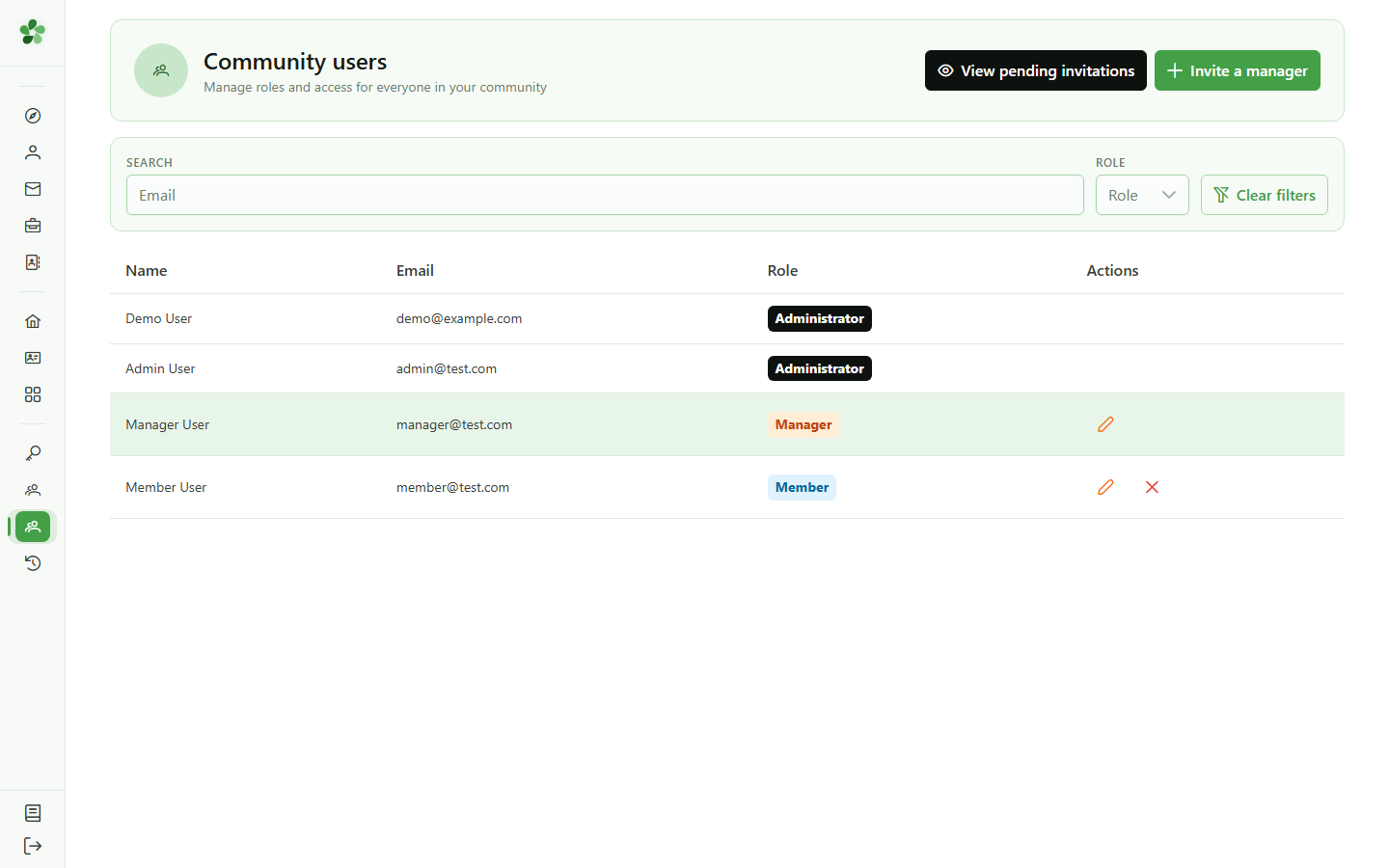
2 The community's users
Access management
This page lists everyone with access to the community and their role: administrator, manager or member. You can invite, change a role, or revoke access.
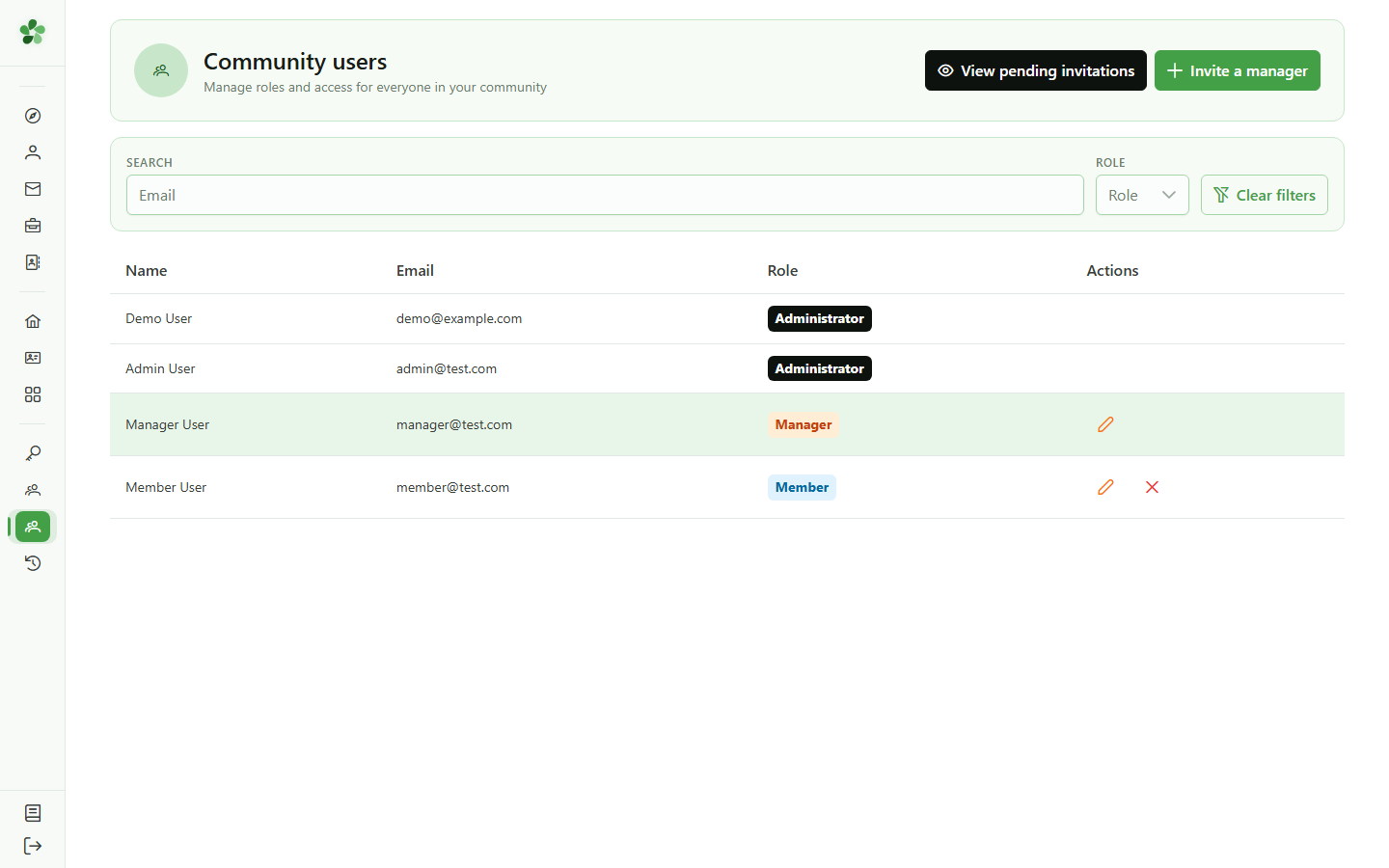
3 Invite a manager
Invitation
Click "Invite a manager" to email an invitation to someone who will help run the community.
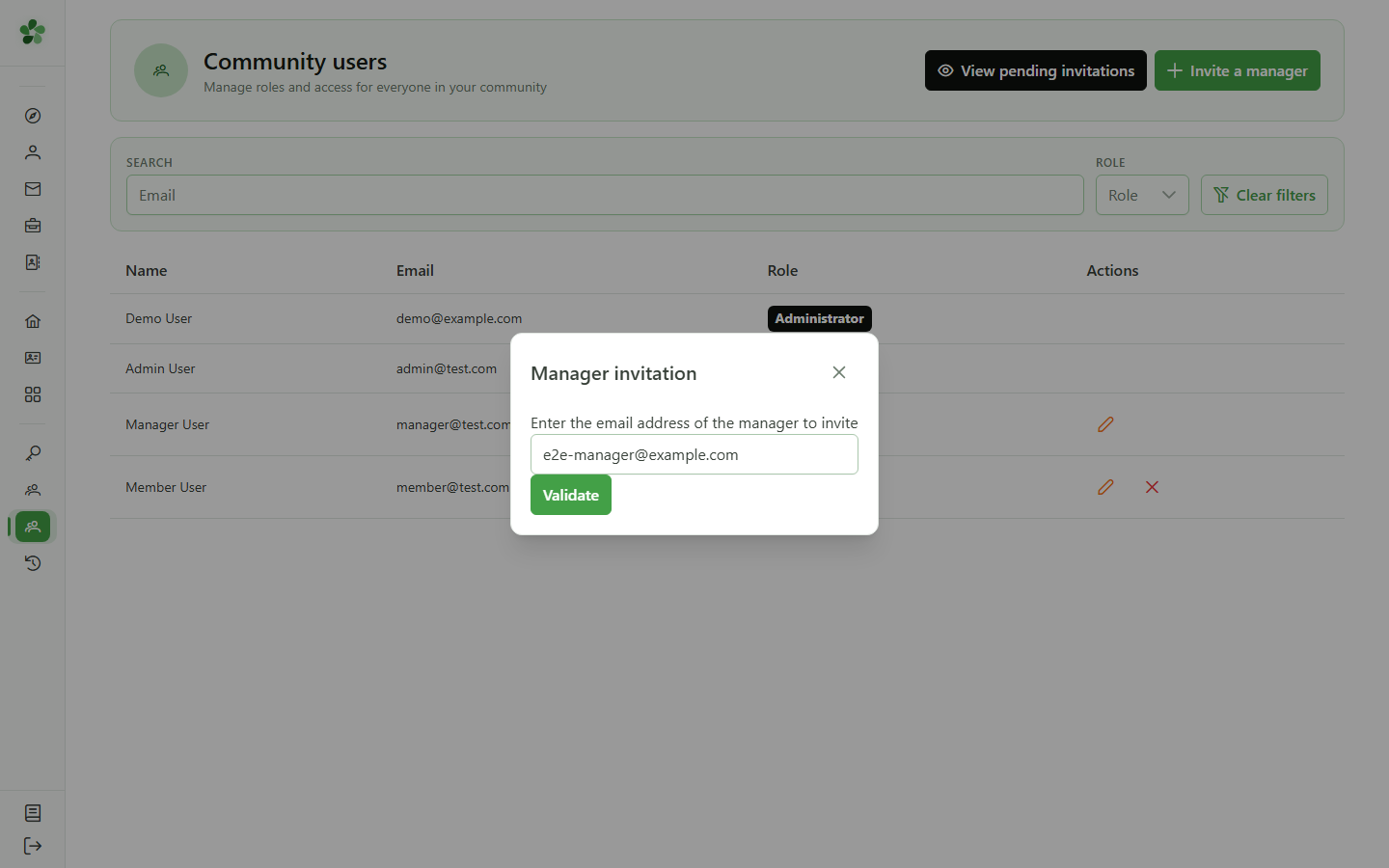
4 Enter the email address
Invitation
Enter the email address of the person to invite. They will receive an invitation to join the community as a manager.
5 See pending invitations
Follow-up
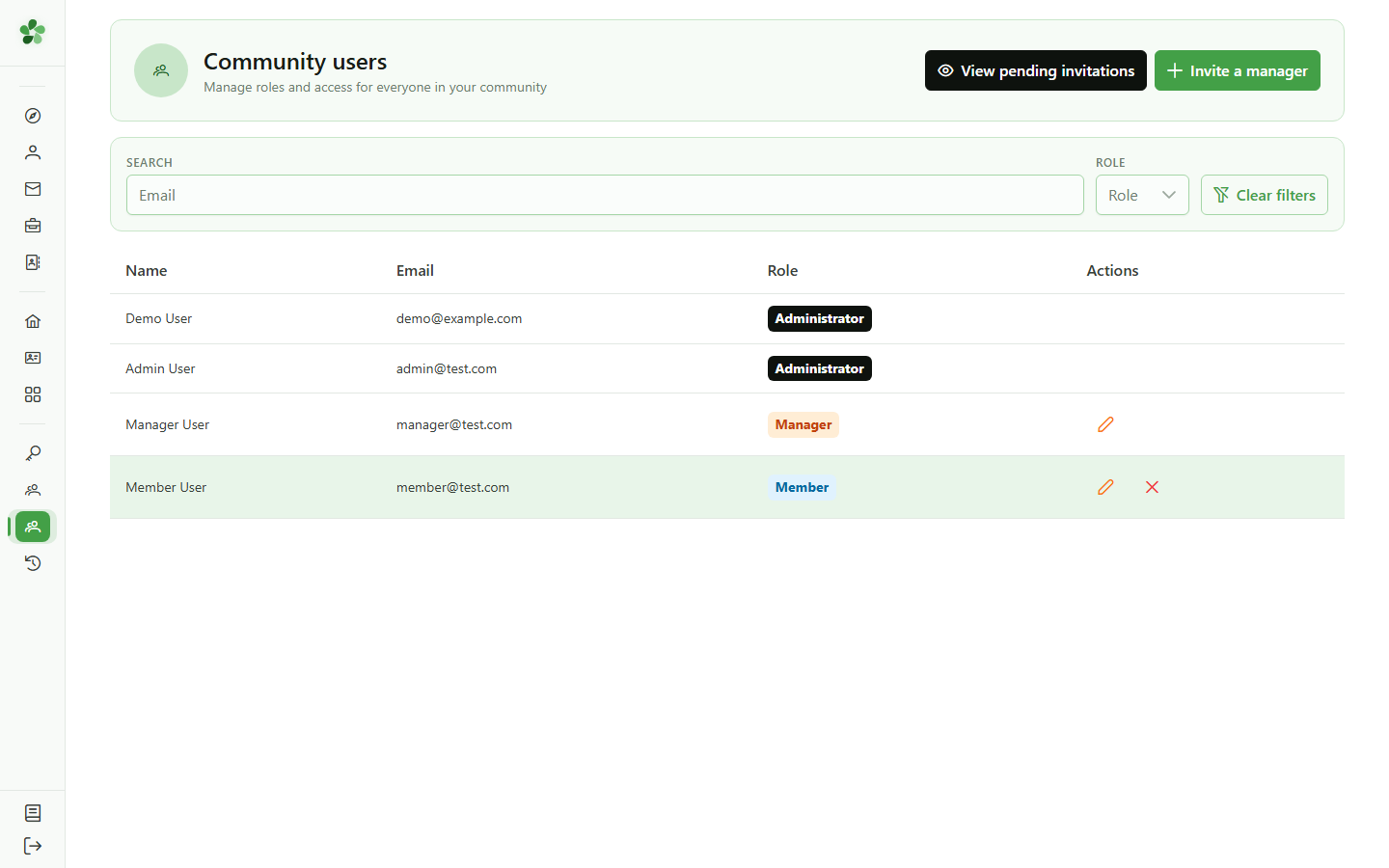
The "See pending invitations" button opens the list of invitations that have been sent but not yet accepted, both members and managers.
6 Pending invitations
Follow-up
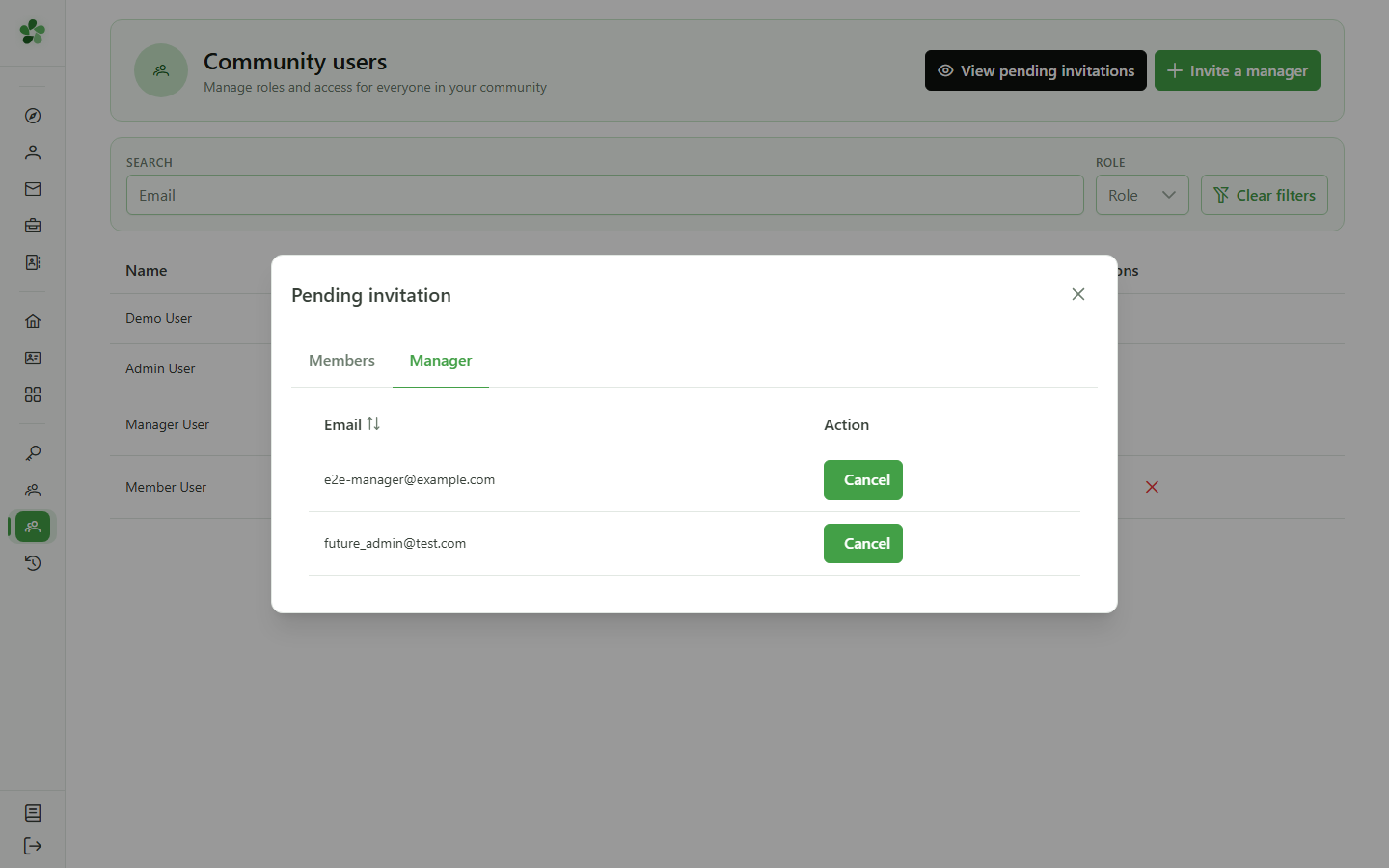
The "Managers" tab gathers invitations that have been sent but not yet accepted. While an invitation is pending, you can cancel it from this list.
7 Change a role
Roles
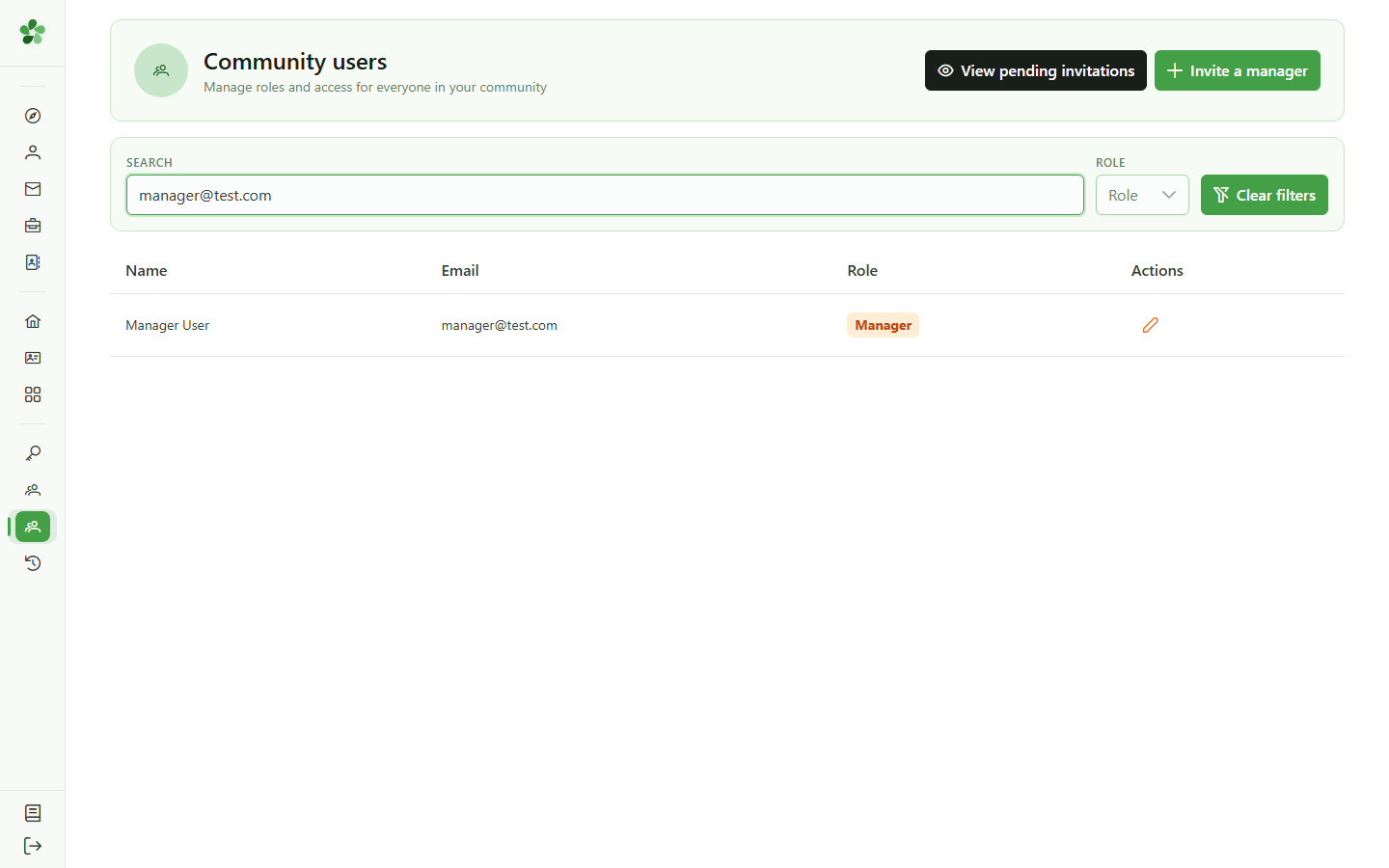
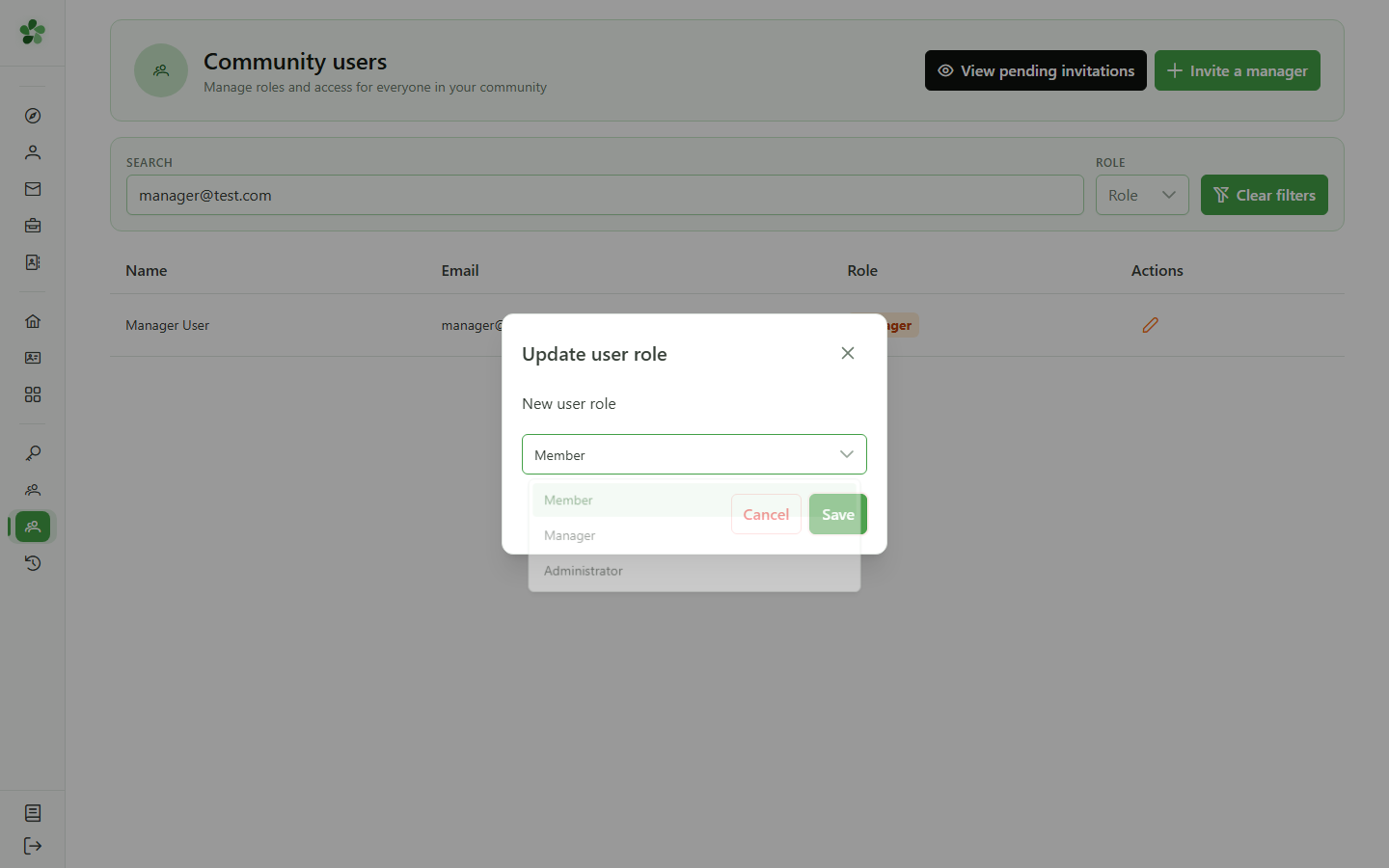
The pencil next to a user opens the role editor. You can promote a member to manager, or set a manager back to a plain member.
8 Save the role
Roles
Pick the new role from the list, then click "Save". The change takes effect immediately.
9 Role updated
Roles
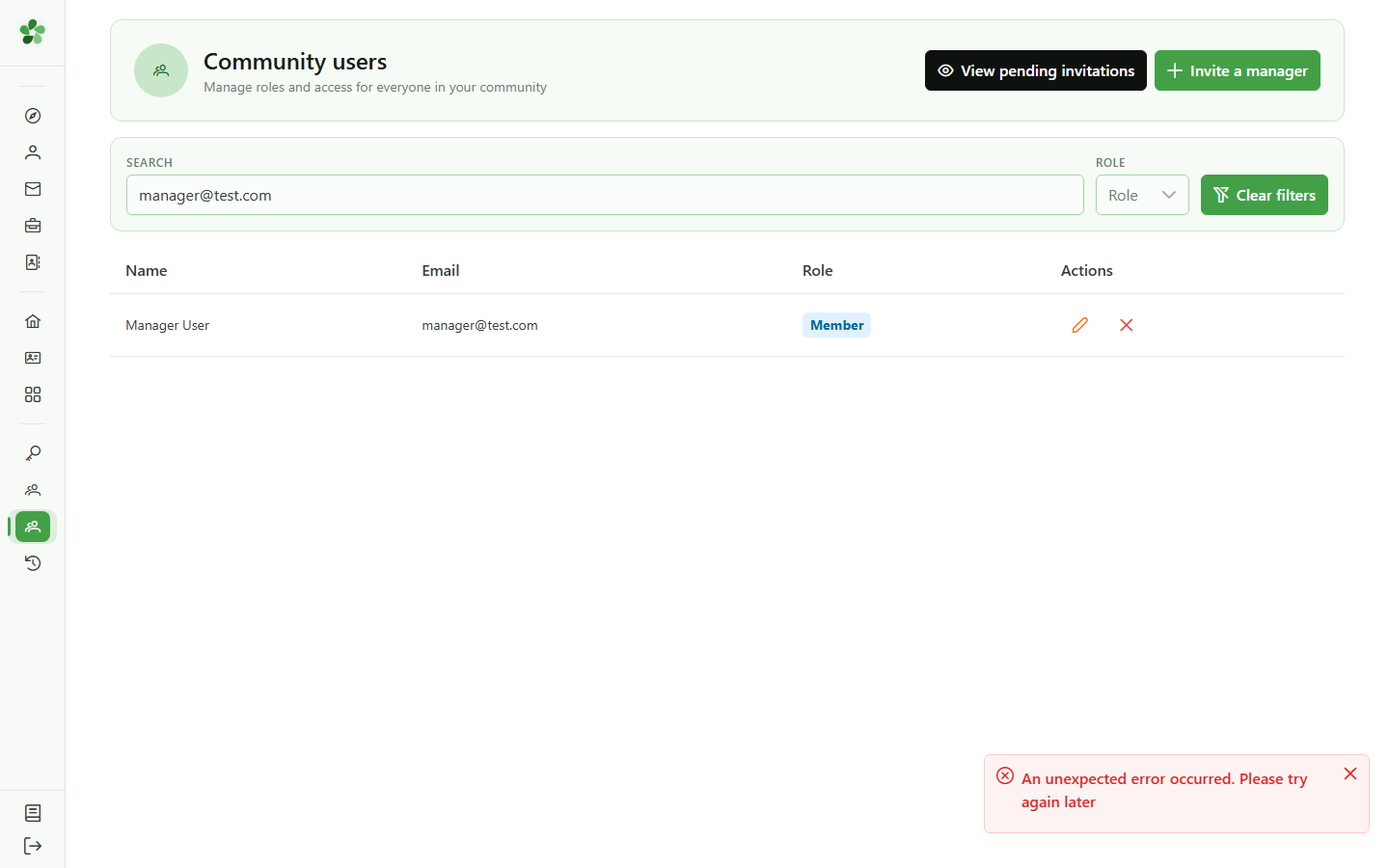
The user is now a member: their role tag has changed and the remove action is now available on their row.
10 Remove a user
Removal
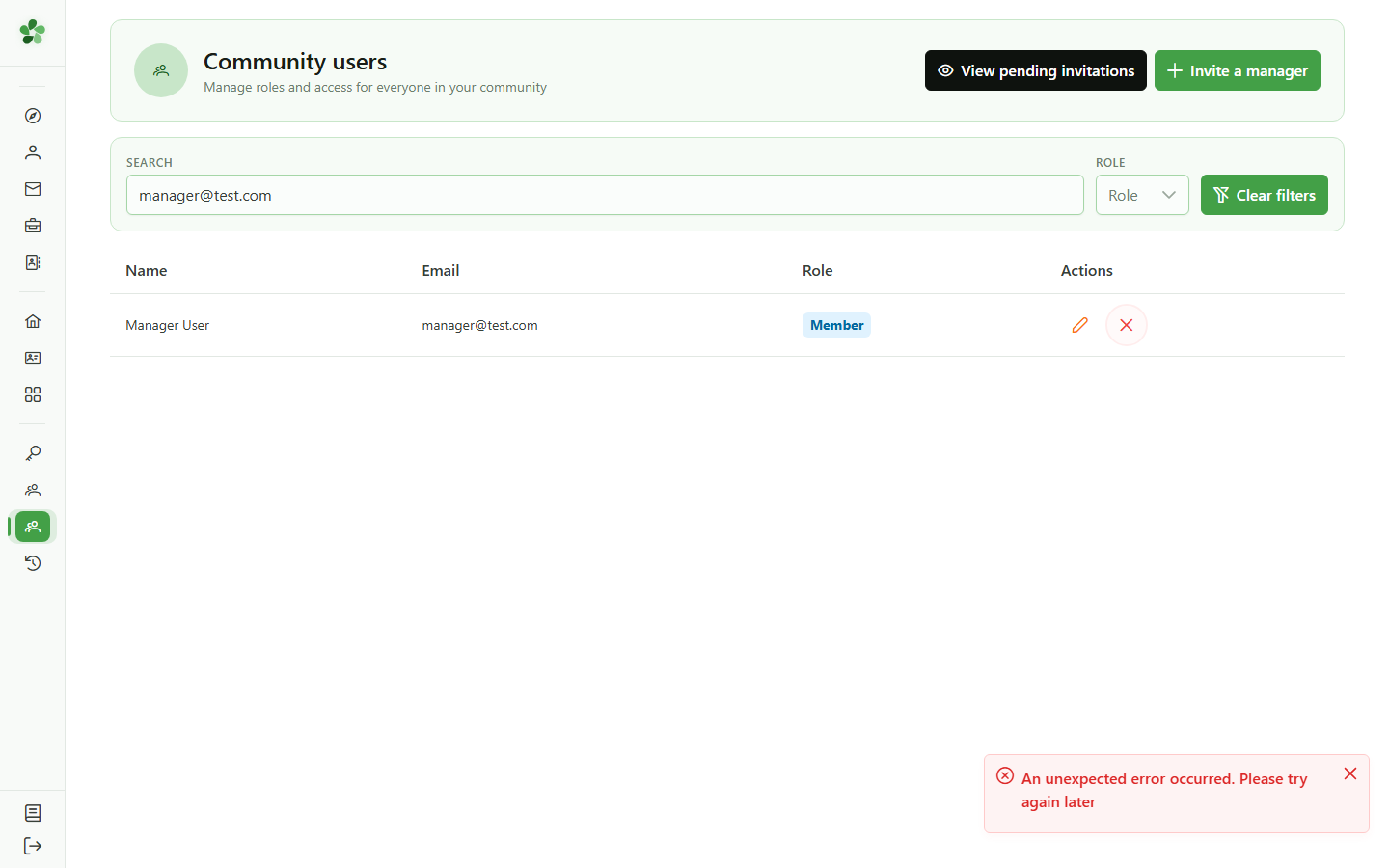
The red cross removes the user from the community right away — their access is revoked immediately, with no extra confirmation.
11 User removed
Confirmation
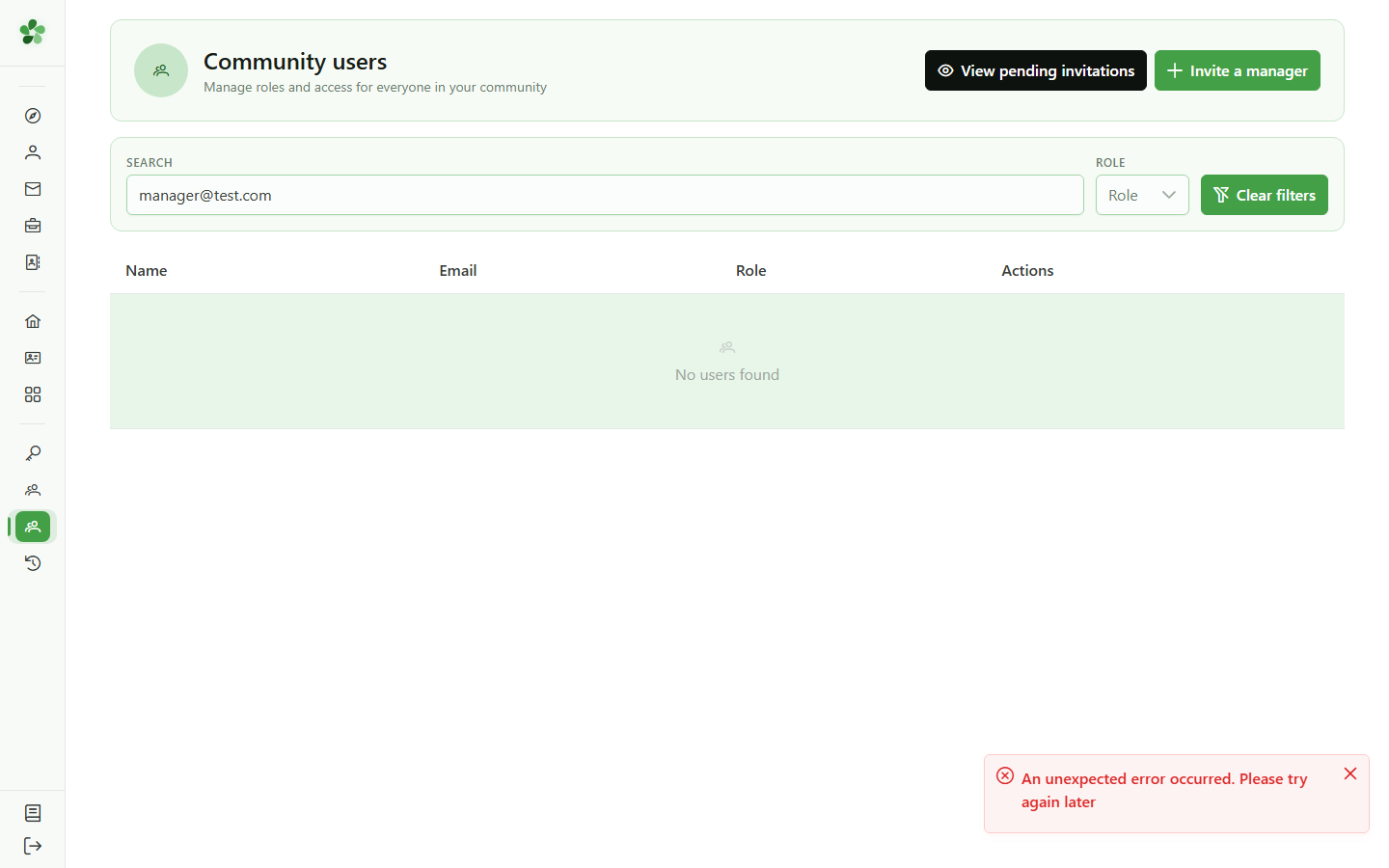
Searching for that email now returns nothing: the user no longer has access to the community.
Manage the community's users
Guide utilisateur
User guide
Gebruikershandleiding
Benutzerhandbuch
1 Open the users list
Navigation
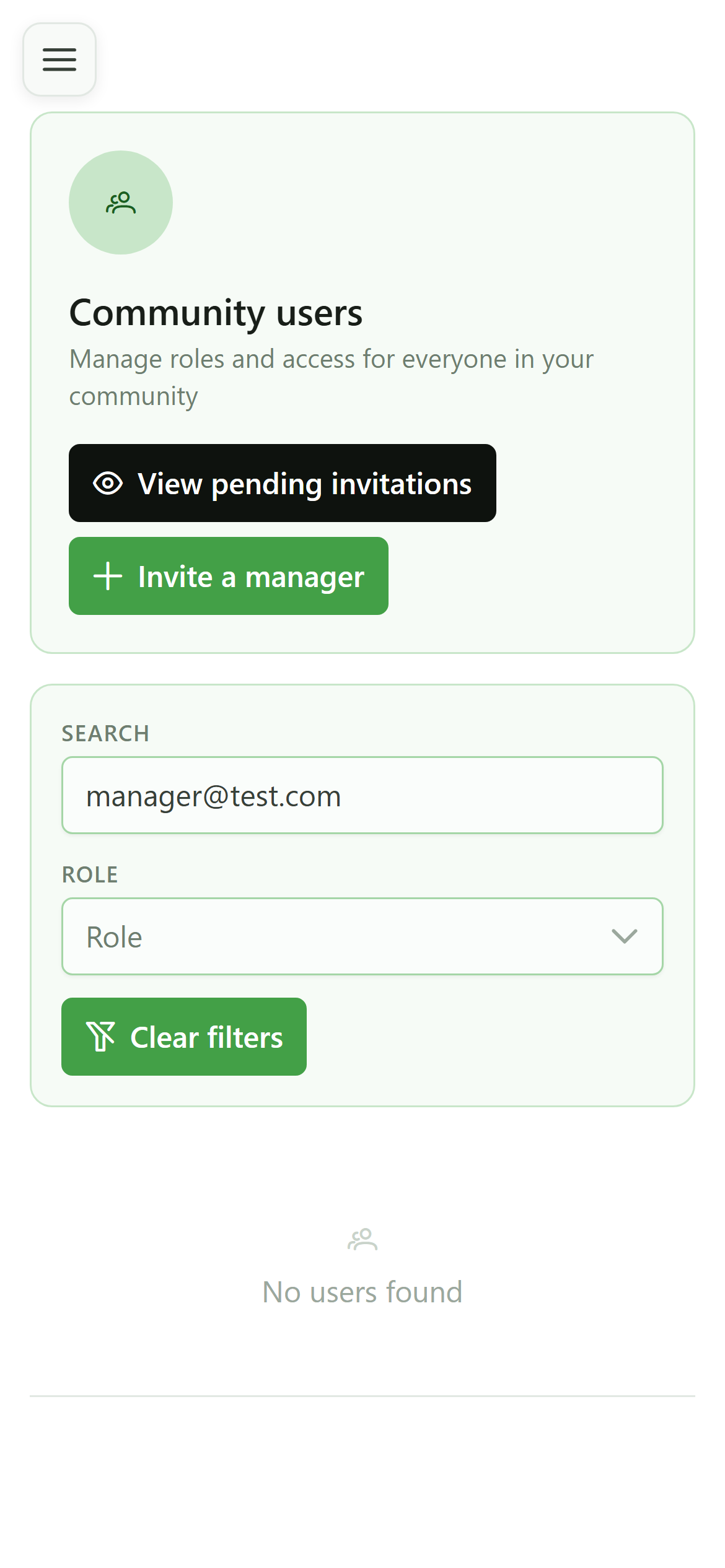
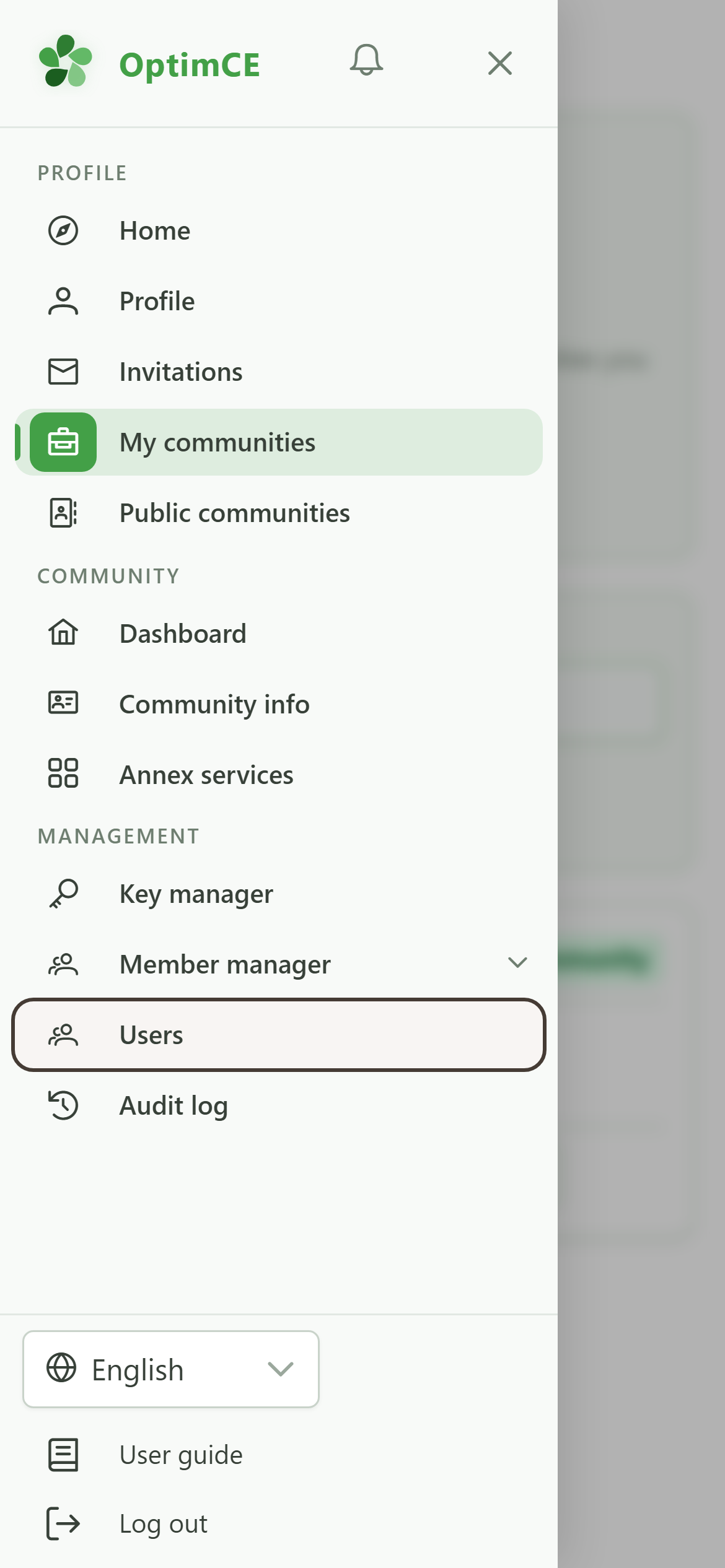
Tap the menu icon to open the drawer, then in the "Management" section tap "Users".
2 The community's users
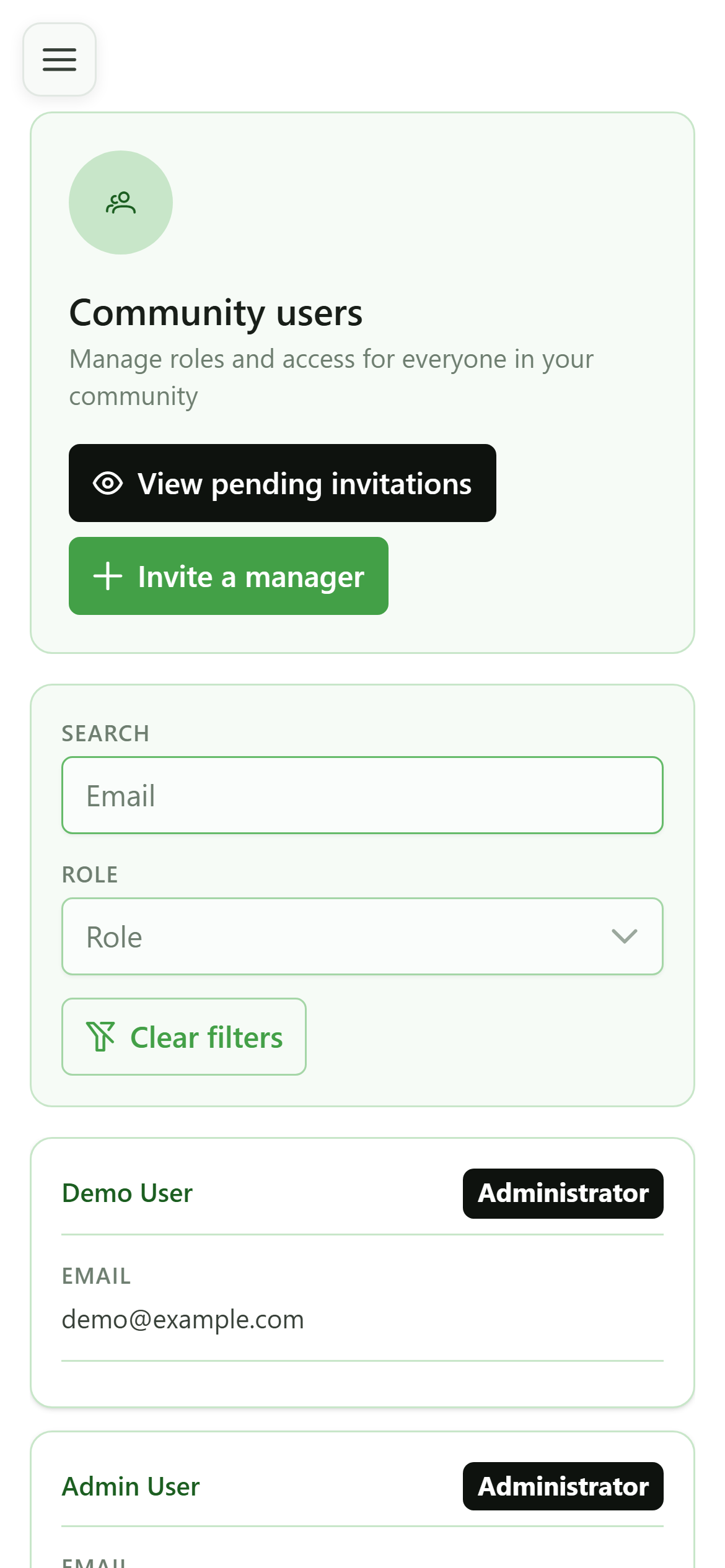
Users
This page lists the accounts attached to the community and their role. This is where you invite a manager, change a role or revoke access.
3 Invite a manager
Invitation
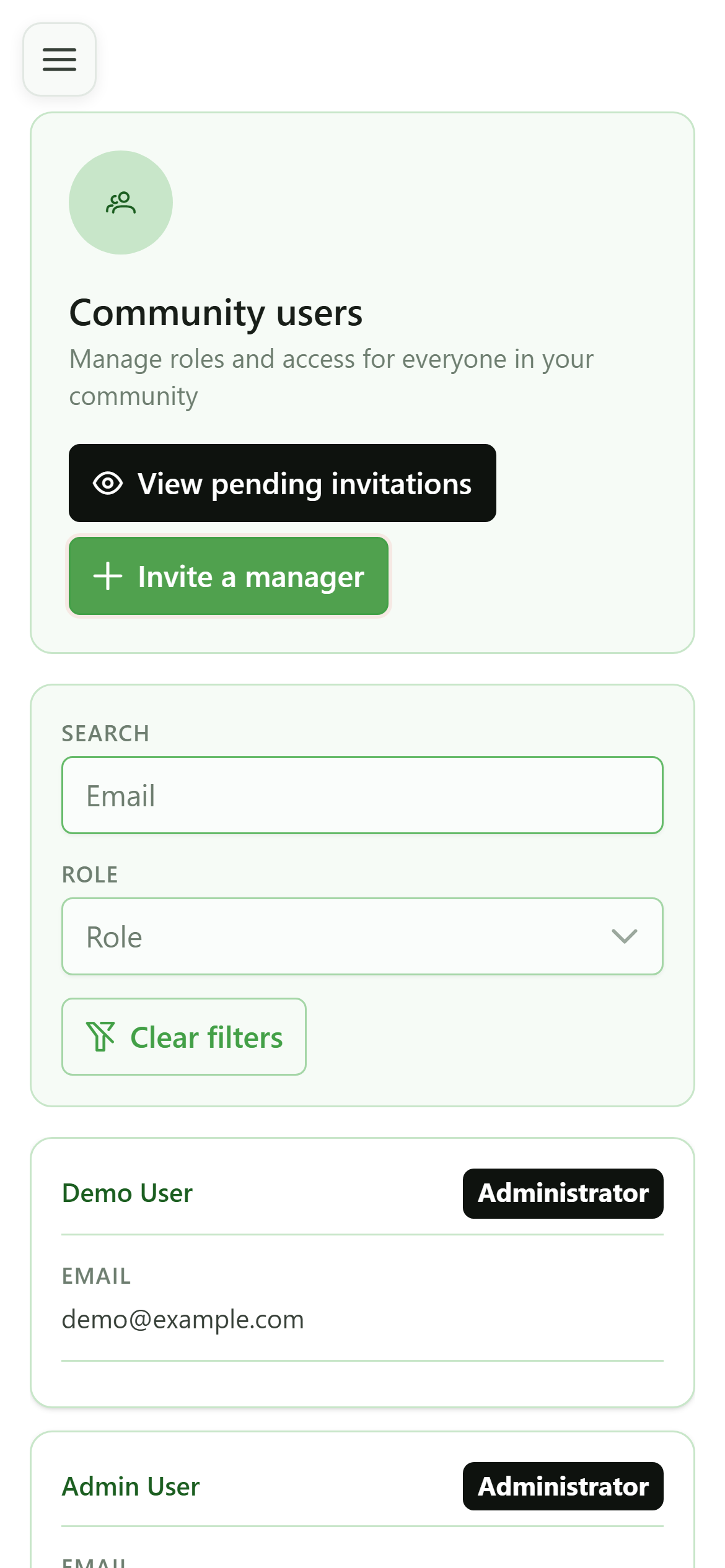
Click "Invite a manager" to email an invitation to someone who will help run the community.
4 Enter the email address
Invitation
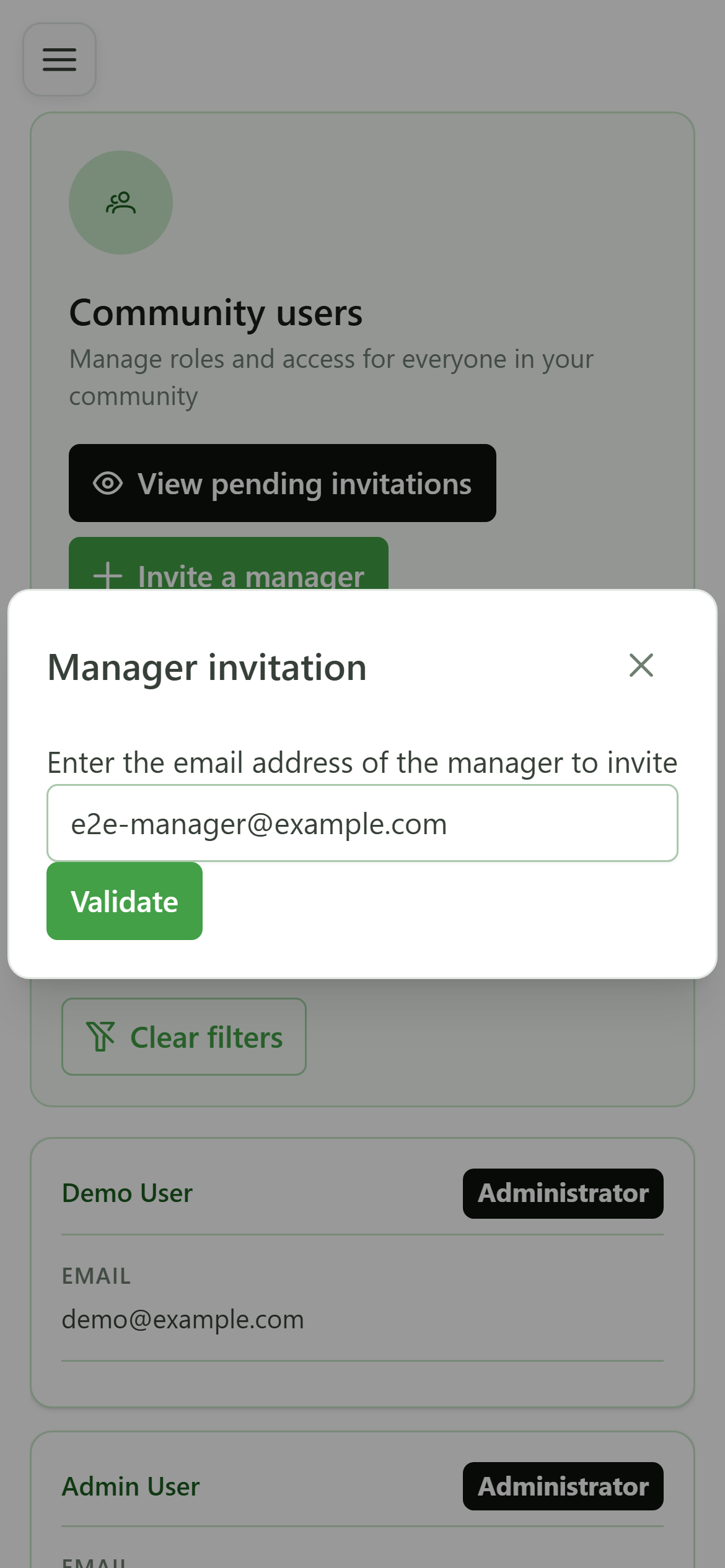
Enter the email address of the person to invite. They will receive an invitation to join the community as a manager.
5 See pending invitations
Follow-up
The "See pending invitations" button opens the list of invitations that have been sent but not yet accepted, both members and managers.
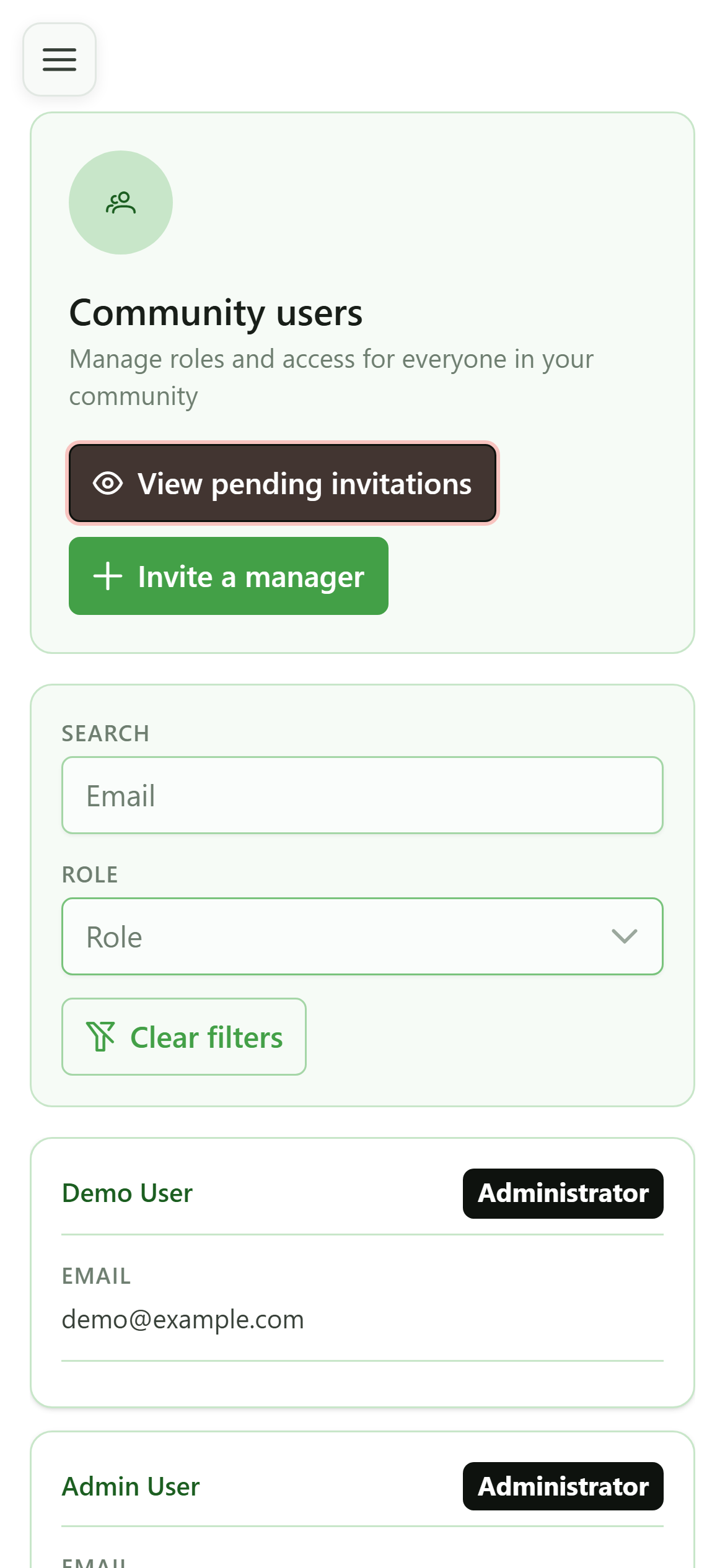
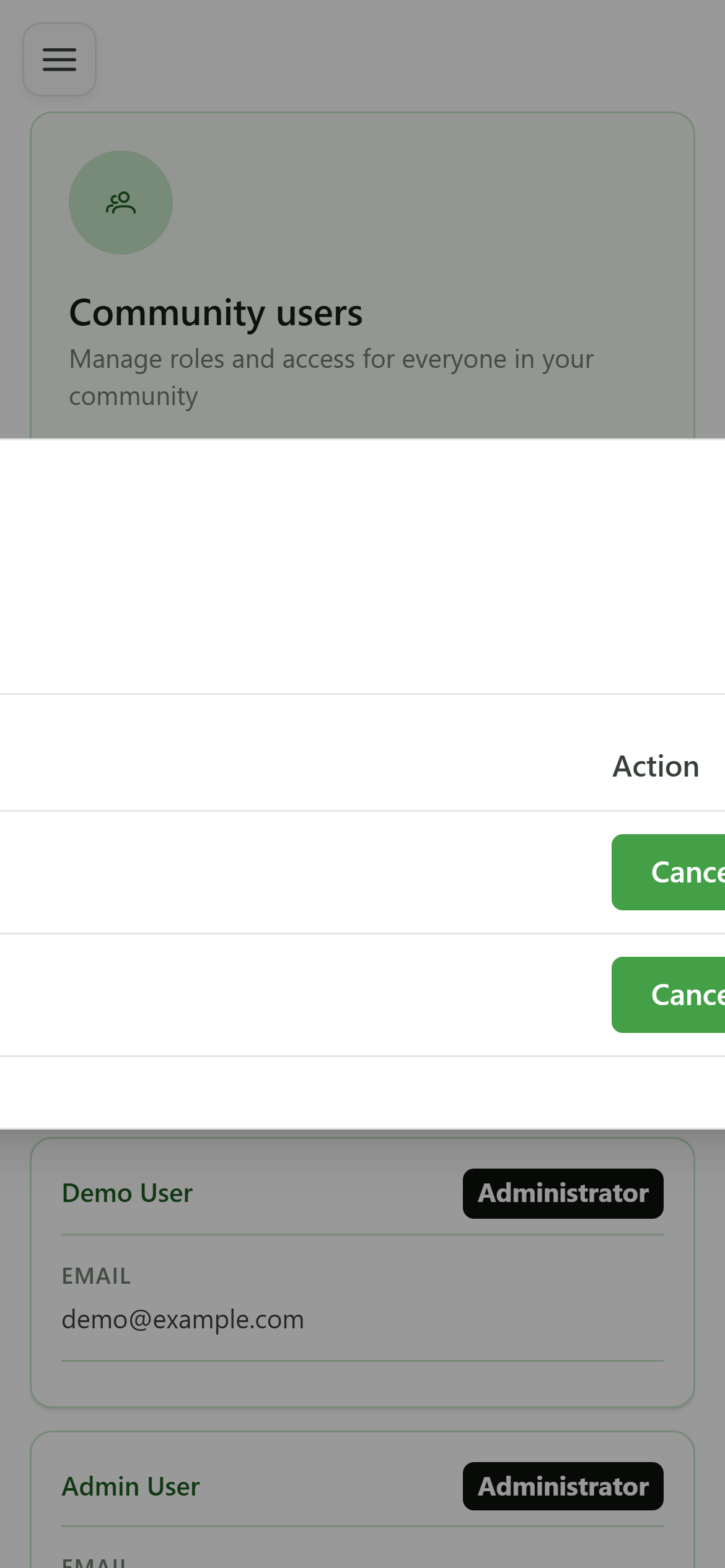
6 Pending invitations
Follow-up
The "Managers" tab gathers invitations that have been sent but not yet accepted. While an invitation is pending, you can cancel it from this list.
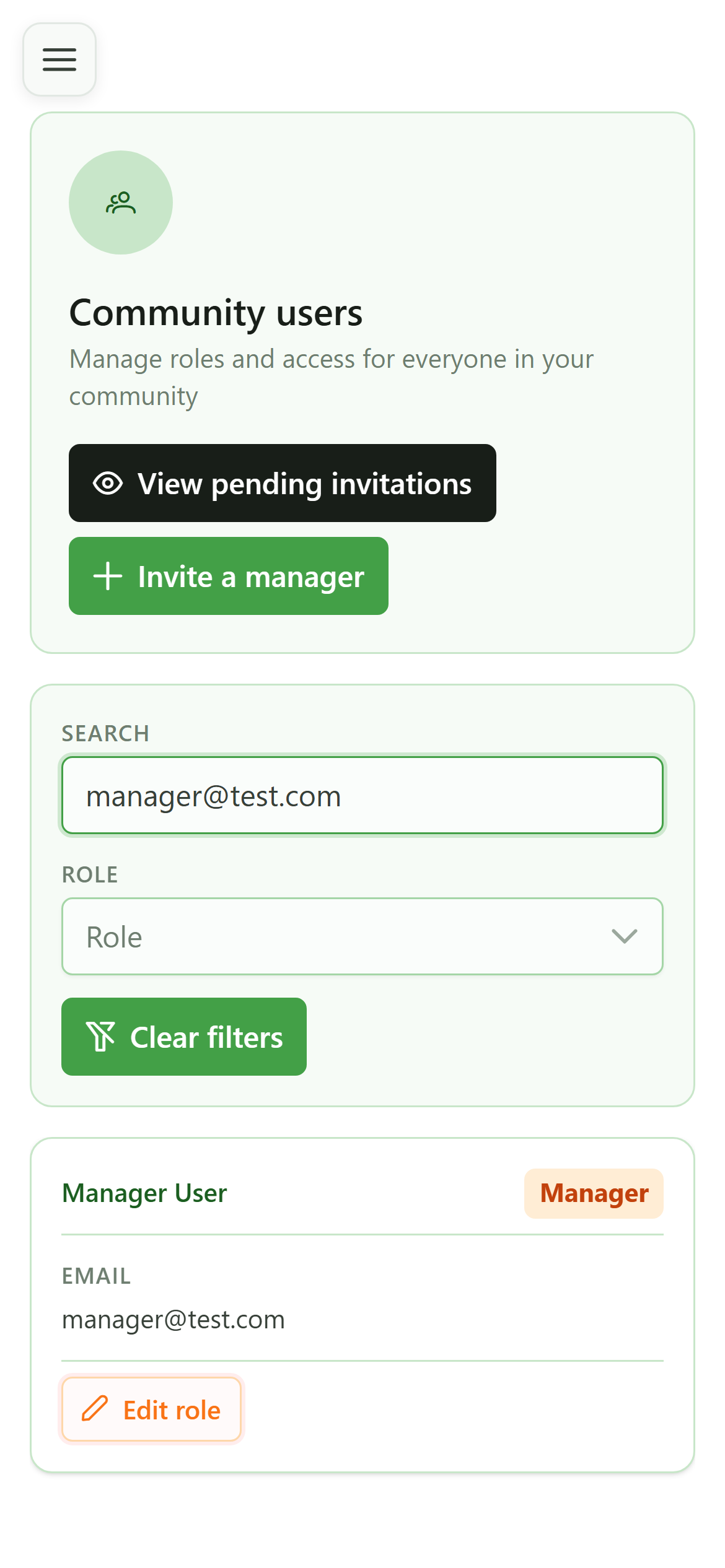
7 Change a role
Roles
On the user's card, the "Edit role" button opens the role editor.
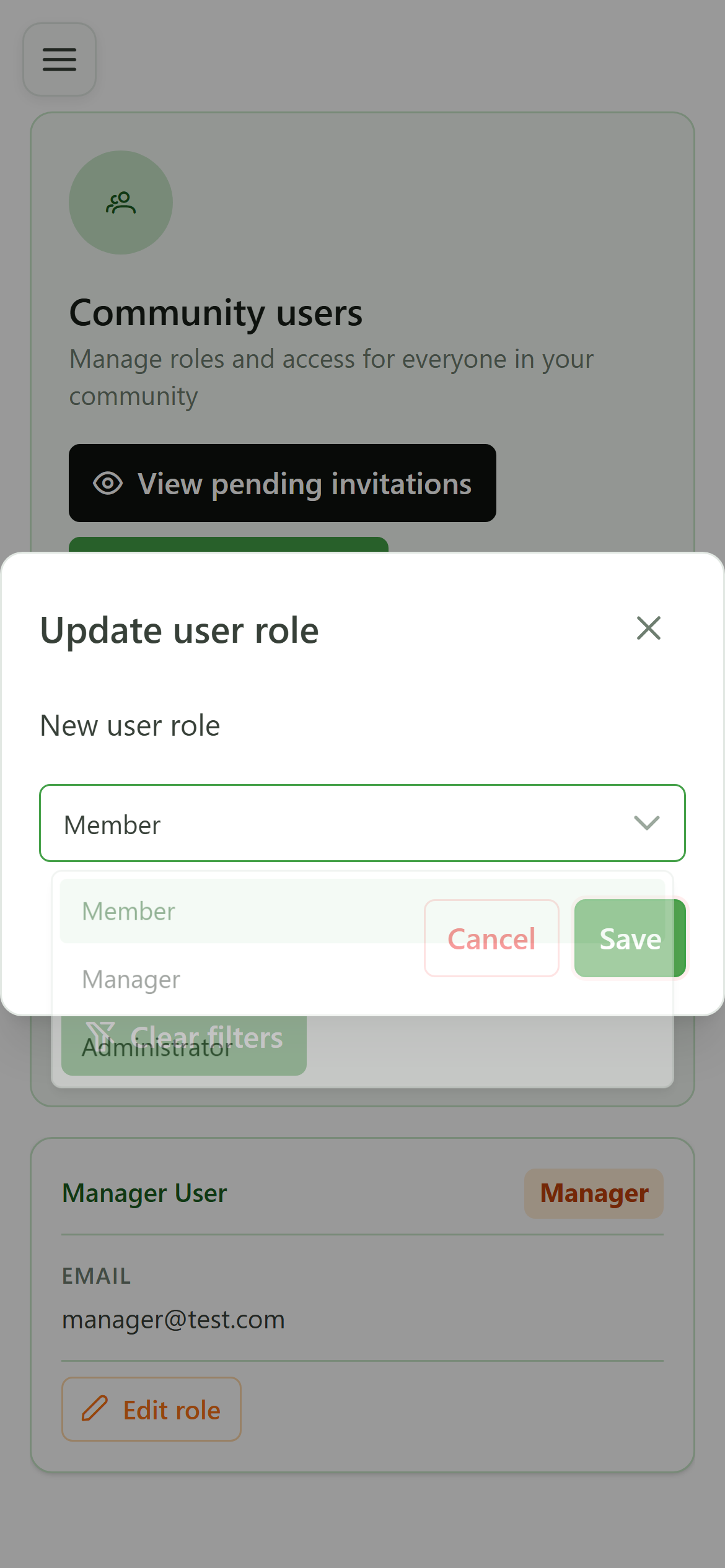
8 Save the role
Roles
Pick the new role from the list, then click "Save". The change takes effect immediately.
9 Role updated
Roles
The user is now a member: their role tag has changed and the remove action is now available on their card.
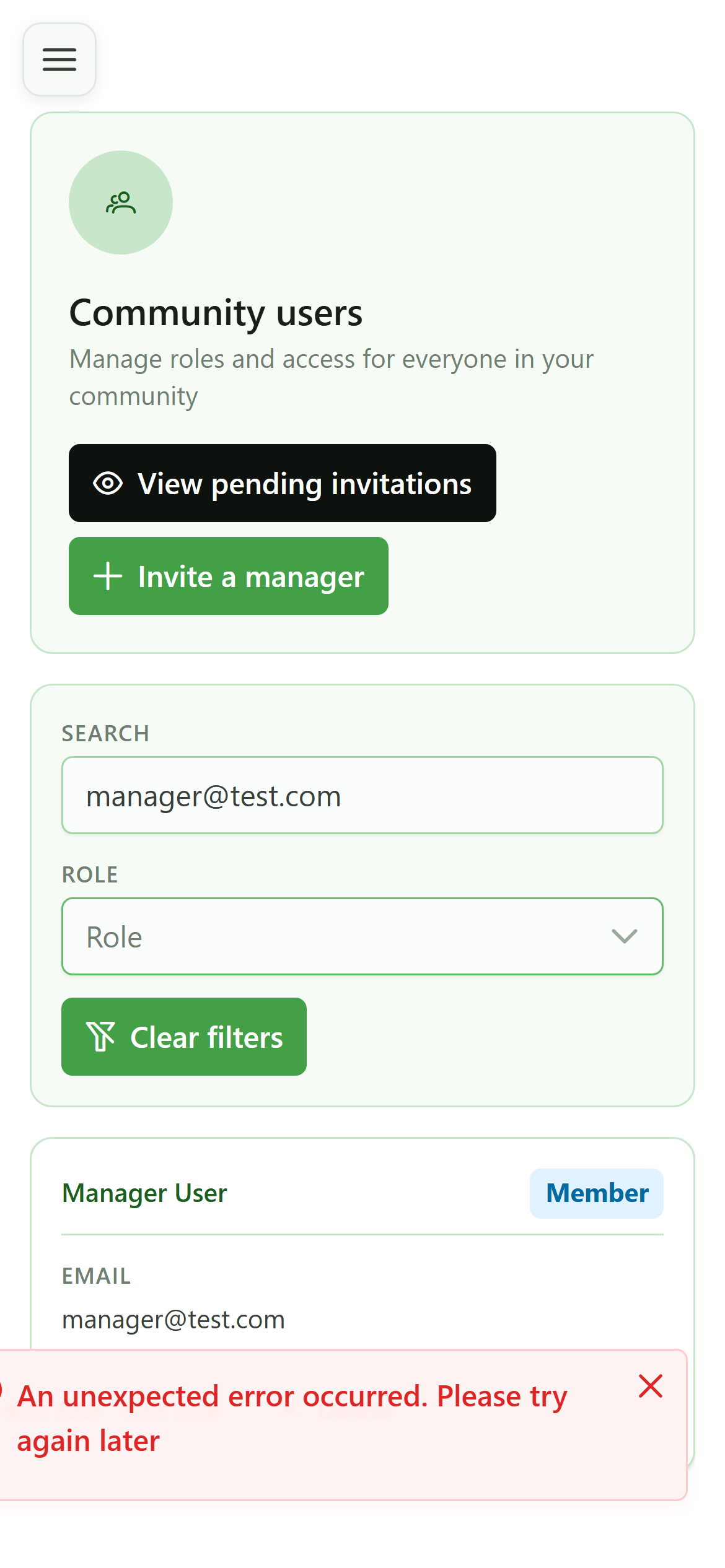
10 Remove a user
Removal
On the card, the "Delete" button removes the user from the community right away.
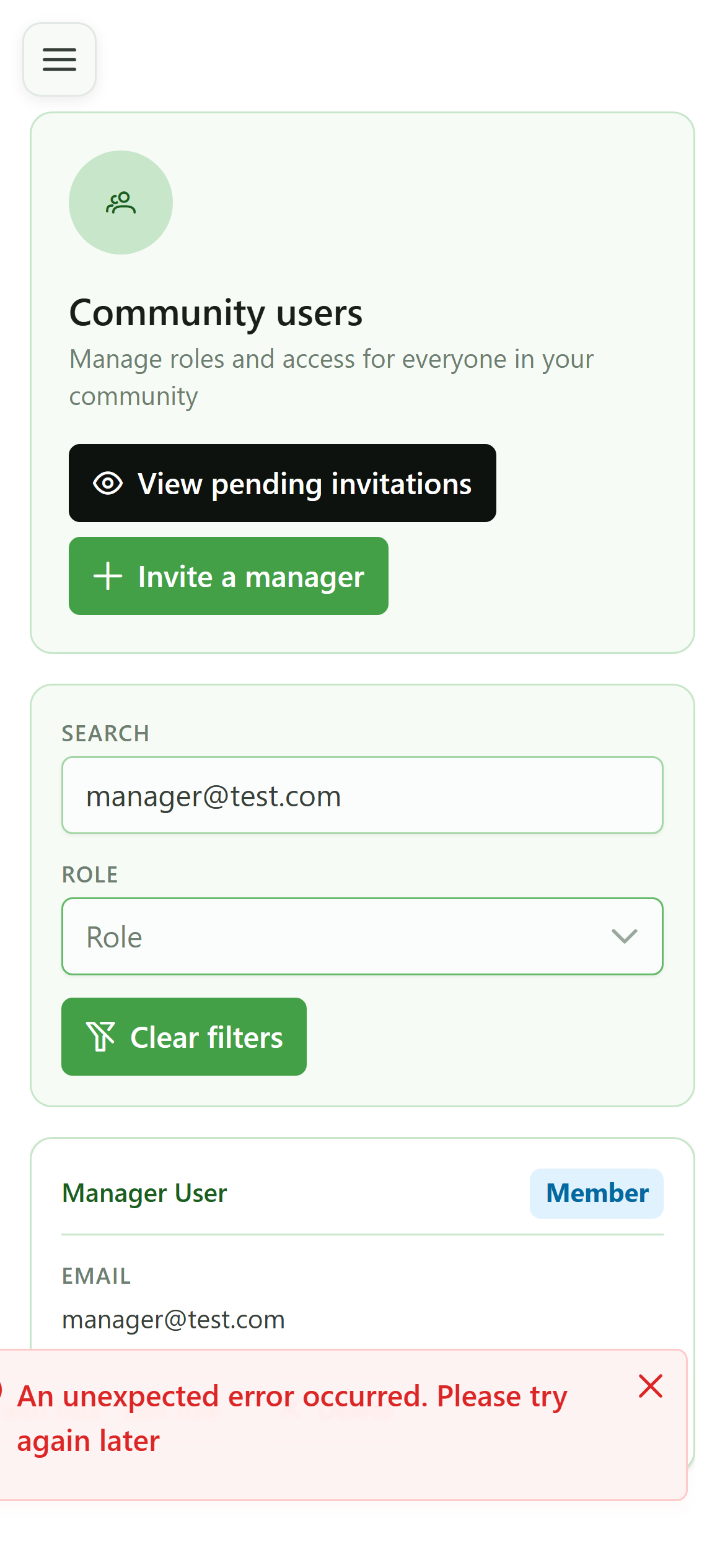
11 User removed
Confirmation
Searching for that email now returns nothing: the user no longer has access to the community.