See your community's managers
Guide utilisateur
User guide
Gebruikershandleiding
Benutzerhandbuch
1 See the managers
Navigation
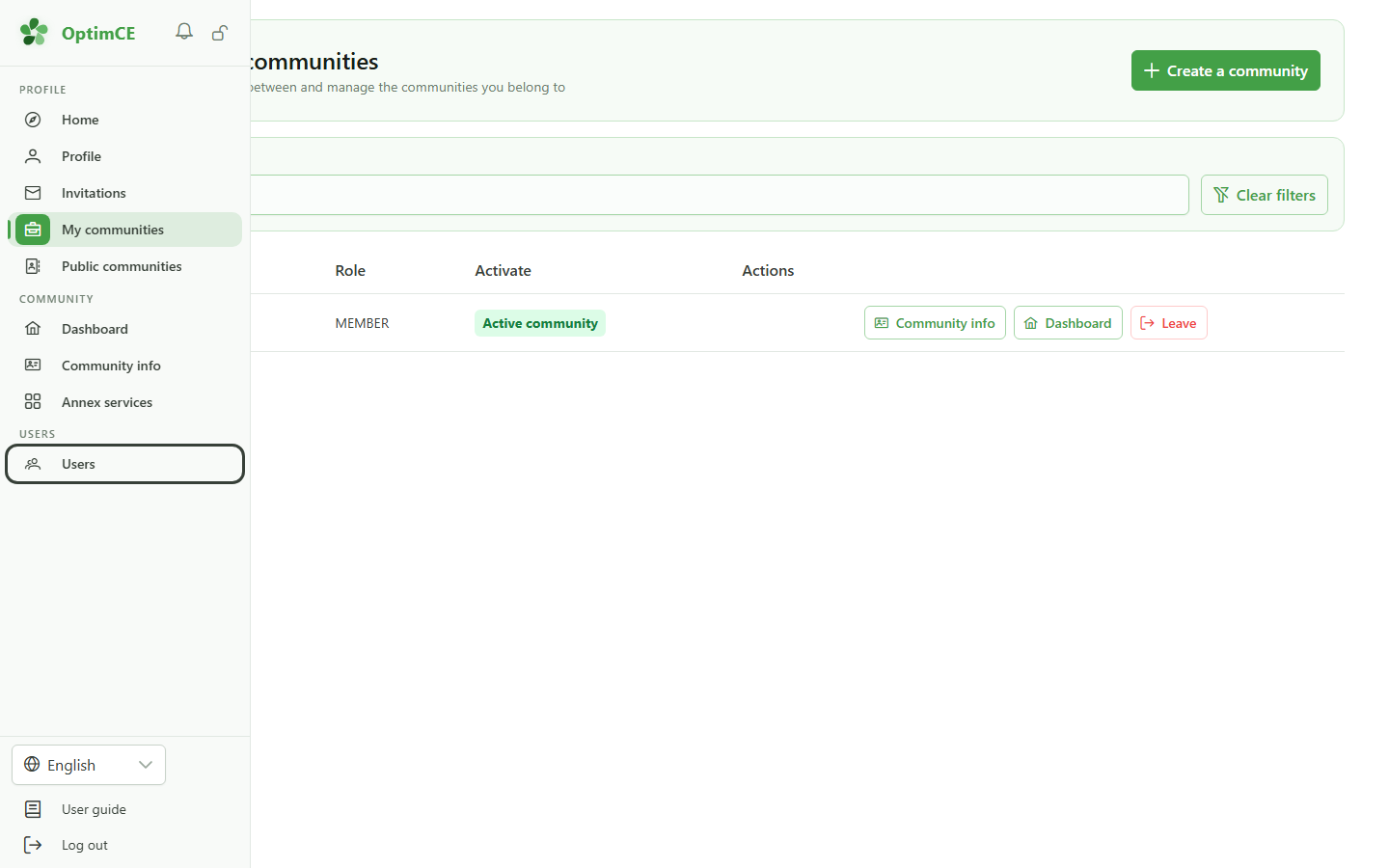
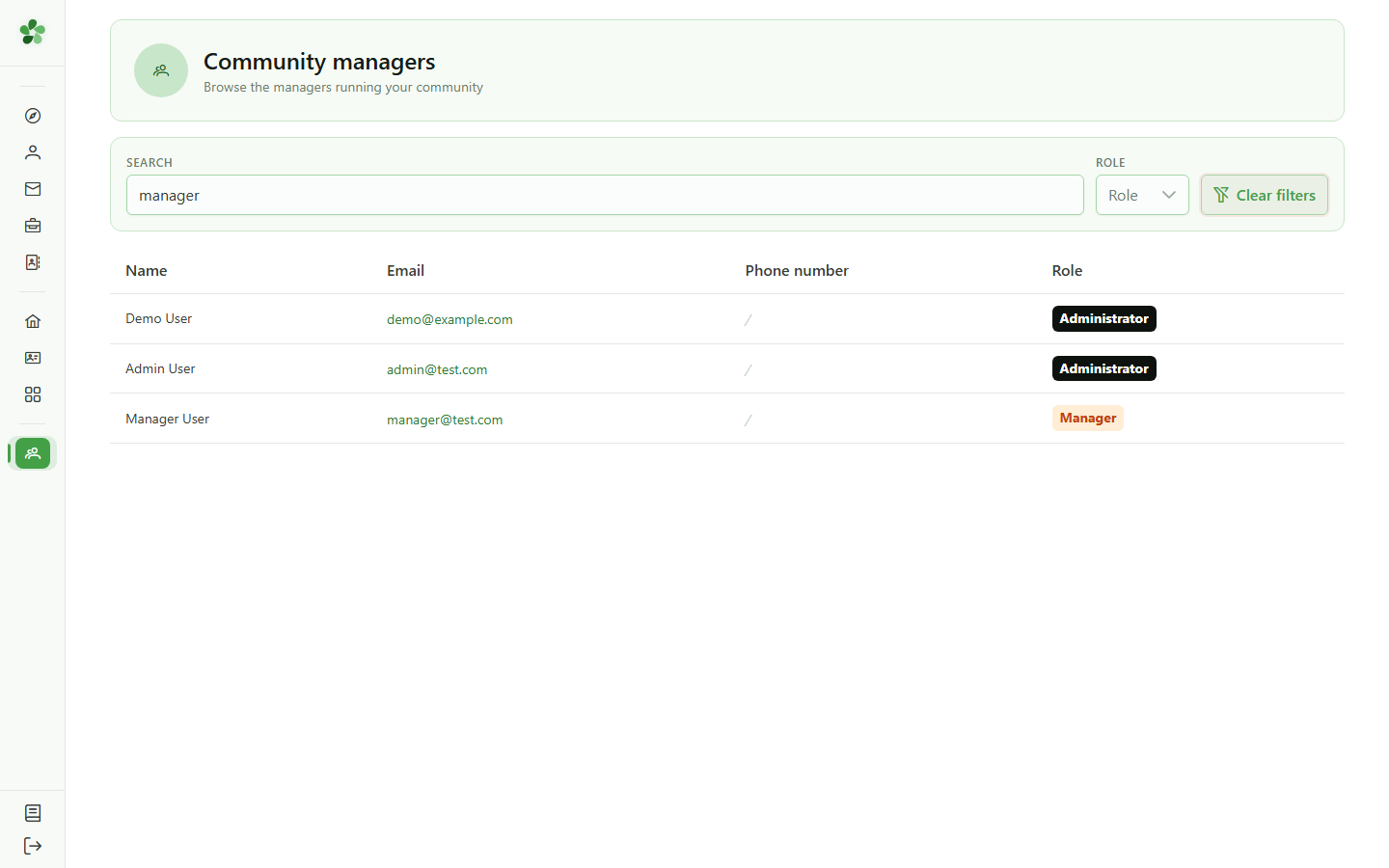
In the sidebar, the "Users" section gives you the list of your community's managers — the people who run it.
2 Your community's managers
Transparency
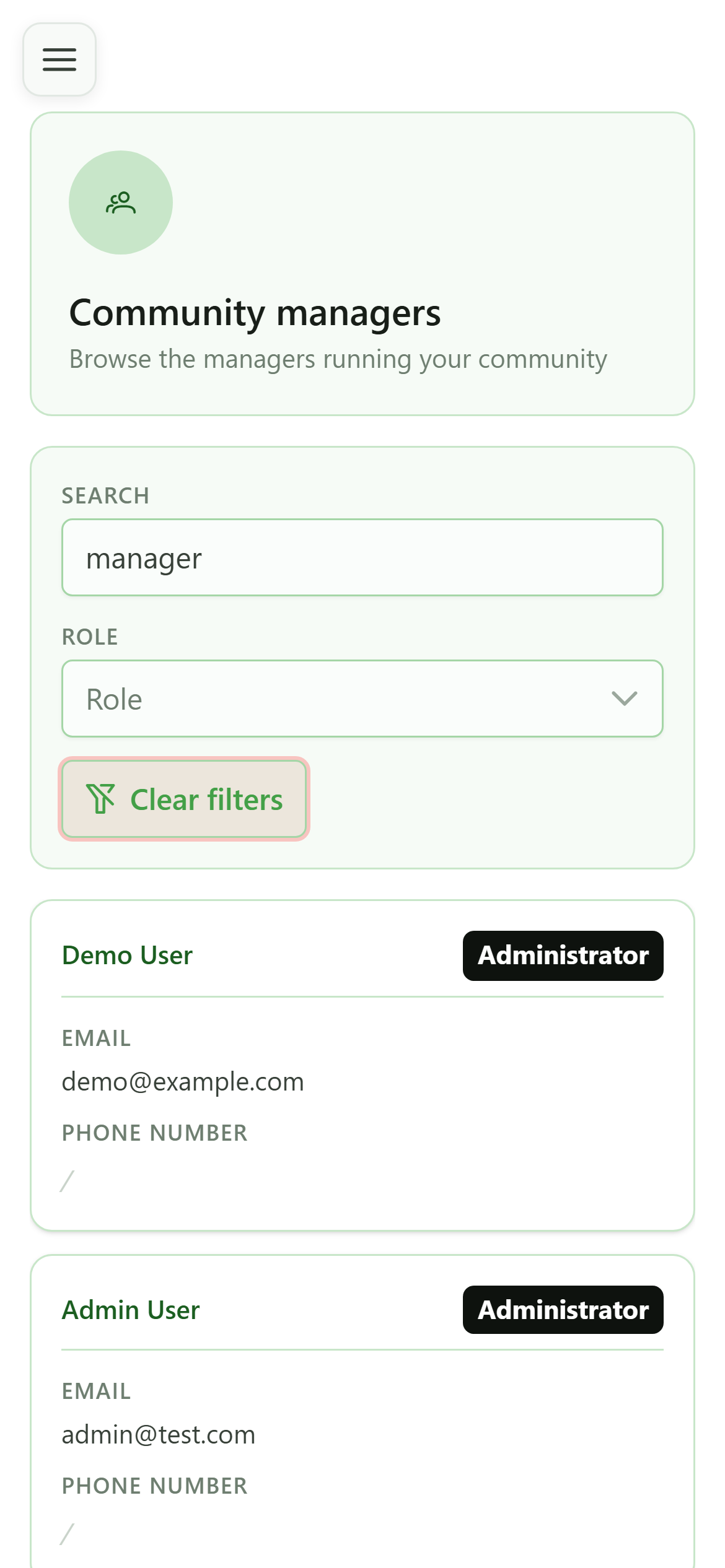
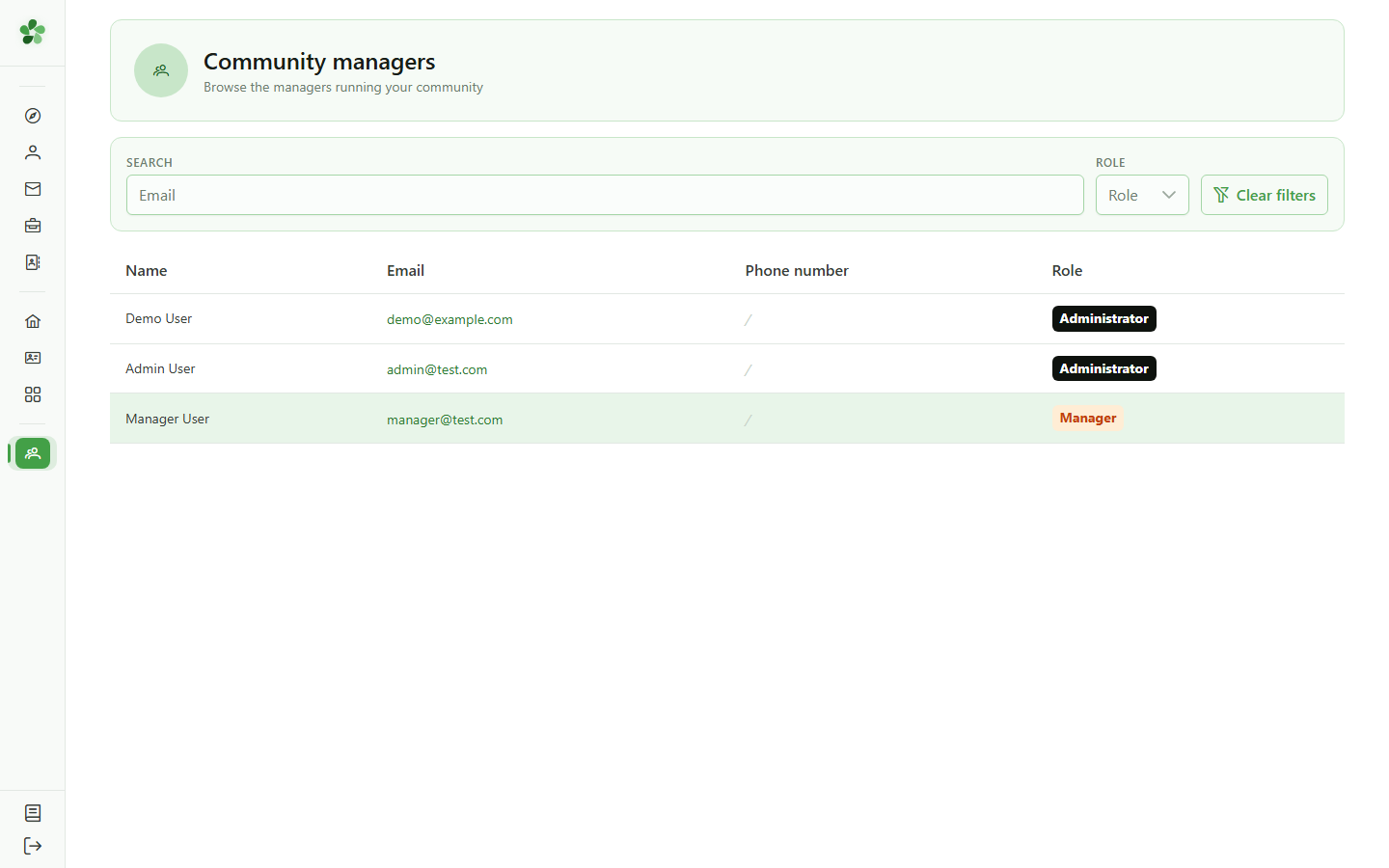
This page lists the community's administrators and managers with their role. You can filter by role or search for a person. It is a read-only view: you cannot change anything.
3 Search a manager
Search
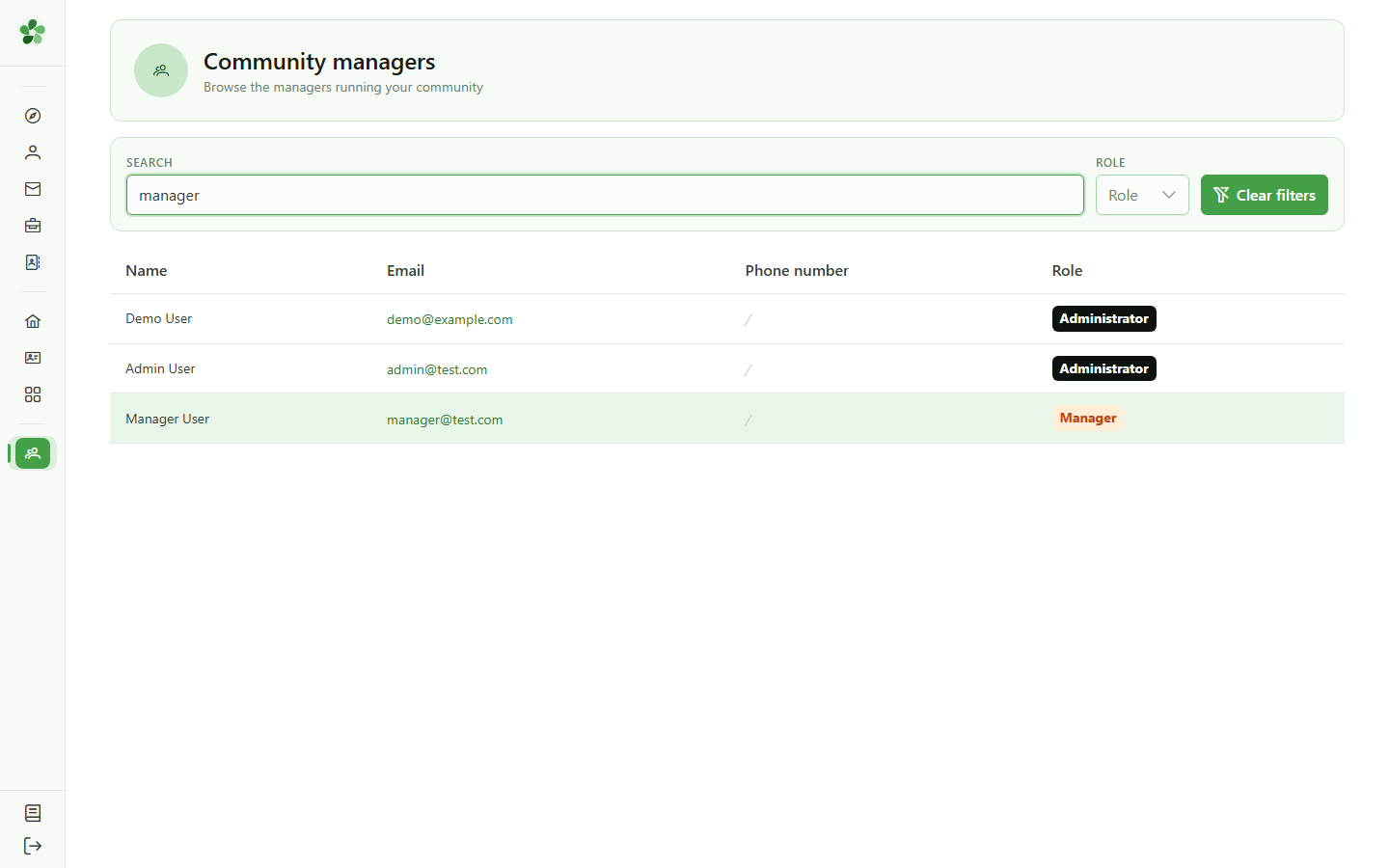
Type a name or an email address to filter the list and quickly find a specific person.
4 Reset the search
Search
The "Clear filters" button clears the search and shows all the managers again.
See your community's managers
Guide utilisateur
User guide
Gebruikershandleiding
Benutzerhandbuch
1 See the managers
Navigation
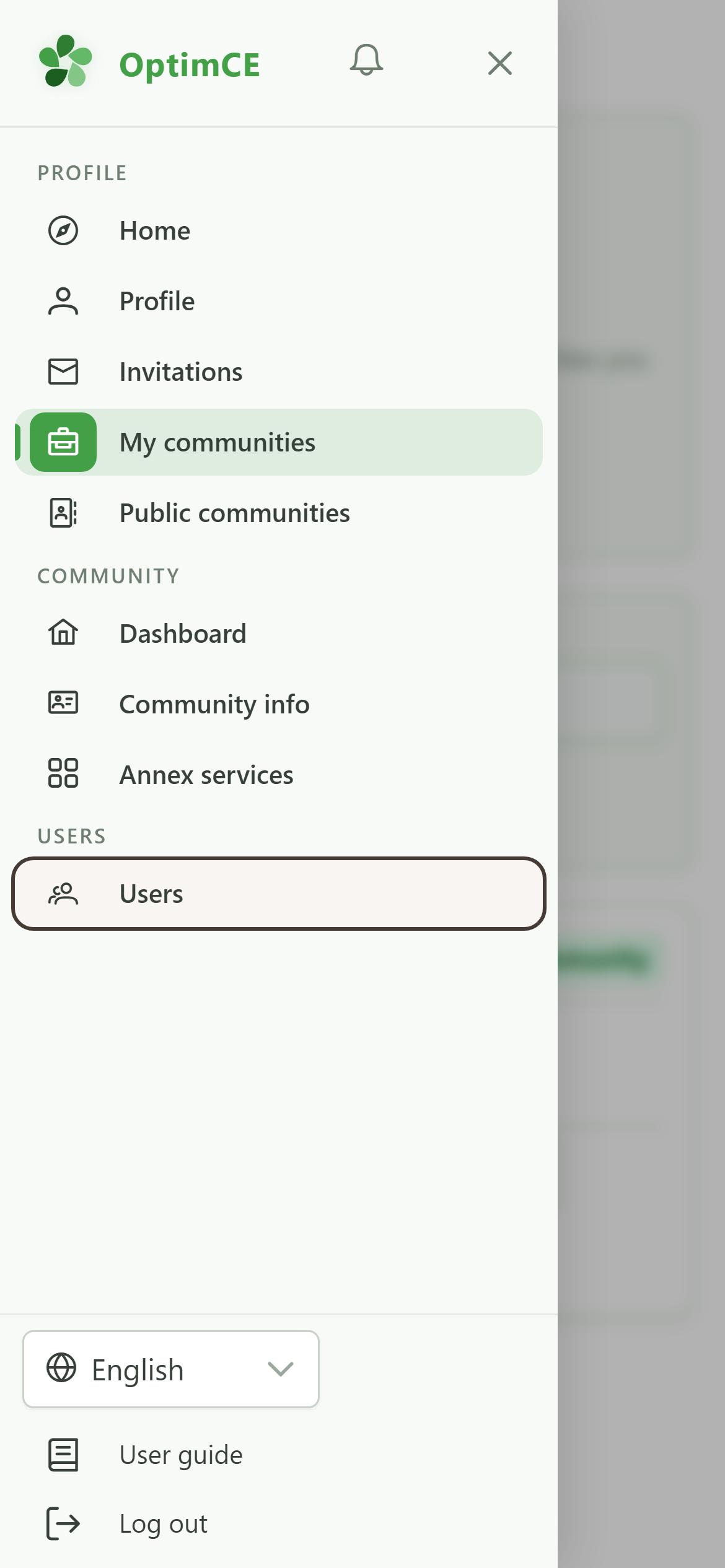
Tap the menu icon to open the drawer, then in the "Users" section tap the entry to see the managers.
2 Your community's managers
Transparency
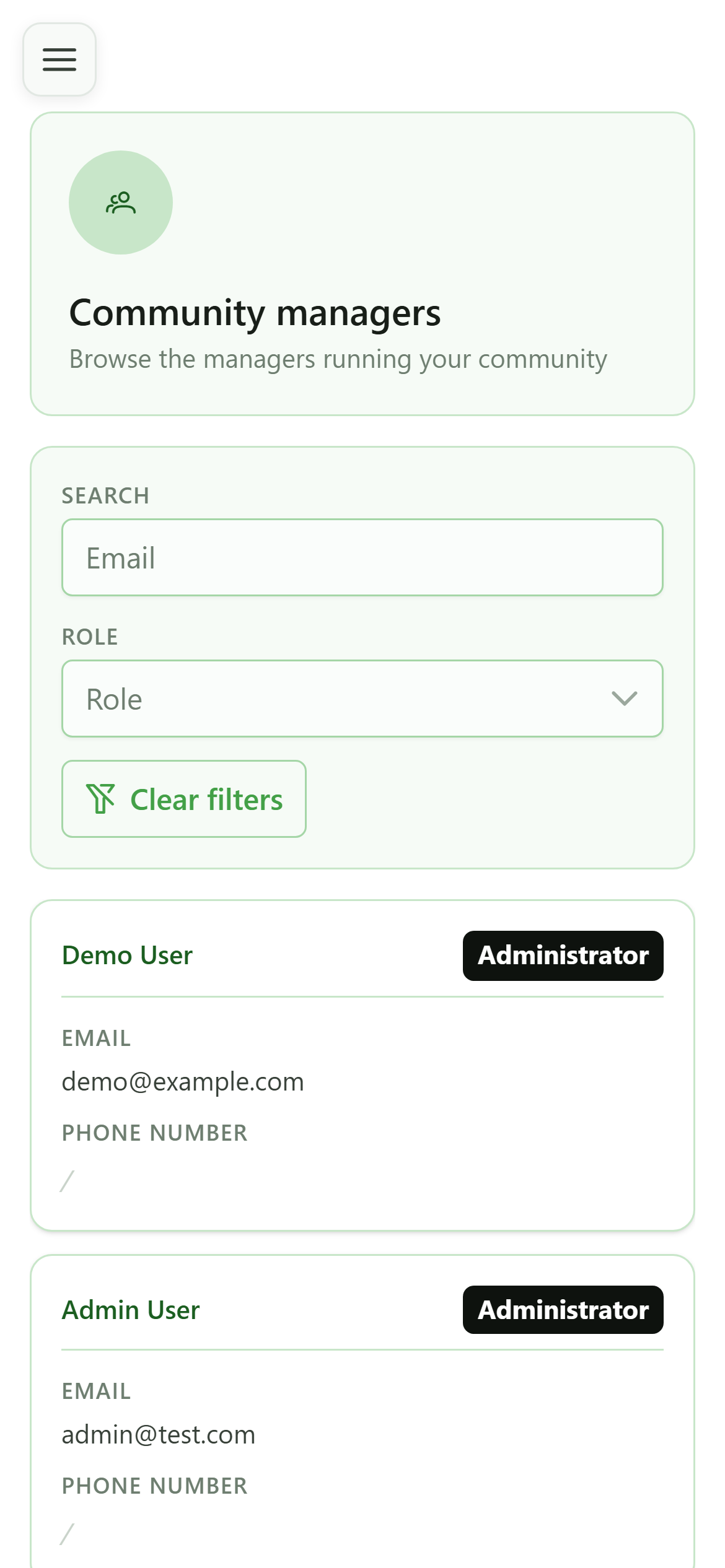
This page lists the community's administrators and managers with their role. You can filter by role or search for a person. It is a read-only view: you cannot change anything.
3 Search a manager
Search
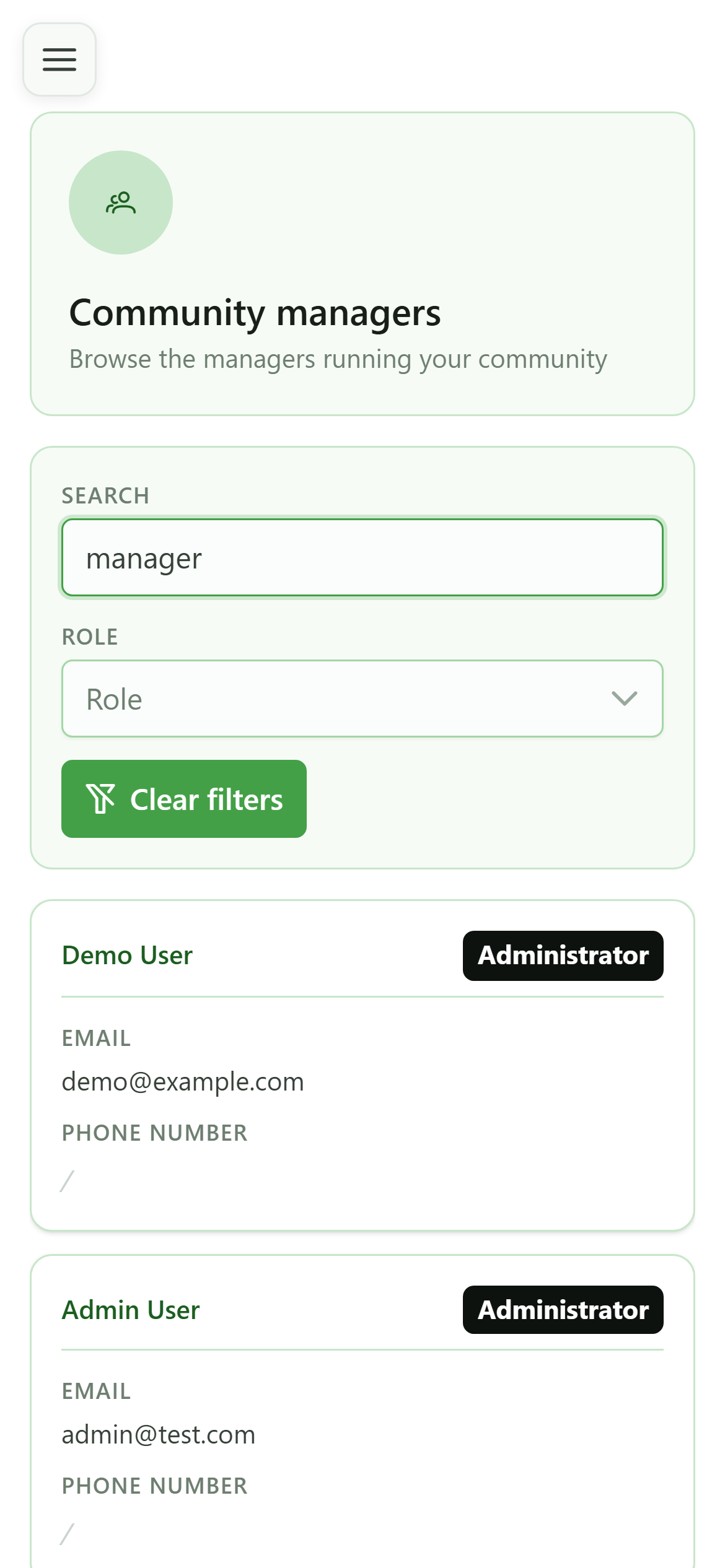
Type a name or an email address to filter the list and quickly find a specific person.
4 Reset the search
Search
The "Clear filters" button clears the search and shows all the managers again.