Join a community — verify the allocation key
Guide utilisateur
User guide
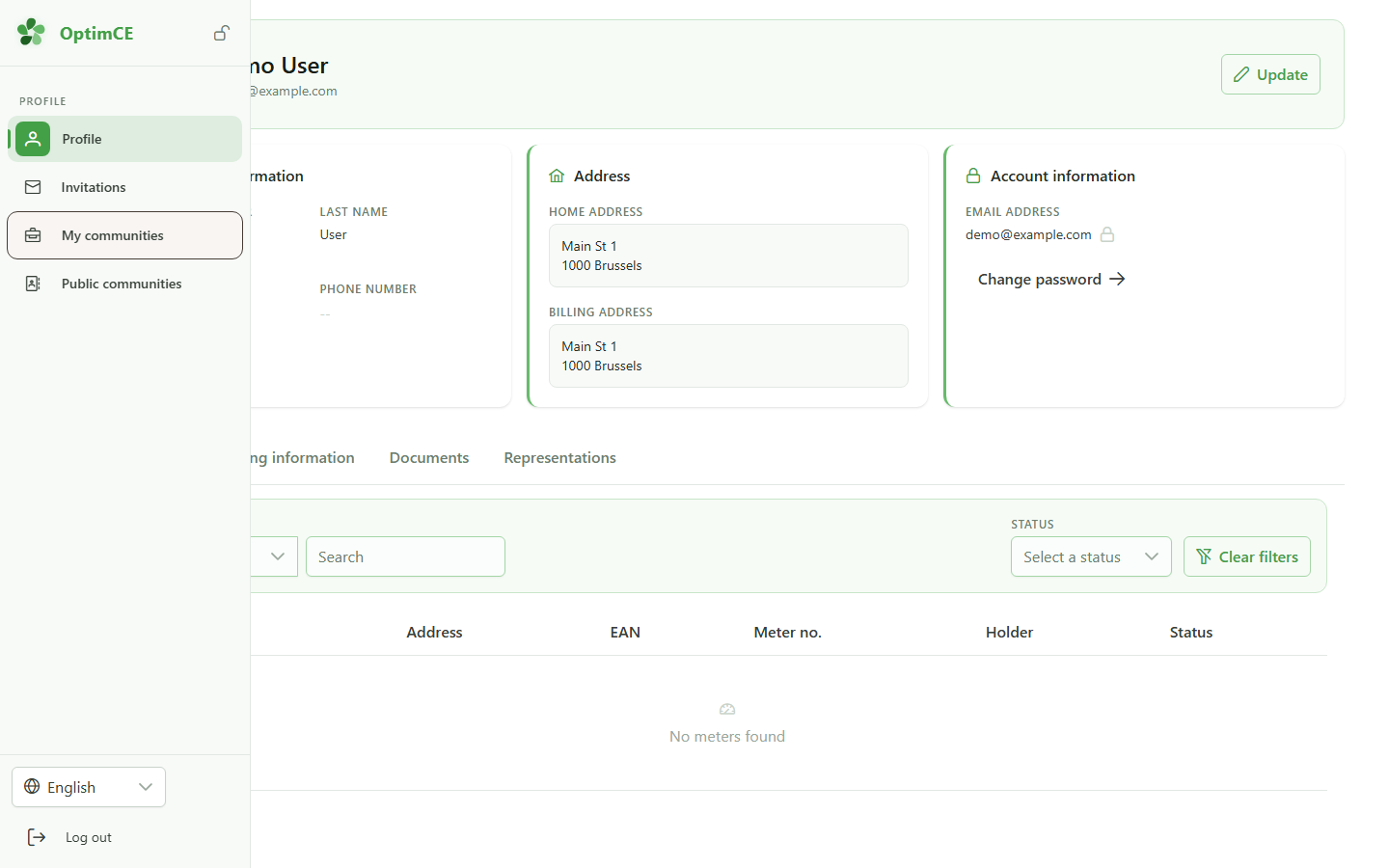
1 Open my communities
Navigation
In the sidebar's profile menu, click "My communities" to see the list of communities you belong to.
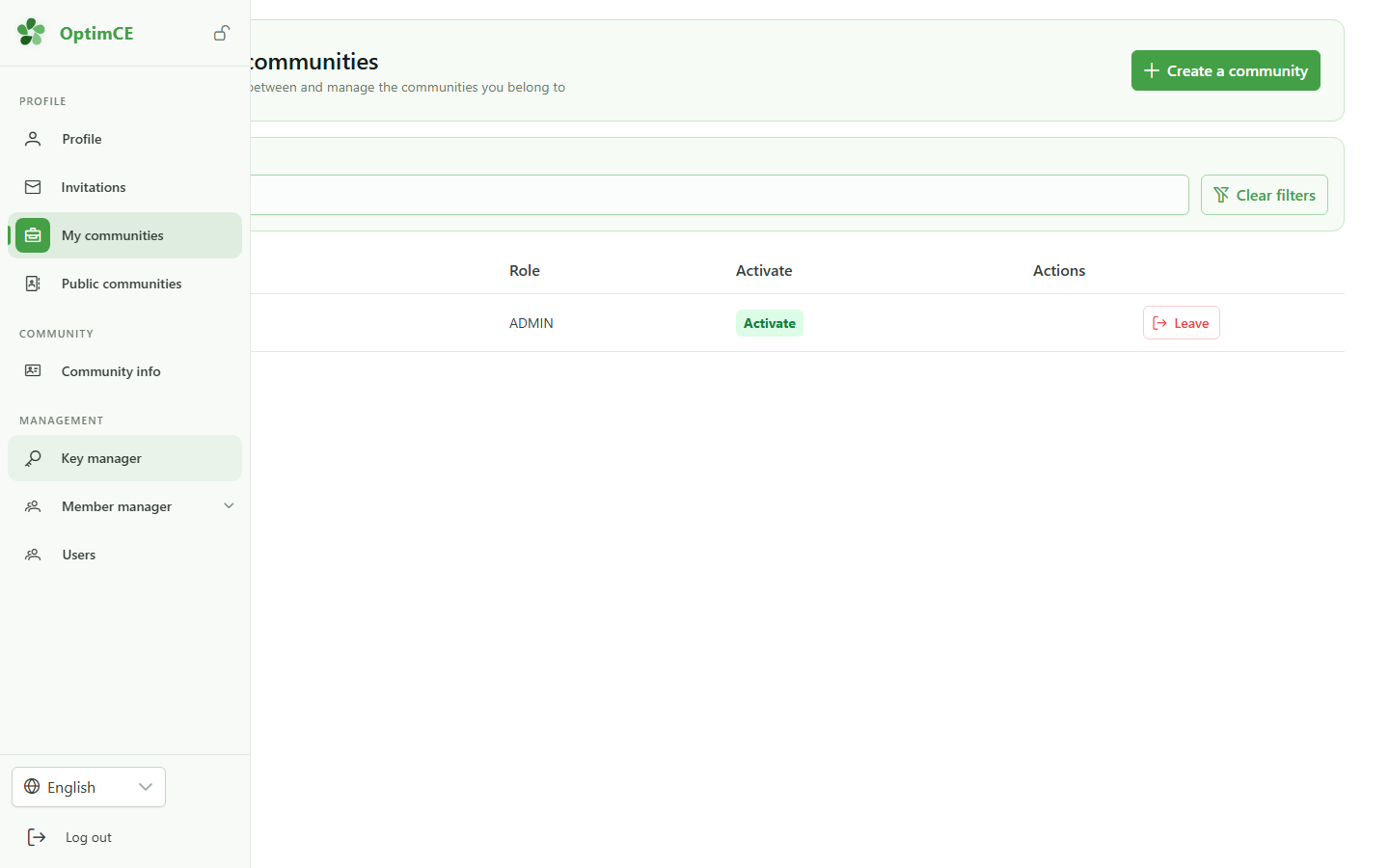
2 Open the keys
Navigation
In the sidebar's "Management" section, click "Keys" to display the active community's allocation keys.
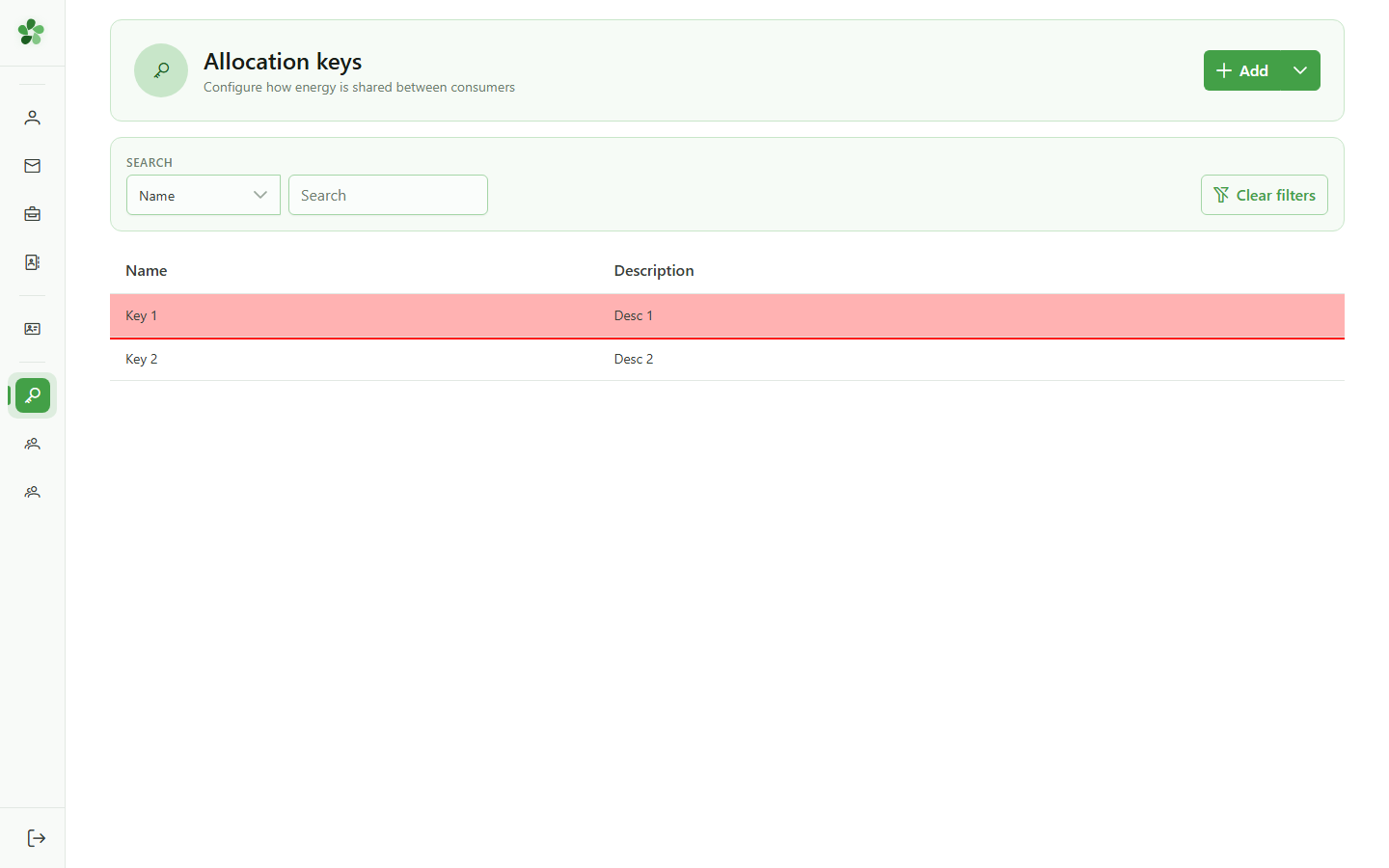
3 Open a key
Allocation keys list
Click the first row of the table to open the detail view for that allocation key.
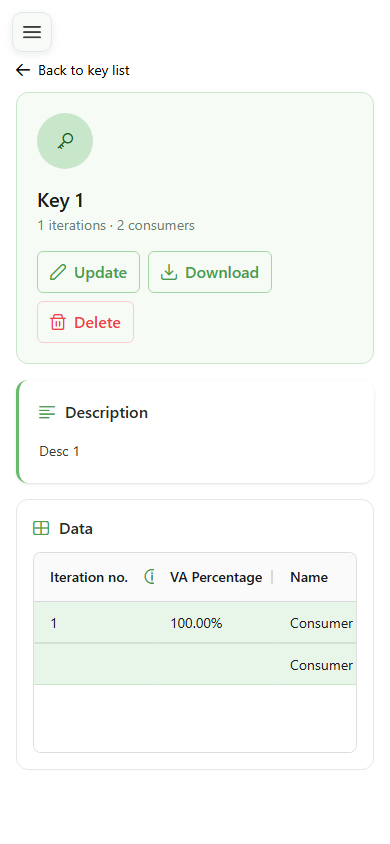
4 Key identification
Key detail
The detail page shows the key's name and description as configured — this metadata helps you locate it in the list.
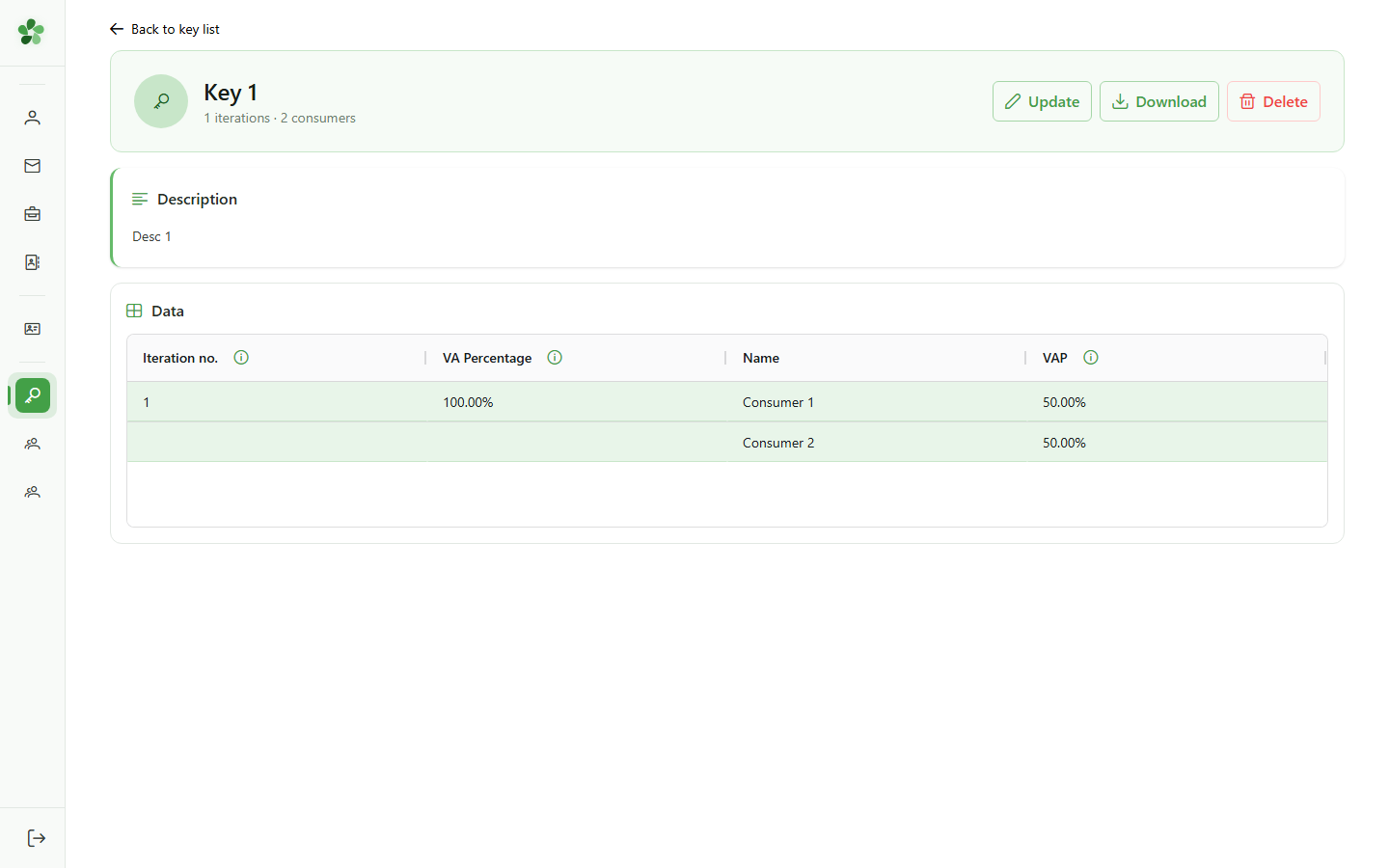
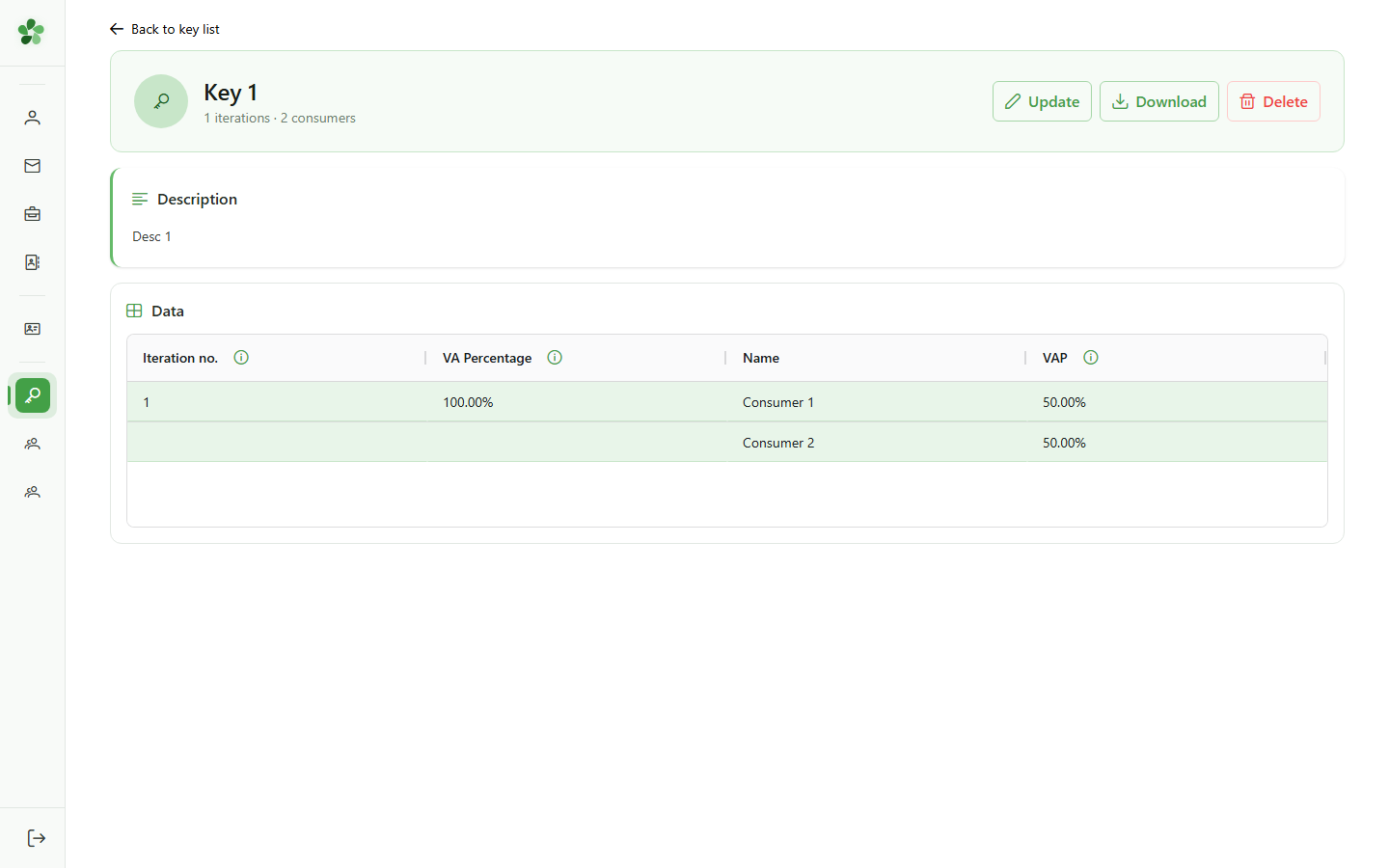
5 Iterations and consumers
Key detail
The grid lists the iterations and consumers linked to this key, along with the allocation percentages — either computed or set manually.
Join a community — verify the allocation key
Guide utilisateur
User guide
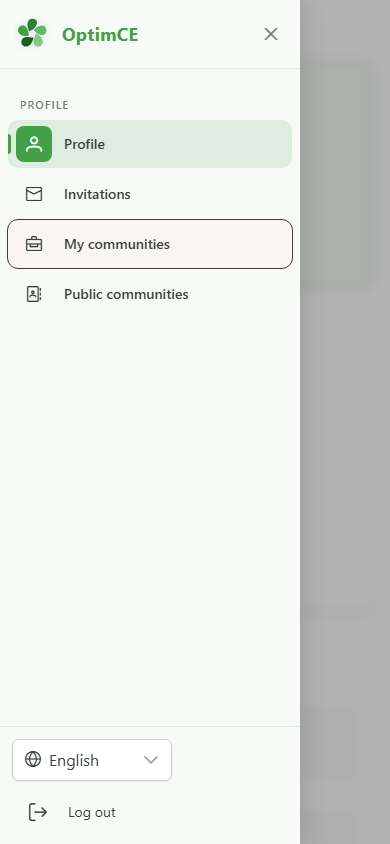
1 Open my communities
Navigation
Tap the menu icon to open the navigation drawer, then "My communities" to see the list of communities you belong to.
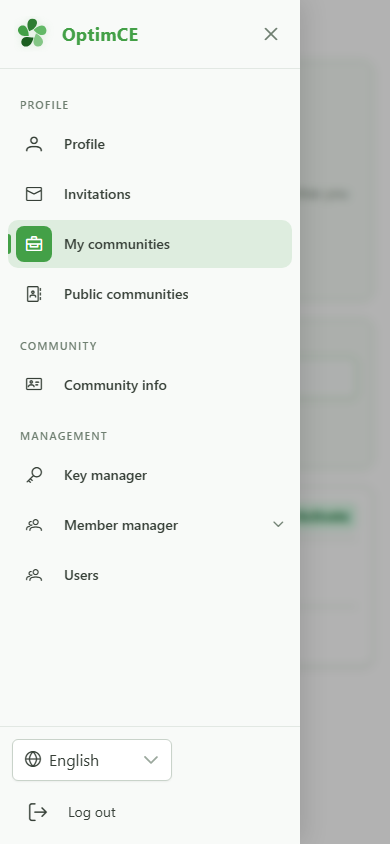
2 Open the keys
Navigation
Tap the menu icon to open the drawer, then in the "Management" section tap "Keys" to display the active community's allocation keys.
3 Open a key
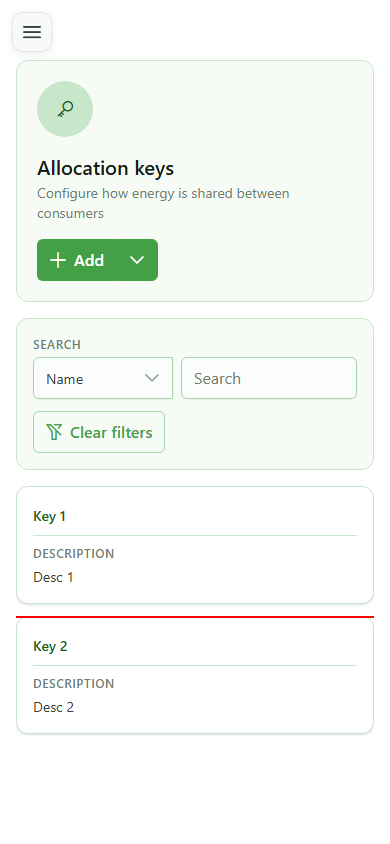
Allocation keys list
Tap the first card to open the detail view for that allocation key.
4 Key identification
Key detail
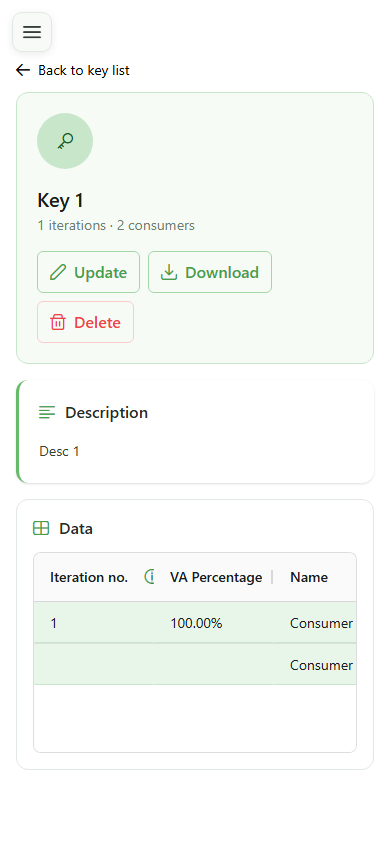
The detail page shows the key's name and description as configured — this metadata helps you locate it in the list.
5 Iterations and consumers
Key detail
The grid lists the iterations and consumers linked to this key, along with the allocation percentages — either computed or set manually.