Update community info
Guide utilisateur
User guide
1 Log in
Authentication
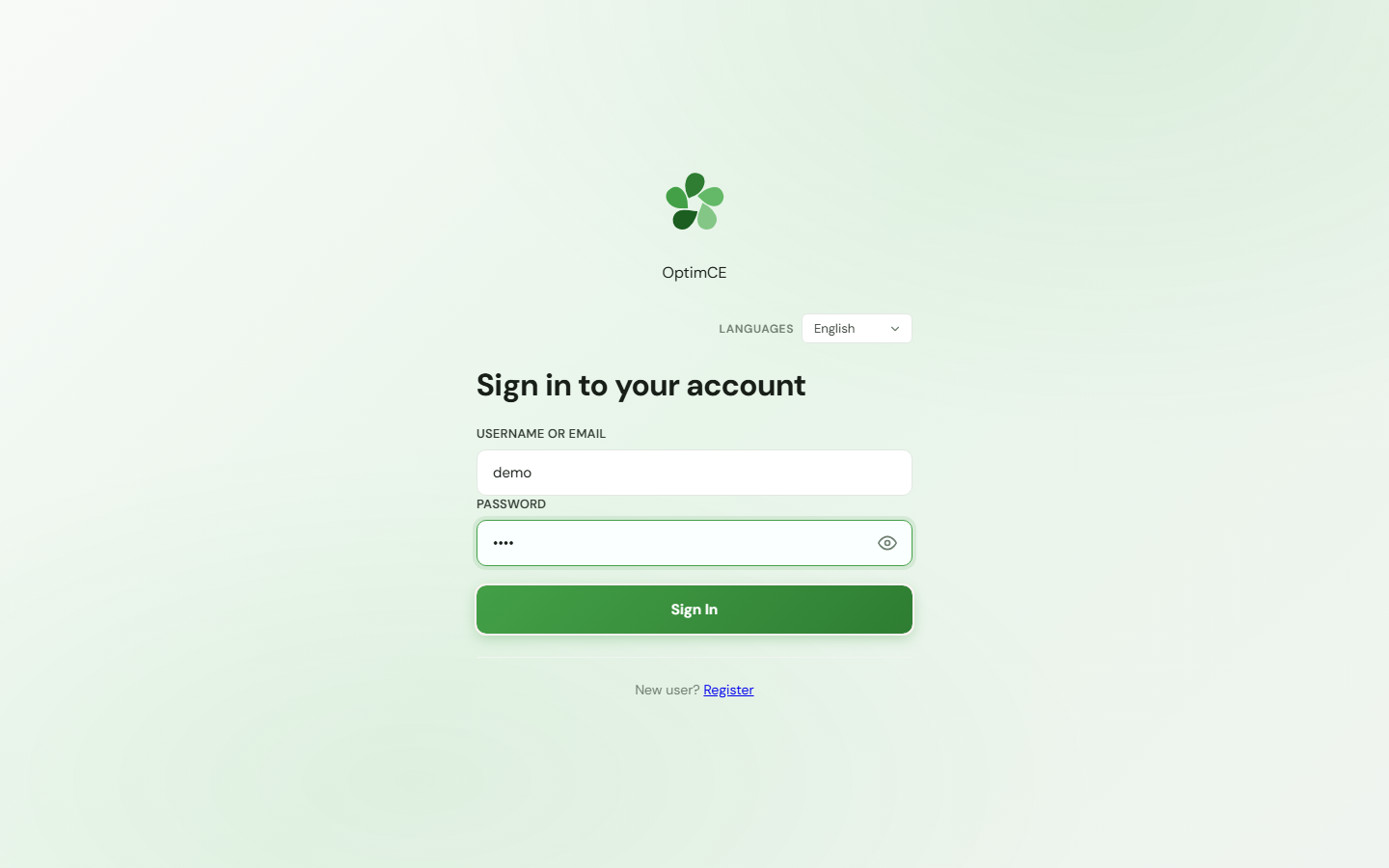
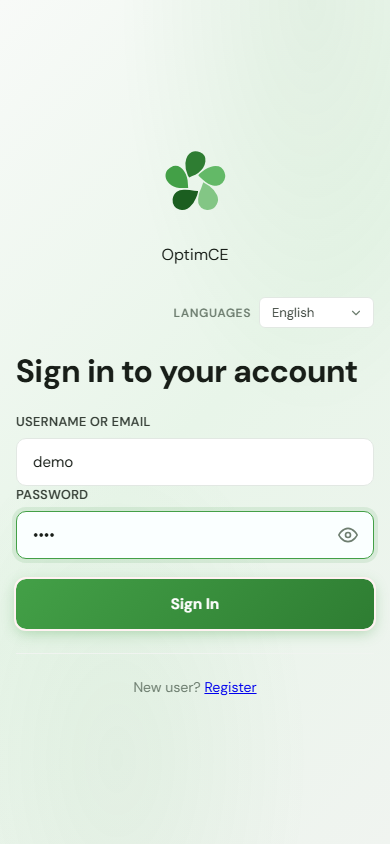
Enter your credentials (demo / demo) in the Keycloak form, then click "Log in" to access the CRM.
2 Community information page
View mode
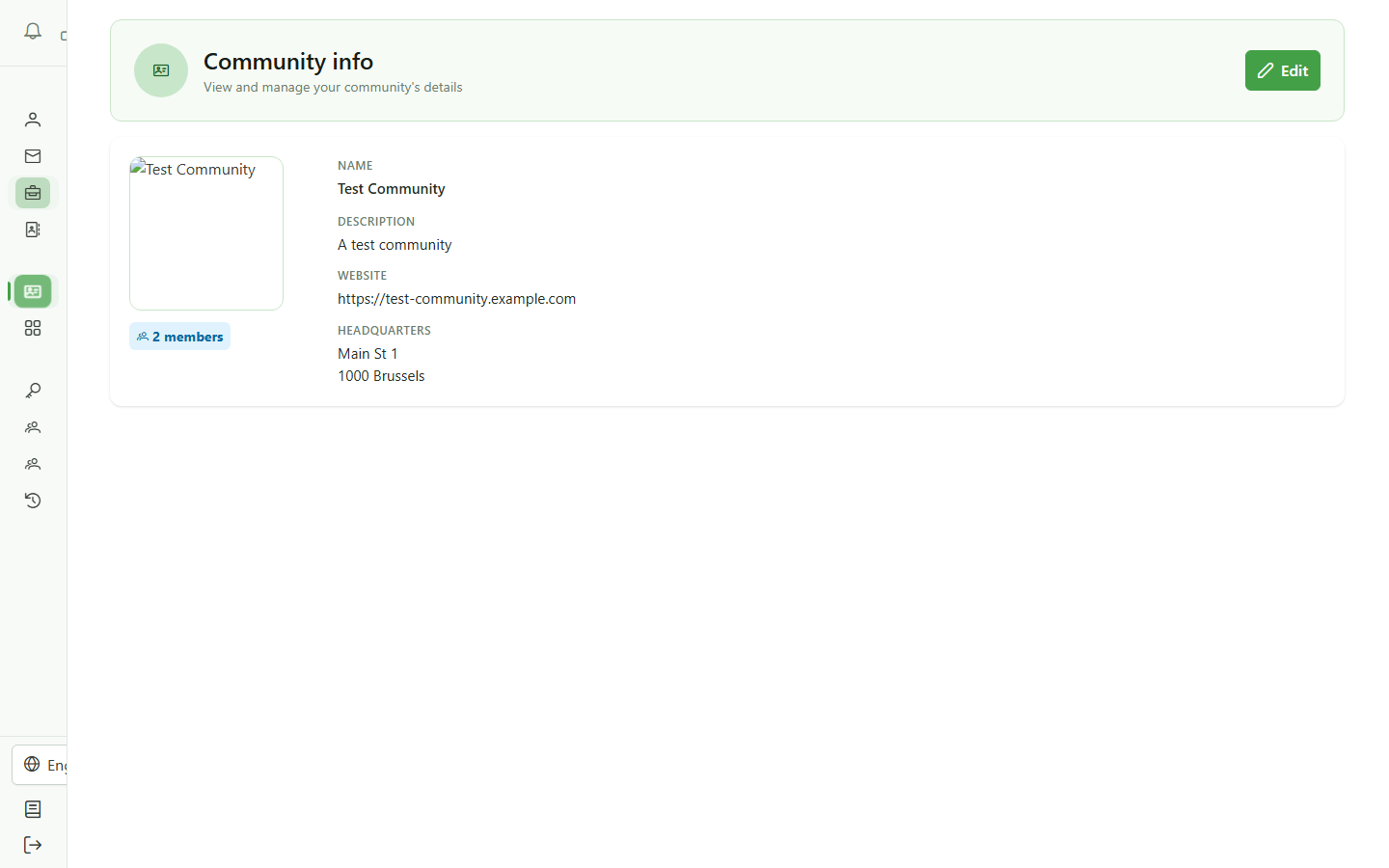
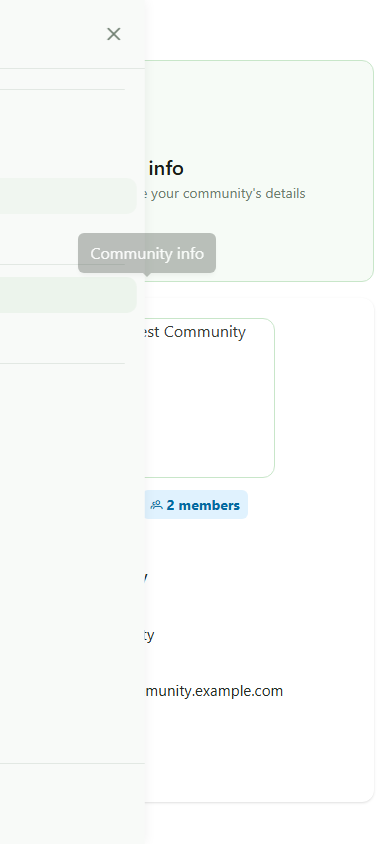
The page shows the community's current information: name, description, website, and registered office address. Click Edit to switch to edit mode.
3 Enter the information
Editing community data
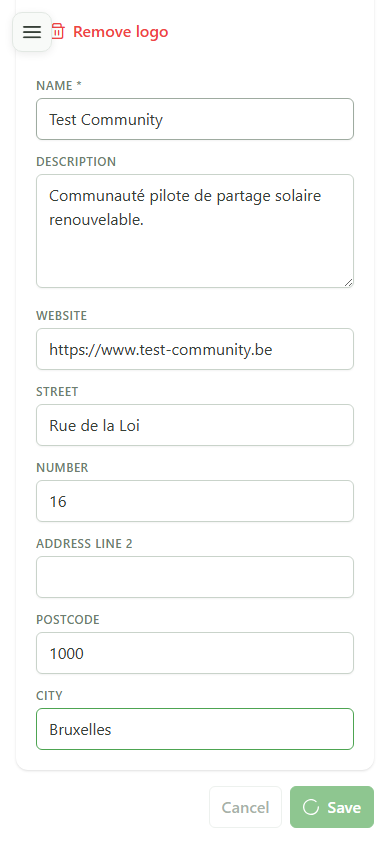
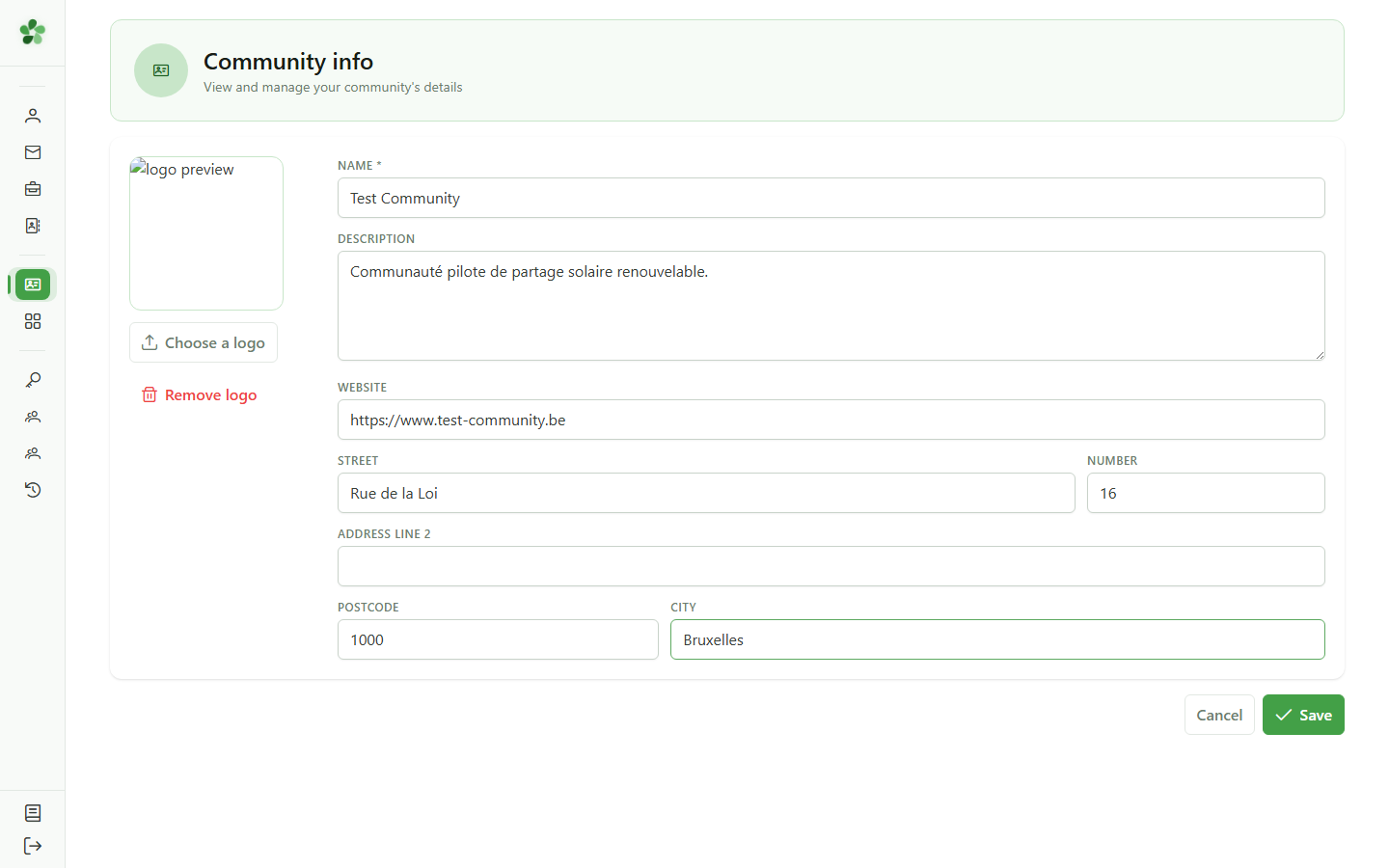
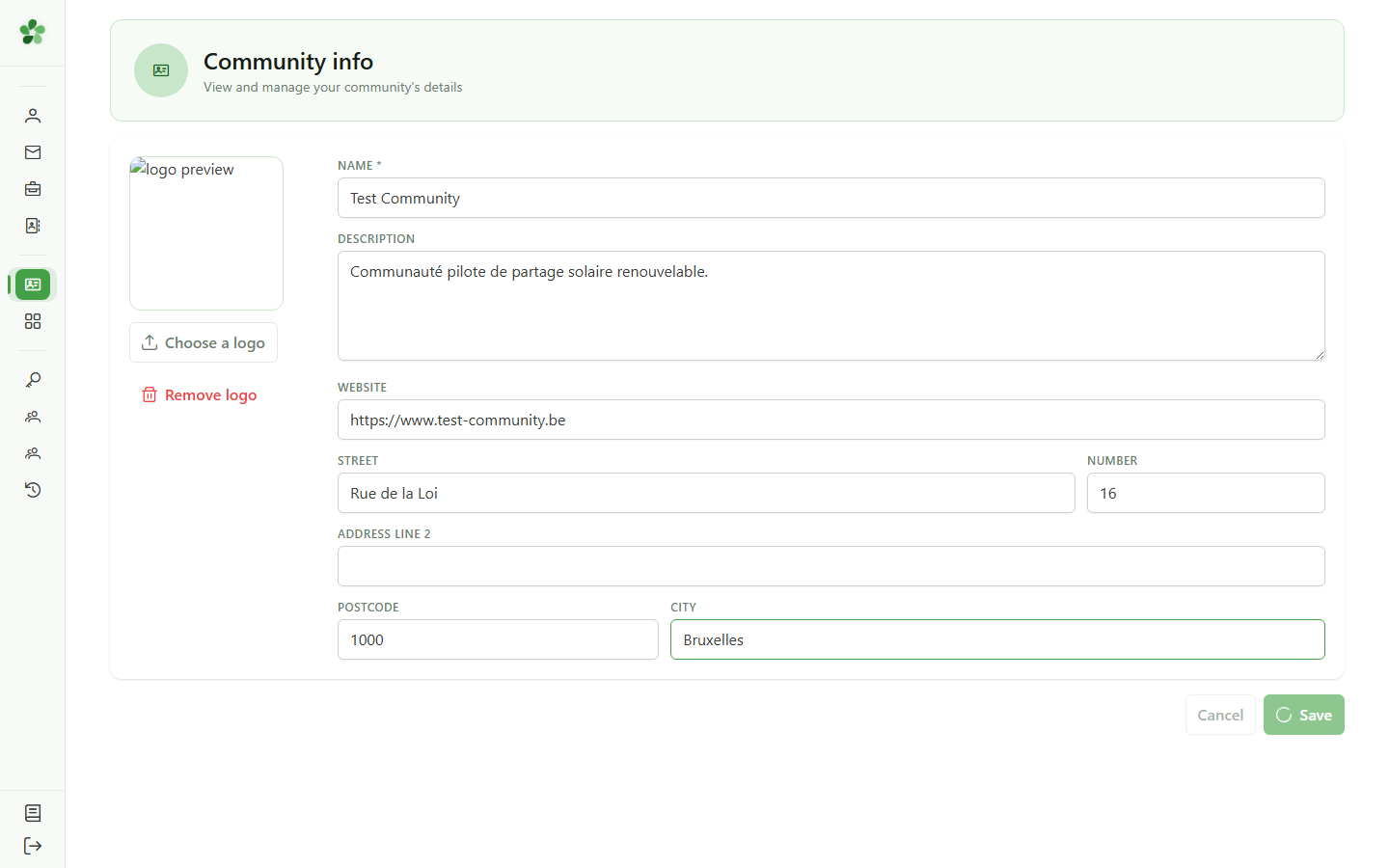
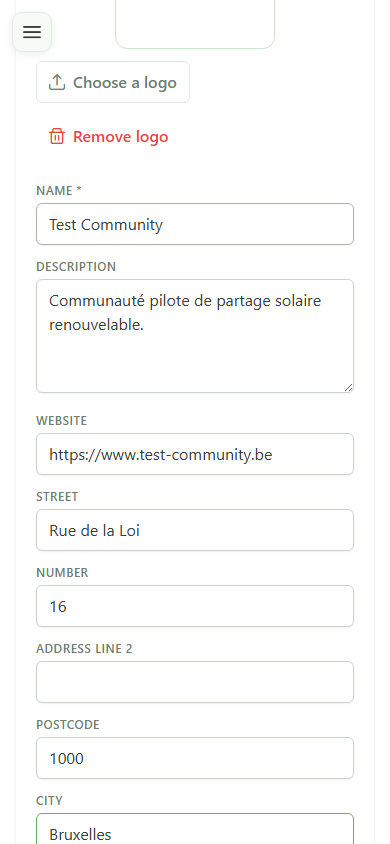
Fill in the fields: Description, Website (full URL starting with https://) and the registered office address fields — street, number, postcode, and city. All four address fields must be filled together or left empty.
4 Information updated
Confirmation
Back in view mode, the page shows the description, website, and address exactly as you entered them — the changes have been successfully saved server-side.
Update community info
Guide utilisateur
User guide
1 Log in
Authentication
Enter your credentials (demo / demo) in the Keycloak form, then click "Log in" to access the CRM.
2 Community information page
View mode
The page shows the community's current information: name, description, website, and registered office address. Click Edit to switch to edit mode.
3 Enter the information
Editing community data
Fill in the fields: Description, Website (full URL starting with https://) and the registered office address fields — street, number, postcode, and city. All four address fields must be filled together or left empty.
4 Information updated
Confirmation
Back in view mode, the page shows the description, website, and address exactly as you entered them — the changes have been successfully saved server-side.