Sign in
Guide utilisateur
User guide
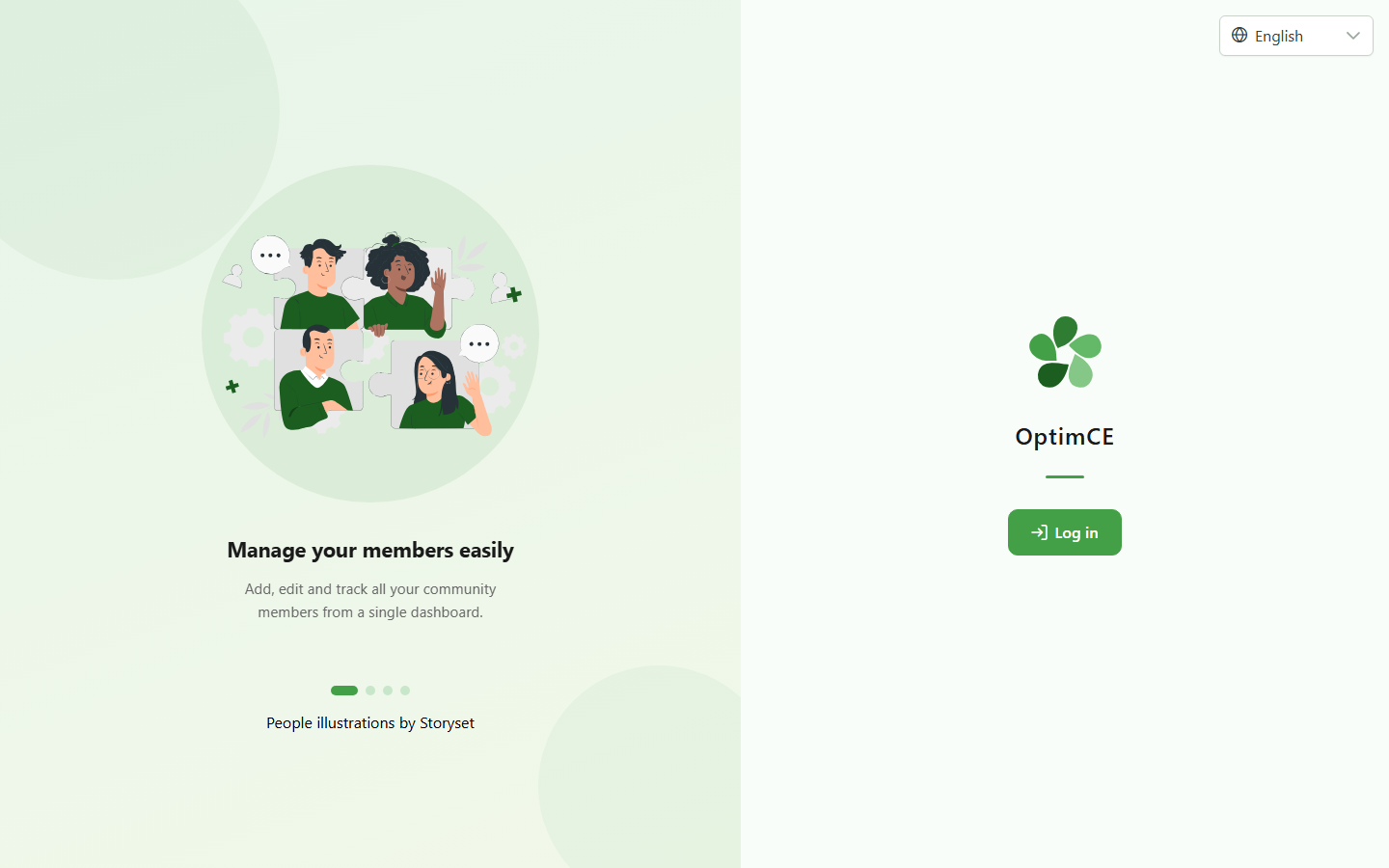
1 Open the app
Accessing OptimCE CRM
Open the OptimCE CRM application in your browser — the landing page exposes a login entry point.
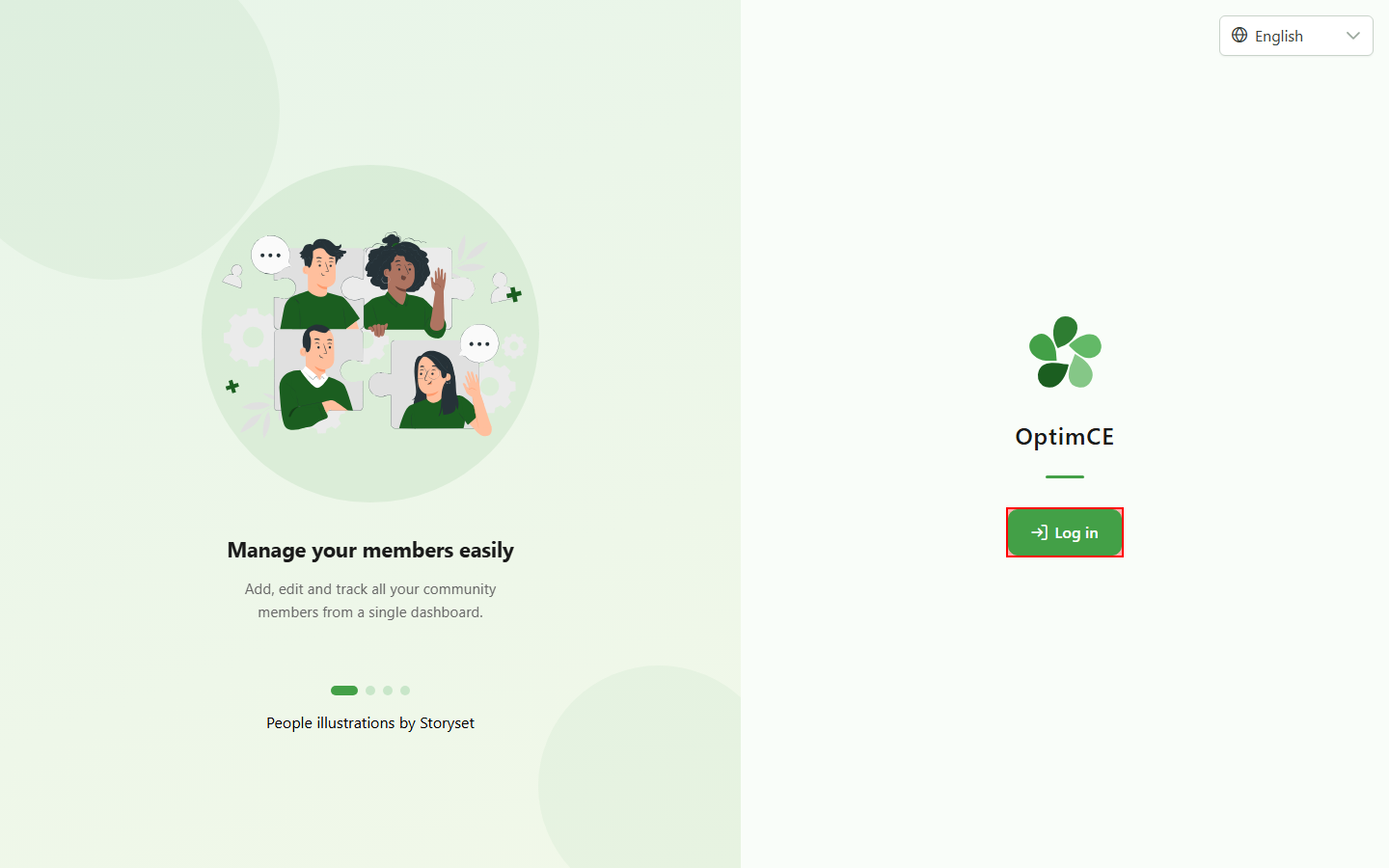
2 Start the login
Accessing OptimCE CRM
Click the login button to be redirected to the Keycloak login form.
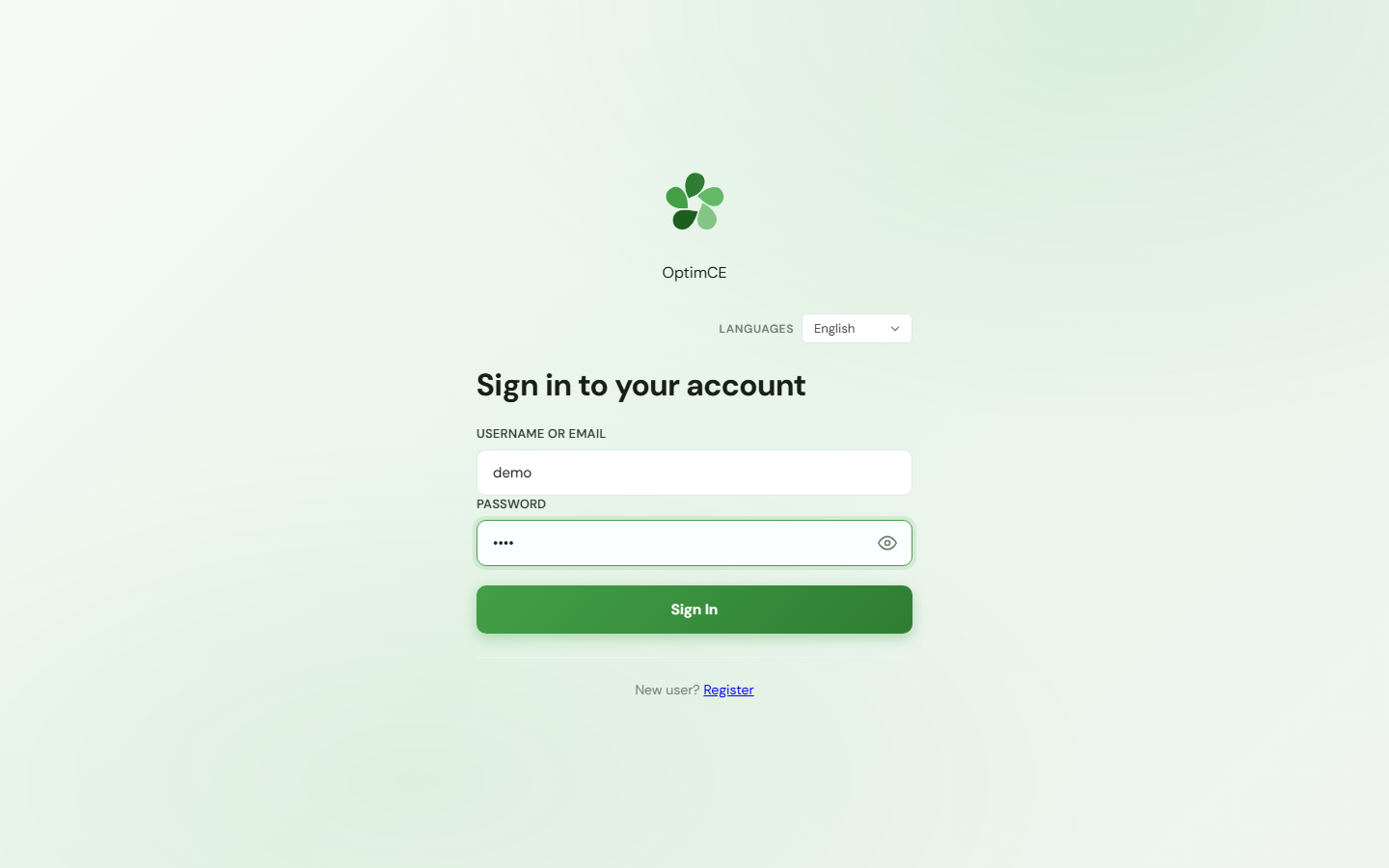
3 Enter your credentials
Login to Keycloak
Fill in your Keycloak username and password. These credentials are managed by the authentication server, not by OptimCE itself.
4 Open the profile
Navigation
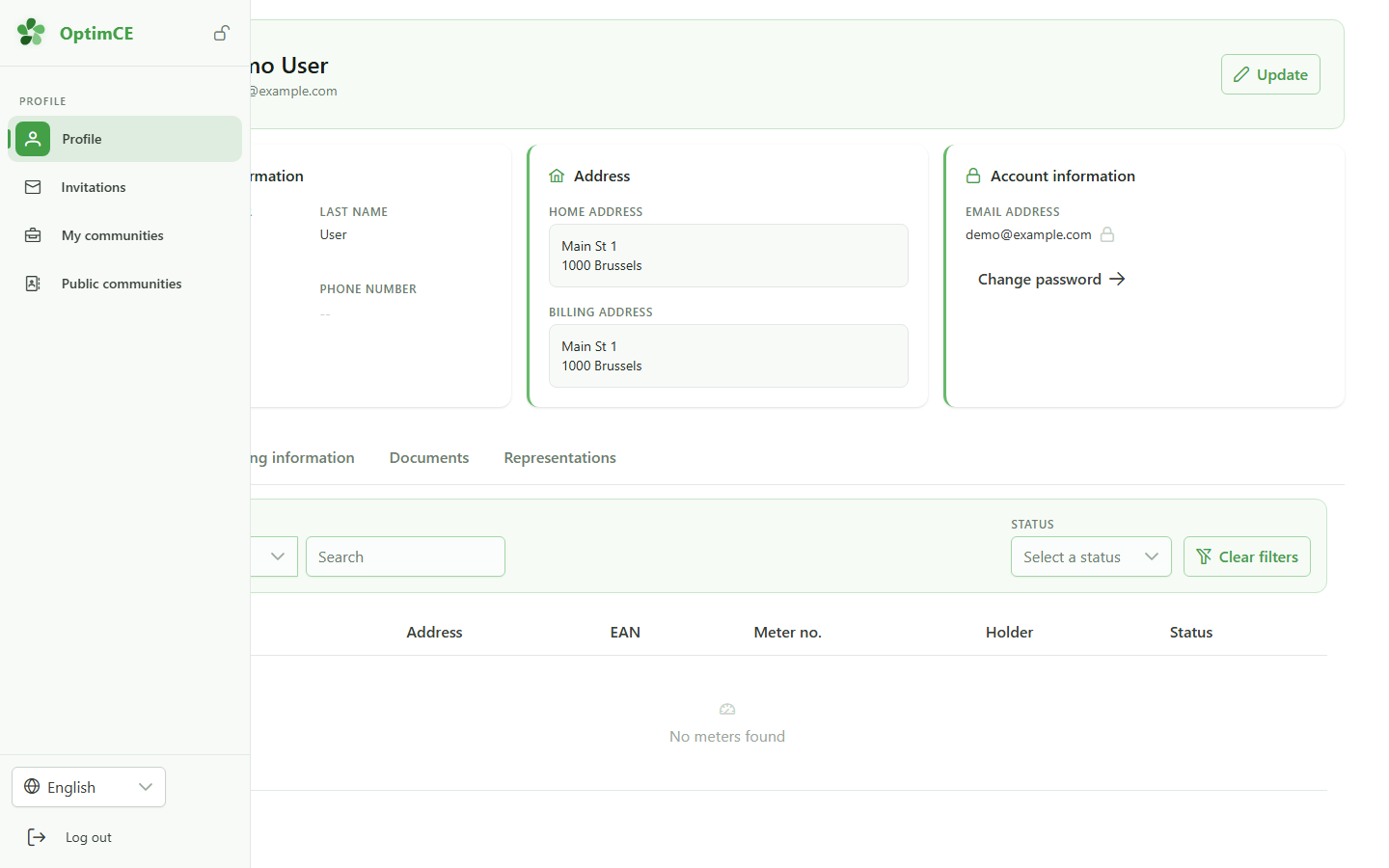
In the left sidebar, click "Profile" to display your personal account page.
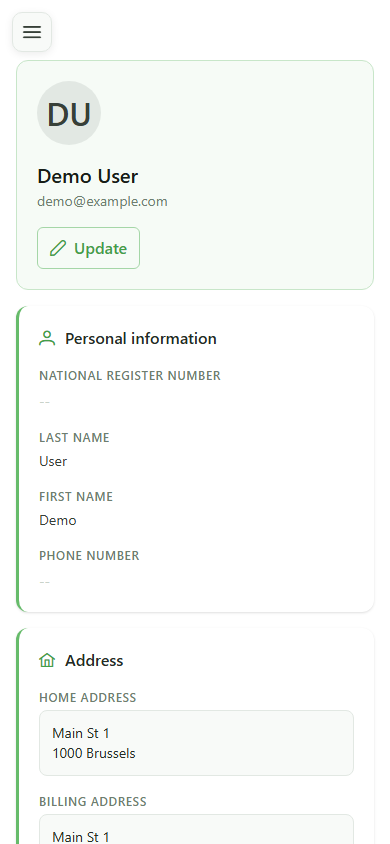
5 Profile displayed
Landing on the profile
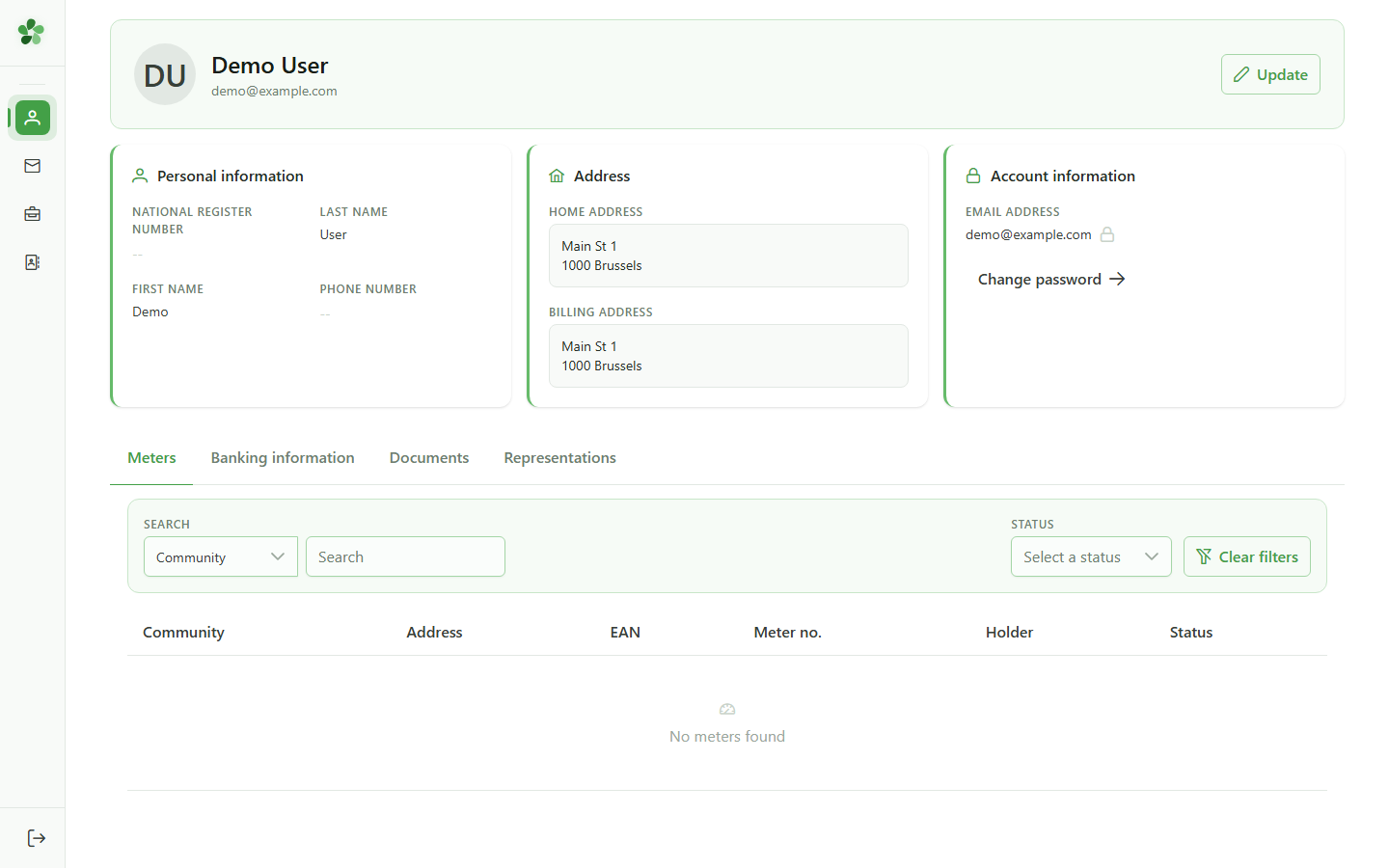
Your profile is displayed: personal info, avatar and account card are loaded from the CRM.
Sign in
Guide utilisateur
User guide
1 Open the app
Accessing OptimCE CRM
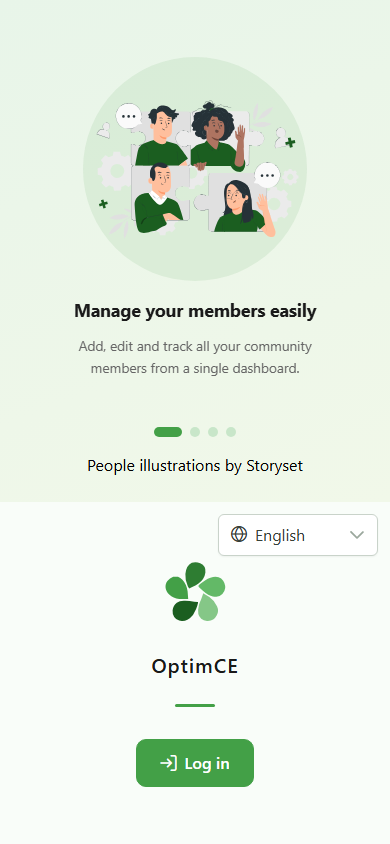
Open the OptimCE CRM application in your browser — the landing page exposes a login entry point.
2 Start the login
Accessing OptimCE CRM
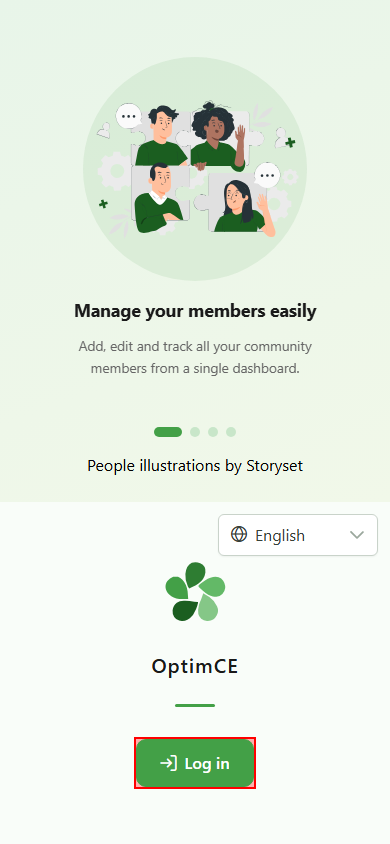
Click the login button to be redirected to the Keycloak login form.
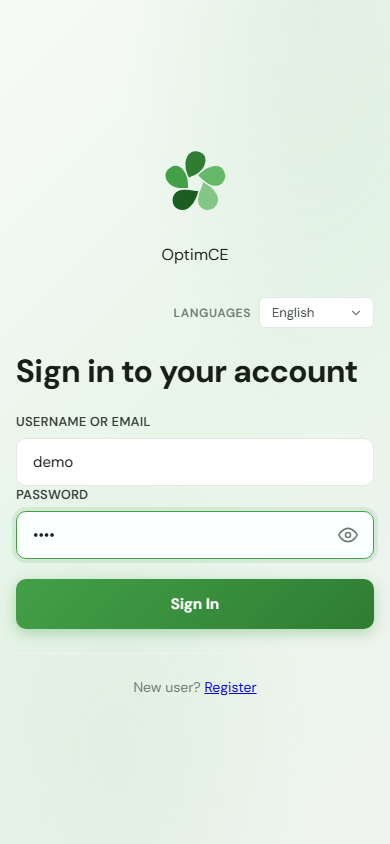
3 Enter your credentials
Login to Keycloak
Fill in your Keycloak username and password. These credentials are managed by the authentication server, not by OptimCE itself.
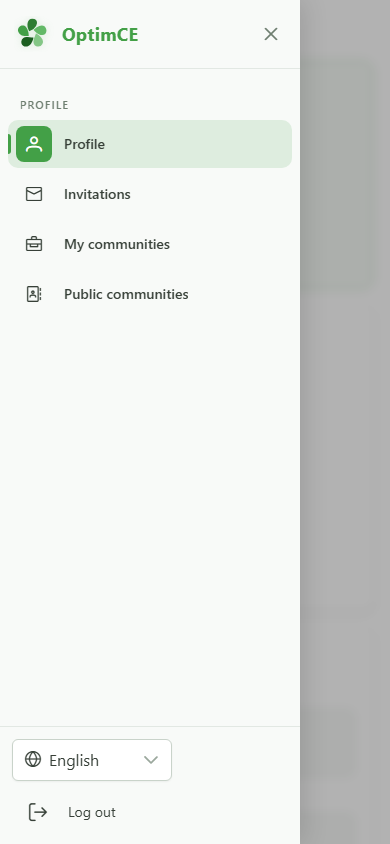
4 Open the profile
Navigation
Tap the menu icon in the top-left to open the navigation drawer, then "Profile" to display your personal account page.
5 Profile displayed
Landing on the profile
Your profile is displayed: personal info, avatar and account card are loaded from the CRM.