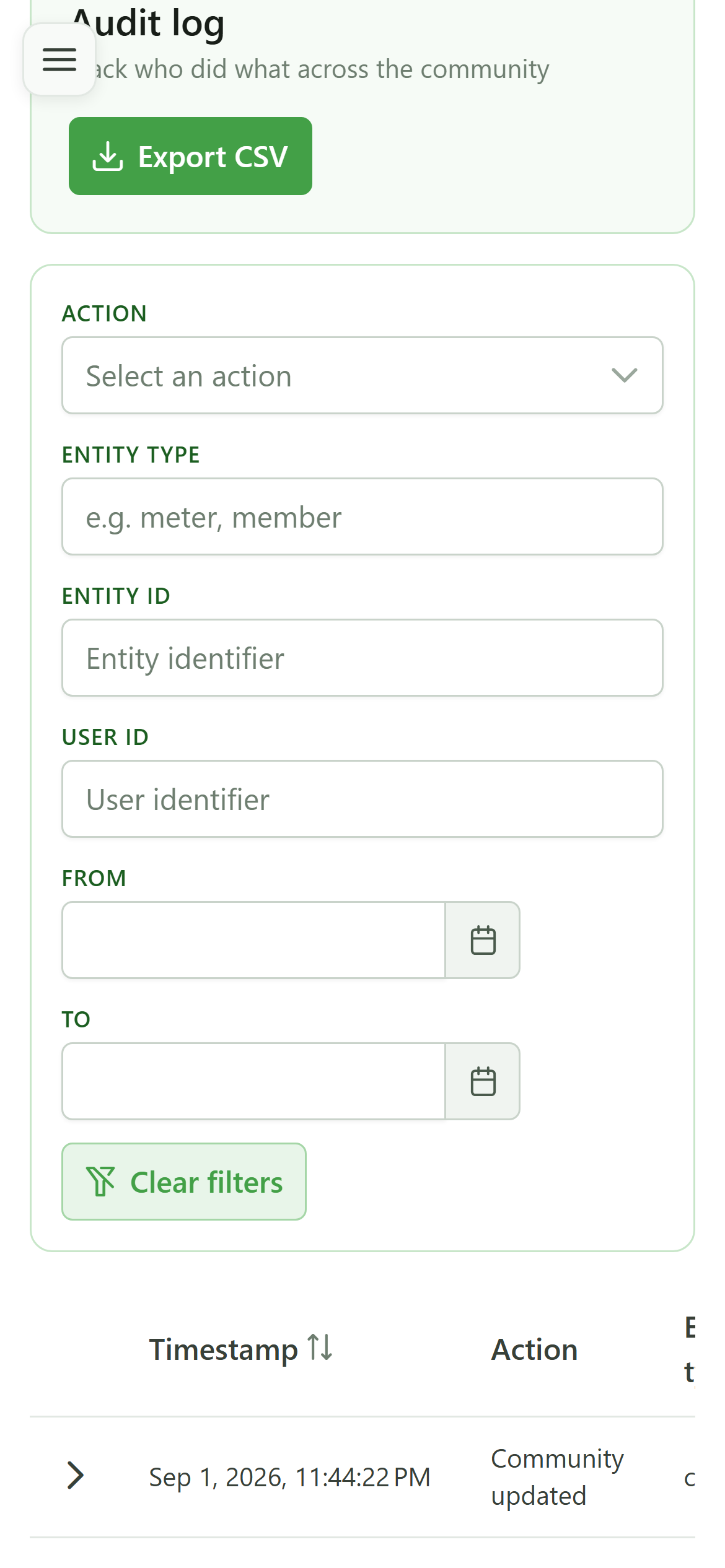
Consult the audit log
Guide utilisateur
User guide
Gebruikershandleiding
Benutzerhandbuch
1 Open the audit log
Navigation
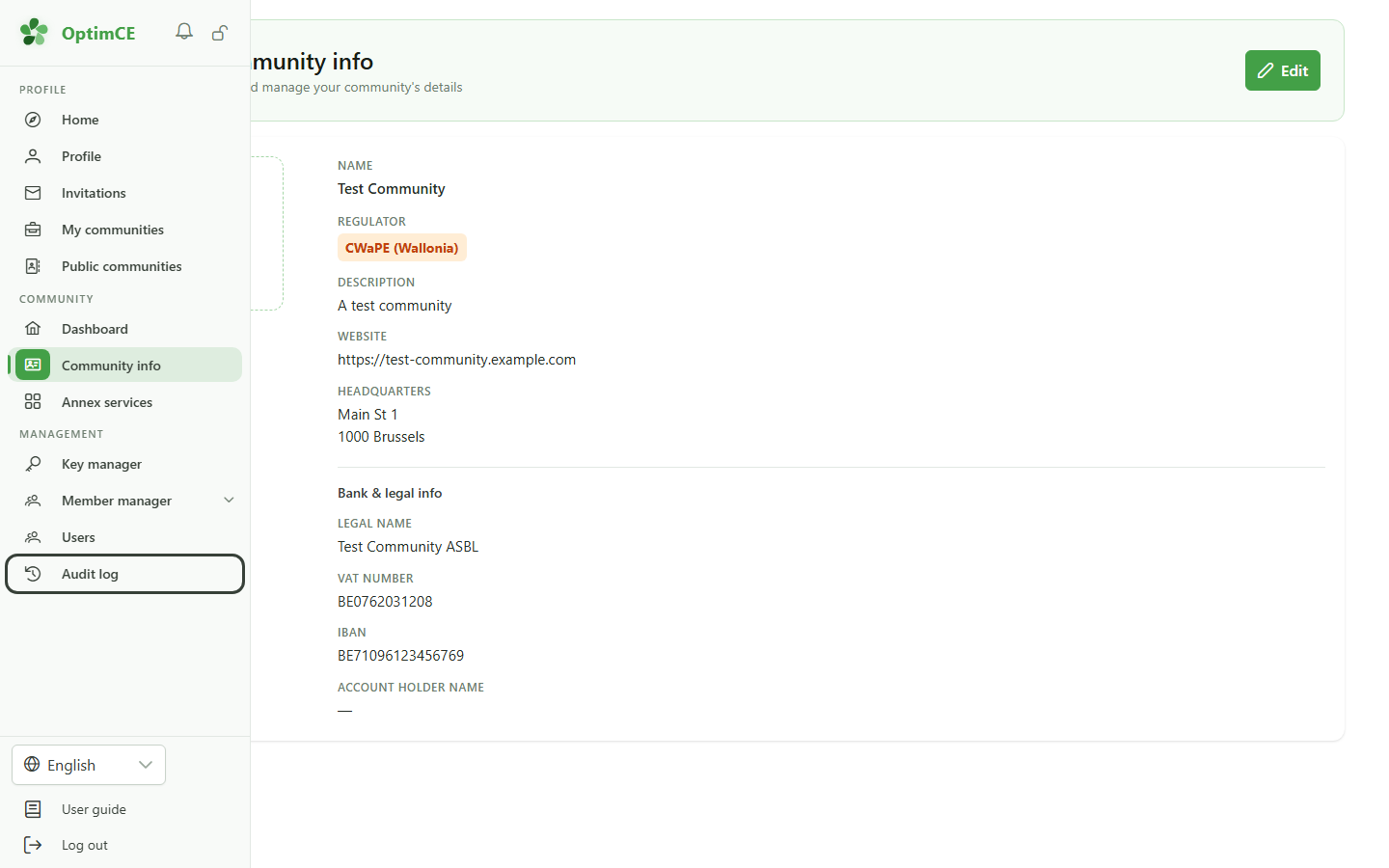
In the sidebar's "Management" section, click "Audit log" to review the history of actions performed on your community.
2 The audit log
Traceability
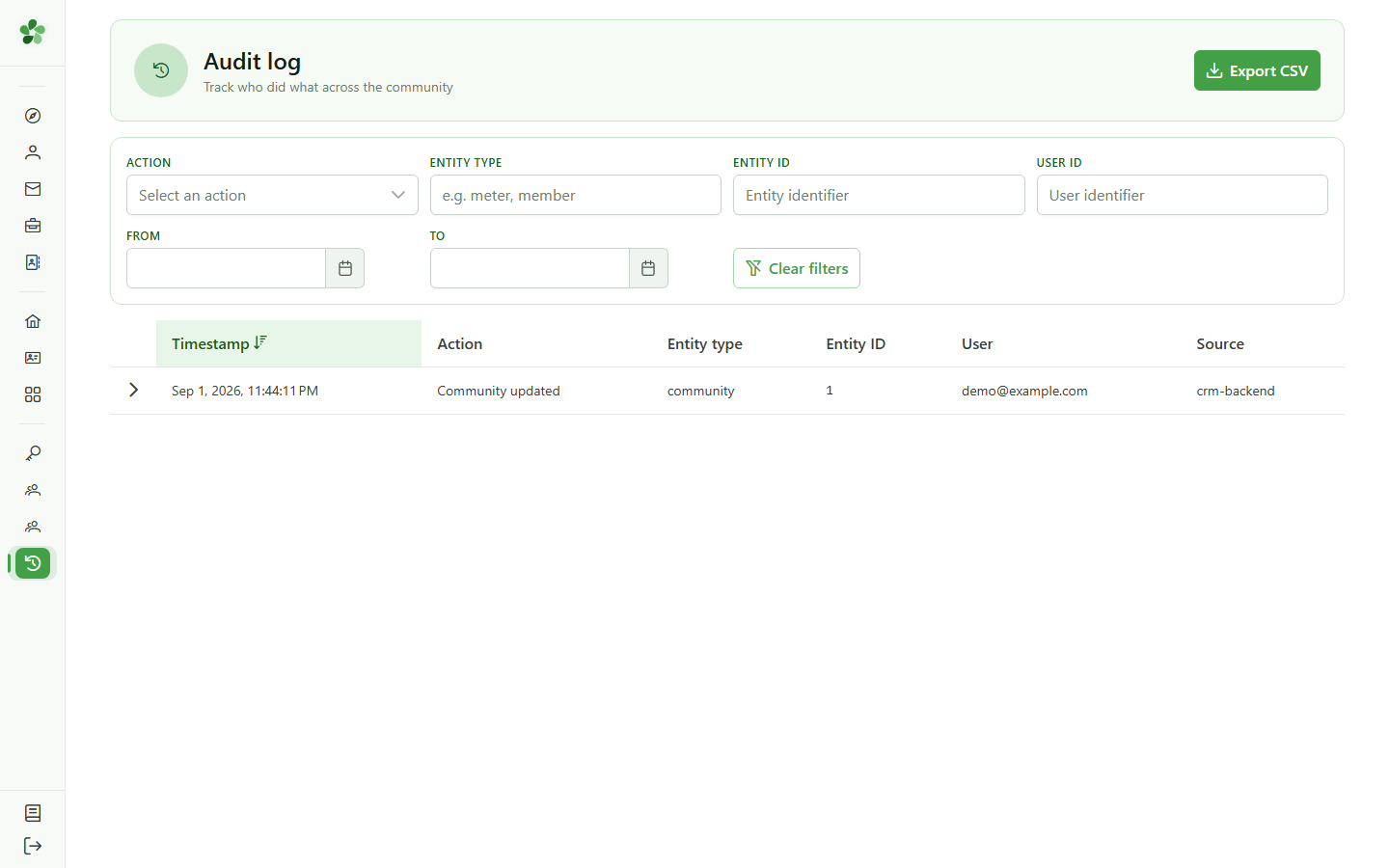
Each row records one action: the timestamp, the action type, the affected entity, who did it, and the source. The change you just made appears at the top of the list.
3 The action details
Payload
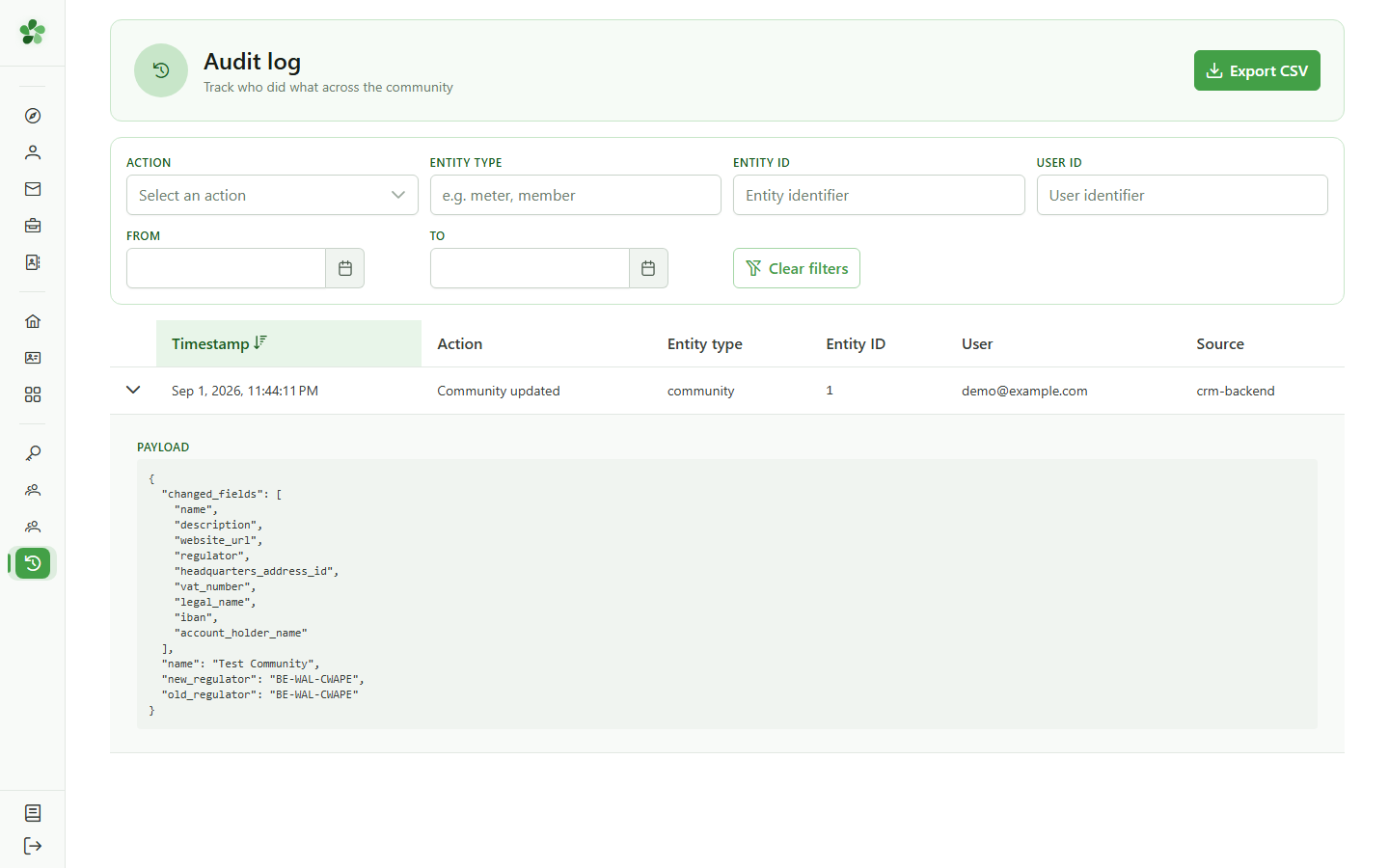
Clicking a row expands its JSON payload — here, the list of changed fields. This is the full technical record of exactly what changed.
4 Filter the log
Search
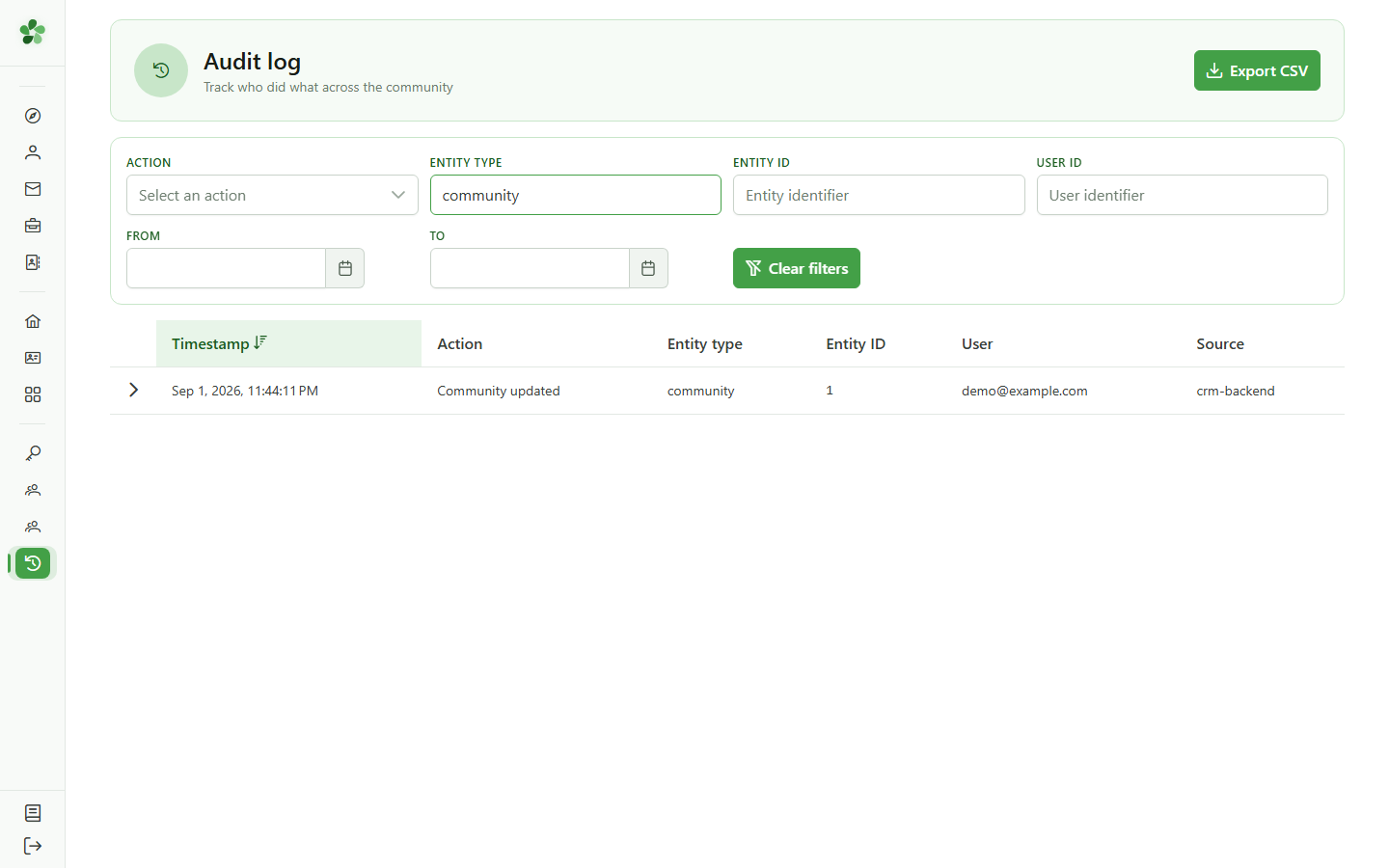
Use the filters to narrow things down: here the entity type "community" keeps only community-related events. You can also filter by action, by id, or by a date range.
5 Reset the filters
Search
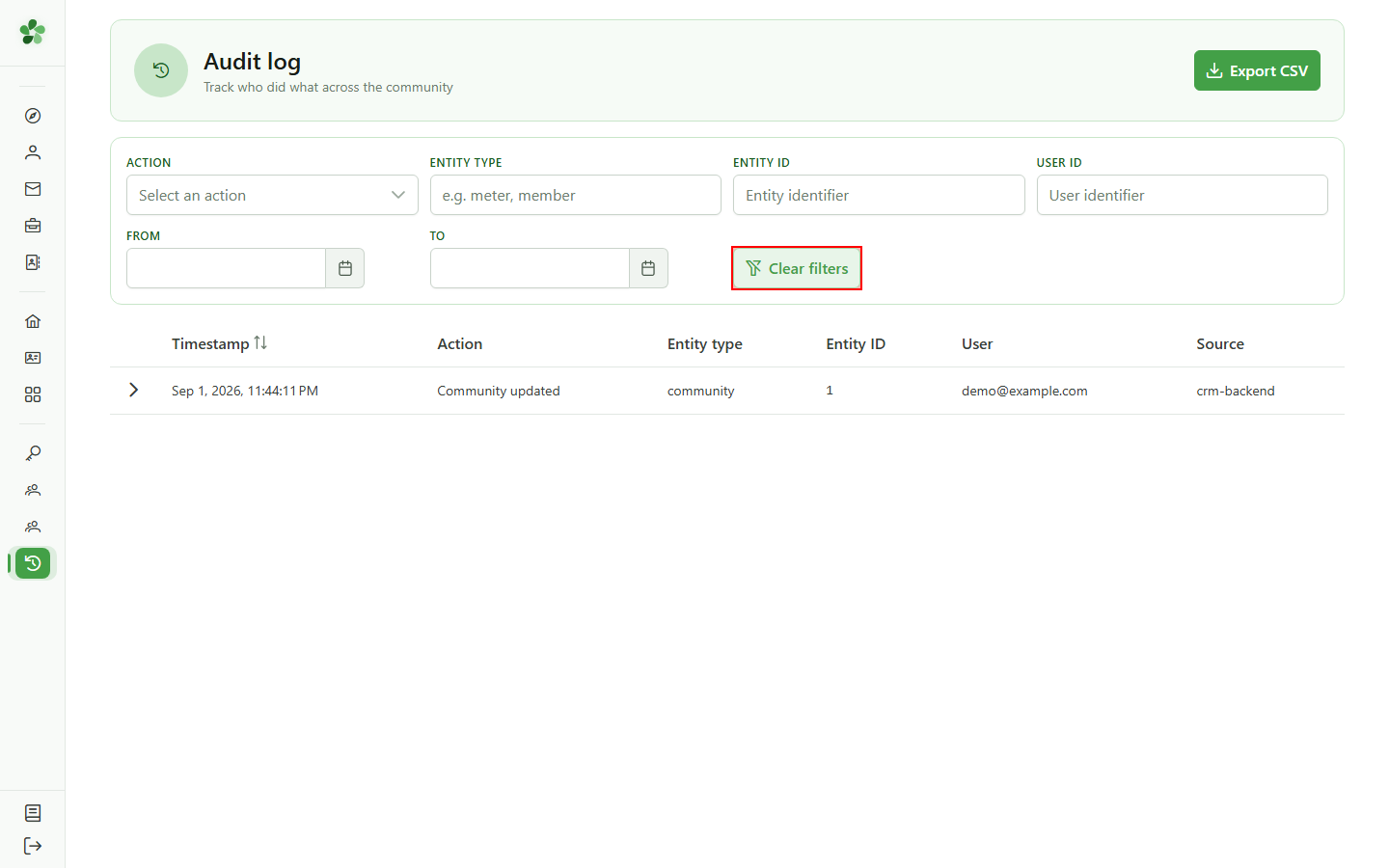
The "Clear filters" button wipes every criterion at once and shows the whole log again.
6 Export the log
Export
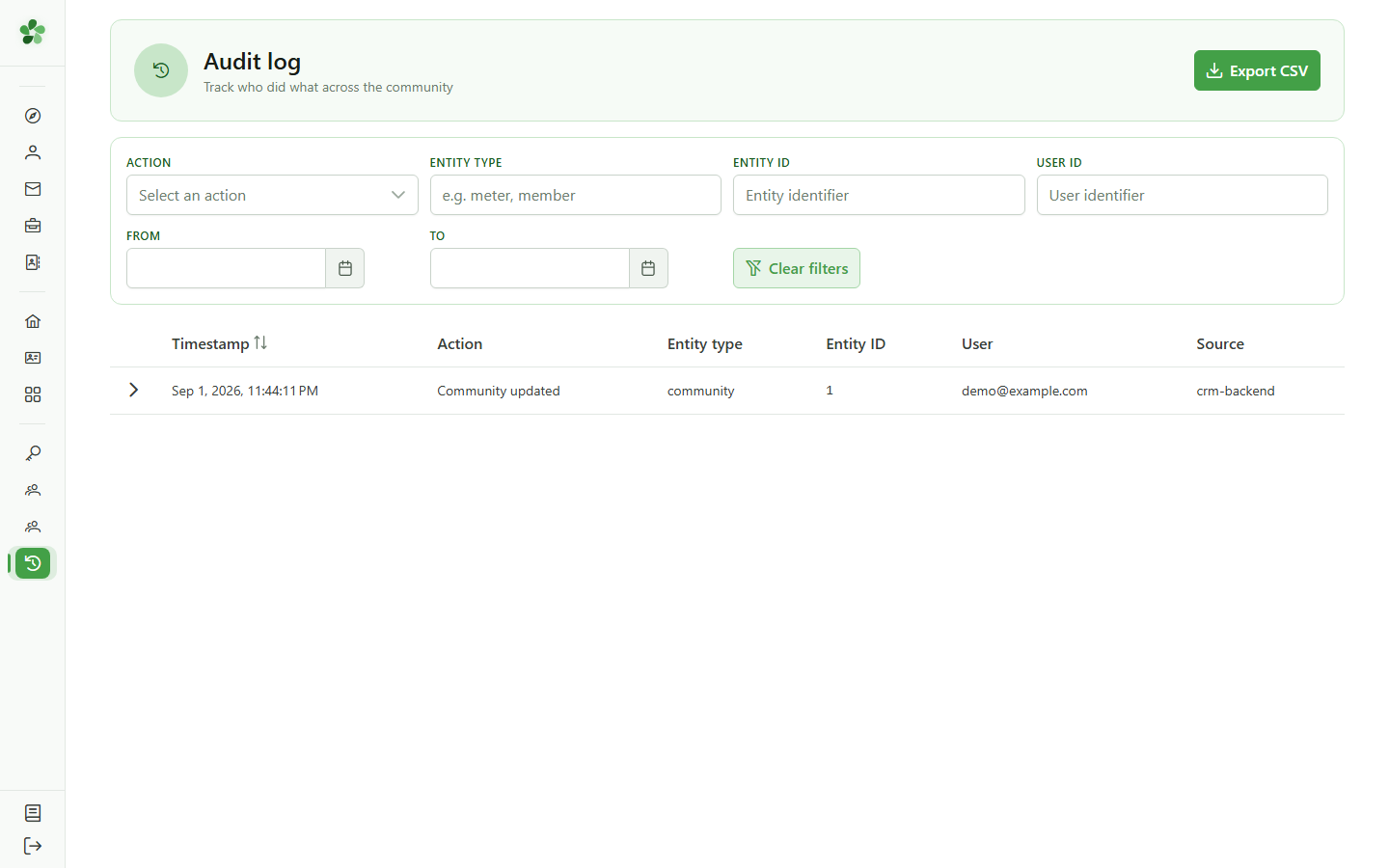
The "Export" button downloads the full log as a CSV file — handy for archiving or handing it to your regulator.
Consult the audit log
Guide utilisateur
User guide
Gebruikershandleiding
Benutzerhandbuch
1 Open the audit log
Navigation
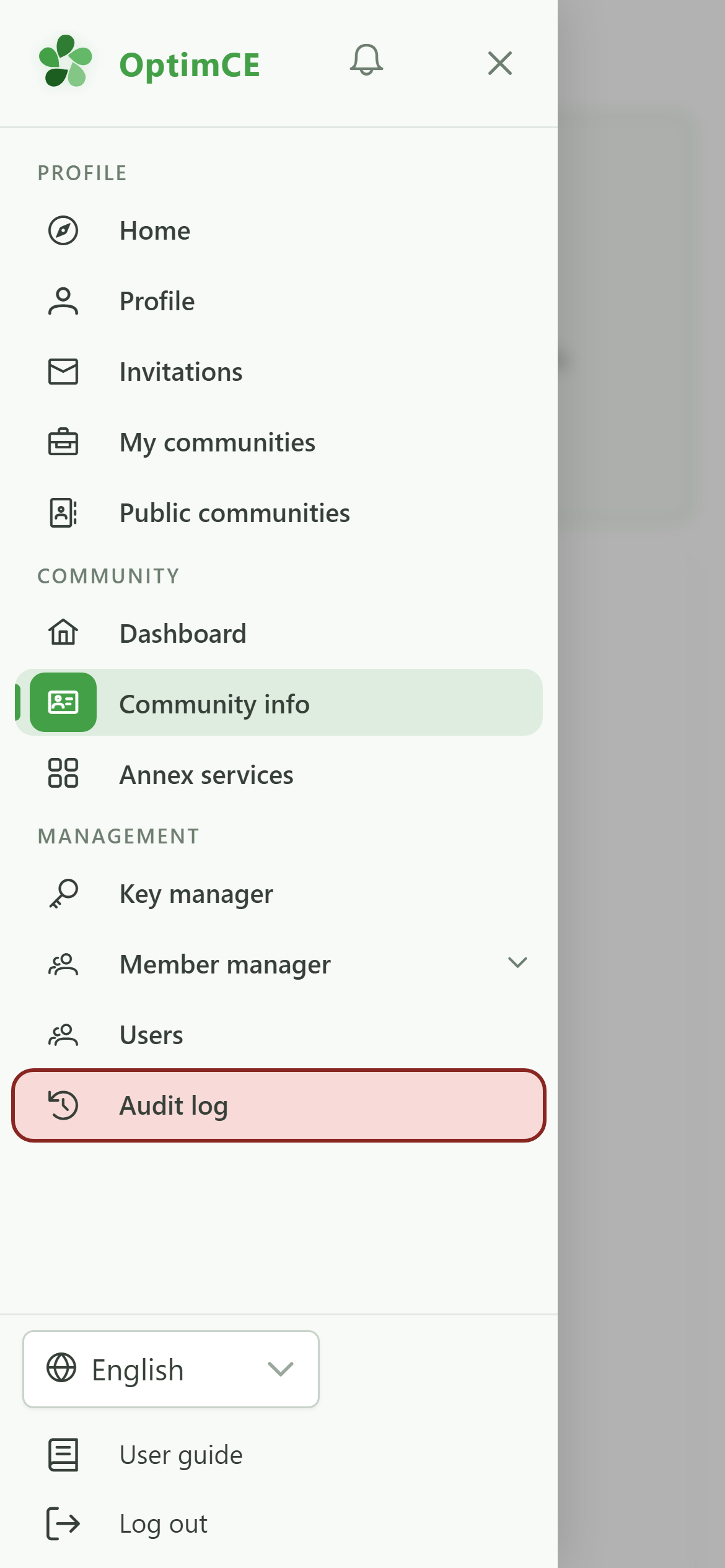
Tap the menu icon to open the navigation drawer, then in the "Management" section tap "Audit log".
2 The audit log
Traceability
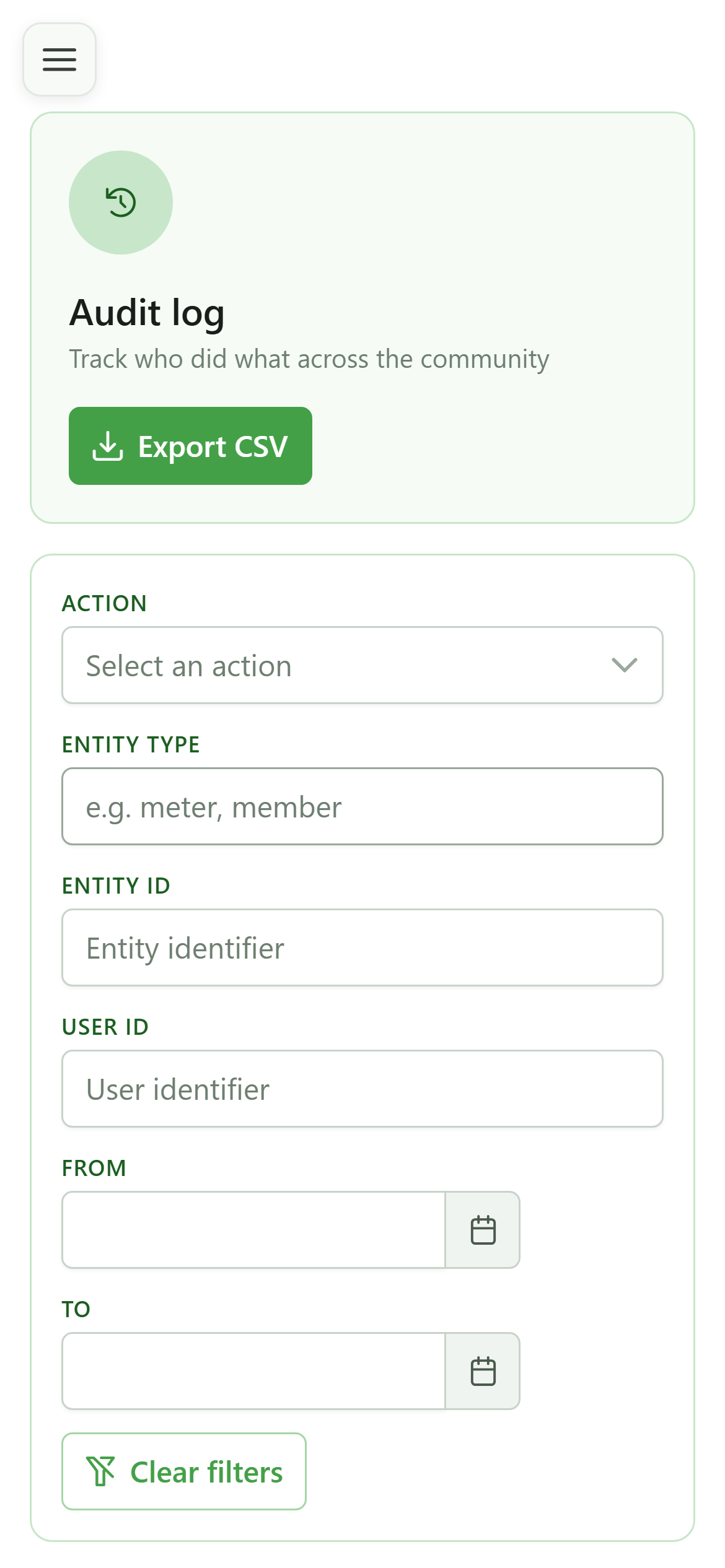
Each row records one action: the timestamp, the action type, the affected entity, who did it, and the source. The change you just made appears at the top of the list.
3 The action details
Payload
Clicking a row expands its JSON payload — here, the list of changed fields. This is the full technical record of exactly what changed.
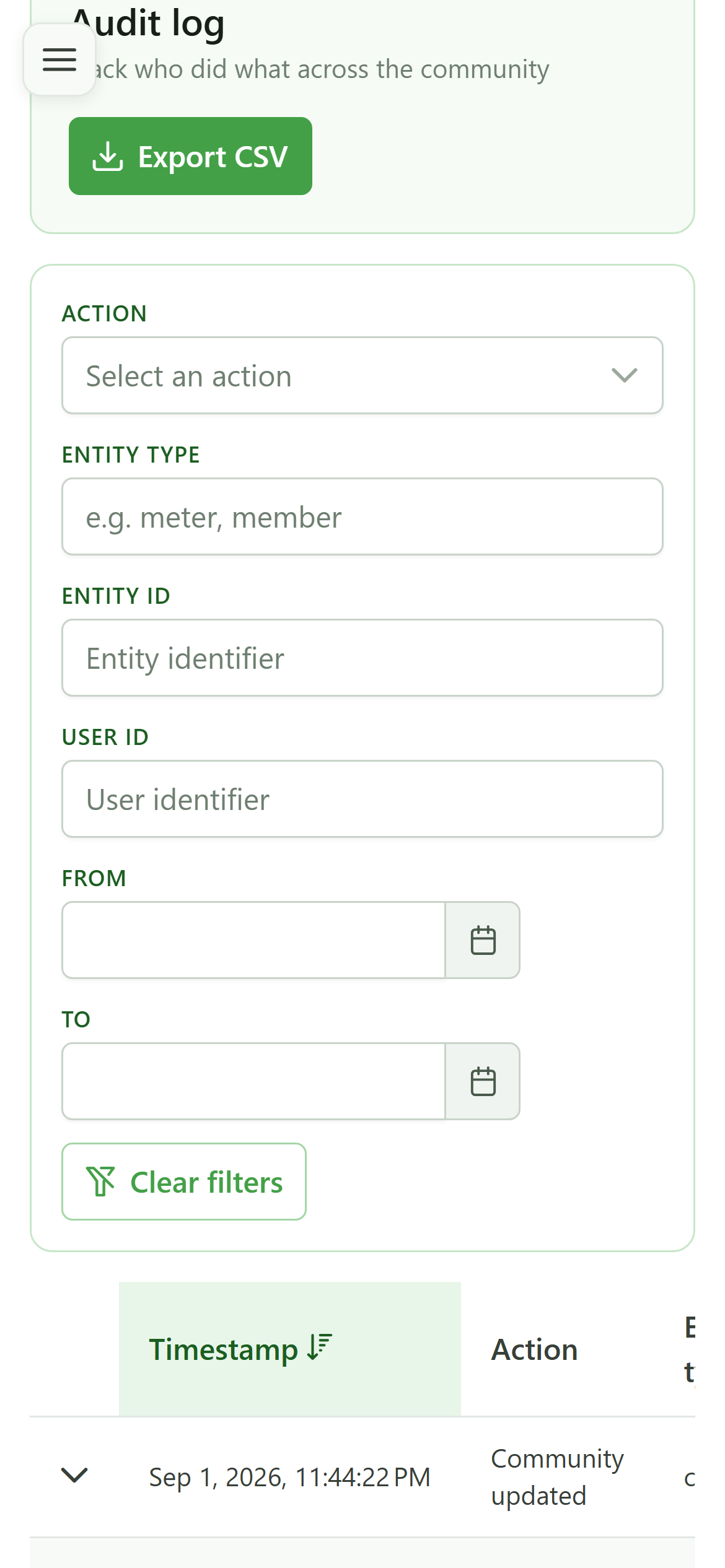
4 Filter the log
Search
Use the filters to narrow things down: here the entity type "community" keeps only community-related events. You can also filter by action, by id, or by a date range.
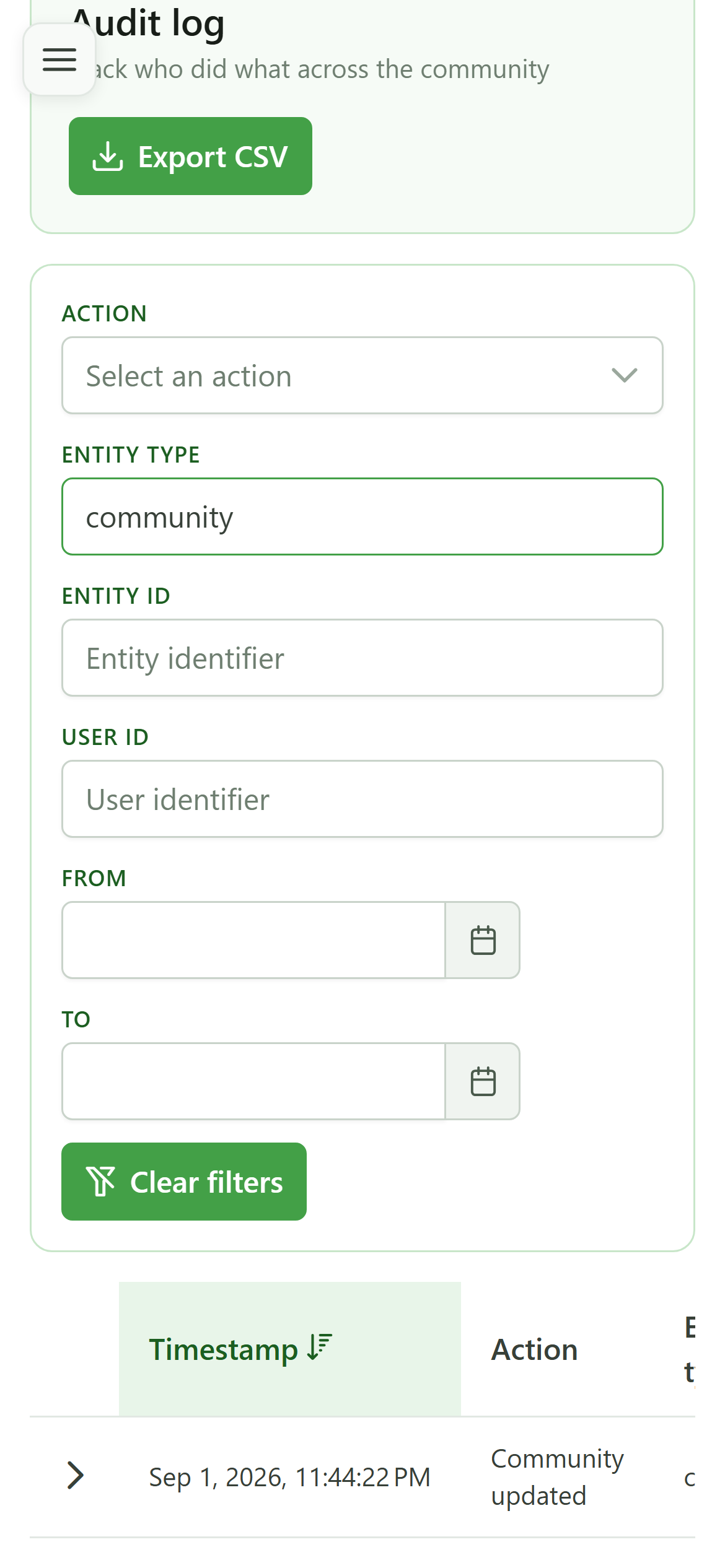
5 Reset the filters
Search
The "Clear filters" button wipes every criterion at once and shows the whole log again.
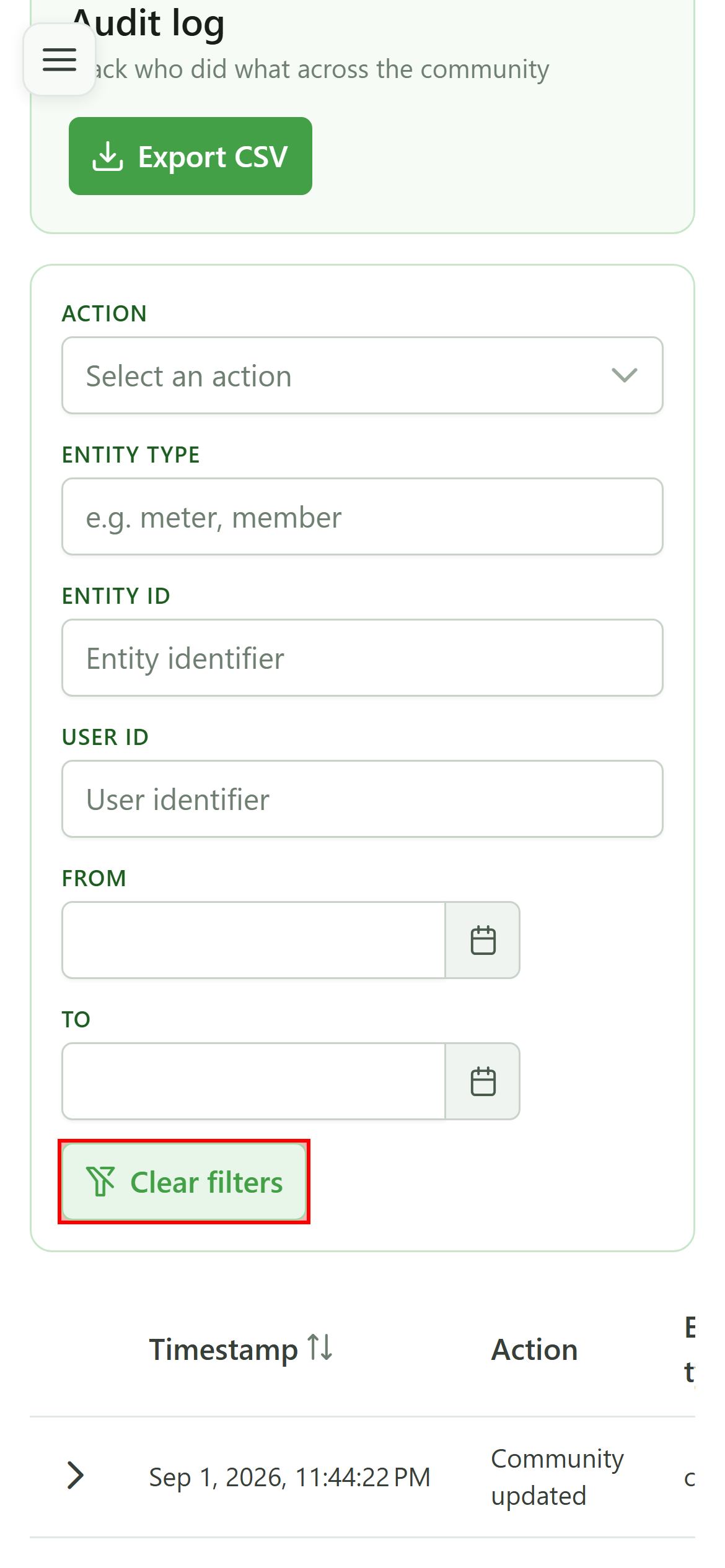
6 Export the log
Export
The "Export" button downloads the full log as a CSV file — handy for archiving or handing it to your regulator.