Subscribe to an annexe service
Guide utilisateur
User guide
1 Open annexe services
Navigation
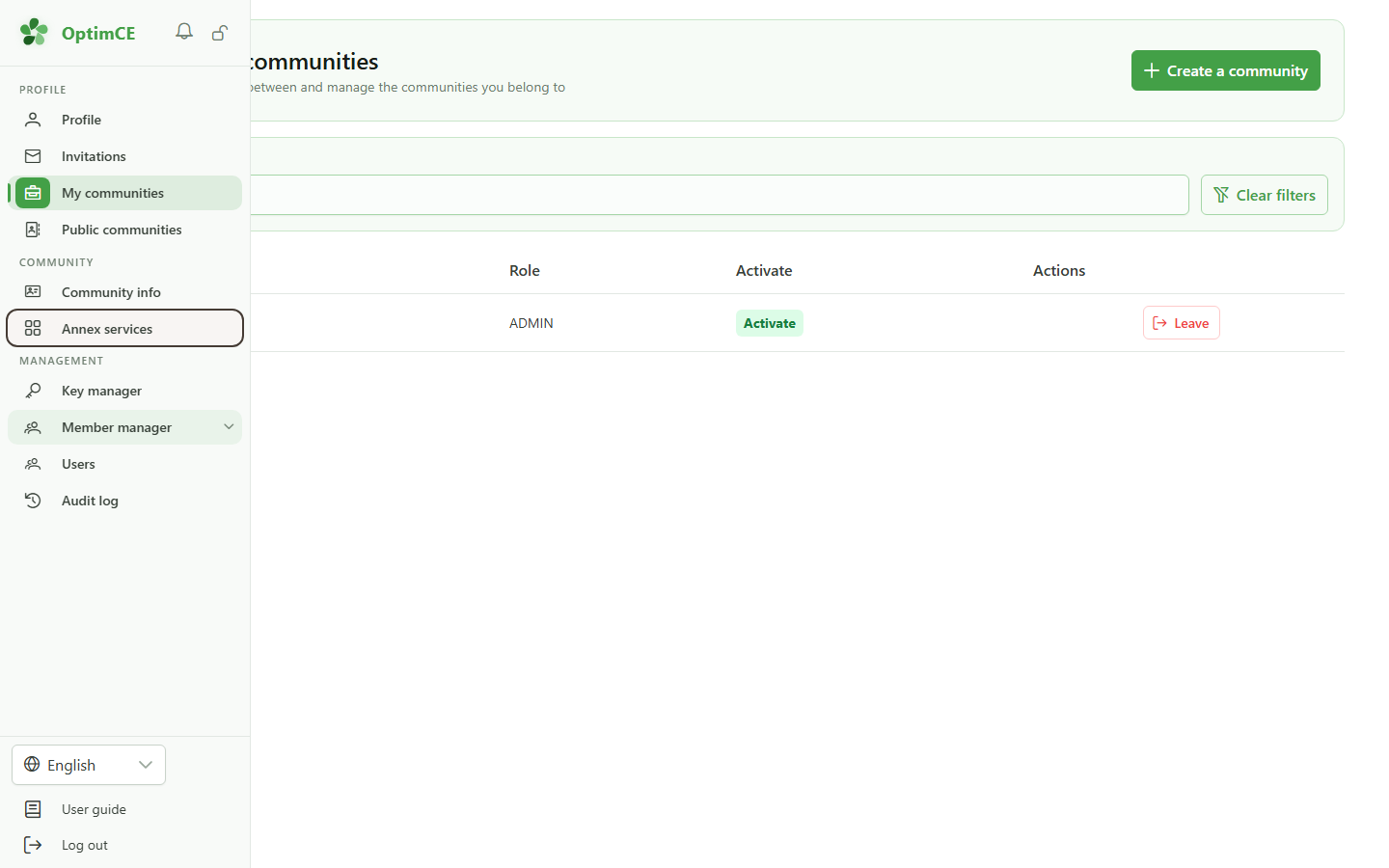
In the sidebar's "Community" section, click "Annexe services" to access the optional modules available for the community.
2 No modules active
Annexe services
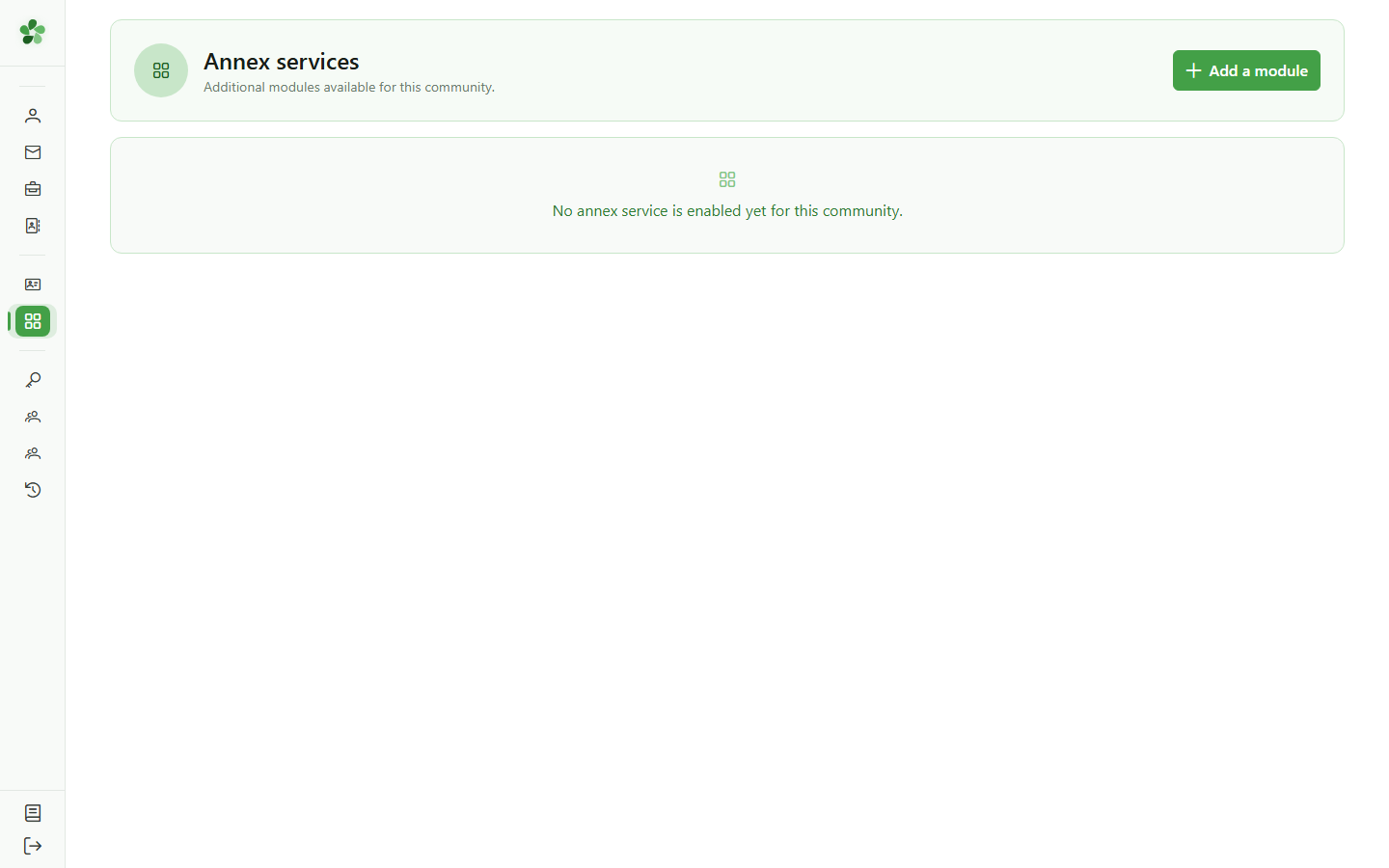
The "Annexe services" page is empty — no optional module has been activated for this community yet.
3 Add a module
Subscribe
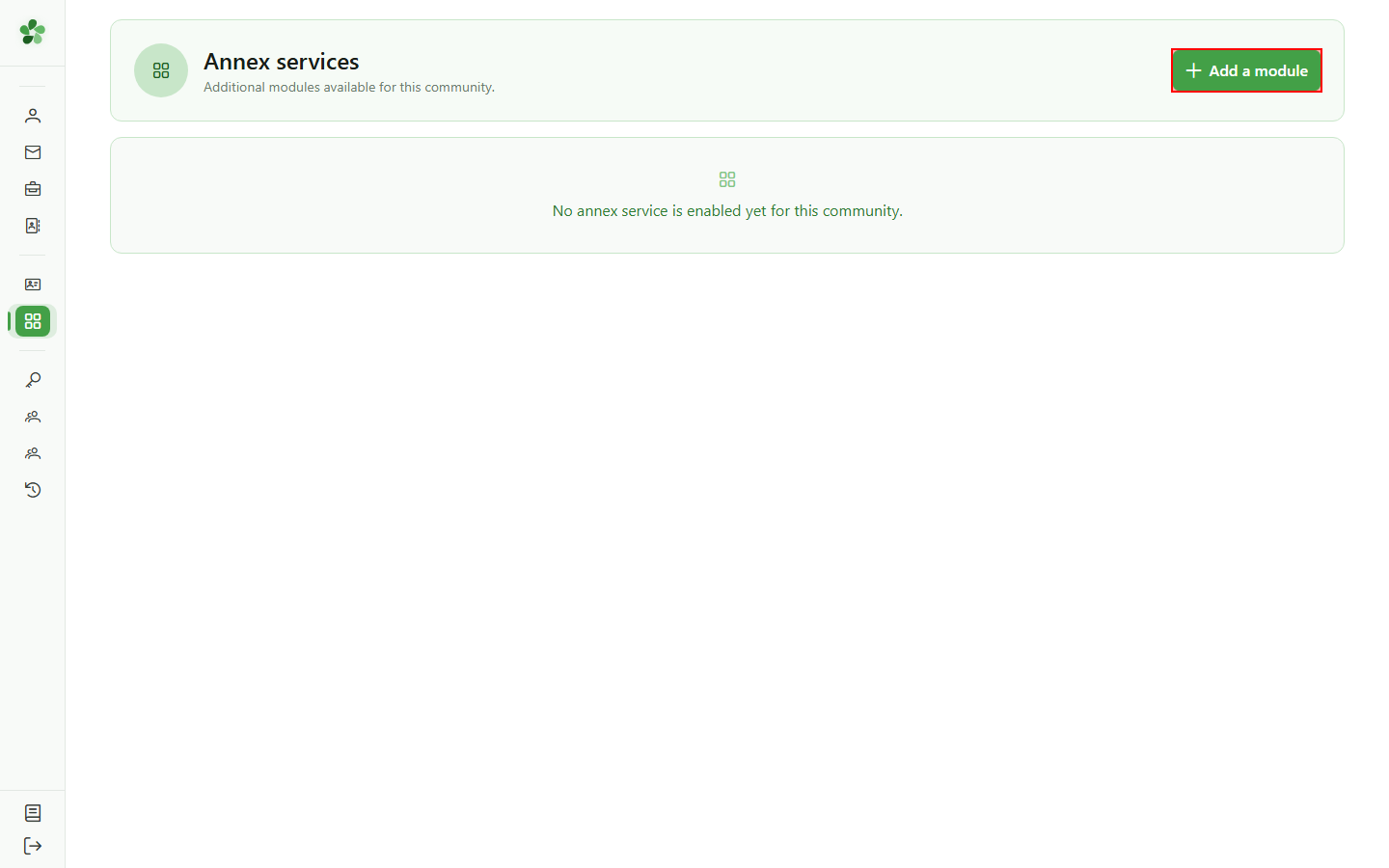
Click "Add a module" in the top right to open the catalogue of available modules for this community.
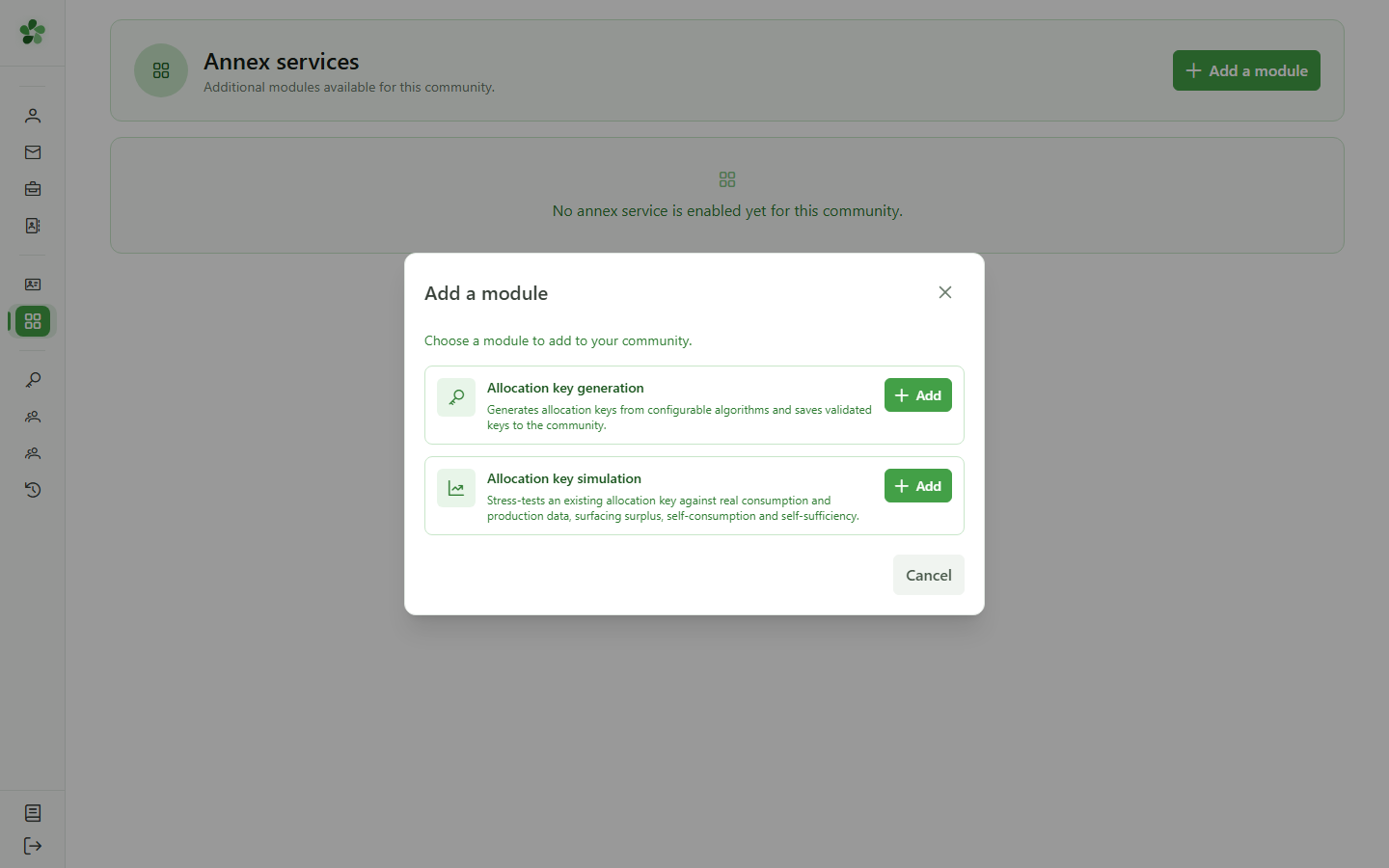
4 Choose a module
Subscribe
The dialog lists available modules. Here, the "Allocation key generation" module is offered with its description.
5 Activate the module
Subscribe
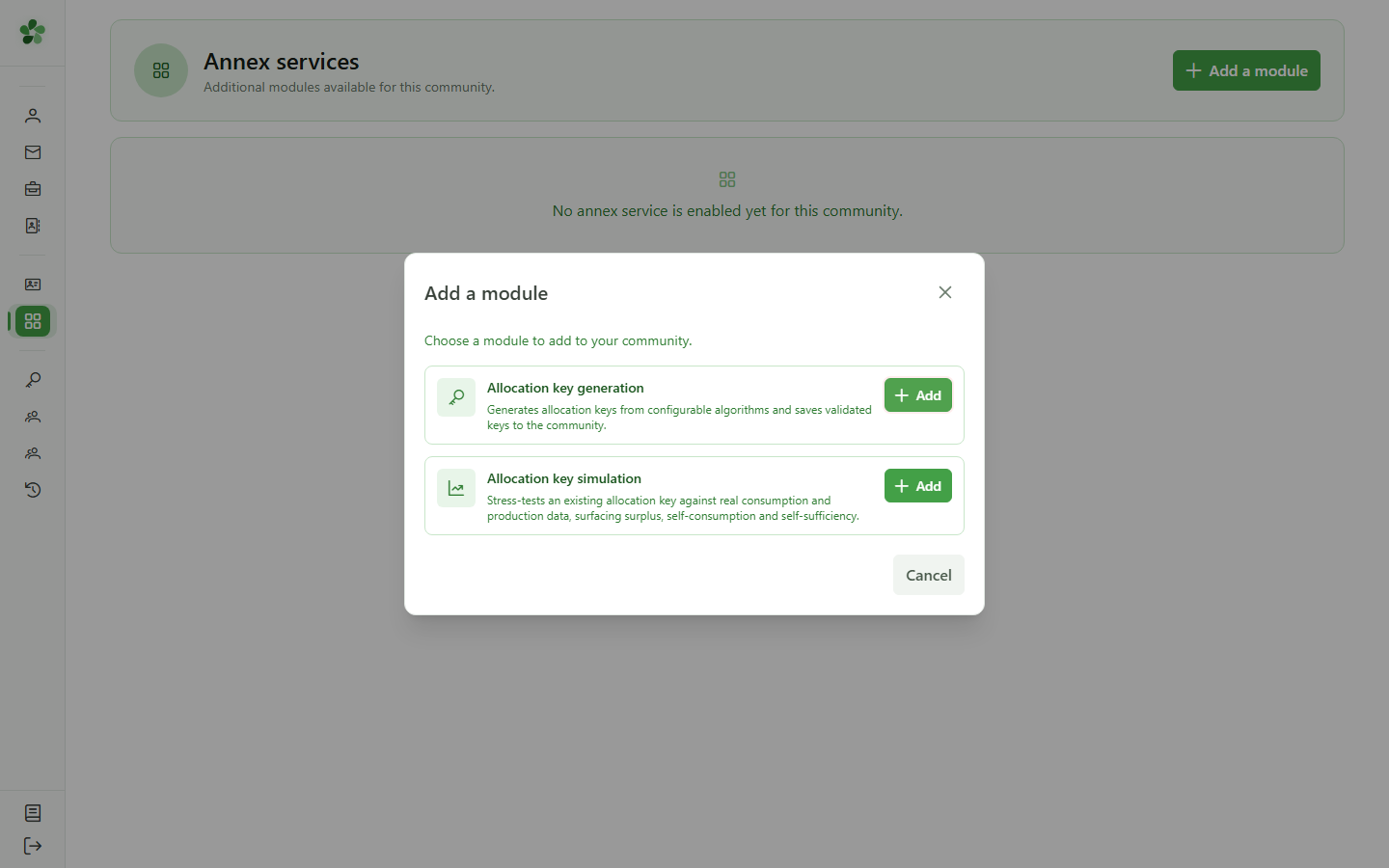
Click "Add" next to the "Allocation key generation" module to activate it for the community.
6 Module activated
Subscribe
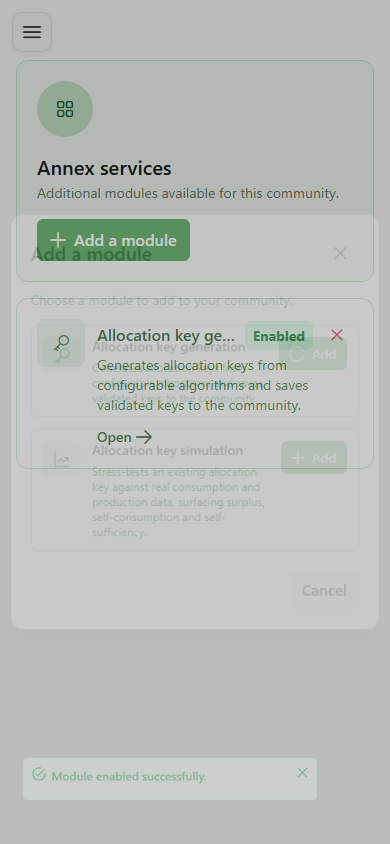
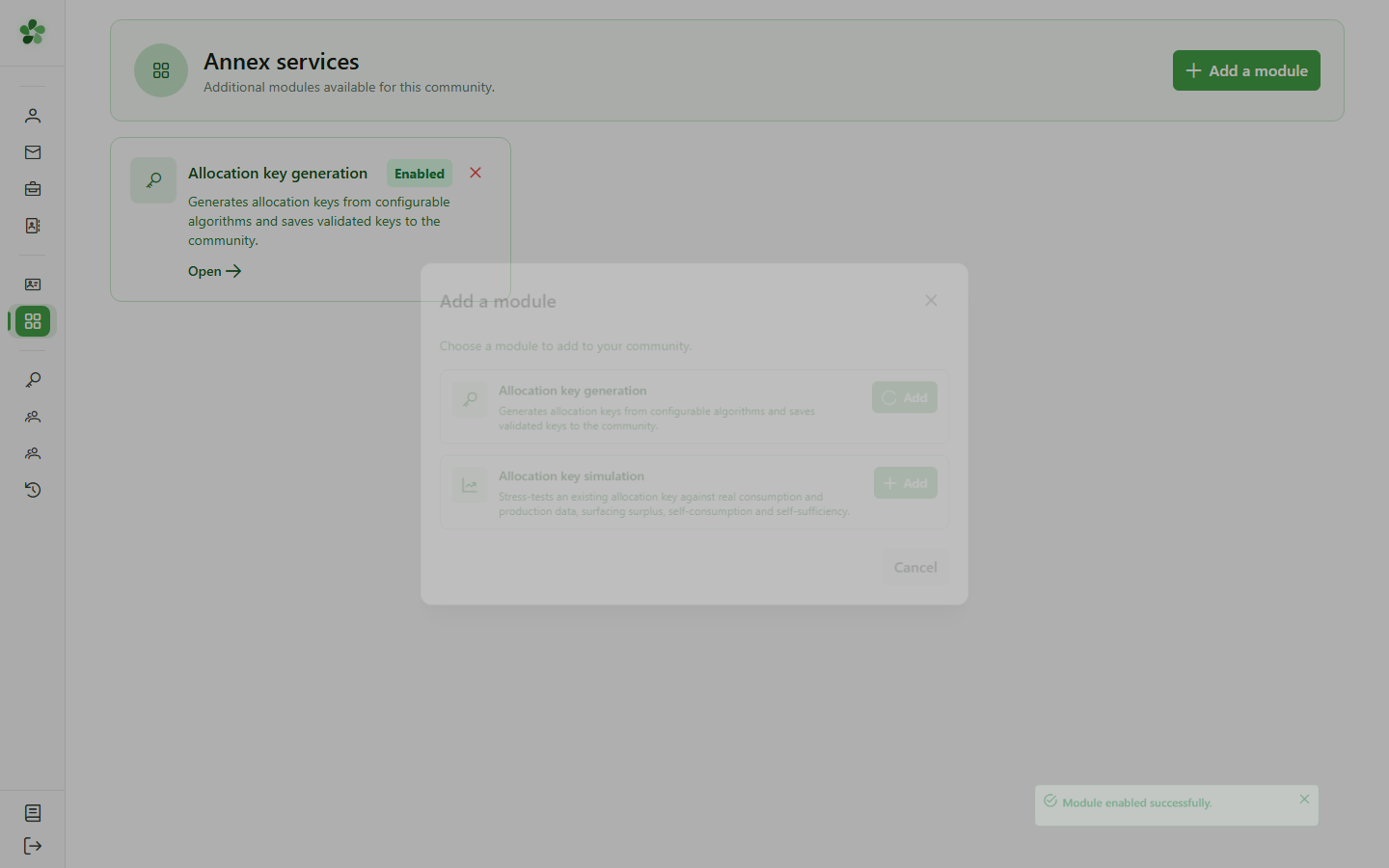
The "Allocation key generation" card appears in the grid with the "Activated" badge — the module is now accessible from this page.
Subscribe to an annexe service
Guide utilisateur
User guide
1 Open annexe services
Navigation
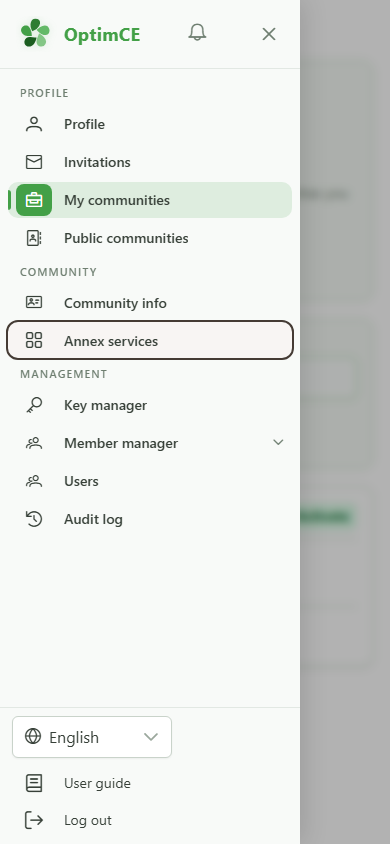
Tap the menu icon to open the navigation drawer, then in the "Community" section tap "Annexe services".
2 No modules active
Annexe services
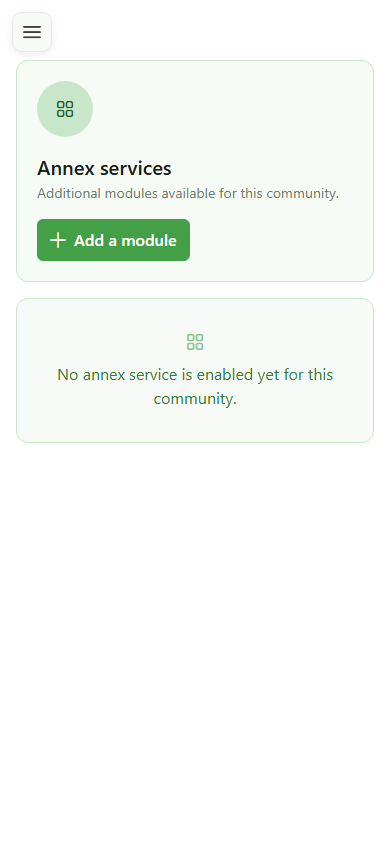
The "Annexe services" page is empty — no optional module has been activated for this community yet.
3 Add a module
Subscribe
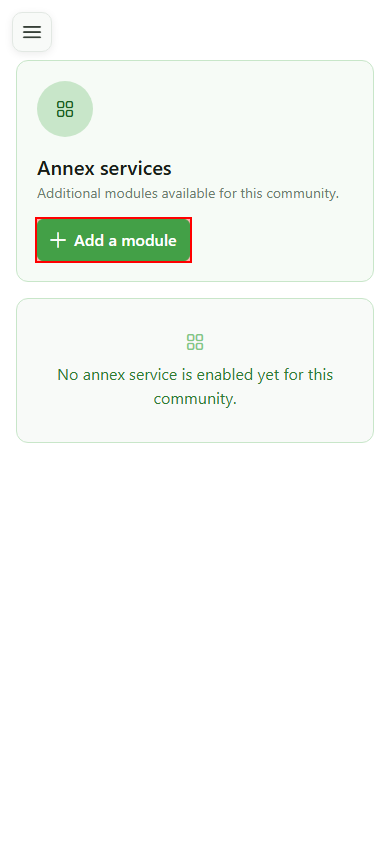
Click "Add a module" in the top right to open the catalogue of available modules for this community.
4 Choose a module
Subscribe
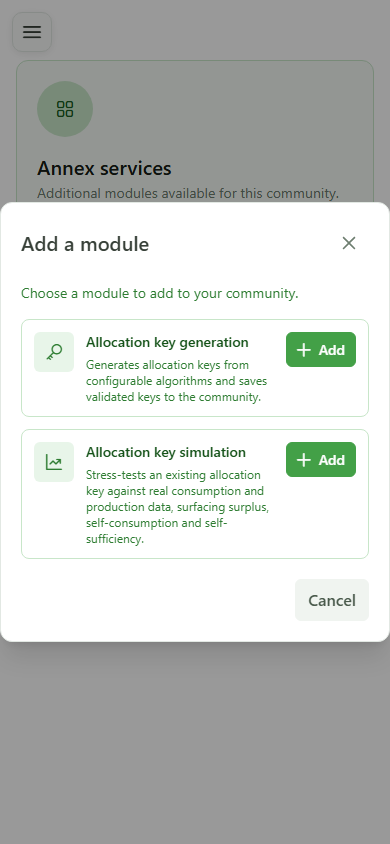
The dialog lists available modules. Here, the "Allocation key generation" module is offered with its description.
5 Activate the module
Subscribe
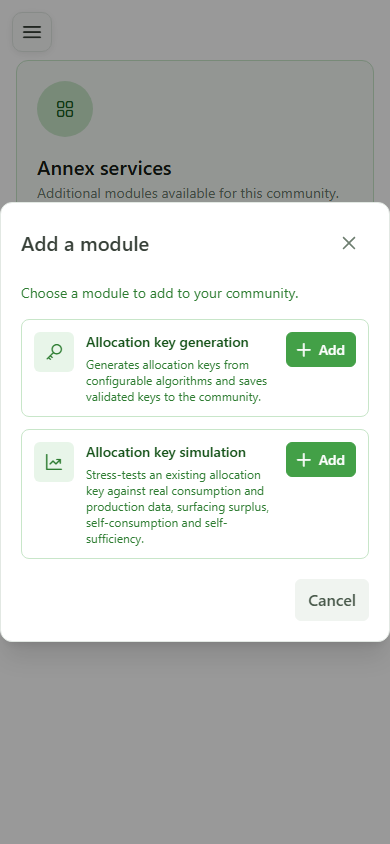
Click "Add" next to the "Allocation key generation" module to activate it for the community.
6 Module activated
Subscribe
The "Allocation key generation" card appears in the grid with the "Activated" badge — the module is now accessible from this page.