Delete a generation
Guide utilisateur
User guide
1 Open annexe services
Navigation
In the sidebar's "Community" section, click "Annexe services" to access the community's active modules.
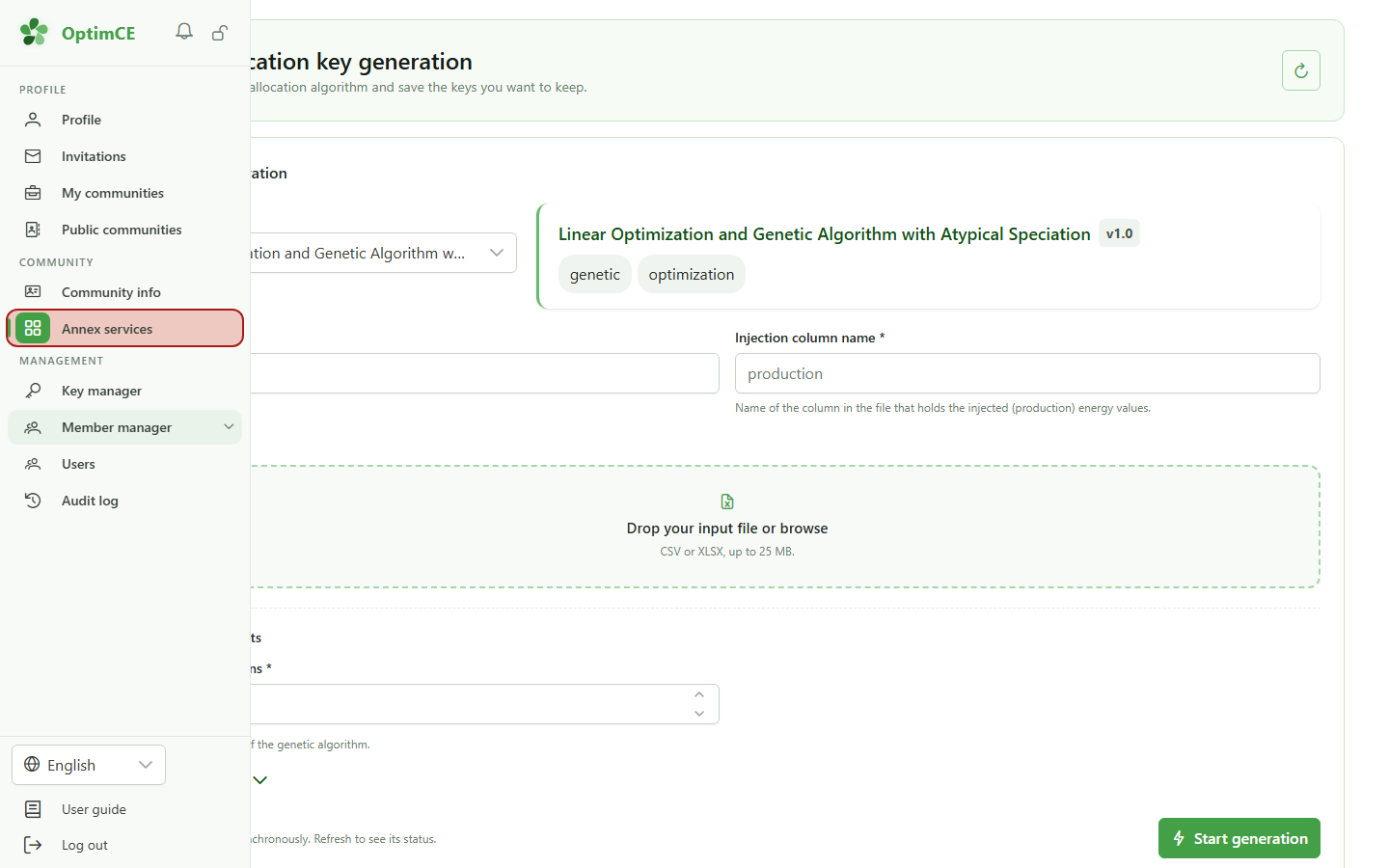
2 Generation module available
Annexe services
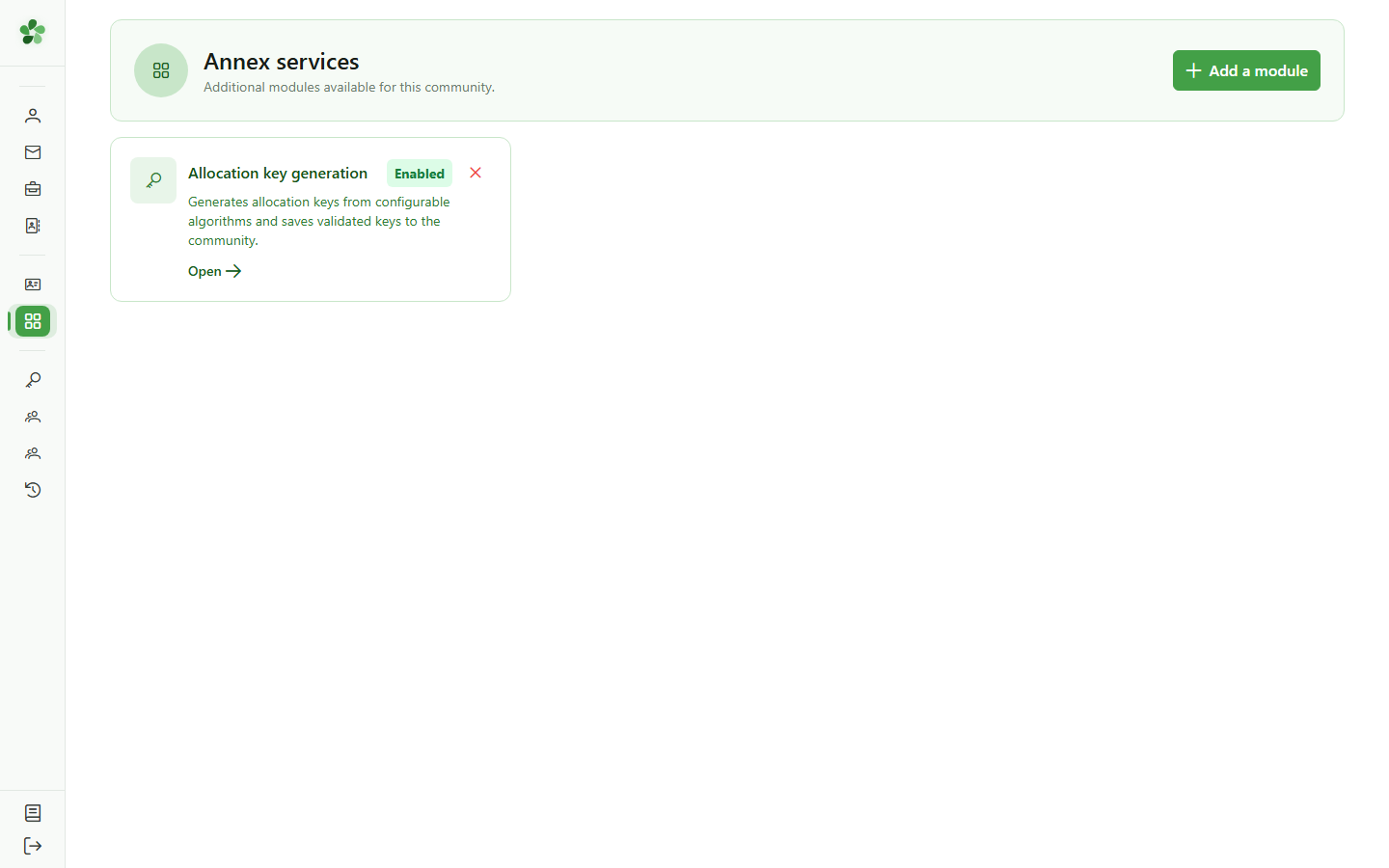
The "Allocation key generation" card is visible. Click it to open the hub and access existing generations.
3 Open the generation module
Navigation
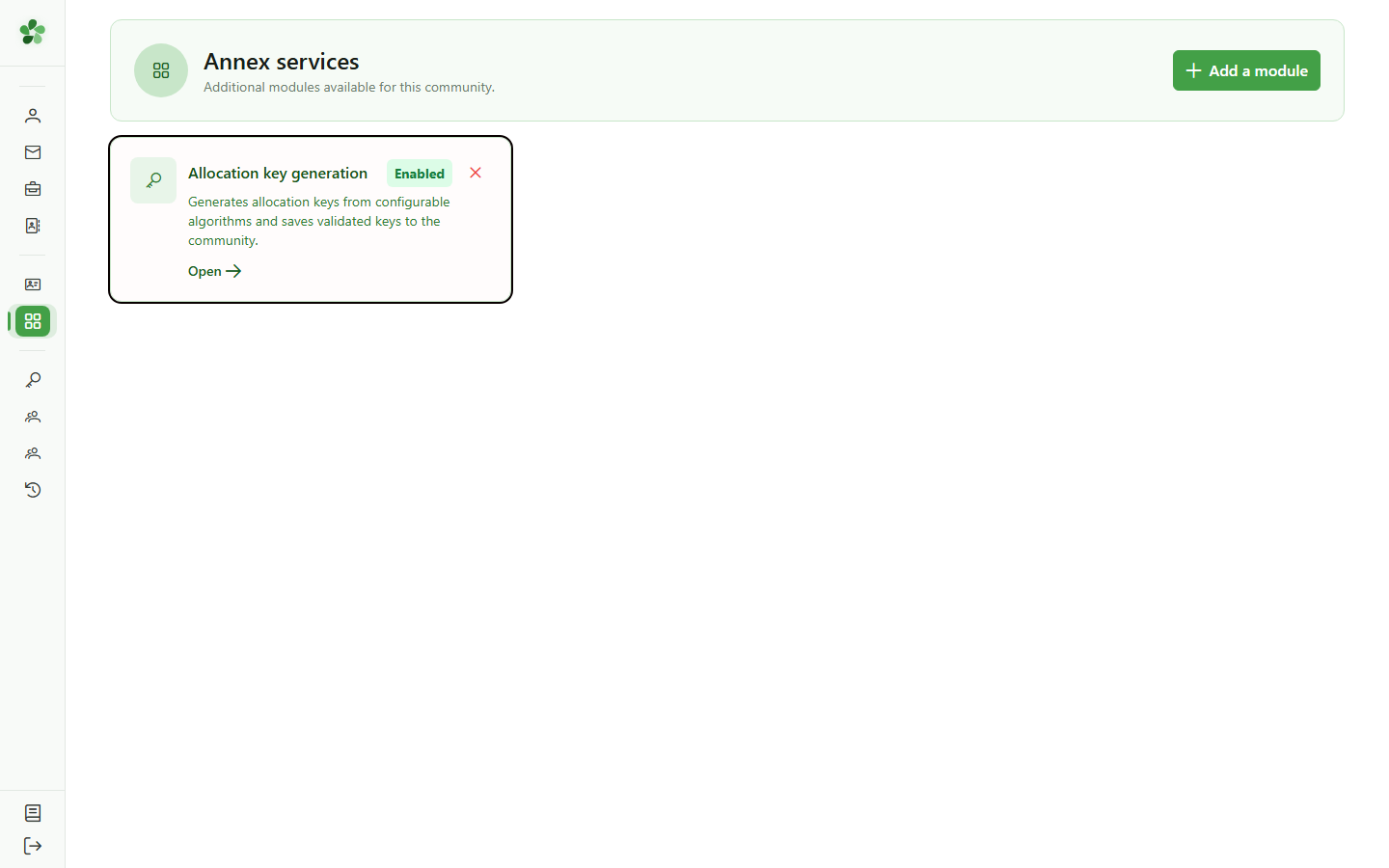
Click the card to open the OLAGSA generation hub.
4 Generation completed
Generation hub
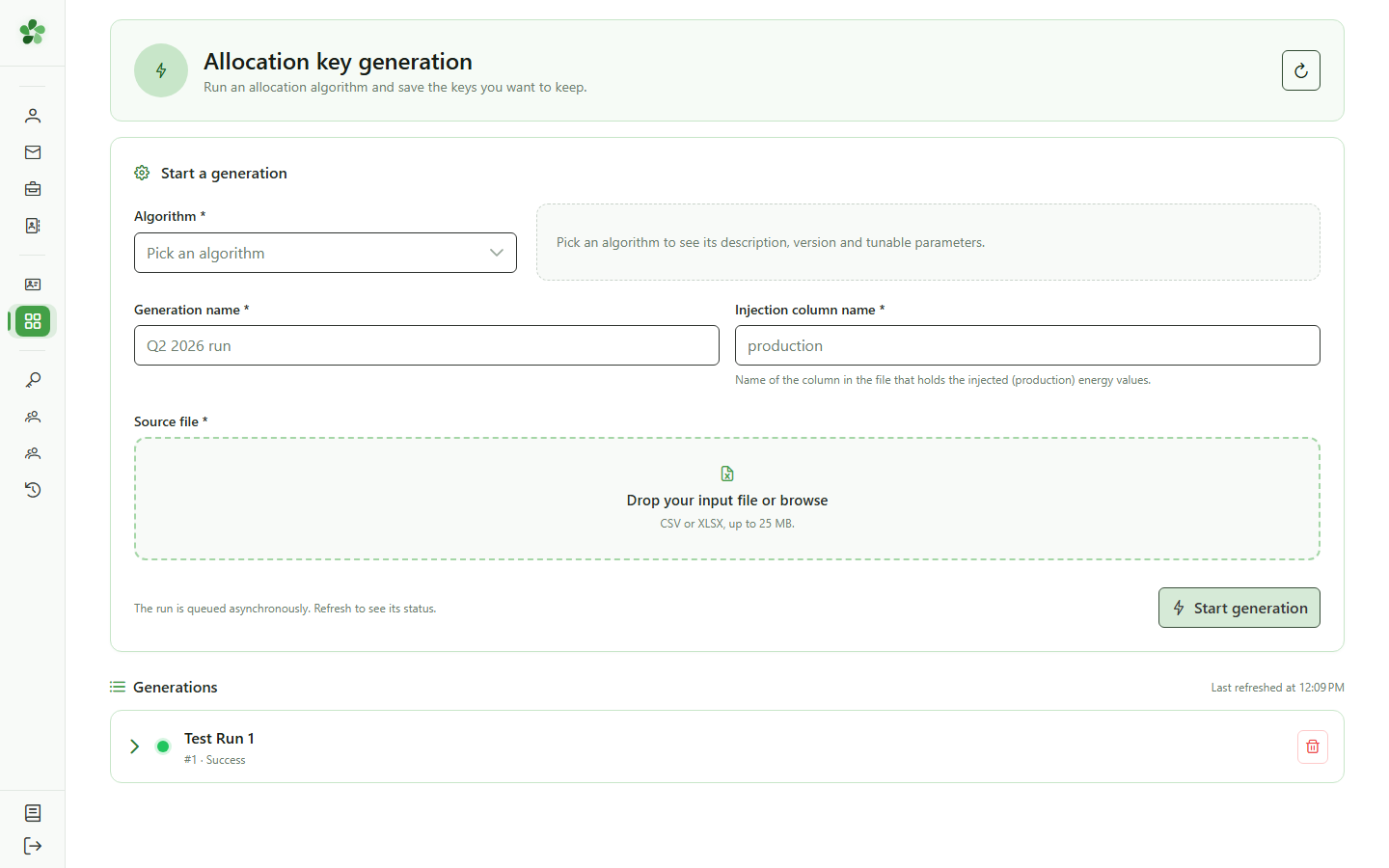
The generation is displayed with a green dot indicating it completed successfully. The delete button (×) at the top right of the row allows deleting the entire generation and all its keys.
5 Delete the generation
Deletion
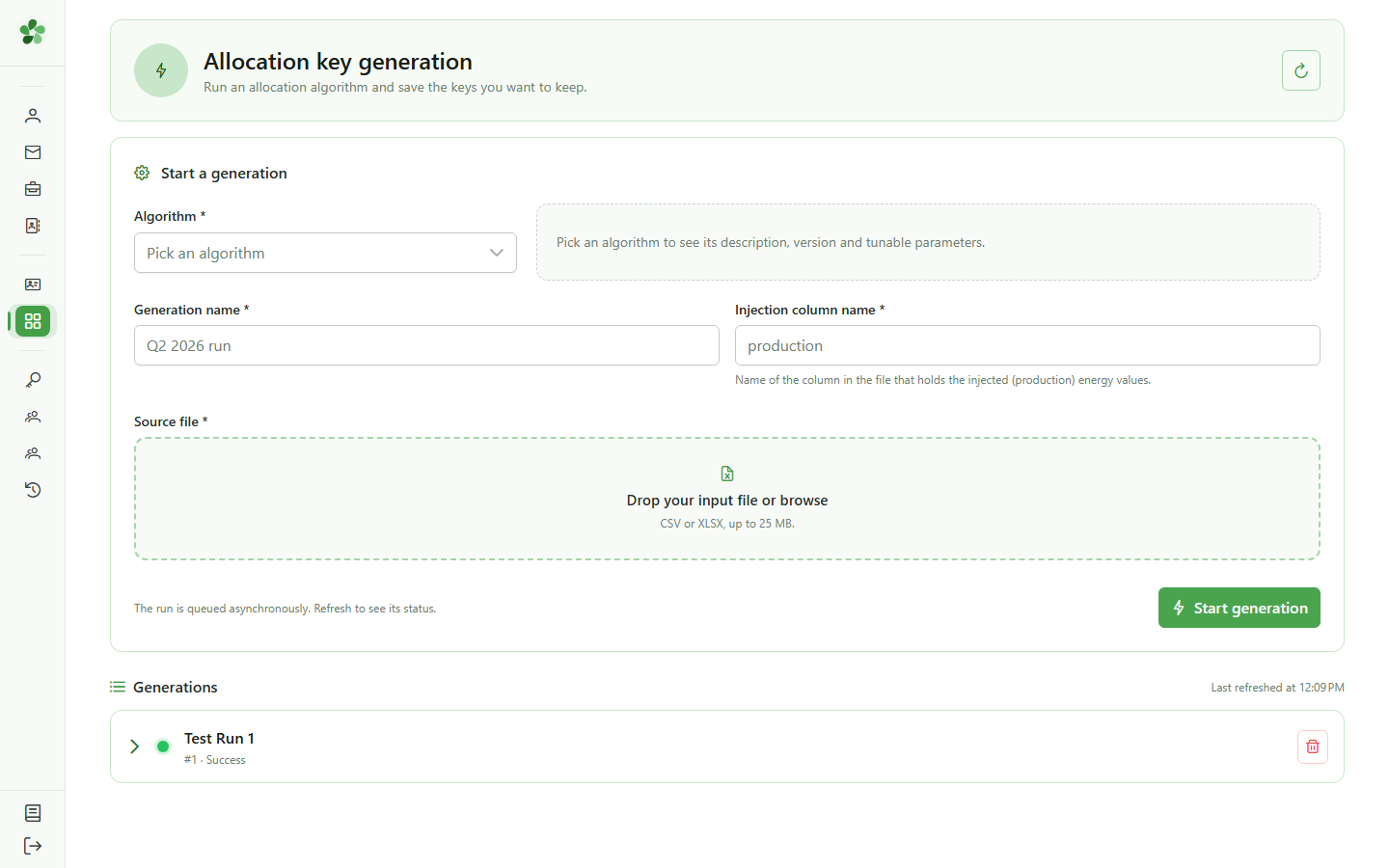
Click the × button on the generation to initiate its deletion. All associated keys will also be deleted. A confirmation will be required.
6 Confirm deletion
Deletion
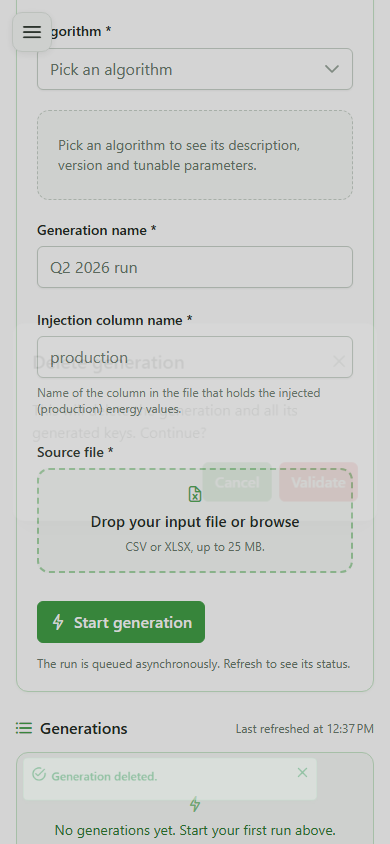
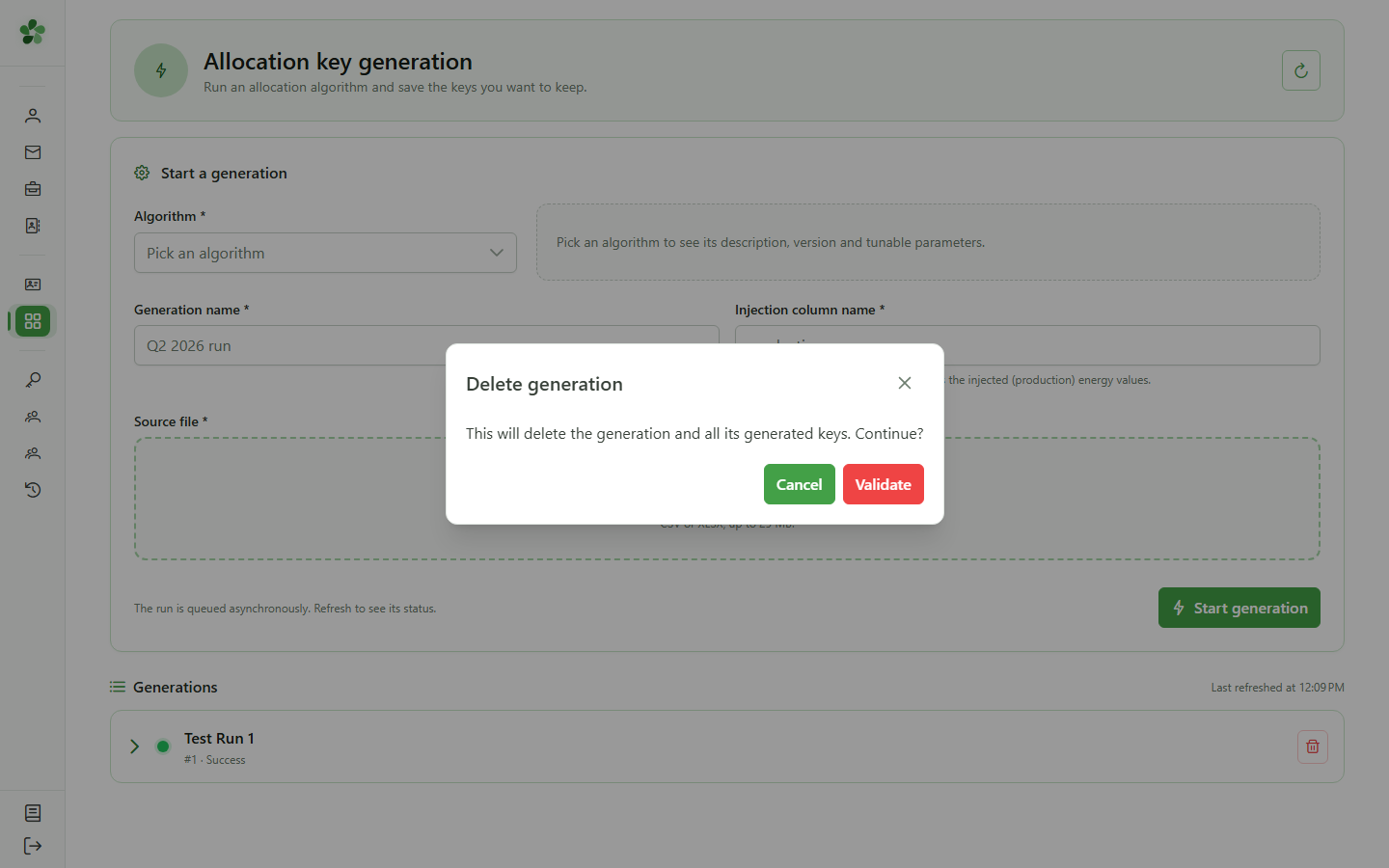
A confirmation dialog appears. Click the confirm button to permanently delete the generation and all the allocation keys it contains.
7 Generation deleted
Deletion
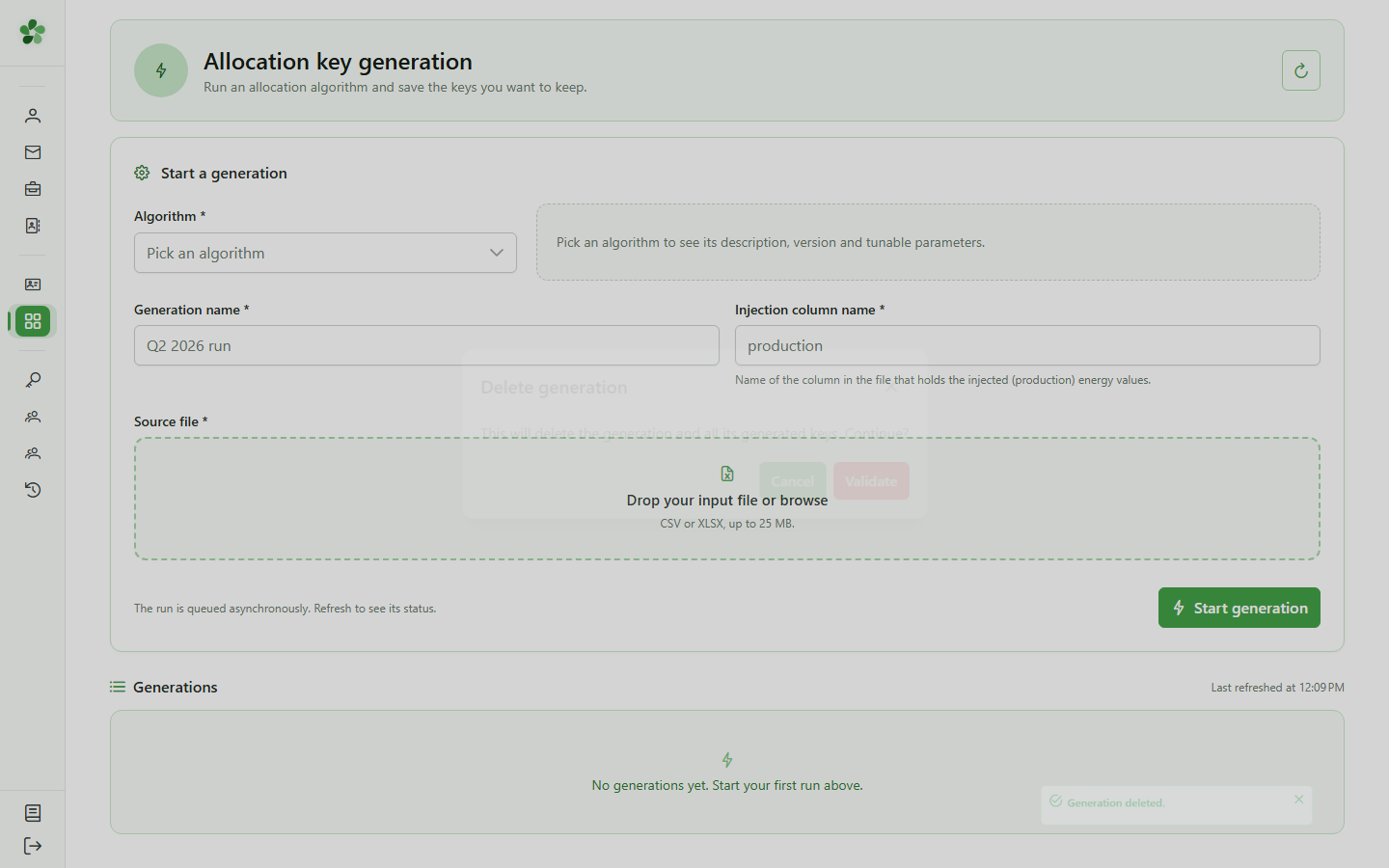
The generations list is empty again — the generation and all its allocation keys have been permanently deleted.
Delete a generation
Guide utilisateur
User guide
1 Open annexe services
Navigation
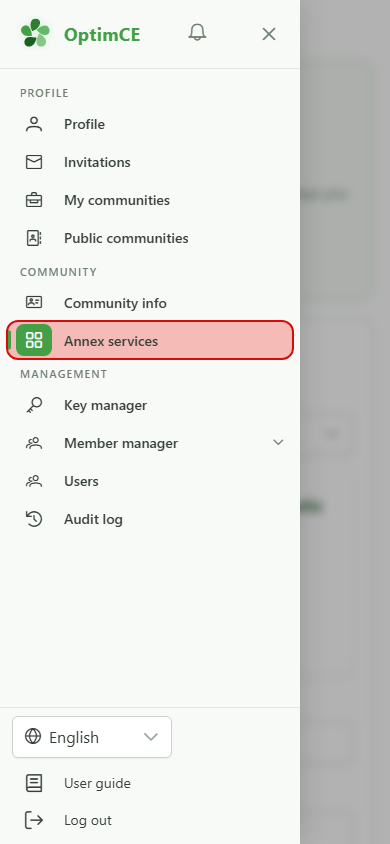
Tap the menu icon to open the navigation drawer, then in the "Community" section tap "Annexe services".
2 Generation module available
Annexe services
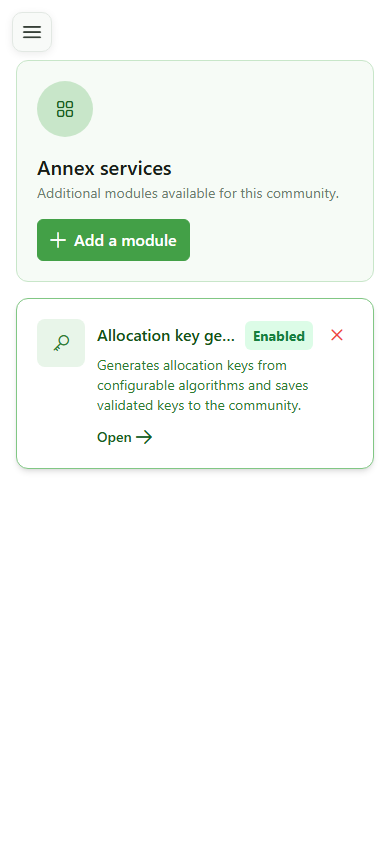
The "Allocation key generation" card is visible. Click it to open the hub and access existing generations.
3 Open the generation module
Navigation
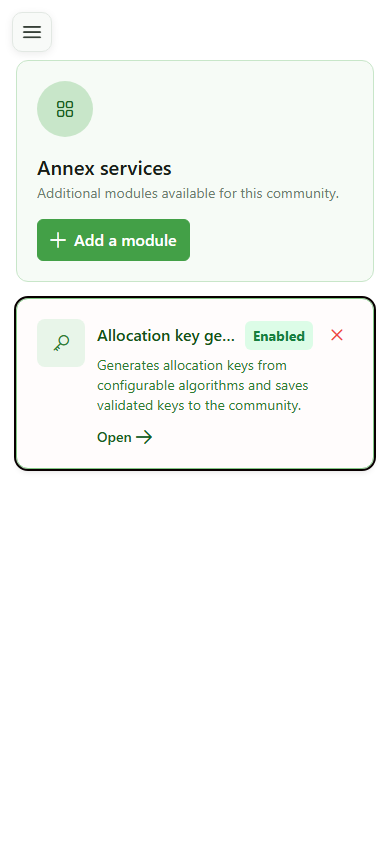
Click the card to open the OLAGSA generation hub.
4 Generation completed
Generation hub
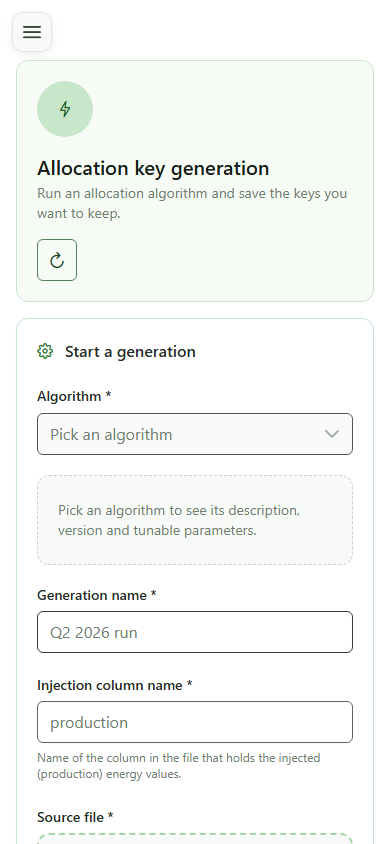
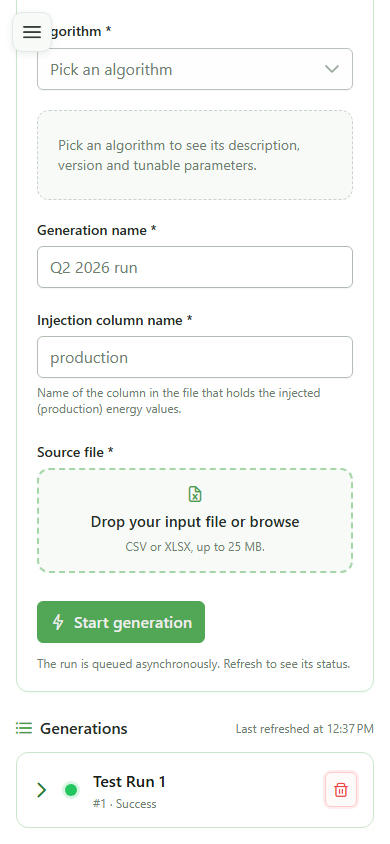
The generation is displayed with a green dot indicating it completed successfully. The delete button (×) at the top right of the row allows deleting the entire generation and all its keys.
5 Delete the generation
Deletion
Click the × button on the generation to initiate its deletion. All associated keys will also be deleted. A confirmation will be required.
6 Confirm deletion
Deletion
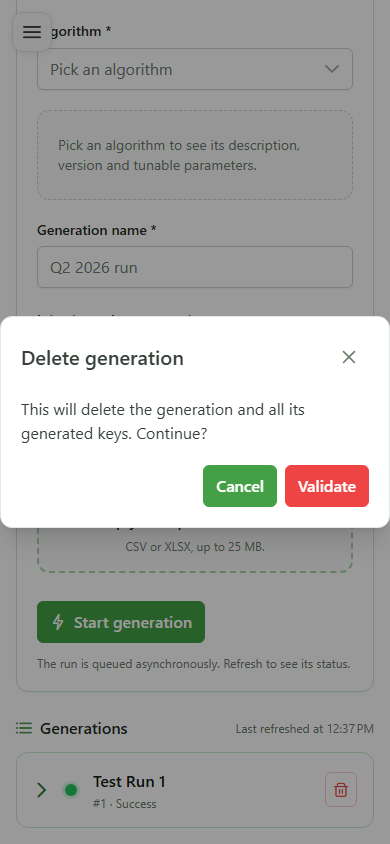
A confirmation dialog appears. Click the confirm button to permanently delete the generation and all the allocation keys it contains.
7 Generation deleted
Deletion
The generations list is empty again — the generation and all its allocation keys have been permanently deleted.