Attach a document you already have
Guide utilisateur
User guide
Gebruikershandleiding
Benutzerhandbuch
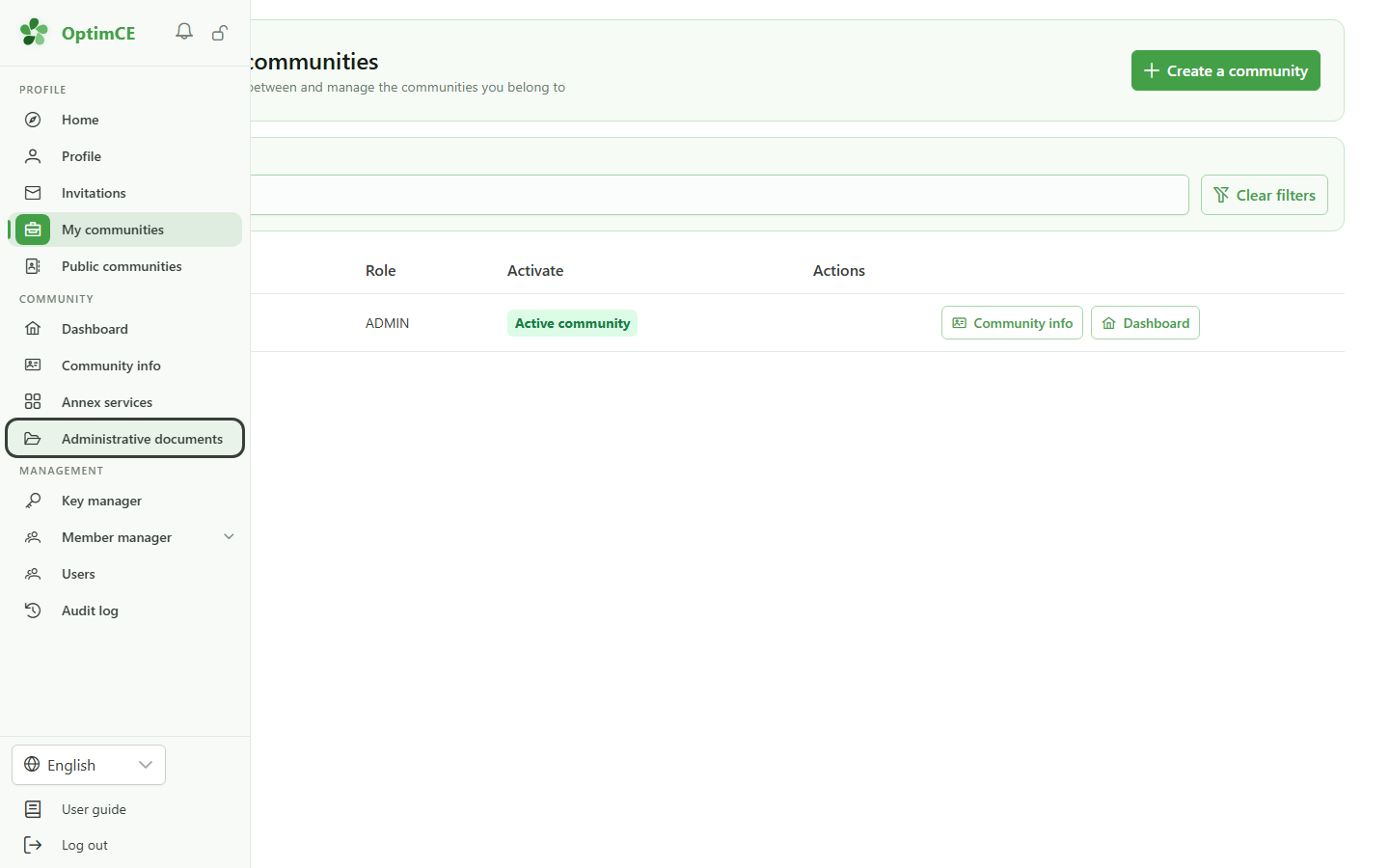
1 Open the administrative documents
Navigation
In the sidebar, click "Administrative documents".
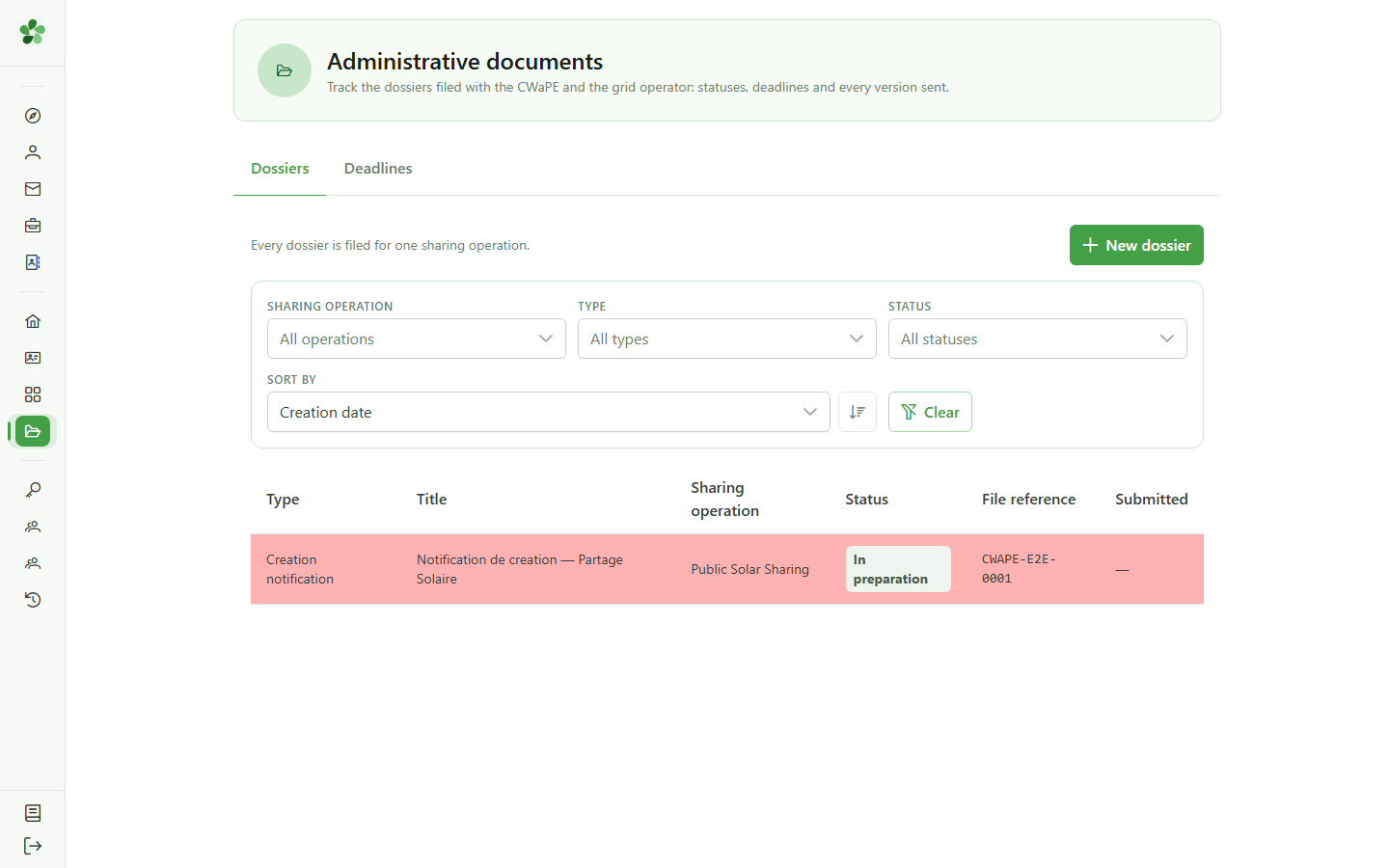
2 Open the dossier
Administrative documents
Open the dossier the piece has to be attached to.
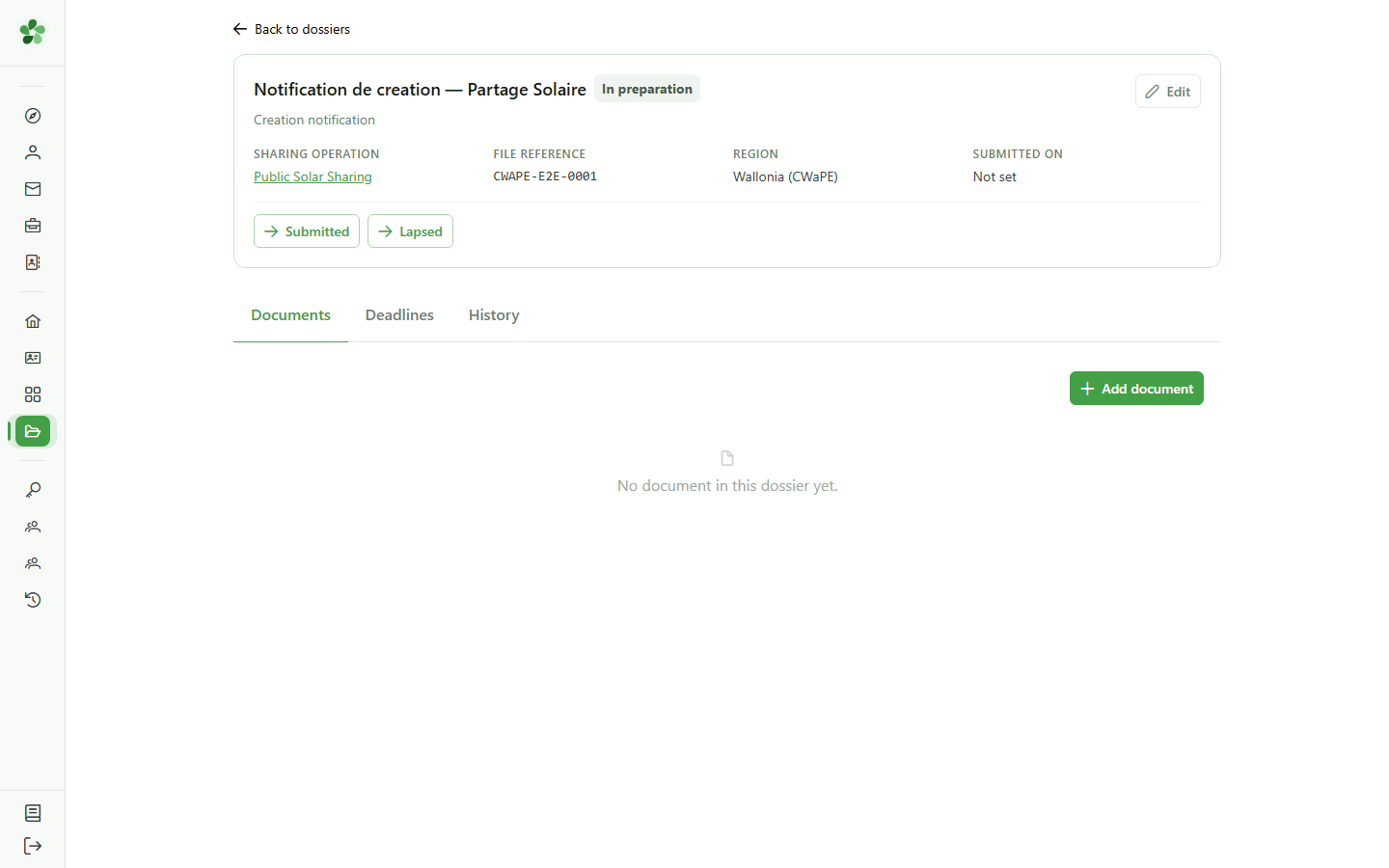
3 Declare the piece
Dossier documents
A document produced outside OptimCE — a signed form, a letter from the grid operator — is declared here first, then receives its file.
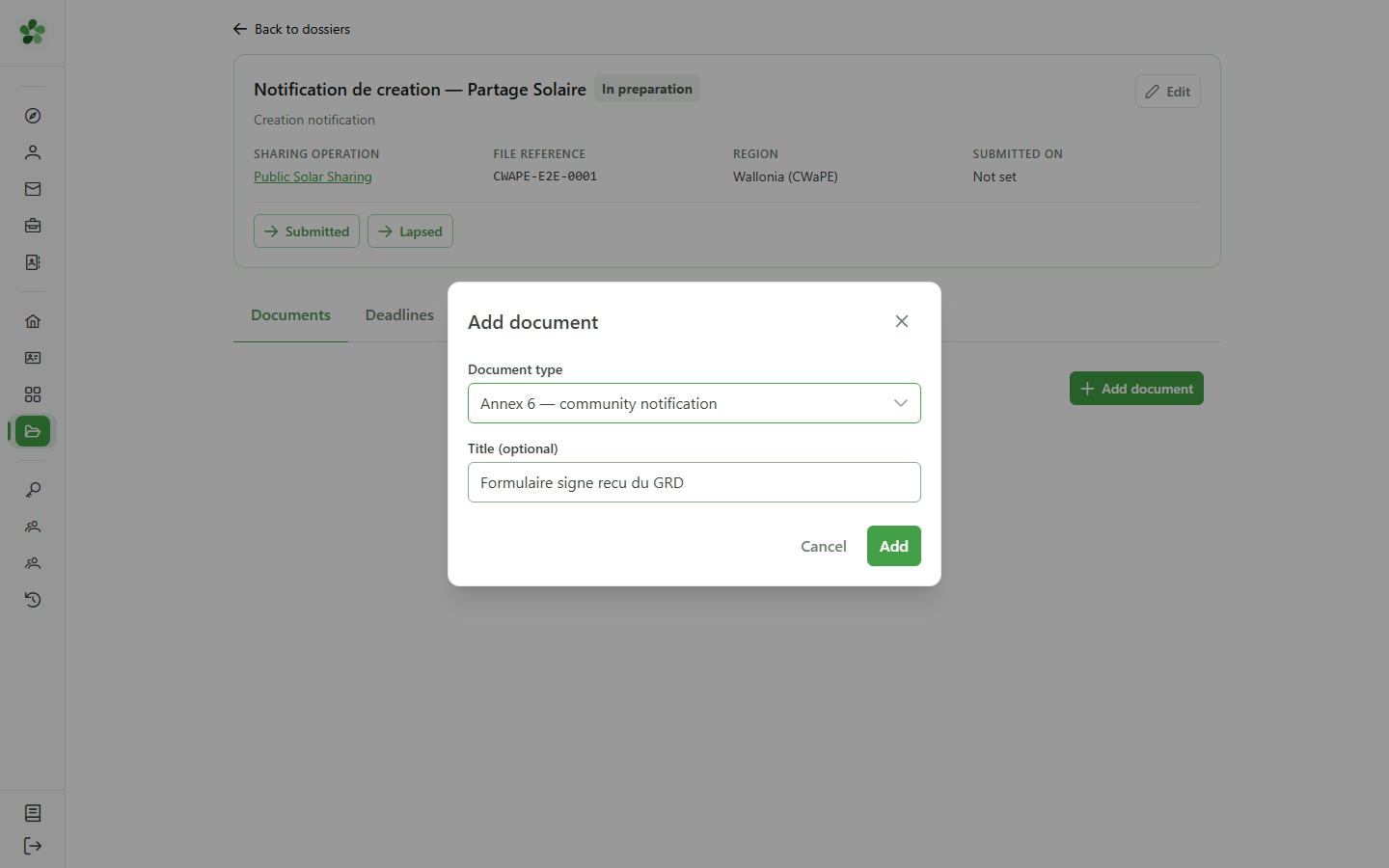
4 Name the piece
Add document
Pick the matching form and give it a title your colleagues will recognise.
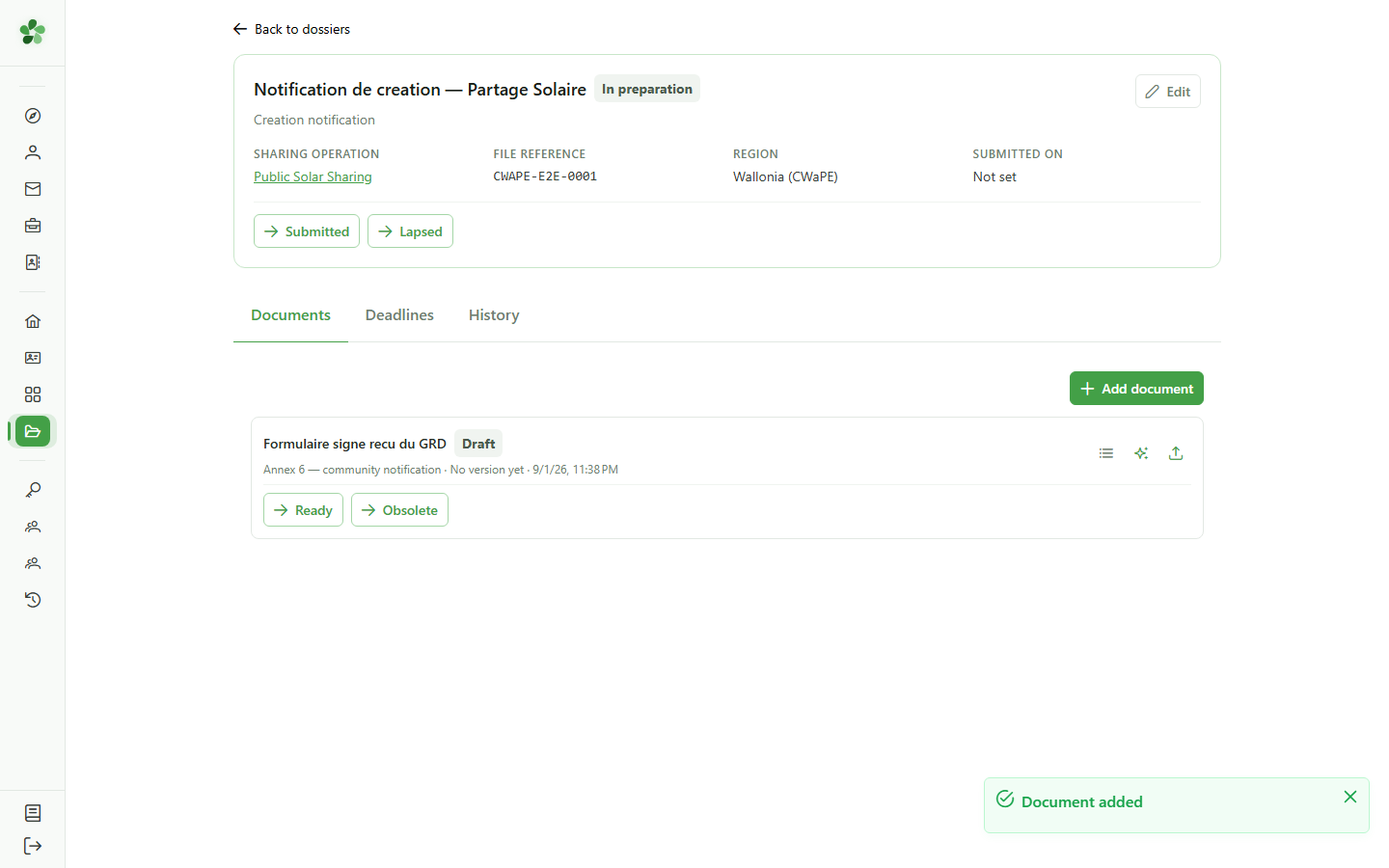
5 Upload a version
Dossier documents
The upload icon lets you attach your own file instead of having OptimCE generate one.
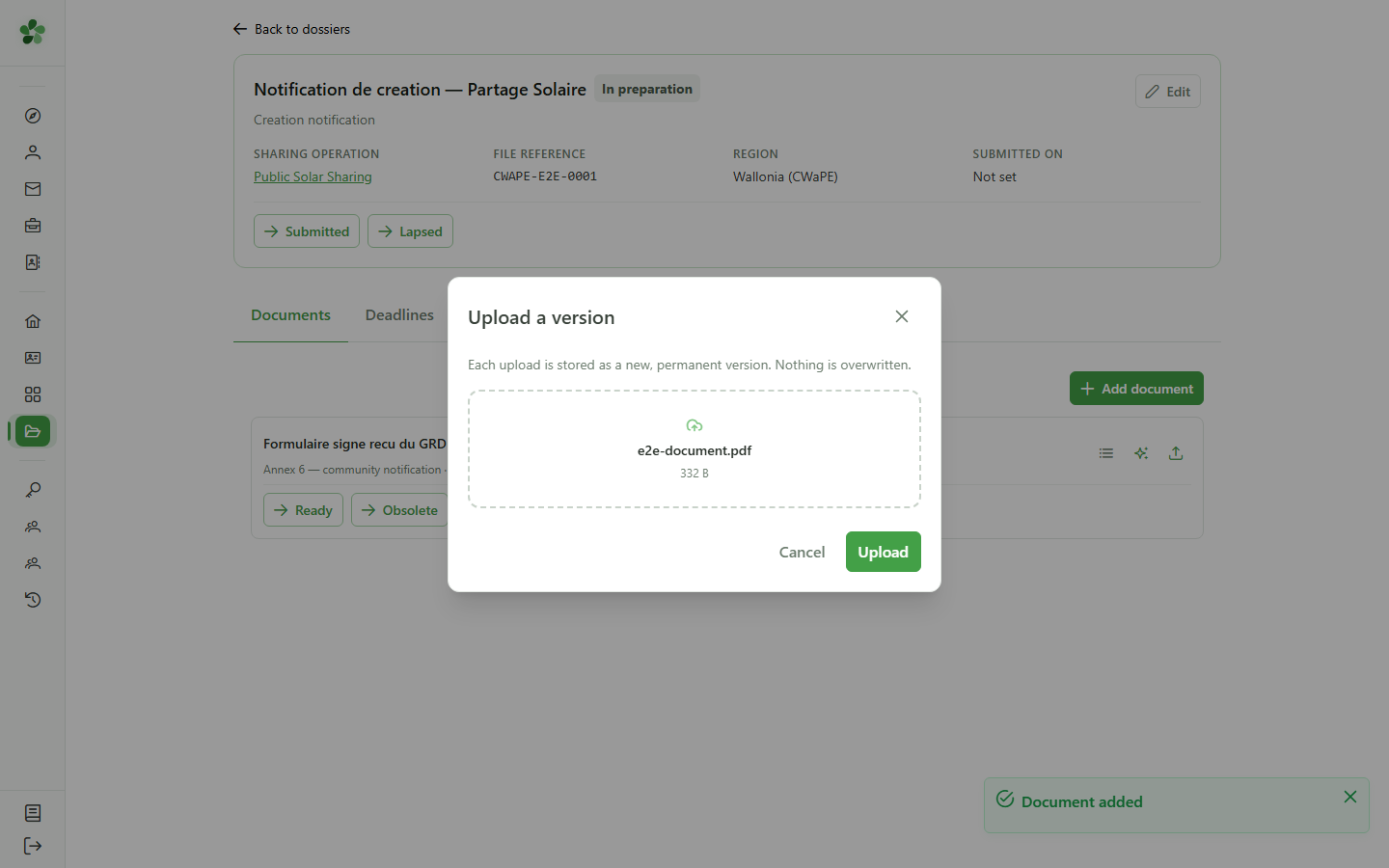
6 Choose the file
Upload a version
Drop the file in the dedicated area, or click to pick it from your computer.
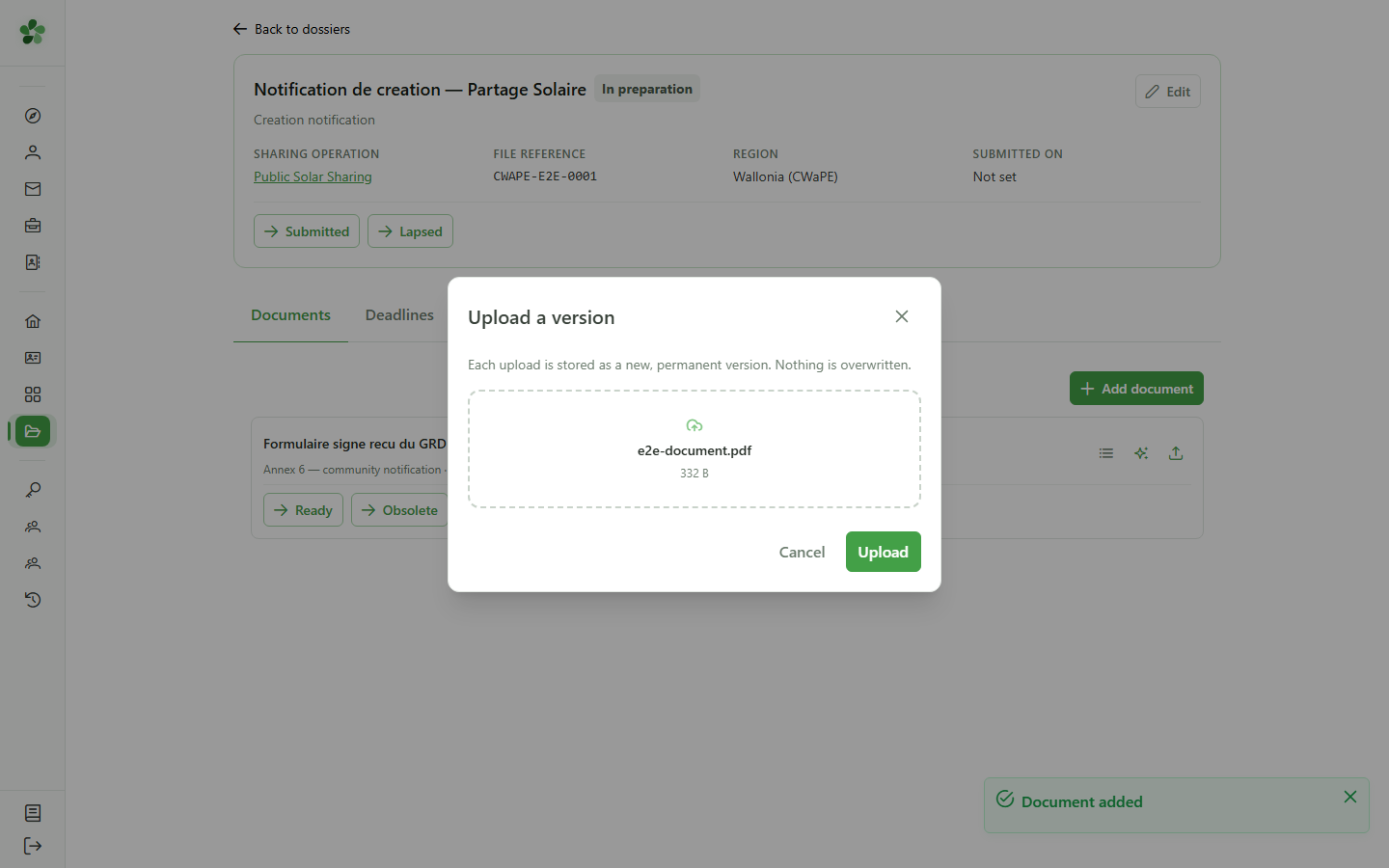
7 Store it
Upload a version
Every upload creates one more permanent version. A file already stored is never replaced: it is kept, and the new one becomes the current version.
8 The piece is attached
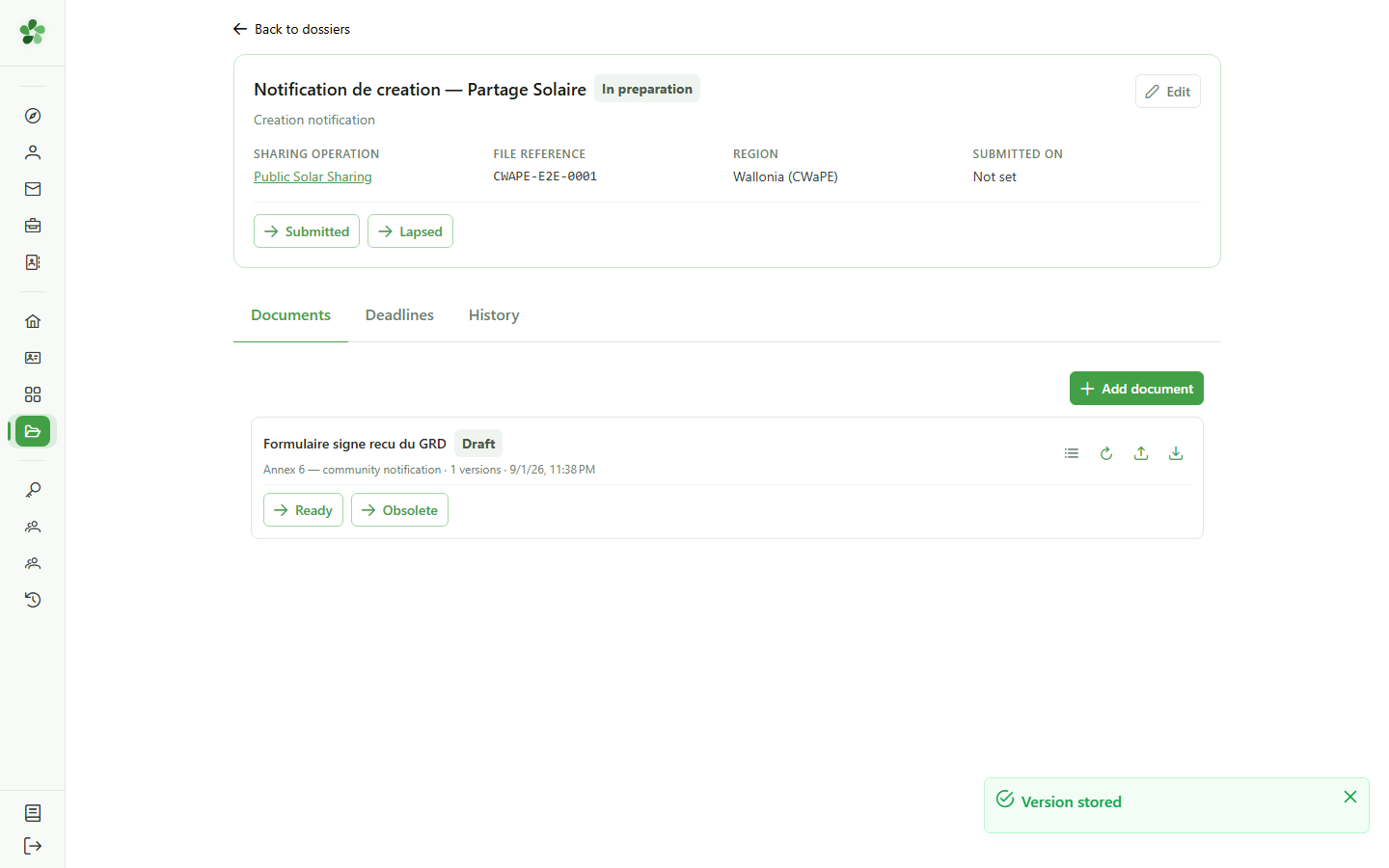
Dossier documents
The document now has a downloadable version, exactly as if it had been generated.
9 Check the history
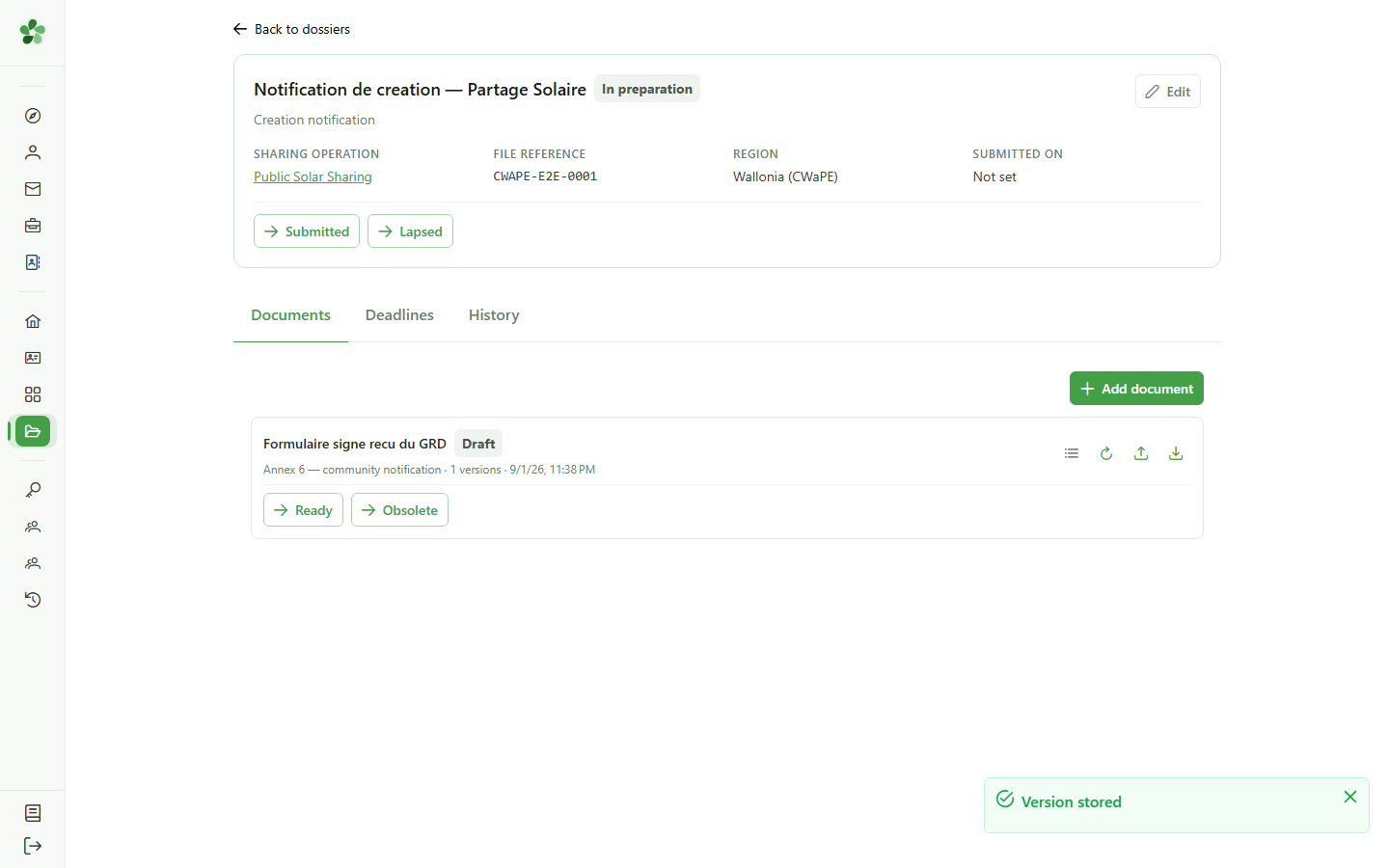
Dossier documents
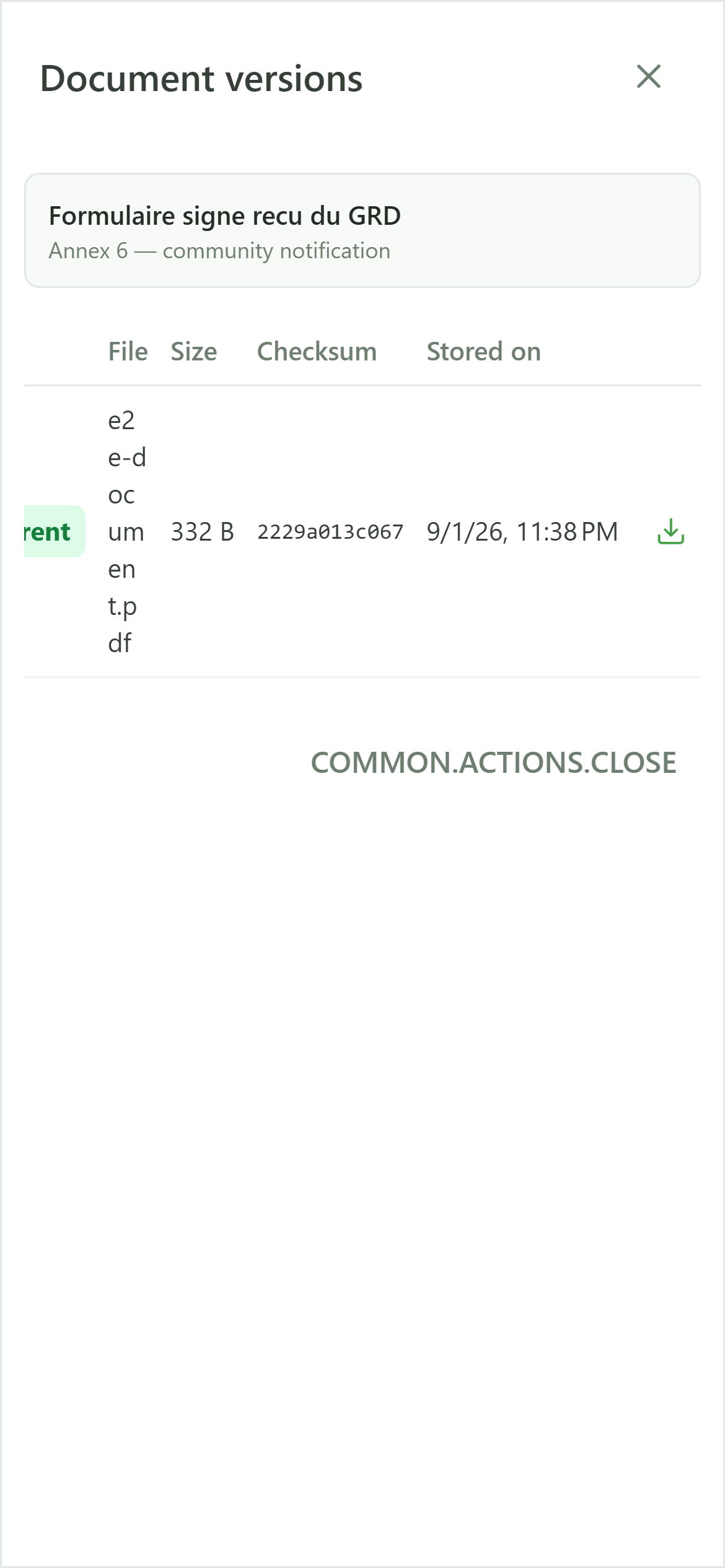
Open the versions to confirm the file was stored, with its original name and size.
10 One more version
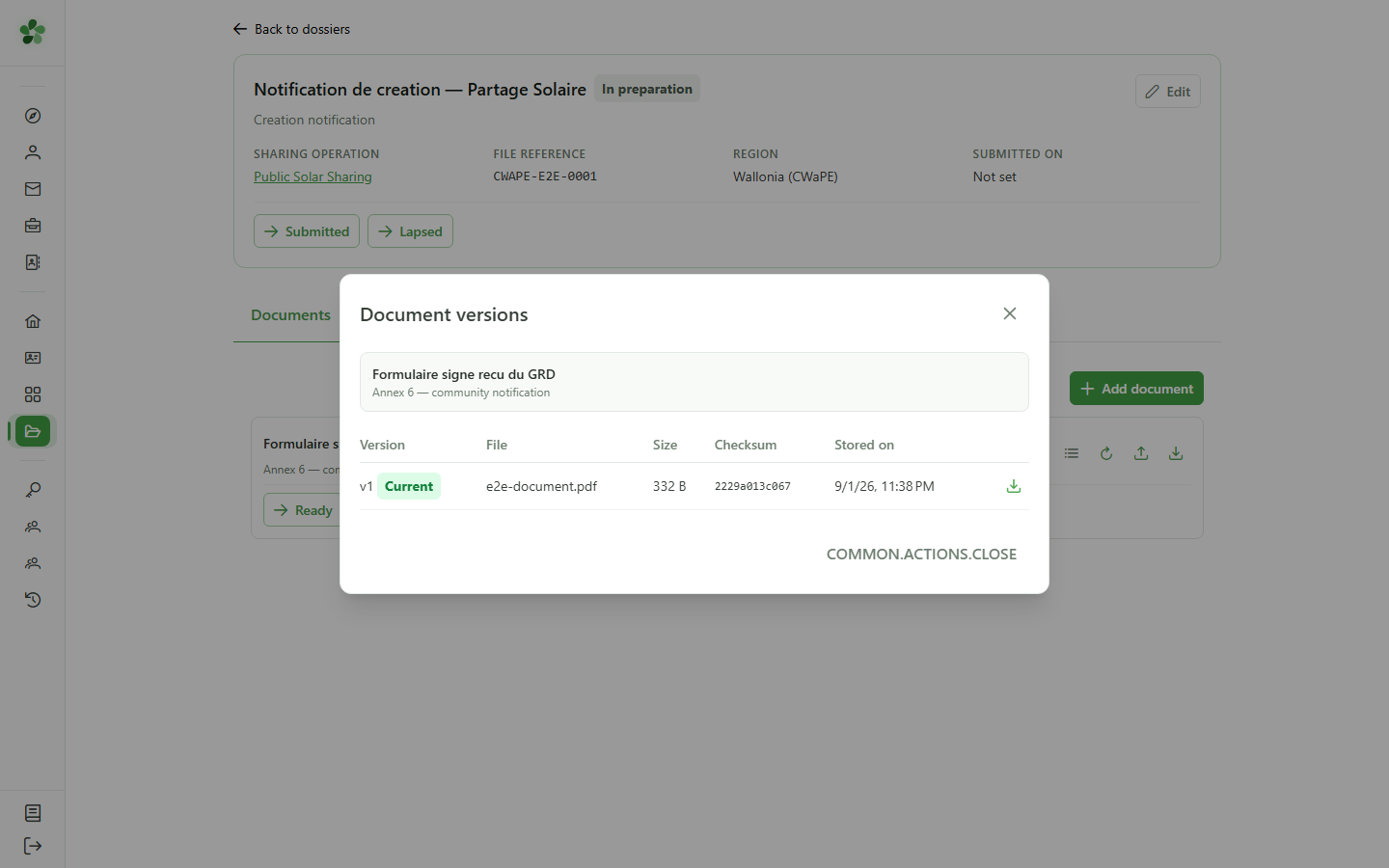
Document versions
The uploaded file shows up as version 1. Unlike a generated version it keeps no data snapshot: an arbitrary file says nothing about who it concerns.
Attach a document you already have
Guide utilisateur
User guide
Gebruikershandleiding
Benutzerhandbuch
1 Open the administrative documents
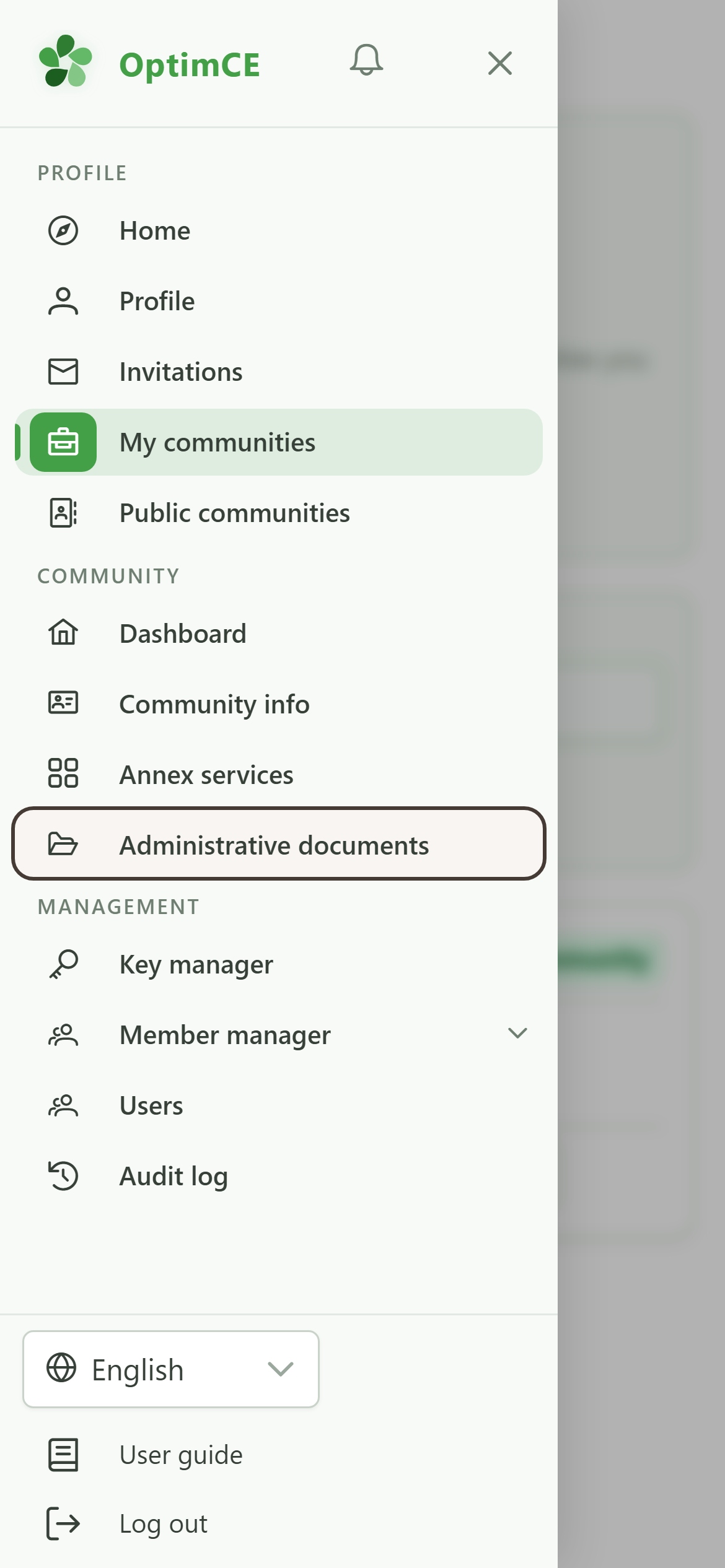
Navigation
Tap the menu icon to open the drawer, then "Administrative documents".
2 Open the dossier
Administrative documents
Open the dossier the piece has to be attached to.
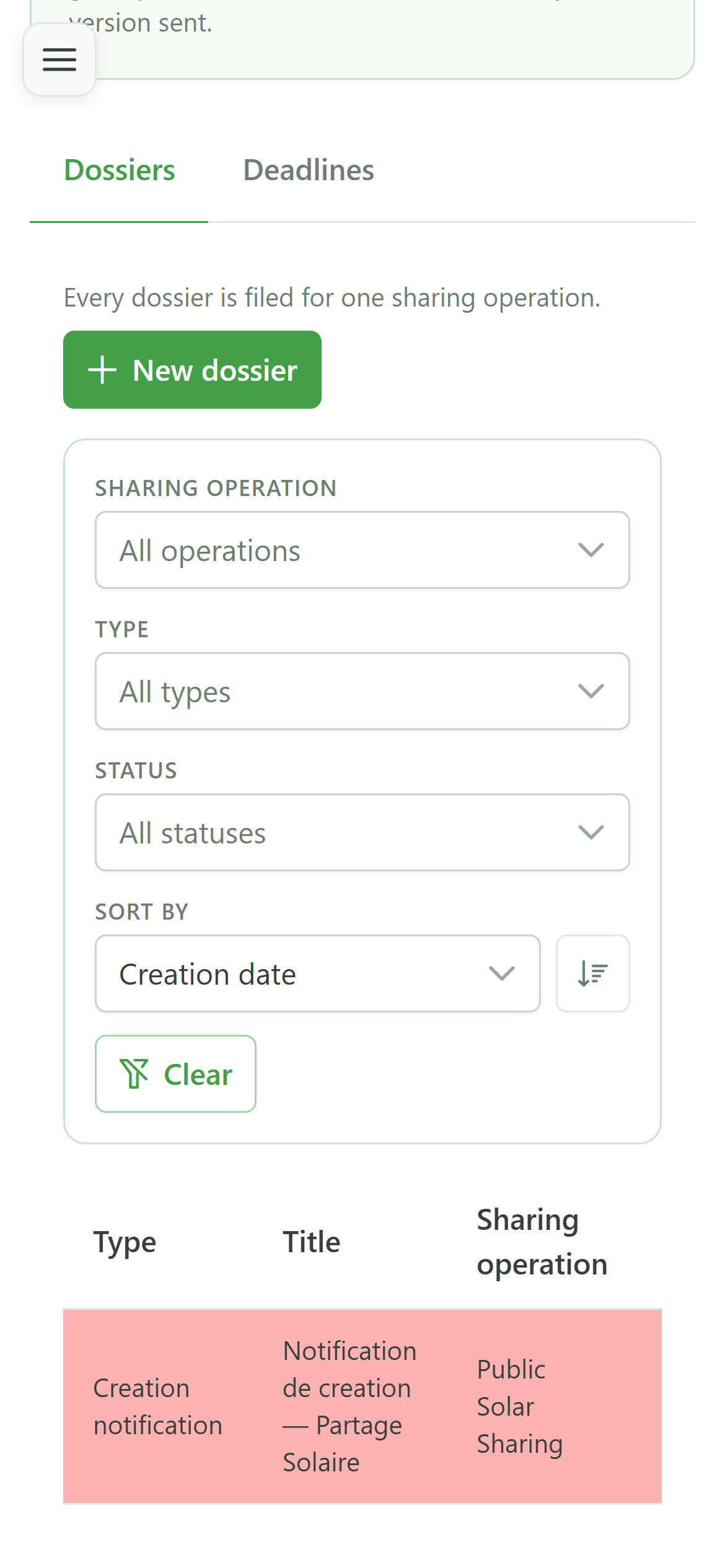
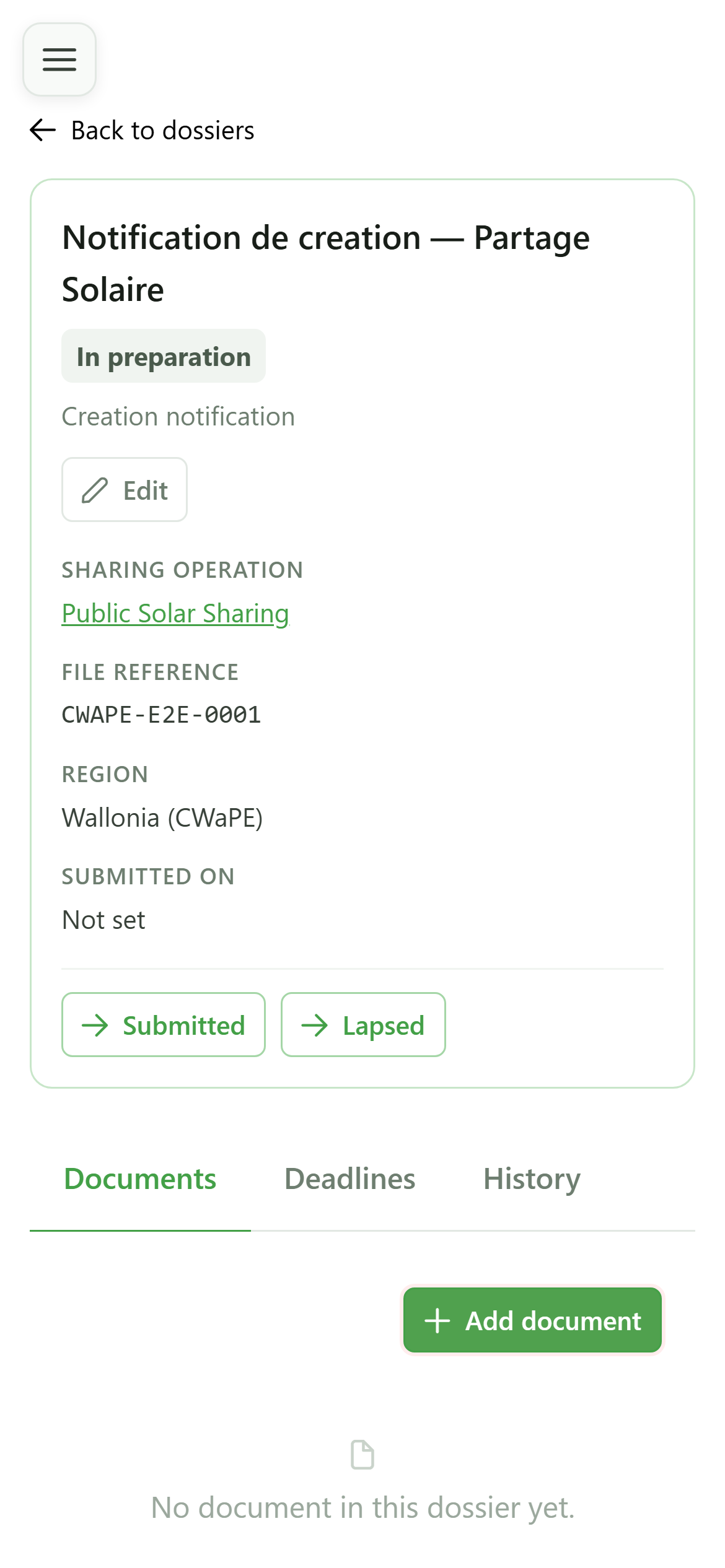
3 Declare the piece
Dossier documents
A document produced outside OptimCE — a signed form, a letter from the grid operator — is declared here first, then receives its file.
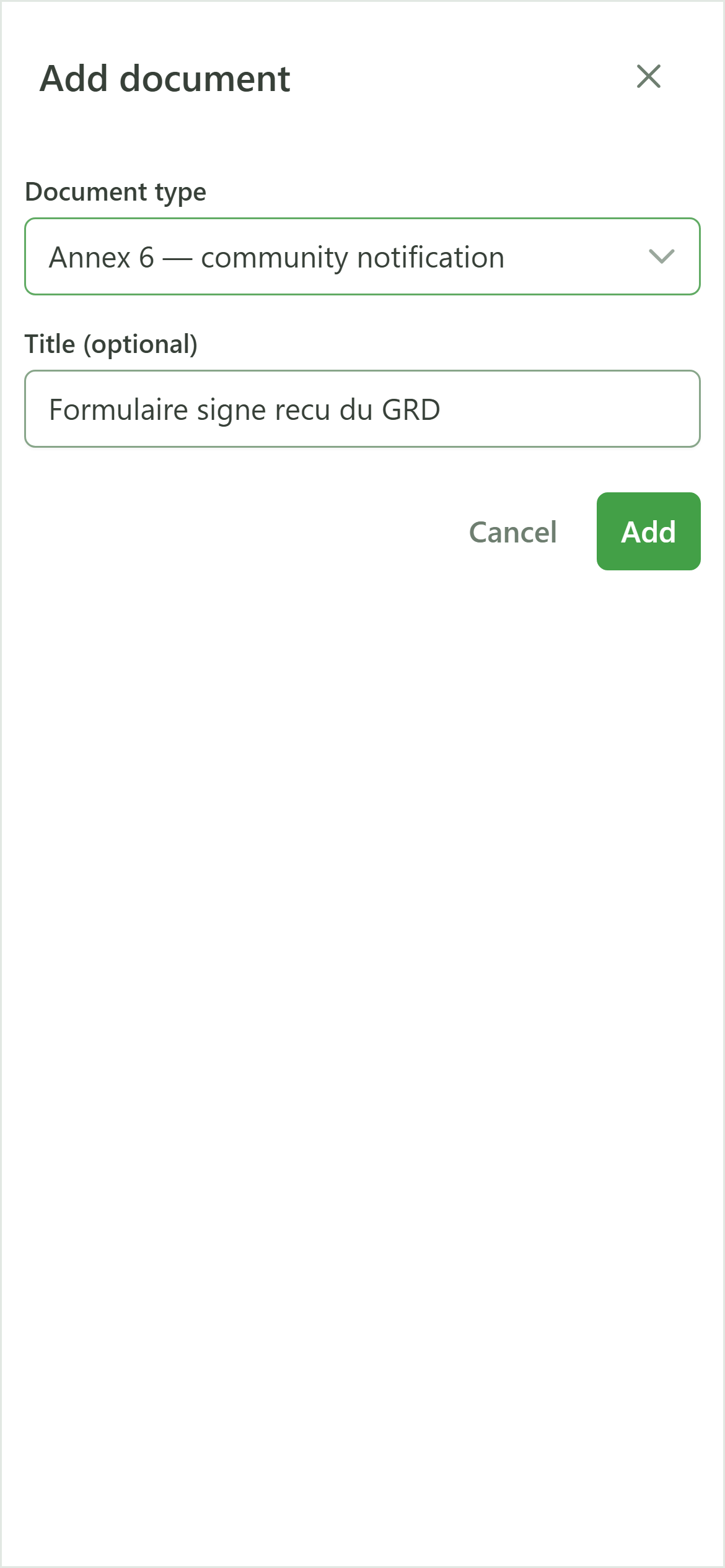
4 Name the piece
Add document
Pick the matching form and give it a title your colleagues will recognise.
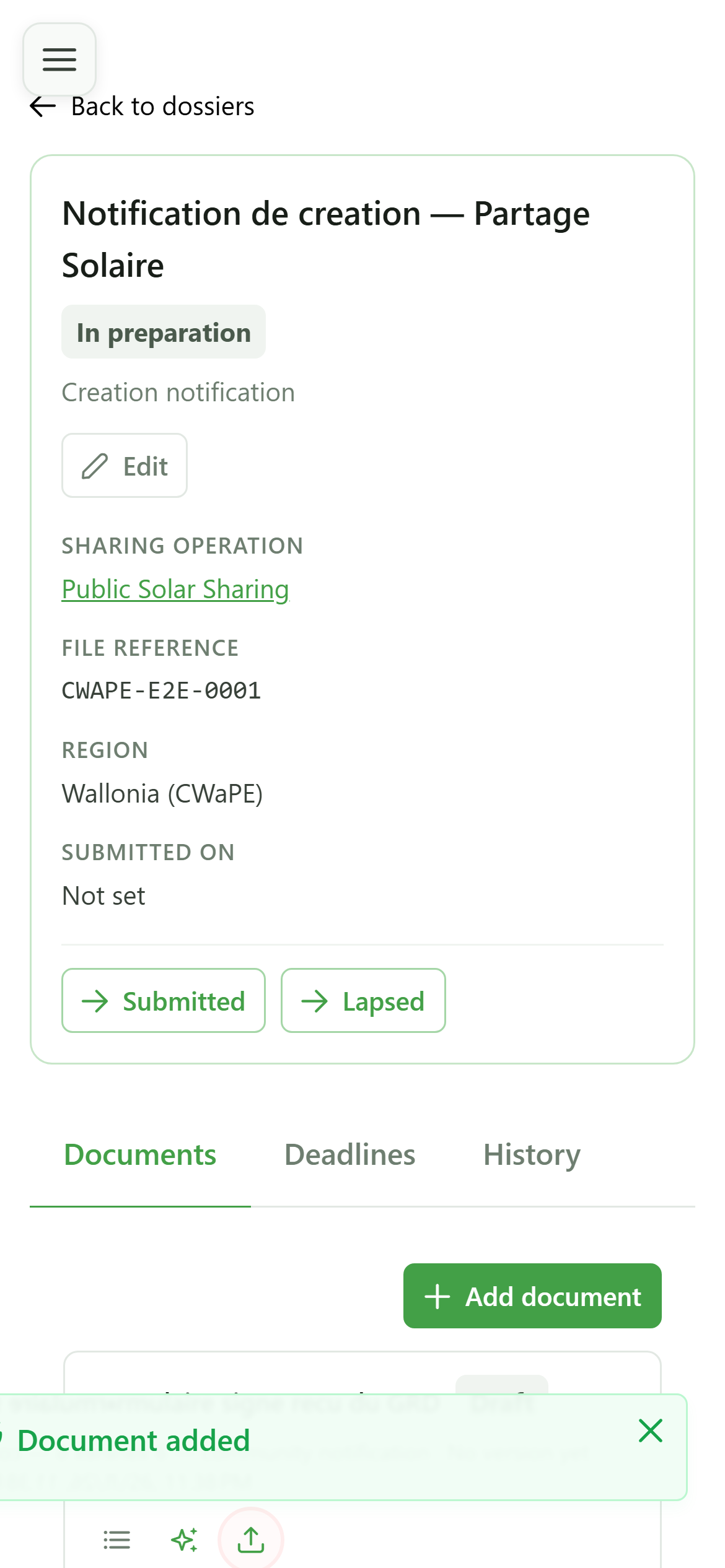
5 Upload a version
Dossier documents
The upload icon lets you attach your own file instead of having OptimCE generate one.
6 Choose the file
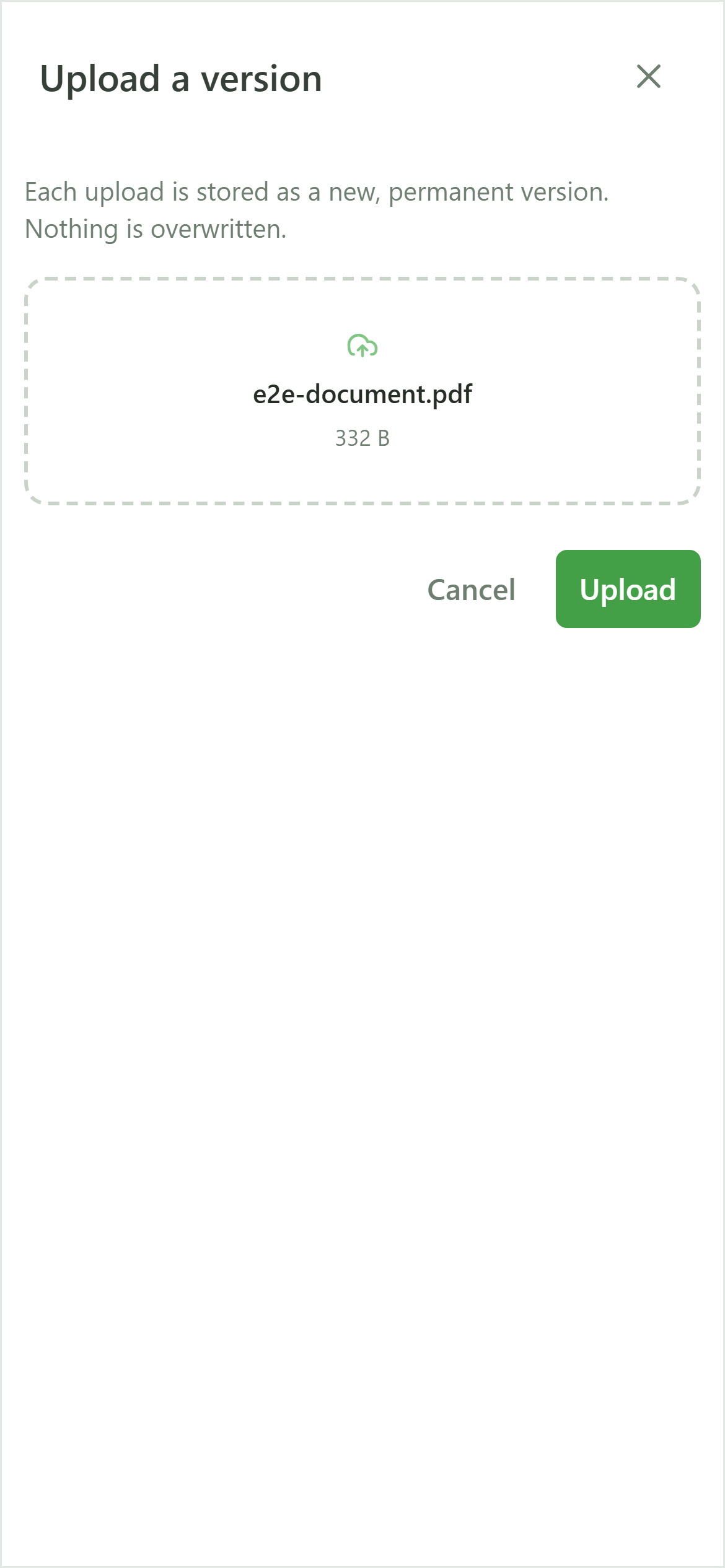
Upload a version
Drop the file in the dedicated area, or click to pick it from your computer.
7 Store it
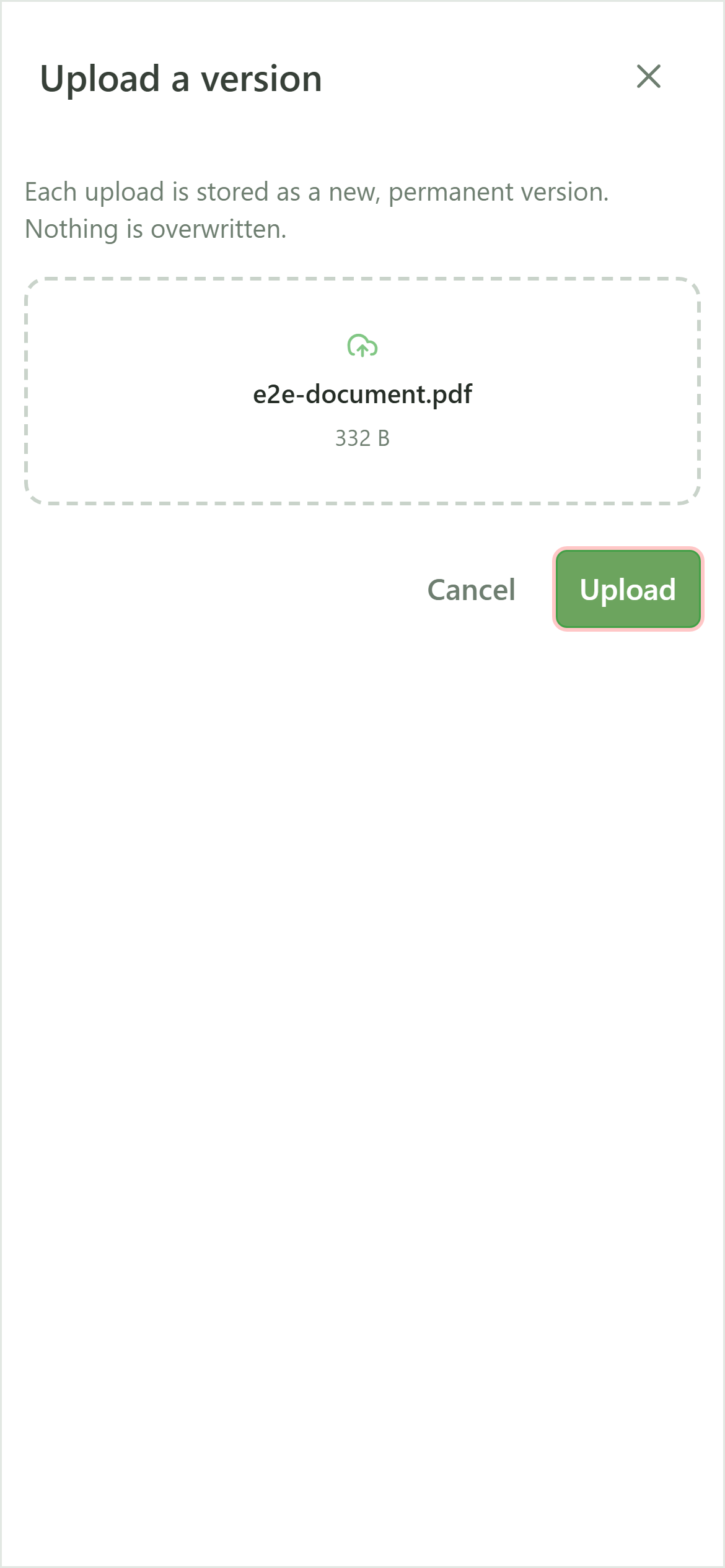
Upload a version
Every upload creates one more permanent version. A file already stored is never replaced: it is kept, and the new one becomes the current version.
8 The piece is attached
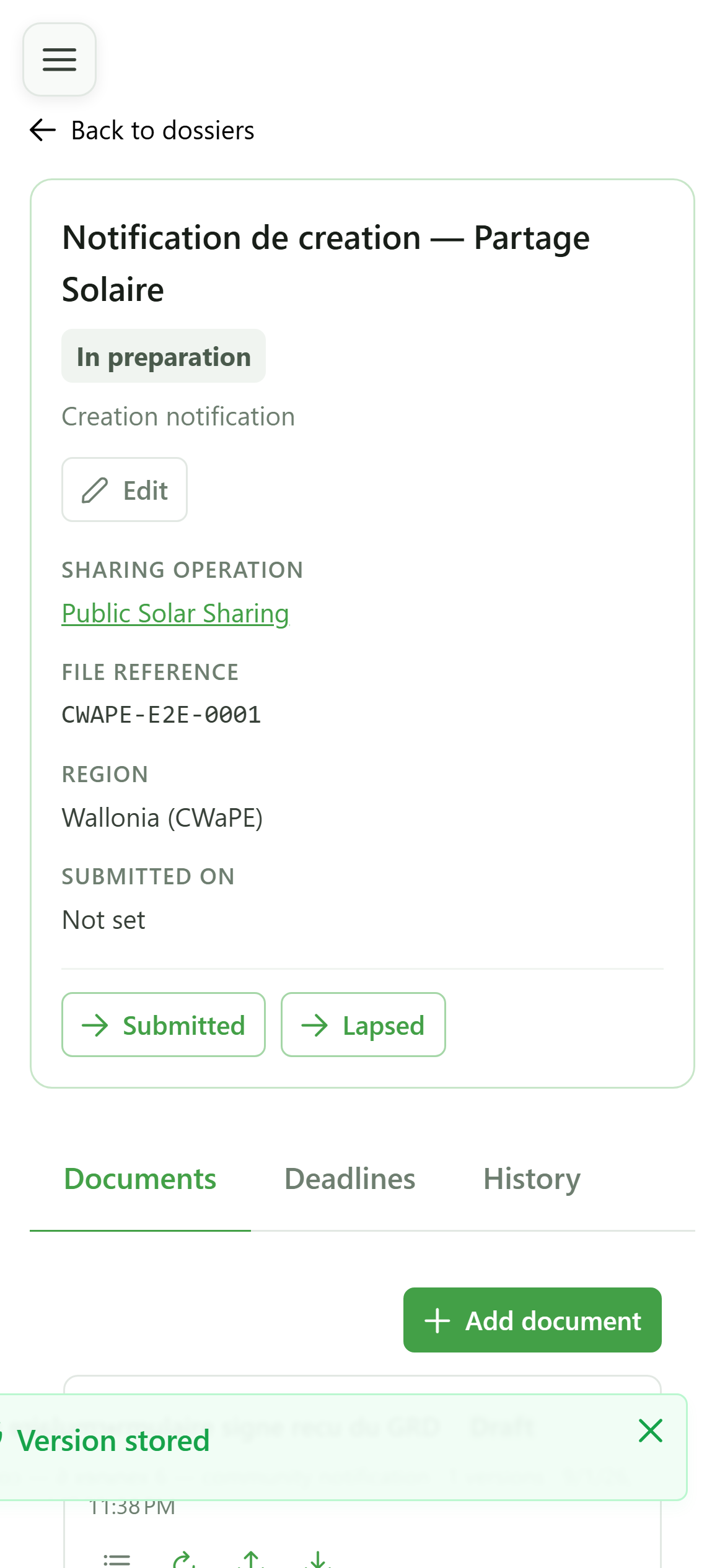
Dossier documents
The document now has a downloadable version, exactly as if it had been generated.
9 Check the history
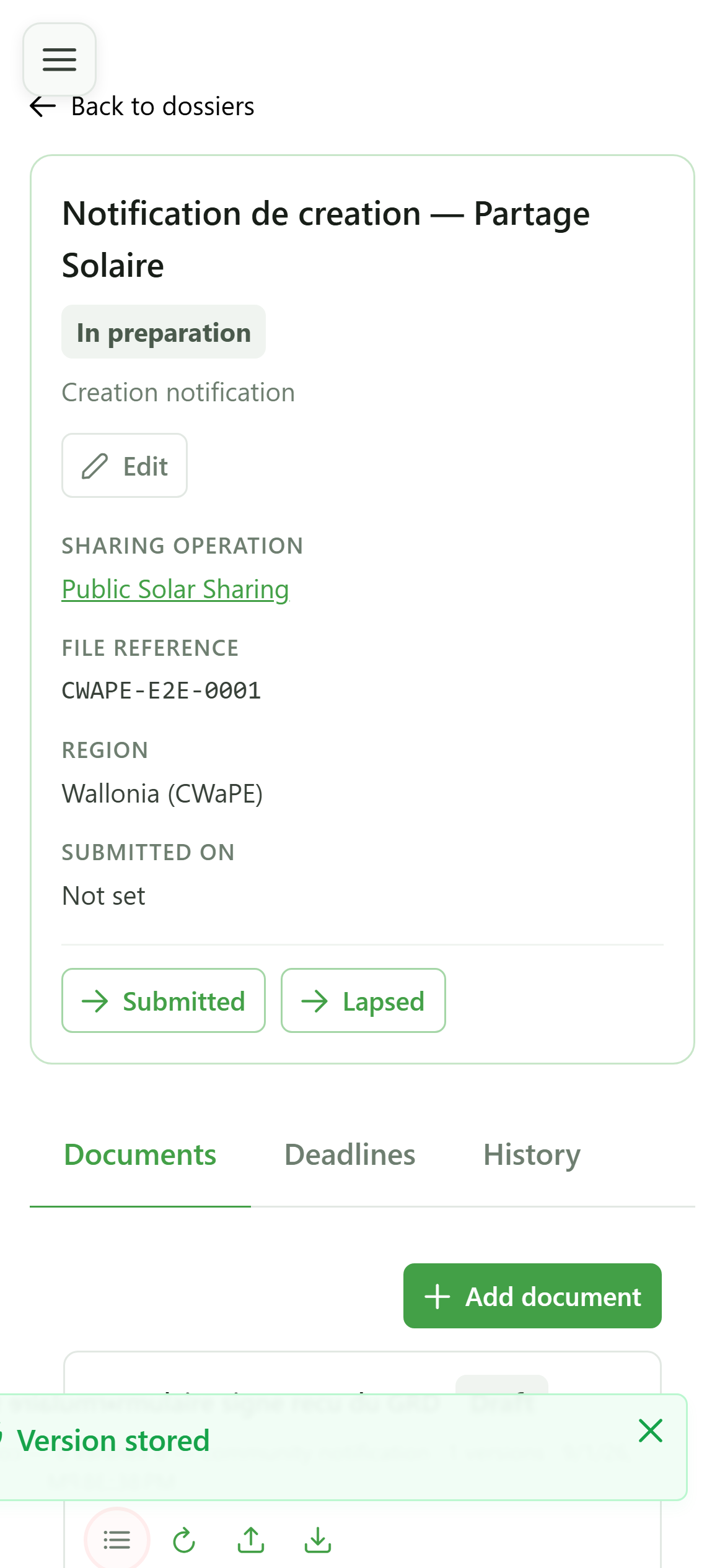
Dossier documents
Open the versions to confirm the file was stored, with its original name and size.
10 One more version
Document versions
The uploaded file shows up as version 1. Unlike a generated version it keeps no data snapshot: an arbitrary file says nothing about who it concerns.