File a dossier and follow its deadline
Guide utilisateur
User guide
Gebruikershandleiding
Benutzerhandbuch
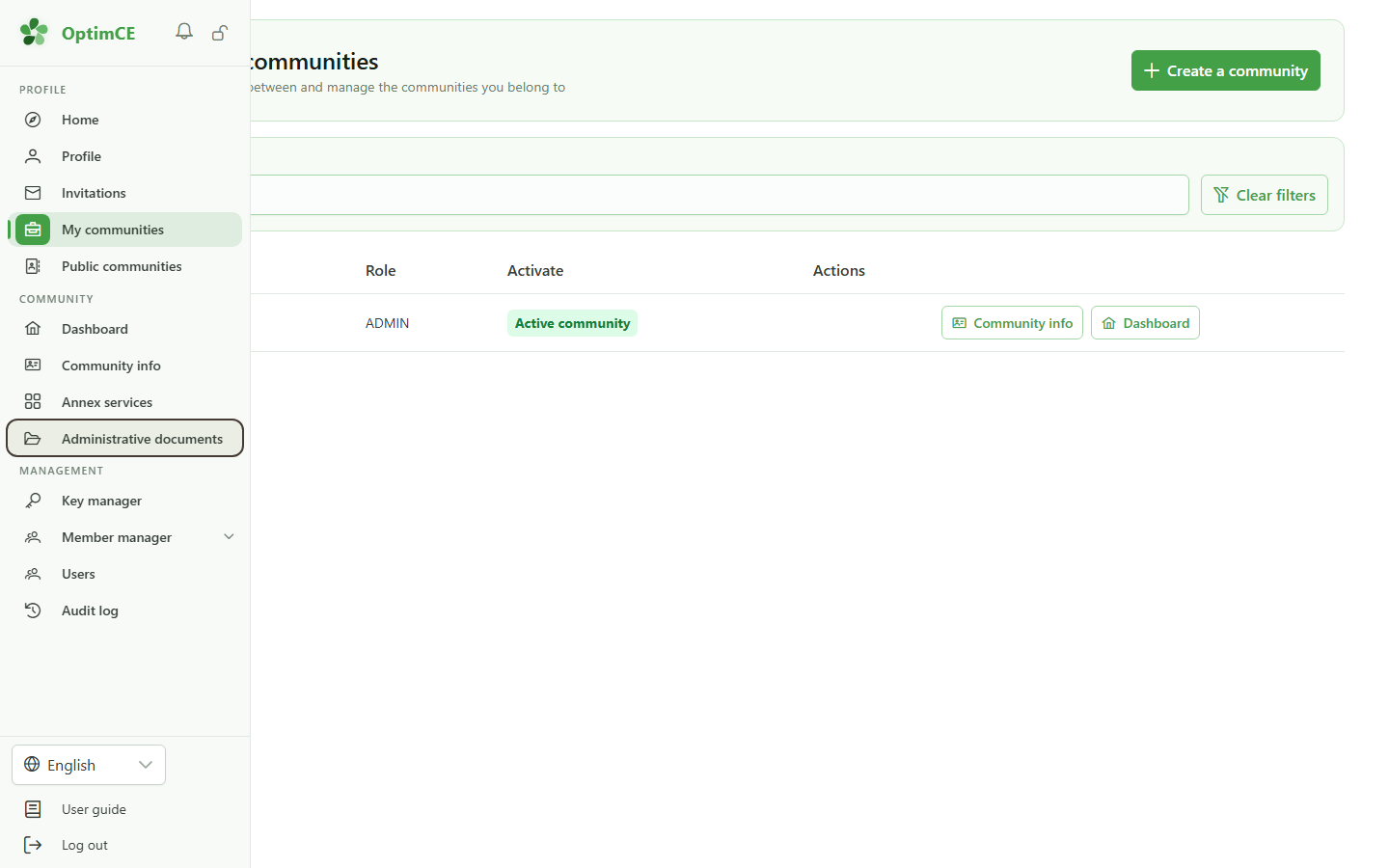
1 Open the administrative documents
Navigation
In the sidebar, click "Administrative documents".
2 Open the dossier
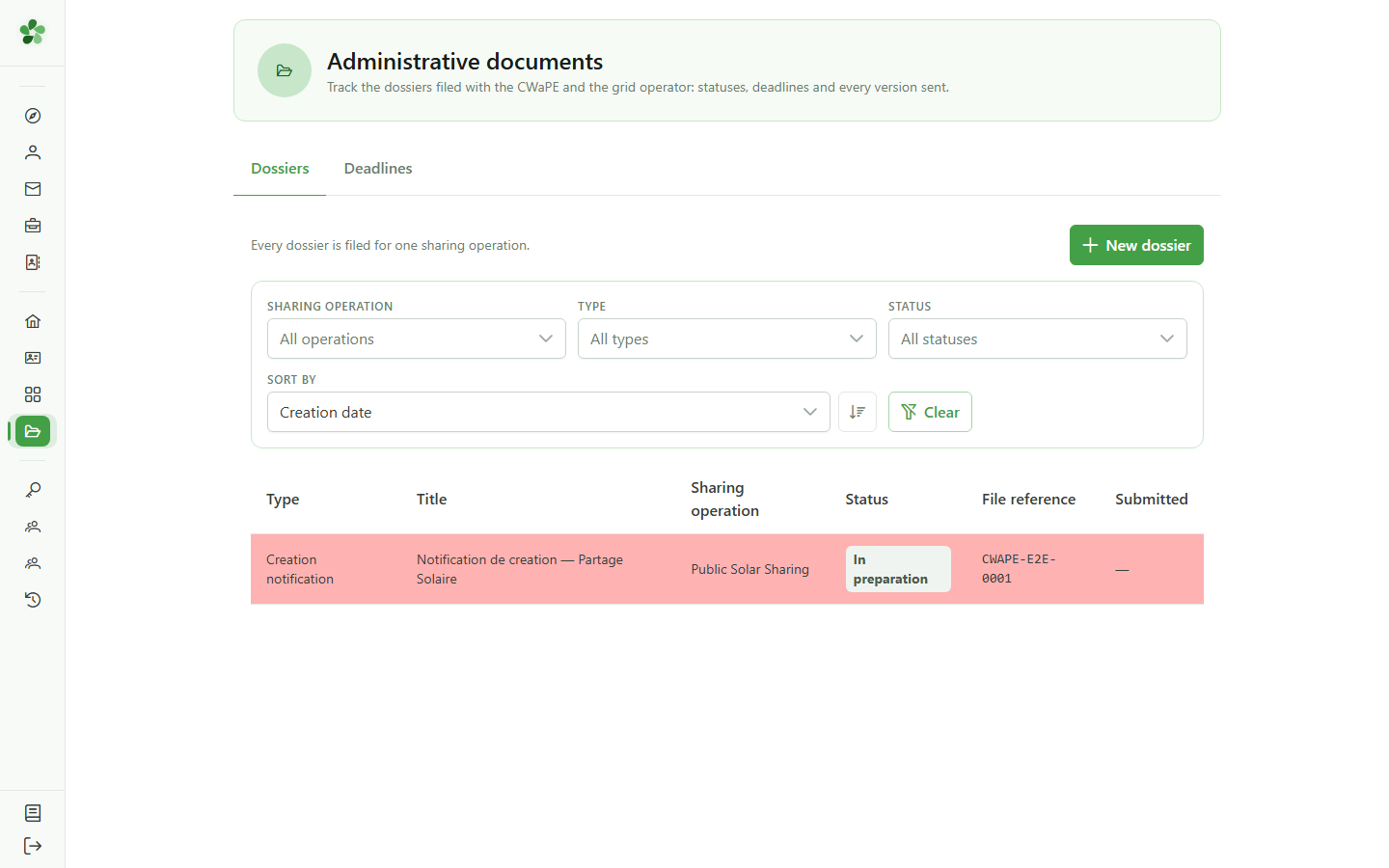
Administrative documents
Open the dossier whose filing you want to record.
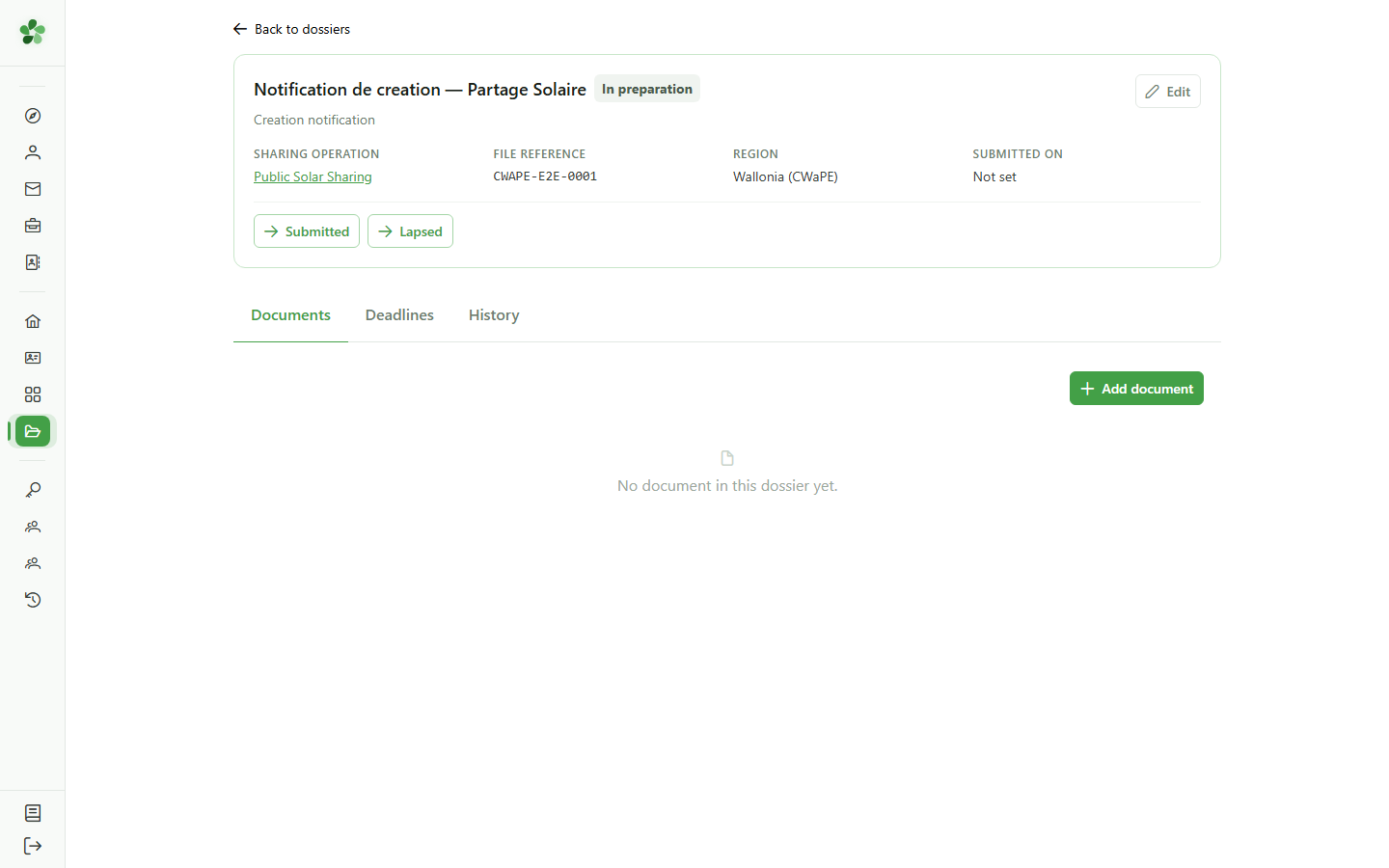
3 A dossier in preparation
Tracking dossiers
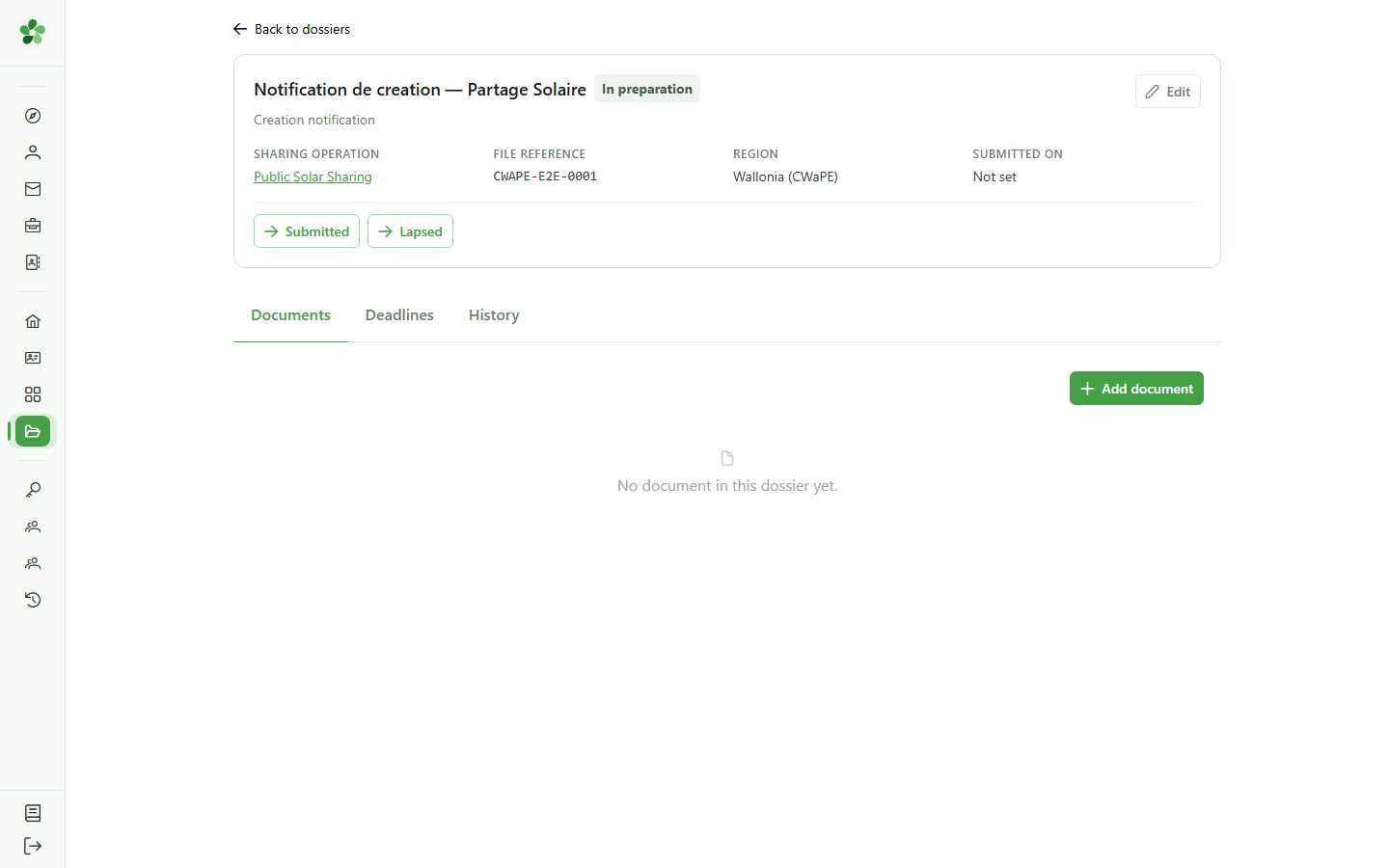
While the dossier is "In preparation", the regulator expects nothing from you. The buttons at the top only offer the status changes that make sense at this stage.
4 Mark the dossier as submitted
Tracking dossiers
You file the dossier with the authority through your usual channel; here you record that the filing happened.
5 The filing date
Change status
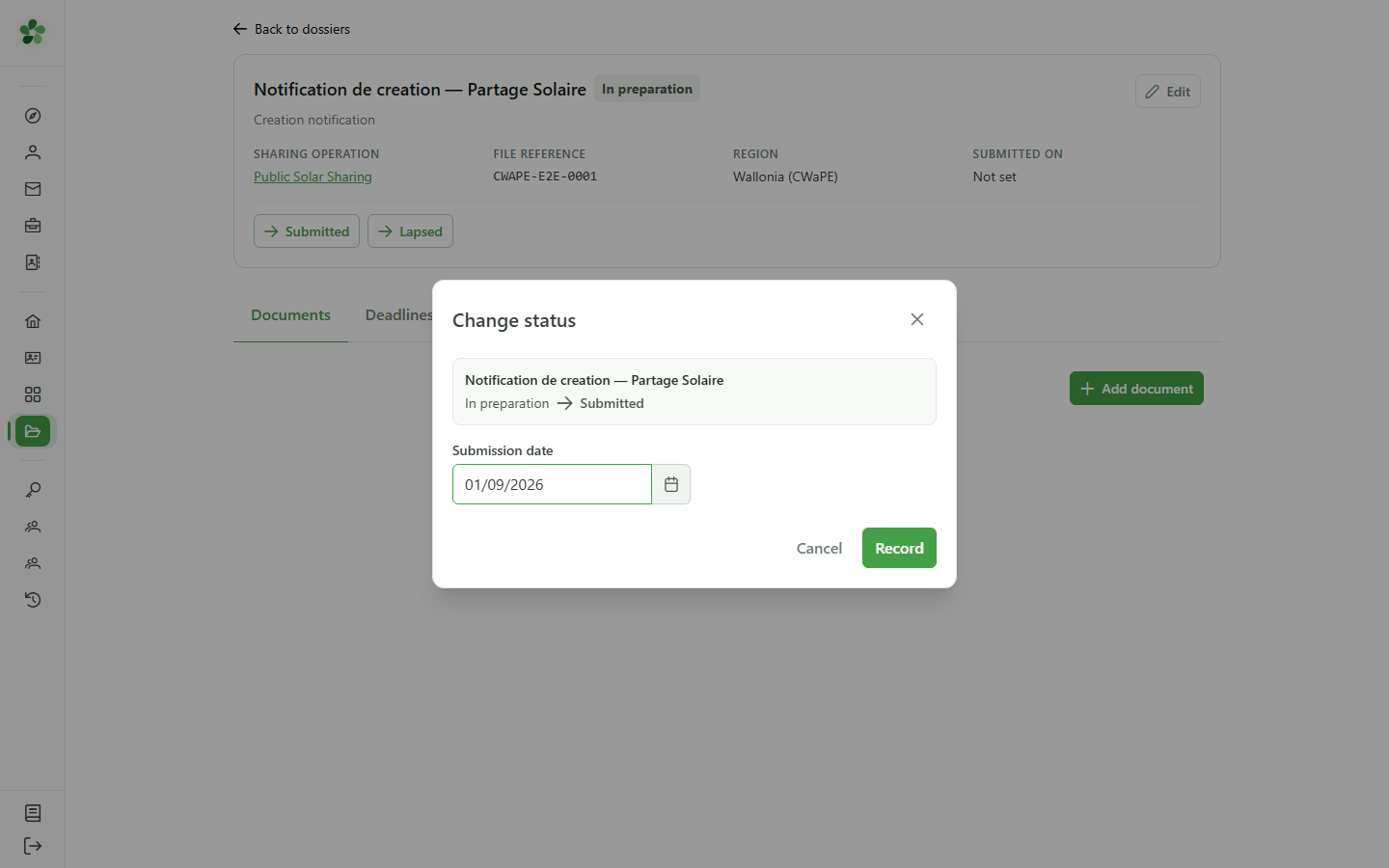
The filing date is not a formality: it is what starts the regulatory clocks. Pick the date the dossier was really filed.
6 The dossier is submitted
Tracking dossiers
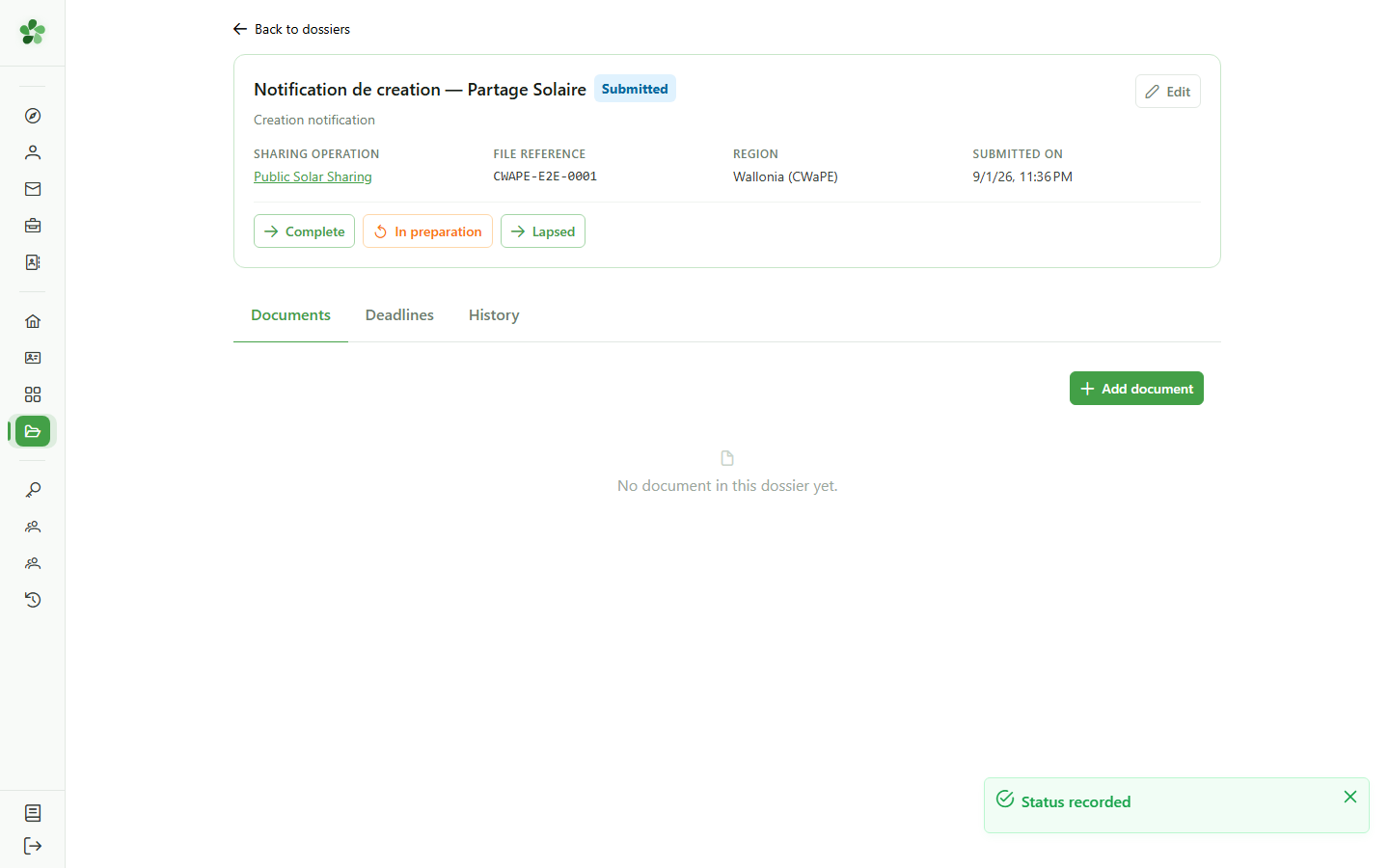
The status changes and the available actions change with it: a submitted dossier can be declared complete, corrected, or lapse.
7 See the deadlines
Tracking dossiers
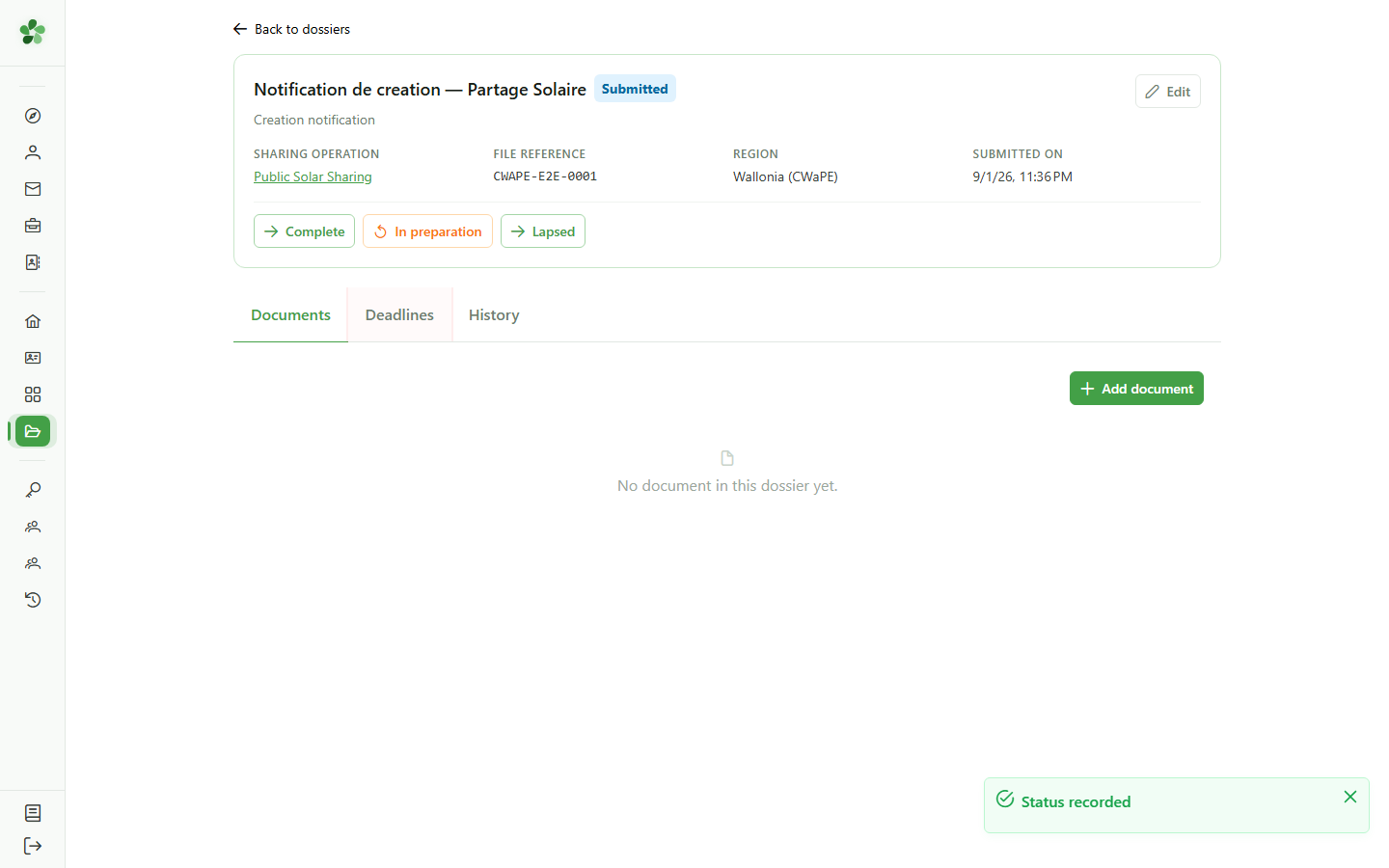
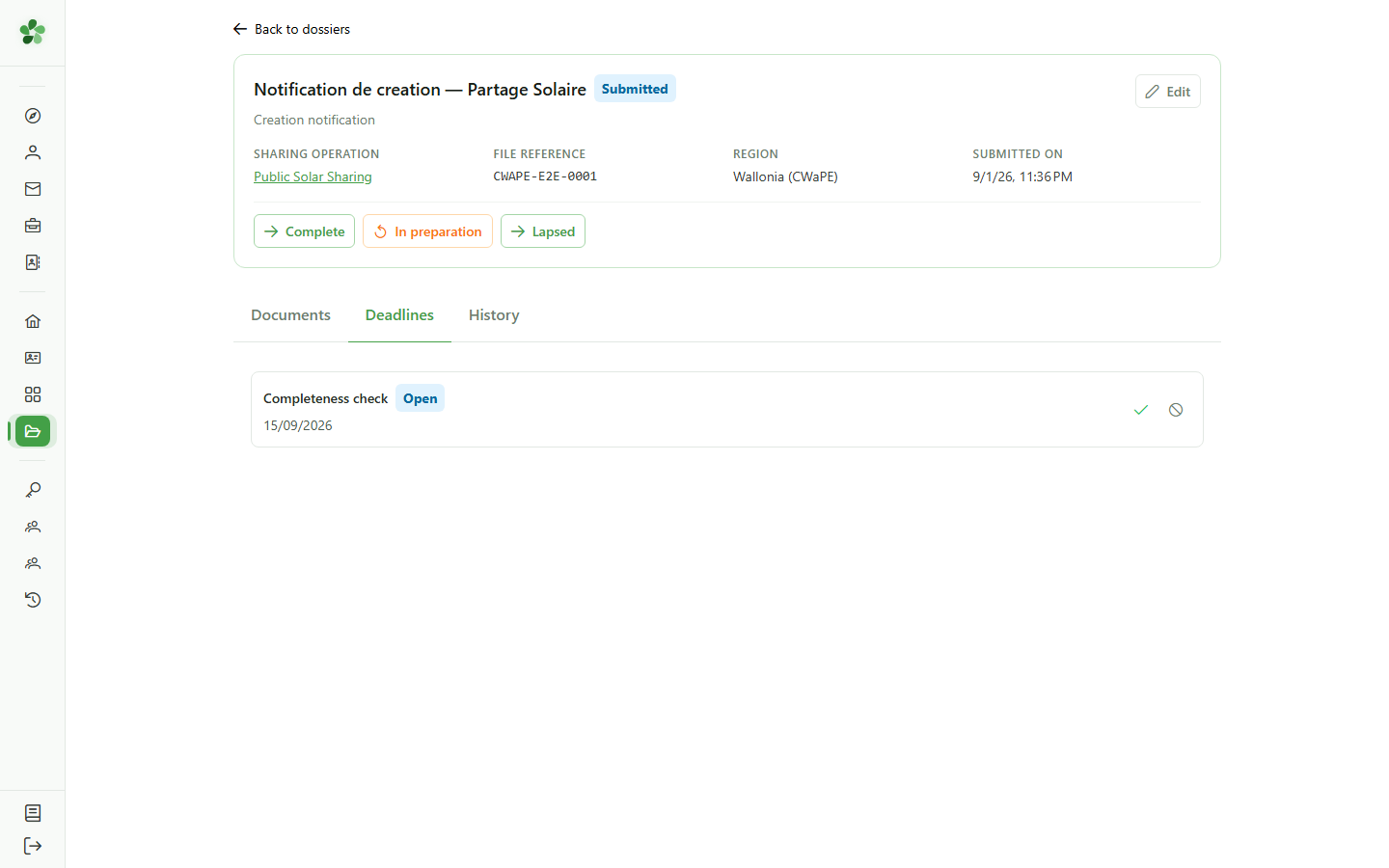
The "Deadlines" tab shows what the filing has just triggered.
8 A deadline has appeared
Deadlines
You never enter a deadline by hand: OptimCE derives it from the dossier type, the region and the date you have just recorded.
9 Every deadline
Administrative documents
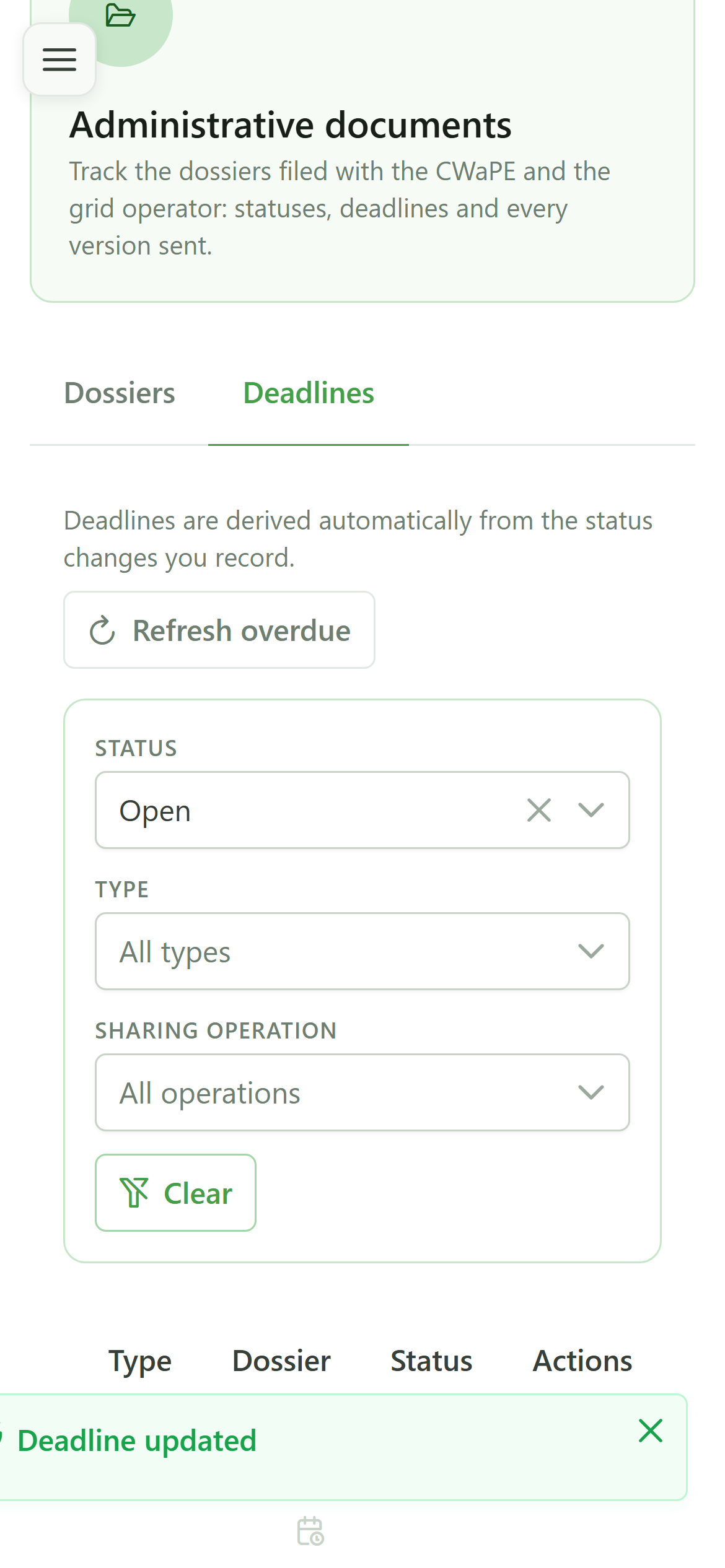
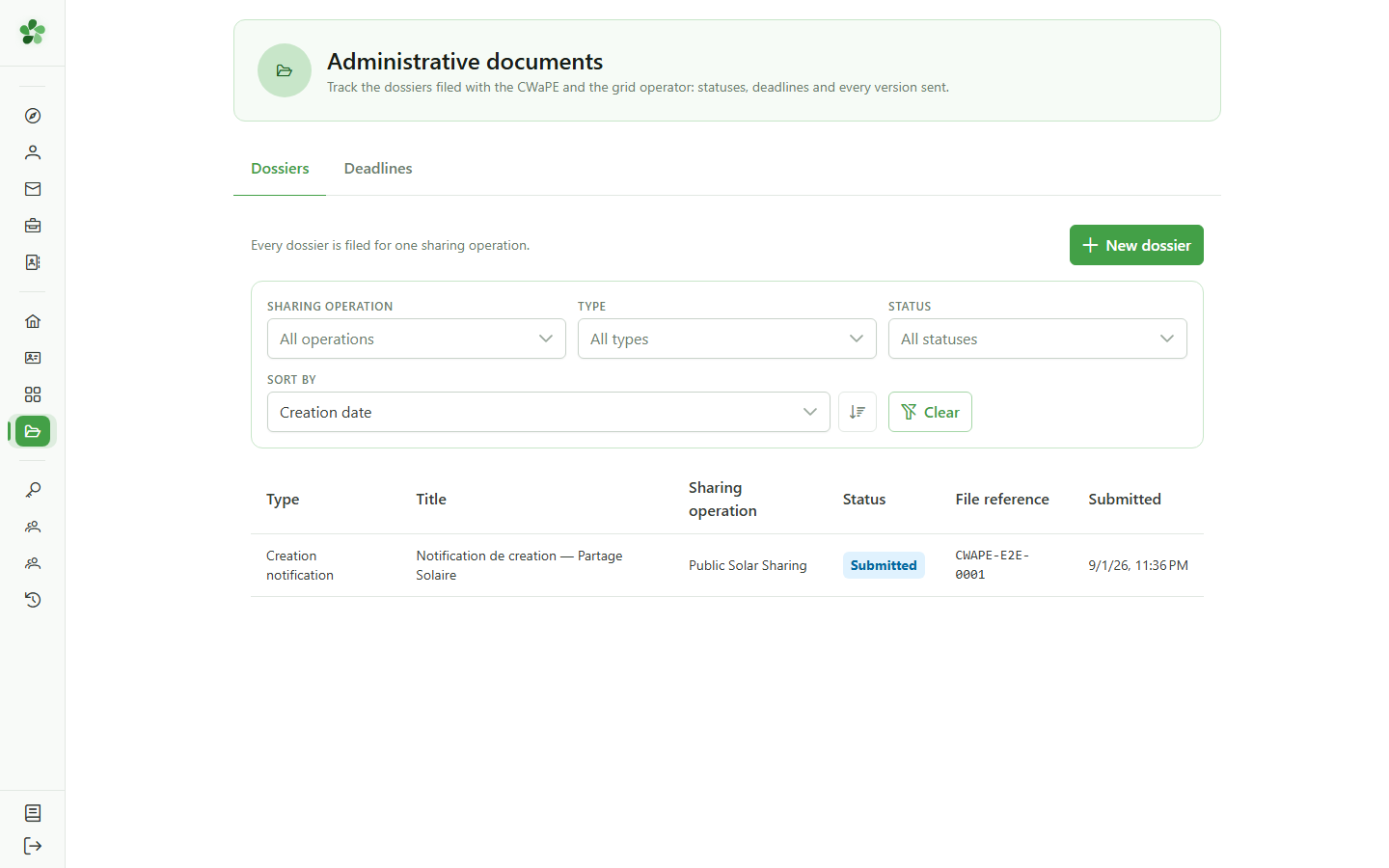
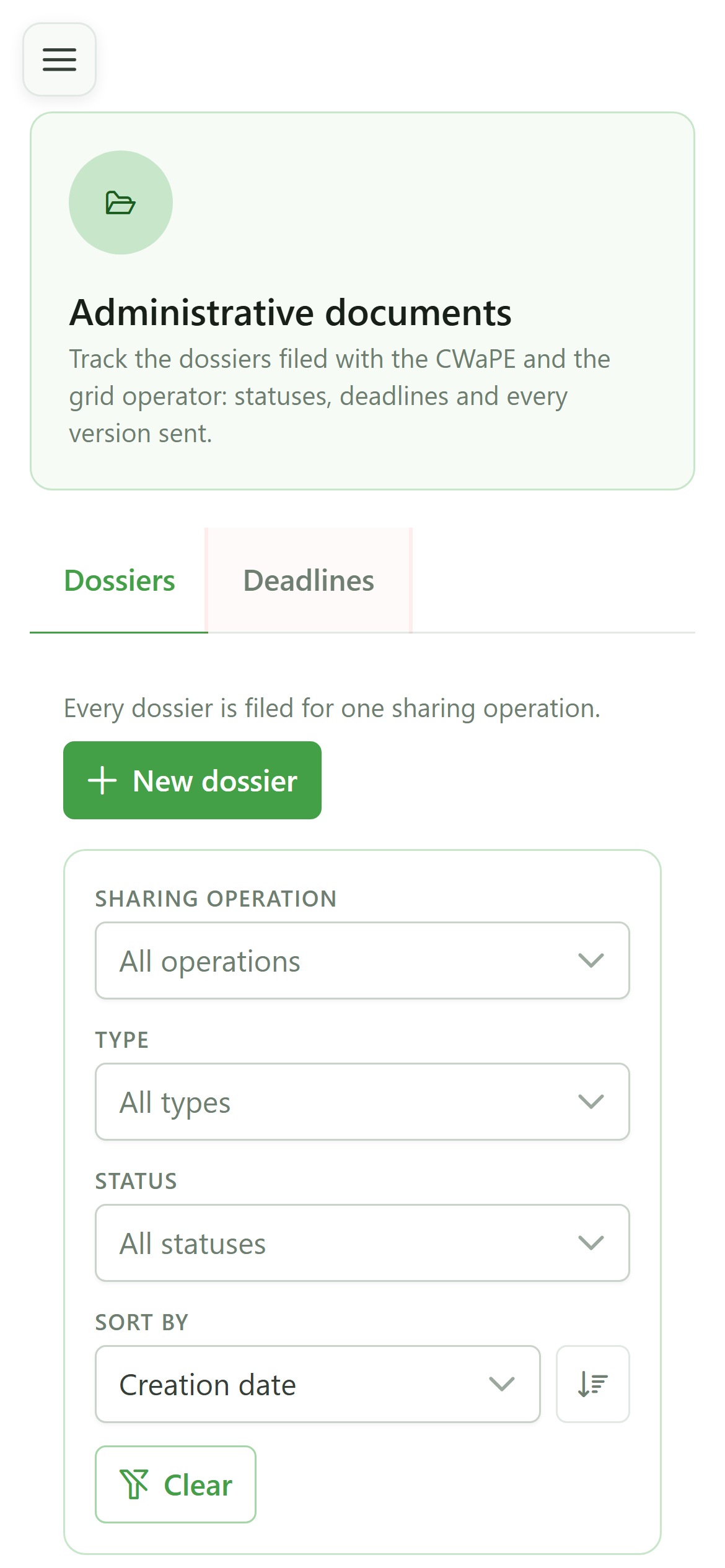
The "Deadlines" tab of the main page gathers the deadlines of every dossier, so you can see at a glance what is coming due.
10 The deadline board
Deadlines
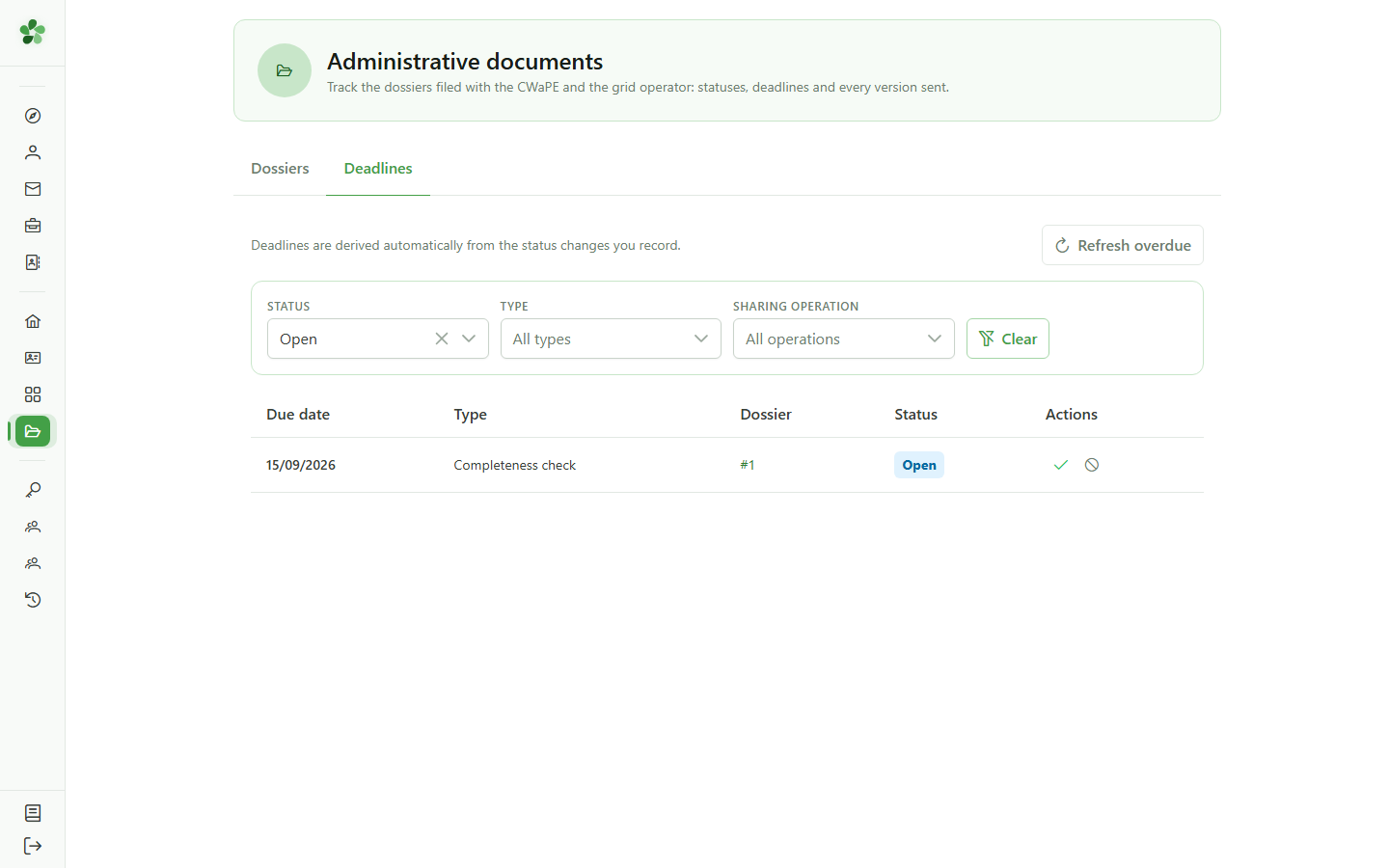
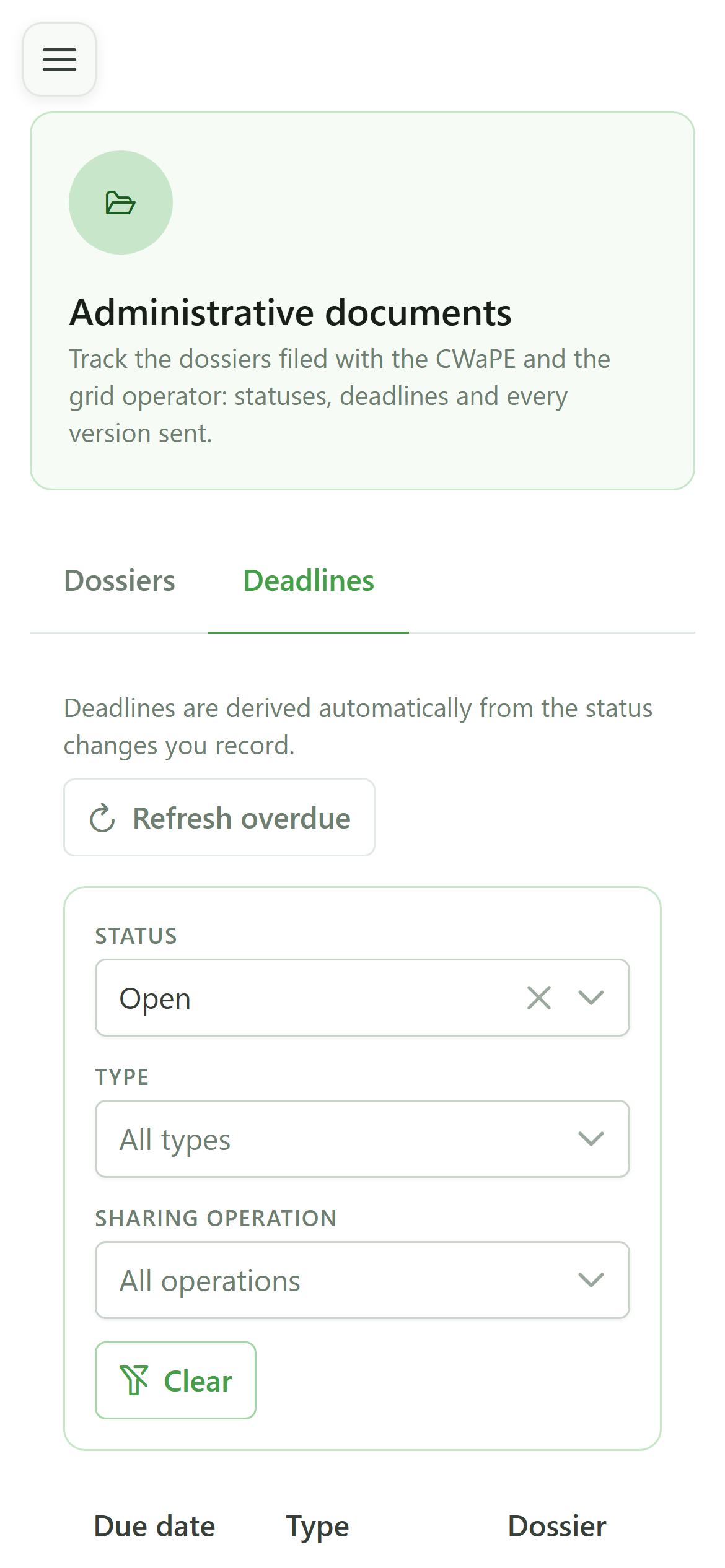
Every row links back to its dossier and shows the due date. The filter shows the still-open deadlines by default.
11 Close a deadline
Deadlines
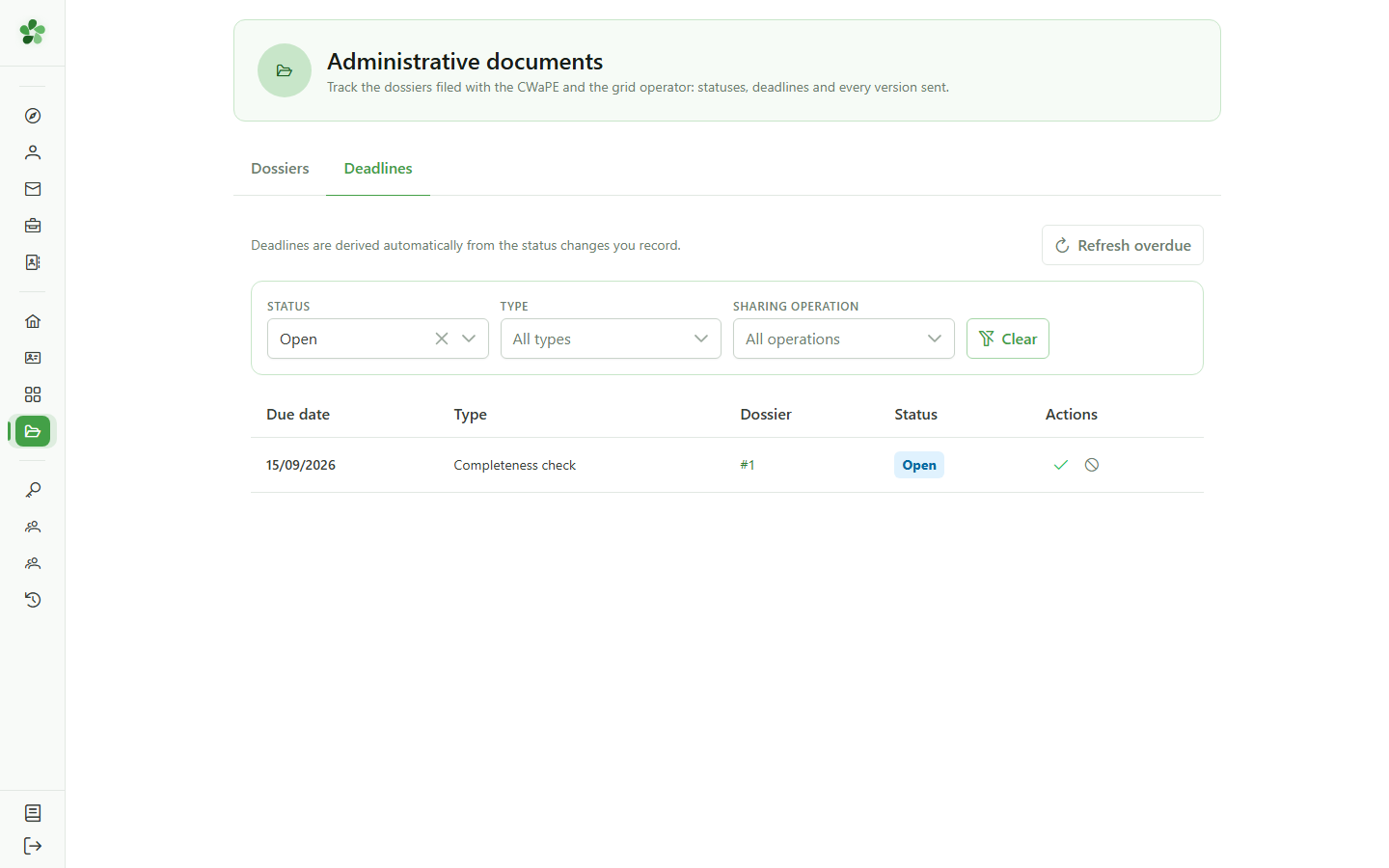
Once the obligation is fulfilled, mark the deadline as met. It leaves the open list without disappearing from the record.
12 Confirm
Deadlines
Confirm: the deadline moves to "Met" and the open-deadline board empties.
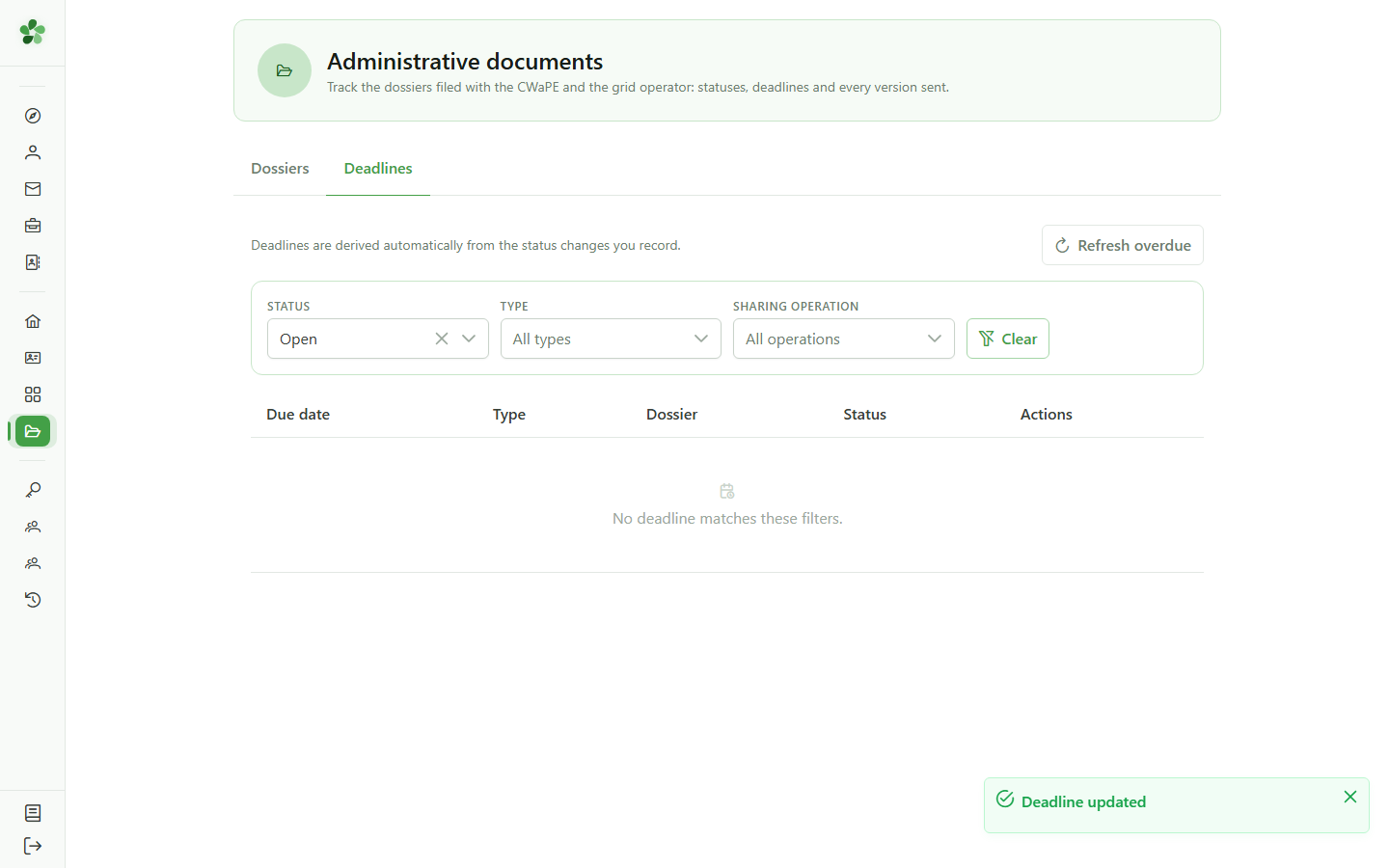
13 Nothing pending
Deadlines
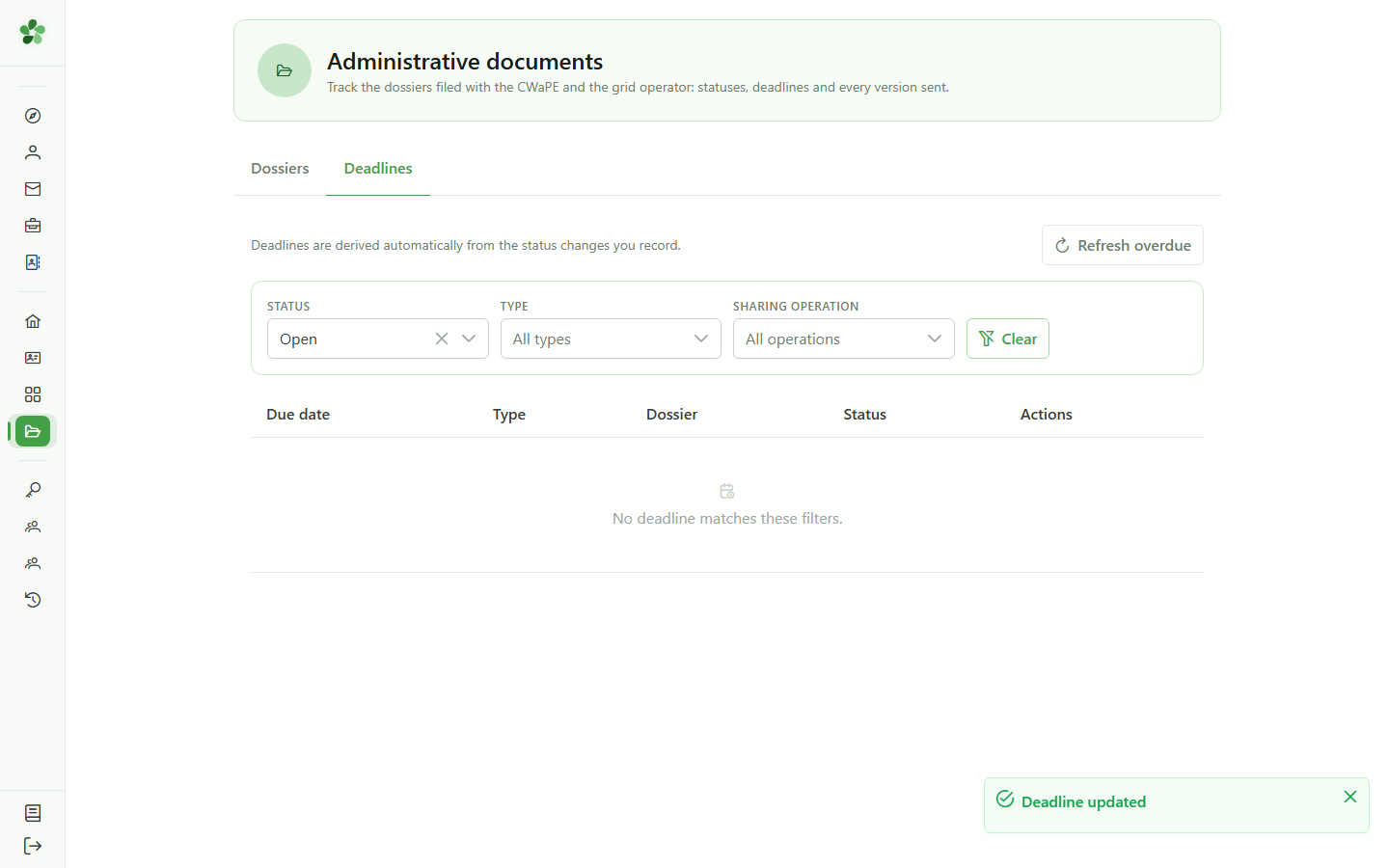
The board shows no open deadline any more. The dossier history still keeps a record of what was done and when.
File a dossier and follow its deadline
Guide utilisateur
User guide
Gebruikershandleiding
Benutzerhandbuch
1 Open the administrative documents
Navigation
Tap the menu icon to open the drawer, then "Administrative documents".
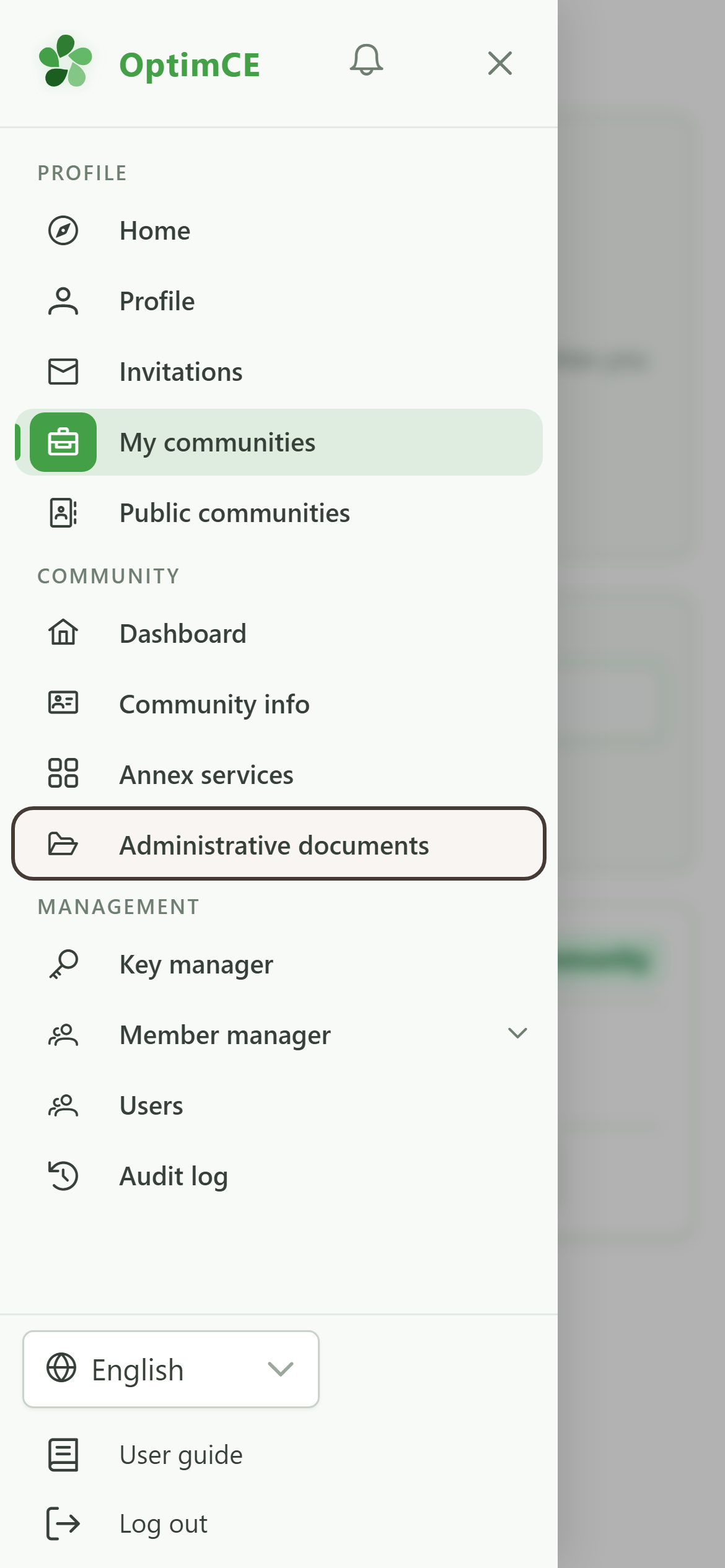
2 Open the dossier
Administrative documents
Open the dossier whose filing you want to record.
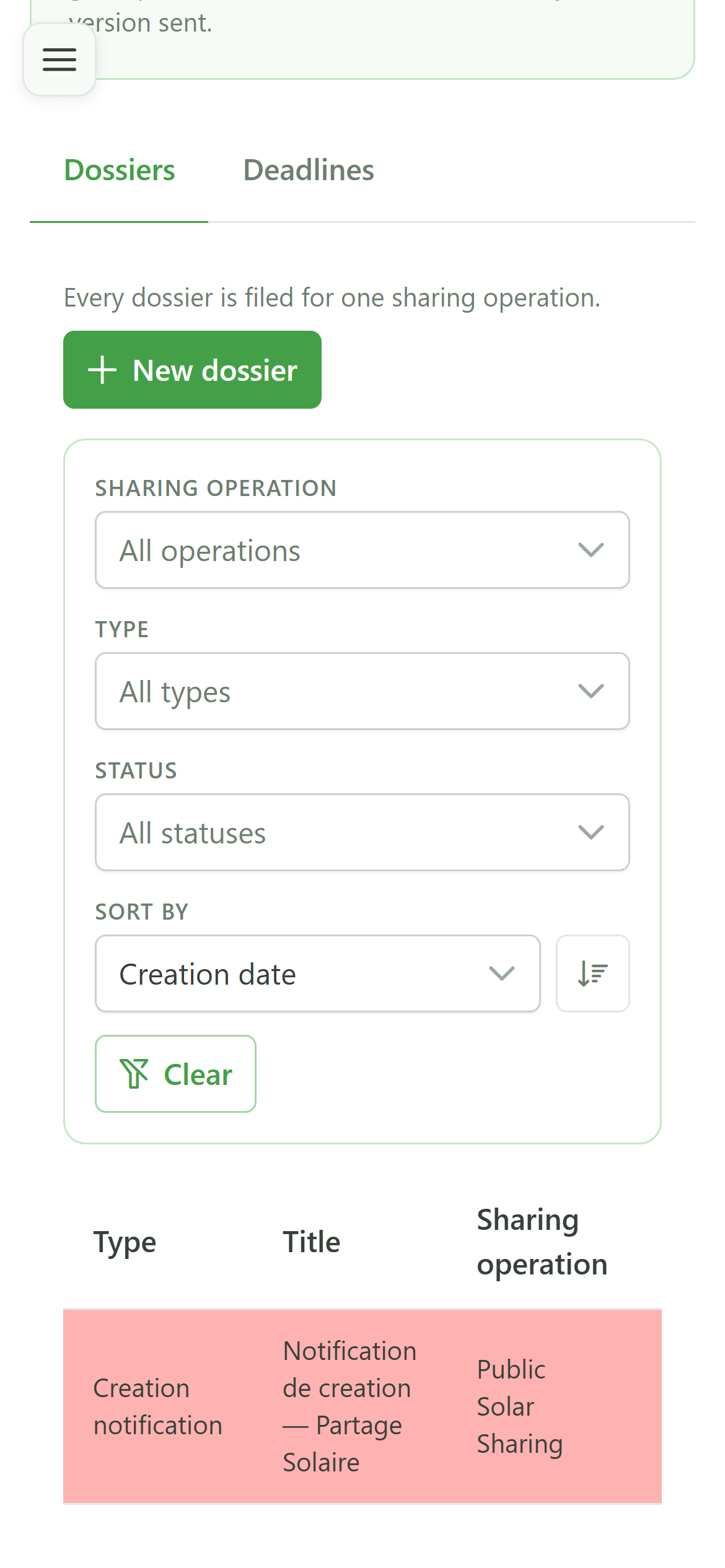
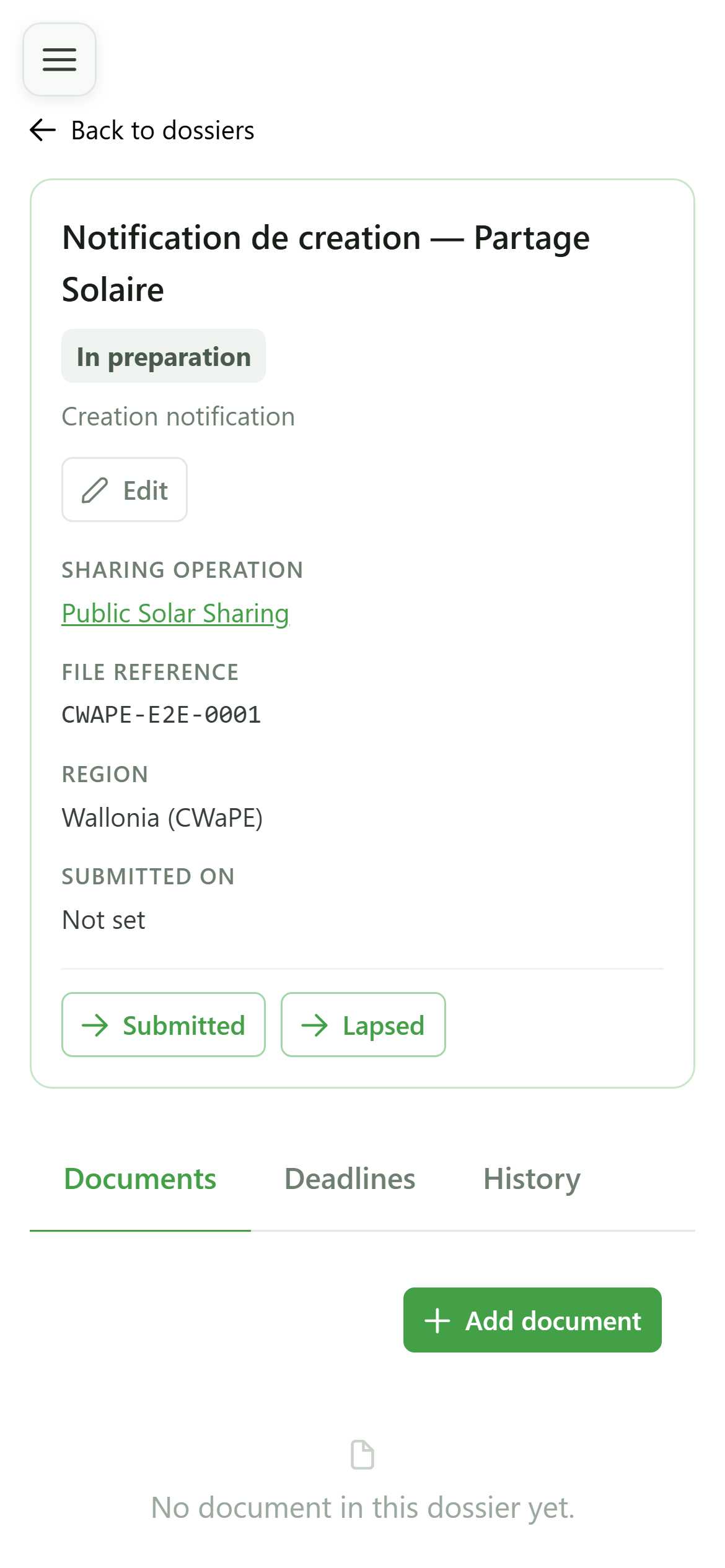
3 A dossier in preparation
Tracking dossiers
While the dossier is "In preparation", the regulator expects nothing from you. The buttons at the top only offer the status changes that make sense at this stage.
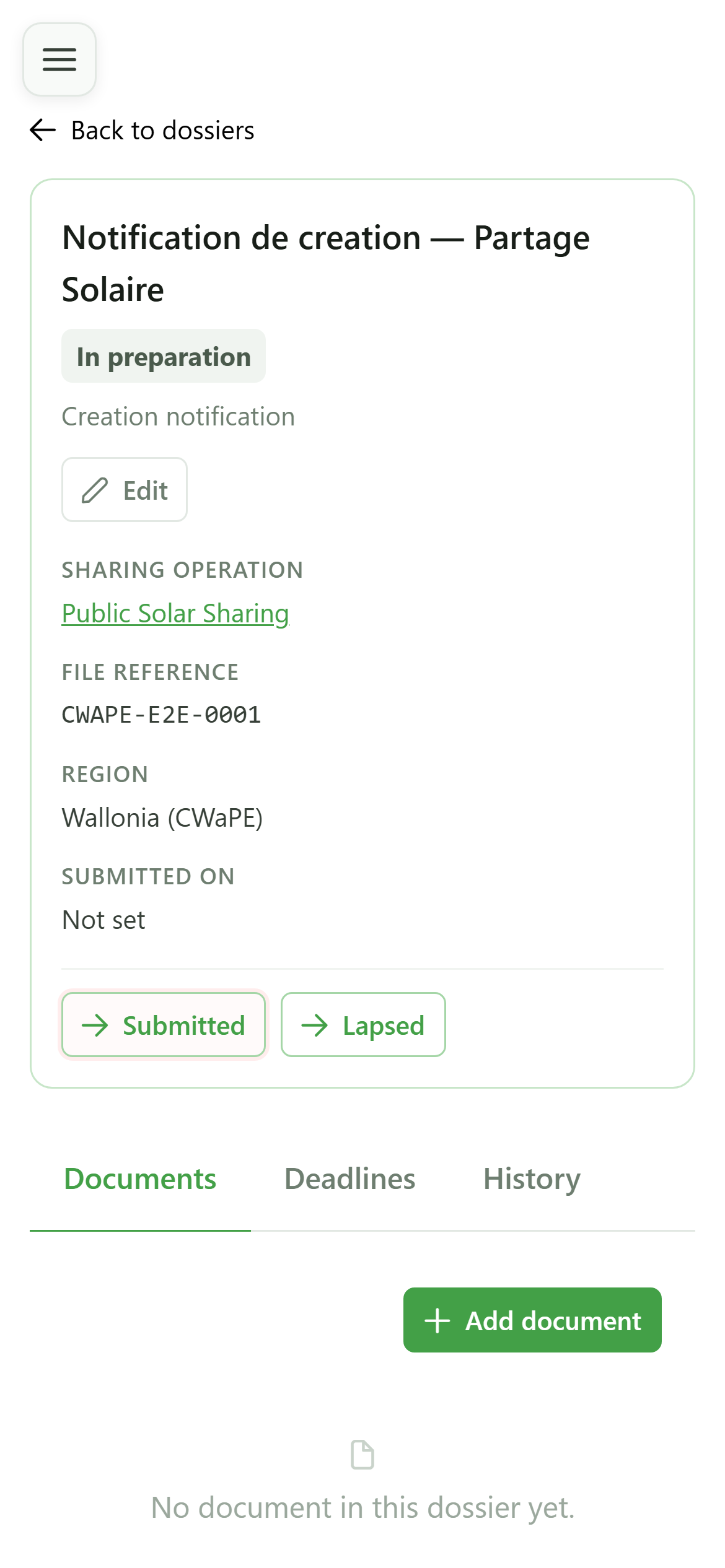
4 Mark the dossier as submitted
Tracking dossiers
You file the dossier with the authority through your usual channel; here you record that the filing happened.
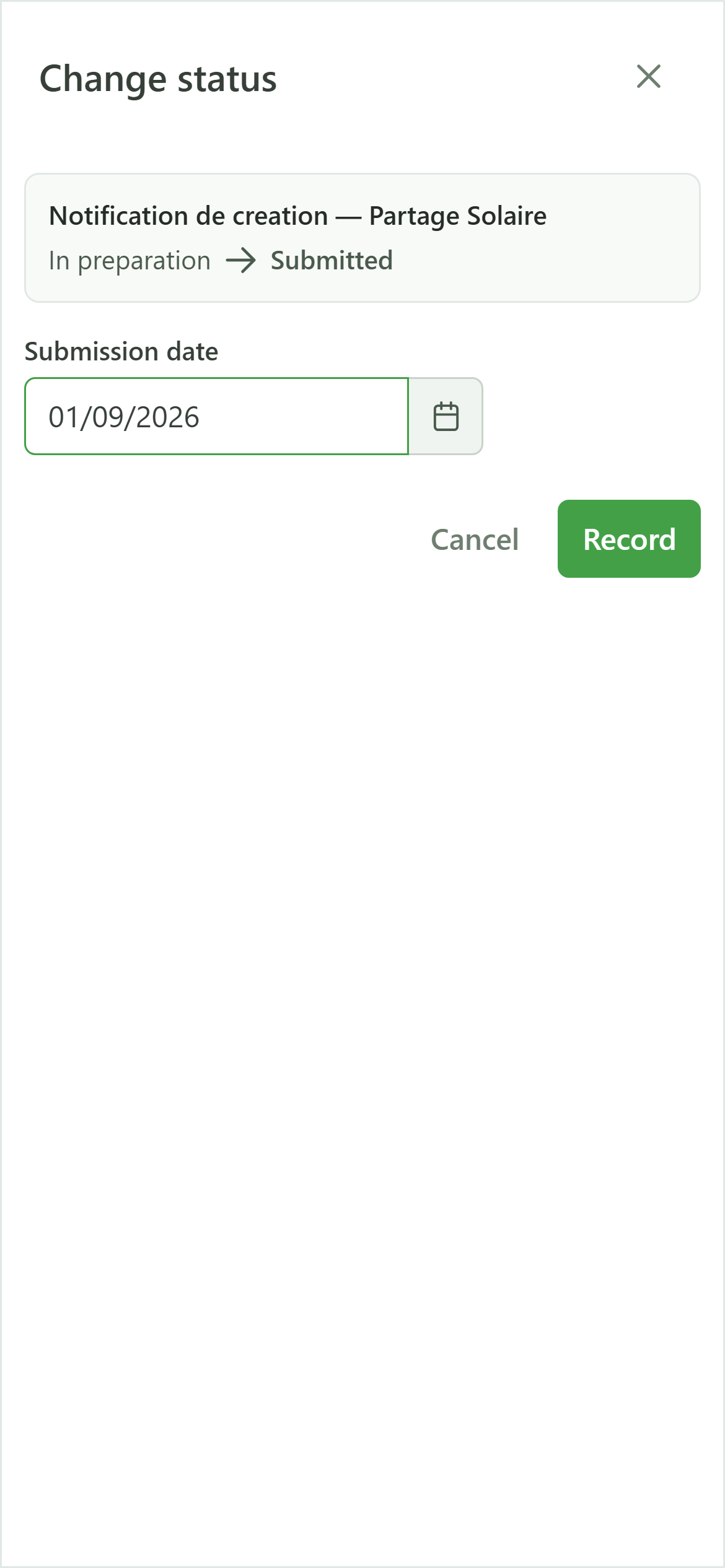
5 The filing date
Change status
The filing date is not a formality: it is what starts the regulatory clocks. Pick the date the dossier was really filed.
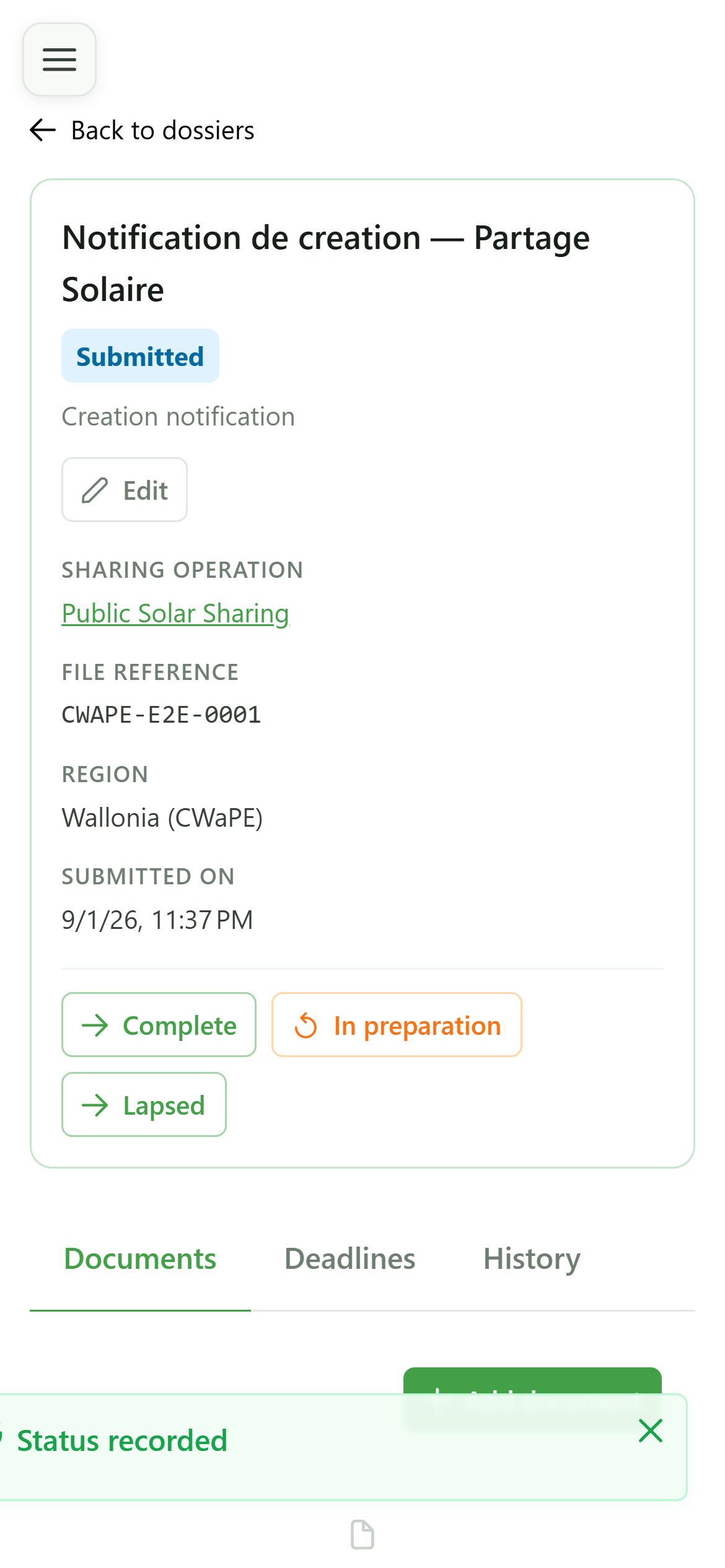
6 The dossier is submitted
Tracking dossiers
The status changes and the available actions change with it: a submitted dossier can be declared complete, corrected, or lapse.
7 See the deadlines
Tracking dossiers
The "Deadlines" tab shows what the filing has just triggered.
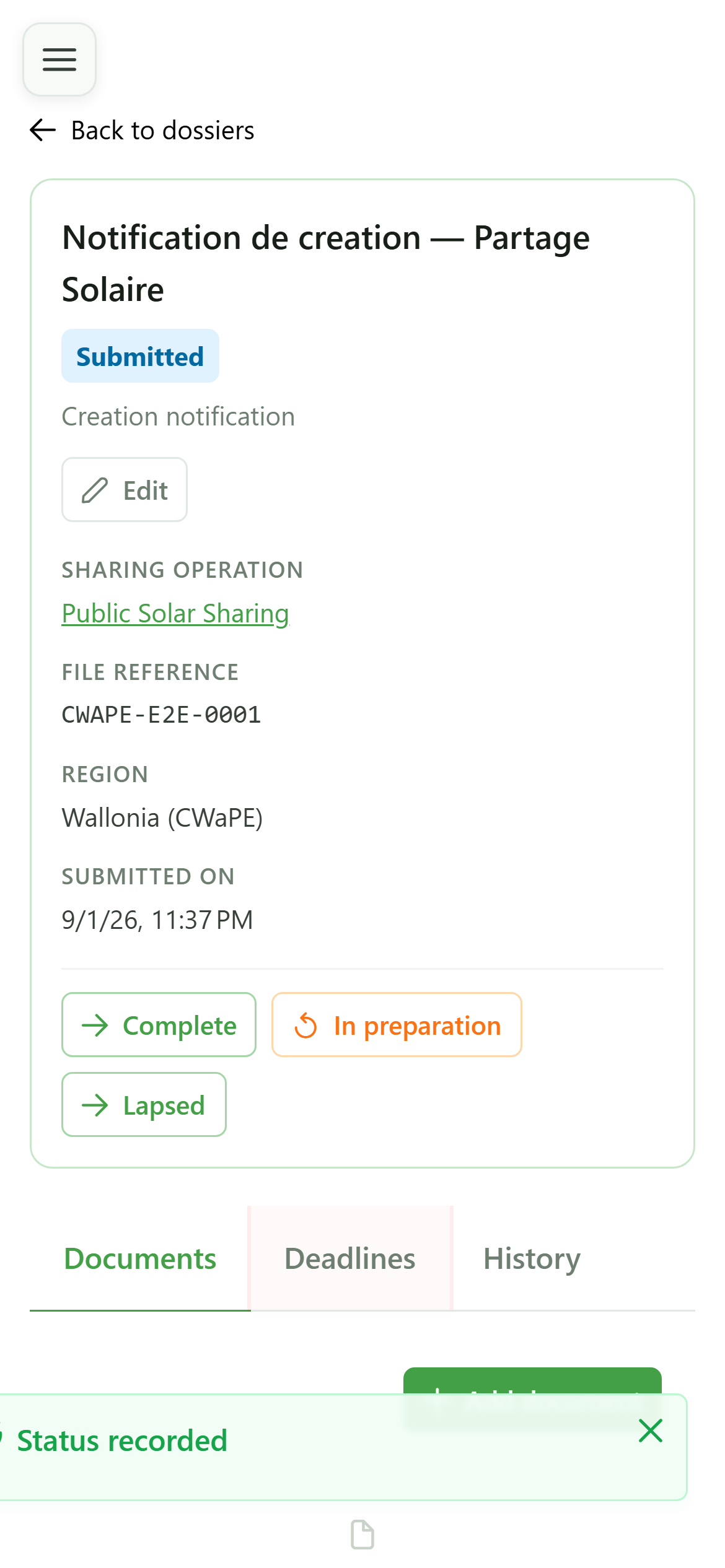
8 A deadline has appeared
Deadlines
You never enter a deadline by hand: OptimCE derives it from the dossier type, the region and the date you have just recorded.
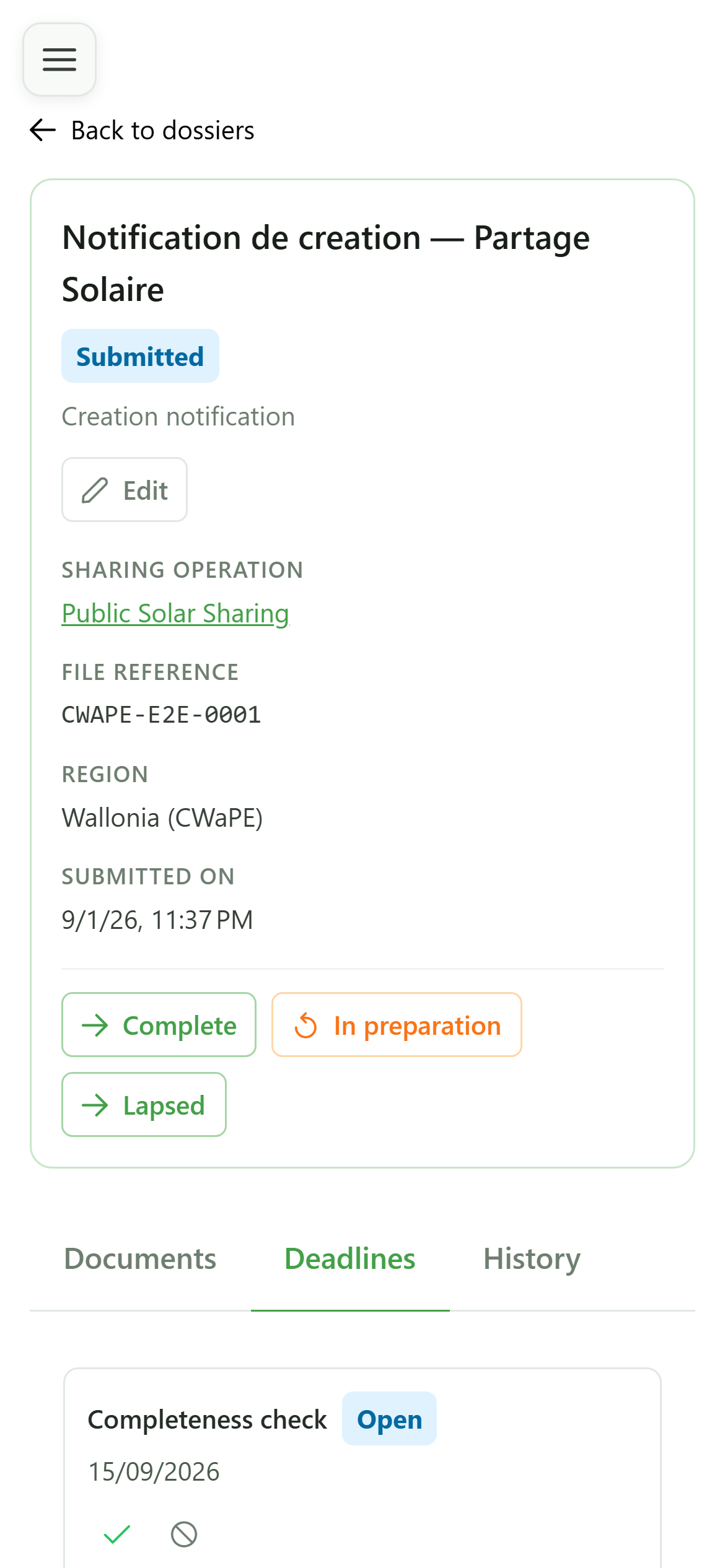
9 Every deadline
Administrative documents
The "Deadlines" tab of the main page gathers the deadlines of every dossier, so you can see at a glance what is coming due.
10 The deadline board
Deadlines
Every row links back to its dossier and shows the due date. The filter shows the still-open deadlines by default.
11 Close a deadline
Deadlines
Once the obligation is fulfilled, mark the deadline as met. It leaves the open list without disappearing from the record.
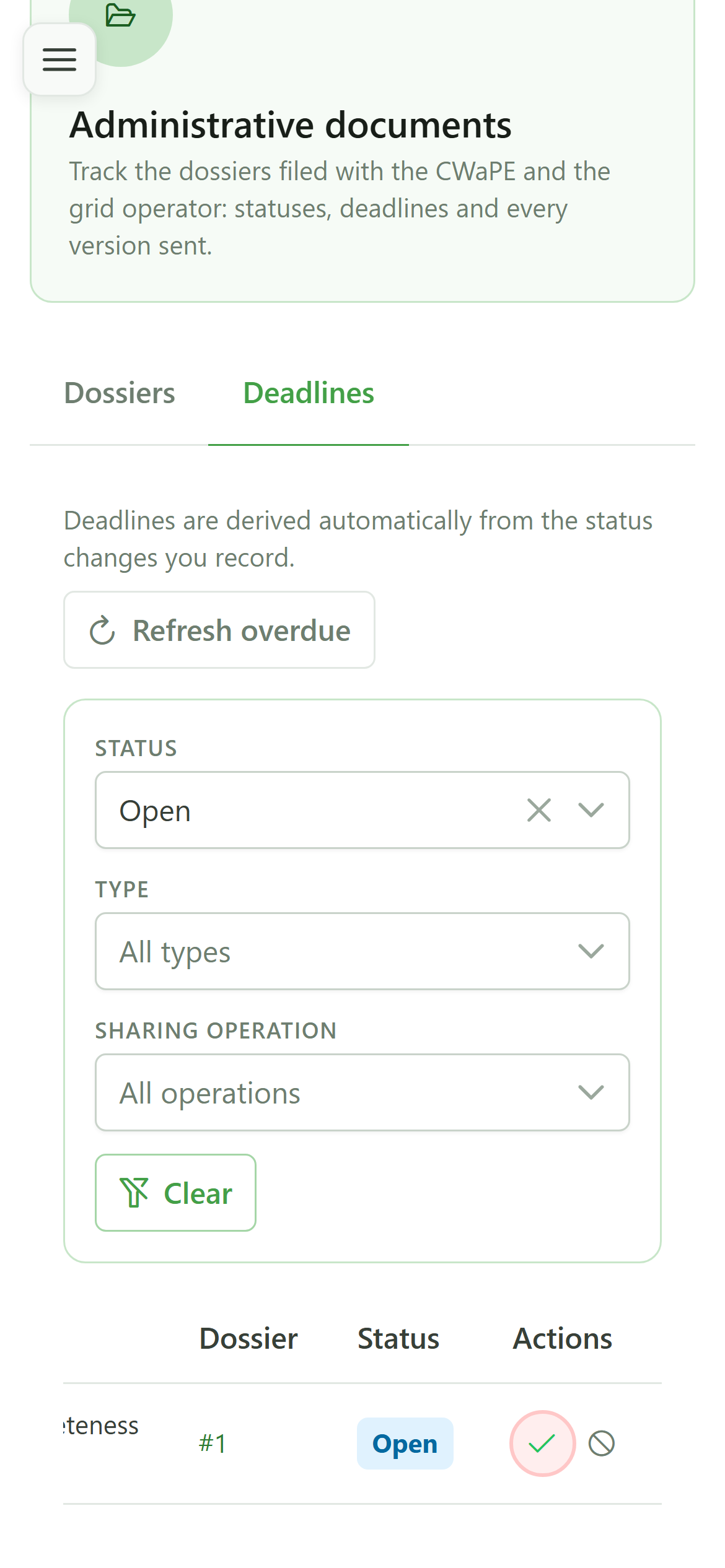
12 Confirm
Deadlines
Confirm: the deadline moves to "Met" and the open-deadline board empties.
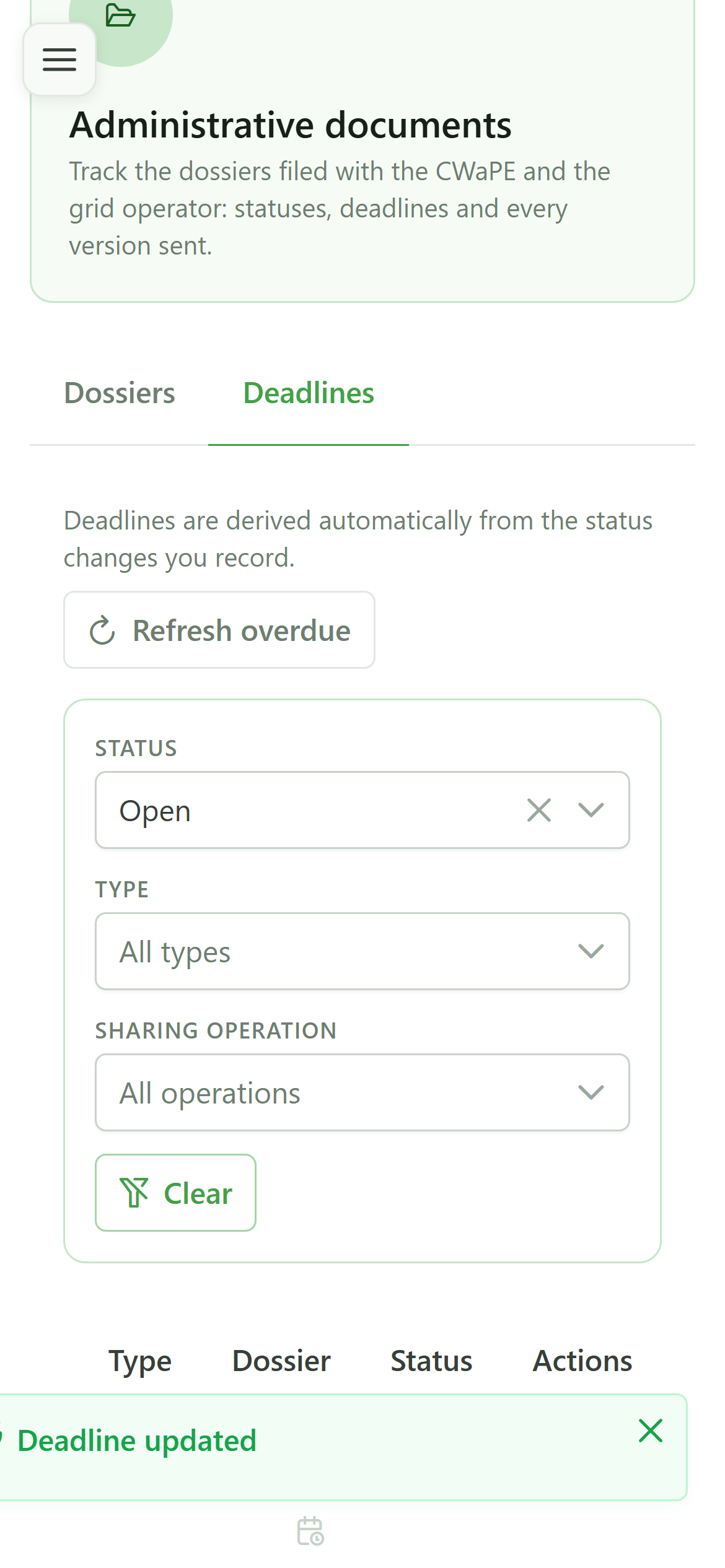
13 Nothing pending
Deadlines
The board shows no open deadline any more. The dossier history still keeps a record of what was done and when.