Generate a document from the CRM
Guide utilisateur
User guide
Gebruikershandleiding
Benutzerhandbuch
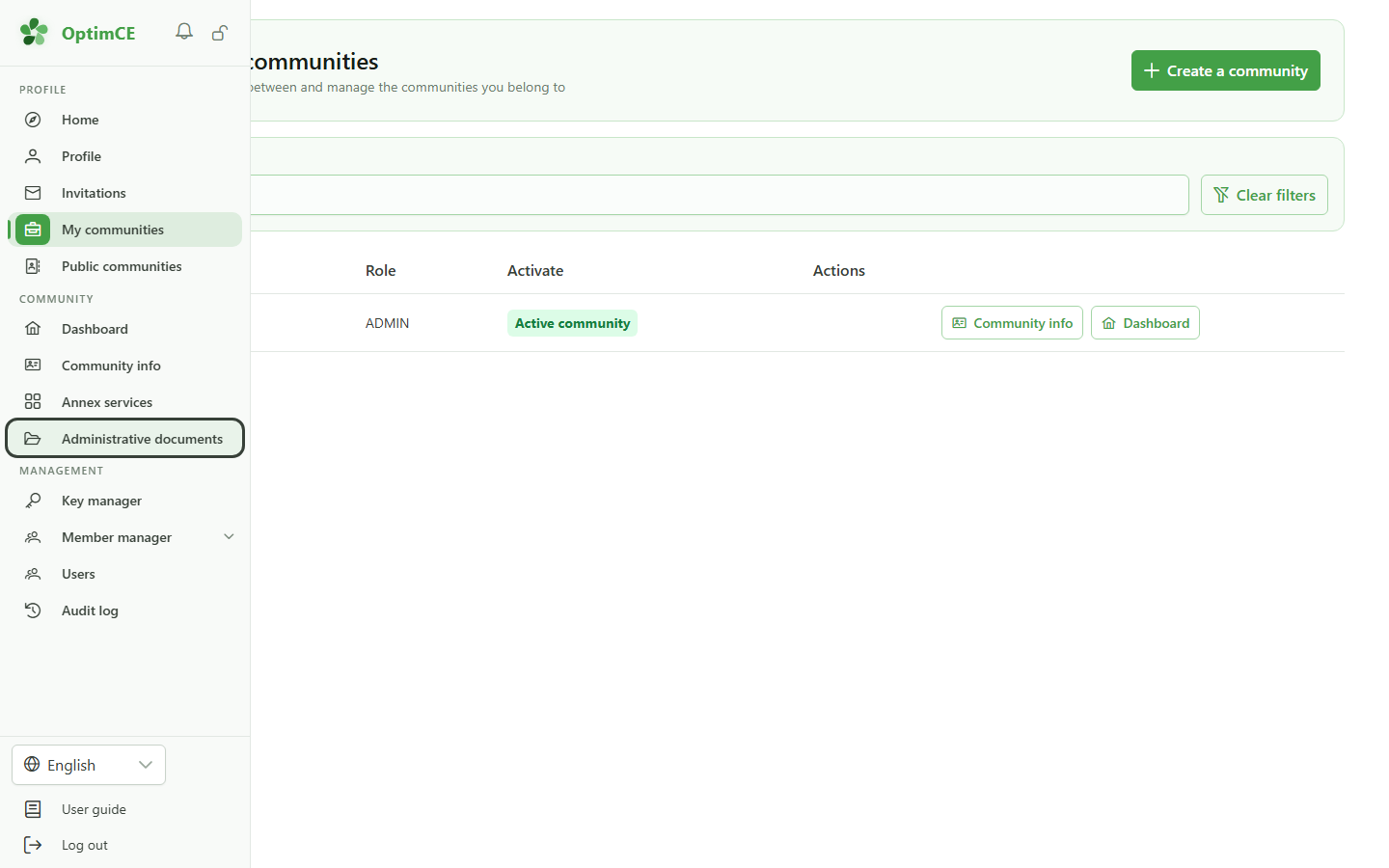
1 Open the administrative documents
Navigation
In the sidebar, click "Administrative documents" to find your dossiers.
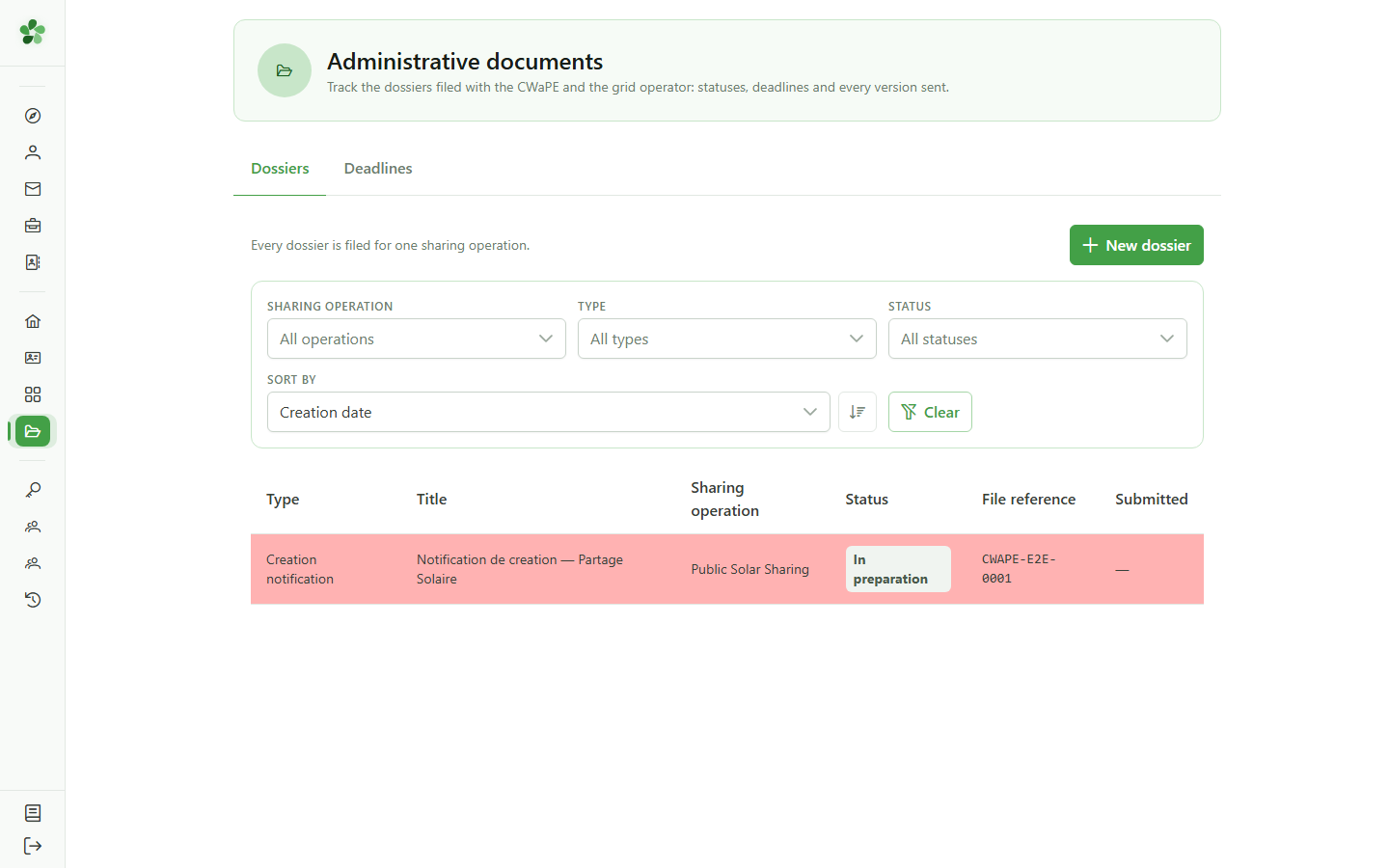
2 Open the dossier
Administrative documents
Click the dossier row to open its page. Documents are always added inside a dossier.
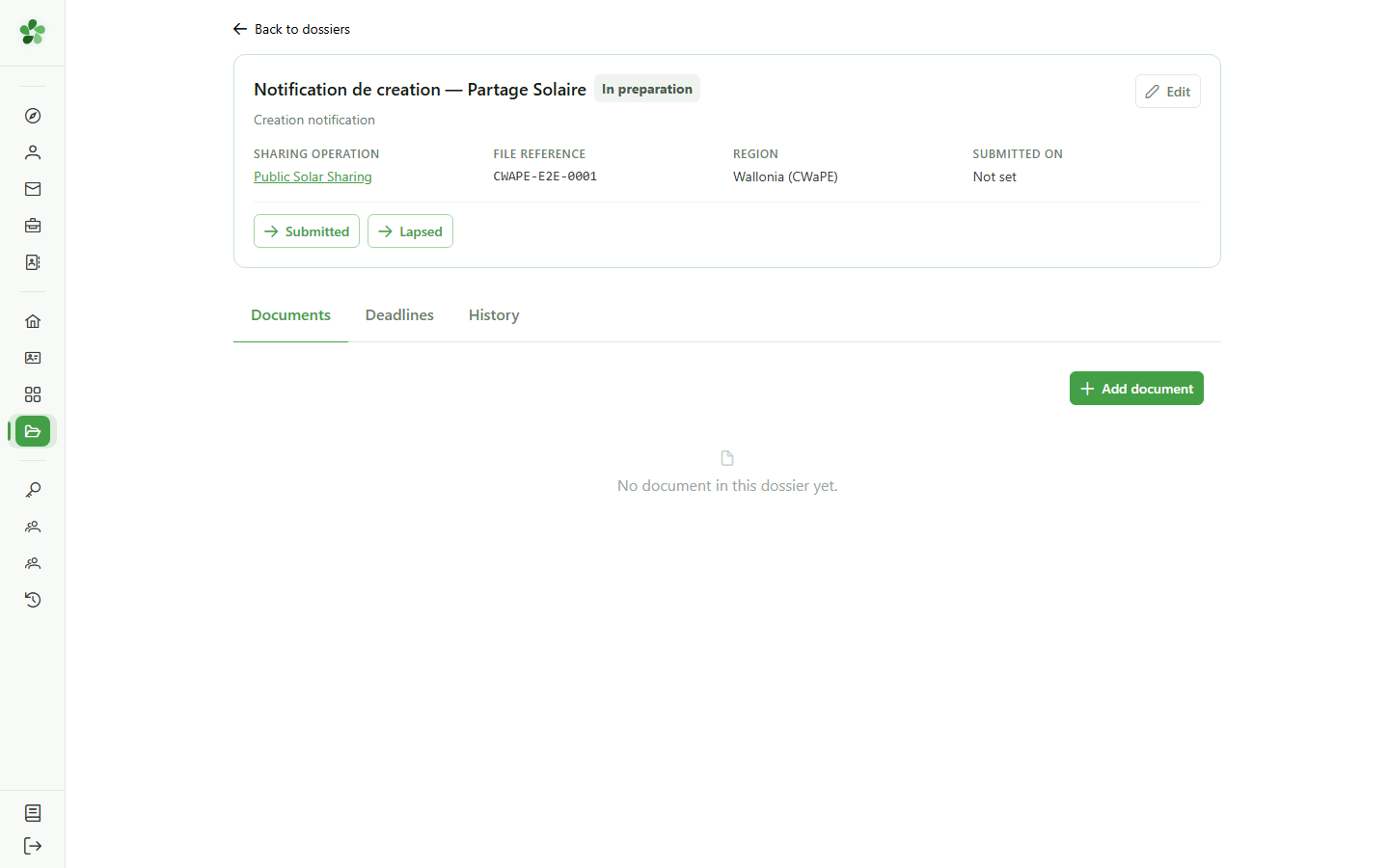
3 An empty dossier
Dossier documents
The "Documents" tab lists the dossier's pieces. A freshly created dossier holds none.
4 Add a document
Dossier documents
Click "Add document" to choose which regulatory form to prepare.
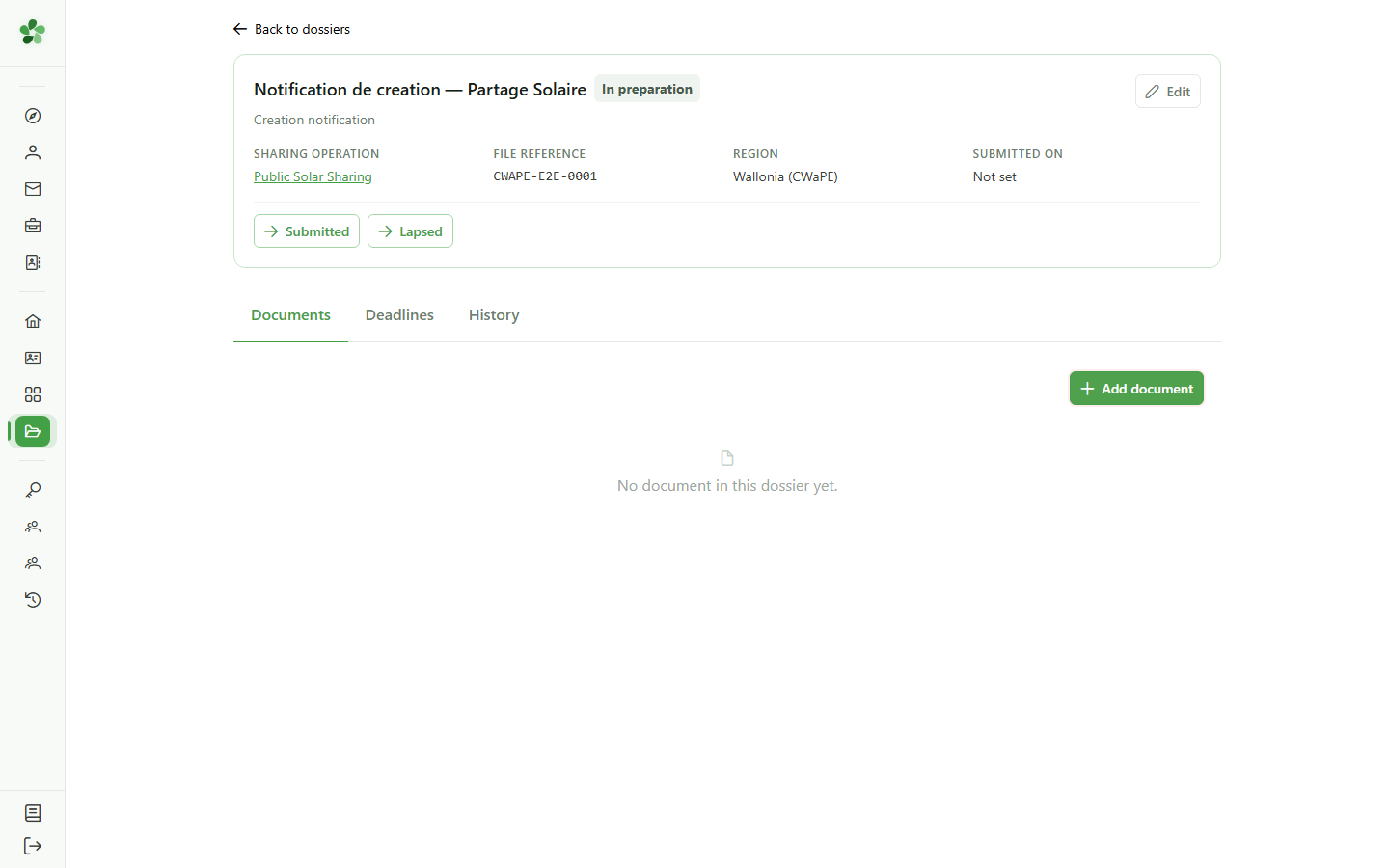
5 Choose the form
Add document
The list holds the forms published by the regulator for your region. Each one knows which CRM data it has to carry.
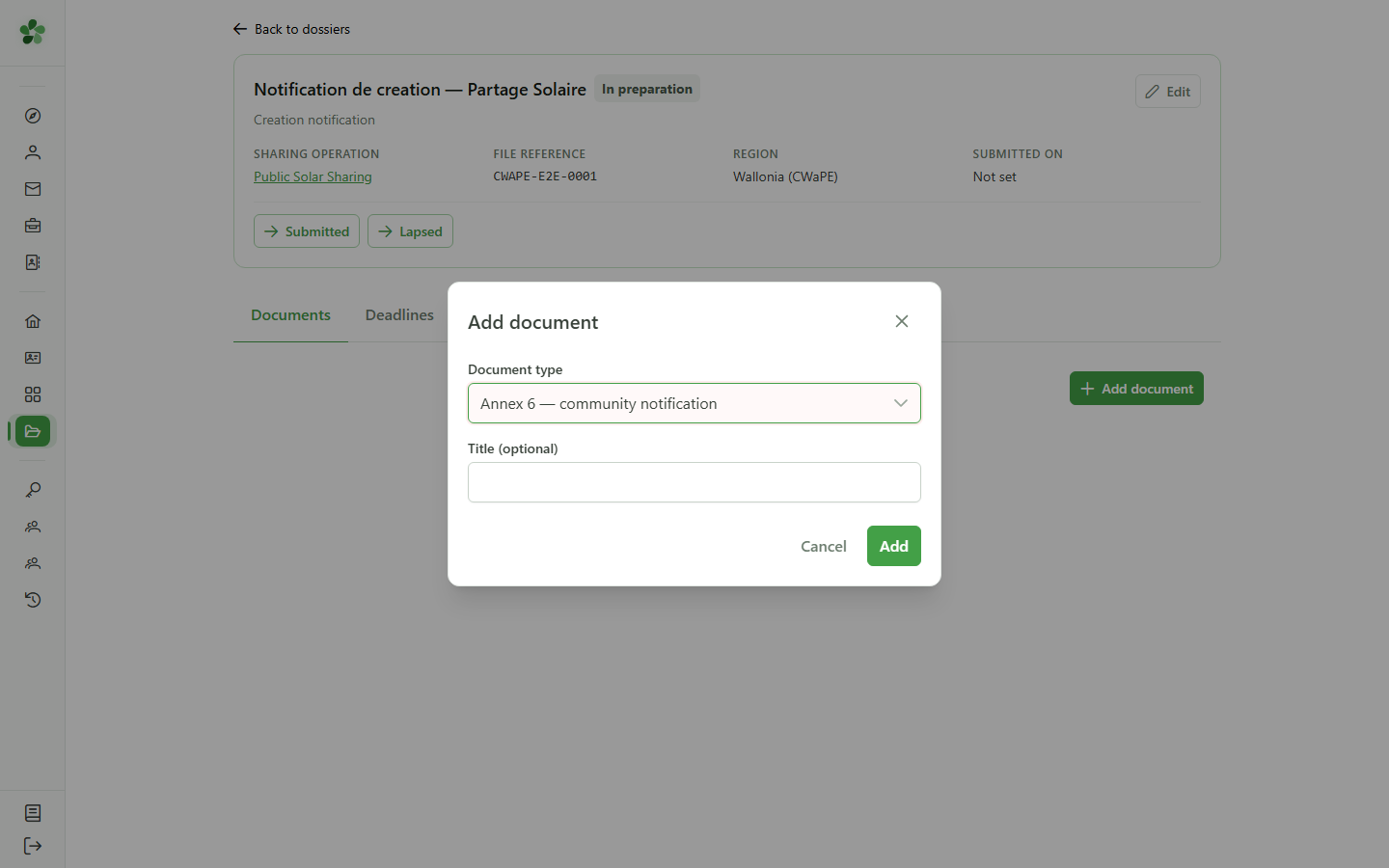
6 Create the document
Add document
Submit: the document joins the dossier, still without any content.
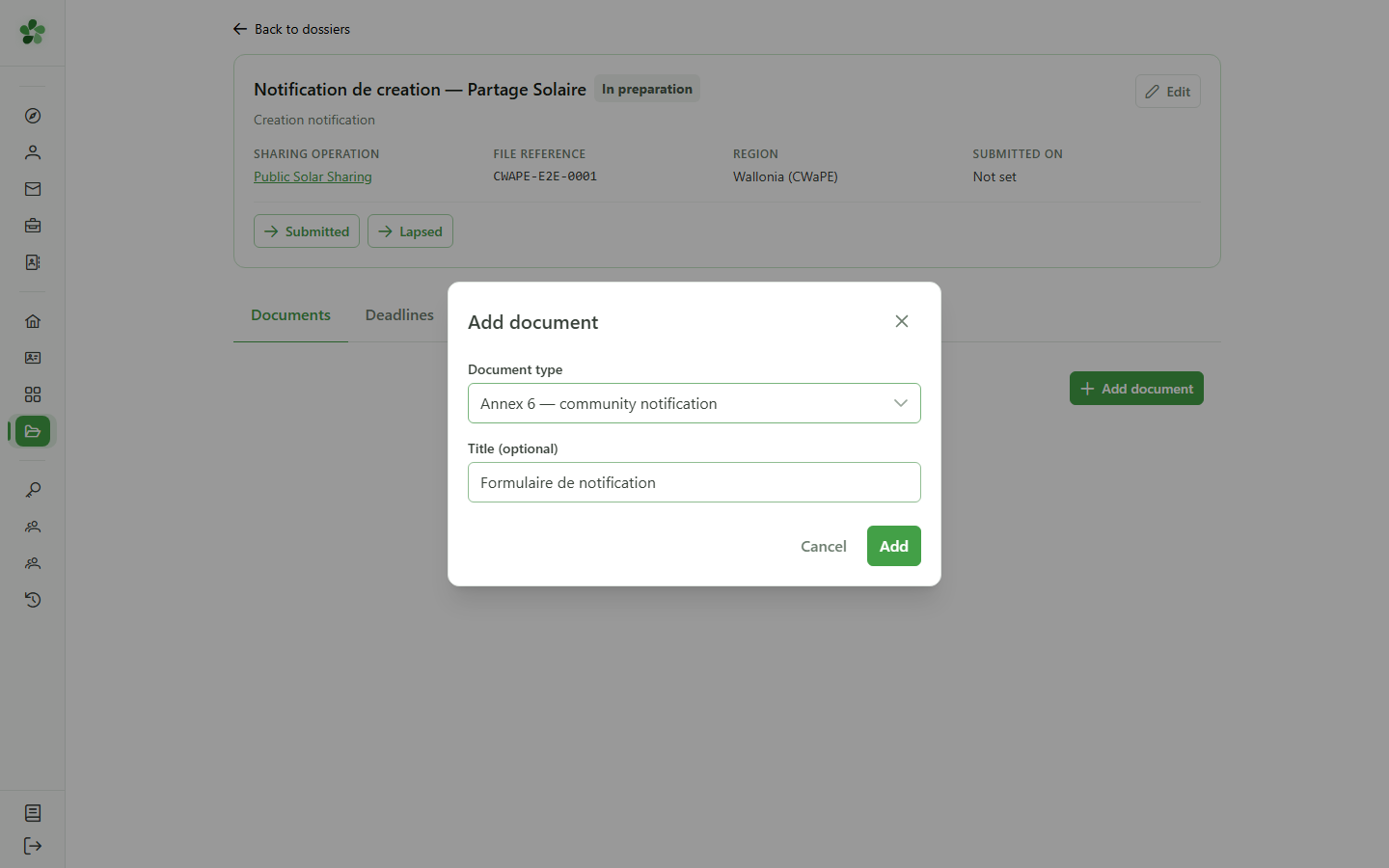
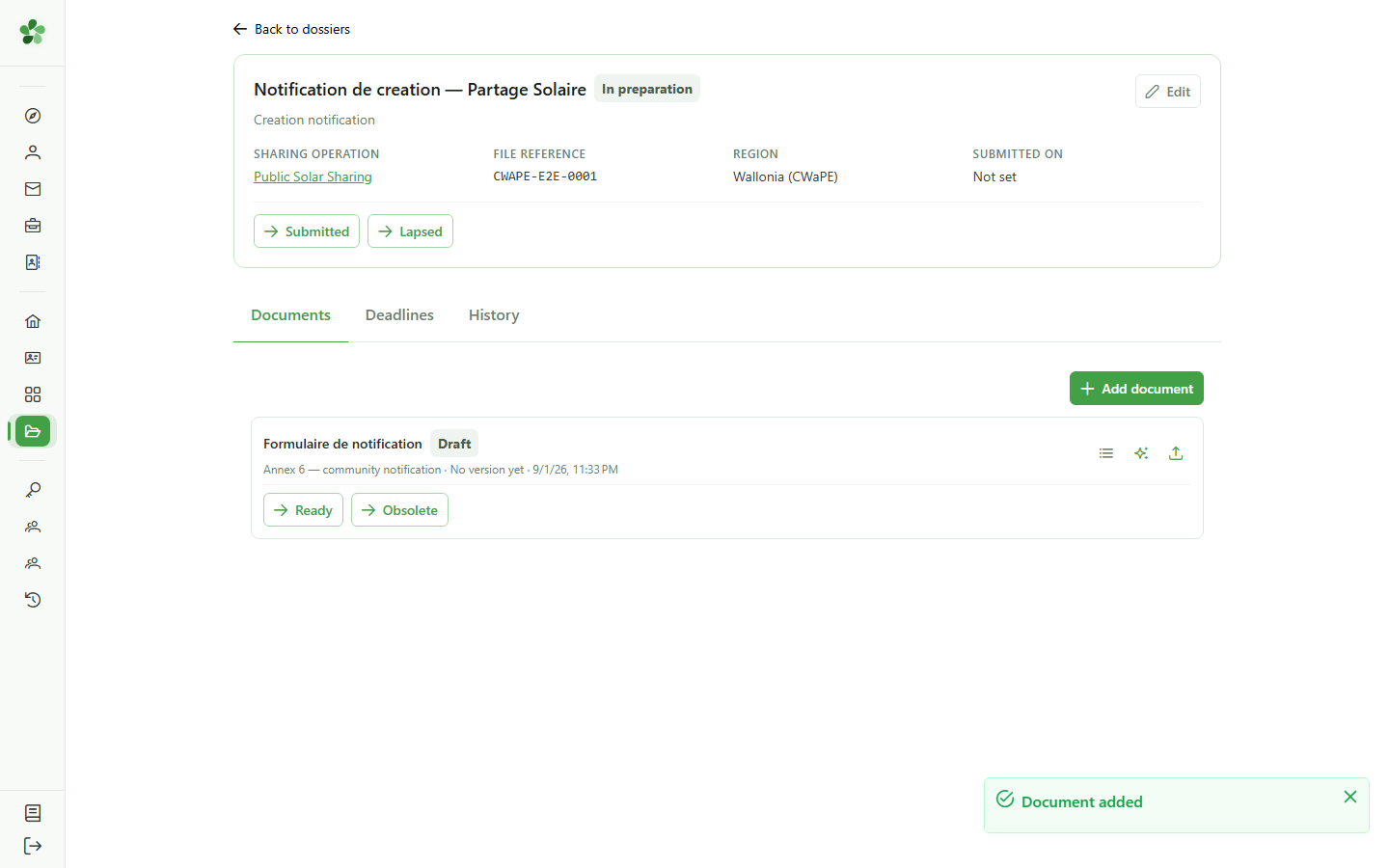
7 A draft is waiting
Dossier documents
The document is created with the status "Draft". It has no content yet: the icons offer to generate it from the CRM or to upload your own file.
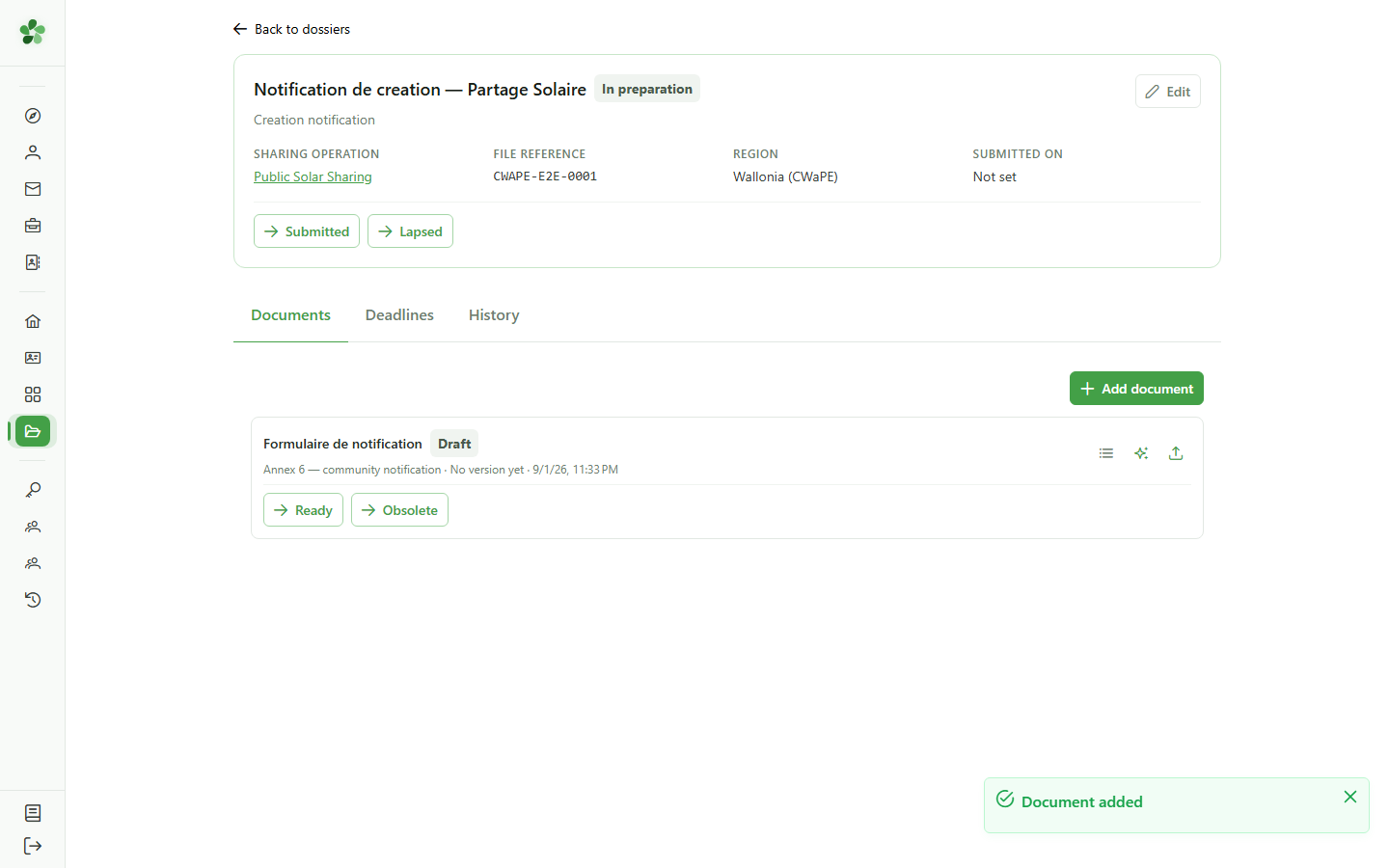
8 Generate the document
Dossier documents
Click the generate icon. OptimCE gathers the data of the community, the operation and its members to fill the form.
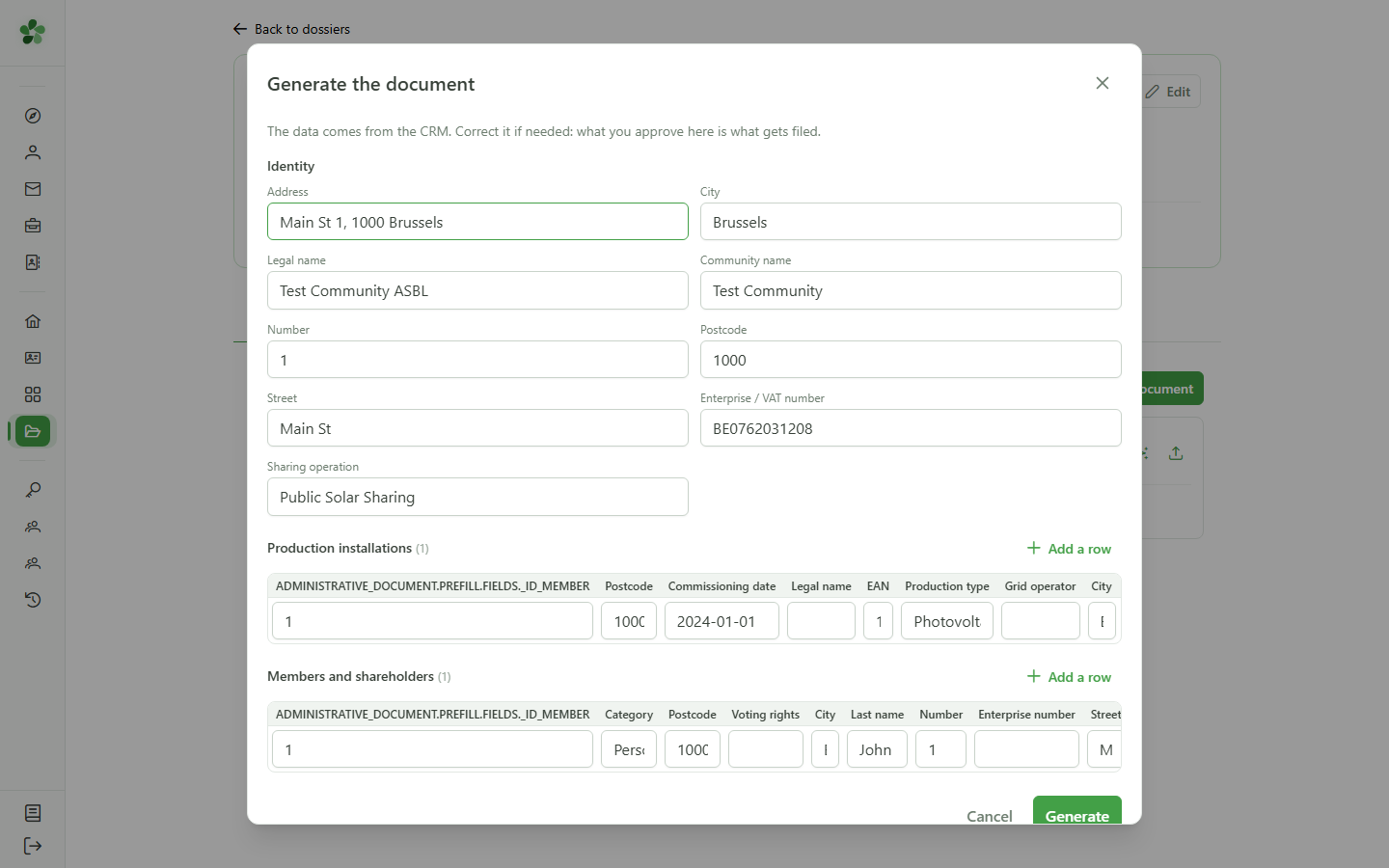
9 Check the data
Generate the document
Nothing is filed without your review. The fields are pre-filled from the CRM and stay editable: what you approve here is exactly what gets frozen into the document.
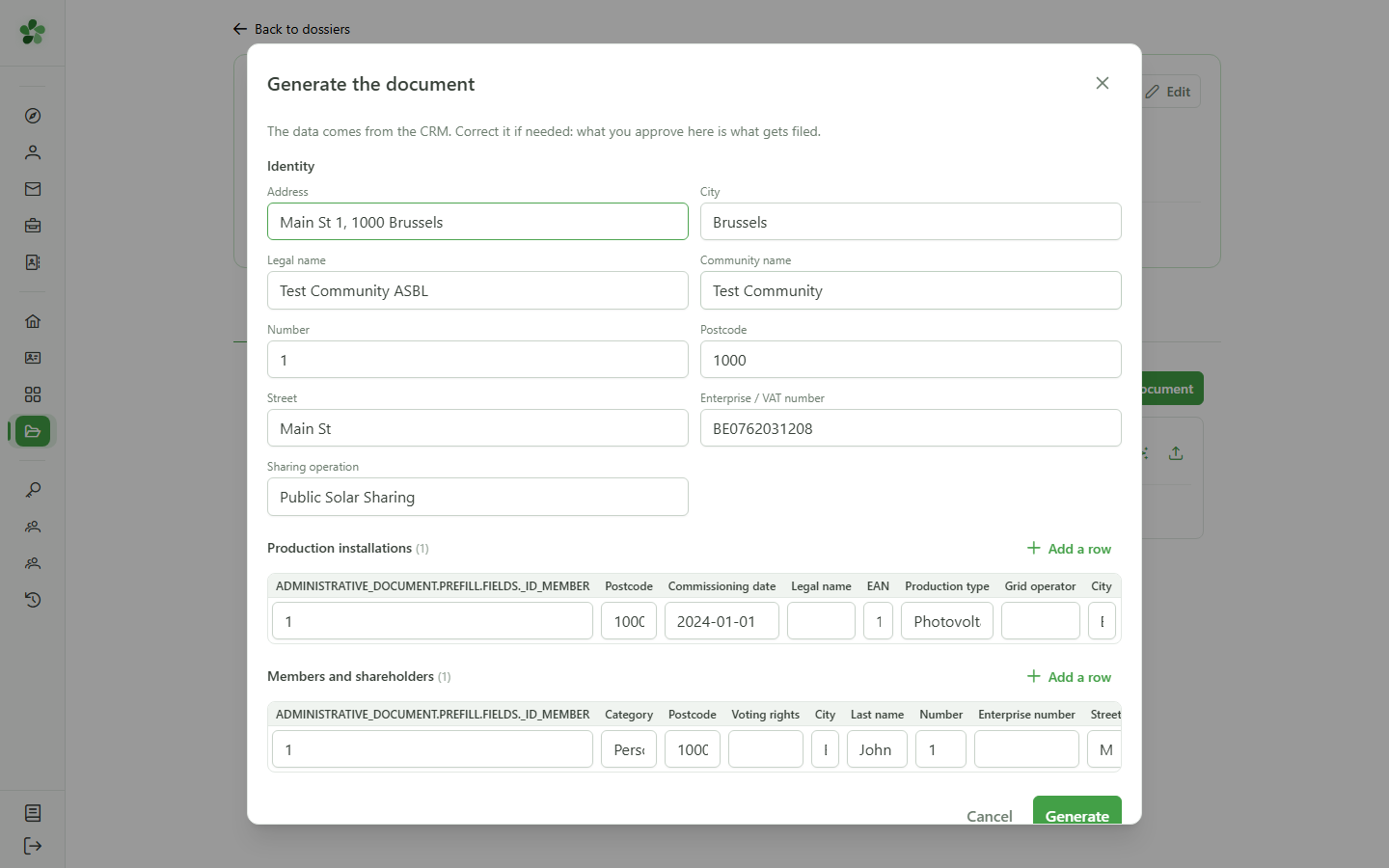
10 Correct a value
Generate the document
A correction made here applies to this document only. If a value is wrong everywhere, fix it in the CRM instead and reload the form.
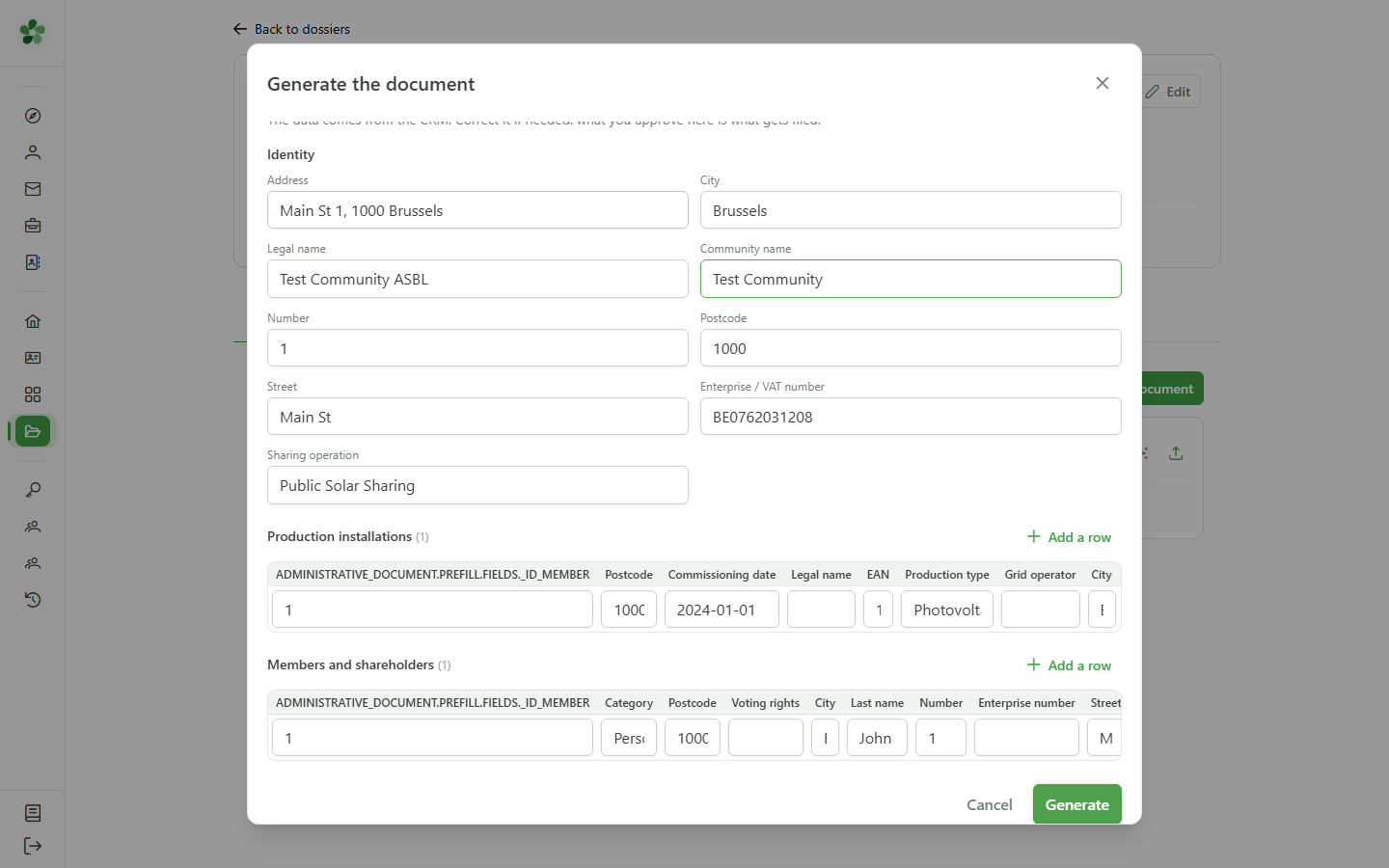
11 Start the generation
Generate the document
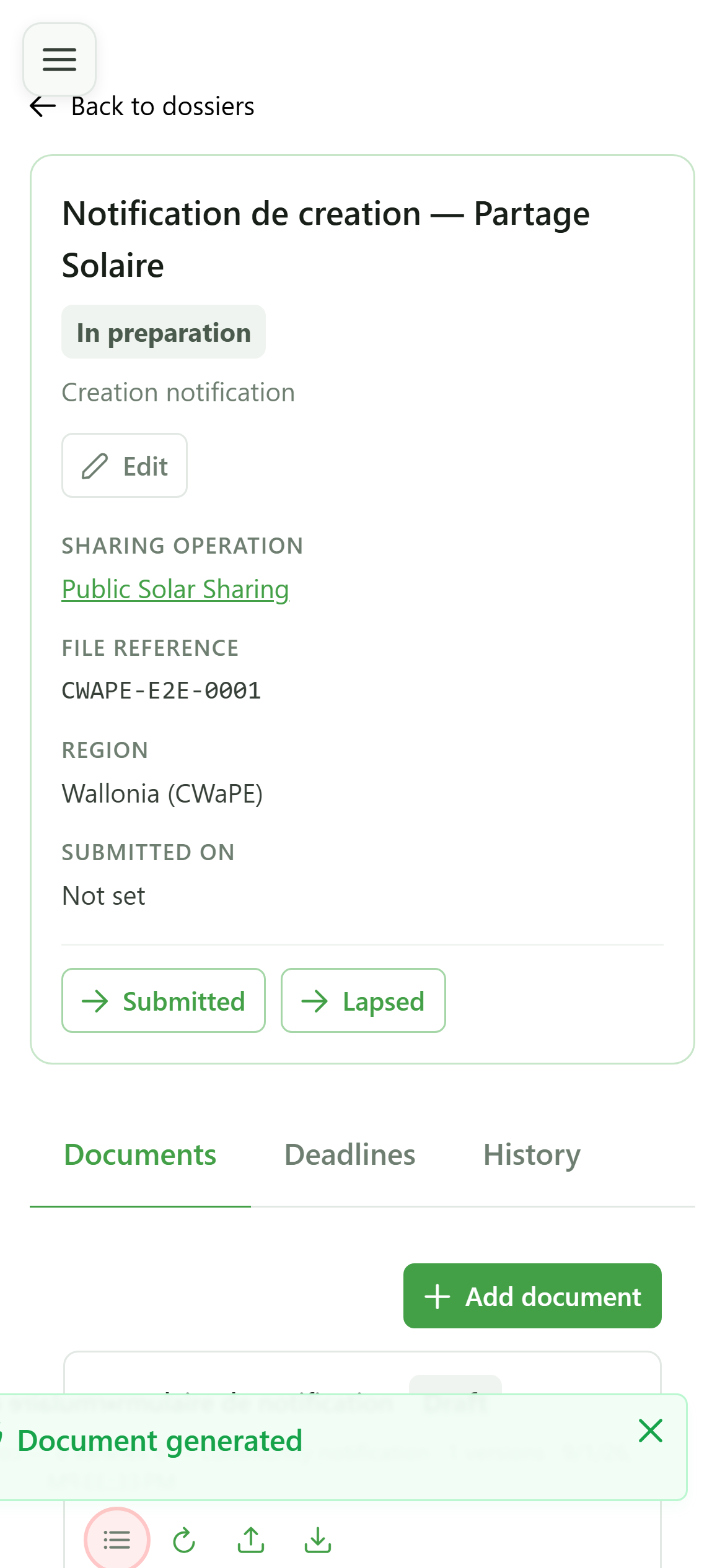
The generation runs in the background. You can carry on working: the document card shows "Generating" and updates on its own.
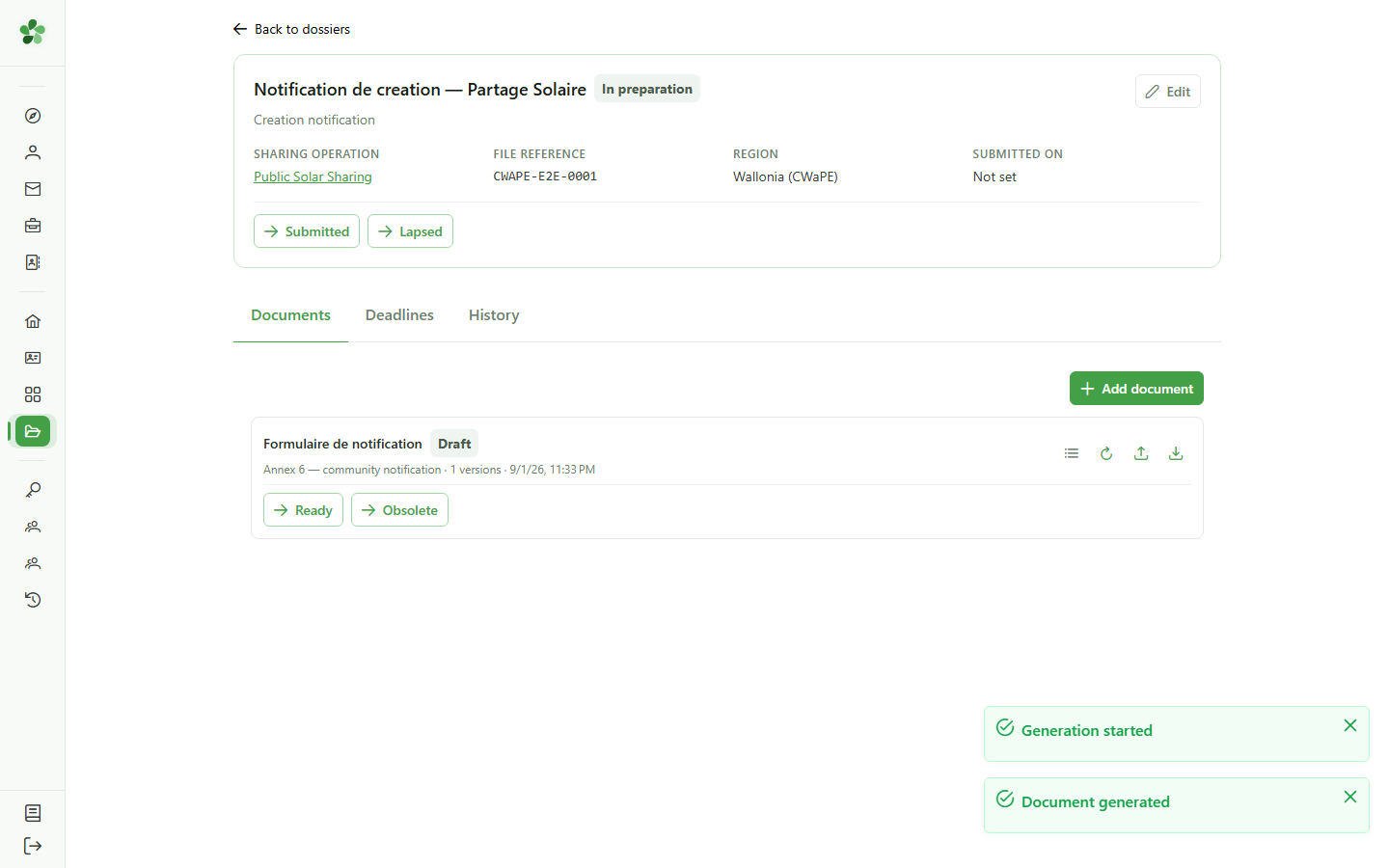
12 The document is ready
Dossier documents
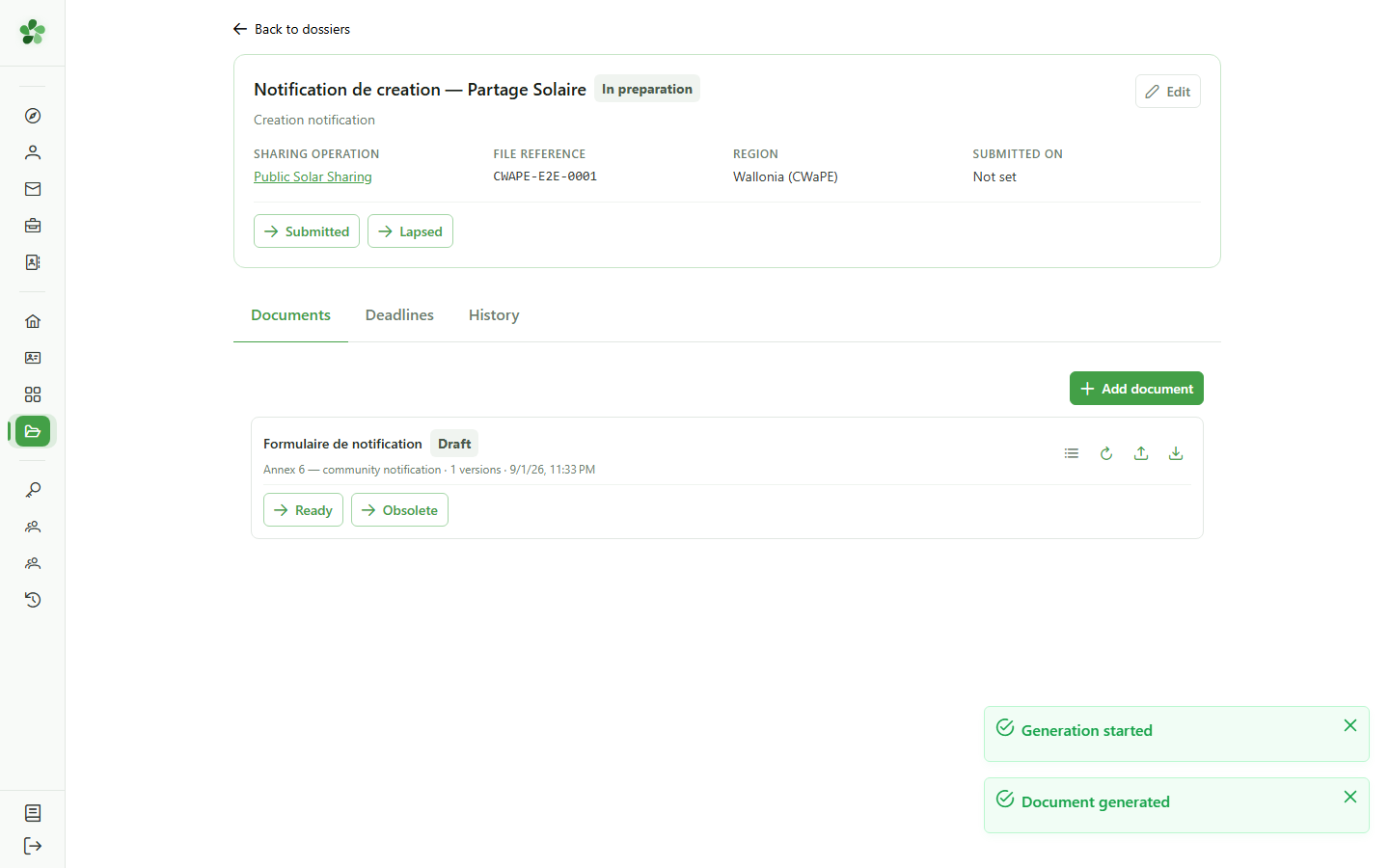
Once the generation finishes, the document carries a downloadable version. Nothing is overwritten: every generation adds a new version.
13 Look at the versions
Dossier documents
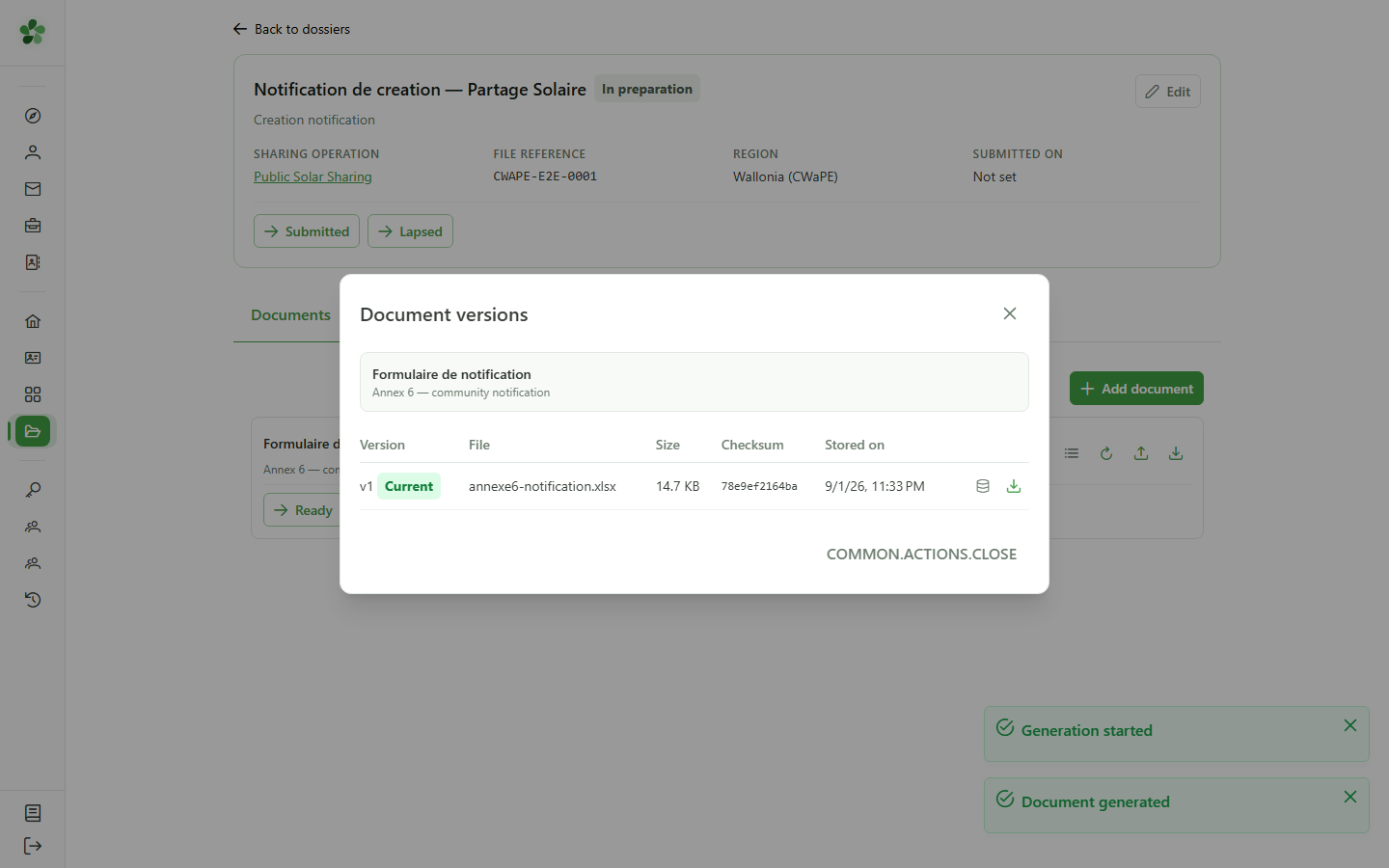
The "Versions" icon opens the document's full history.
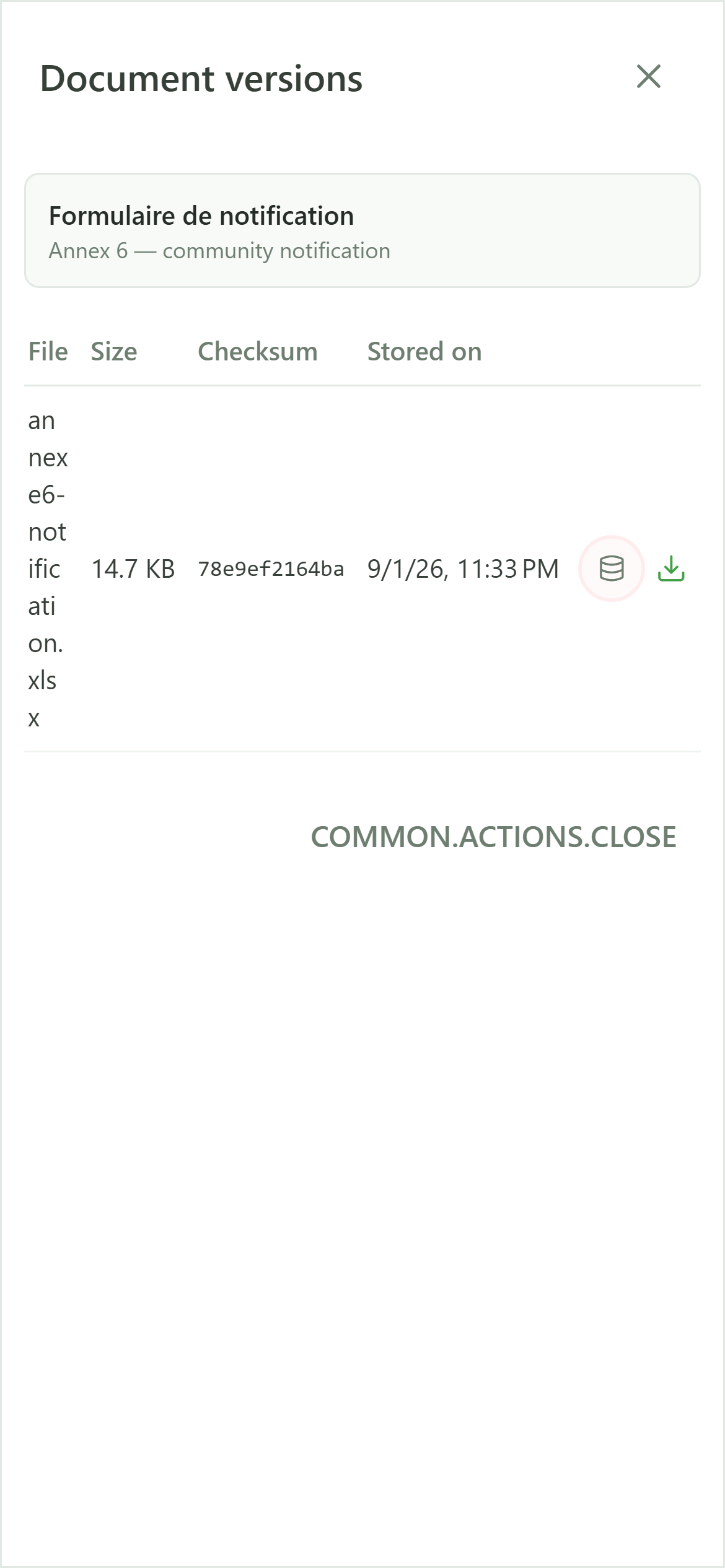
14 A record of what was produced
Document versions
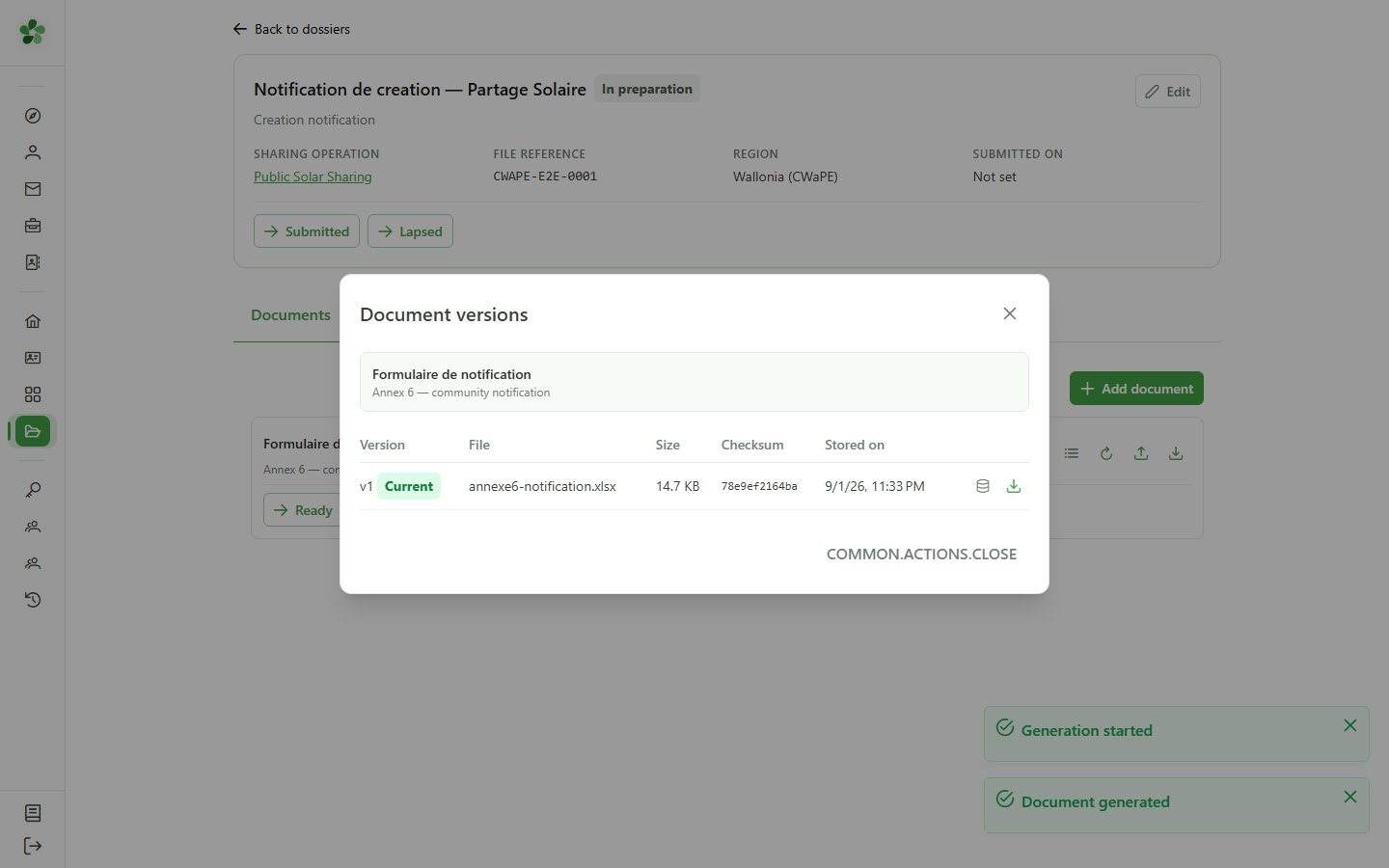
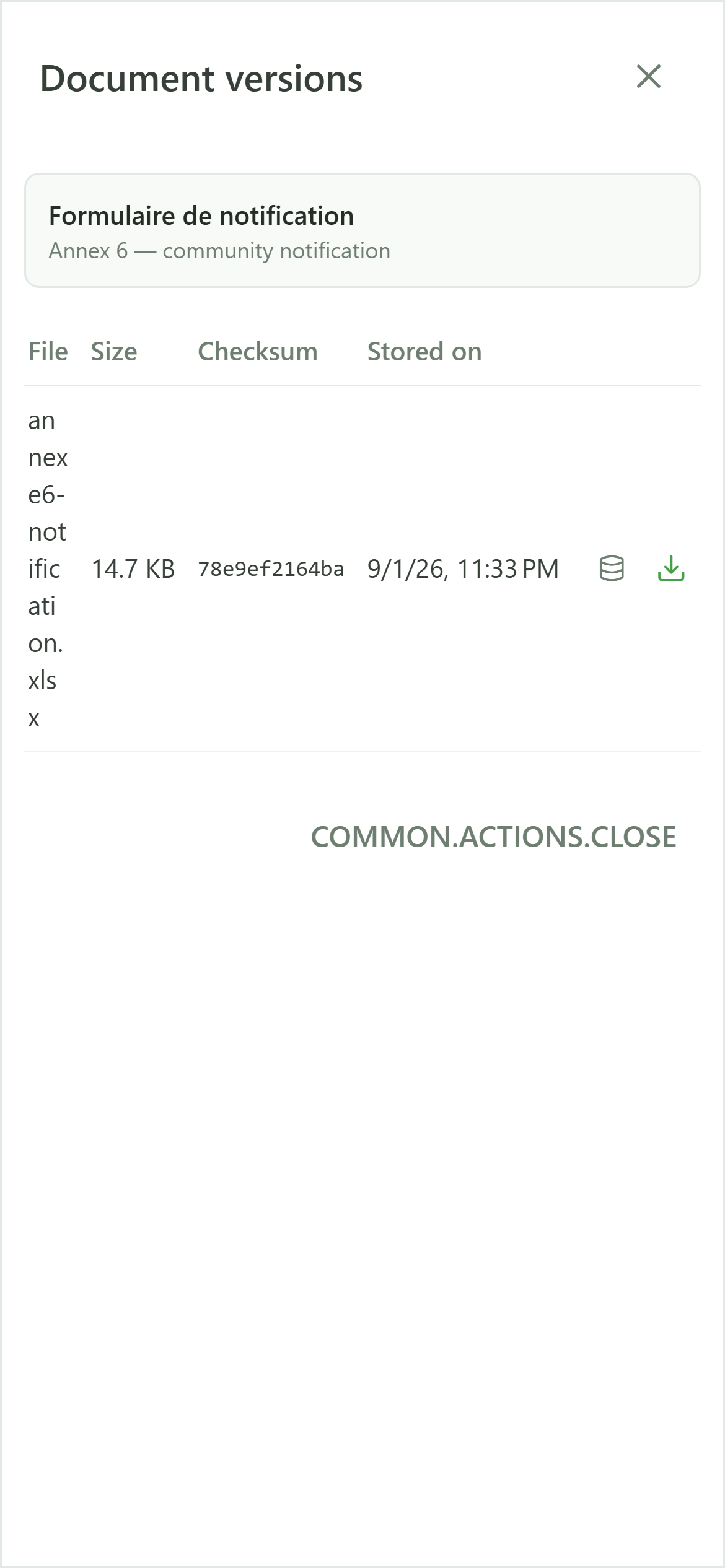
Every version records when it was produced and by whom. Generated versions additionally keep the exact data that was used.
15 See the frozen data
Document versions
Open the snapshot to re-read the data exactly as it was at filing time. A later change in the CRM never rewrites what was submitted.
Generate a document from the CRM
Guide utilisateur
User guide
Gebruikershandleiding
Benutzerhandbuch
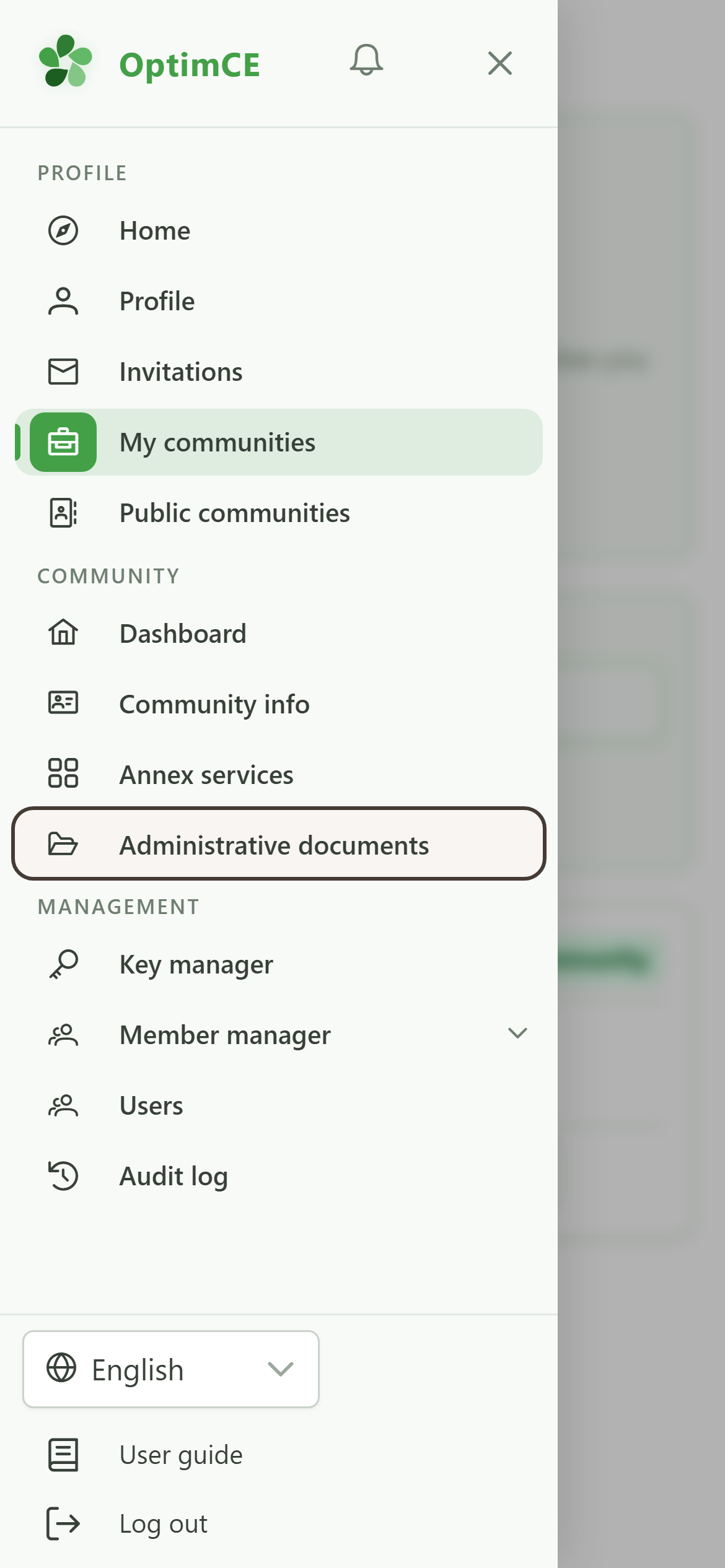
1 Open the administrative documents
Navigation
Tap the menu icon to open the drawer, then "Administrative documents".
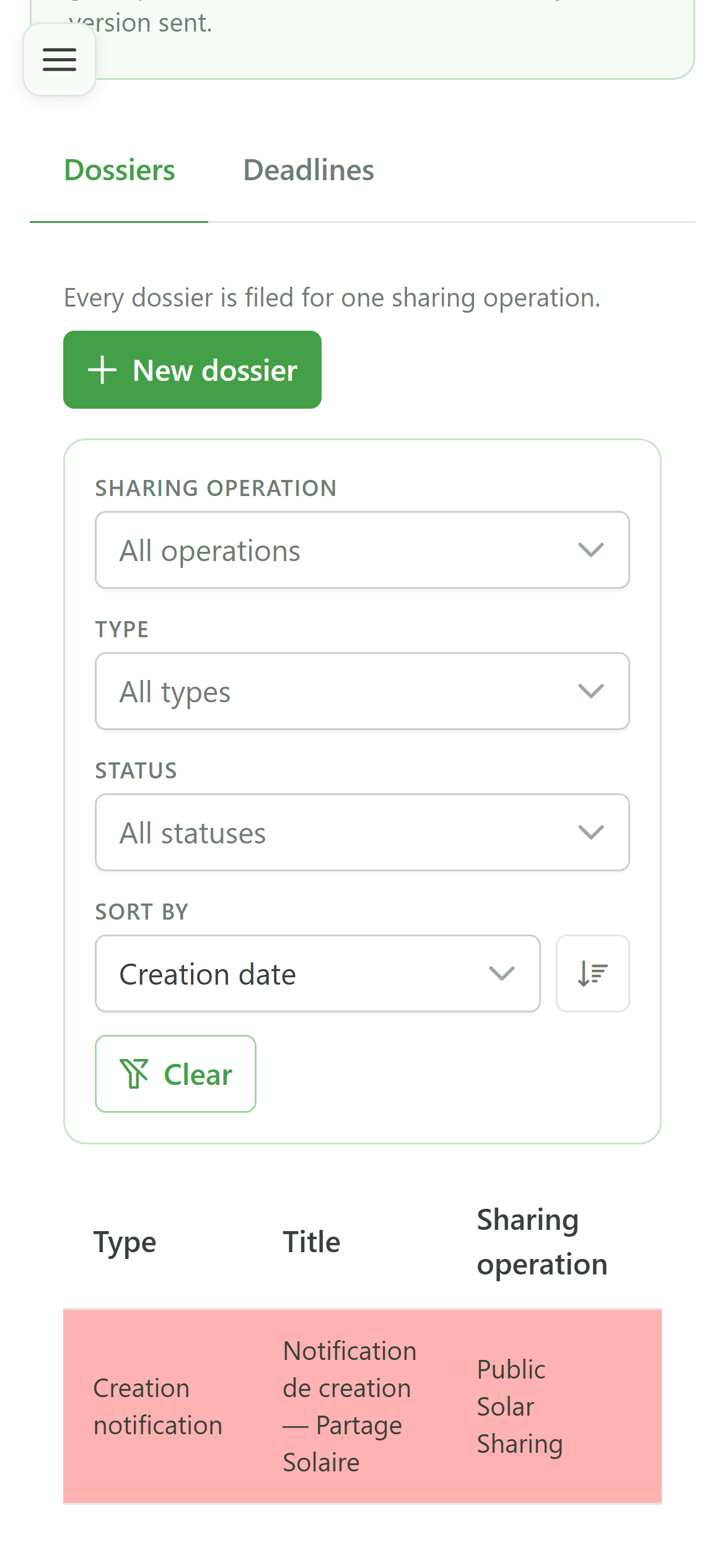
2 Open the dossier
Administrative documents
Click the dossier row to open its page. Documents are always added inside a dossier.
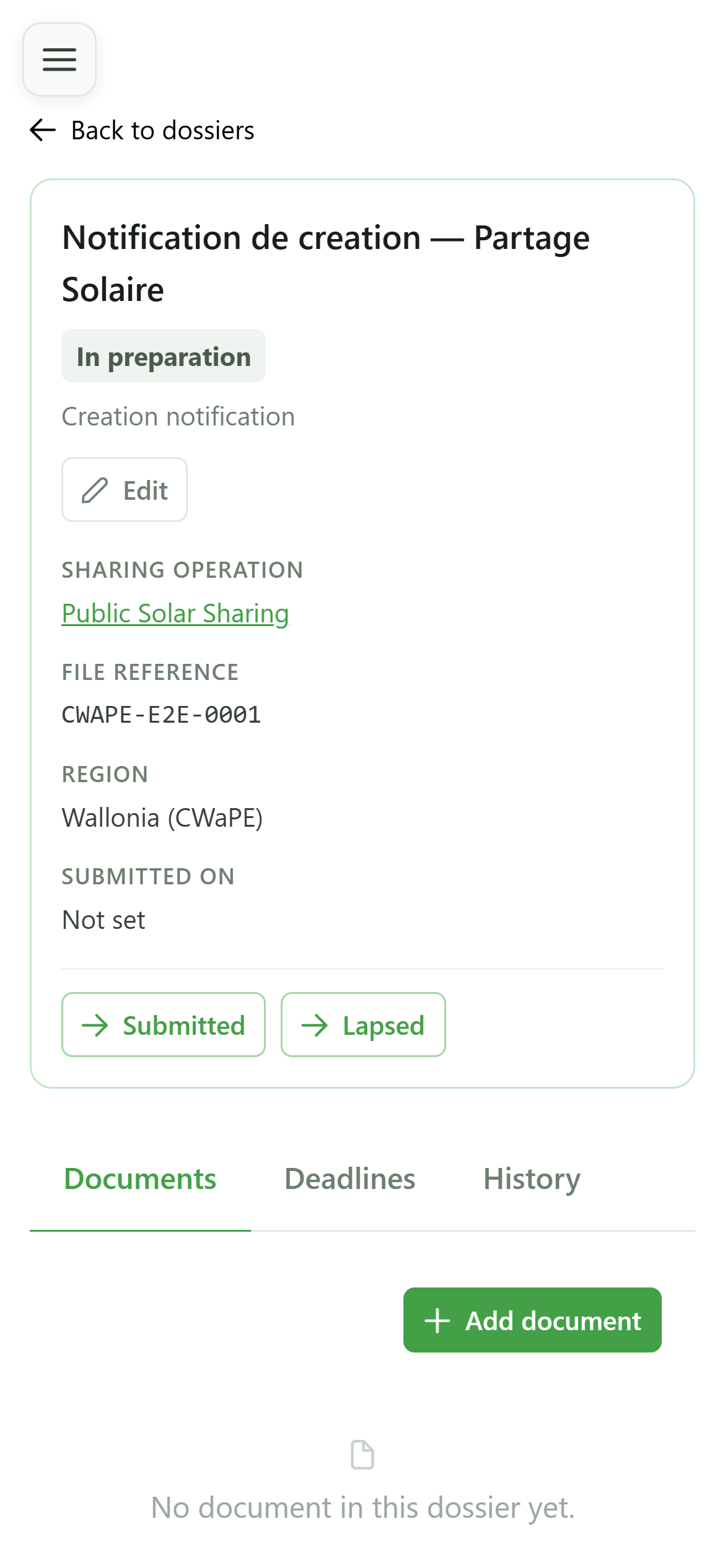
3 An empty dossier
Dossier documents
The "Documents" tab lists the dossier's pieces. A freshly created dossier holds none.
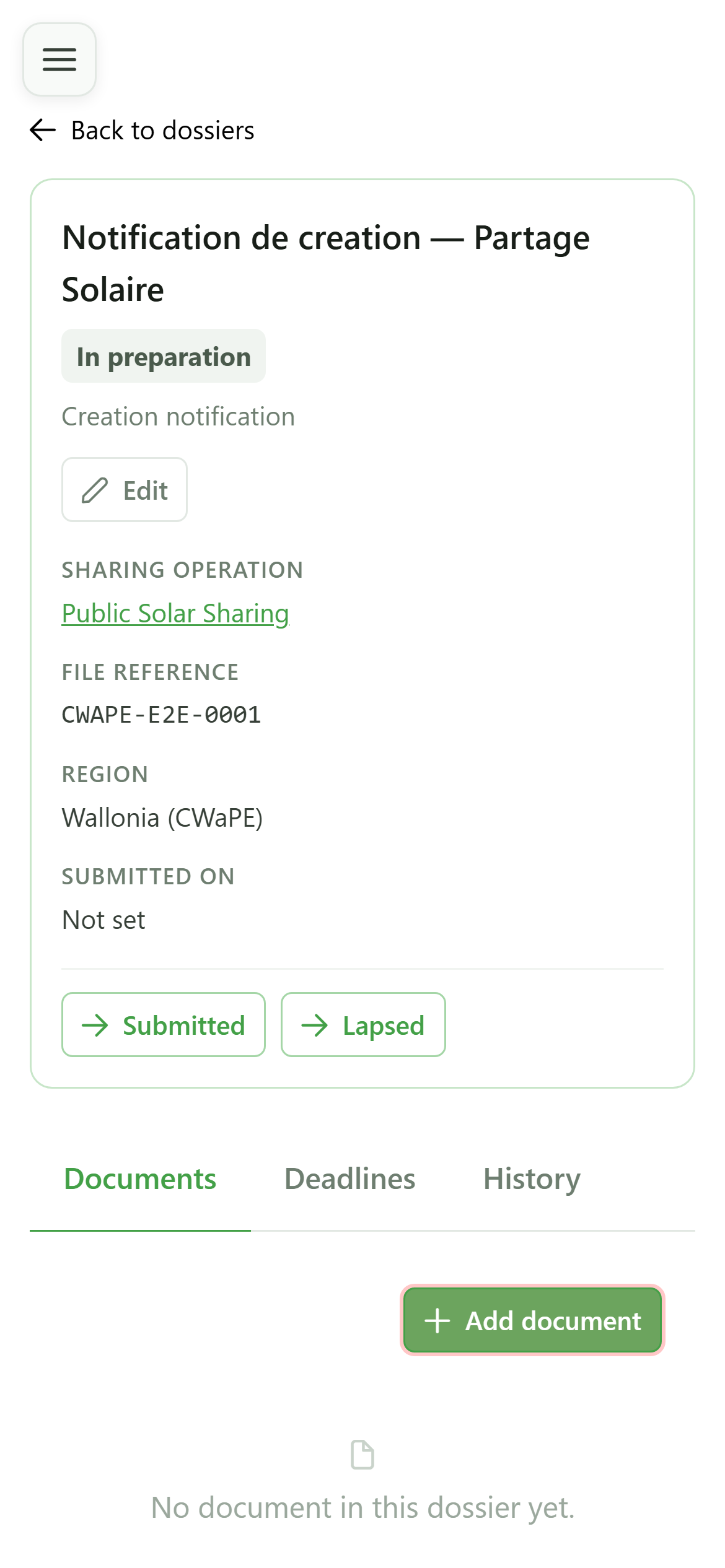
4 Add a document
Dossier documents
Click "Add document" to choose which regulatory form to prepare.
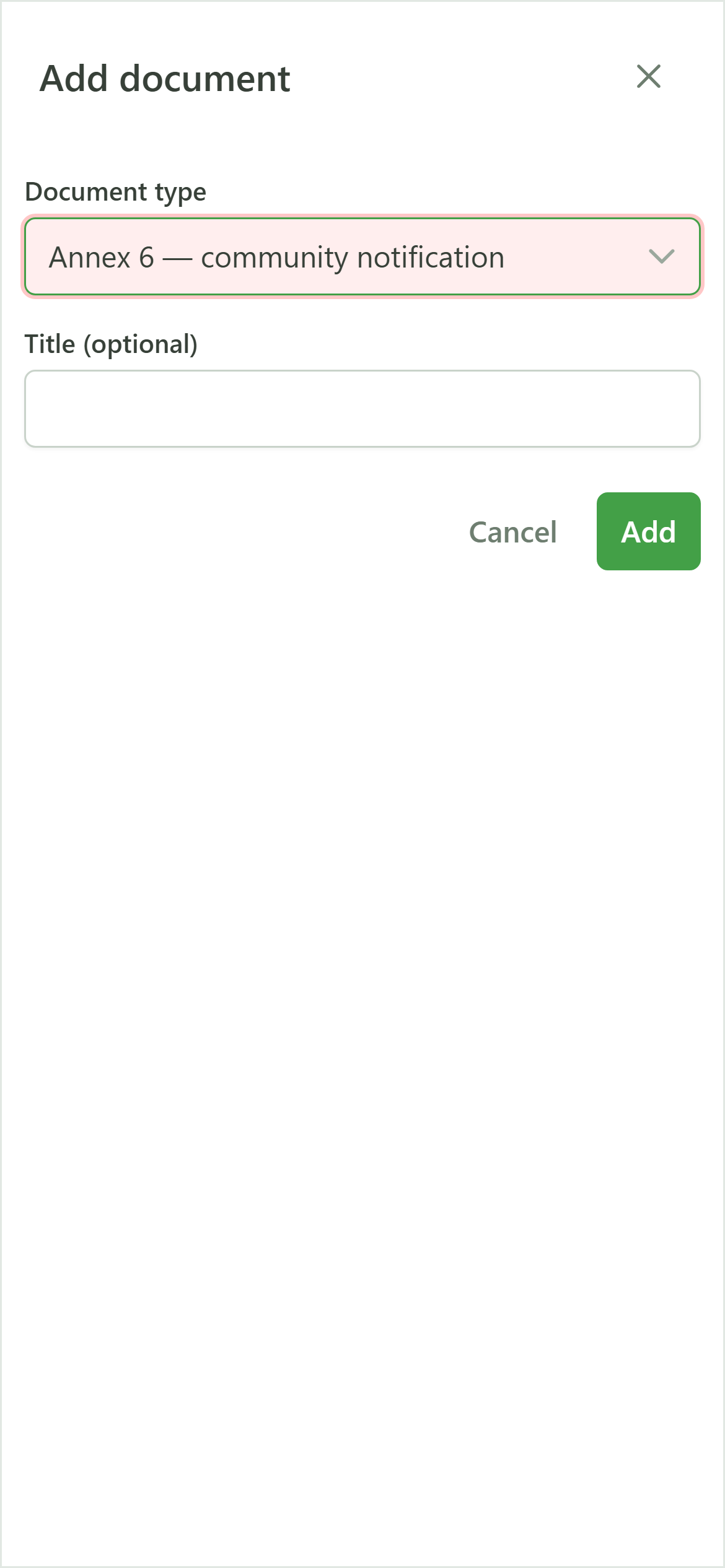
5 Choose the form
Add document
The list holds the forms published by the regulator for your region. Each one knows which CRM data it has to carry.
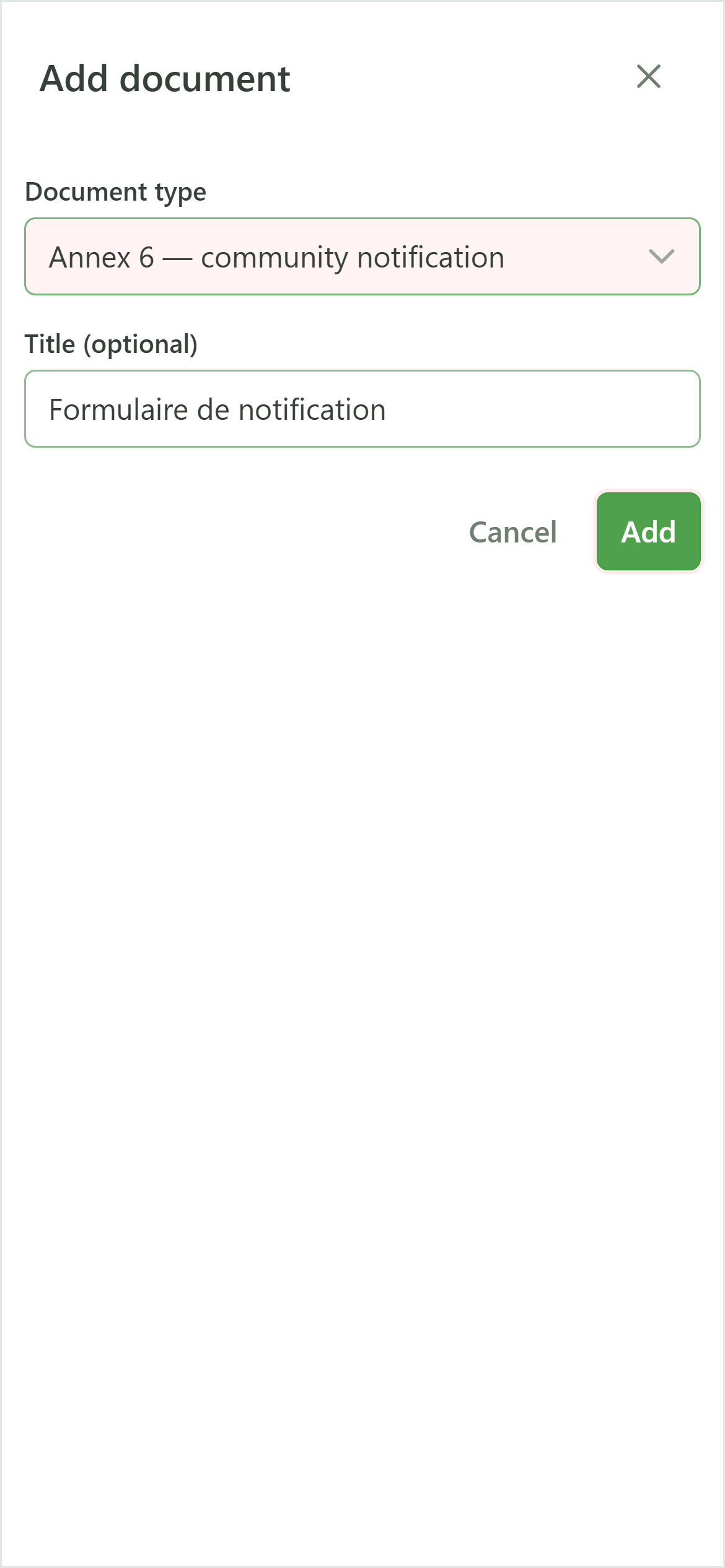
6 Create the document
Add document
Submit: the document joins the dossier, still without any content.
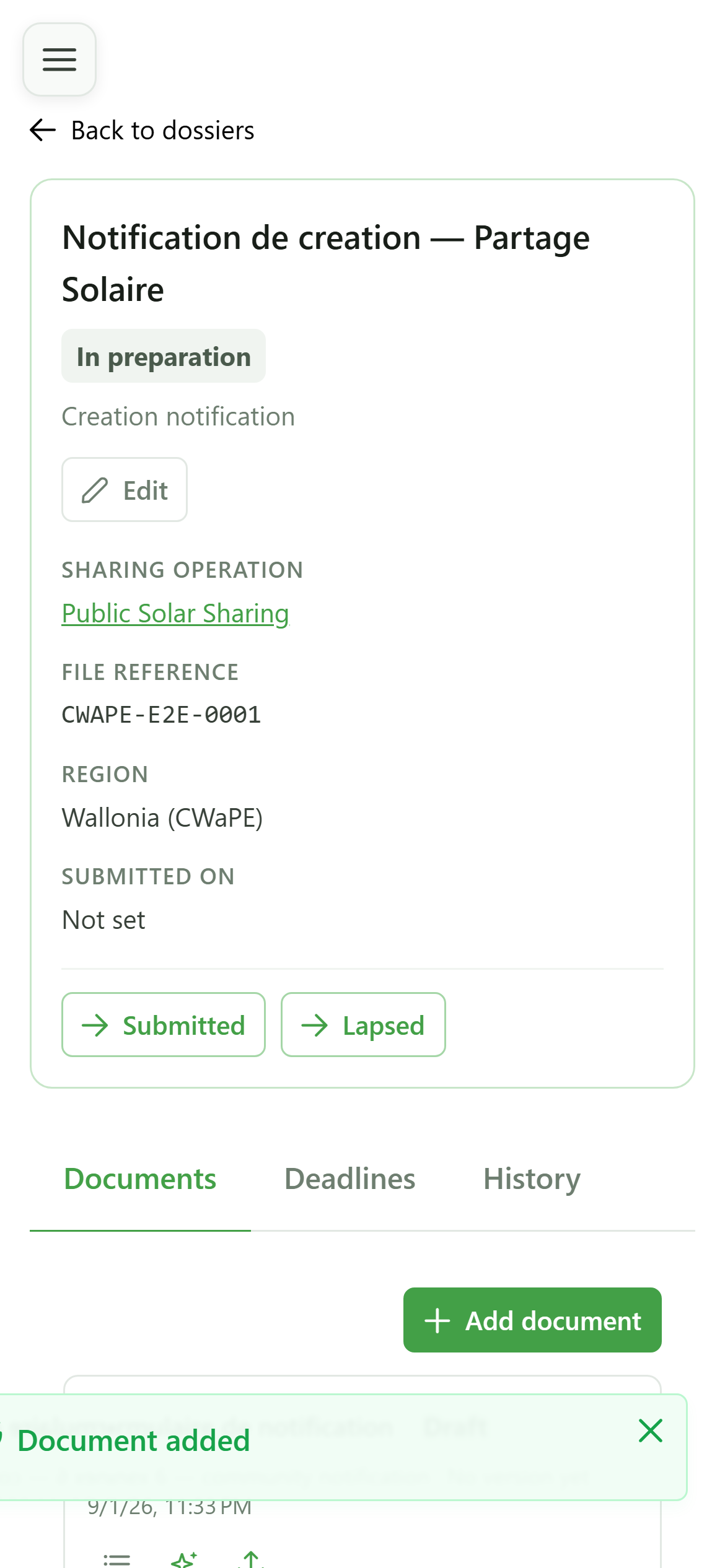
7 A draft is waiting
Dossier documents
The document is created with the status "Draft". It has no content yet: the icons offer to generate it from the CRM or to upload your own file.
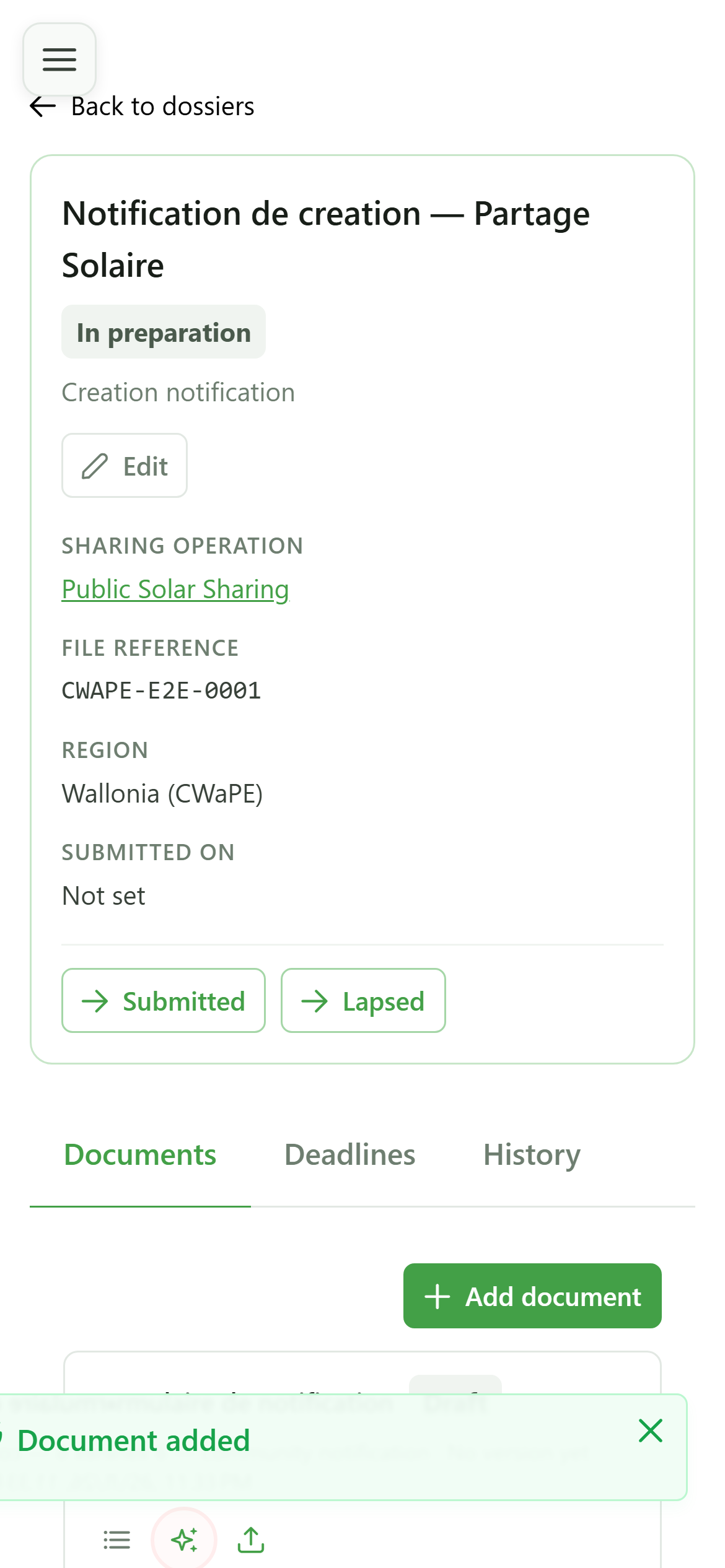
8 Generate the document
Dossier documents
Click the generate icon. OptimCE gathers the data of the community, the operation and its members to fill the form.
9 Check the data
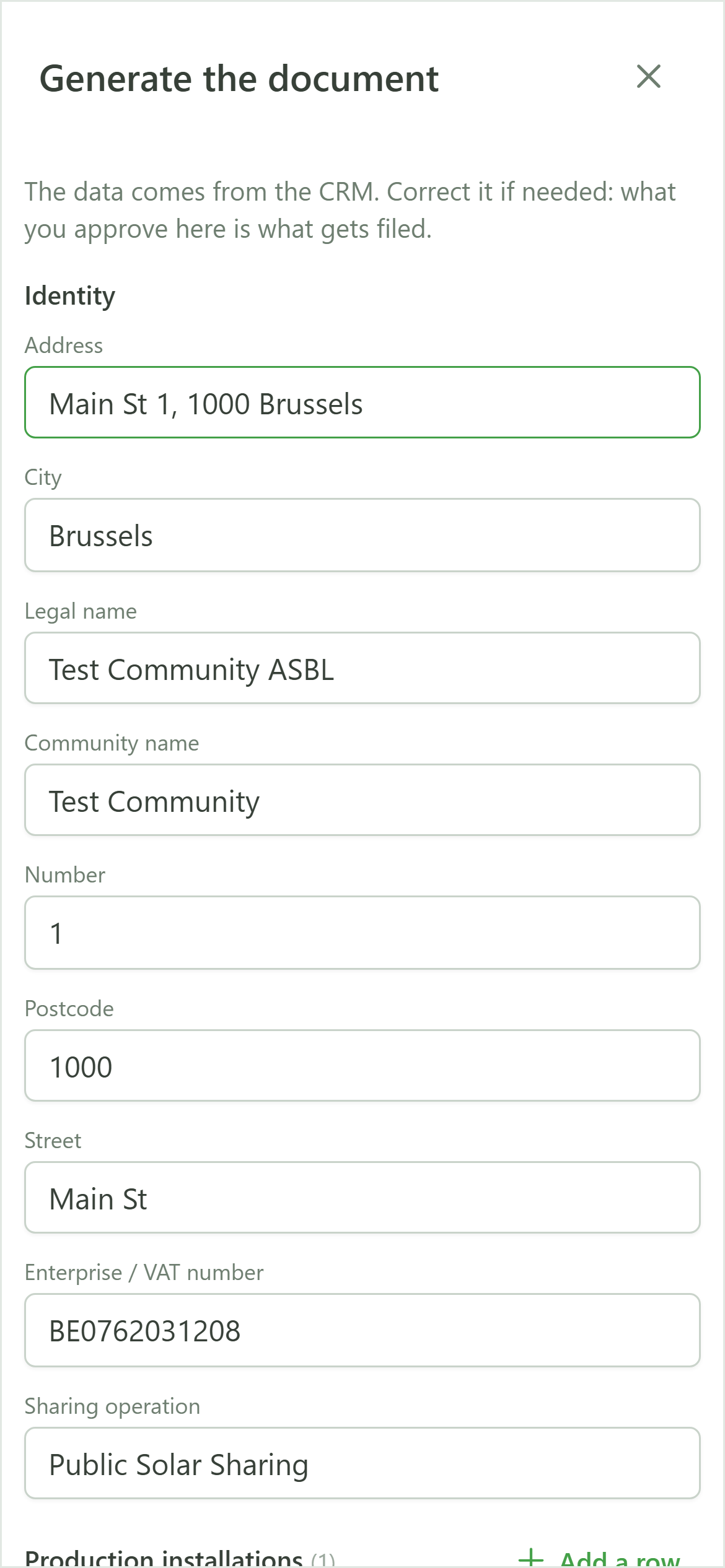
Generate the document
Nothing is filed without your review. The fields are pre-filled from the CRM and stay editable: what you approve here is exactly what gets frozen into the document.
10 Correct a value
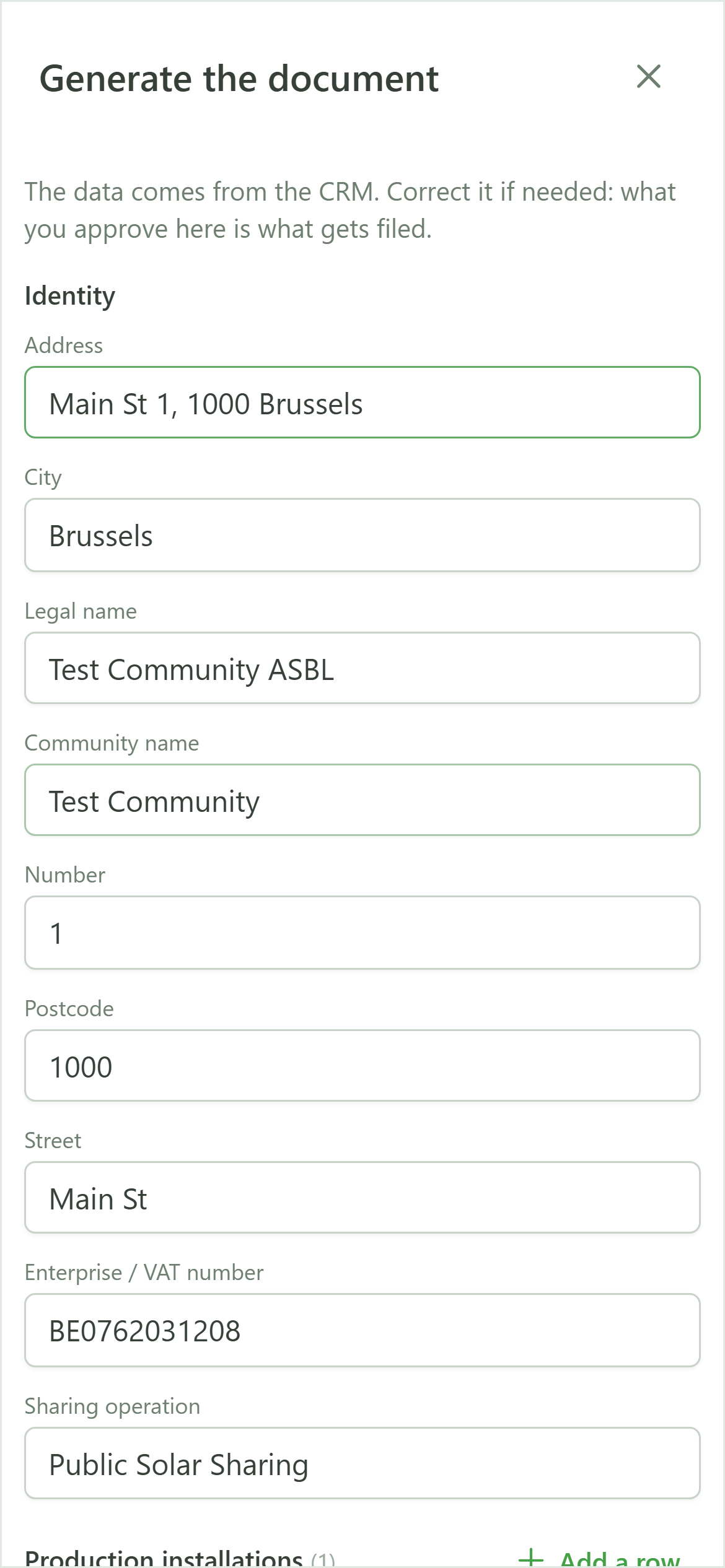
Generate the document
A correction made here applies to this document only. If a value is wrong everywhere, fix it in the CRM instead and reload the form.
11 Start the generation
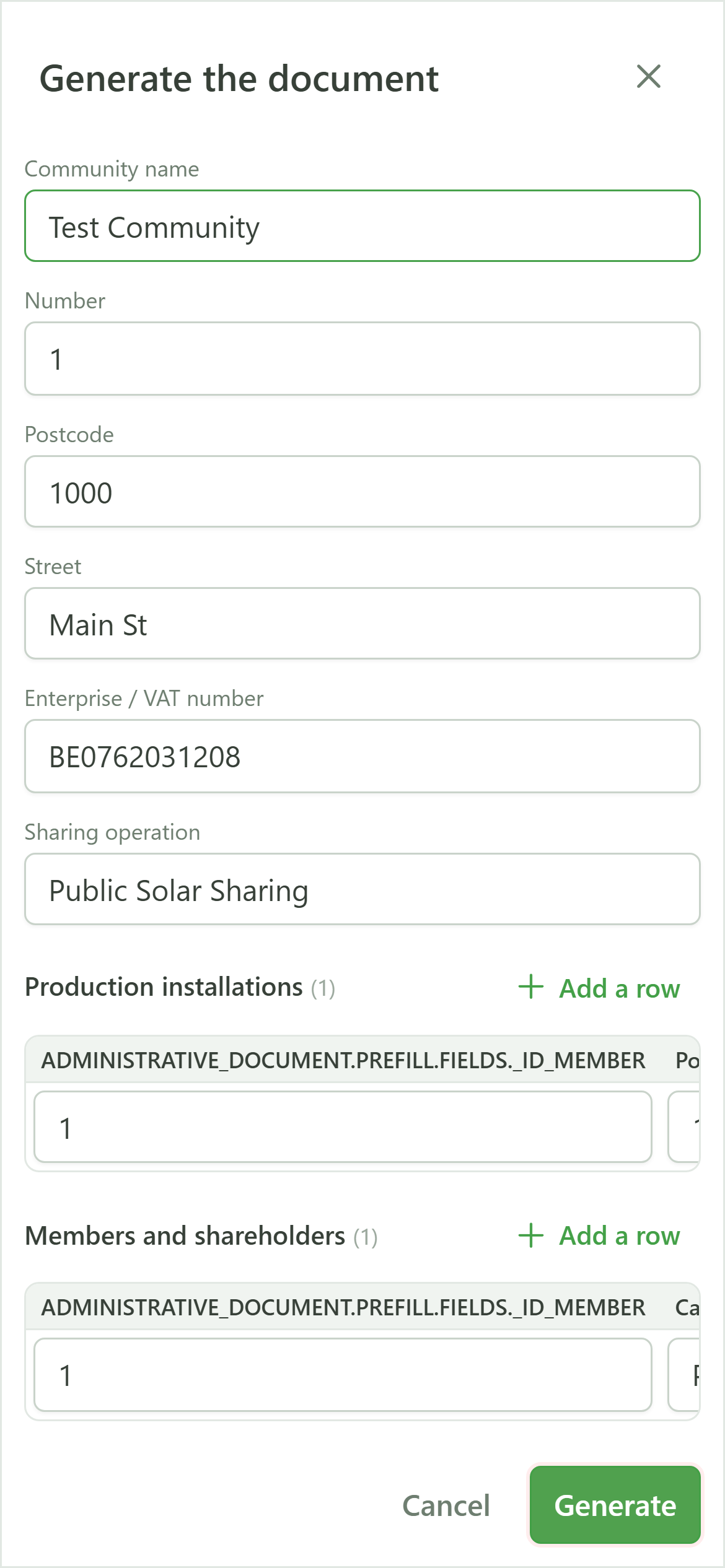
Generate the document
The generation runs in the background. You can carry on working: the document card shows "Generating" and updates on its own.
12 The document is ready
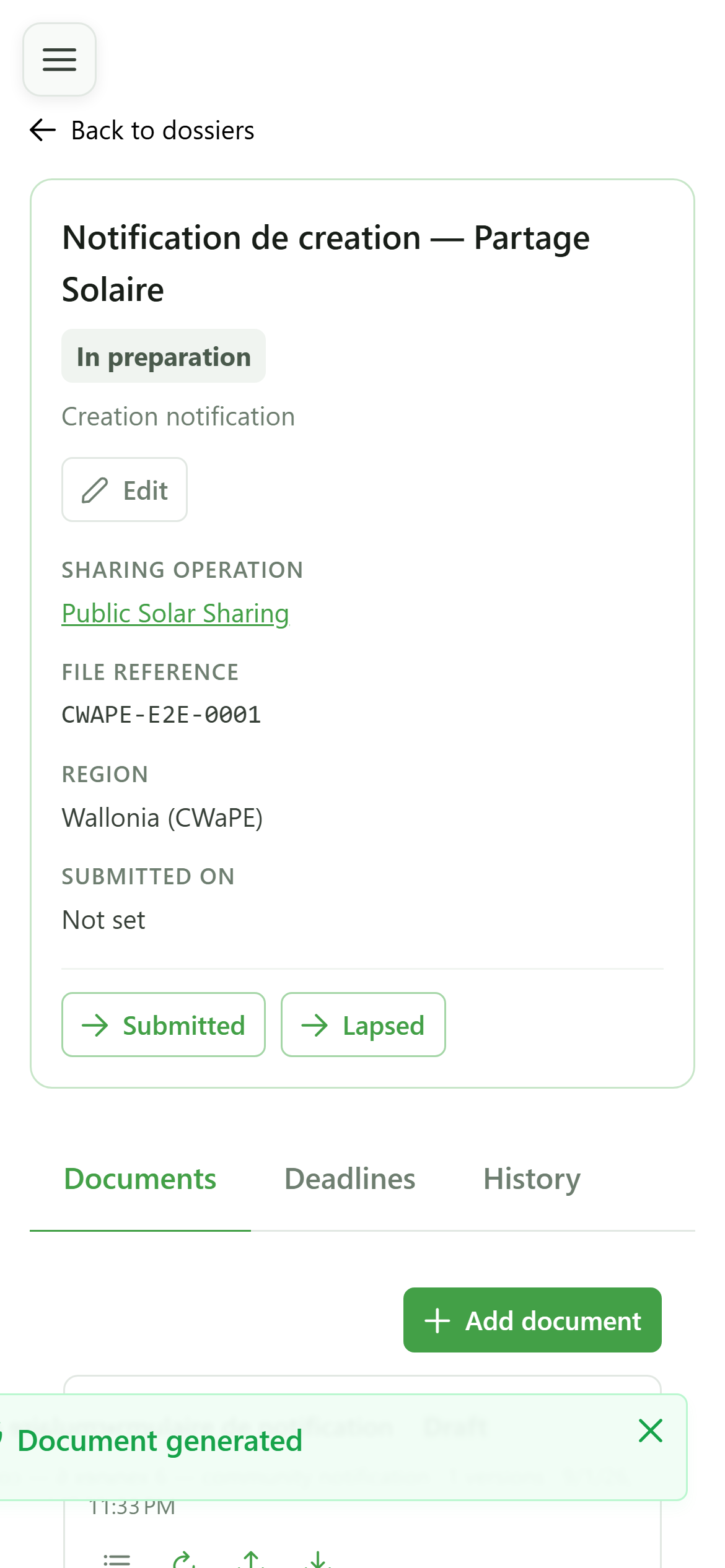
Dossier documents
Once the generation finishes, the document carries a downloadable version. Nothing is overwritten: every generation adds a new version.
13 Look at the versions
Dossier documents
The "Versions" icon opens the document's full history.
14 A record of what was produced
Document versions
Every version records when it was produced and by whom. Generated versions additionally keep the exact data that was used.
15 See the frozen data
Document versions
Open the snapshot to re-read the data exactly as it was at filing time. A later change in the CRM never rewrites what was submitted.